Liquid UI - Documentation - 5.05 dropdownlist()

5.05 dropdownlist()


Purpose

The dropdownlist() is used to create dropdownlists on SAP screens, enabling users to select from a predefined set of options. You can populate the dropdown dynamically, trigger functions on selection, and even link values to other fields. Additionally, the appearance of the dropdownlist can be customized using various styling options.

 

Note: You can specify the position of the dropdownlist in different ways. Click here for details on positioning the screen elements.


Syntax

You can create a dropdownlist at desired locations with the required functionalities using the following formats.

Format 1: Basic dropdownlist placement

 
//Creates a dropdownlist with a label name at specified row and column coordinates
dropdownlist([row,col],"label name",{"option":value...});
 

You can use the set command to populate values in the dropdownlist. The following is the syntax:

 
set("V[label name]",value);

Format 2: Dropdown list with respect to other screen elements

 
// Creates a dropdownlist relative to other screen elements
dropdownlist("F[screen element]+[row,col]","variables",{"option":value...});
 

Properties

  • row, col - Row and column coordinates
  • variables - The list of items that appear in the dropdownlist
  • screen element - Field name

Available Options

You can use the following options with the dropdownlist:

"process":".."

"process":true - Triggers a function when a value is selected.

"refer":".."

"refer":"true" - Passes the selected value of the dropdownlist to another screen or a different element on the same screen.

"textfont":".."

"textfont":"string" - Changes the font style of dropdown text. The default font is Arial.

"textheight":".."

"textheight":"" - Adjusts the text height in the dropdownlist. The height can be specified in pixels, percentages, or EMs. The default height depends on the SAP GUI font size.

"textweight":".."

"textweight":true - Sets font weight (boldness) from 1 (thin) to 9 (heavy), with the default value being 5.

"width":".."

"width":value - Defines the dropdownlist width (default is 16).

Options Detail

process

  1. Triggers a function when a user selects an item from the dropdownlist. 
     
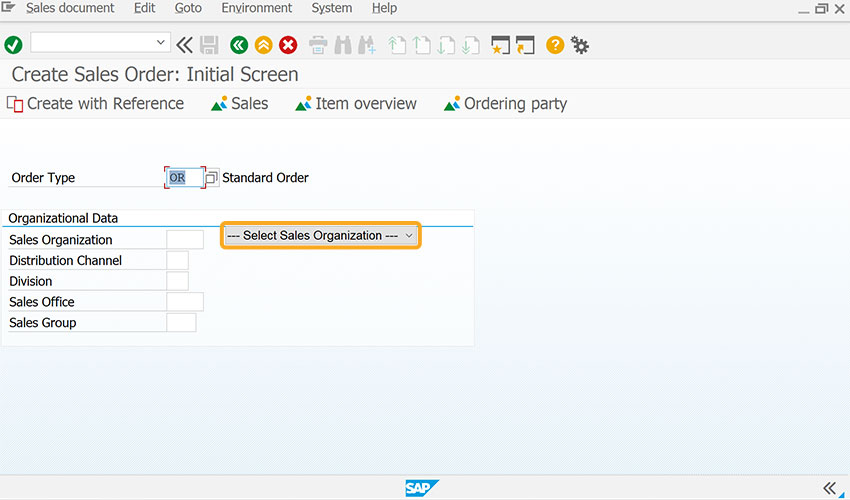
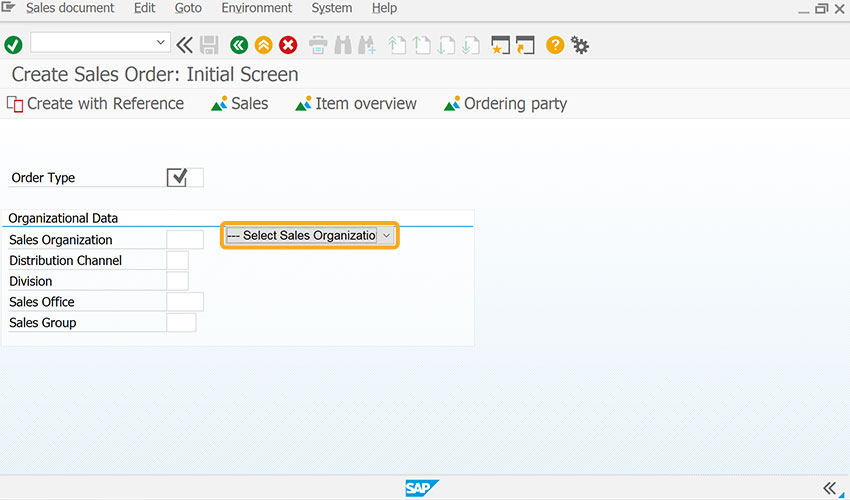
    // Adds and sets Sales Organization values to dropdownlist
    set("V[z_salesorg_list]", "=--- Select Sales Organization ---;1000=Germany Frankfurt;2000=UK Heathrow/Hayes;3000=USA Philadelphia;");
    dropdownlist([5,30], "z_salesorg_list", {"refer":"z_va01_salesorg","width":25,"process":z_set_sorg});
     
    Dropdown selection triggers a function on the VA01 screen
     
  2. As per the code, the dropdownlist will call the z_set_sorg named function.

refer

  1. Assigns the selected value of the dropdownlist to another screen or a different element on the same screen.
     
    // Creates and sets Sales Organization values to dropdownlist
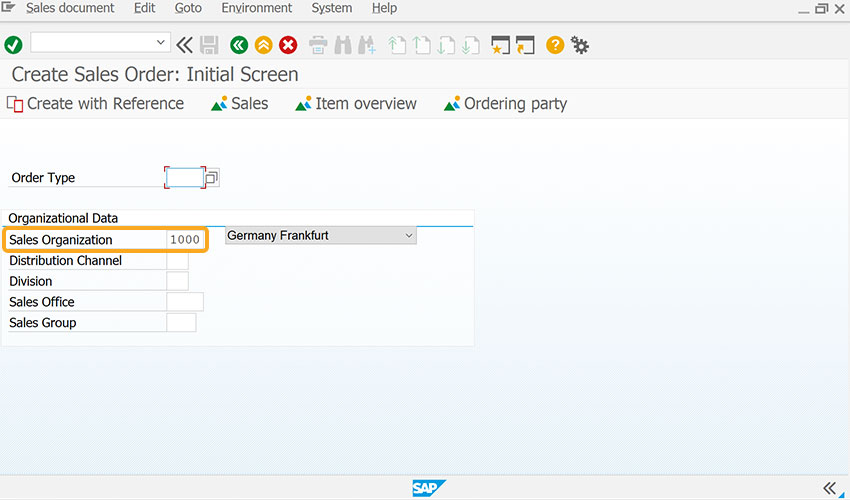
    set("V[z_salesorg_list]", "=--- Select Sales Organization ---;1000=Germany Frankfurt;2000=UK Heathrow/Hayes;3000=USA Philadelphia;");
    dropdownlist([5, 30], "z_salesorg_list", {"refer":"z_va01_salesorg","width":25});
    set("F[Sales Organization]",'&v[z_va01_salesorg]');
     
    Assigns selected dropdown value to another field or same screen element
     
  2. The selected value from the dropdownlist is assigned to the Sales Organization input field.

textfont

  1. Specifies the font style of the values in the dropdownlist. The default font is Arial.
     
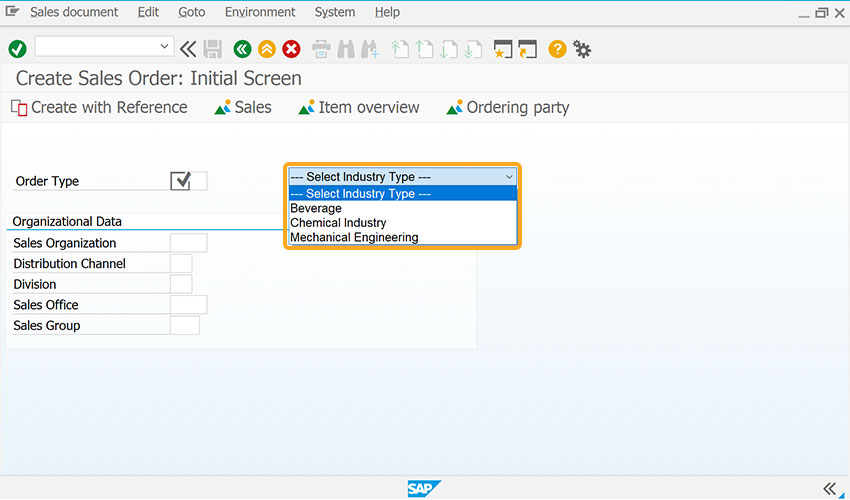
    // Create and sets Industry Type values to mylist dropdown
    set("V[mylist]", "=--- Select Industry Type ---;B=Beverage;C=Chemical Industry;M=Mechanical Engineering;");
    dropdownlist([2, 38], "mylist", {"refer":"F[Industry sector]", "width":30,"process":test_dropdown,"textfont":"Times New Roman"});
     
    Sets font style for dropdown values
     
  2. As per the code, the font style of the dropdownlist values is changed to Code New Roman

textheight

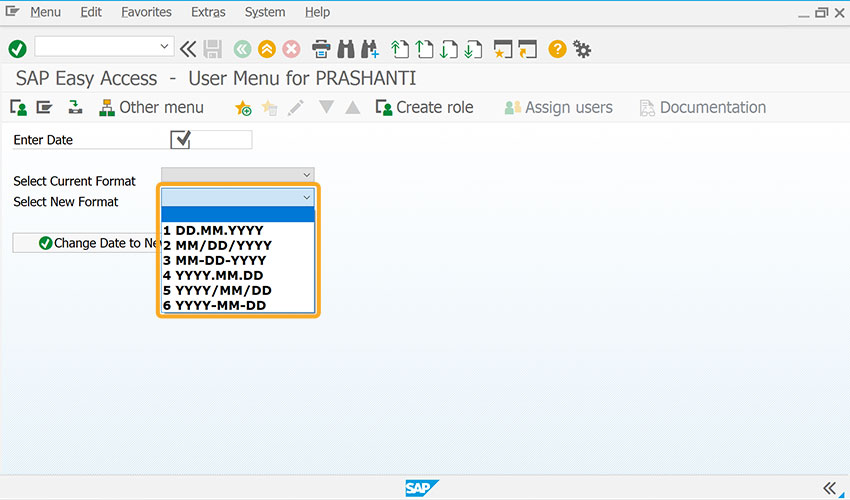
  1. Sets the height of the text in the dropdownlist, which can be specified in pixels, percentage, or EMs. The default height is based on the SAP GUI font size.
     
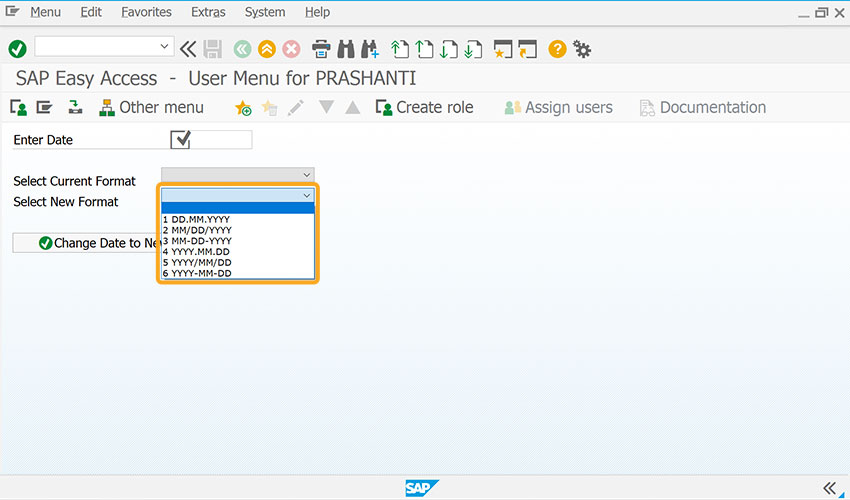
    // Creates and sets Date values to the New Format dropdownlist
    set("V[New Format]", "=;1=1 DD.MM.YYYY;2=2 MM/DD/YYYY;3=3 MM-DD-YYYY;4=4 YYYY.MM.DD;5=5 YYYY/MM/DD;6=6 YYYY-MM-DD;");
    dropdownlist([3,22], "New Format", {"refer":"z_newdtformat", "width":20, "textheight":25});
     
    Sets font height for dropdown values
     
  2. As per the code, the textheight option increases the height of text in pixels.

textweight

  1. Specifies the weight of the text in the dropdownlist that appears in Bold font. The Bold font ranges from 1(thin) - 9(heavy), and the default value is 5.
     
    // Creates and sets Date values to the New Format dropdownlist
    
    set("V[New Format]", "=;1=1 DD.MM.YYYY;2=2 MM/DD/YYYY;3=3 MM-DD-YYYY;4=4 YYYY.MM.DD;5=5 YYYY/MM/DD;6=6 YYYY-MM-DD;");
    dropdownlist([3,22], "New Format", {"refer":"z_newdtformat", "width":15, "textweight":7});
     
    Sets text weight for dropdown values
     
  2. As per the code, the text weight is increased to 10.

width

  1. Specifies the width of the dropdownlist. The default width is 16.
     
    // Creates and sets Sales Organization values to new dropdownlist
    set("V[z_salesorg_list]", "=--- Select Sales Organization ---;1000=Germany Frankfurt;2000=UK Heathrow/Hayes;3000=USA Philadelphia;");
    dropdownlist([5,30], "z_salesorg_list", {"refer":"z_va01_salesorg","width":22,"process":z_set_sorg});
     
     
    Sets width of the dropdownlist
     
  2. As per the code, the horizontal width of the dropdownlist is set to 22.

Example: Creating a Customized dropdown menu

This example demonstrates how to create a customized dropdown menu linked to the Order Type on the Create Sales Order: Initial Screen.

//Create the file SAPMV45A.E0101.sjs inside your scripts folder for customizing the Create Sales Order: Initial Screen
//Now, add the Liquid UI script to the above file, and save it.

  1. Create a dropdownlist and set values to the Order Type input field.
     
    // Creates and sets Order Type values to mylist dropdownlist
    set("V[mylist]","=--- Select Order Type---;AA=Promotion Order;CMR=Standard Order;AEBO=AEBO Order;");
    dropdownlist([2,17],"mylist",{"refer":"F[Order Type]","width":30,"process":test_dropdown});
    
     
  2. Navigate to the Create Sales Order: Initial Screen to view the custom order type dropdown.
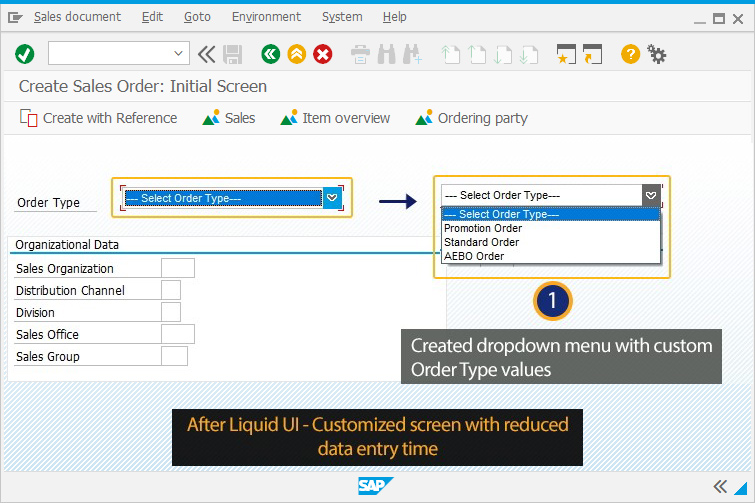
     
    Custom order type dropdown on Create Sales Order: Initial Screen
     

    Click here for details on how to create a new dropdownlist.

Tips and Tricks

Restrict dropdownlist

You can restrict entries and trigger automatic execution on selection.

  1. Create a dropdown list for the Industry sector input field, and add a function for the dropdownlist to restrict the dropdownlist values.
     
    // Creates Mylist dropdownlist and sets values for it
    set("V[mylist]","=--- Select Industry Type ---;B=Beverage;C=Chemical Industry;M=Mechanical Engineering;");
    dropdownlist([2, 17],"mylist",{"refer":"F[Industry sector]","width":30,"process":test_dropdown});
    // Adds function for dropdownlist
    function test_dropdown(){
    set("F[Industry sector]",z_ordertypeselected);
       set("F[Material Type]","FERT");
       enter("?");
    }
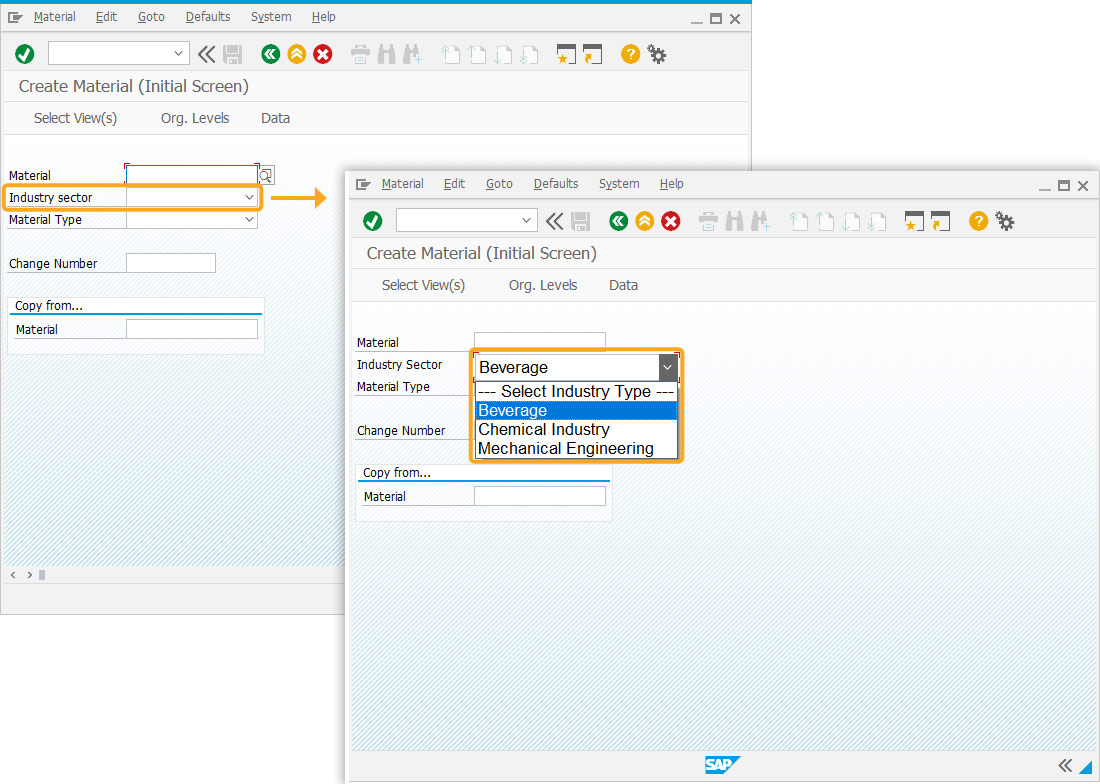
    
     
    Dropdown list added to Industry sector field with value restriction function
     

    Click here for details on how to create a dropdownlist on SAP screens.

Delete dropdownlist

You can remove dropdownlist from the SAP screen using del().

  1. Delete the Insurty Sector dropdownlist using the del().
     
    // Deletes Industry Sector dropdownlist
    del('F[Industry Sector]');
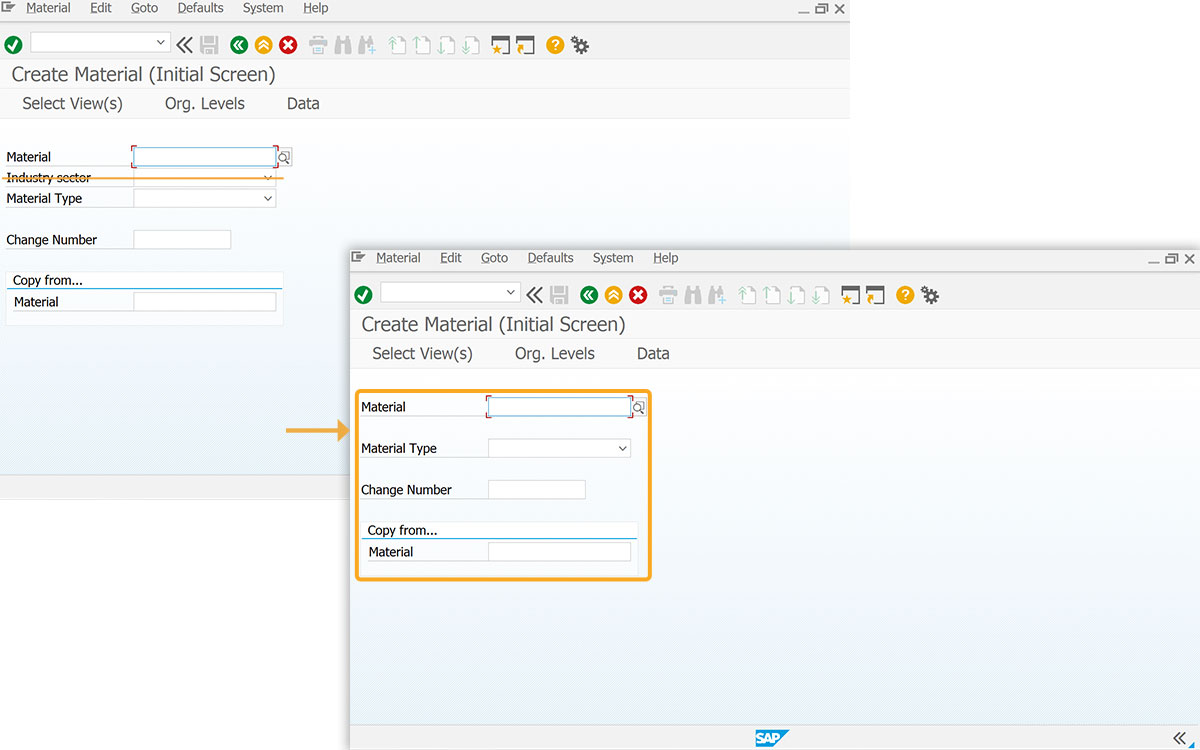
    
     
    Deletes the dropdownlist
     
Move dropdownlist

Dropdownlist can be repositioned within the same screen to the desired location using the pos() command.

  1. Change the position of Industry Sector input field using the pos().
     
    // Changes the position of Industry Sector dropdownlist
    pos('F[Industry Sector]',[2,40]);
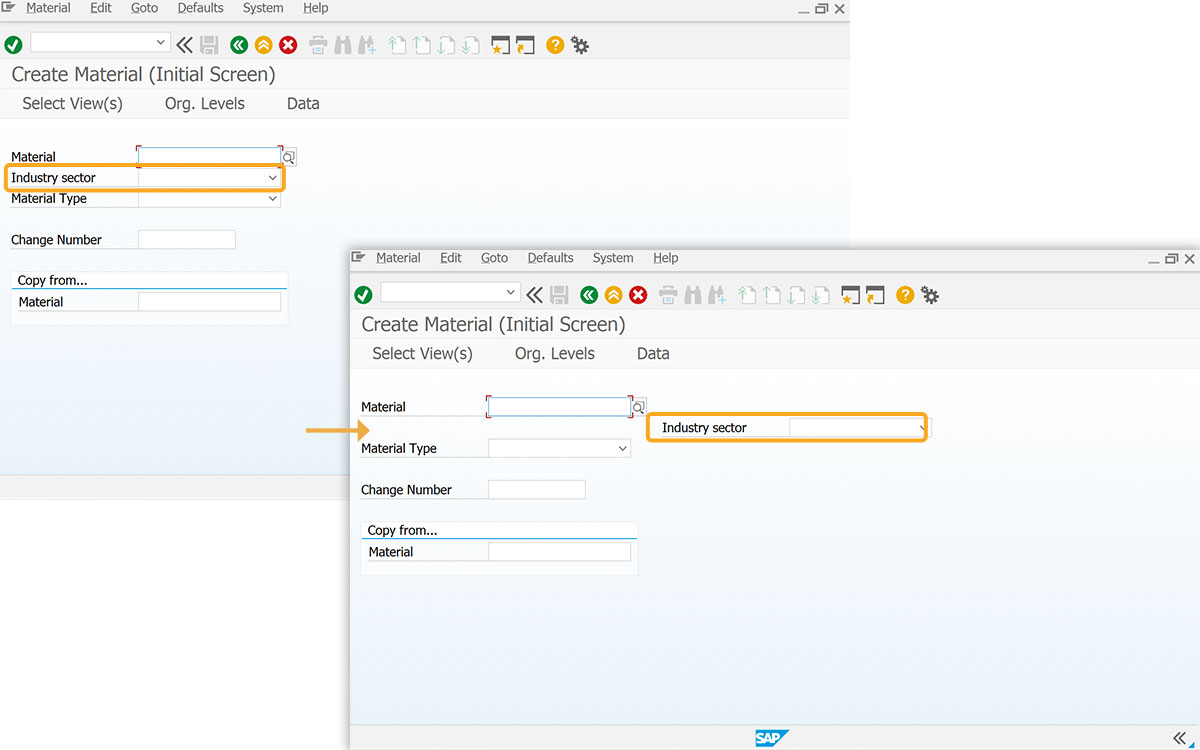


    Changes the position of input field
     

Usage Details


Can't find the answers you're looking for?