

Purpose
The image() is used to display images on SAP screens or toolbars, improving the user experience by providing context, assisting navigation, or linking to related resources. These images can also be configured to open help windows, webpages, or files (such as PDF or Word documents) when clicked.

Note: The use of the image is restricted to design scripts - it will not be available in functions.
Prerequisites
To ensure HTML and RTF files display correctly in SAP GUI and the image() is supported, verify that Pinnacle.dll is present in your SAP GUI folder. If images do not load, update the .dll to its latest version.
Syntax
image([startrow,startcol],"Image name",{"options":"value"...});
startrow, startcol: Row and column coordinates where the image appears (upper-left corner).
Image name: Name or path of the image file.
Note: You can specify the image position in various ways. Click here for details on positioning the screen elements.
The image command supports the following file types:
- BMP
- GIF
- JPG
- PNG
Note: For optimal image handling, the .BMP format is recommended for smaller images, such as icons. For larger images, GIF or JPG formats are more suitable.
Properties
- startrow,startcol - row and column coordinates
- Image name - image filename/path
Available Option
You can use the following options with the image:
|
"nobuffer": true - Always load the image from the file path instead of cache. Useful for frequently updated images. |
|
|
"nostretch": true - Maintain the image’s original aspect ratio, ignoring the defined dimensions. |
|
|
"plain": true - Removes the 3D frame around the image. |
|
|
"start": "path" - Makes the image clickable. It can launch a file or URL (supports .exe, .bat, web links, etc).. |
|
|
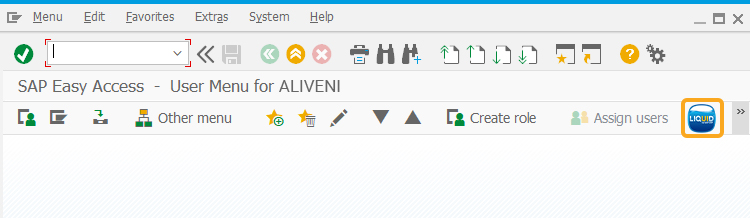
Displays the image on the SAP toolbar. |
|
|
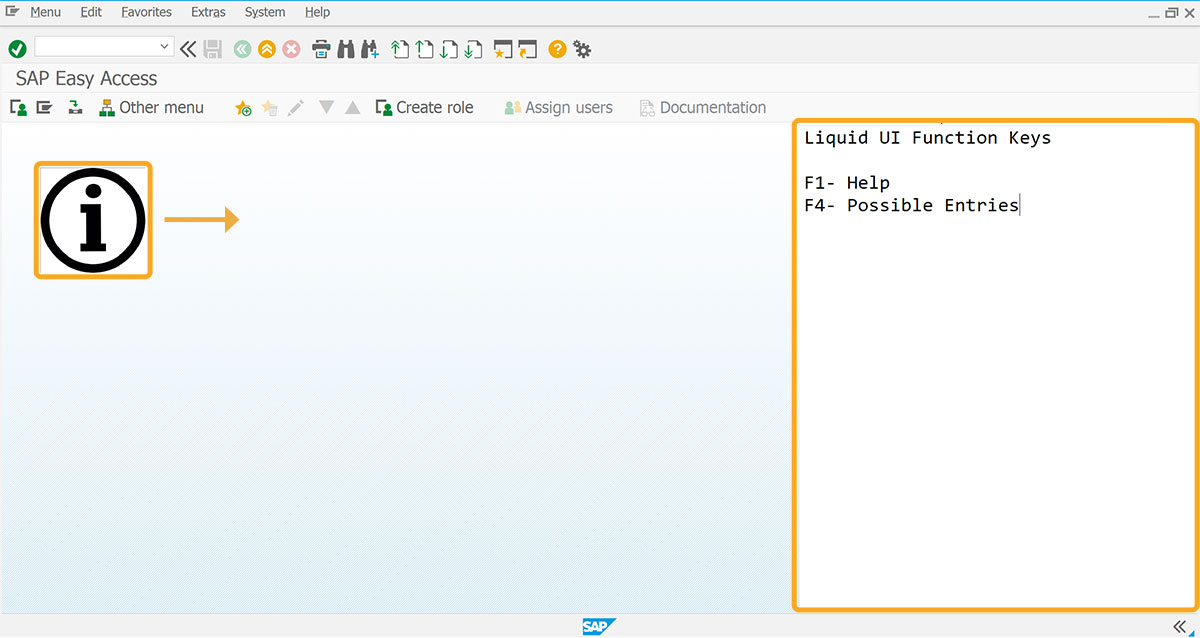
"viewhelp": "HTML/RTF" - Clicking on the image will display the specified file on the SAP window. You can specify an HTML or RTF file. |
|
| "viewhelp_height":".." |
"viewhelp_height": "X" - Sets the height of the help window. |
|
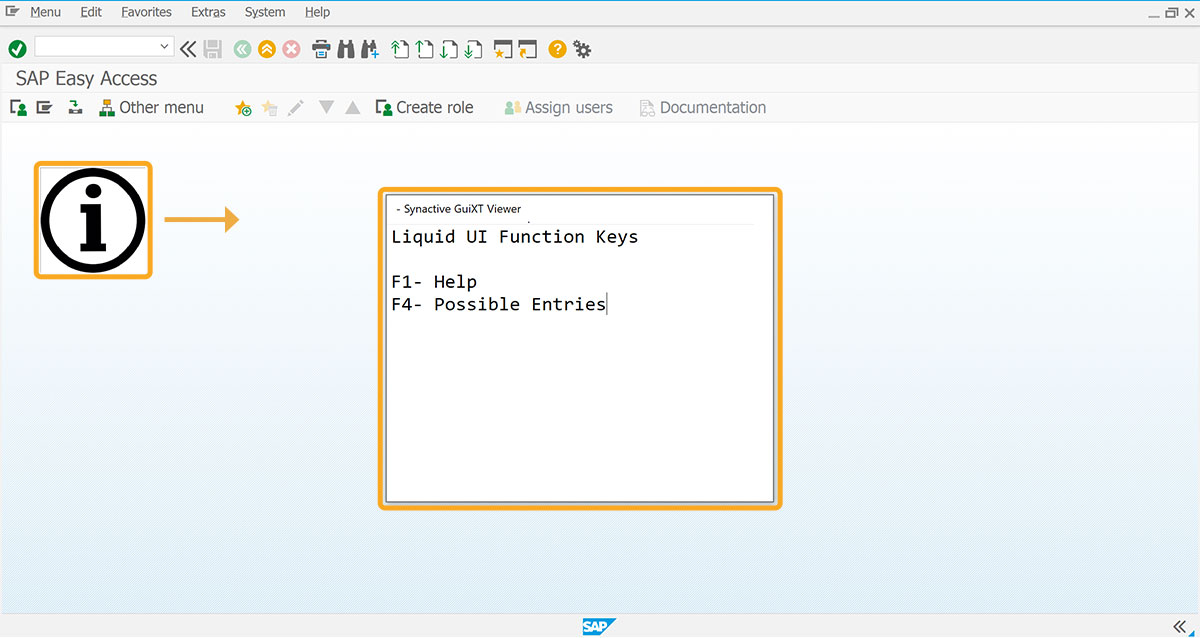
"viewhelp_position":"[row, column]" - Sets the screen position of the help window. |
|
|
"viewhelp_width":"X" -Sets the width of the help window. |
Options Detail
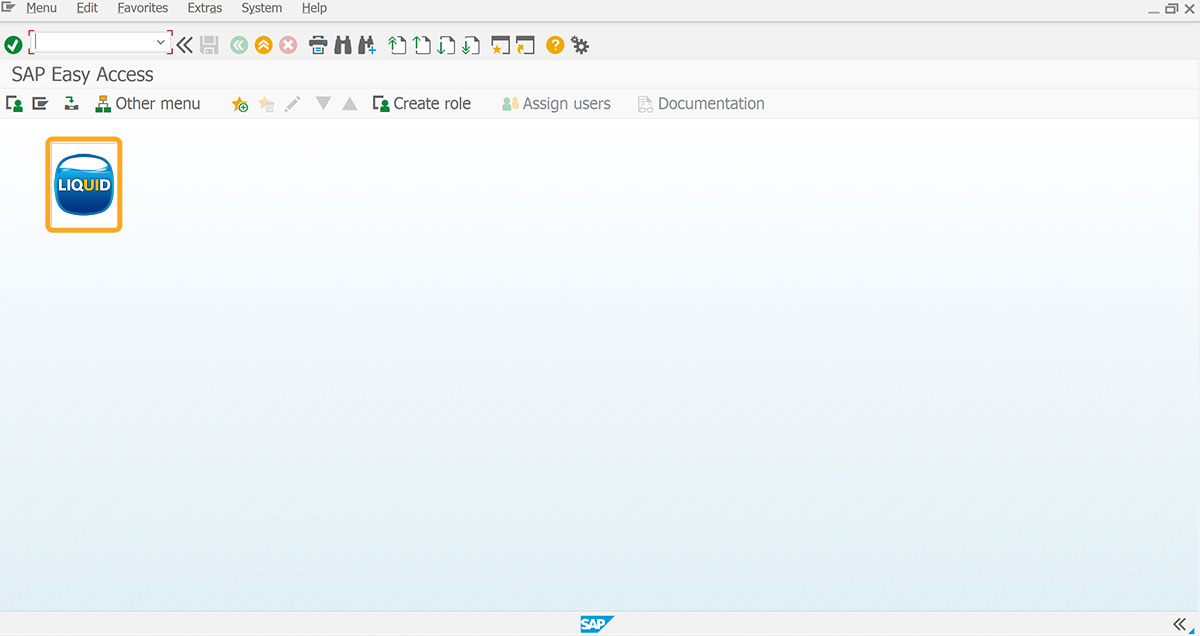
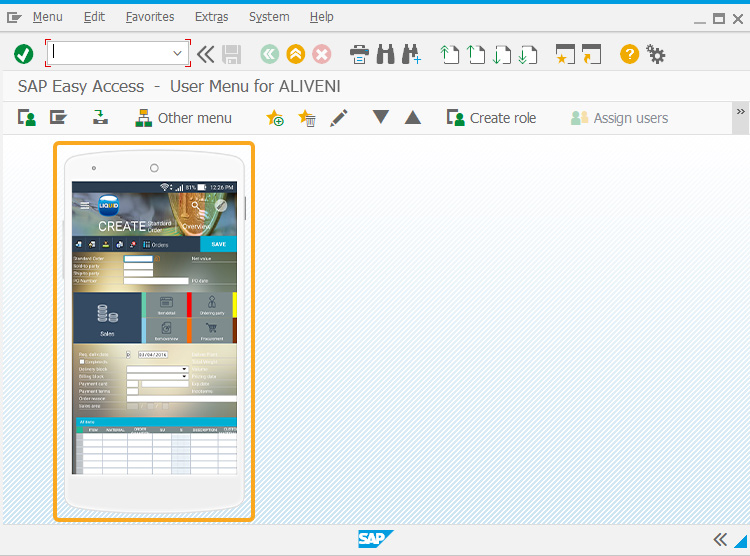
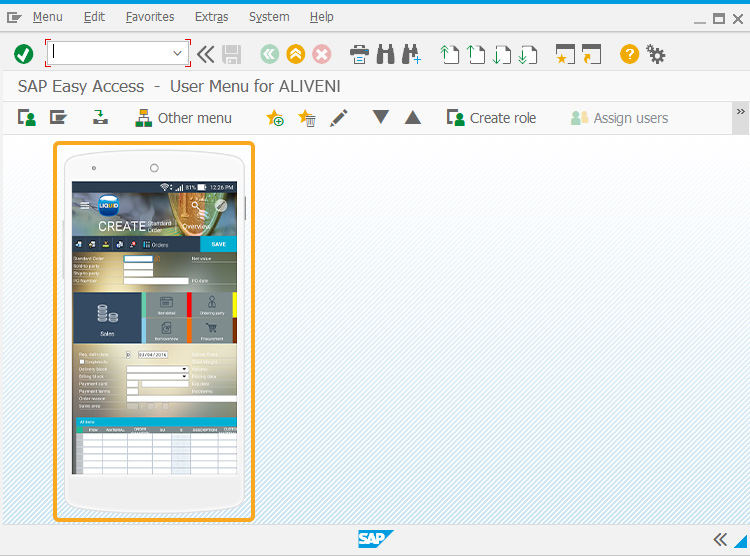
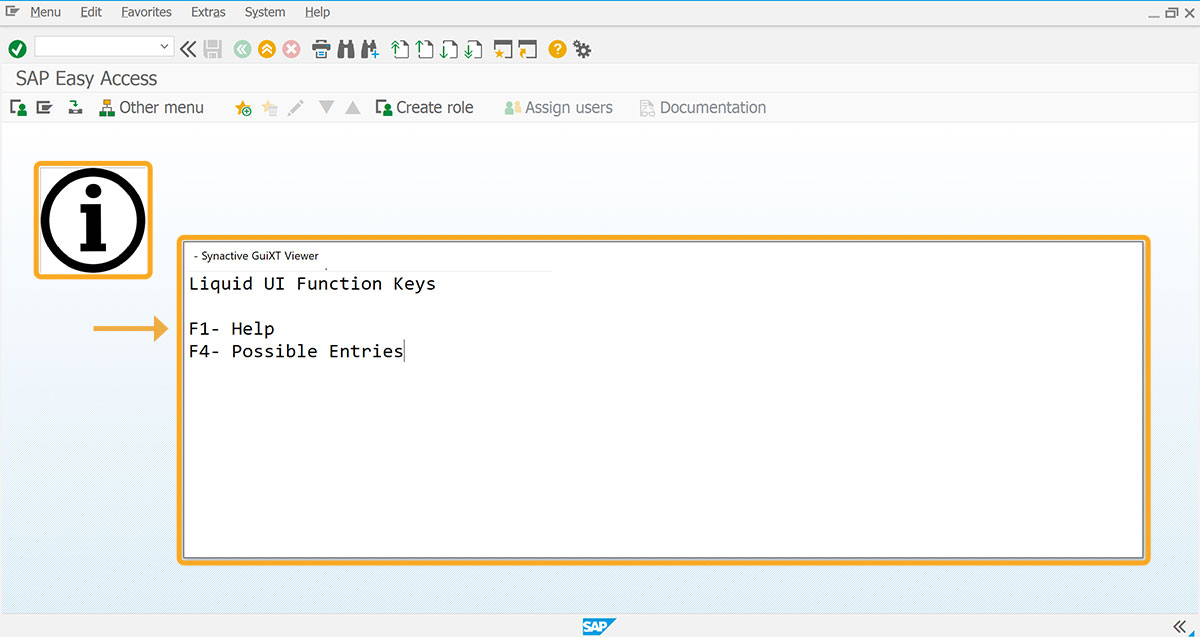
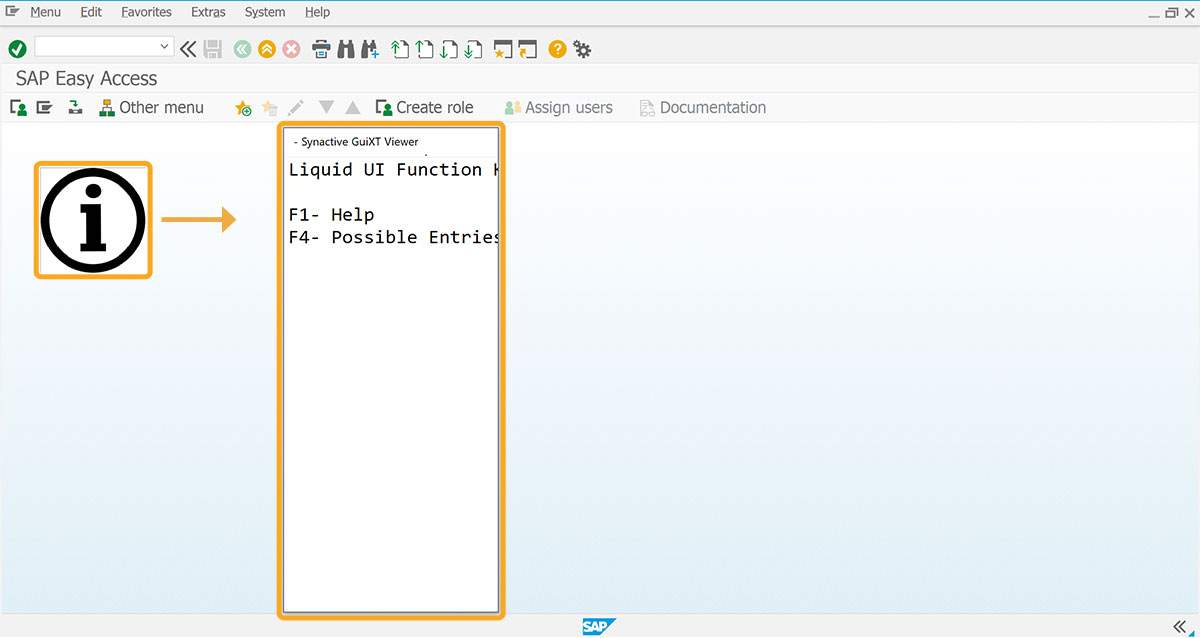
Example
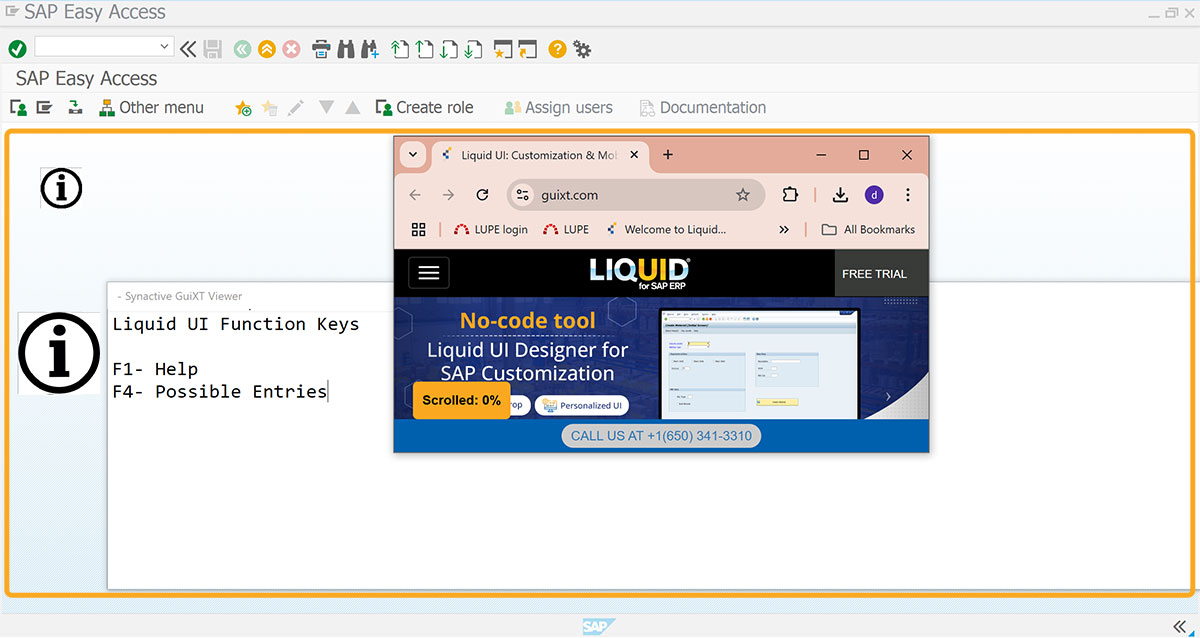
This example demonstrates the usage of the image command. Here we are using the SAP Easy Access screen to display the following usages of image()
- Image on toolbar
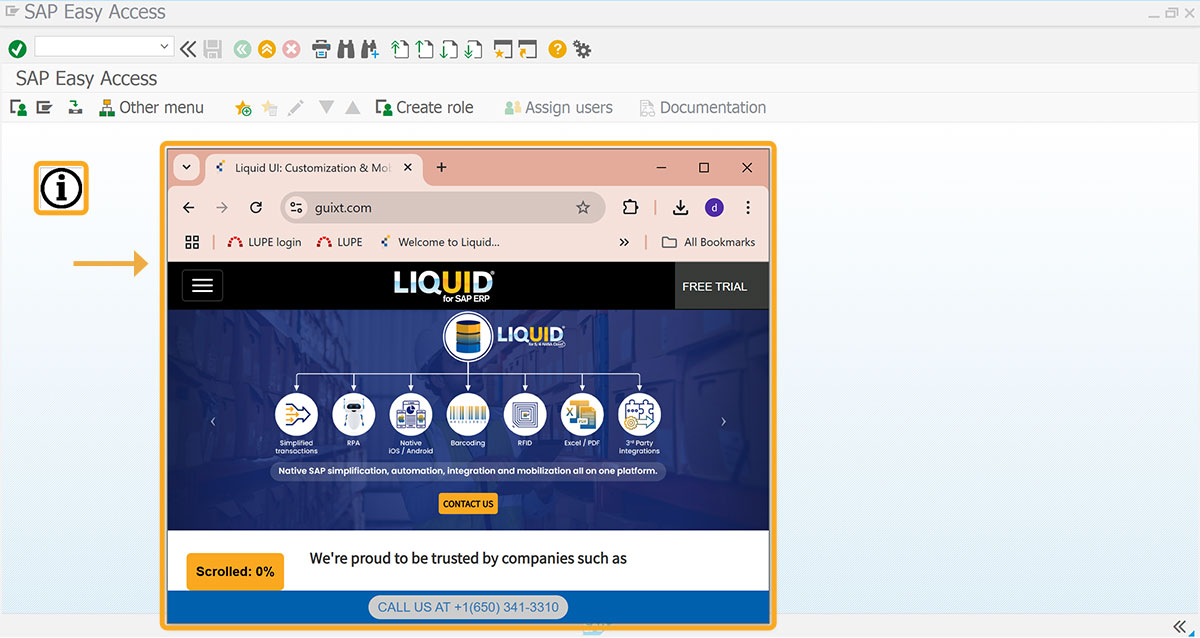
- On image click - navigating to the website
- On image click - viewing help
// Adds URL link to the image
image([4.4,23.7],[13,103.5],"http://www.guixt.com/images/ws_documentation/onscreen.jpg");

// Deletes image container on the SAP screen
del("X[IMAGE_CONTAINER]");

// Adds hyperlink to an image
image([2,5], [4,10], "C:\\Users\\divya\\Pictures\\Screenshots\\information.png",{ "start":"https://www.guixt.com"});

/// Displays viewhelp window at specified coordinates
image([7,1], [10,10], "C:\\Users\\divya\\Pictures\\Screenshots\\information.png",{ "viewhelp_height":"15", "viewhelp":"C:\\Users\\divya\\Pictures\\Screenshots\\Functionkeys.png","viewhelp_position":"[8,30]"});
Tips and Tricks
- Display images dynamically on the screen
The image() is used to display images dynamically on the SAP screen.
// Displays images on the SAP screen
image([6,10],'C:\Users\divya\Pictures\Screenshots\&V[z_mm01_material].png',{'nostretch':true});
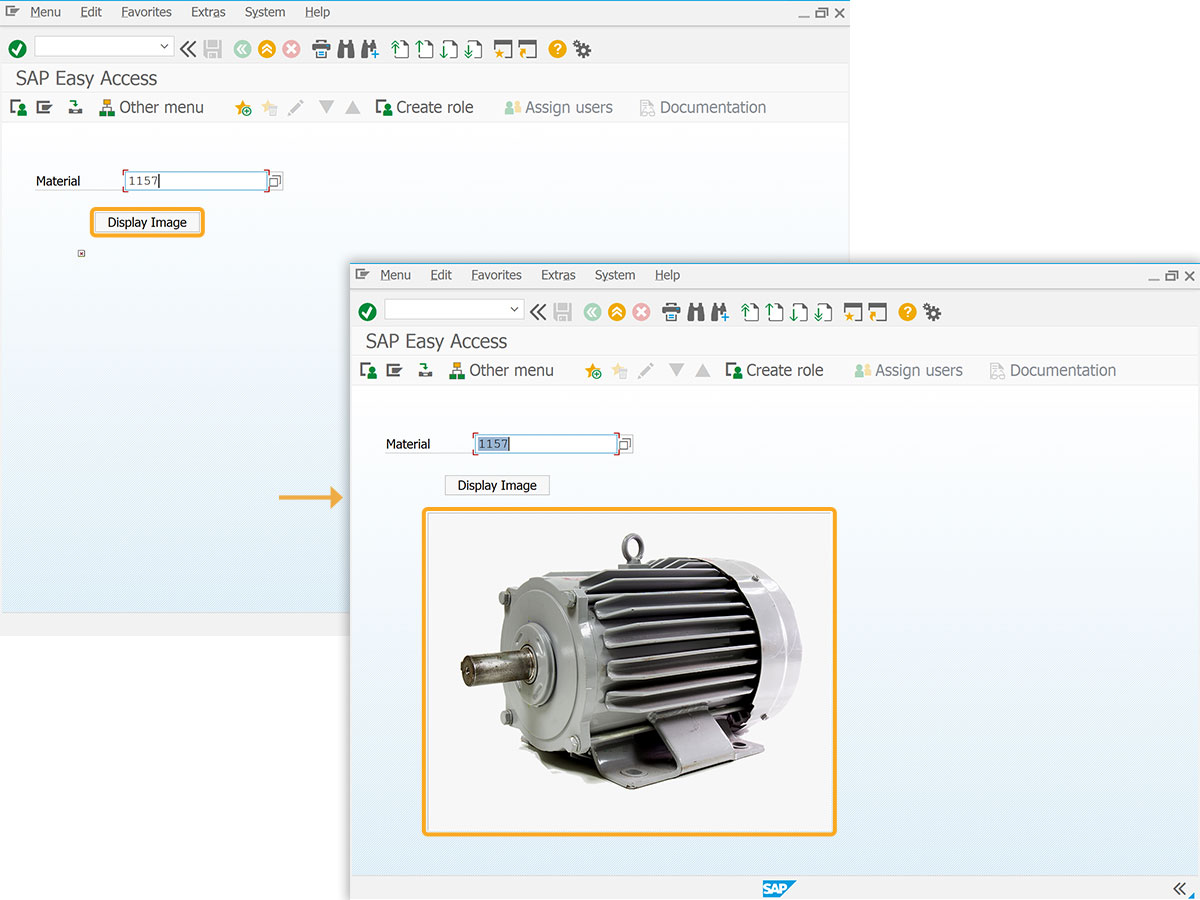
Click here for details on how to display images dynamically on the SAP screen.
- Data-dependent images
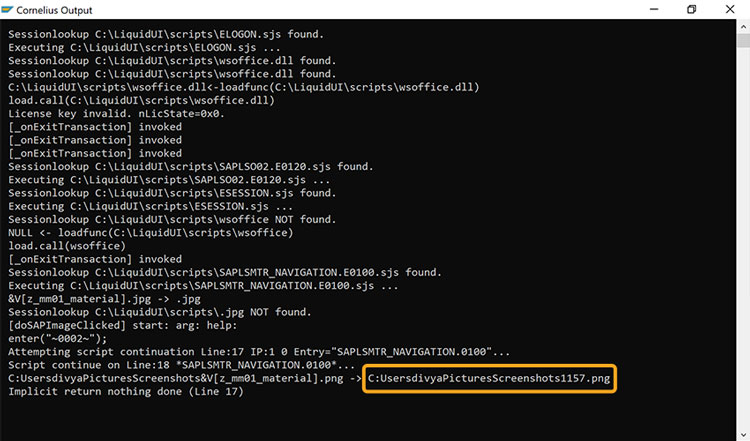
Before the image is loaded, the variables used in the image file path are automatically replaced with their corresponding values at runtime.
//image([6,10],'C:\\LiquidUI\\scripts\\find_image\\&V[z_mm01_material].png');
If the user enters 1157 in the F[Material] input field, and z_mm01_material holds that value, the image path becomes: C:UsersdivyaPicturesScreenshots1157.png