Liquid UI - Documentation - 5.03 column()

5.03 column()


Purpose

The column() allows you to add new columns in both native SAP tables and Liquid UI tables. Furthermore, you can use it to add checkboxes and push buttons within these columns.

This article explains the various ways to utilize the column().

Syntax

column() can be used in multiple formats.

Format 1: Add column to native SAP tables

 
// Creates a column to SAP tables
column('heading',{"table":"[tablename]","name":value,"size":value,"option":value..});
 

Format 2: Add column to table

 
// Creates a column in the table on the screen
column('heading',{"name":value,"size":value,"option":value..});
// Size option is mandatory to create a column
column('heading',{"size":value});

 

Note: Click here for details on how to create a column in the SAP tables using various options.


Format 3: Add a column inside a defined table

Adds a column to the mentioned table at the specified row and column.

 
// Creates a column in the mentioned table
table([startrow,startcol],[endrow,endcol],{"name":"table name","title":"table title","rows":number});
column('heading',{"table":"[tablename]","name":value,"size":value,"option":value..});
 

Properties

  • heading - Column heading
 

Available Options

You can use the following options with the column():

"alignright":".."

"alignright": true - Aligns the field value to the right when set to 'true'.

"checkbox":".."

"checkbox": true - Displays the column value as a checkbox if this option is set to true. Possible values are X and ' '.

"intensified":".."

"intensified": true - Displays the value in red color if this option is set to 'true'.

"keycolumn":".."

"keycolumn": SAPColumnName - When you add or delete rows in an SAP table, the row number 'absrow' can change, and the corresponding index may disappear. To maintain consistent row references, you can use the 'keycolumn' option, which relates the new column with the SAP column. This allows automatic indexing of rows with the custom column based on the value of the assigned keycolumn.

"label":".."

"label": push button name - Adds an icon with text on the push button using the notation "@iconid@text".

"name":".."

"name": string - Defines the column's internal name, allowing scripts to refer to it.

"numerical":".."

"numerical": true - Allows only numeric input when set to 'true'.

"position":".."

"position": value - Determines the column number within the table. If not specified, the new column will be created as the last column in the table.

"pushbutton":".."

"pushbutton": true -  Converts the column value into a push button.

"process":".."

"process": process name -Executes a function when the push button is clicked.

"readonly":".."

"readonly": true - Designates the column as non-editable.

"size":".."

"size": value - TSets the size of the column in terms of the number of characters.

"searchhelp":".."

"searchhelp": true - Defines the searchhelp (F4) for the new column.

"table":".."

"table": table name - Defines the table name where the column will be created.

"techname":".."

"techname": SAPcolname - Defines the technical name of the column.

"uppercase":".."

"uppercase": true - Converts entered values to uppercase.

Options Detail

alignright

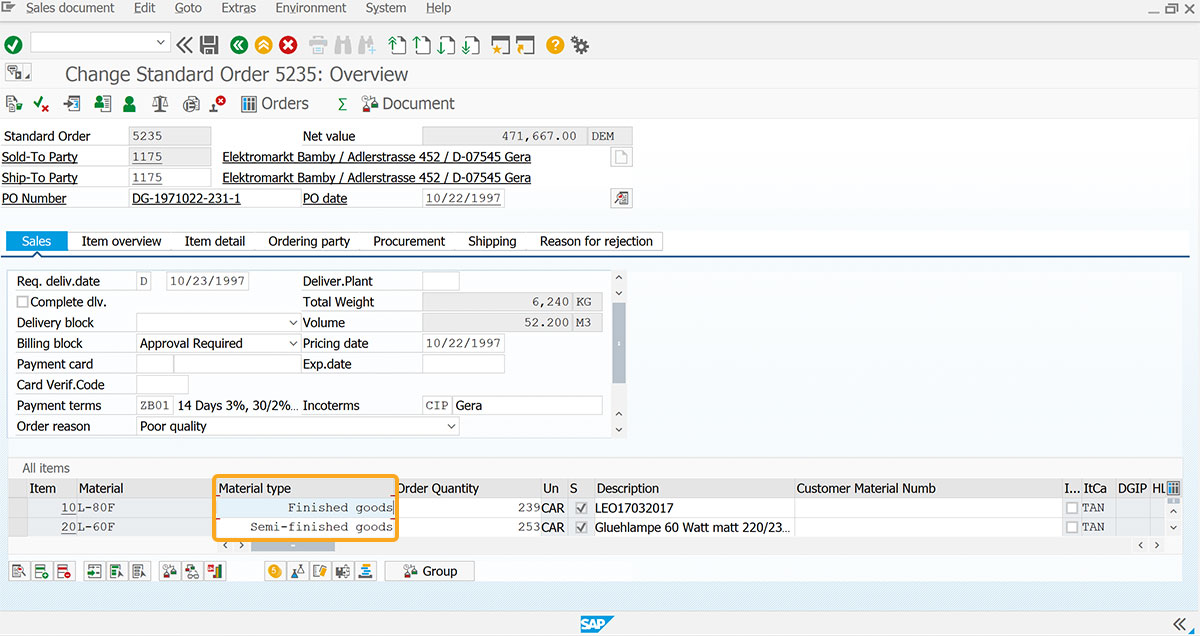
  1. This option allows you to align a field value to the right-hand side of the column.
     
    // Aligns field value to right side of column
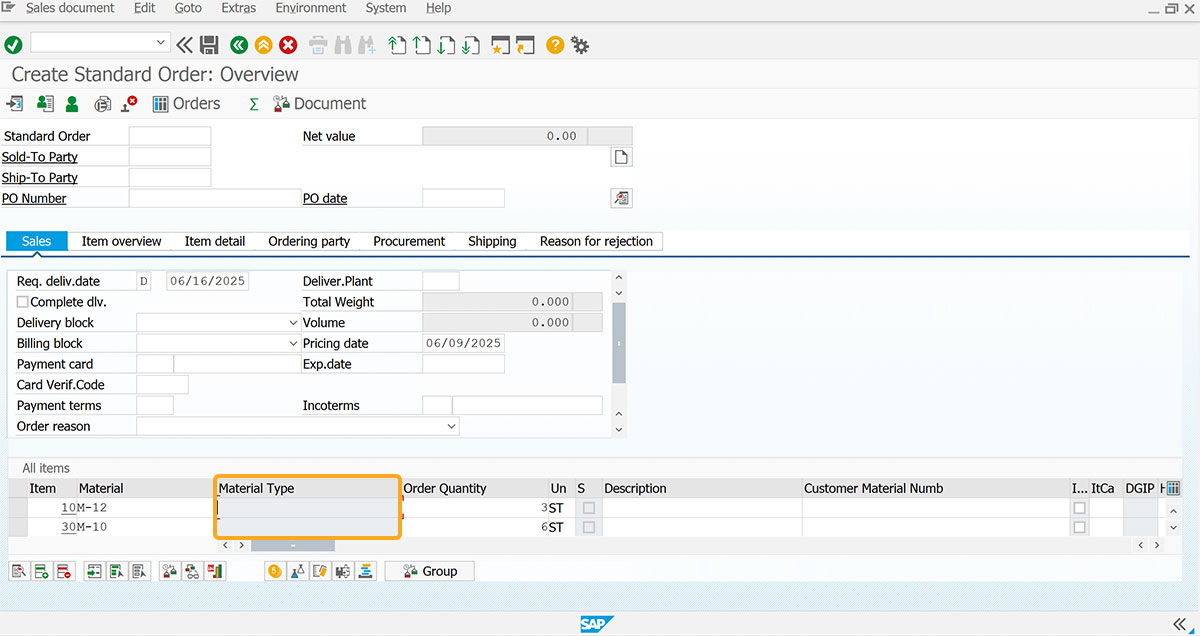
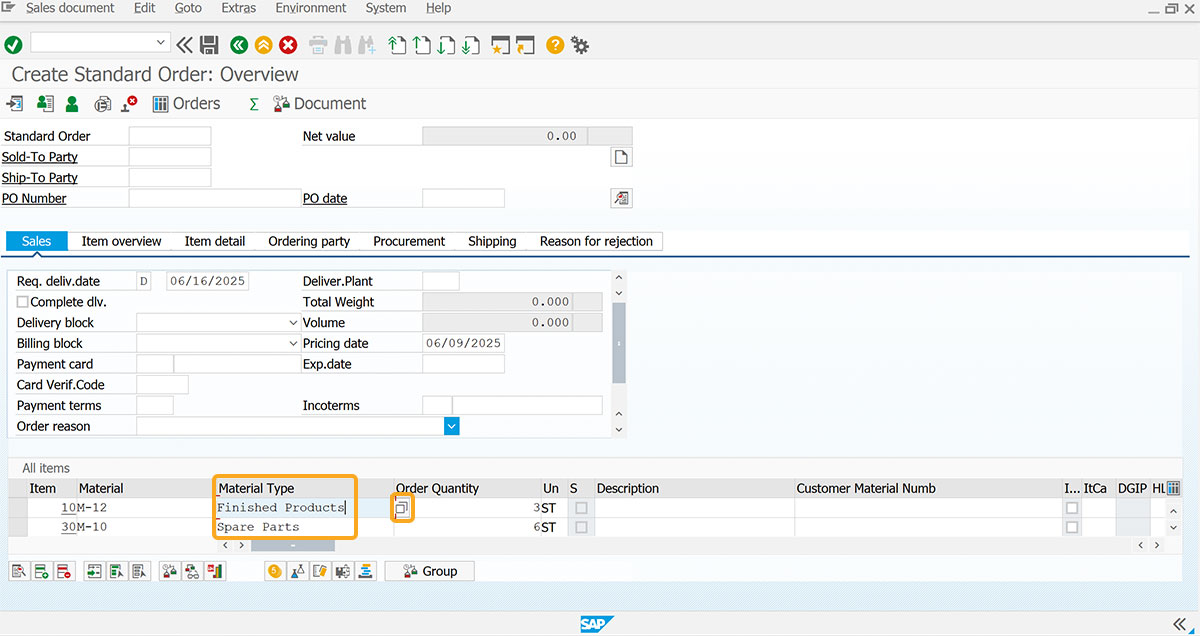
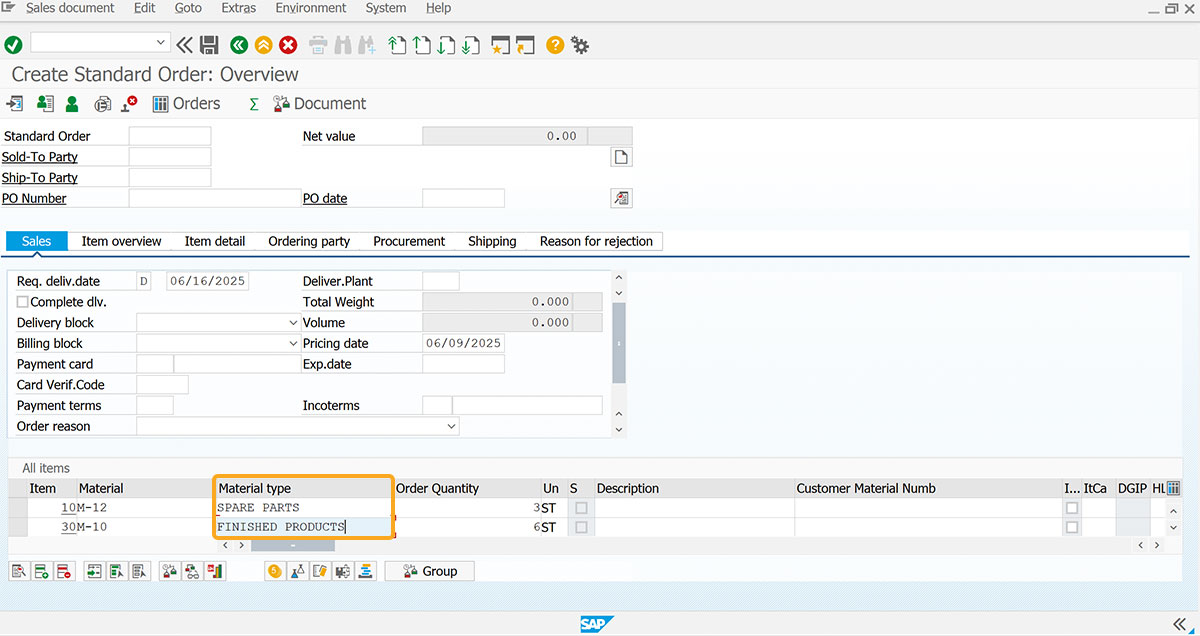
    column('Material type',{"table":"[All items]","name":"z_mycol","size":23,"position":3,"alignright":true});
    
     
    Assigns field value to right side of the column
     
  2. As per the code, the alignright option assigns Material type column values to the right-hand side.

checkbox

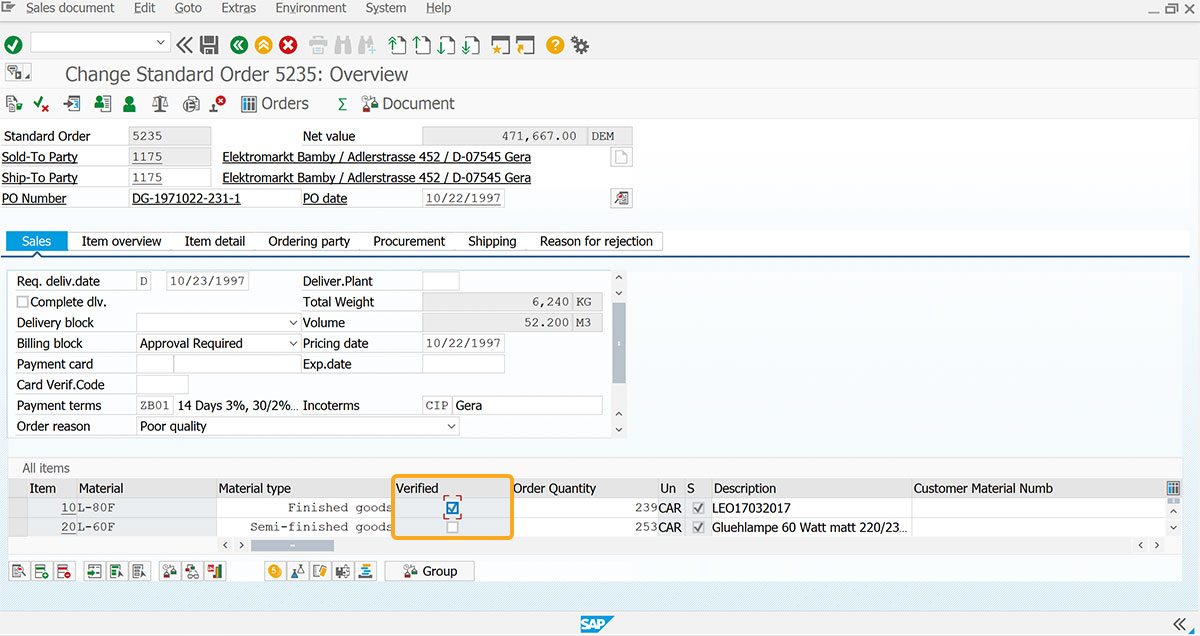
  1. Places a checkbox in the specified cell of the column. The checkbox selection values are X and ' '.
     
    // Places checkbox in specified cell of column
    column('Verified',{"table":"[All Items]","name":"va01_clitm","size":15,"position":3,"checkbox":true});
     
    Places a checkbox in the specified cell of the column
     
  2. As per the code, the Verified column created has a checkbox option. You can either check or uncheck the checkbox in the column.

intensified

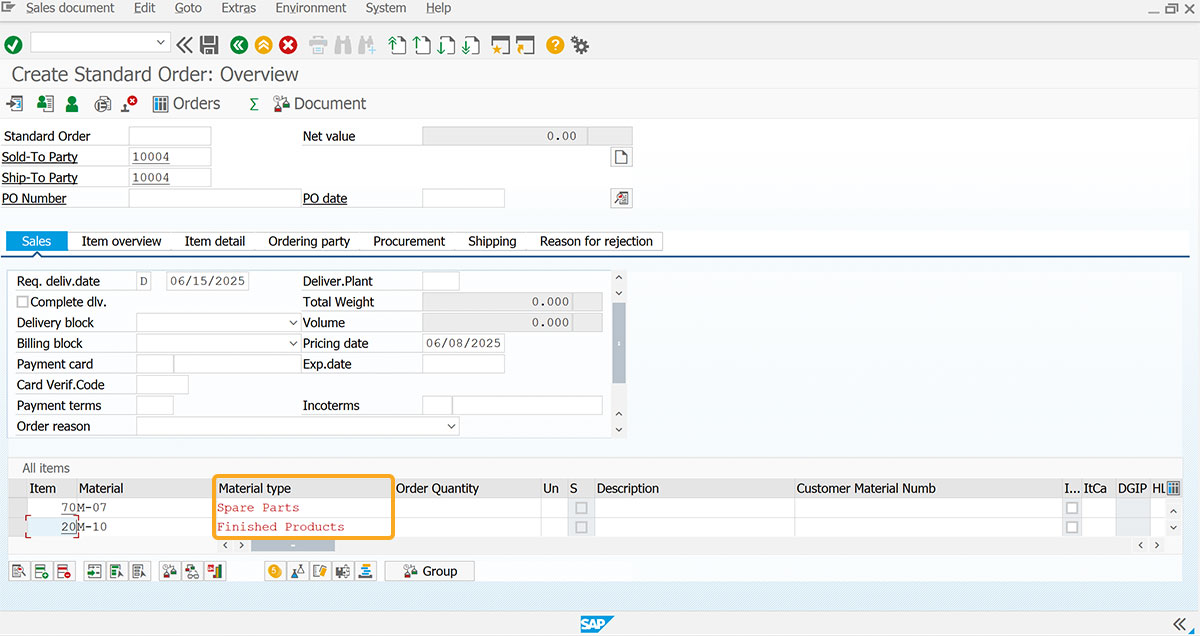
  1. Allows you to modify the color of values in the column. By default, the color is set to red
     
    // Modifies the colour of values in column
    column('Material type',{"table":"[All Items]","name":"va01_clitm","position":3,"size":23,"intensified":true});
     
    Modifies the color of values in the column
     
  2. As per the code, the intensified option turns the Material type column values into red color.
     

    Note: This option cannot be used with the 'numerical' and 'readonly' options.


keycolumn

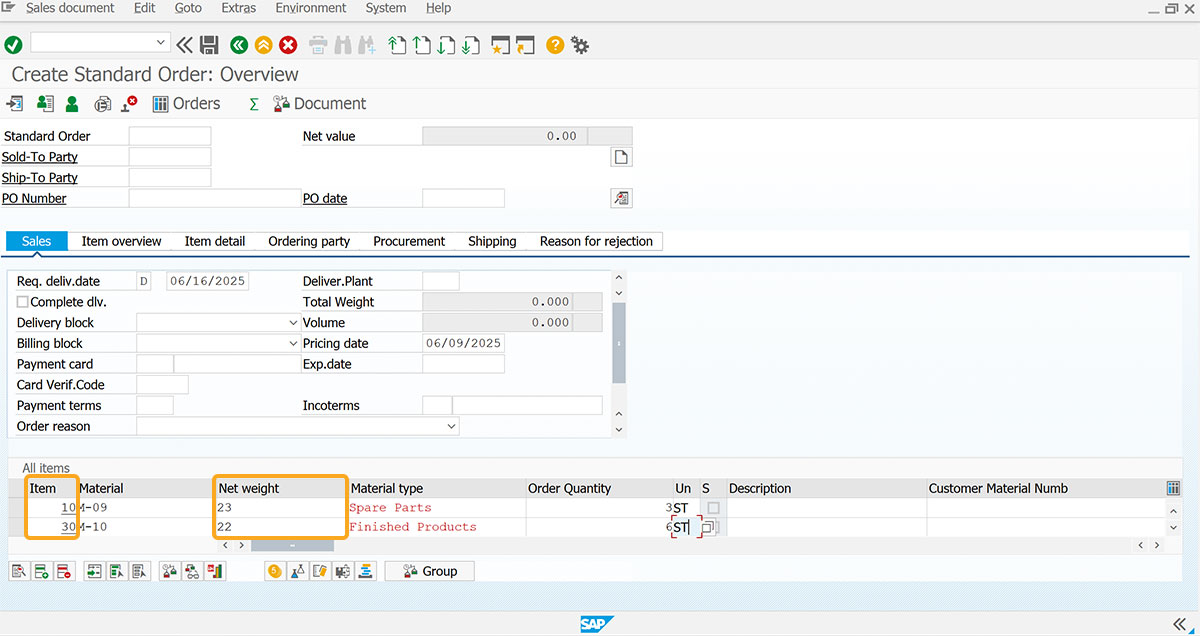
  1. If you add or delete rows in an SAP table, the 'absrow' row number can change. The matching index will also disappear in this case, so this option lets you relate the new column with the SAP column to create a consistent reference for the rows. If this option is used, automatic indexing of the rows with the custom column will be based on the value of the assigned keycolumn.
     
    column('Net weight',{"table":"[All Items]","name":"z_mweight","size":17,"position":3,"keycolumn":"Item"});
     
    Maintain row consistency using keycolumn for indexing
     
  2. When you use the keycolumn option, the newly added column becomes an integral part of the SAP table, any actions performed on the table will impact the column. If not utilized, the column remains independent of the table. Therefore, actions on the table won't affect the column, maintaining its separate functionality.

label

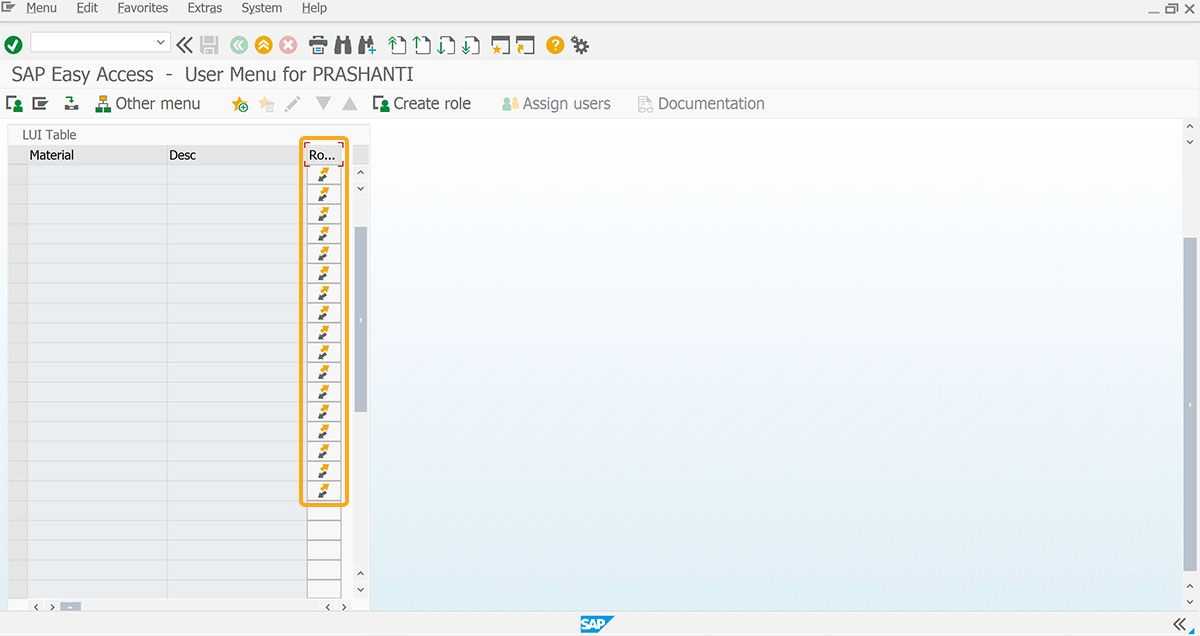
  1. This option allows you to assign icons and text to the rows within the column. Optionally, you can use "@Iconid@Text" notation to specify an icon alongside the text for customization.
     
    // Assigns icons and text to the rows within the column
    column("Row #'s", {"size":4, "table":"z_table","label":"@AA@", "pushbutton":true,"fcode":"?","process":fnGetClickedRowData});
    
     
    Assigns icons and text to the rows within the column
     
  2. The label option assigns the name to the push buttons under a column.
     

    Note: This option is used with the push button option.


name

  1. Assigns a technical name to the column, which remains hidden from the user. This name can be used for Liquid UI script reference.
     
    // Assigns technical name to the column
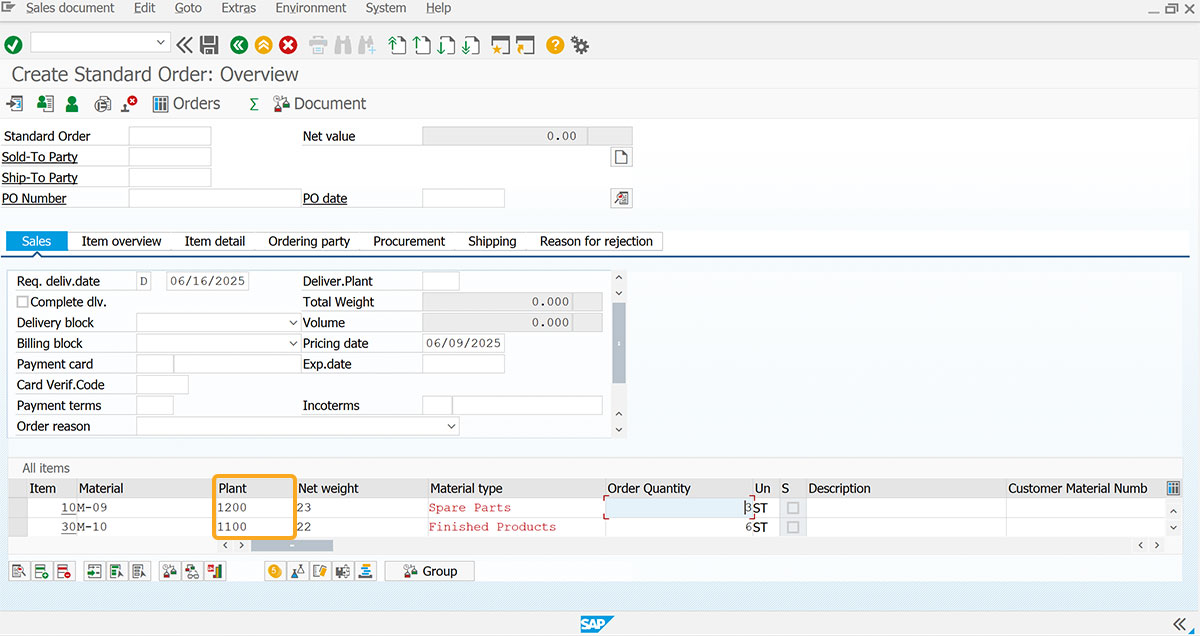
    column('Plant',{"table":"[All Items]","size":10,"position":3,"name":"z_plant"});
     
    Assigns a technical name to the column
     
  2. As per the code, the column name is Plant and the technical name is z_plant.

numerical

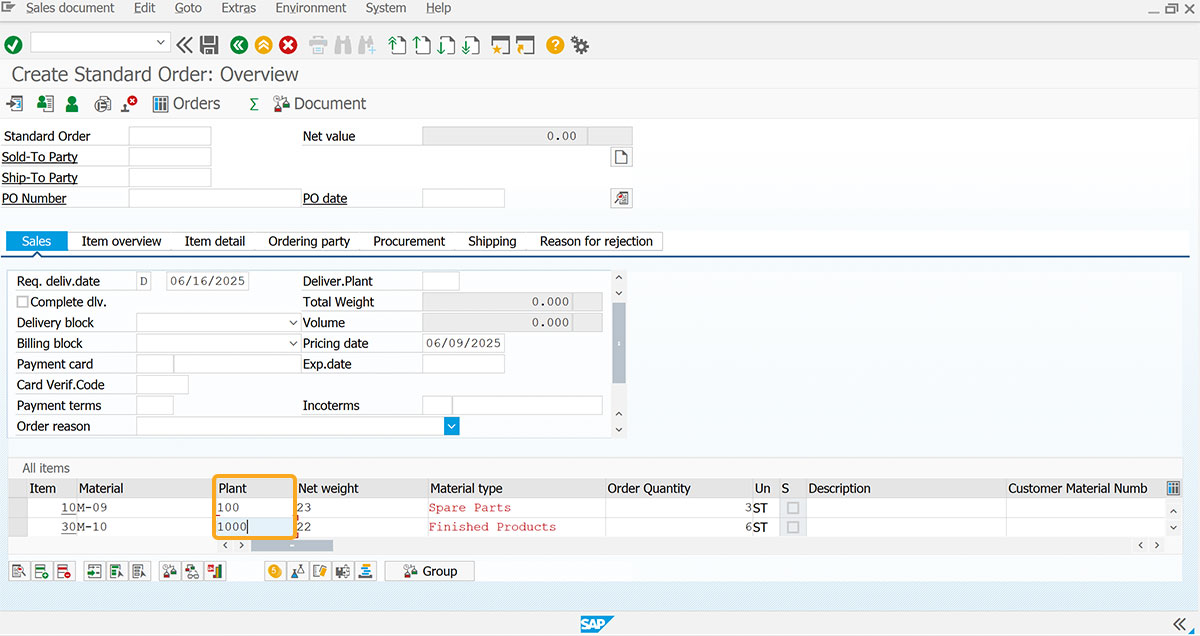
  1. This option lets you restrict a column to accept only numerical values when set to true.
     
    column('Plant',{"table":"[All Items]","name":"va01_clitm","position":3,"size":10,"numerical":true});
     
     
  2. The Plant column allows only numerical characters. It doesn't take alphabet characters as input.
     

    Note: This option cannot be used with the 'uppercase' option.


position

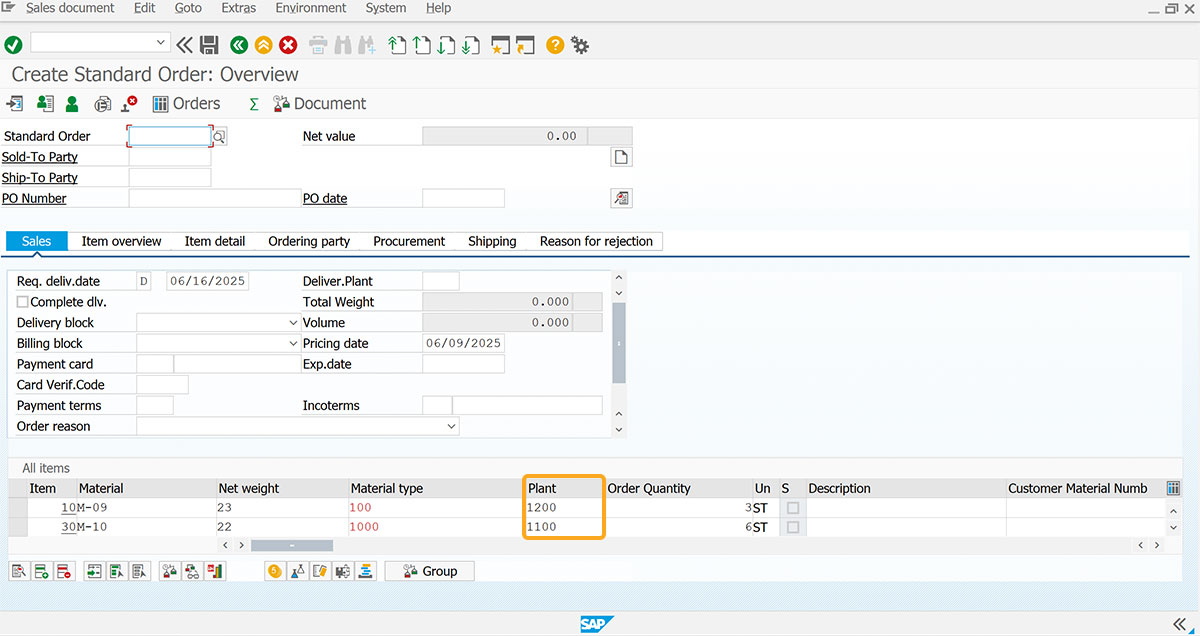
  1. Position option let’s you specify the column's location within the table. If not specified, the new column will appear as the last column in the table.
     
    // Specifies column position within the table
    column('Plant',{"table":"[All Items]","name":"z_plant","size":10,"position":5});
     
    Defines column position in the table
     
  2. As per the code, the plant column is set to the fifth position.

pushbutton

  1. This option displays the column value as a push button when set to true.
     
    // Displays column value as push button
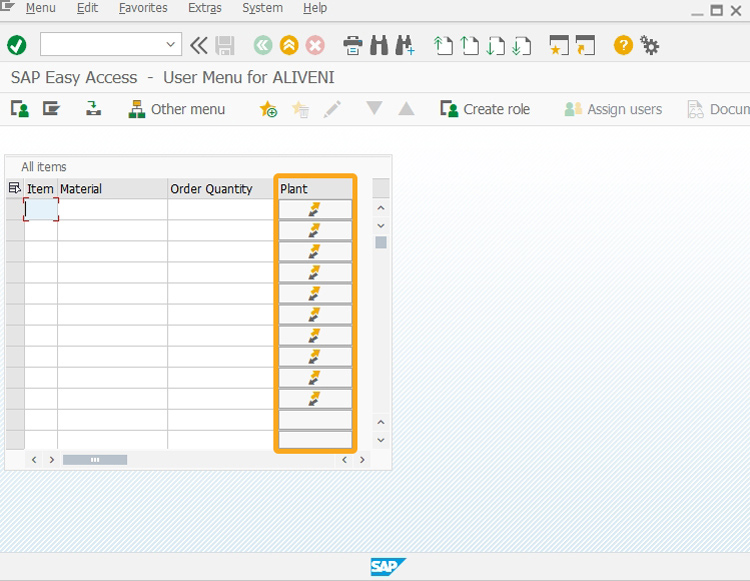
    column("Plant", {"table":"z_engr_bomtable", "name":"doc_push", "position":2, "size":10, "label":"@AA@", "pushbutton":true,"fcode":"?","process":RFCfunction});
    
     
  2. Show column value as push button

  3. As per the code, the push button option displays Plant column values in the form of pushbuttons.
     

    Note: You can create a column value as a push button only in the Liquid UI table.


process

  1. The process option is applicable when the column contains push buttons. It enables you to specify the function name that will be executed when a push button is activated.
     
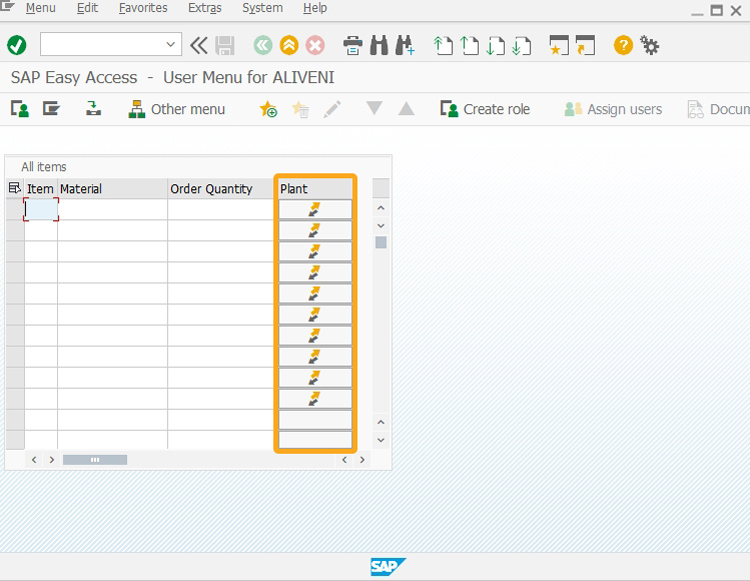
    column("Plant", {"table":"z_engr_bomtable", "name":"doc_push", "position":2, "size":10, "label":"@AA@", "pushbutton":true,"fcode":"?","process":RFCfunction});
    
     
    Define function for push button column
     
  2. The process option executes the RFC function once you select the push button.
     

    Note: This option is used along with the push button option.


readonly

  1. Allows you to create a non-editable column, preventing any new values from being added.
     
    // Creates a non-editable column
    column('Material Type',{"table":"[All Items]","name":"z_mycol","size":24,"position":3,"readonly":true});
     
    Set column as read-only
     
  2. As per the code, the Material type column cannot be edited as this option is set to true.
     

    Note: This option cannot be used with the 'intensified' option.


search help

  1. Defines a search help (F4 match code) for the newly created Liquid UI column using the search help option details of the existing SAP standard field or table column.
     
    column('Material Type',{"table":"[All Items]","size":23,"name":"z_testcol","position":3,"searchhelp":"S_MAT1"});
     
    Assigns F4 search help to custom column
     
  2. As per the code, the searchhelp option is created for the Material type column.
     

    Note: This option cannot be used with the 'numerical' option.

     
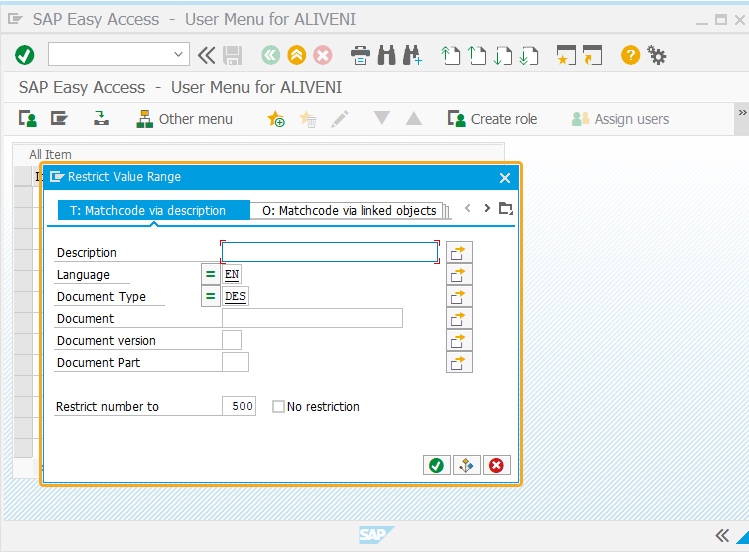
  3. You can pass parameters with the import flag in the shselname1 and shselvalue1 option to restrict search help and use the parameters with the export flag in shname1 and shdest1 options to restrict the searchhelp values. You can also pass the dynamic values of other fields in the shdest1 option to restrict the search help values for a column.
     
    column('Document',{"table":"[All items]","name":"z_mycol","size":23,"position":3, "searchhelp":"CV01", "shselname1":"DOKAR", "shselvalue1":"DES", "shname1":"DOKAR","shdest1":"cell[z_engr_bomtable,Type,row]","uppercase":true});});
    
     
    Restrict search help using import/export parameters
     
  4. As per the code, the searchhelp related options help you to display only the relevant search help values for the Document column values.

size

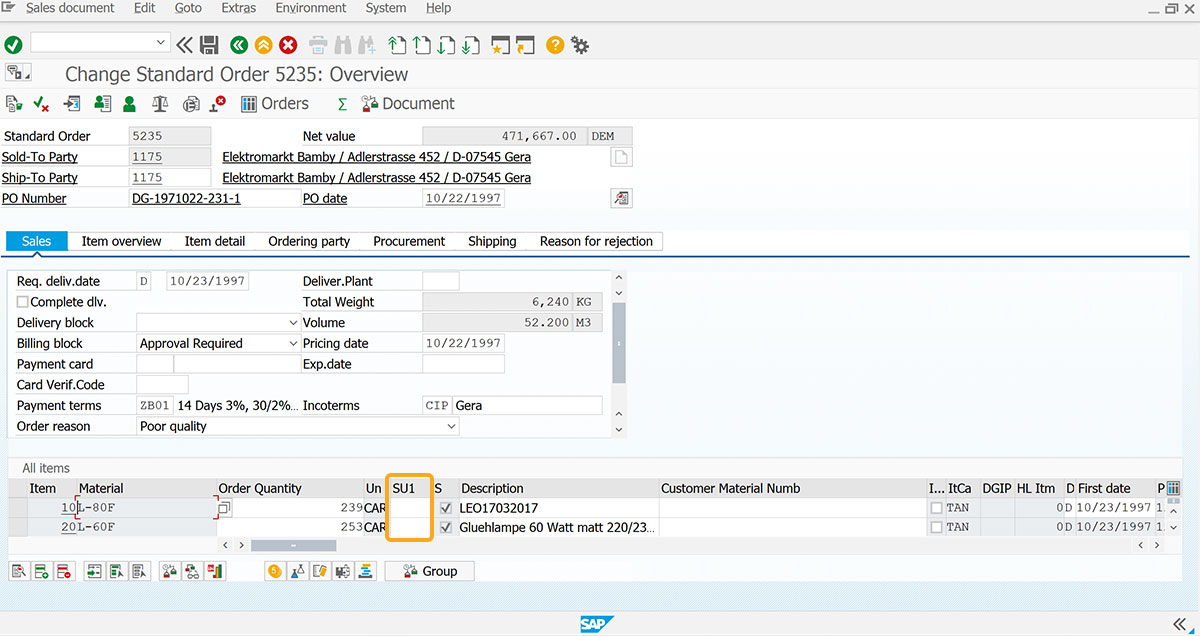
  1. Using the size option, you can assign a size to the column, determining the number of characters (x) each cell can accommodate.
     
    column('SU1',{"table":"[All Items]","size":5,"name":"va02_SU1","position":5});
     
    Set column size by character limit
     
  2. The Plant column can take up to 5 characters, as the size value in the above script is 5.

table

  1. Specifies the name of the table in which the column will be created. This flexibility extends to both SAP tables and Liquid UI tables.
     
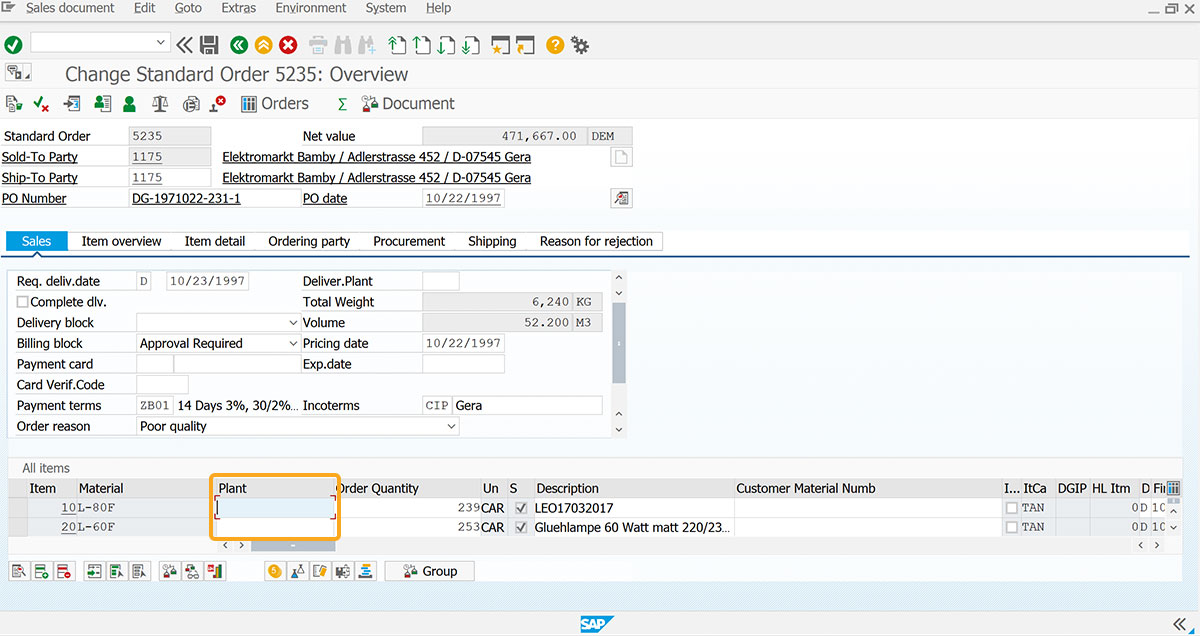
    column('Plant',{"table":"[All Items]","position":3,"size":15,"name":"va02_type"});
     
    Define target table for new column
     
  2. The table option is more useful in adding columns to a particular table.

techname

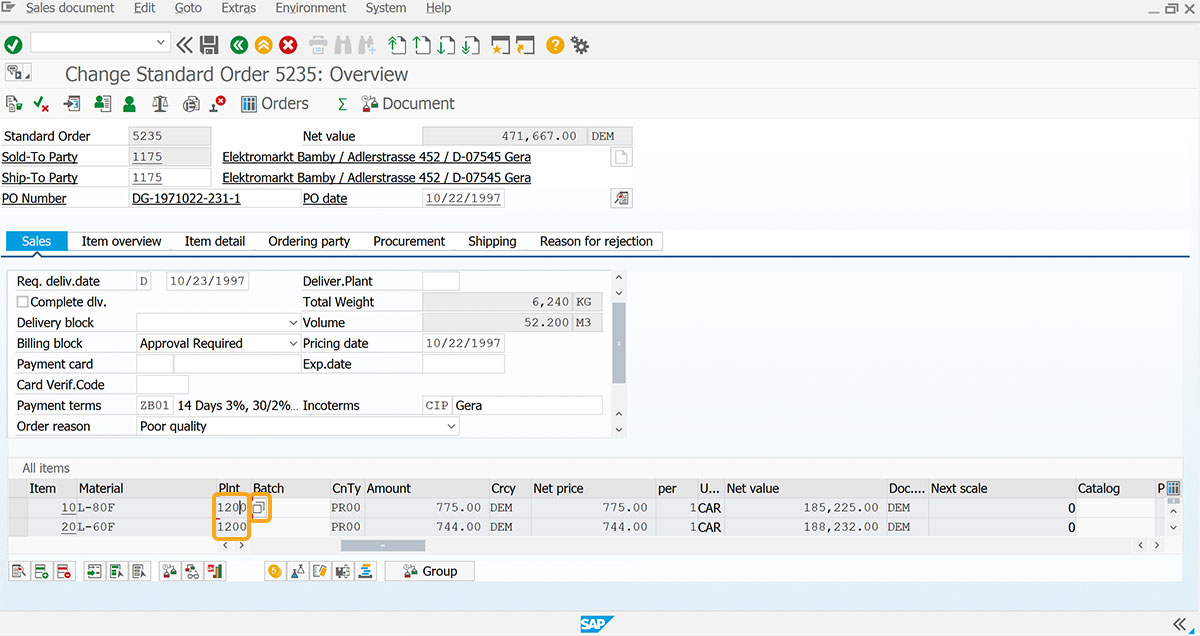
  1. Assigns a technical name for the unique identification of the column in the table. The techname of the column is invisible.
     
    column('Plant',{"table":"[All items]","size":15,"name":"z_col","techname":"VBAP-WERKS"});
     
    Assign invisible technical name for column identification
     
  2. The techname option for a column provides search help.

uppercase

  1. This option converts the lowercase characters of the column to uppercase.
     
    // Converts characters to uppercase
    column('Material type',{"table":"[All items]","size":23,"name":"va01_clitm","uppercase":true});
    
     
    Converts column values to uppercase
     
  2. Here, the uppercase option converts the lowercase characters entered in the Material type column to uppercase.
     

    Note: This option cannot be used with the numerical option.


Example

The usage of the column() is demonstrated on the existing All items table, as shown in the image below.
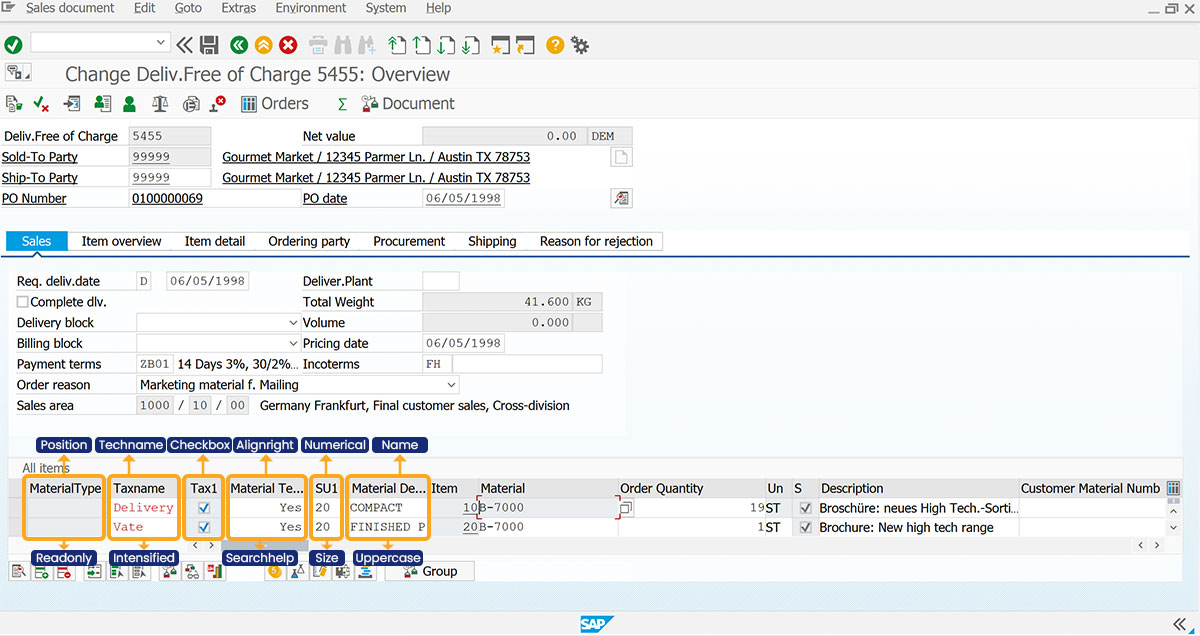
 
Demonstrated column command in existing All items table
 
// Allows modification of column position and sets it to read-only
column('MaterialType',{"table":"[All Items]","name":"va01_material","size":10,"position":1,"readonly":true});
// Adds techname and intensified to the column
column('Taxname',{"table":"[All items]","size":10,"name":"va02_tax1","position":2,"techname":"VBAP-WERKS","intensified":true});
// Adds keycolumn and checkbox option
column('Tax1',{"table":"[All items]","size":5,"name":"va02_tax","checkbox":true,"keycolumn":"Item","position":3});
// Adds searchhelp and alignright option
column('Material Tested',{"table":"All items","size":10,"name":"z_testcol","position":4,"alignright":true,"searchhelp":"S_MAT1","shname":"MATNR","shname1":"VBAB_MATNR","shdest1":"V[z_testcol_desc]"});
// Sets name and size to the column
column('SU1',{"table":"[All Items]","name":"va02_SU1","size":5,"numerical":true,"position":5});
// Sets uppercase and name option to the column
column('Material Description',{"table":"[All items]","size":10,"name":"va01_clitm","position":6,"uppercase":true});
 

Usage Details


Can't find the answers you're looking for?