

Purpose
The tip() is used to add informational text to native SAP GUI screen elements. These tooltips appear when the user hovers the mouse pointer over a screen element, offering contextual information.

Note: The tip() applies only to the native SAP screen elements and does not support Liquid UI custom elements. You can include a tooltip for the field label during its creation.
Syntax
You can create a tip for screen elements with single line/ info text.
tip("F[ScreenElement]","This is a tip");
Supported Elements
The tip command is available for the following elements.
| Element | Syntax |
|---|---|
| Checkbox | tip("C[checkbox_name]","Tip goes here"); |
| Inputfield | tip("F[field_name]","Tip goes here"); |
| Pushbutton | tip("P[pushbutton_name]","Tip goes here"); |
| Radiobutton | tip("R[radiobutton_name]","Tip goes here"); |
| Groupbox | tip("G[groupbox_name]","Tip goes here"); |
| Table | tip("T[table_name]","Tip goes here"); |
Options
The tip command does not take any options.
Examples
The following examples demonstrate the usage of the tip() command for various screen elements:
Example 1: Creating tips for a checkbox
This example demonstrates how to add a tooltip to a checkbox on the Enter Other Goods Receipts: Initial Screen.
//Create the SAPMM07M.E0400.sjs file inside your scripts folder for customizing the Enter Other Goods Receipts: Initial Screen
//Now, add the Liquid UI script to the above file and save it
- Add a tip labeled Select check box to print to add contextual information for the user.
// Adds tip to Print checkbox
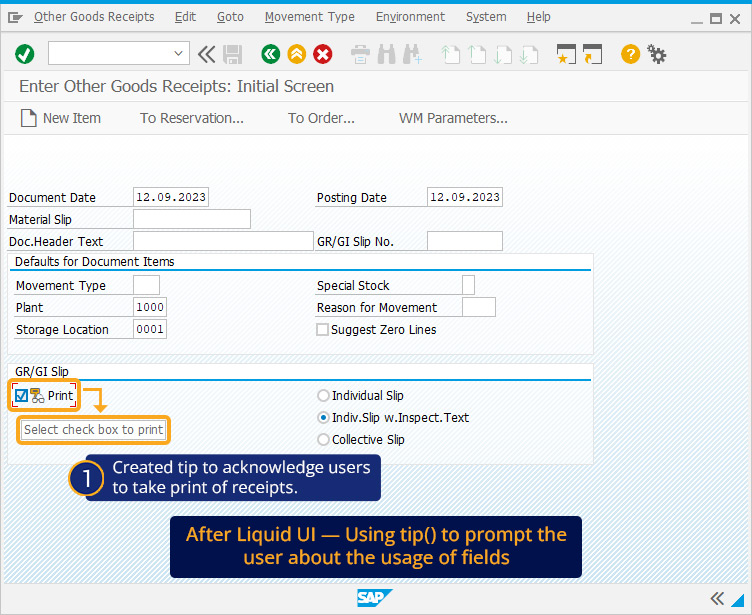
tip("C[Print]","Select check box to print");
- Navigate to the MB1C screen. When the mouse hovers on the Print checkbox, it shows the tip to select the checkbox to print, as shown in the image below.
Example 2: Creating tips for groupbox
This example illustrates the use of tip() to provide contextual information for a group box on the Create Sales Order: Initial Screen (VA01).
//Create the file SAPMV45A.E0101.sjs inside your scripts folder for customizing the Create Sales Order: Initial Screen
//Now, add the Liquid UI script to the above file and save it.
- Add a tip labeled Select checkbox to print to add contextual information for the user.
// Adds tip to the Print checkbox
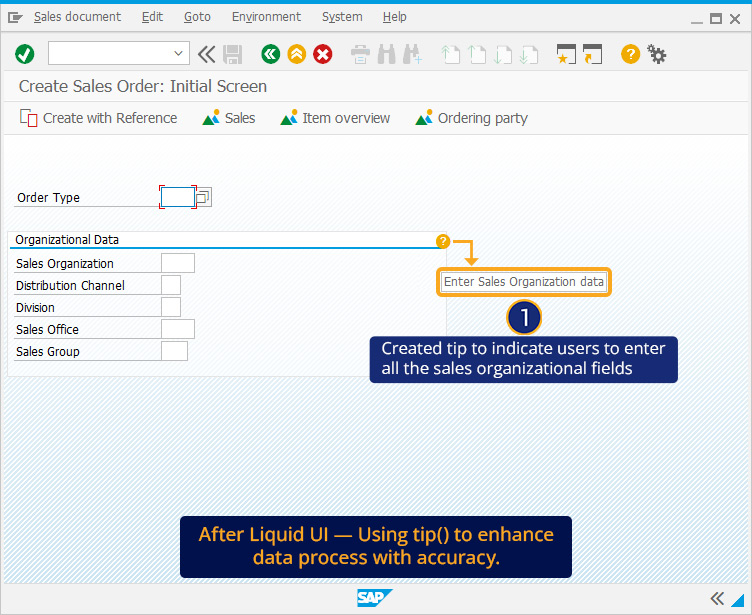
tip("G[Organizational Data]","Enter Sales Organization data");
- Navigate to the VA01 screen. When the mouse hovers over the Organizational Data group box, it displays the tip Enter Sales Organization data, as shown in the image below.
Example 3: Creating a tip on a push button
This example shows how to use the tip() function to add a tooltip to a push button. Considering the MM03- Display Material (Initial Screen), we’ll walk you through the following steps:
//Create the SAPLMGMM.E4004.sjs file inside your scripts folder for customizing the Display Material (Initial Screen)
//Now, add the Liquid UI script to the above file and save it.
- Add a tip labeled To view or enter long text about basic data, to view information about the Basic Data Text push button.
//Creates a table on the screen
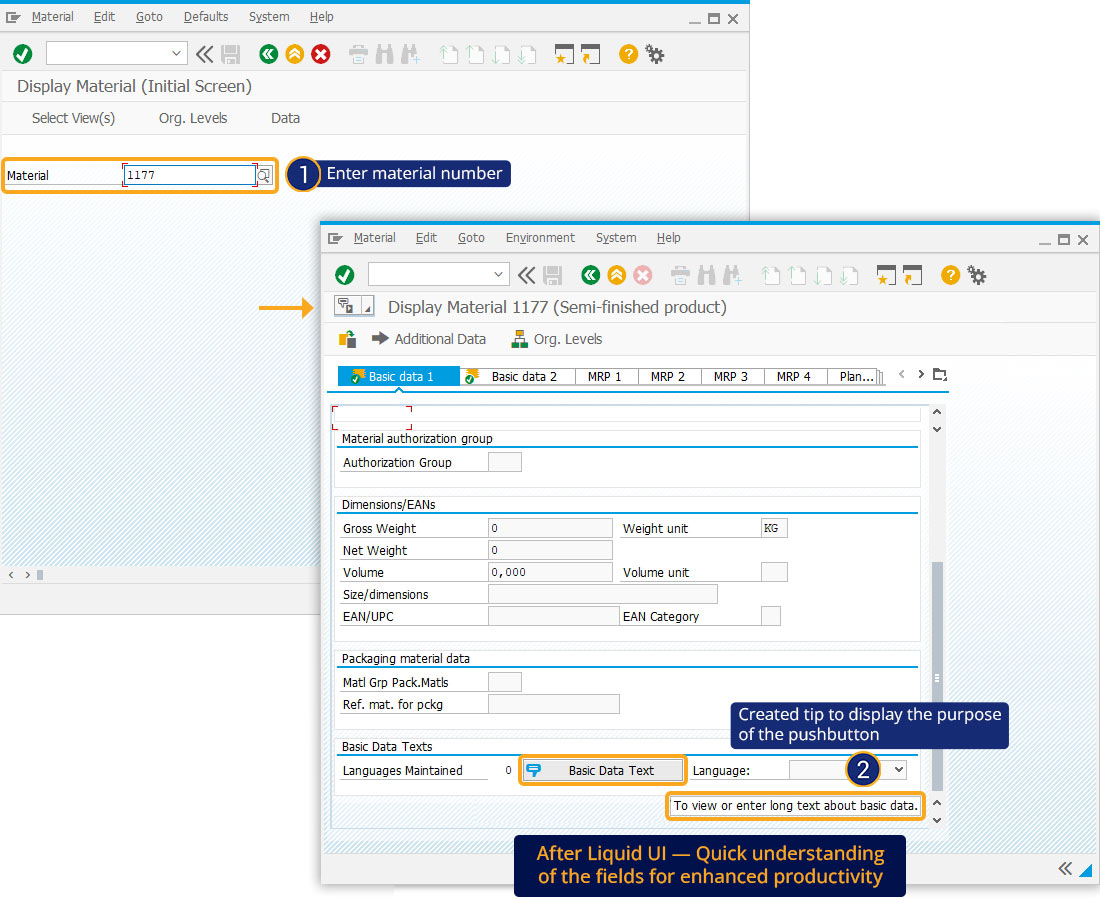
tip("P[Basic Data Text]", "To view or enter long text about basic data.");
- Navigate to the Display Material(Initial screen) (MM03). When you mouse hover over the Basic Data Text push button, the tip appears as To view or enter long text about basic data.
Example 4: Creating a tip on radiobutton
In this example, the tip() function is used to provide guidance for a radio button.
//Create the file SAPMM07M.E0400.sjs inside your scripts folder for customizing the SAP Easy Access screen
//Now, add the Liquid UI script to the above file and save it.
- Add a tip labeled The option is for individual slip., to view information about Individual Slip radio button.
//Creates a table on the screen
tip("R[Individual Slip]", "The option is for individual slip.");
- Navigate to the Enter Other Goods Receipts: Initial Screen (MB1C). Hovering over the Individual Slip radio button displays the tip This option is for individual slip, as shown in the image below.

Creating tip to input field
This example demonstrates the usage of tip() to provide contextual information for the input field.
//Create the file SAPMV45A.E0101.sjs inside your scripts folder for customizing the Create Sales Order: Initial Screen
//Now, add the Liquid UI script to the above file and save it.
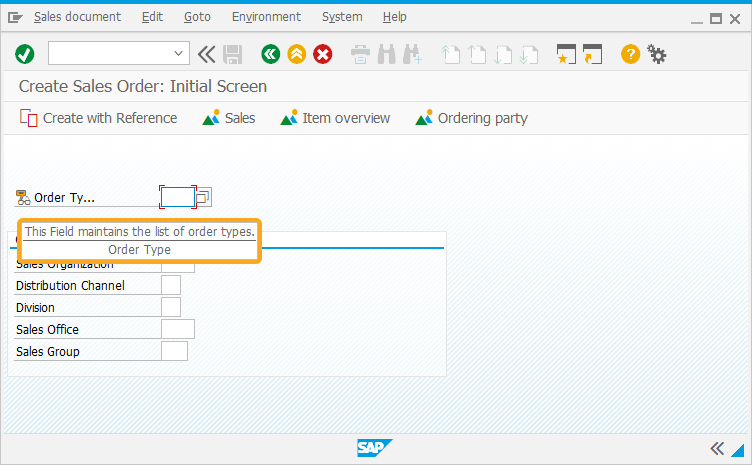
- Add a tip labeled This Field maintains the list of order types. to add contextual information for the Order Type input field.
// Adds tip to the Order Type input field
tip("F[Order Type]","This Field maintains the list of order types.");
- Navigate to the VA01 screen. When the user hovers over the Order Type input field, it displays the tip, as shown in the image below.