


Liquid UI for iOS allows you to restore SAP server connections that have been previously created and saved in your LAMP account. This allows you to back up your SAP server connections in LAMP and retrieve them on your iOS devices whenever needed.

Note: A portal license is required to restore server connections from your LAMP account.
Note: Before synchronizing, ensure that the appropriate user and iOS device to your User Group in LAMP.
To Link a User:
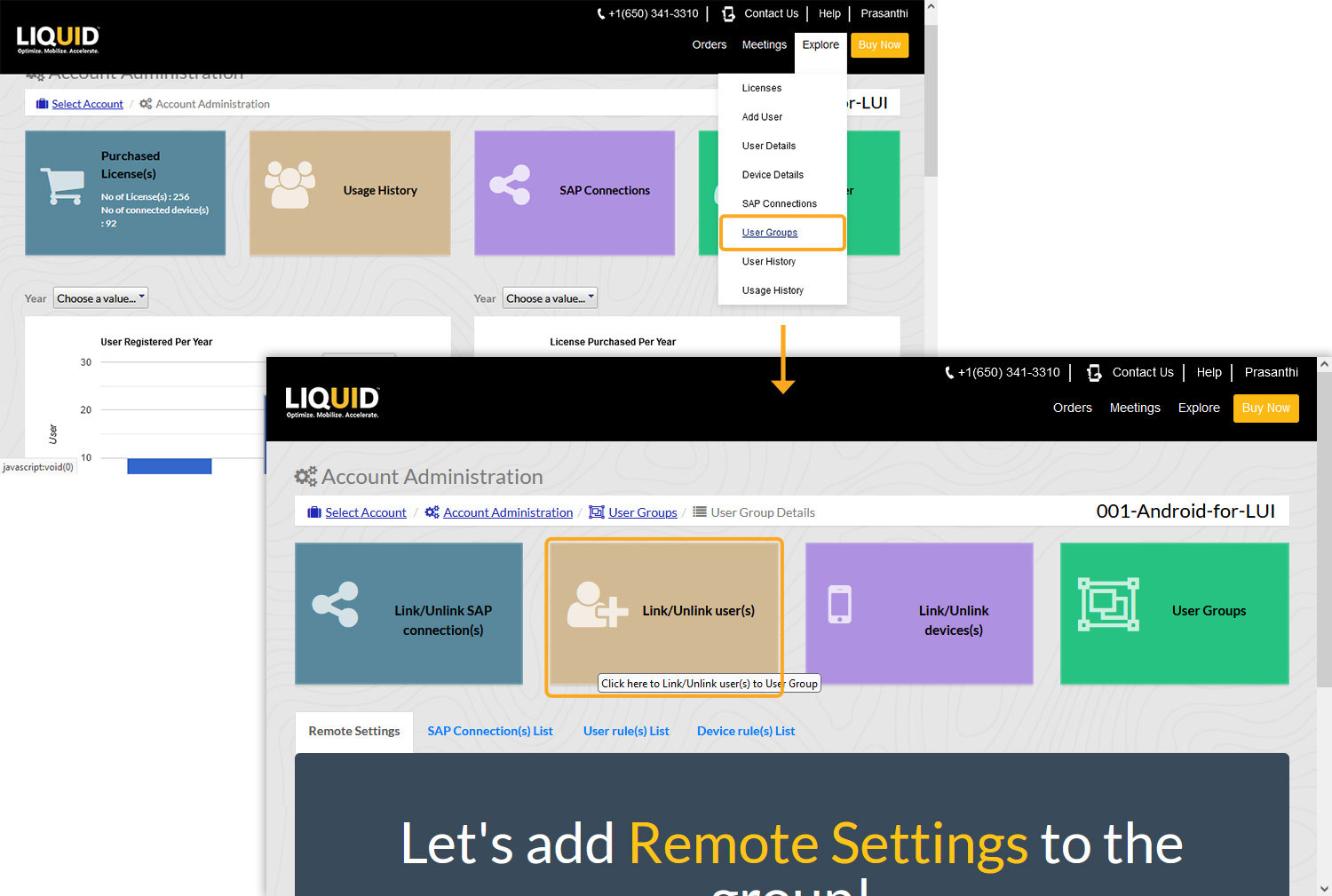
- Log in to LAMP and navigate to your Account Administration screen. Under the Explore menu, click on the User Groups tab. Select the desired user group from the available options to navigate to the User Group Details page. Locate and click on the Link/Unlink user(s) button to proceed.
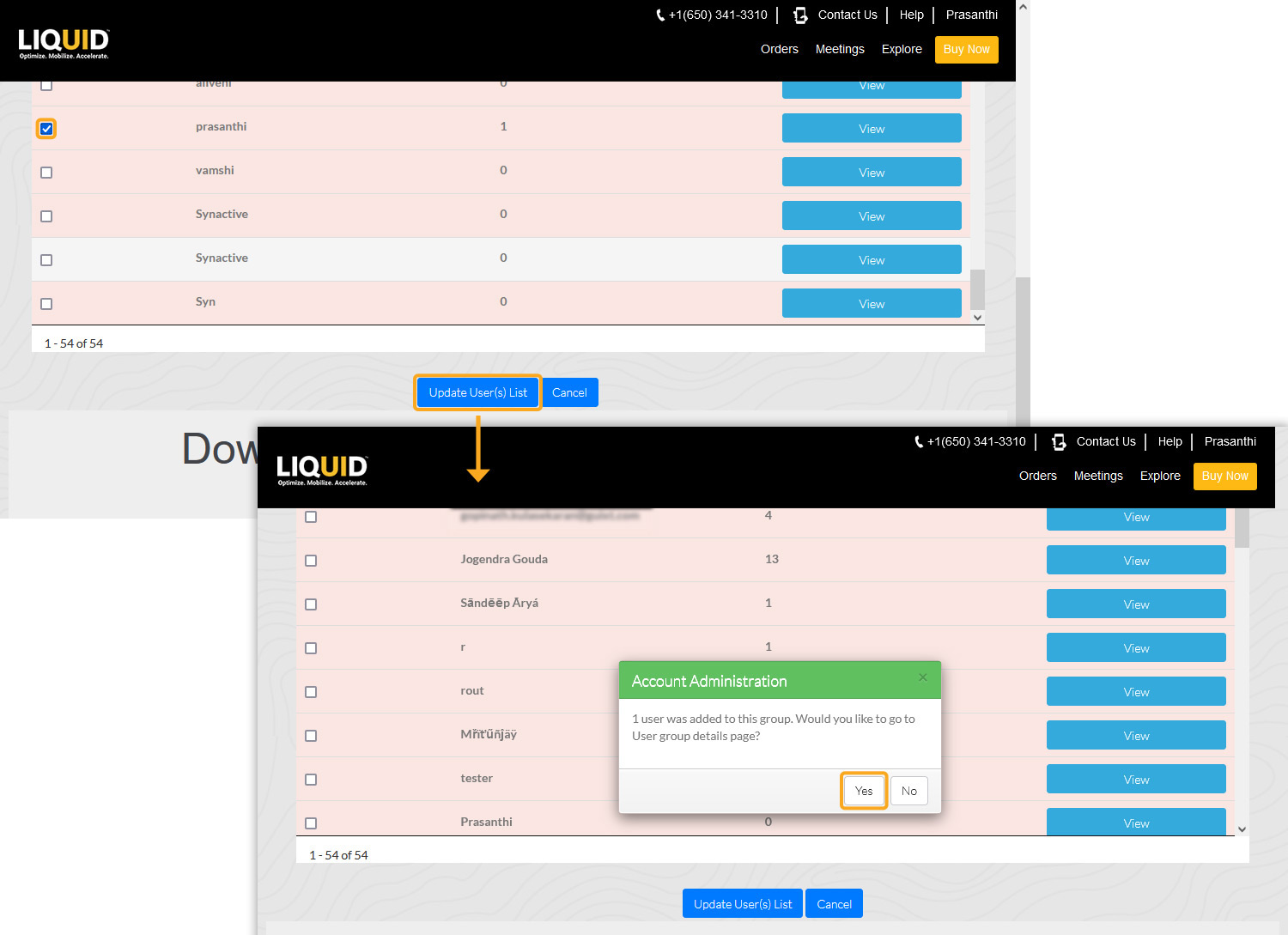
- Select the user you want to link and click the Update User(s) List button. A confirmation pop-up window will appear; click Yes to proceed.
To Link a Device:
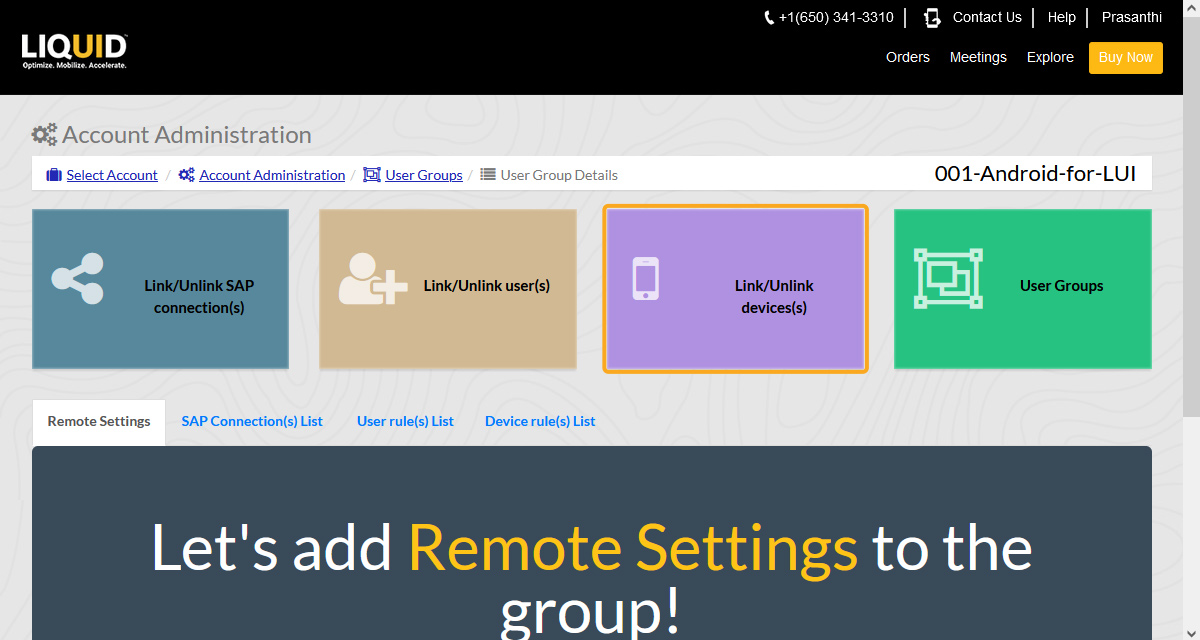
- Click Link/Unlink device(s) on your User Groups Details screen.
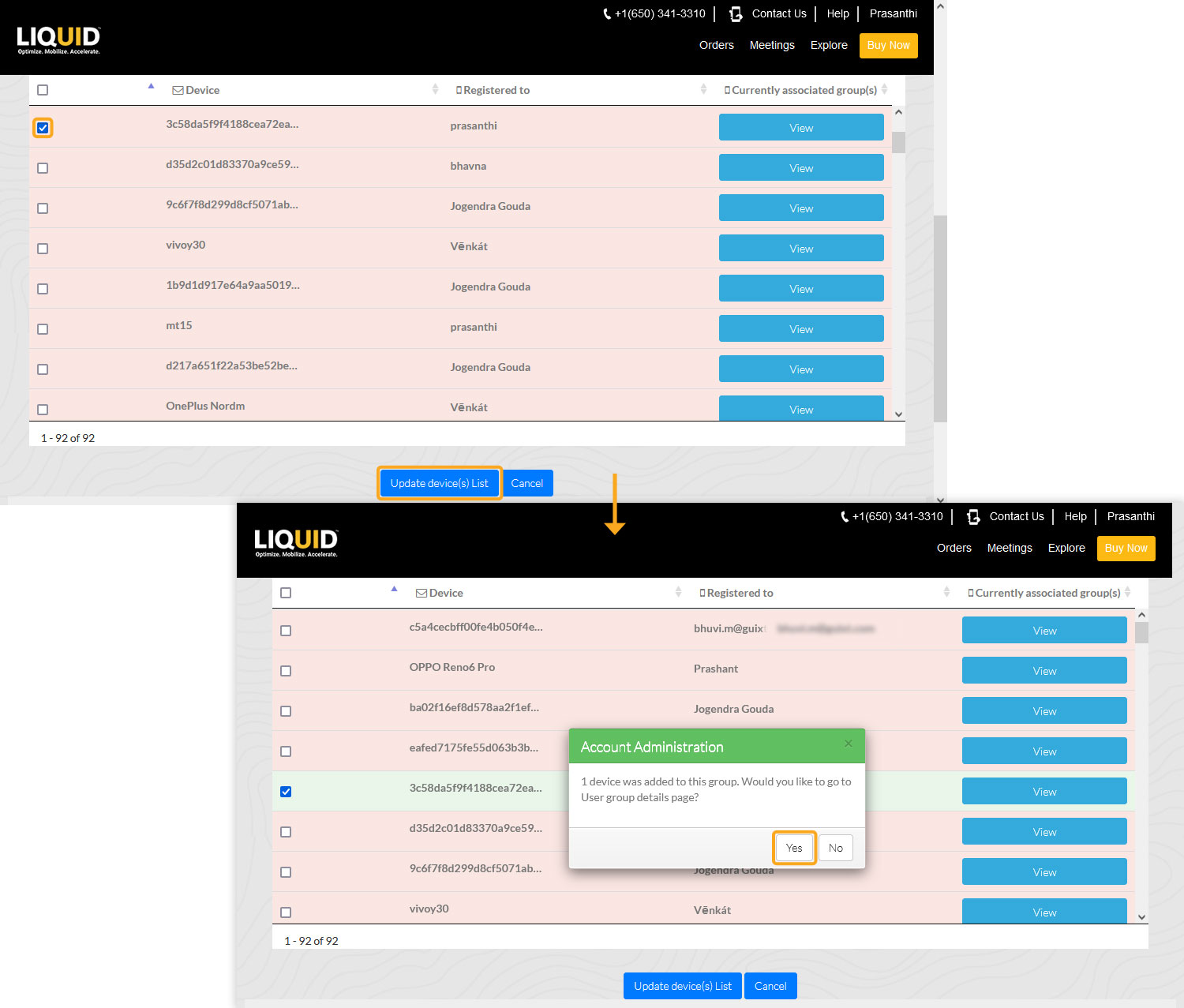
- From the list, select the device you want to link and click the Update device(s) List button. A confirmation pop-up will appear; click Yes to proceed.
Adding SAP Connection Details in LAMP
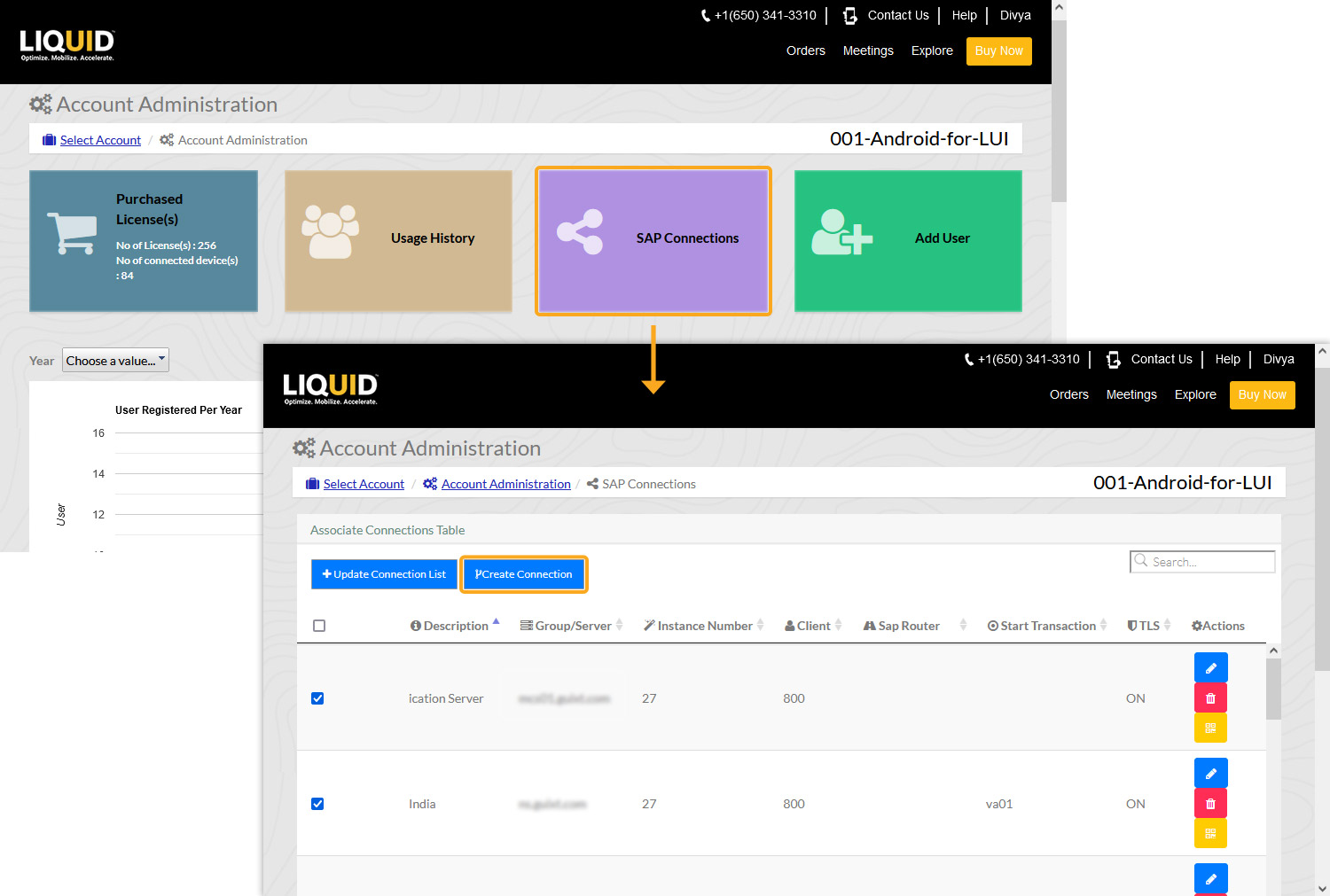
- Log in to LAMP and navigate to your Account Administration screen. Click the SAP Connections tab to add your SAP connection. Then, the SAP Connections window will appear. Click the Create Connection button to add a new SAP connection.
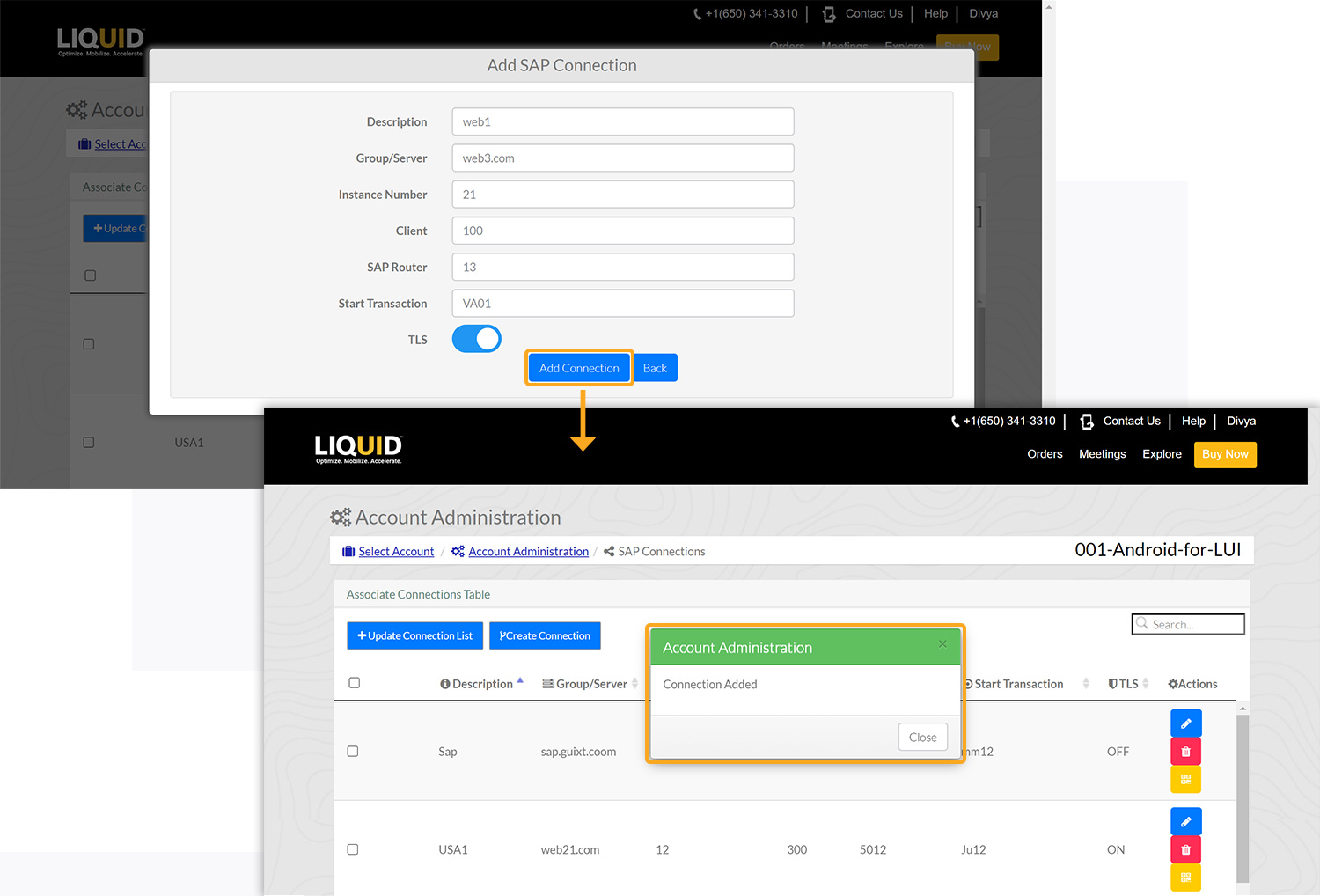
- The Add SAP Connection window will appear with the following fields. Fill out the required details, specifying the Start Transaction (in this case, VA01) and the status of the TLS (enable/disable) option. Once you have done so, click Add Connection. Upon successful addition, a confirmation dialog box will appear, as shown below.
Click here for details about how to add SAP Connection.
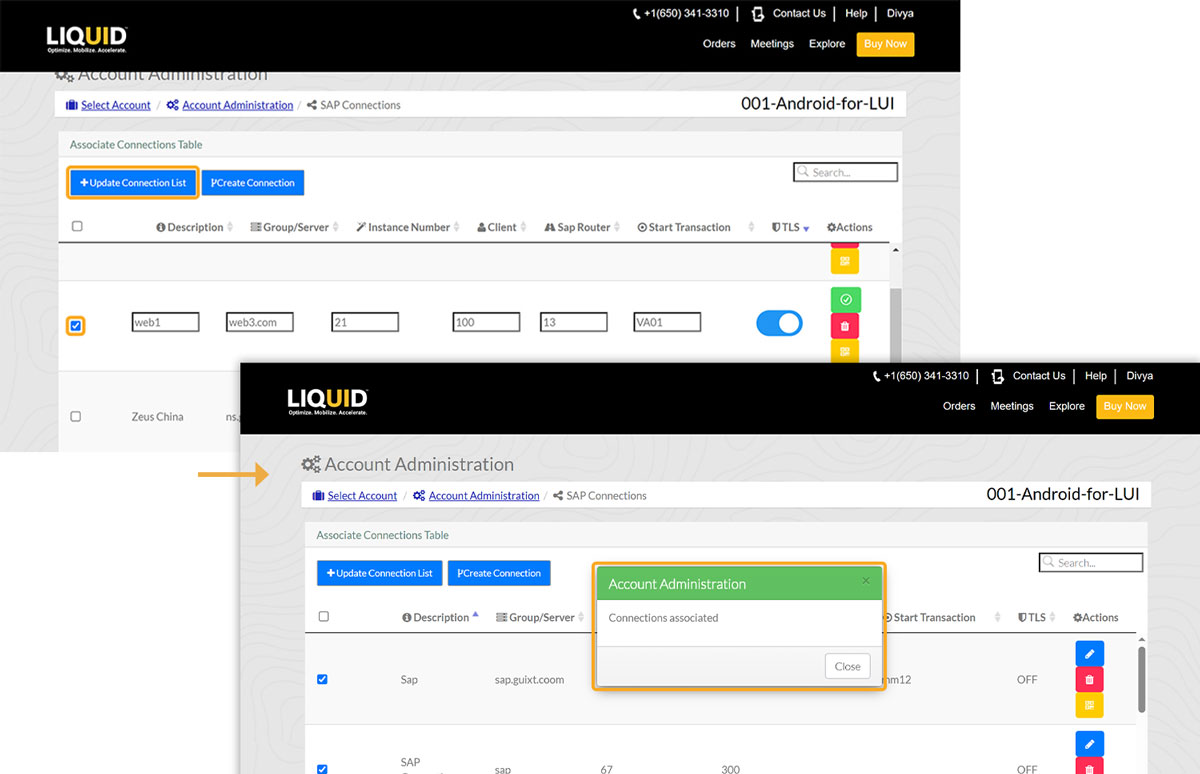
- Select the checkbox next to the desired SAP connection you want to associate with the Liquid UI for iOS, and then click Update Connection List. Once the connection list is updated, you will see a confirmation message: Connections associated.
Restoring your SAP Connection details via LAMP
To view the associated profiles or connections on the Liquid UI for iOS:
- Open the Liquid UI for iOS and select Sync from the Main Menu. The updated SAP connection list will then be displayed, as shown below.
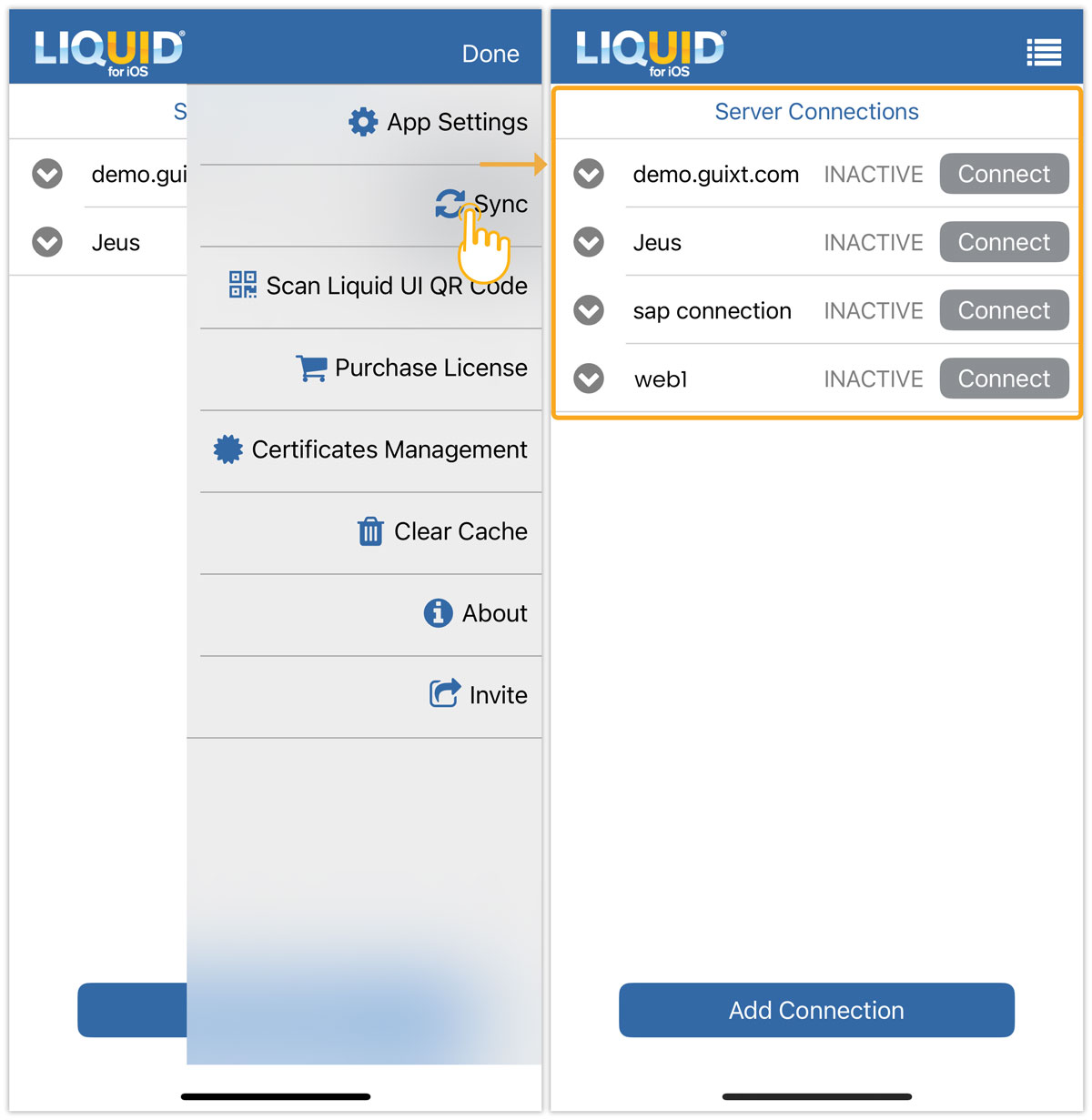
Note: To view the Sync option in the Main Menu, you need to add at least one server connection manually first.