


This document outlines the process of connecting Liquid UI for iOS (also known as Liquid UI Client for SAP) to your SAP Server. Various configuration scenarios exist for establishing an SAP server connection, with standard configurations detailed herein.
- Application Server
- Application Server with SAP Router String
- Message Server
- Liquid UI Server as Application Server
The details of each configuration type are described in detailed below.
Activating Application Server
- To connect to your SAP server, log in to SAP GUI, select Add New Entry, and then input the required SAP server information. Finally, click Connect to My SAP.
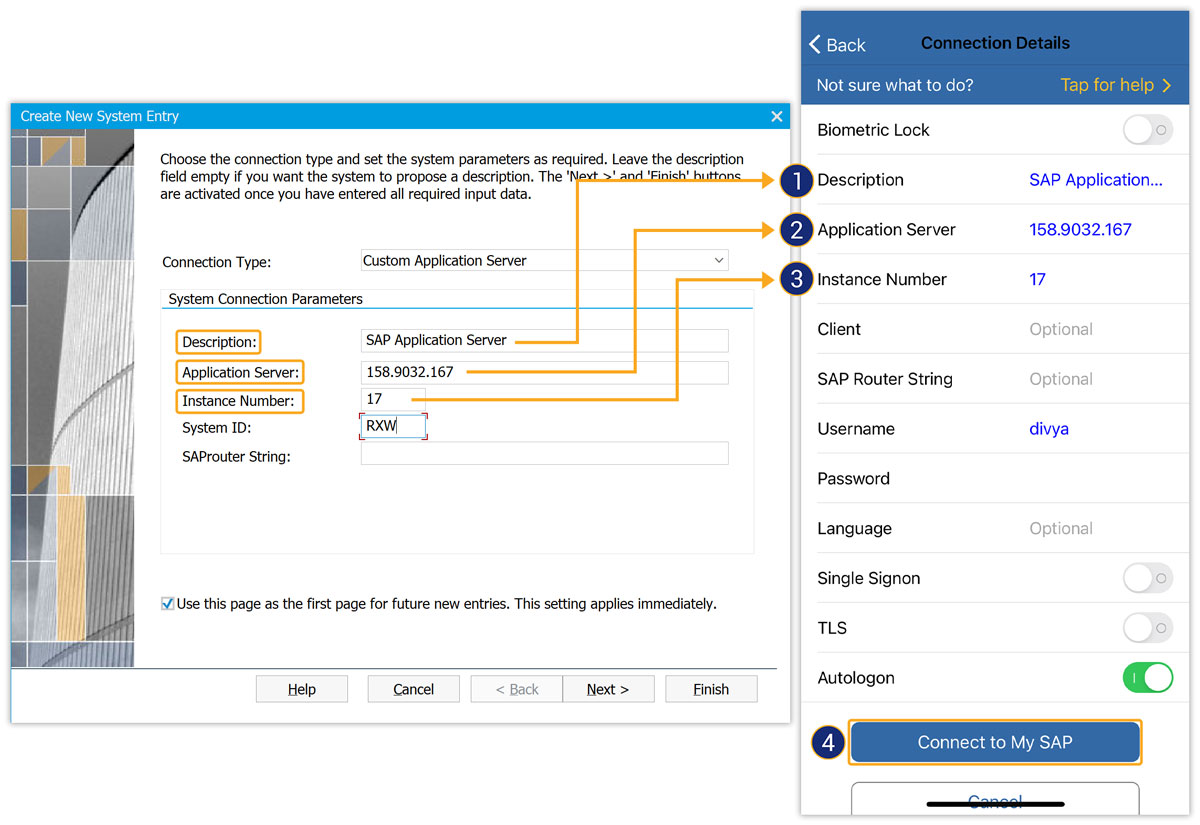
The image above shows the following system connection parameters:
- Description: Information about the server.
- Application Server: The name or IP address of the SAP Application server.
- Instance Number: A unique, digit-based ID for the corresponding instance in the SAP Landscape.
- System ID: The System ID of your SAP server.
- Client: The SAP client ID (optional).
- CONNECT TO MY SAP: Saves server info and connects to the SAP server.
Activating Application Server with SAProuter string
- Fill out the SAP server information, and click Connect to My SAP.
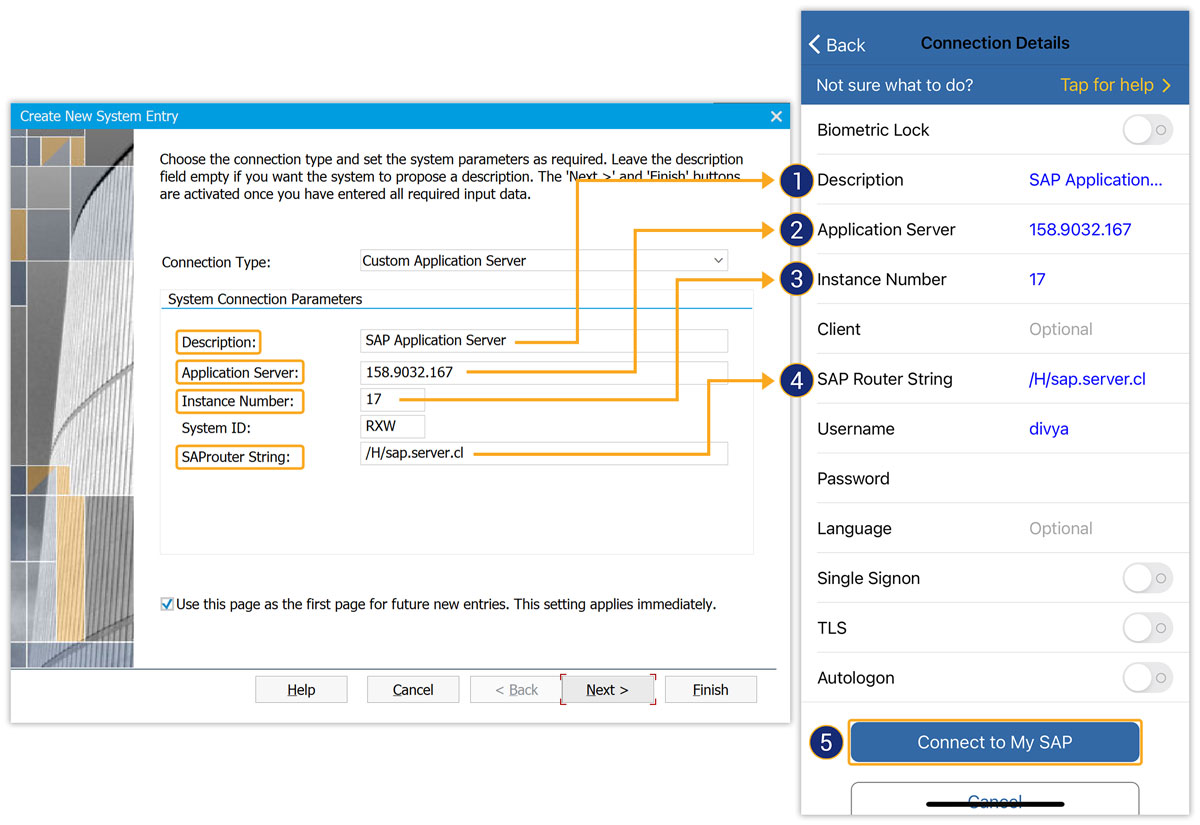
The image displays system connection parameters:
- Description: Server information.
- Application Server: SAP application server's name or IP address.
- Instance Number: Target port for application server connection.
- Client: SAP client ID (optional).
- SAP Router: Router address for SAP Server connection.
- CONNECT TO MY SAP: Saves server info and connects to the SAP server.
- Liquid UI Server supports SAProuter strings in 3 different formats:
- /H/
- /H//S/
- /H/
Activating Message Server
- Fill out the SAP server information, and click Connect to My SAP.
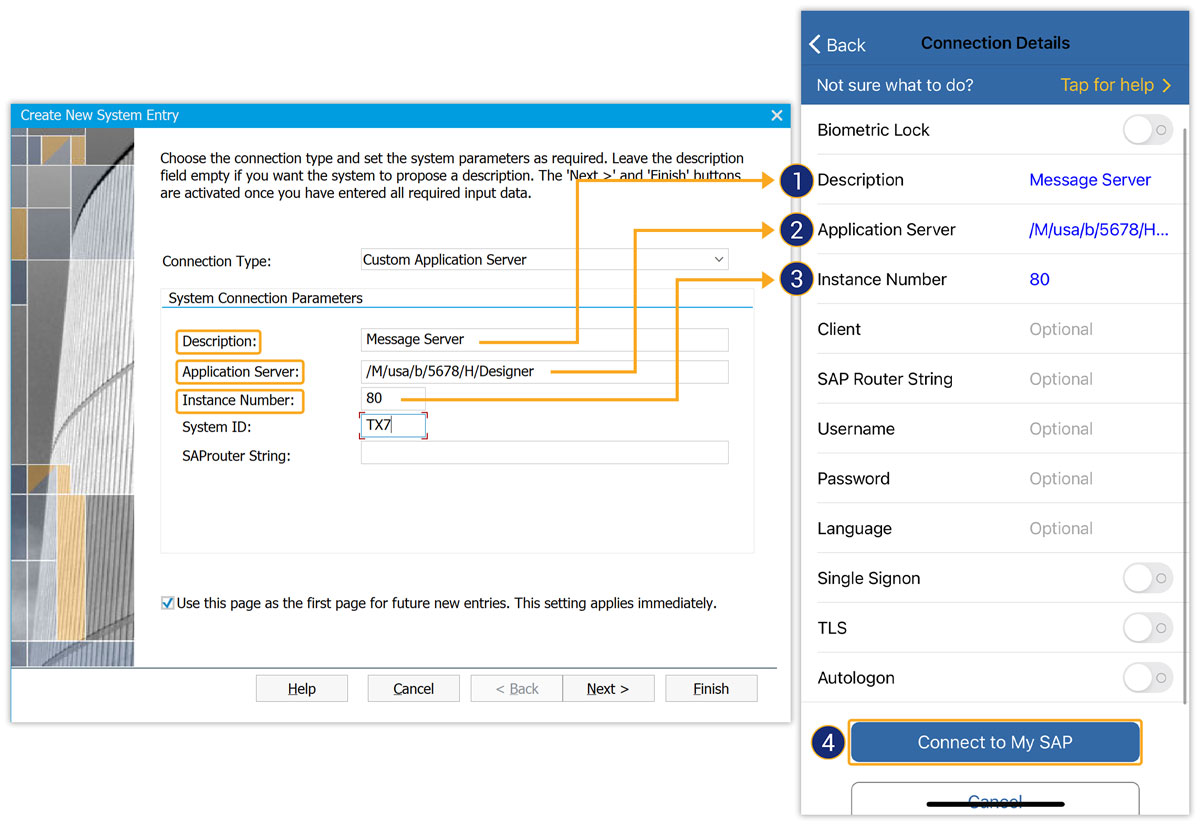
As per the above image, the system connection parameters have the following details:
- Description - Information about the server.
- Application Server - Refers to the SAP message server. Where,
- M --> Name of the message server or Liquid UI server
- S --> Service port number
- G --> Group of the message server
- Instance Number - Specifies the target port that connects to either the SAP application server.
- Client - SAP client ID (Optional value).
Activating Liquid UI Server as Application Server
- Enter SAP server info, then click Connect to My SAP to save.
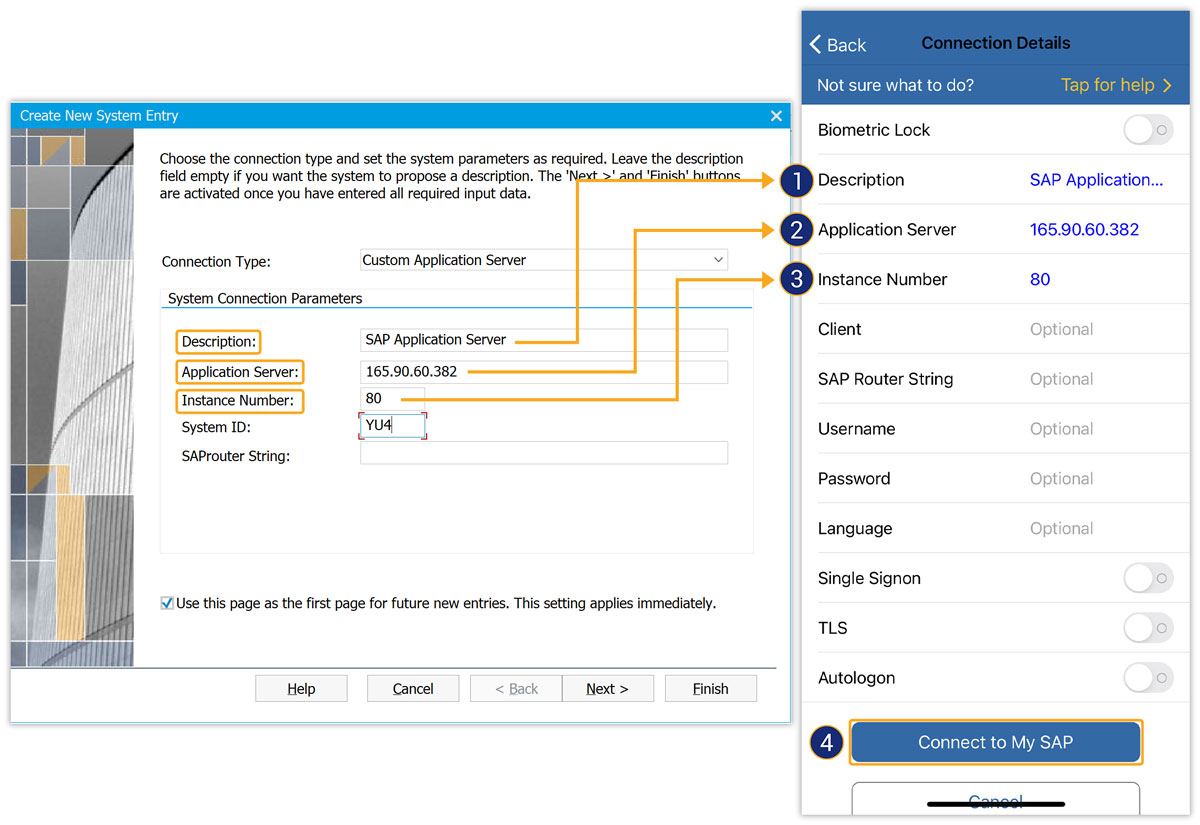
As per the above image, the system connection parameters have the following details:
- Description: Information about the server.
- Application Server: The name or IP address of the Liquid UI server.
- Instance Number: The last two digits of the listening port that connects to the Liquid UI Server, as specified in ´sapproxy.ini´.
- Client: The SAP client ID (optional).