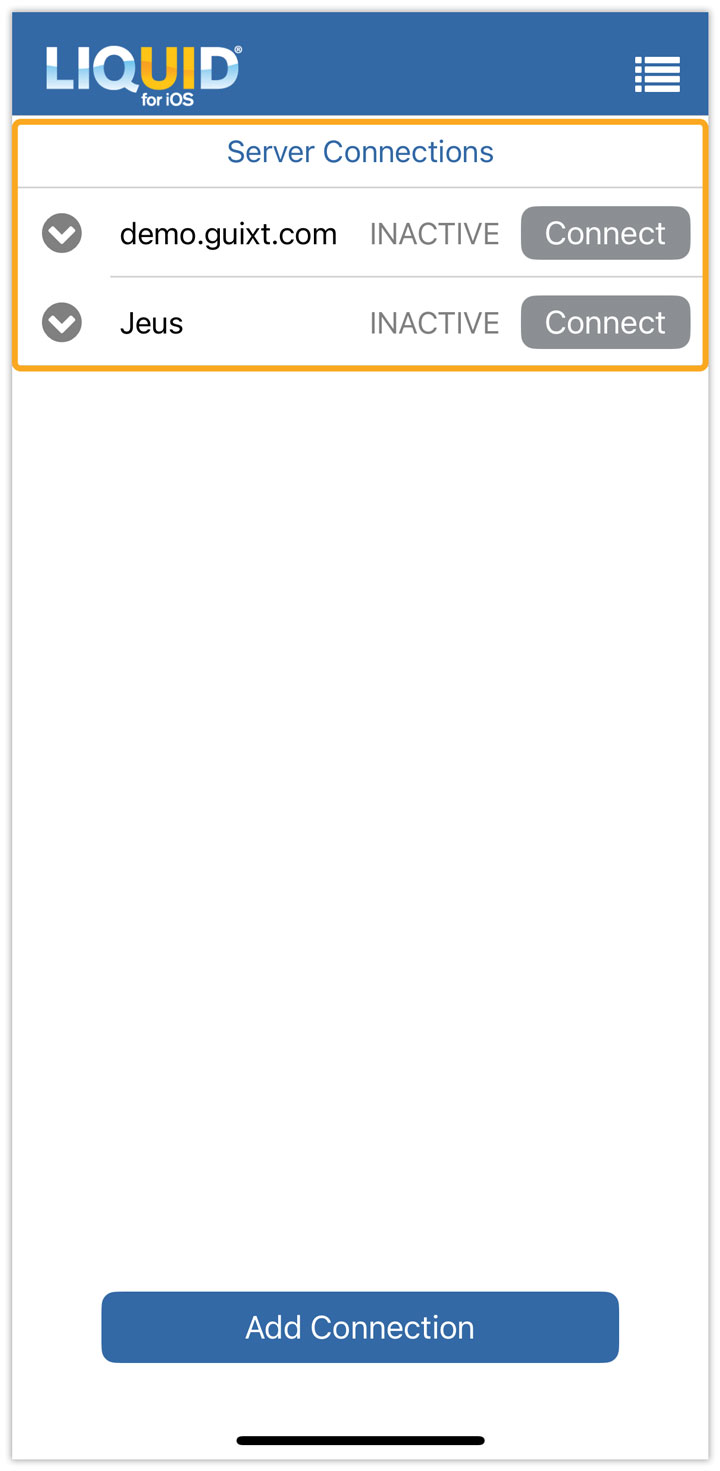


The Server Connections screen appears first on the Liquid UI for iOS. This is where you create and manage your connections to the SAP Server or Liquid UI Server. Furthermore, you can configure features such as Auto Logon, TLS, and other features at the connection level.
You can perform the following actions in the Server Connections screen:
Create a new connection
To create a new connection, please do the following:
- Open the Liquid UI for iOS, and on the screen, click CONNECT TO MY SAP if you are adding a connection for the first time. If you’ve already added one, tap Add Connection to create a new one. Fill out the required information and tap Connect to My SAP to save the connection.
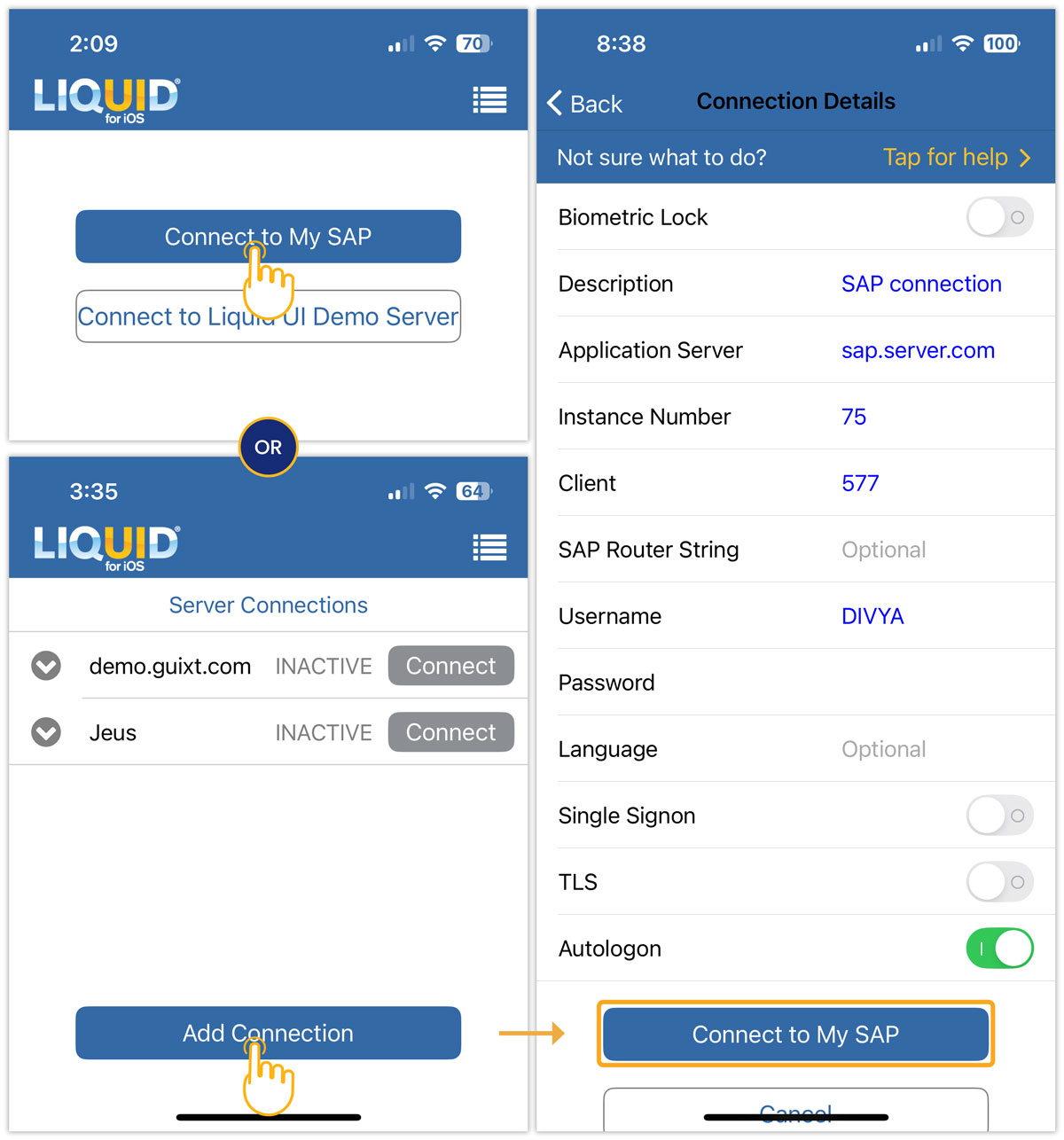
Click here for details on how to connect to the SAP Server.

Note: Server names are case-sensitive. Make sure to enter the server names exactly as they appear in the SAP GUI Logon Pad.
Edit an existing connection
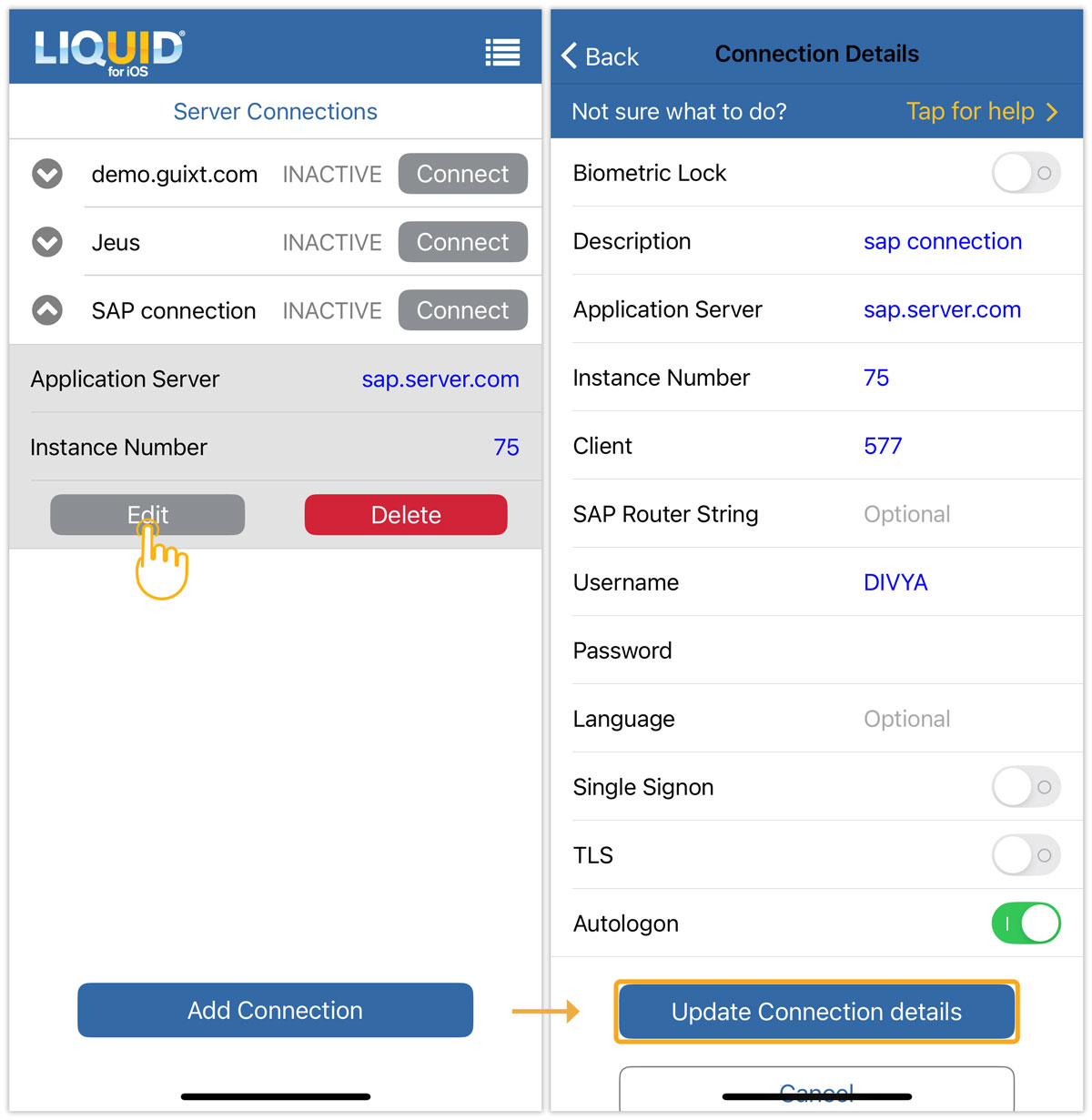
Once a connection is created, you can edit its details from the server connections list. Follow the steps below to edit an existing connection:
- On the Server Connections screen, tap the SAP connection you wish to edit. Select Edit to open the Connection Details screen. Tap each field you want to modify. After making changes, tap Update Connection Details to save.
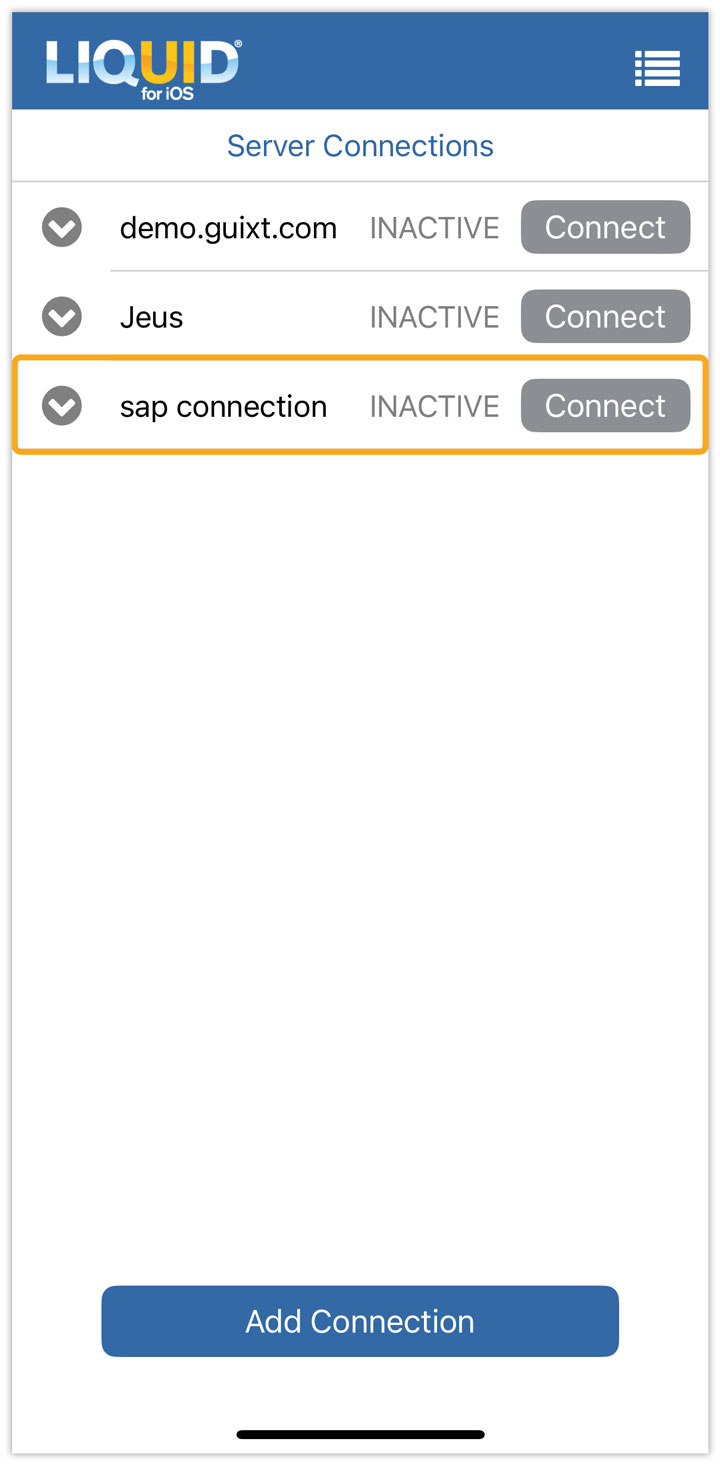
- You’ll be redirected back to the Server Connections screen, where the updated details will be visible, as shown in the image below.
Delete a connection
You can delete any user-created connection by following these steps:
- On the Server Connections screen, tap the SAP connection you want to remove. Select Delete. A confirmation alert will appear. Tap Delete to confirm.
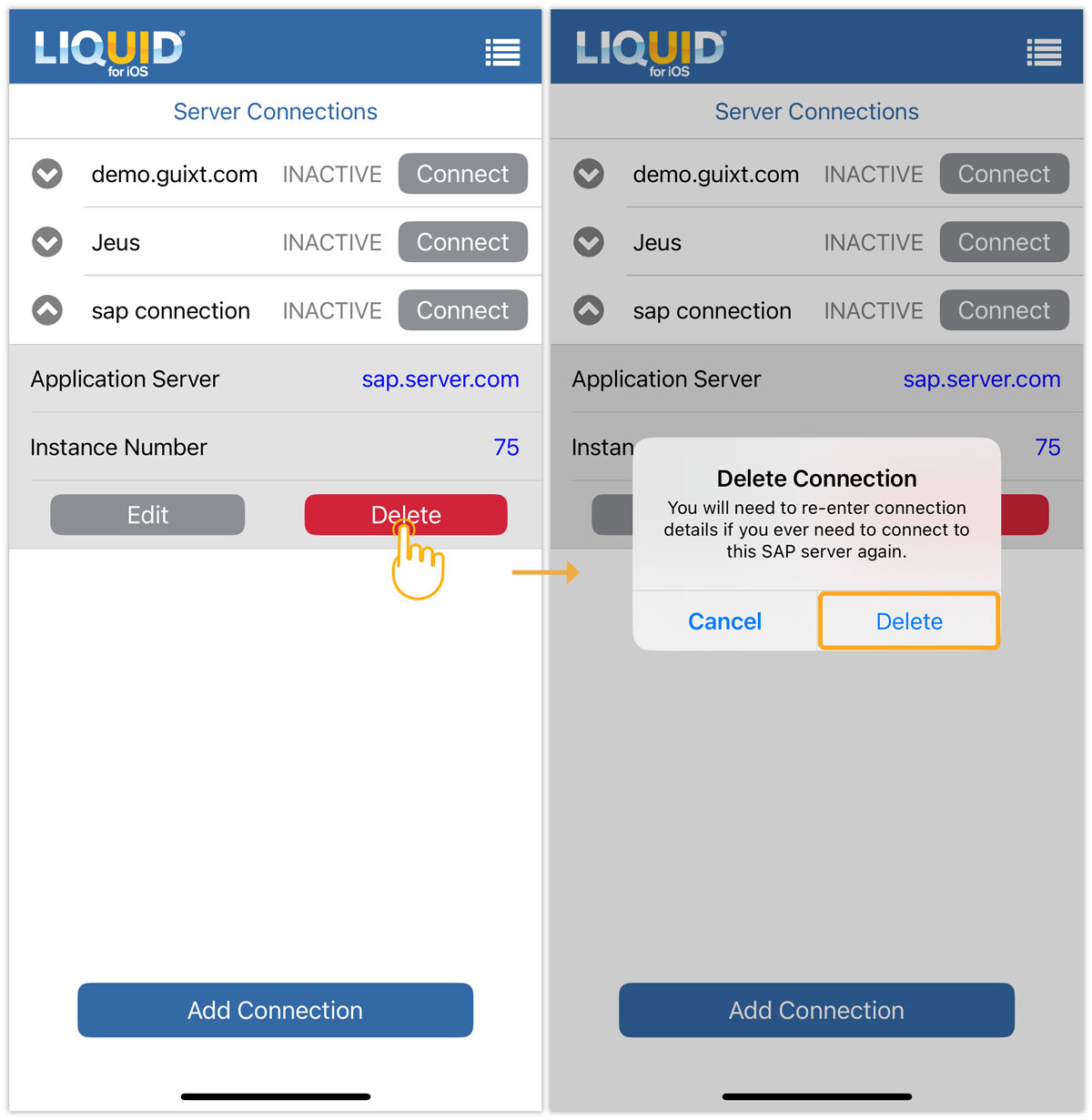
- The connection will now be removed from the Server Connections list, as shown in the image below.