

Liquid UI for iOS includes features that simplify the SAP experience, such as configuring a wireless printer for direct printing from SAP applications. By setting up a wireless printer in SAP, users can easily print purchase orders, invoices, and other SAP documents directly from their iOS devices. This eliminates the need for manual printer configurations on each device, ensuring a seamless and efficient printing experience.
Please follow the steps below to configure a wireless printer in SAP:
- Navigate to the Spool Administration: Initial Screen, open the Devices/Servers tab, enter the output device name, and click Display. If the printer exists, its details will appear. For a new printer, click Change to access the create option.
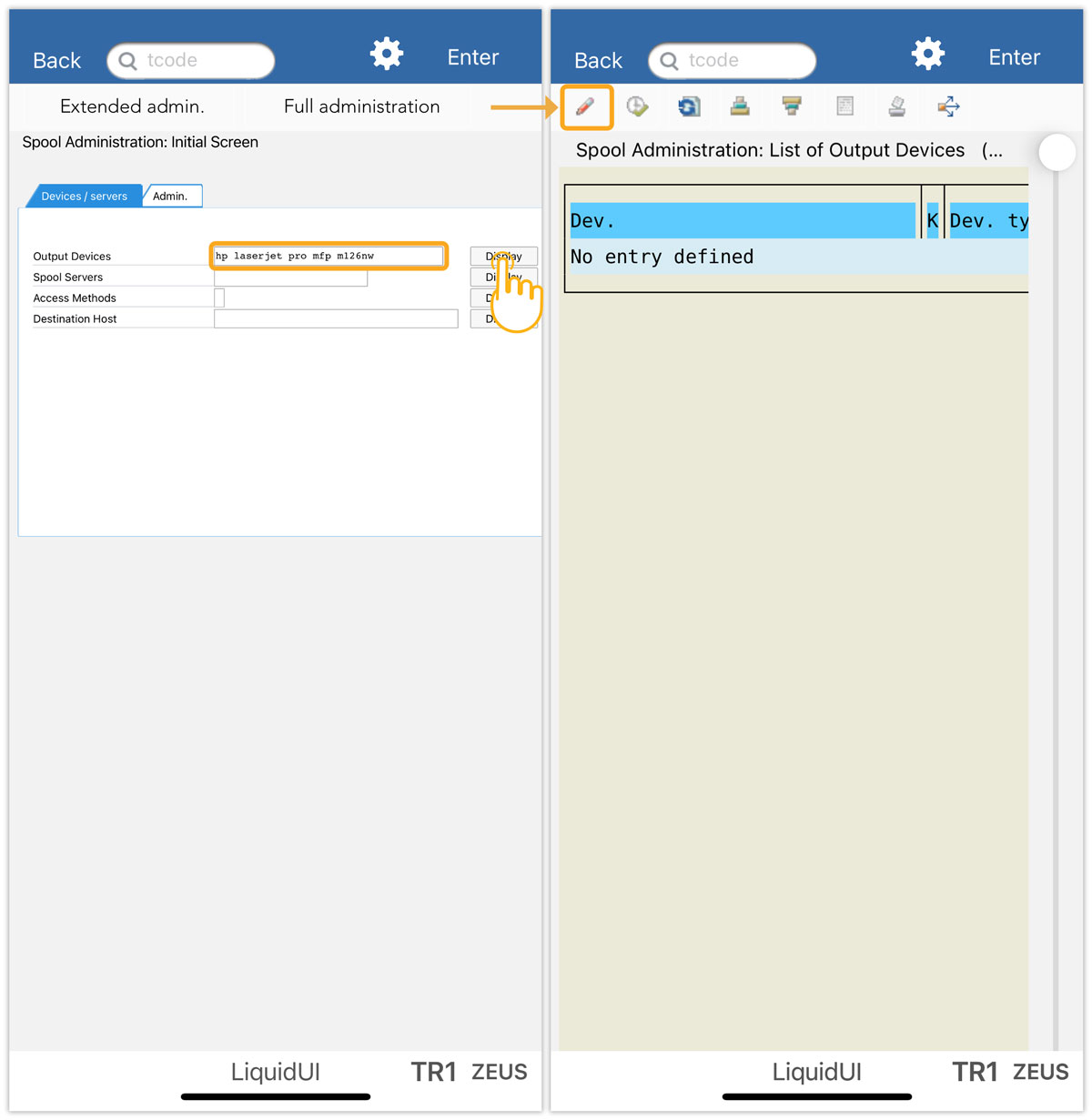
- Click Create to generate the output device with the required configurations, then click DeviceAttributes button and provide the following details:
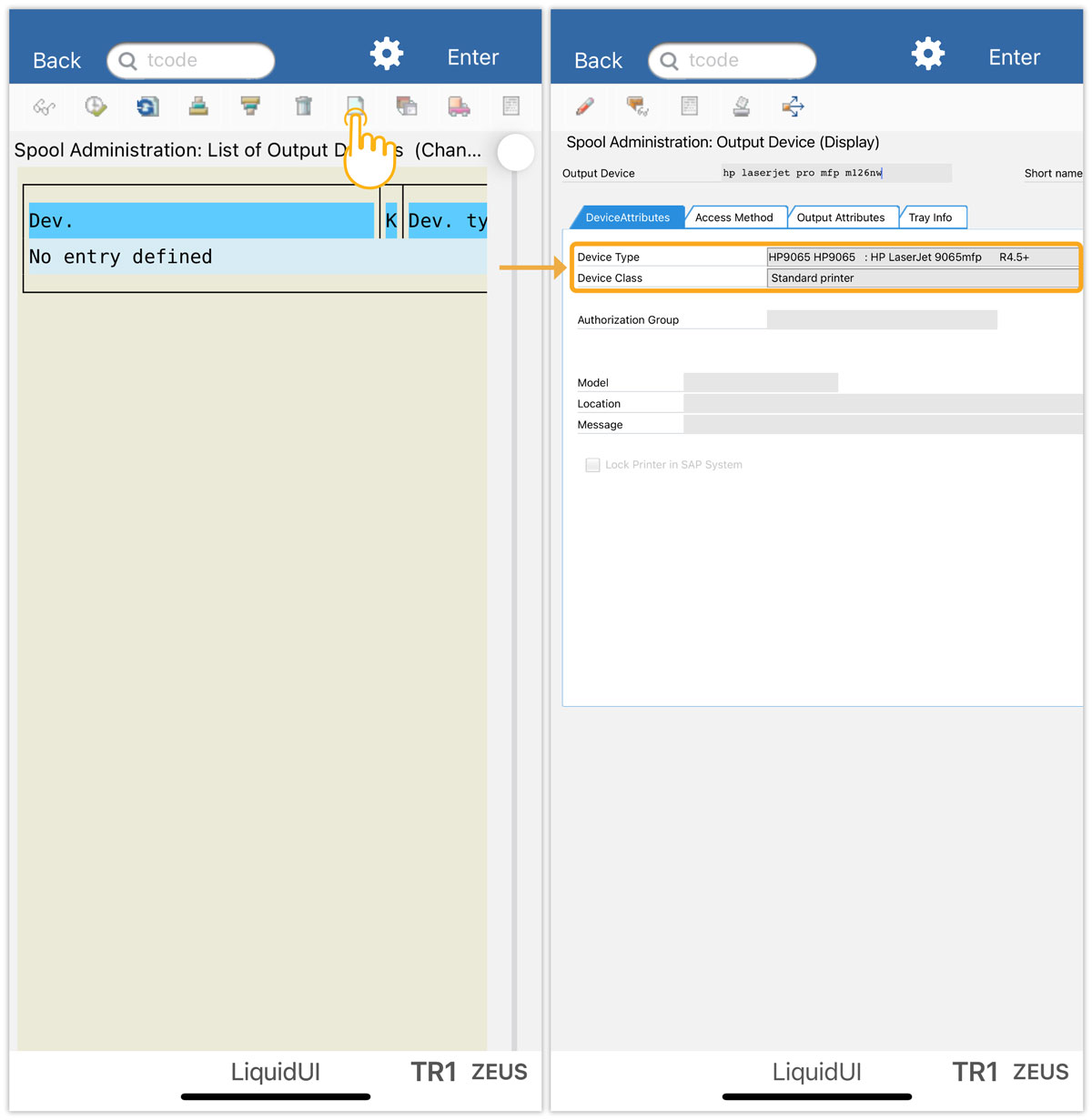
- Device Type: Select the device type that is compatible with your printer.
- Device Class: Select the device class it belongs to. The standard printer is the default.
- Location: Enter your location name
- Message: Enter the purpose of the printer.
- Now, select the Access Method tab and enter the following details:
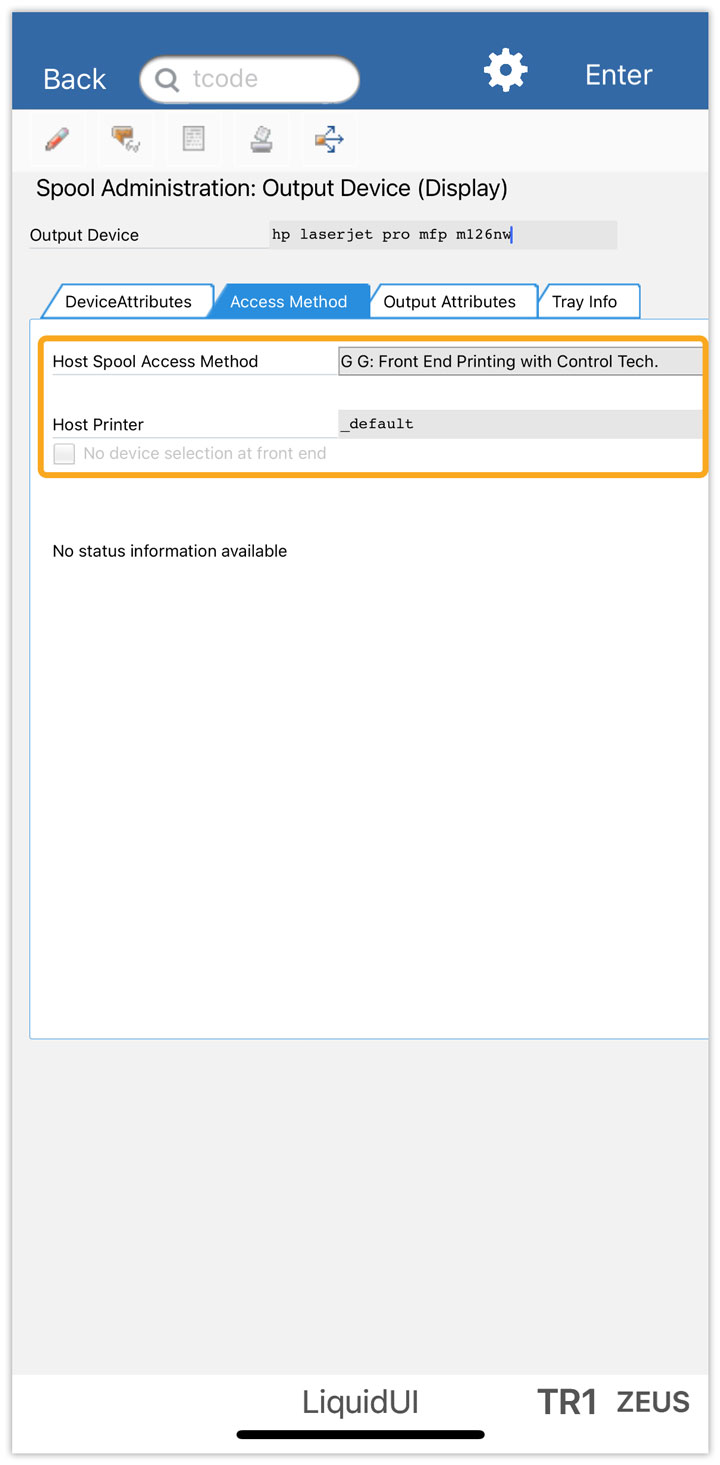
- Host Spool Access Method: G G: Front End Printing with Control Tech.
- Host Printer: _default
- Do not query the host spooler or printer for print requests
- Click Output Attributes tab and enter the following details:
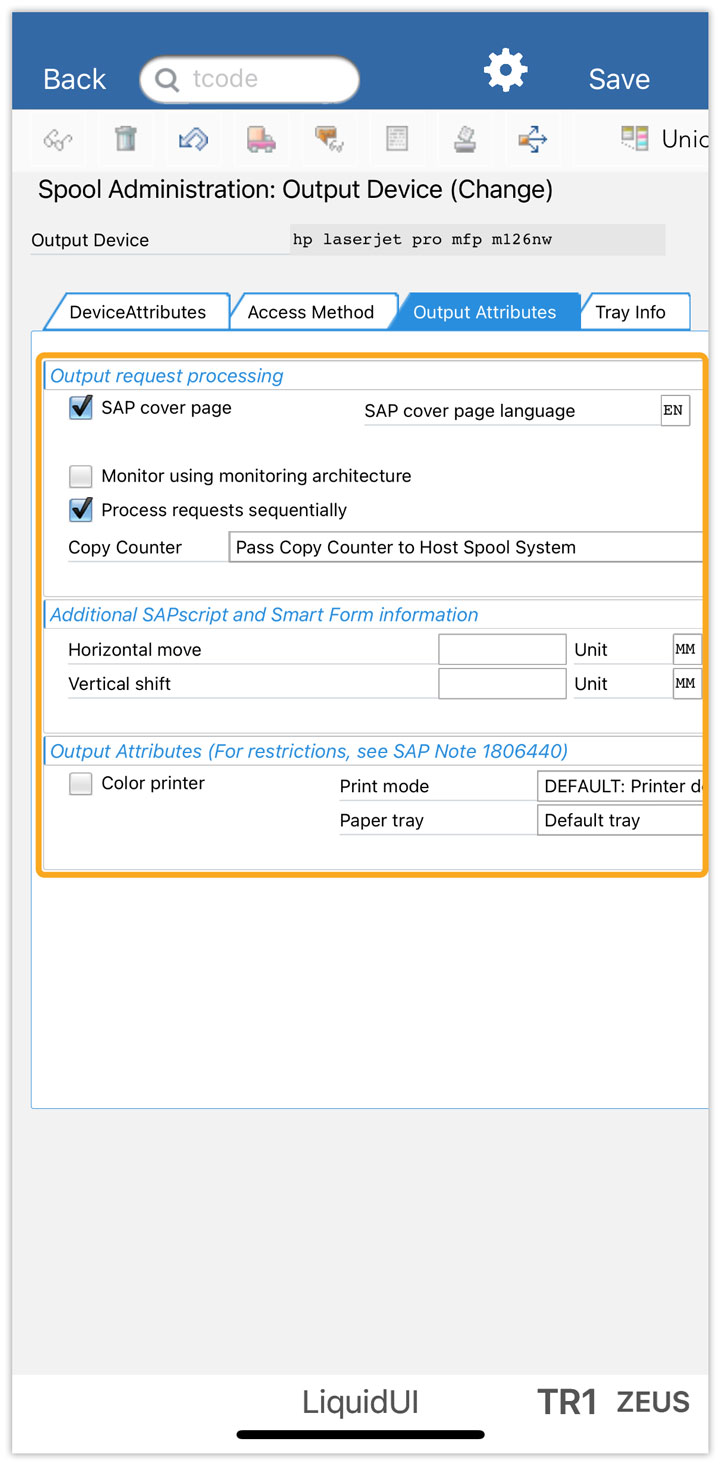
- SAP cover page – Check
- SAP cover page language – EN
- Process requests sequentially – Check
- Copy Counter – Pass Copy Counter to Host Spool System
- Print mode – DEFAULT:
- Paper tray - Default tray
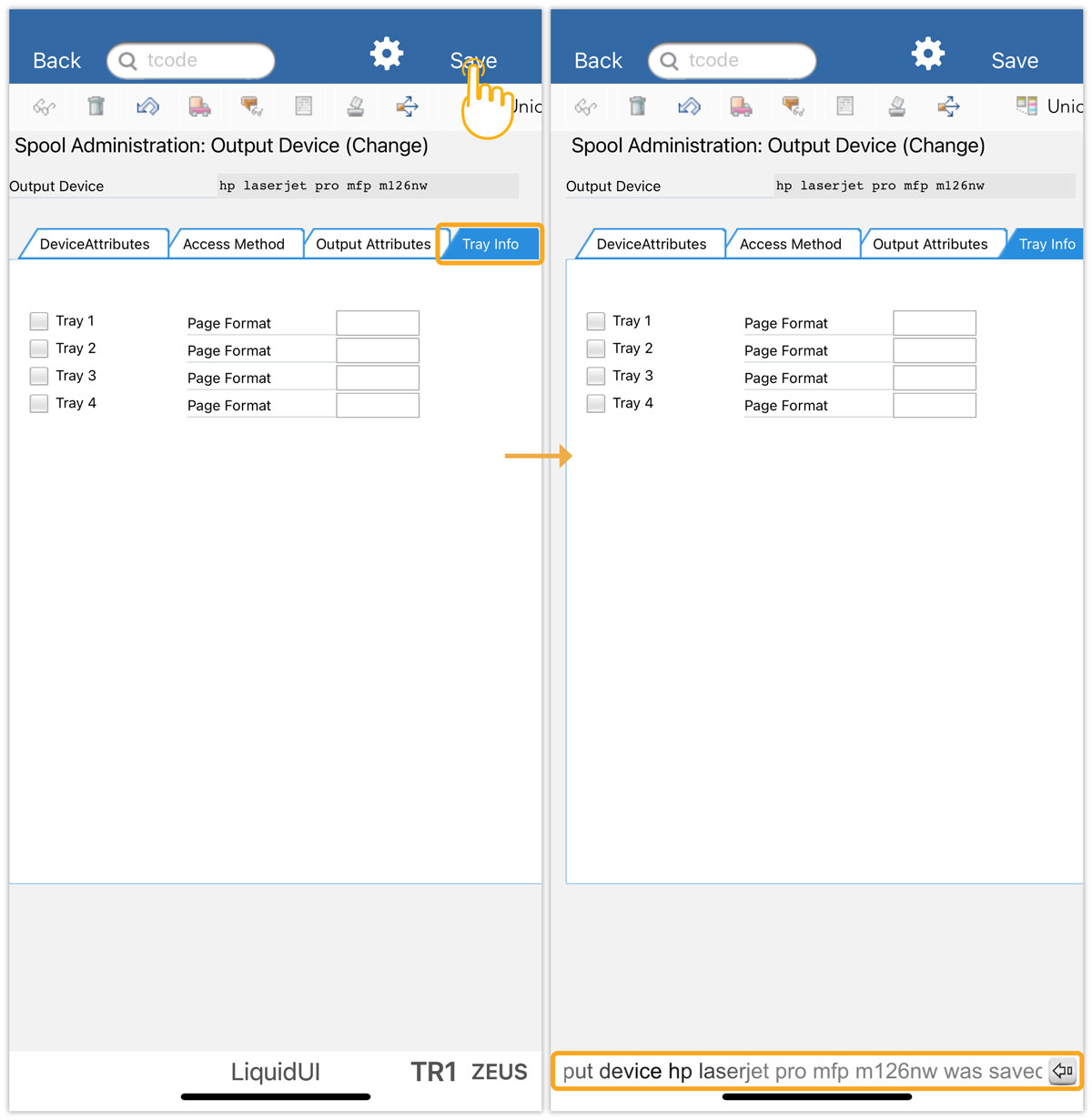
- Click Tray Info tab to choose the page format for printing, and click SAVE to confirm the changes. Then, you will receive a message at the bottom of the SAP screen stating that the Output device was saved, as shown in the image below.
Setting the output device to the user
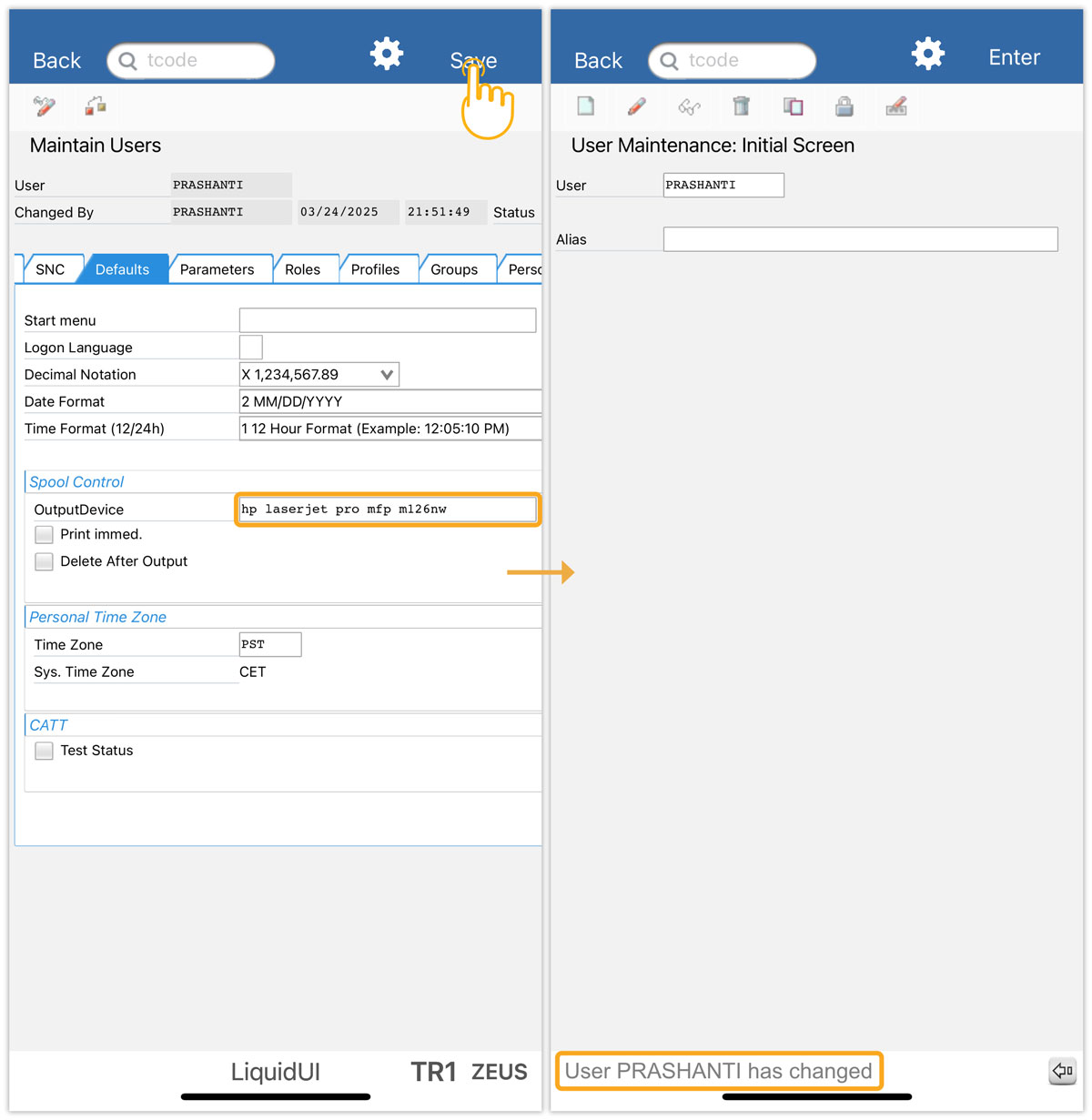
- Navigate to the User Maintenance: Initial Screen (SU01) transaction, enter the user name, and click Change on the toolbar. You will then be navigated to the Maintain Users screen. Click the Defaults tab.
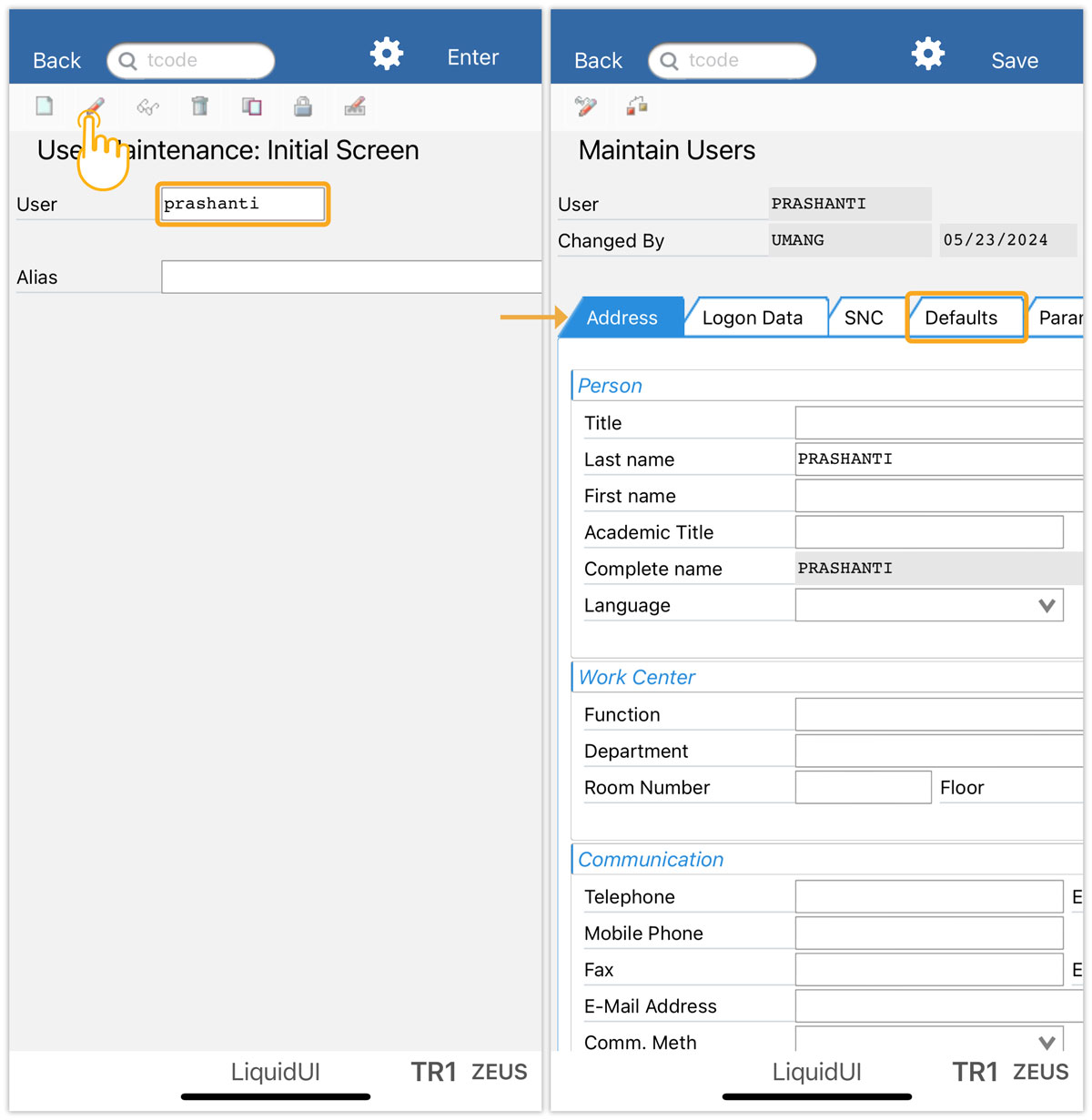
- Enter the name of the OutputDevice created in the SPAD transaction, then click Save to save the user data. A success message will appear at the bottom of the SAP screen: User PRASHANTI has changed.