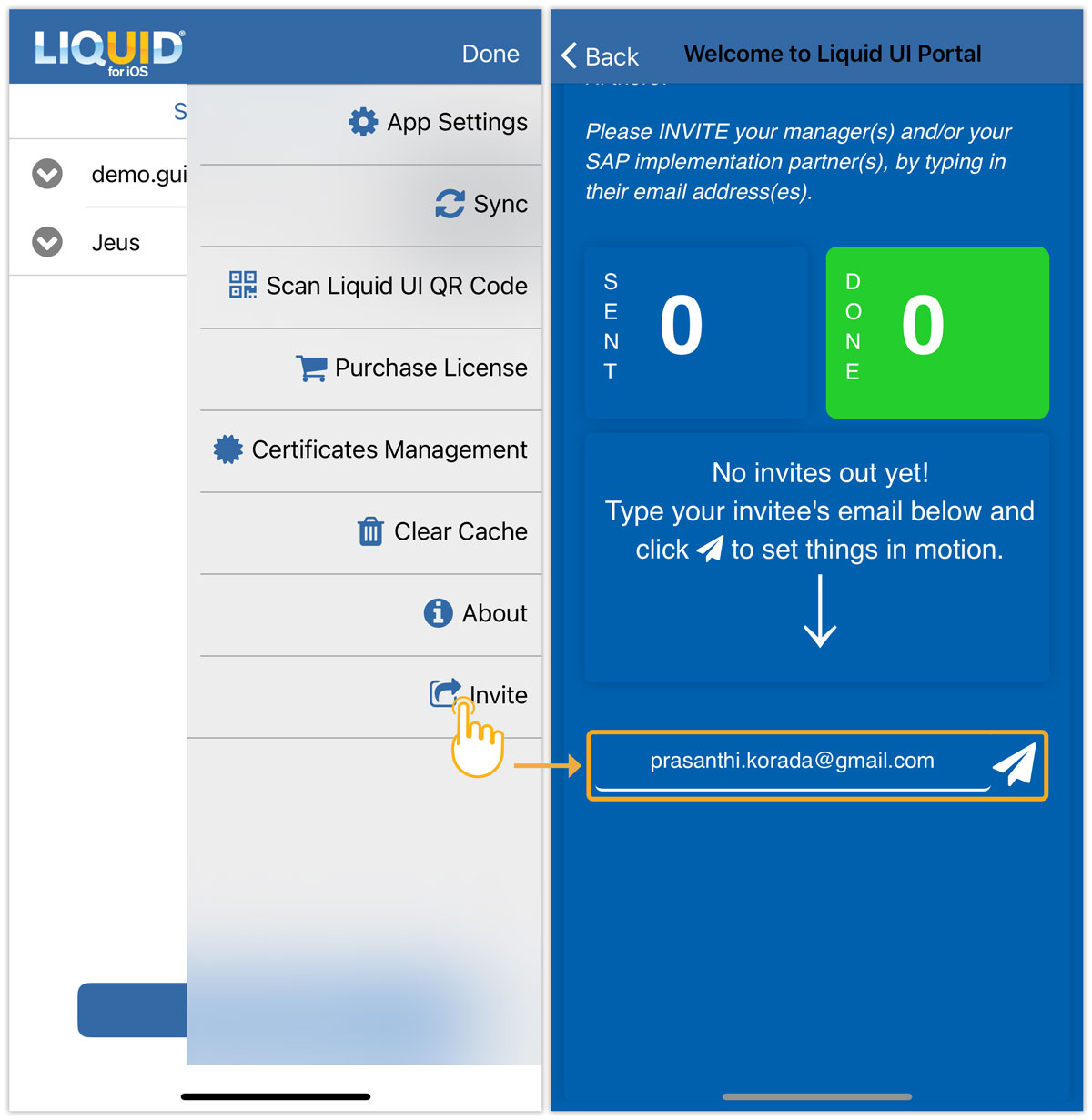


Liquid UI for iOS consists of the Main Menu located at the upper-right corner of the home screen. This menu allows users to configure various aspects of the app. You can access the Main Menu by either tapping the top-right corner or swiping left on the application screen.
The Main Menu provides access to several settings for the Liquid UI Client, as outlined below:
- App Settings
- Sync
- Scan Liquid UI QR Code
- Purchase License
- Certificates Management
- Clear Cache
- About
- Invite
App Settings
App Settings present in the Main Menu enables you to Configure Scanner, Restore settings from iCloud, Backup settings to iCloud, Set Toolbar Height, Theme Selection, Font Selection, GPS Format, SAP Logon Language, and Remove License.
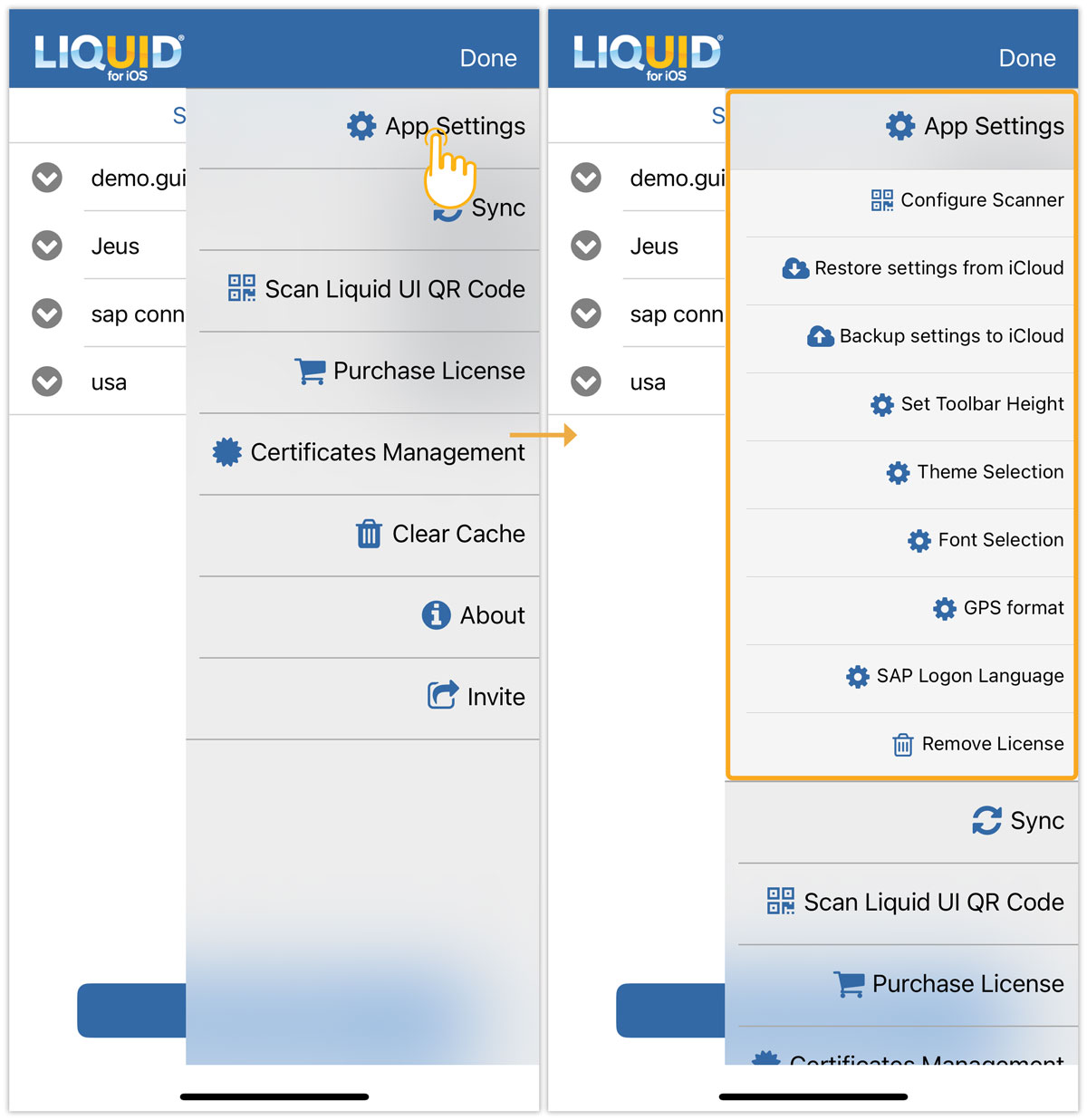
Click here for details on App Settings.
Sync
The Sync option restores SAP connections associated with the Portal/Enterprise license.
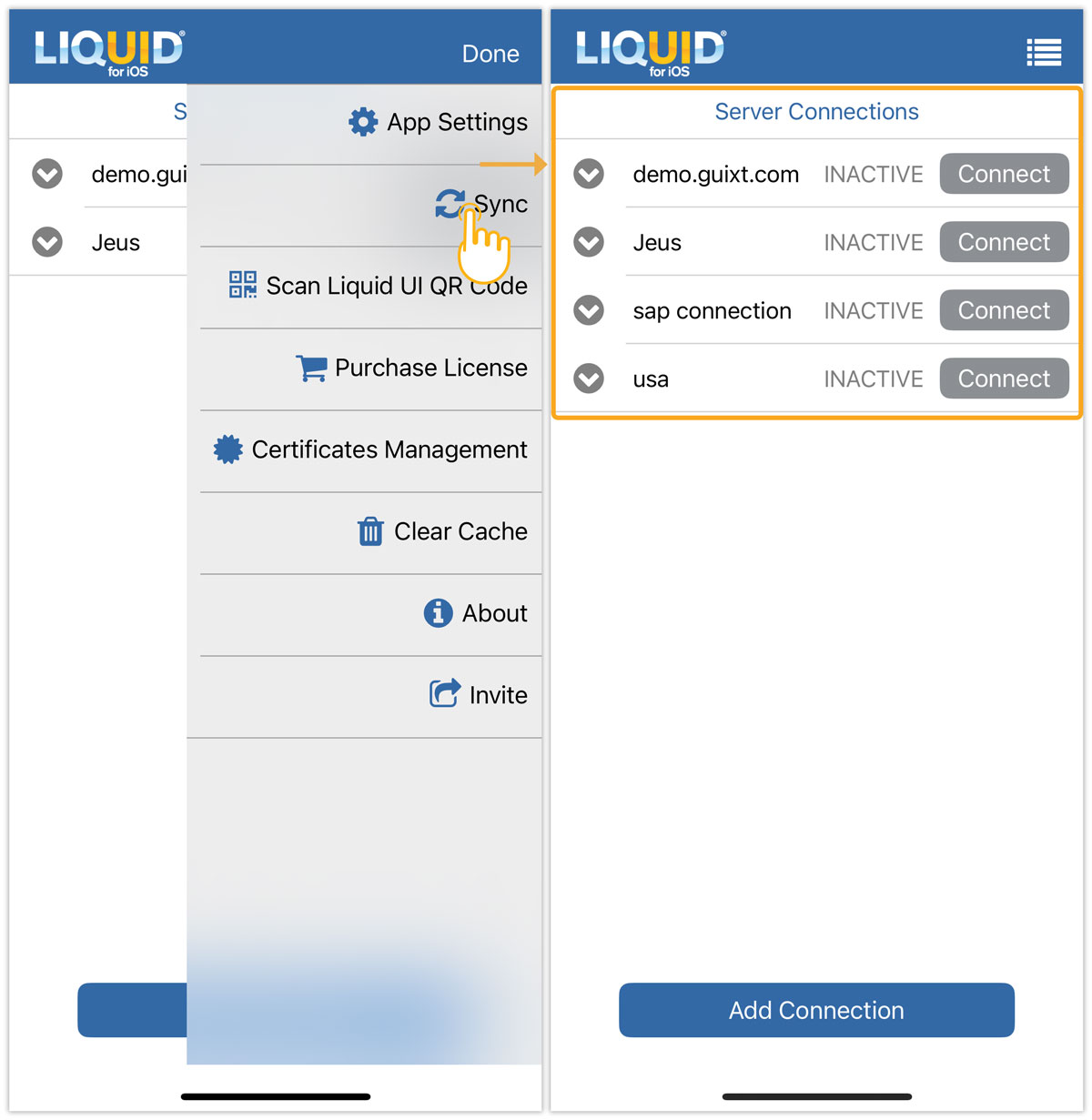
Click here for detailed information on how to restore SAP connections.
Scan Liquid UI QR Code
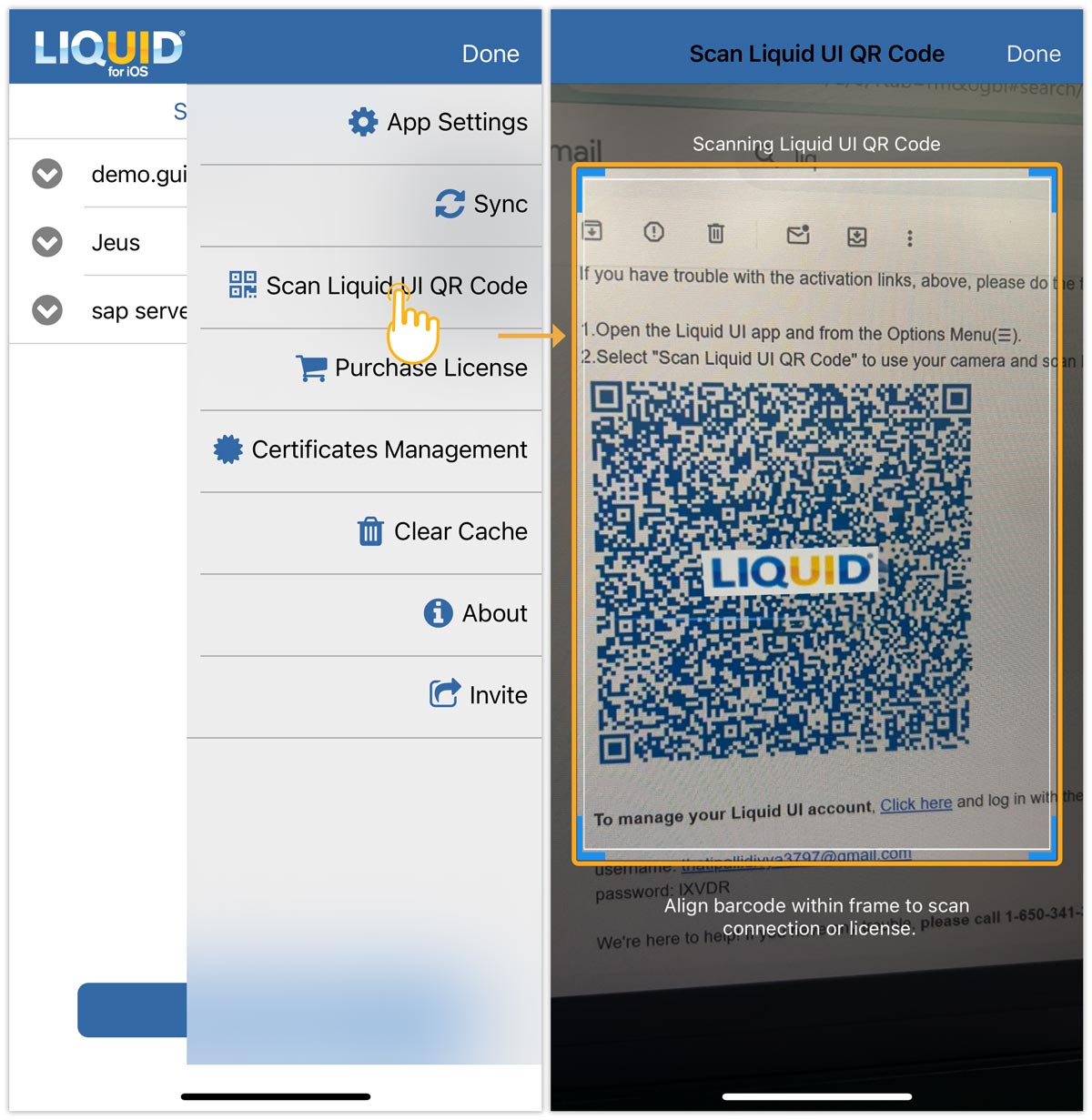
The Scan Liquid UI QR Code setting enables users to scan all the QR codes generated by the Liquid UI platform. This provides a quick and easy way to install a license or add an SAP connection within the app.
Purchase License
The Purchase License option allows users to purchase a license within the app.
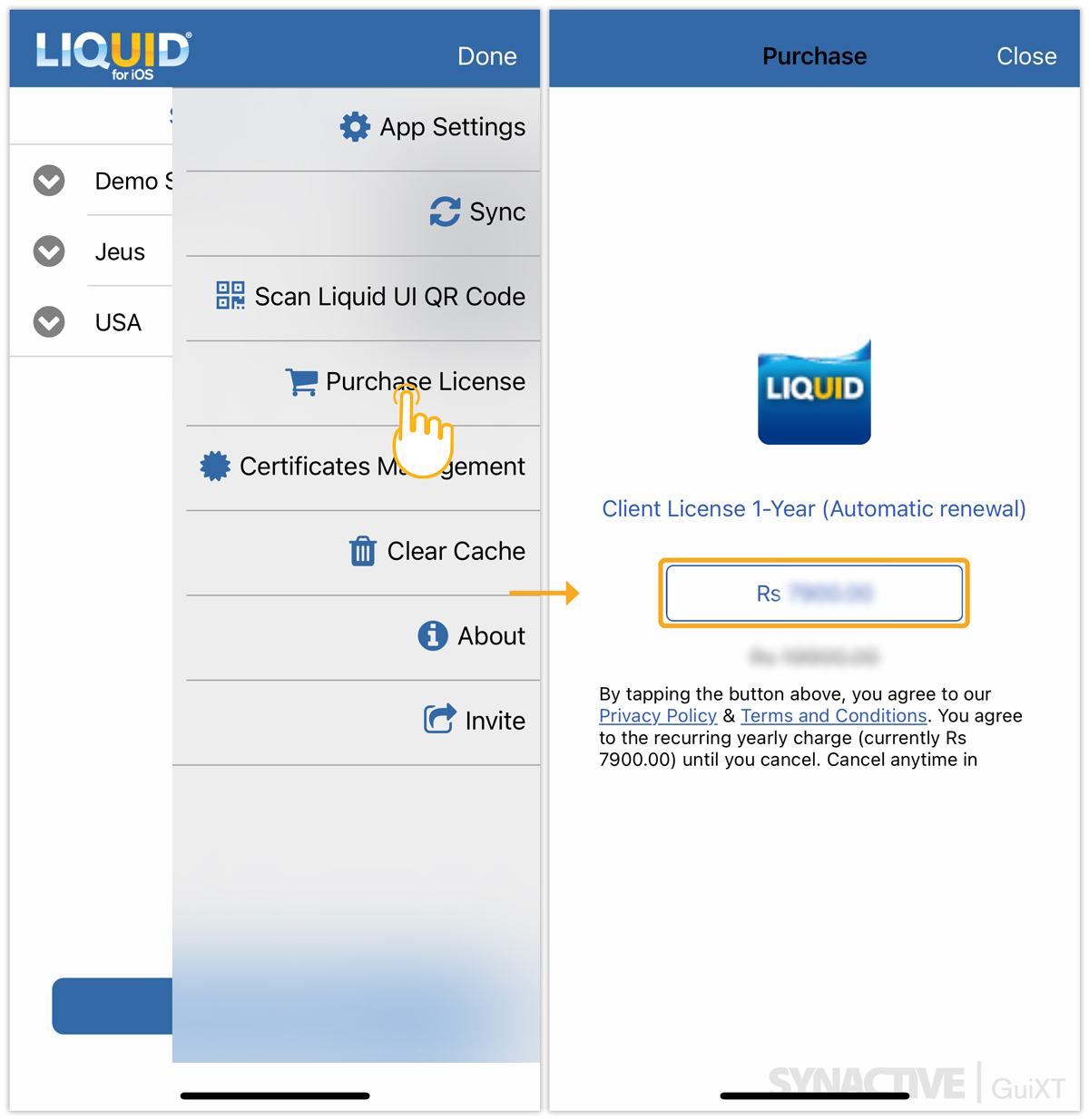
Click here for details on how to purchase a license.
Certificates Management
The Certificate Management option displays all the installed certificates.
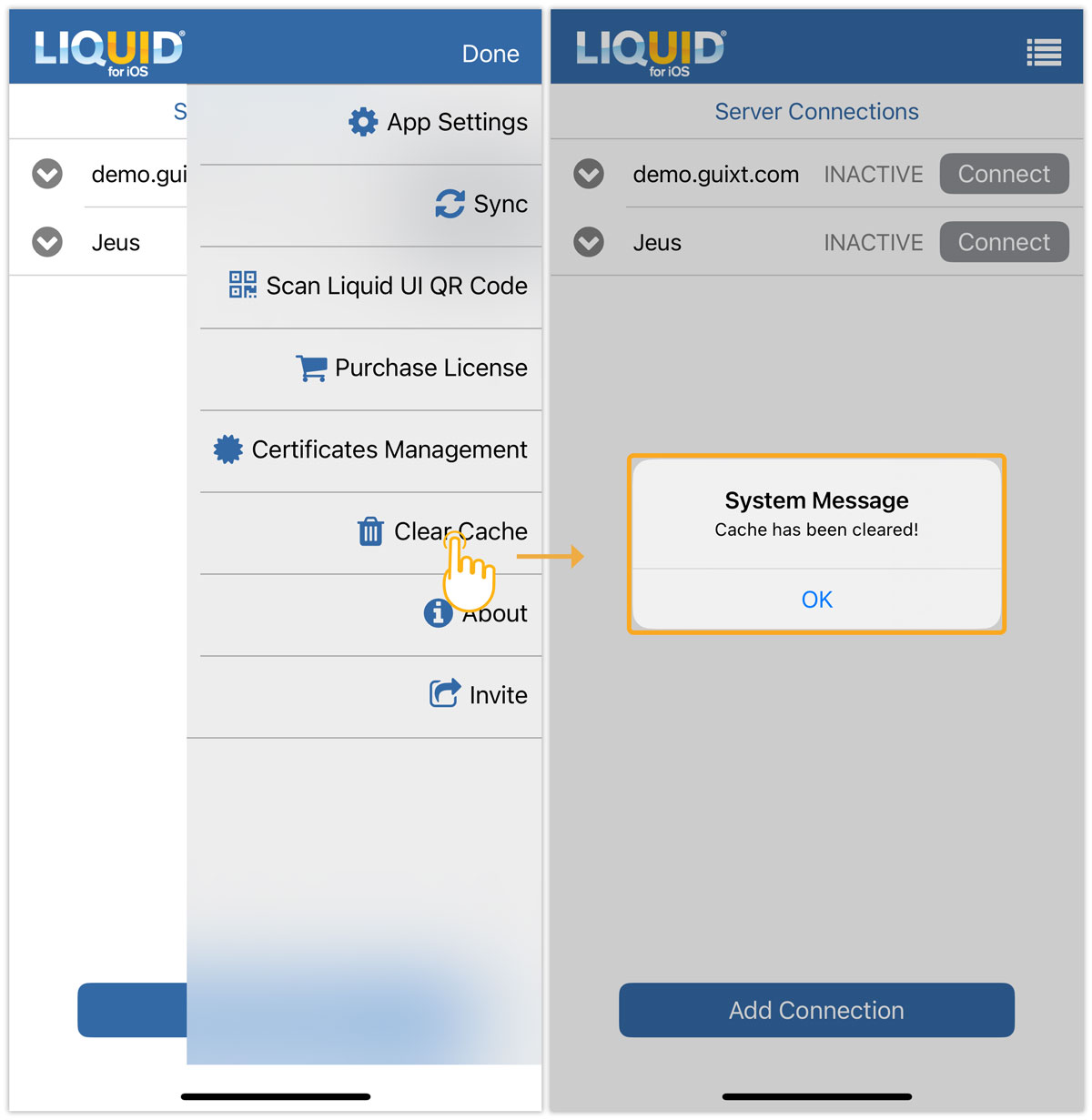
Clear Cache
The Clear Cache option allows users to clear the tcode search history and input field history stored in the app’s cache memory.
About
The About section provides key information about the Liquid UI for iOS and its licensing. The information includes:
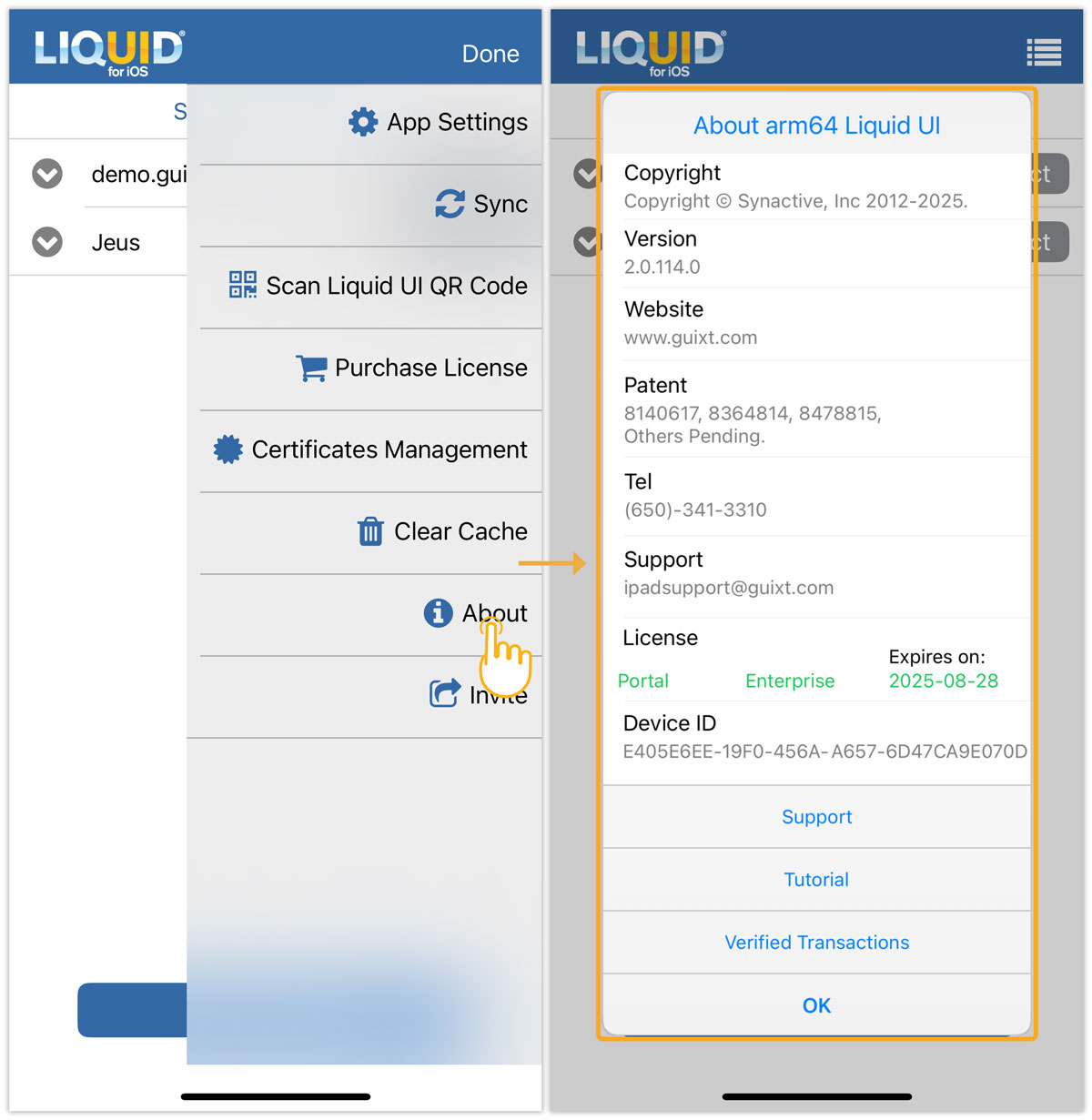
- Copyright: Displays copyright information about Liquid UI.
- Version: Shows the current installed version number of the Liquid UI Client.
- Website: Provides Synactive's website link.
- Patent: Indicates the number of app patents held by Synactive.
- Tel: Contains support contact information, such as the telephone number.
- Support: Allows you to contact Synactive's support team using the provided email information.
- License: Specifies the type of license installed on the device.
- Device ID: Lists the registered device ID of the owner.
Invite
The Invite option allows users to refer the Liquid UI app to managers, fellow employees, or cross-functional colleagues from other SAP departments.