


Purpose
Liquid UI applications support mobile printing, allowing users to print SAP documents directly from their Android devices. This functionality is facilitated by configuring System (Wi-Fi) and Bluetooth printers, thus enhancing the user experience by streamlining the printing process.
You can print SAP documents like purchase orders, legal forms, invoices, shipping notifications, etc. from your Android device. Furthermore, the app provides a Print Preview option to preview a document before printing. It is helpful to check the accuracy of the content in the SAP documents.
Now, let’s look into printing SAP documents using Wi-Fi and Bluetooth printers:
Printing through System Printer
In the following sections, you will see how your device with the System Printer prints the SAP documents from your Android app. All configurations are done on the device, and no modifications to the Liquid UI Server are required.
Pre-requisites
- Configure your wireless printer in SAP and ensure it has the Wi-Fi Direct feature. Here is the how-to guide using our Android app.
- Ensure that the Wi-Fi printer and device are connected to the same Wi-Fi network.
Print from Liquid UI for Android
In this example, we use the Data Browser (SE16N) transaction. Follow the steps below to print an SAP document using a Wi-Fi printer.
- Navigate to the SE16N transaction, enter TSTC in the Table field, and tap Execute to display the entries.

- On the results screen, select the required transactions and tap the Print icon in the ALV toolbar. In the Print ALV List screen, verify the Output Device and tap the Continue (✔) button.

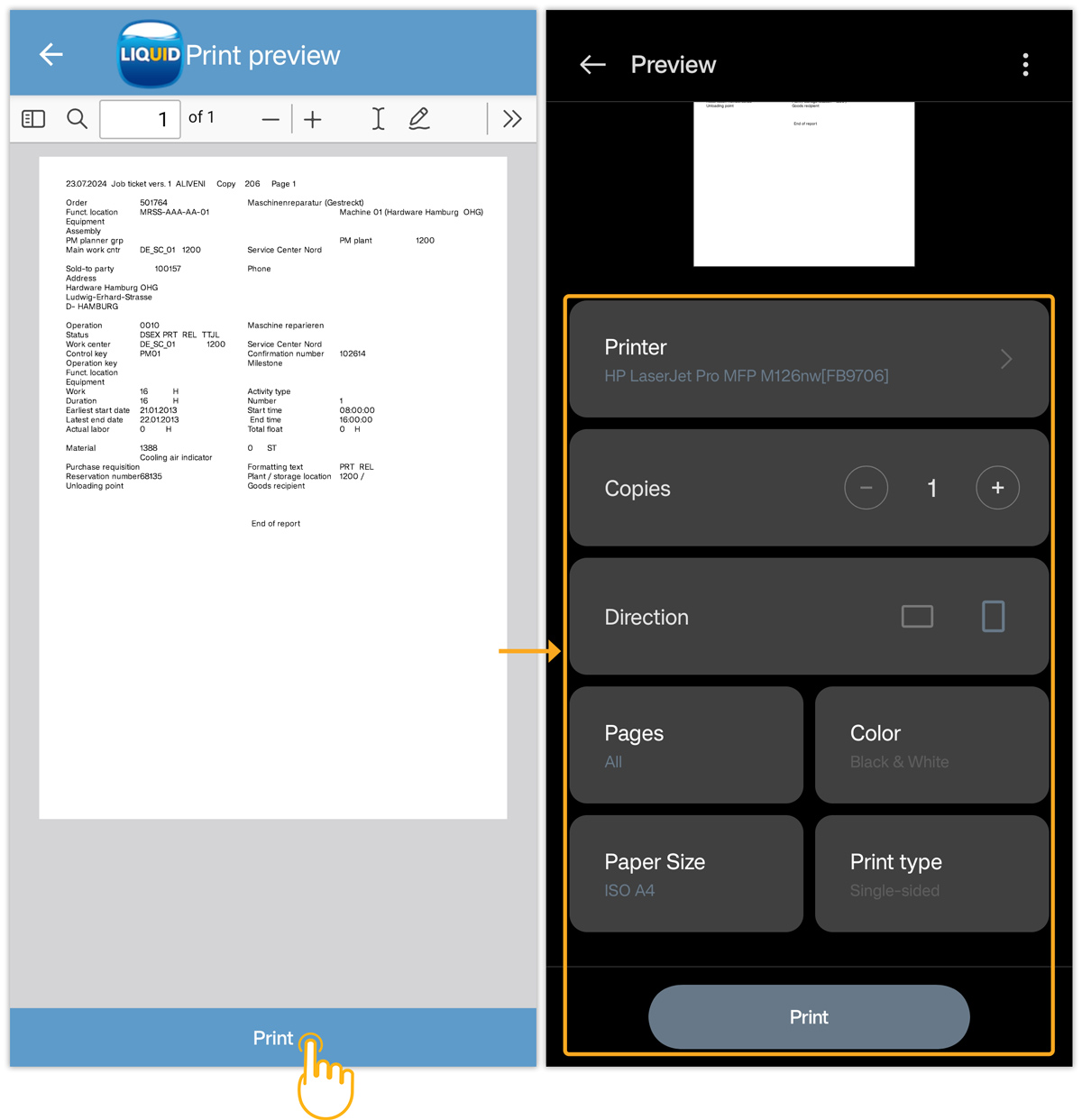
- In the Select printing method pop-up, tap System printing. In the next screen, tap PRINT to proceed.

- The Print preview screen appears. Configure the required options, such as Printer, Copies, Orientation, Pages, Color, Paper Size, and Print type.
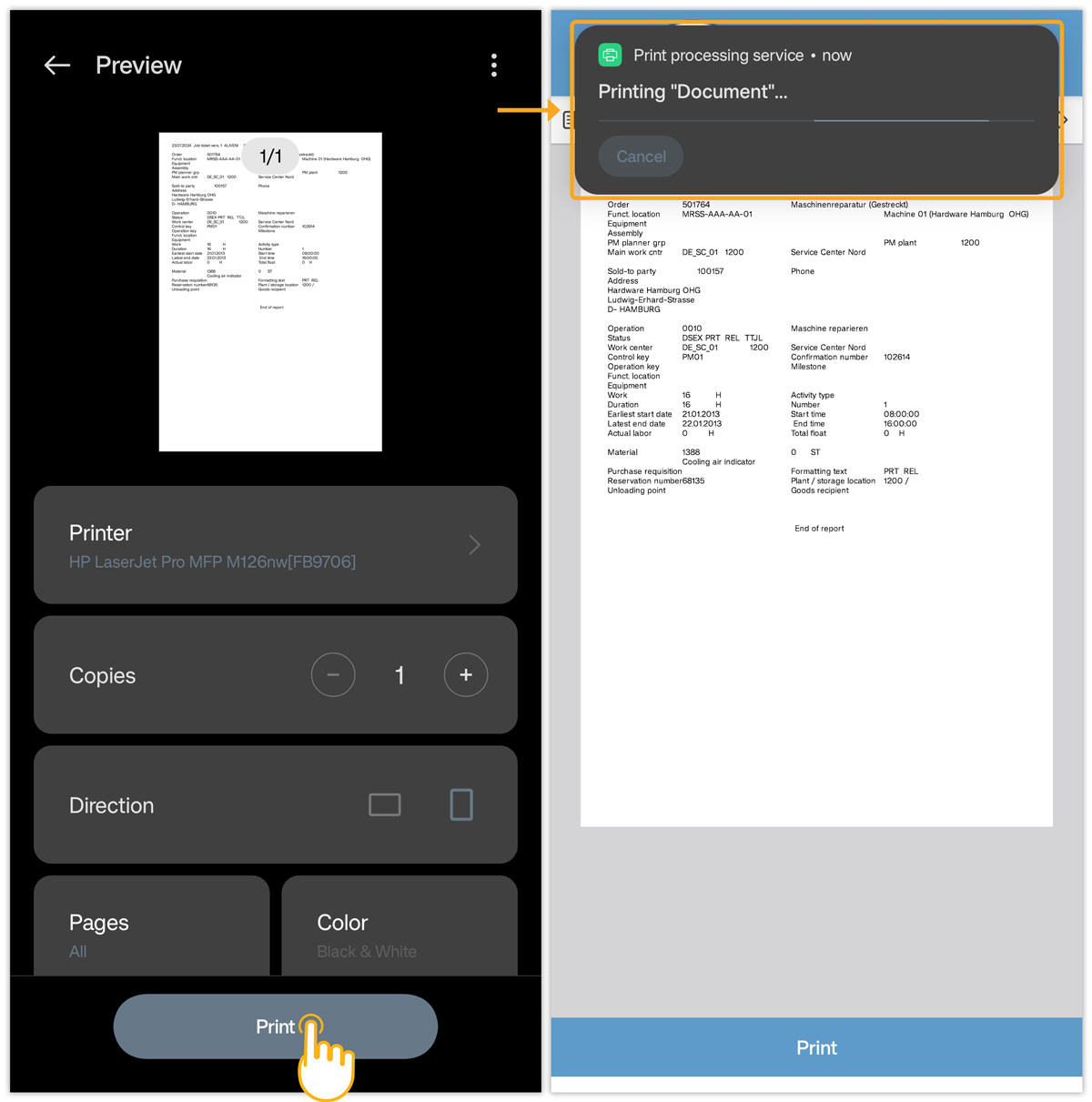
- Tap Print to print the document. A notification confirms that the document is being printed.
Printing through Bluetooth Printer
Pre-requisites
Configure your Bluetooth printer in SAP. Here is the how-to guide for using our Android app. The following Bluetooth mobile printers are supported.
iMZ220, iMZ320
Pairing Bluetooth printer to your Liquid UI for Android device
- To pair the required Bluetooth printer to your device, please do the following.
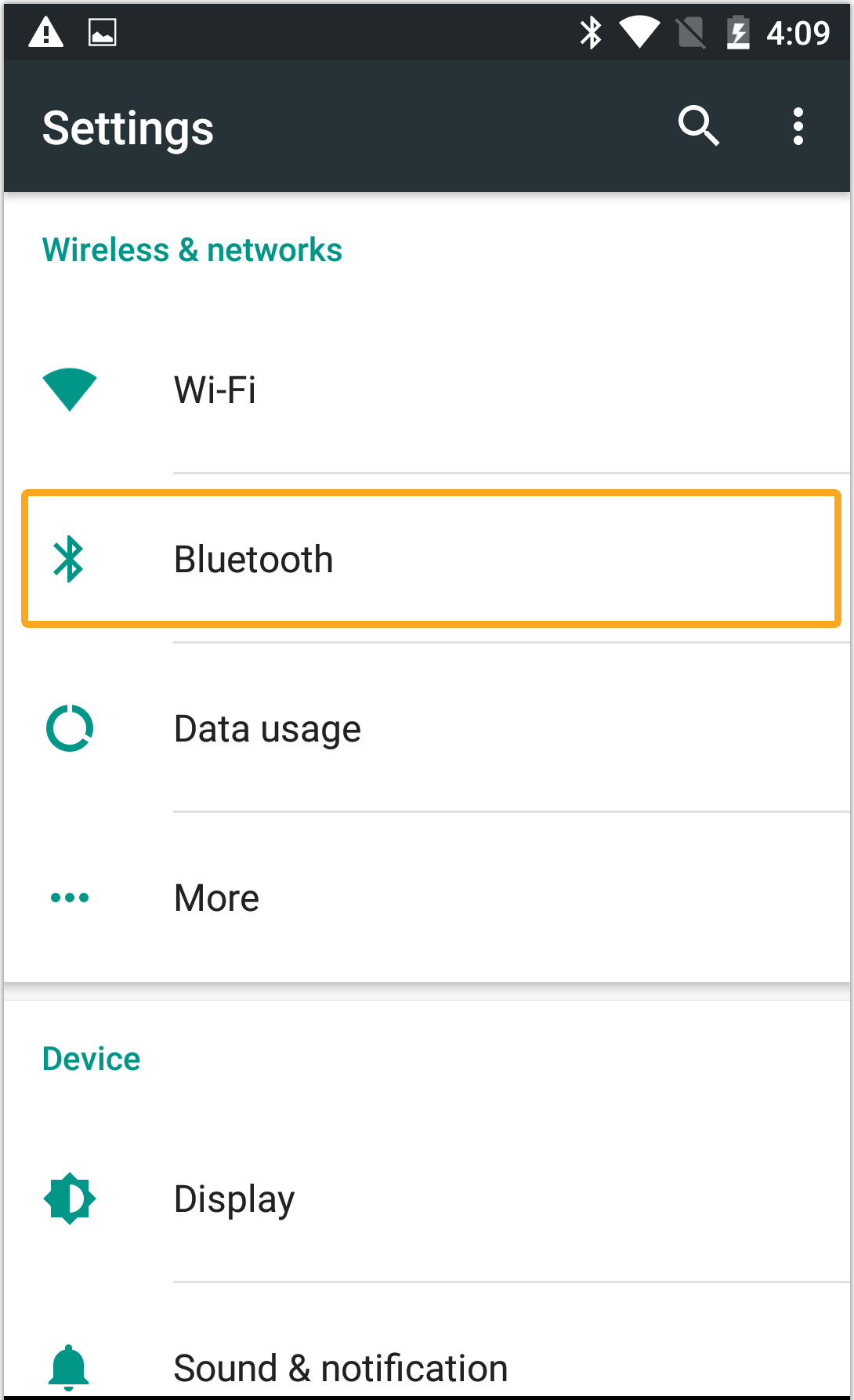
Click on the Settings on your android device. In the Settings screen, select Bluetooth.
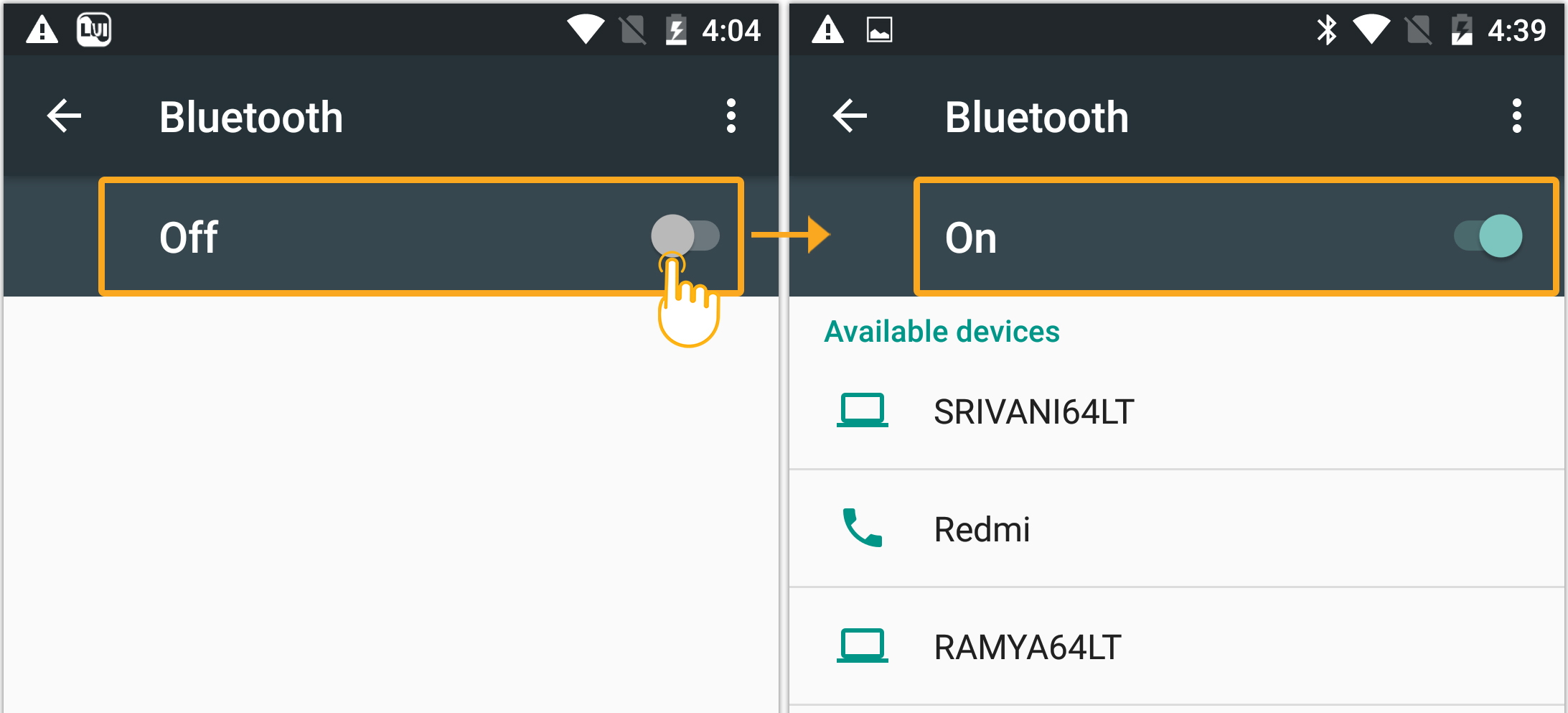
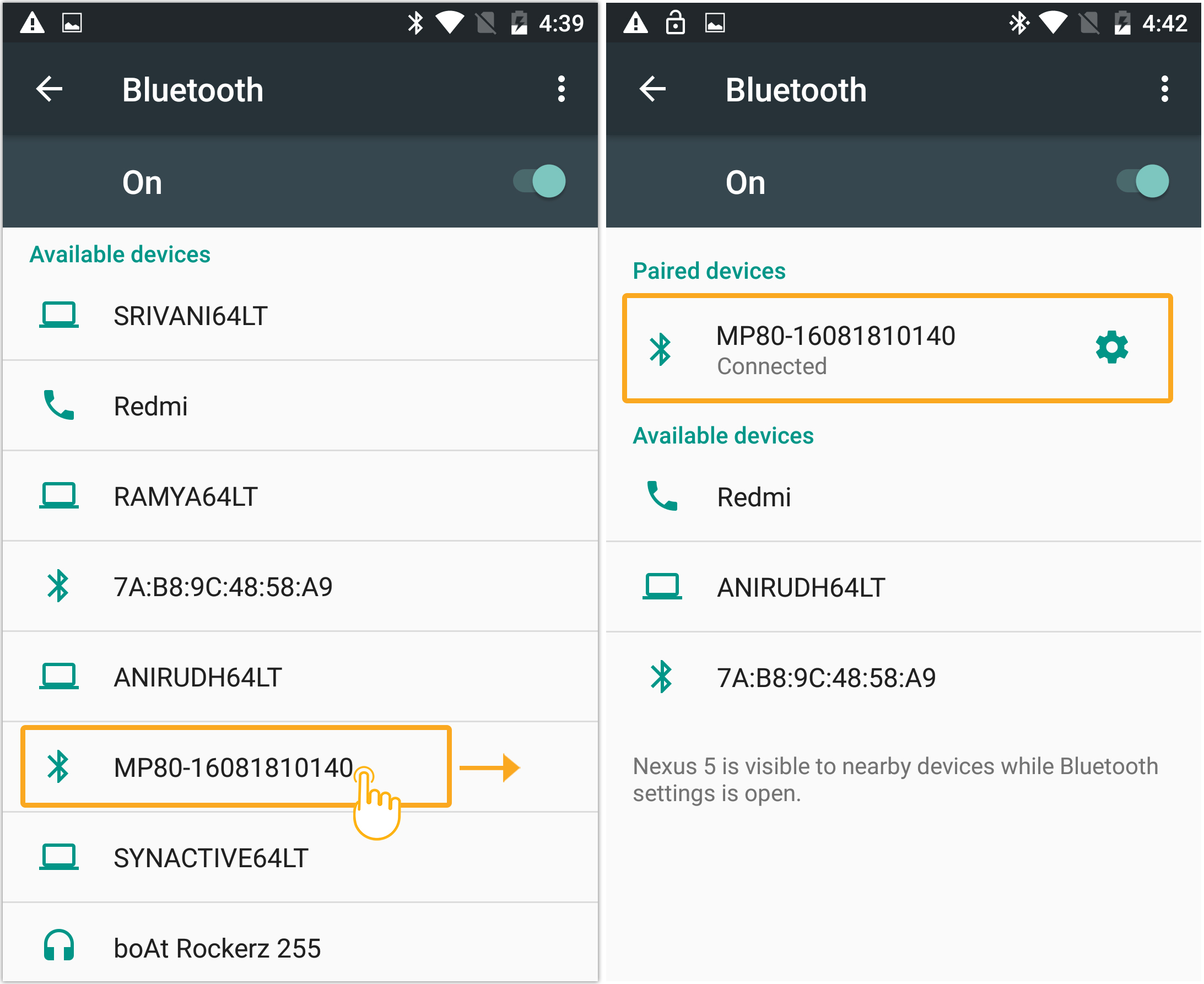
- Make sure Bluetooth is enabled on your device. Once it is enabled, you should see the little Bluetooth symbol at the top of your phone’s screen. Click the Bluetooth option and move the slider to the On position, as shown below.
- Tap on the required Bluetooth printer (in this case, MP80-16081810140) device to start pairing and follow the on-screen instructions. Once the connection succeeds, you will see that the device is connected to your Android device, as shown below.
Configure your default Bluetooth printer in Liquid UI for Android App
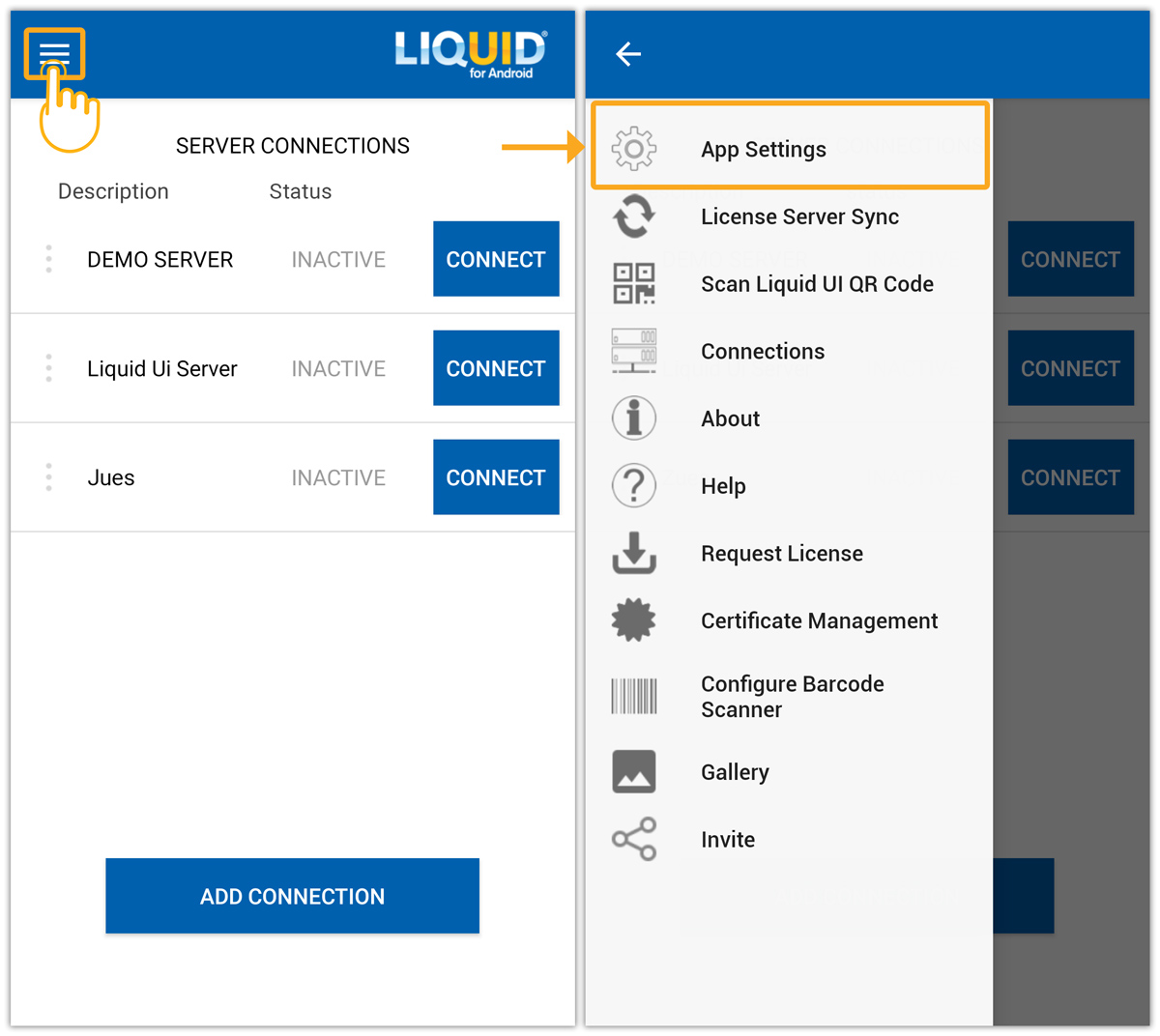
- Open Liquid UI for Android app and on the server connections screen, select the App Settings option under the Main Menu, as shown below.
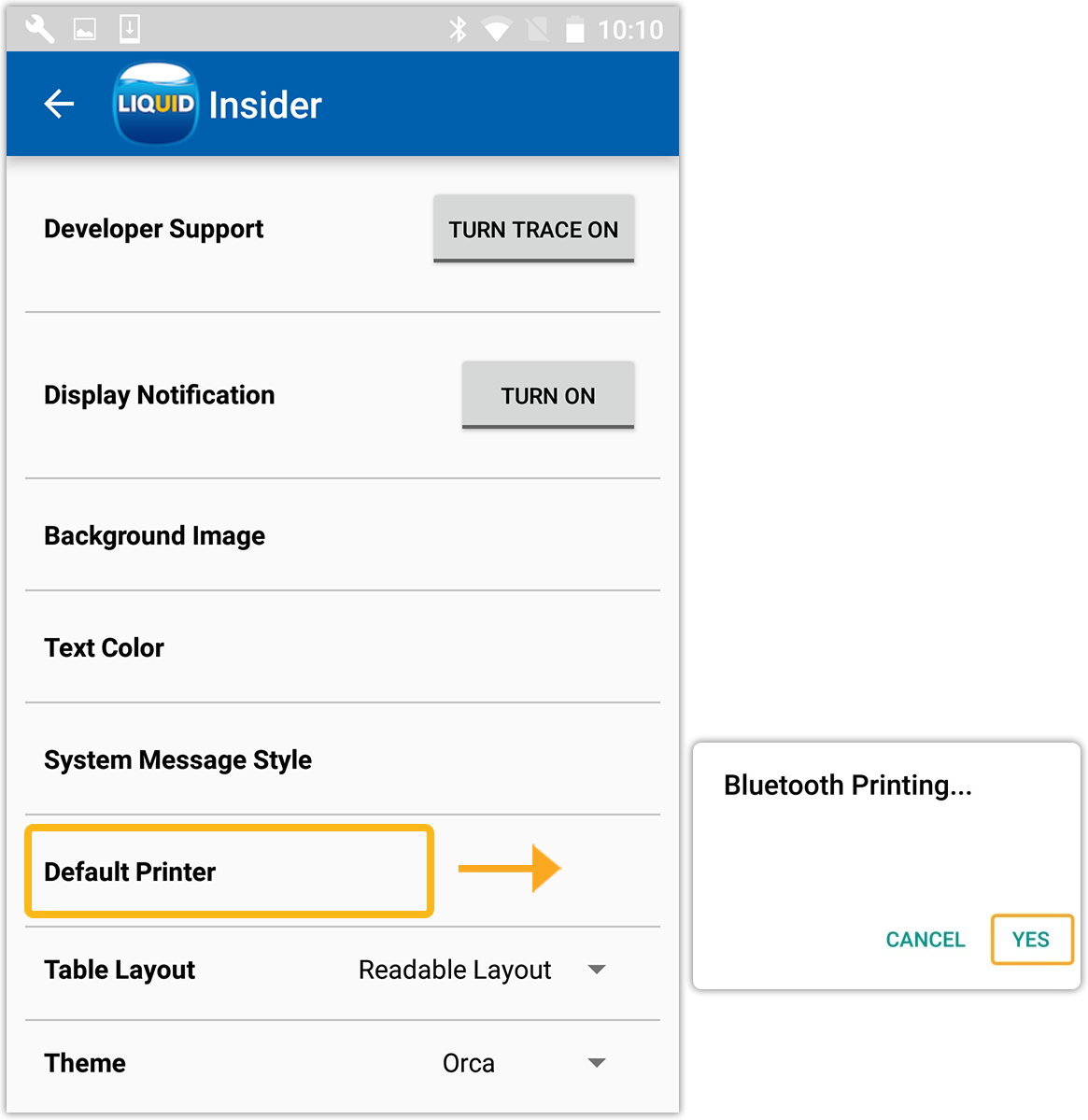
- Scroll down the insider, and select the Default Printer. This will open an alert box to search for available Bluetooth printers. Select YES to confirm.
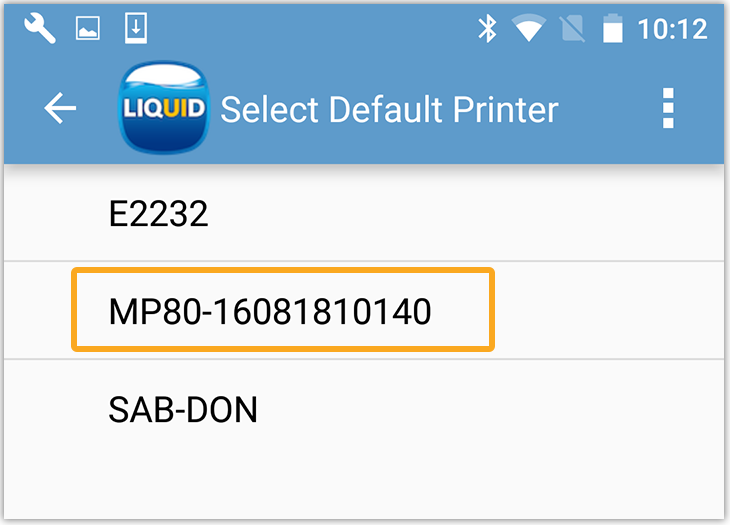
- You will find a list of available Bluetooth printers. Choose any printer from the list to make it your default printer.

Note: Keep the Bluetooth device (printer) in the range of your Android device, to maintain the connection.