

Purpose
Liquid UI notifications help users track and manage SAP processes in real-time. Notifications alert users when tasks are assigned or pending and can automatically direct them to the relevant SAP screen with a single tap.
For instance, the maintenance department can instantly receive alerts about abnormal activities or newly assigned work orders, reducing the time to start operations.

Note:
- To send a notification, you need Liquid UI Notification service.
- To receive a notification, you need Liquid UI Enterprise license.
- Supported from Liquid UI Server version 3.5.567+ and Liquid UI for Android version 2.0.33.0+.
Prerequisites
- Open the following ports on the firewall: 5228, 5229, 5230.
- GCM typically uses 5228 but may use 5229 and 5230.
- Allow your firewall to accept outgoing connections to all IP addresses contained in the IP blocks listed in Google's ASN of 15169.
- Enable the Display Notification option in the Liquid UI for Android.
Configuration
Script Logic:
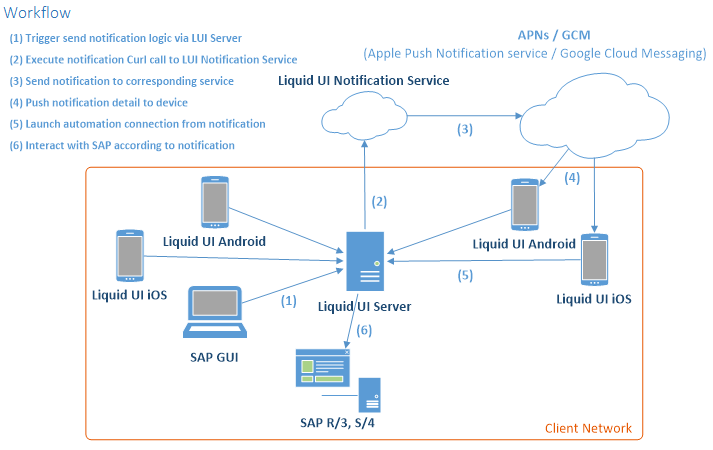
Customized script logic must be developed following the specific scenario to initiate the send action.
Notification Detail:
A notification must include:
- Installation Number: SAP system installation number.
- Device Token: Unique Android device ID for Android devices. To obtain the device token, use the system variable”\_notificationID
- Device Type: Android.
- Notification Detail: Description of the alert.
- Badge Number: Count displayed on the Liquid UI app icon indicating pending actions.
Automation Connection Detail:
Clicking a notification automatically connects to the relevant SAP system and navigates to the specified transaction with the required data.
Send Notification:
Use Liquid UI WS scripts with the WS Curl library to send notifications. For details on the notification service, send us an email at rfi@guixt.com.
Displaying Liquid UI Notifications
This feature allows users to navigate to other applications and return to the current session even after minimizing the app. To enable and use this feature, follow the steps below:
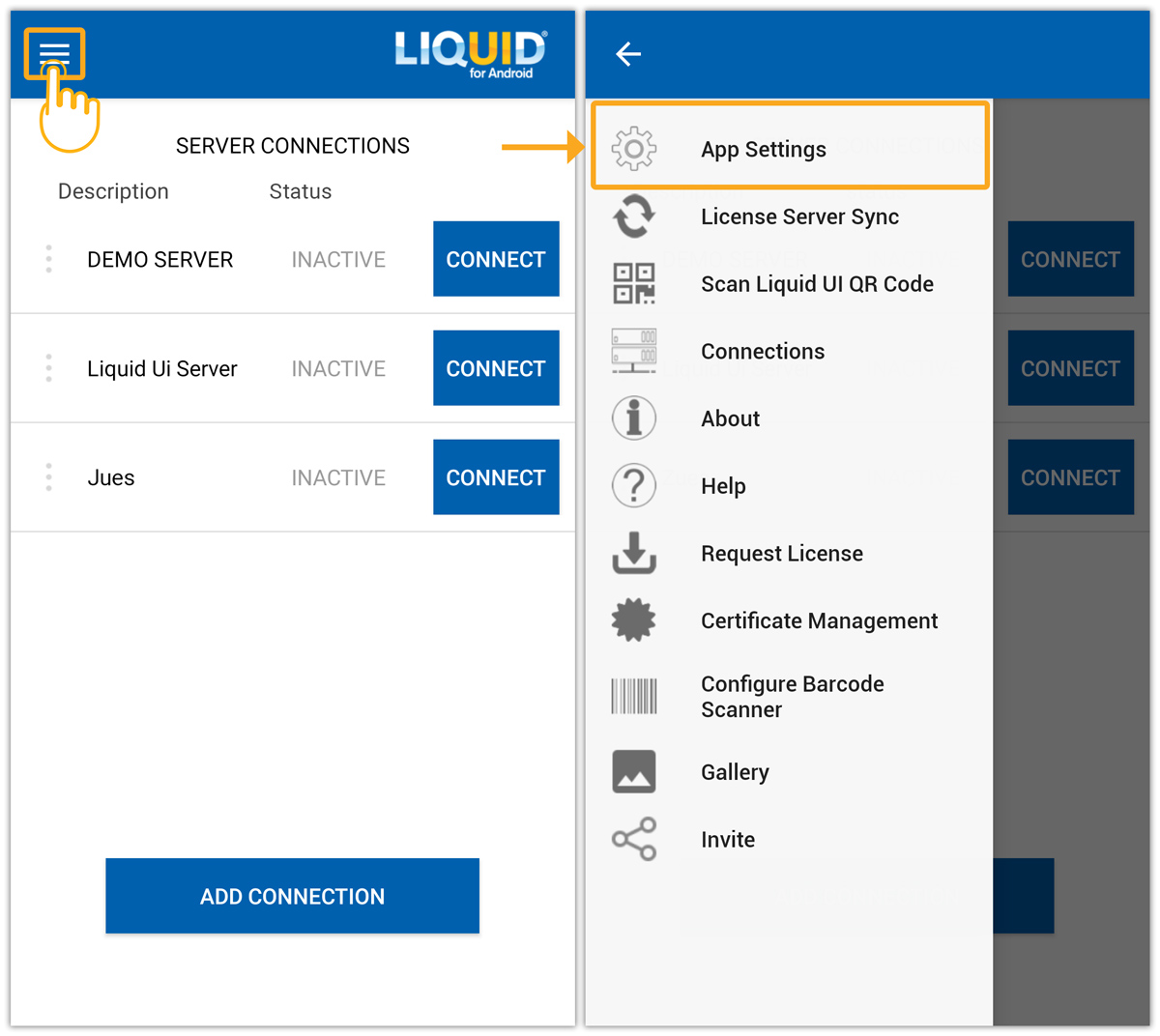
- Click App Settings from the Main Menu.
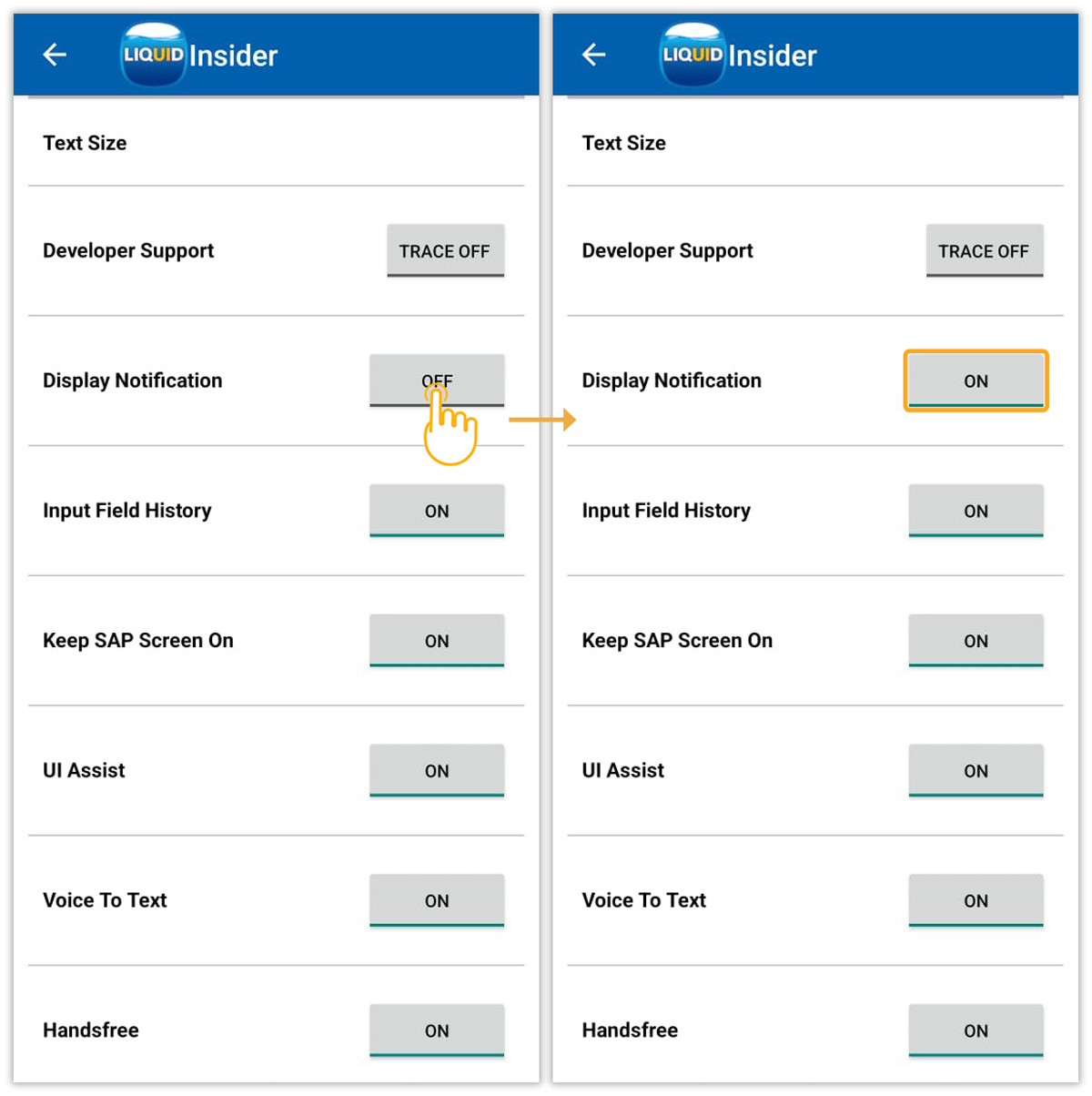
- Scroll down the Insider screen and enable the Display Notification option, as shown in the image below.
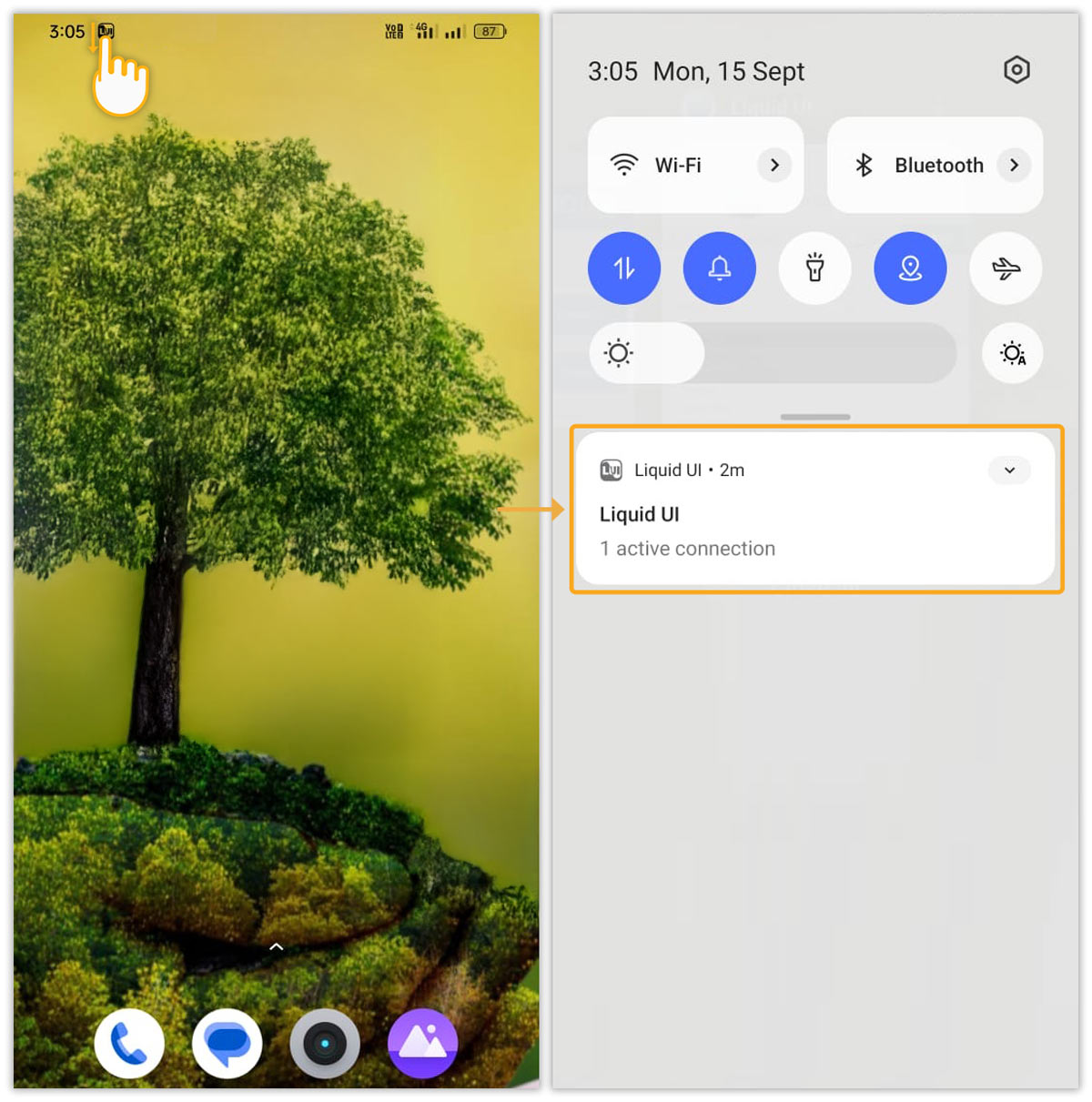
- Process a few transactions, then minimize the app. The Liquid UI icon appears in the top-left. Swipe down to view notifications showing active sessions, as shown in the image below.