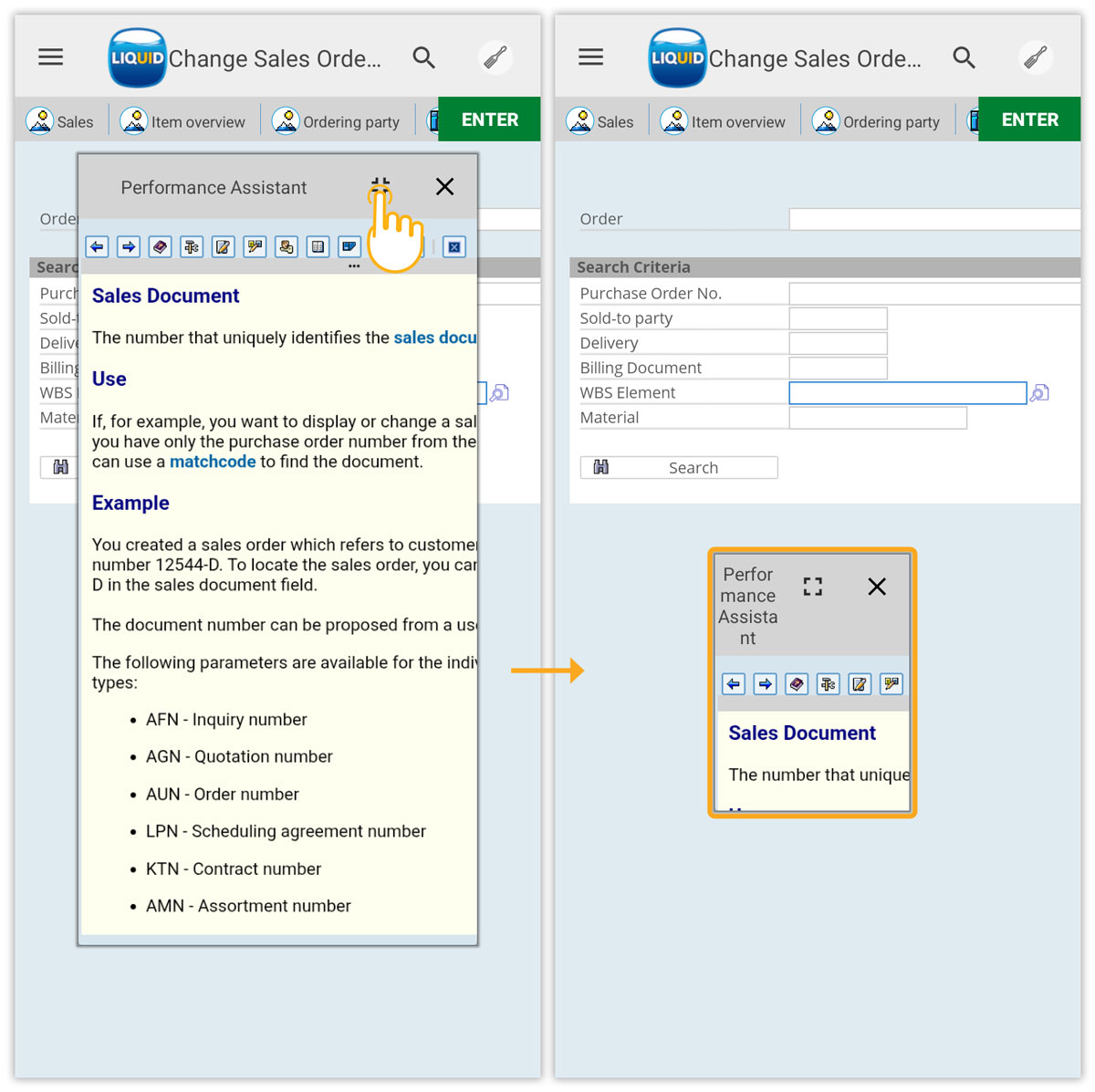


Liquid UI for Android offers Performance Assistant (F1 Help) screens, mirroring the functionality of SAP GUI help windows. This feature delivers contextual information on screen elements like labels and input fields, aiding users in comprehending SAP fields directly within the mobile interface.
By providing dynamic help options based on the chosen label or input field, Liquid UI for Android significantly improves user interaction through a streamlined interface. These include:
- F1 help
- Application help
- F4 help
This article demonstrates activating and using the Performance Assistant screen (F1 Help) in Liquid UI for Android, using VA02 as an example.
Enable F1 Support
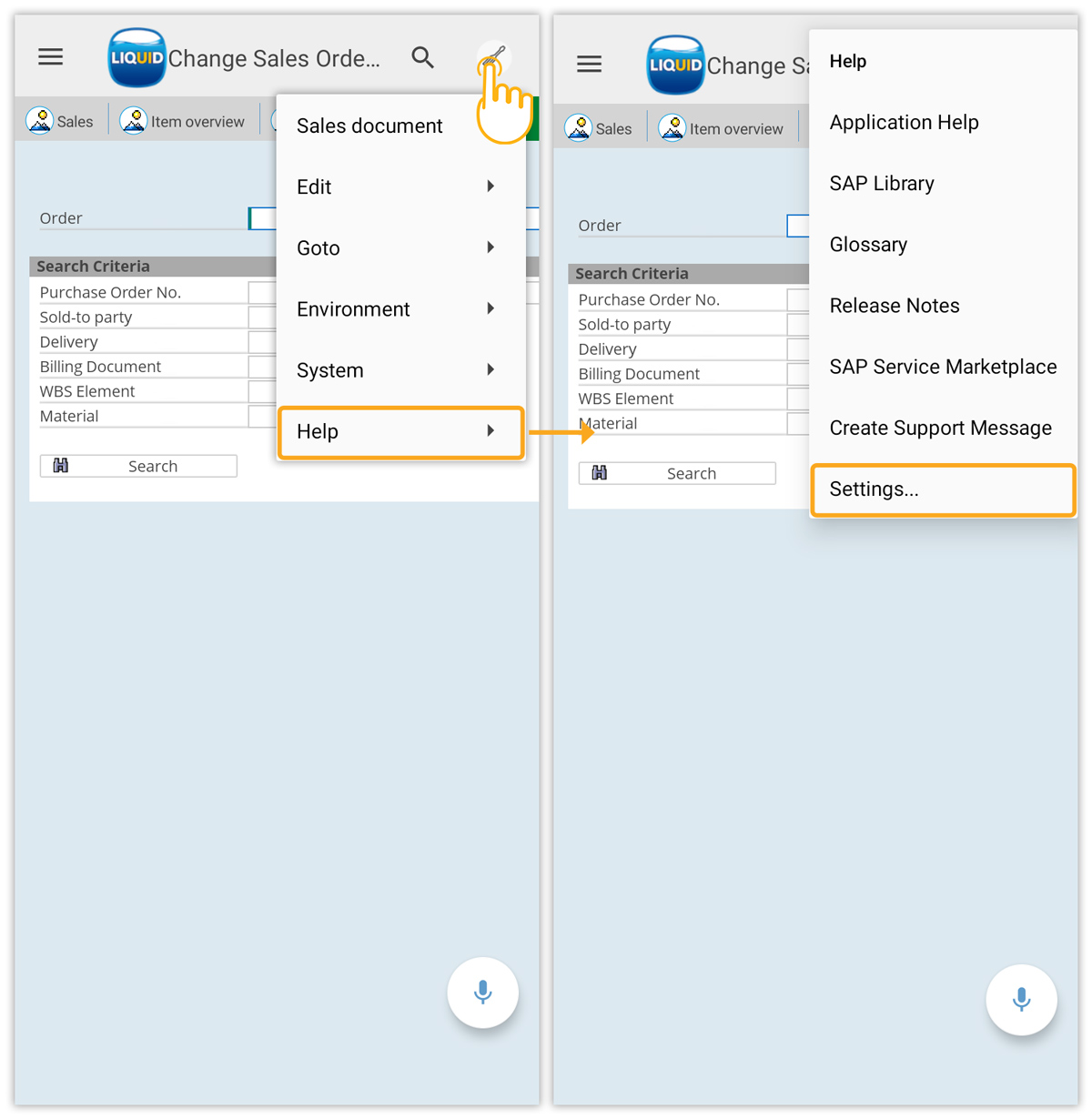
- Login to SAP and navigate to the VA02 transaction. Go to System Menu → Help → Settings.
- In Personal Settings for User, select Performance Assistant and click Proceed to apply the setting.
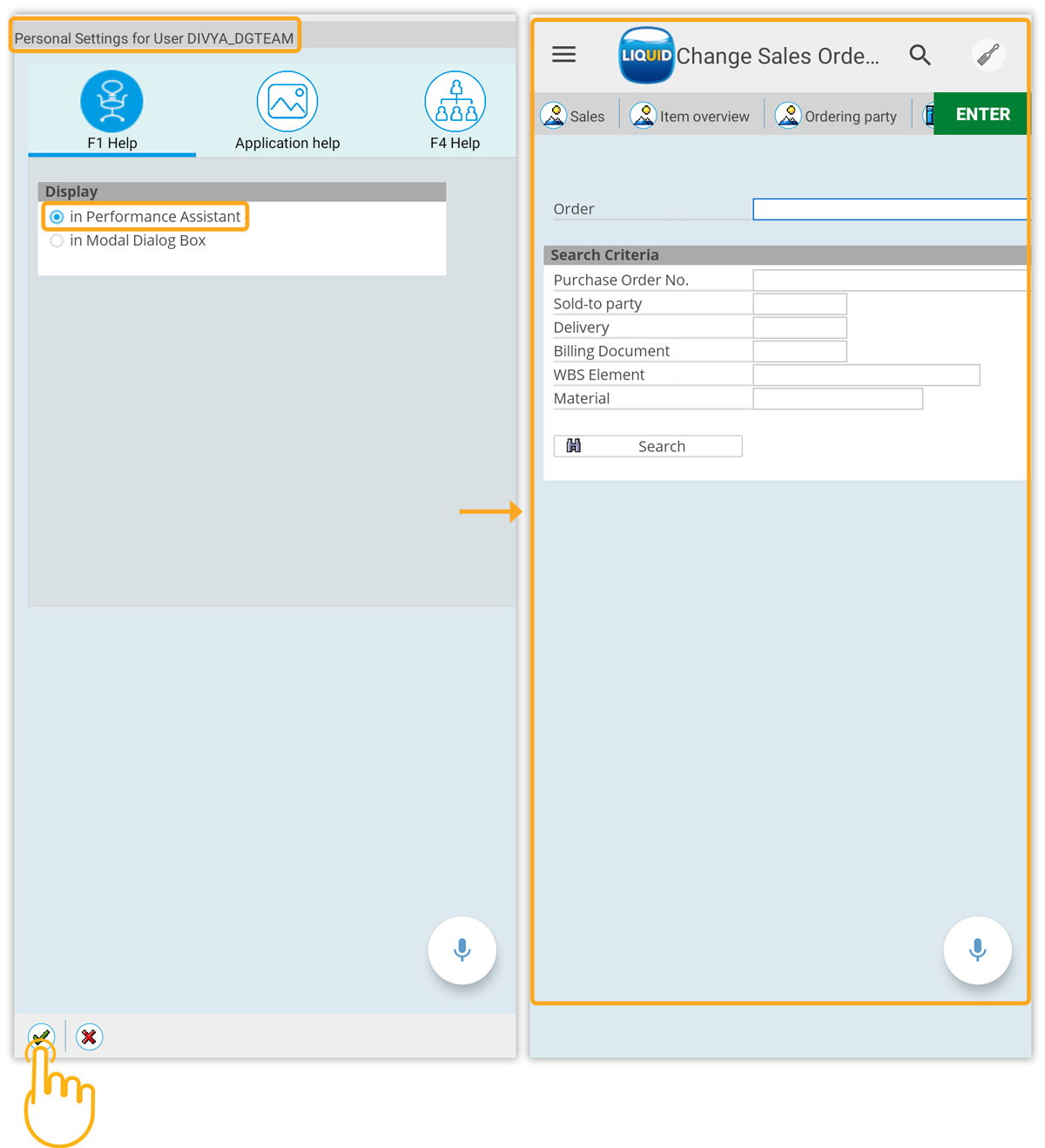
You have now successfully enabled F1 Help support.
Accessing F1 Help in Liquid UI for Android:
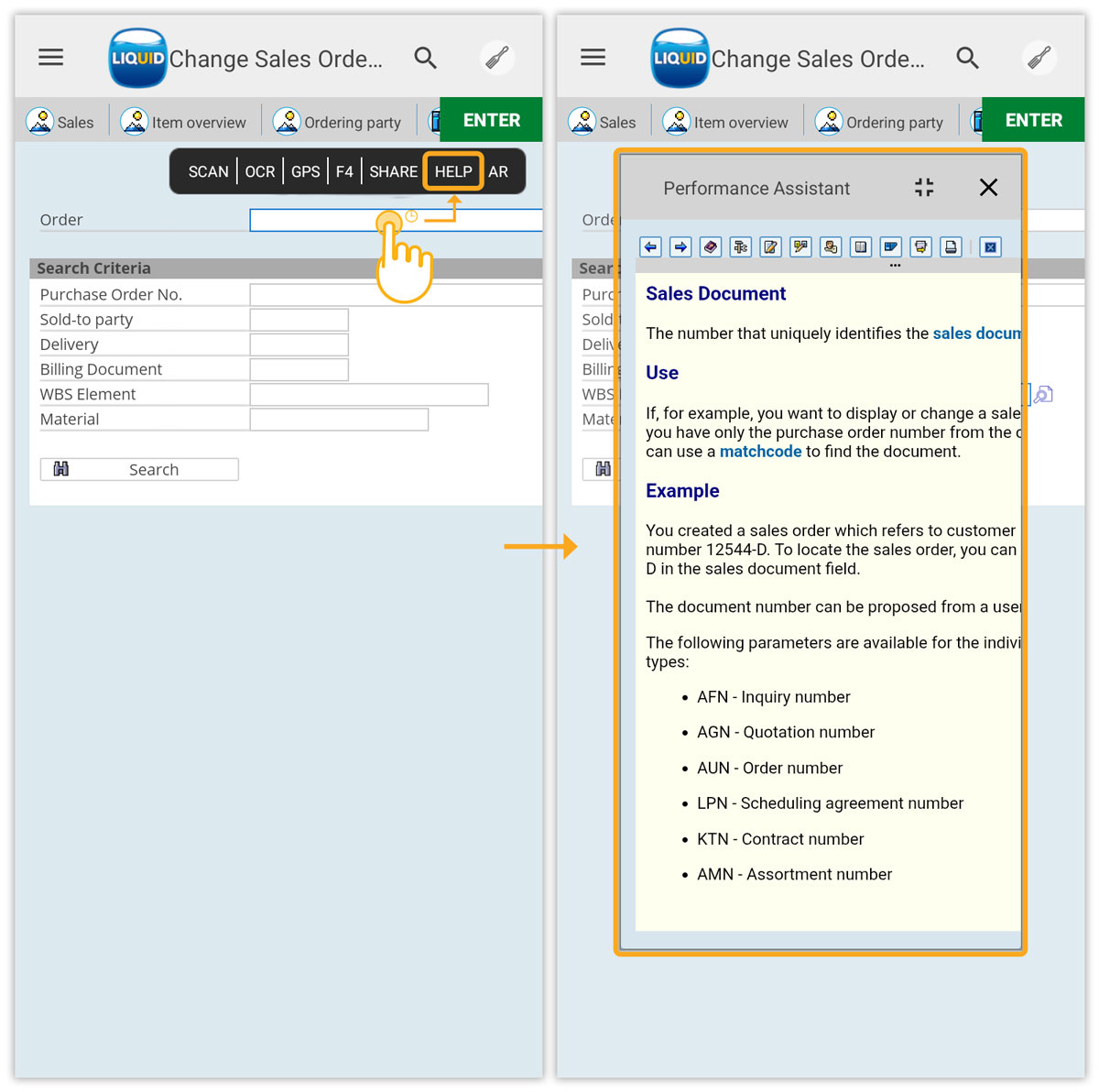
- Long-pressing Order label shows a pop-up with Select, Help, and Copy options.
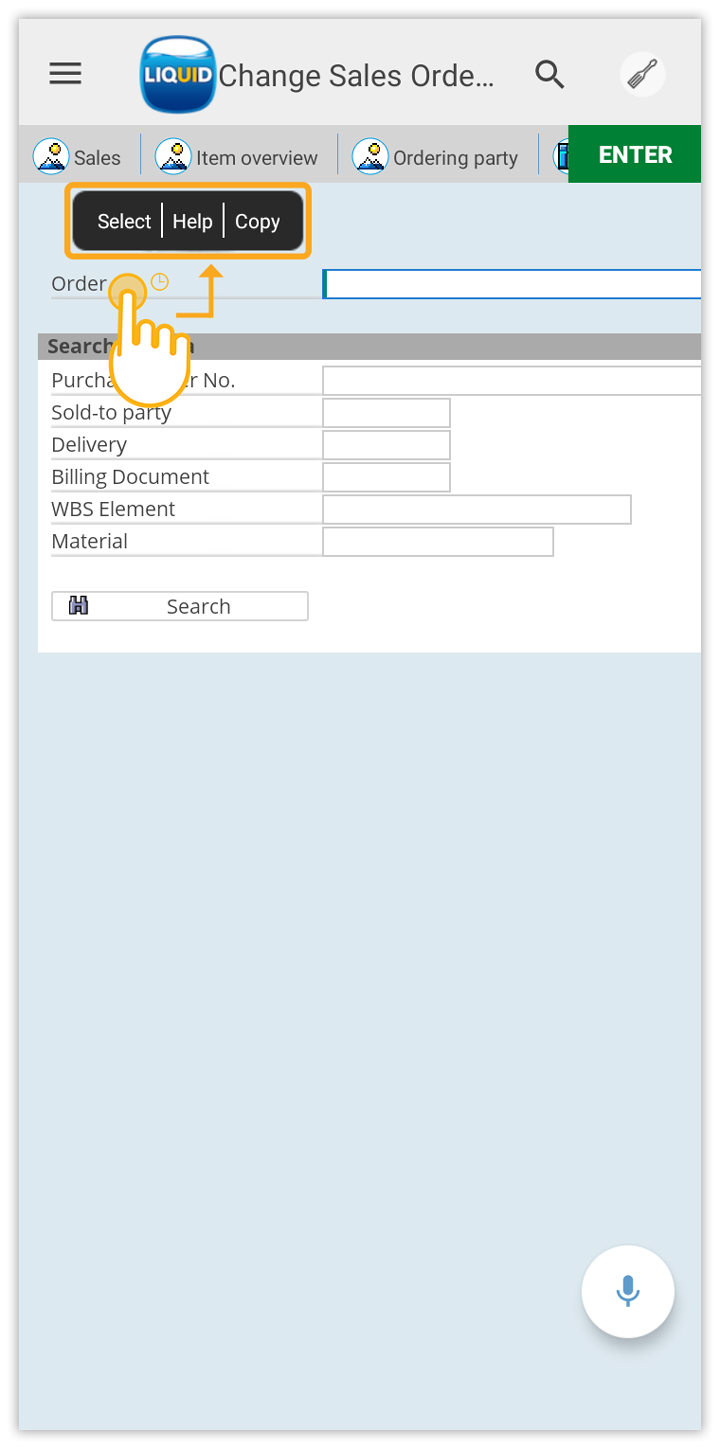
- Long-press the Order input field and select HELP to open the Performance Assistant screen for that field.
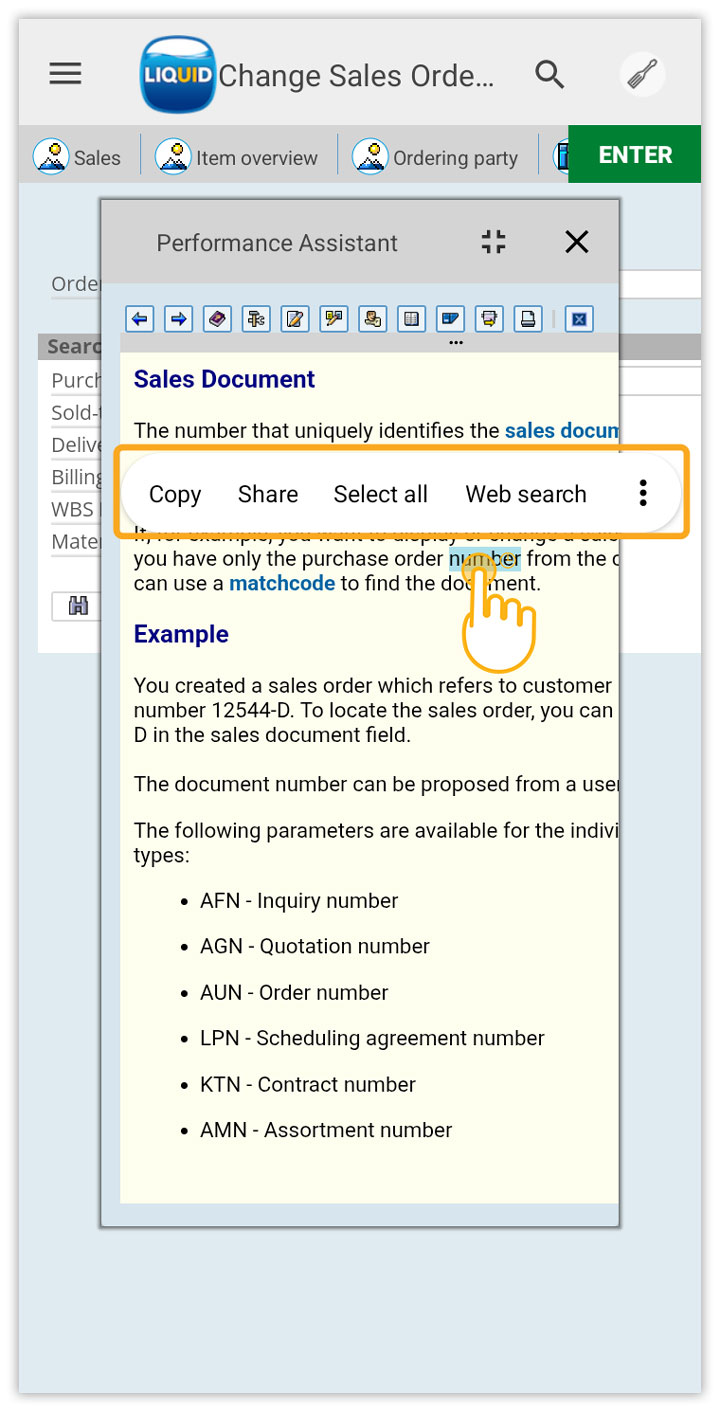
- On the Performance Assistant screen, tap and hold text to access Copy, Share, Select All, and Web Search options.
- Additionally, you can control the pop-up screen’s size and position. For example, use the minimize option to reduce its size.