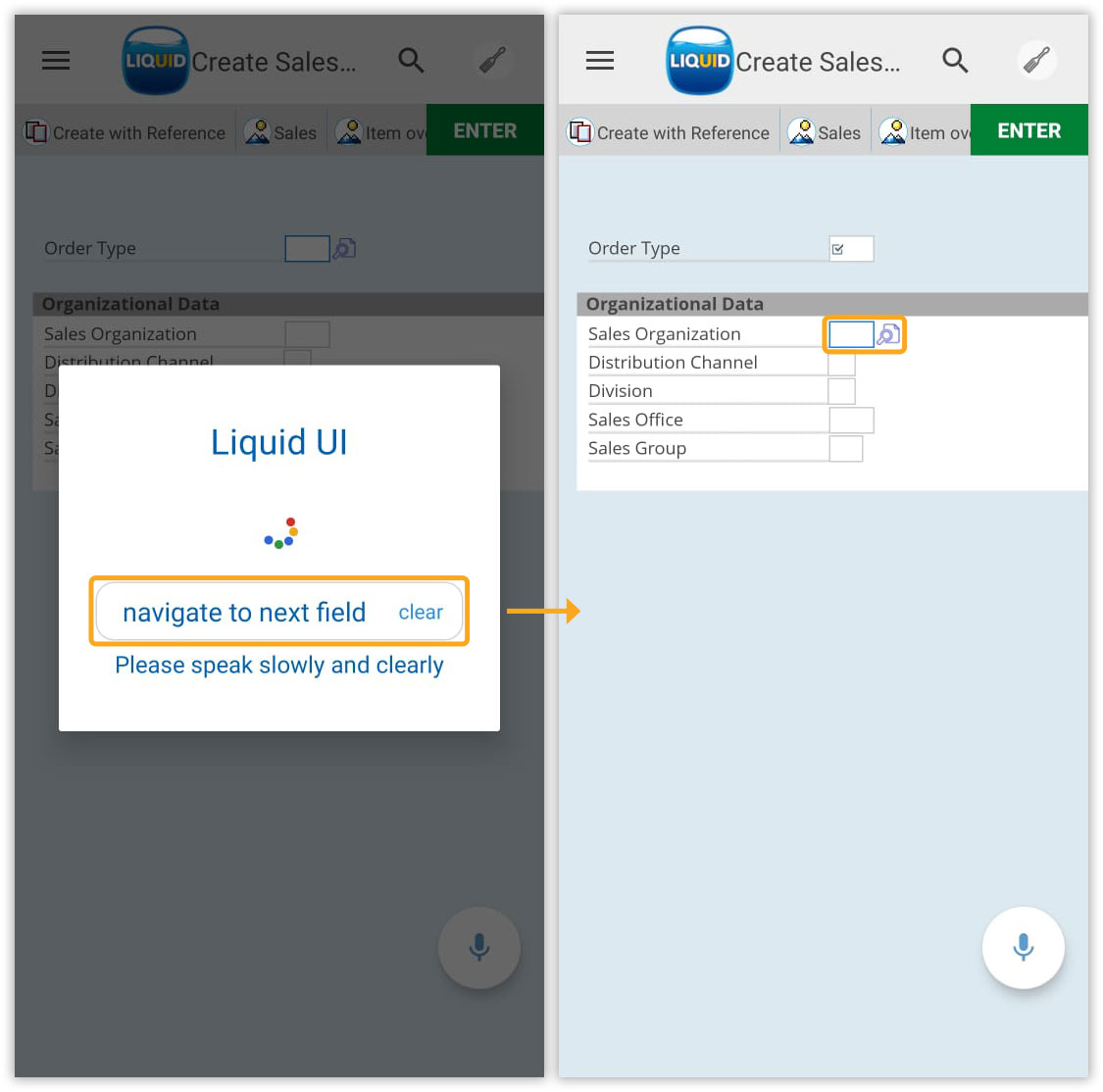


Liquid UI for Android now supports Voice To Text, enabling hands-free interaction with SAP. This feature allows users to navigate transactions, enter data, run reports, and execute actions using spoken commands. This is ideal in situations where manual input is inconvenient.
With Liquid UI Voice Assistant, you can:
- Navigate to specific SAP transactions.
- Assign values to input fields.
- Execute push buttons and context menu options.
- Perform actions like entering data, moving between fields, and saving changes.
- Enable or disable Voice To Text.
Enabling Voice To text:
By default, voice assistance is disabled. To enable it manually, please follow the steps outlined below:
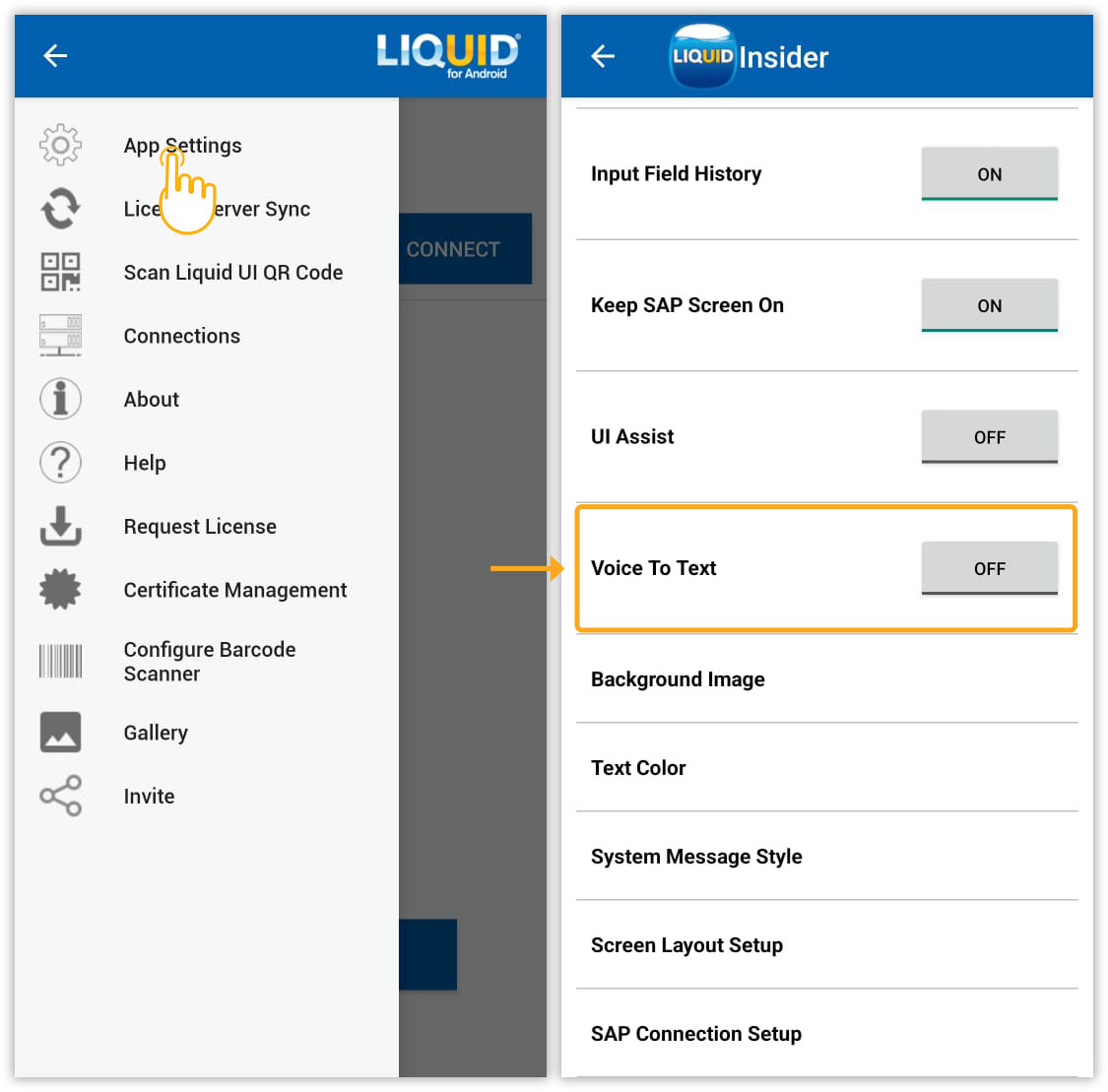
- Navigate through the App Settings under the Main Menu and scroll down to the Voice To Text option.
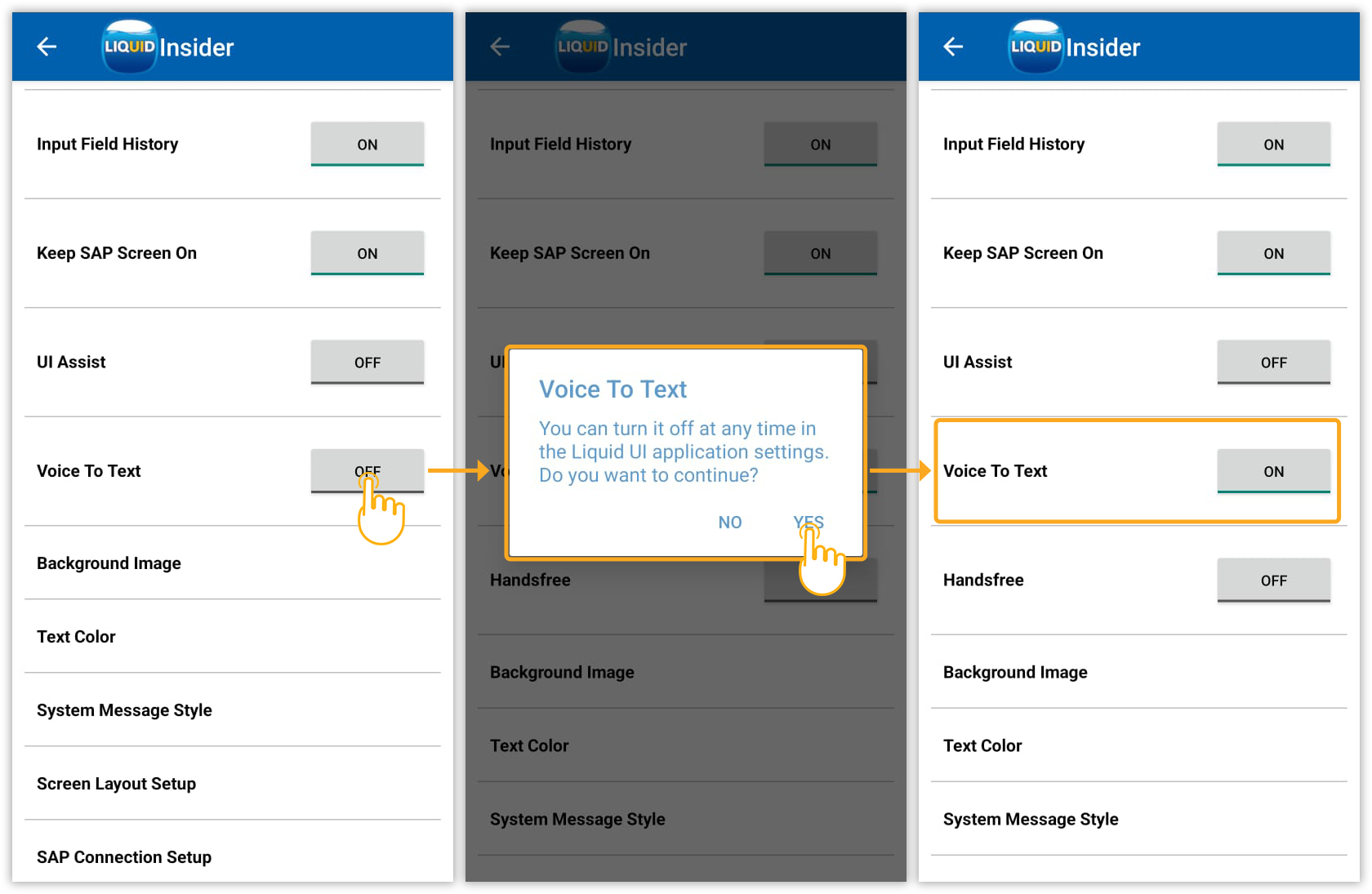
- Turn ON the Voice To Text. A confirmation message appears. Tap YES to activate.
Using the Voice Assistant
- Navigate to the SAP Easy Access screen. Tap the Mic icon in the bottom-right corner to activate the voice assistant.
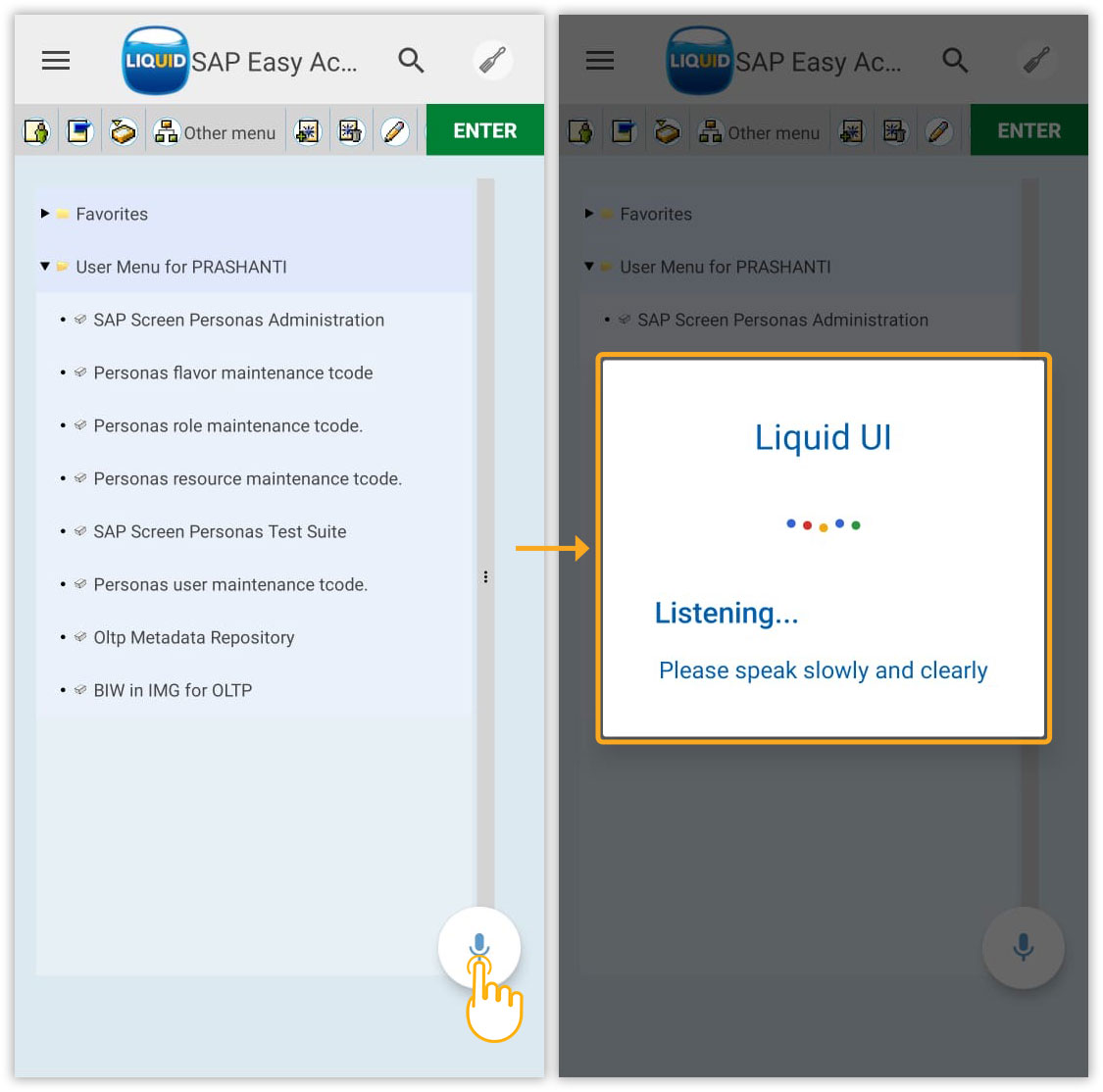
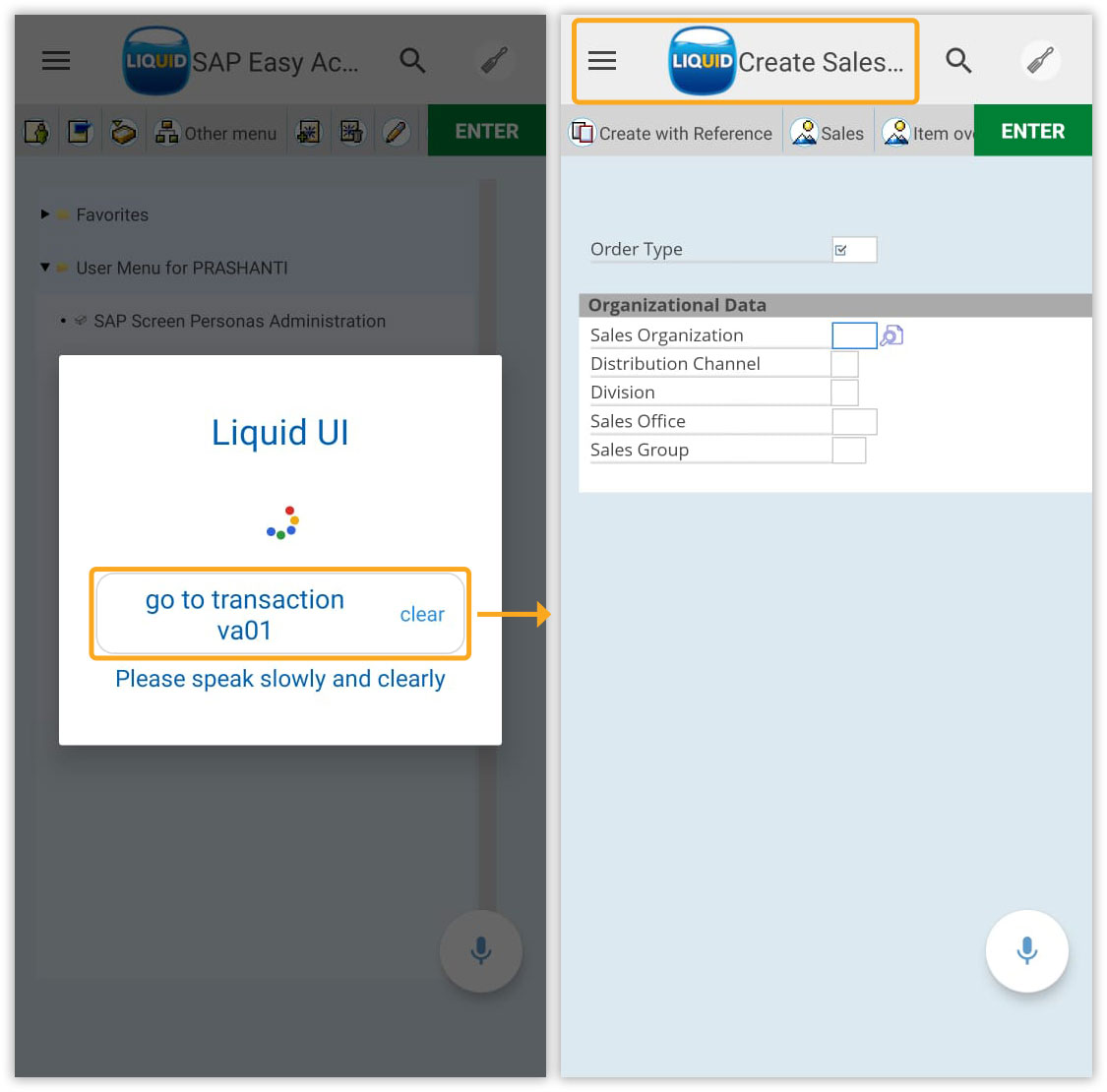
- Instruct the voice assistant to navigate to a specific transaction, and it will automatically direct you, as shown in the image below.
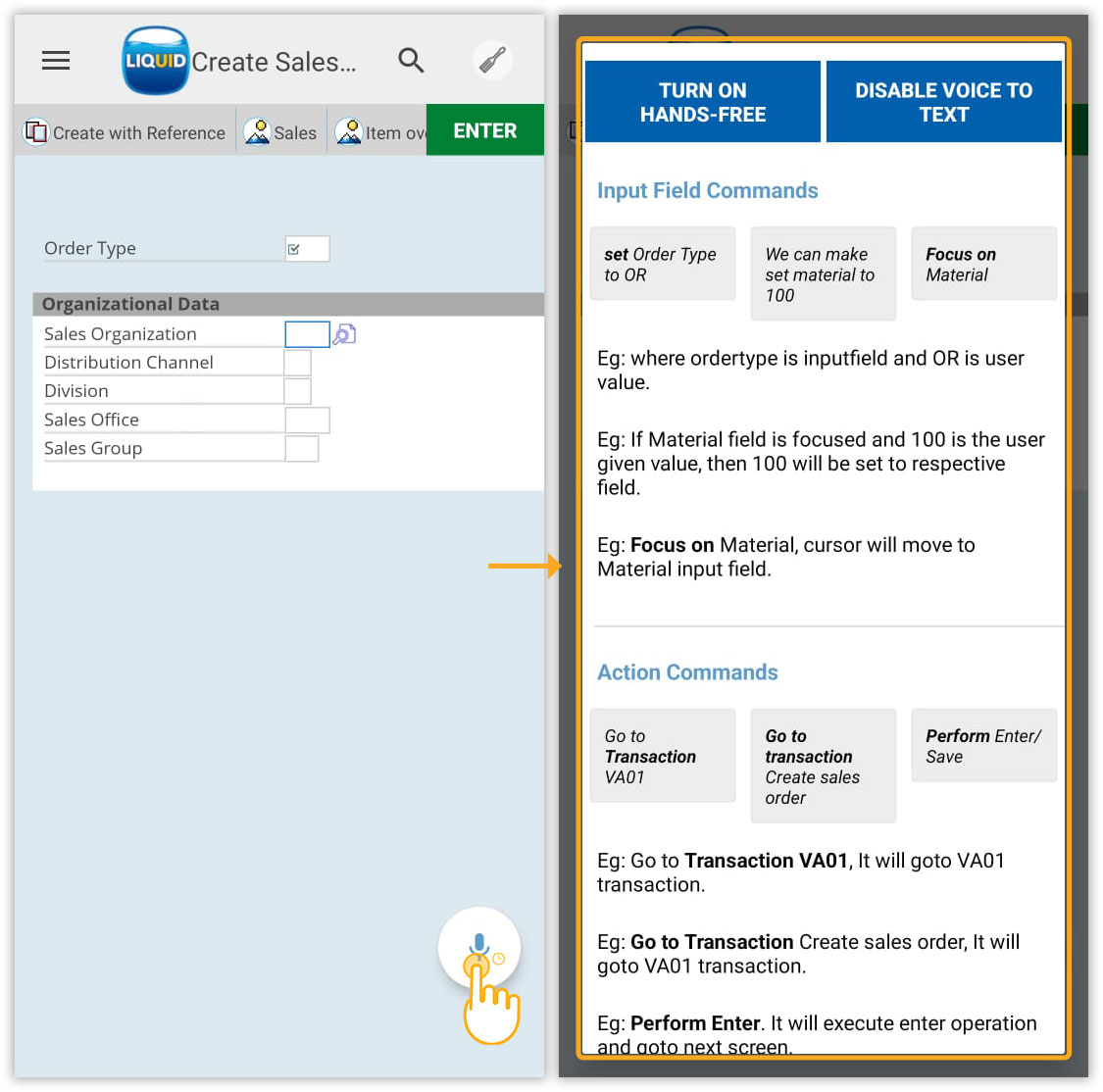
- Long-pressing the Mic icon to view available command options. These include Input Field Commands, Action Commands, and Navigation Commands, along with the option to disable the Voice To Text.
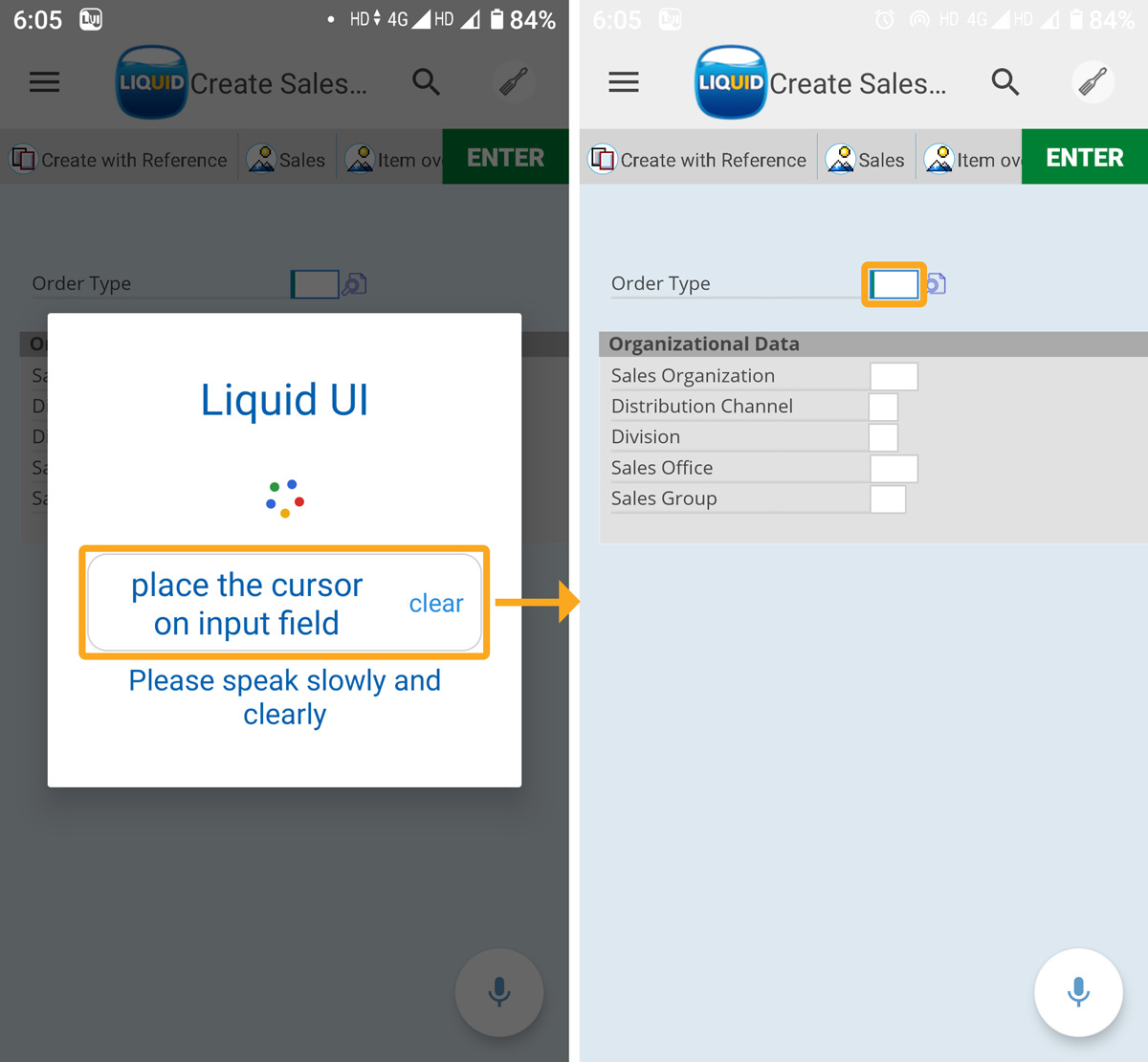
- Here, we are instructing the assistant to place the cursor on the Order Type input field.
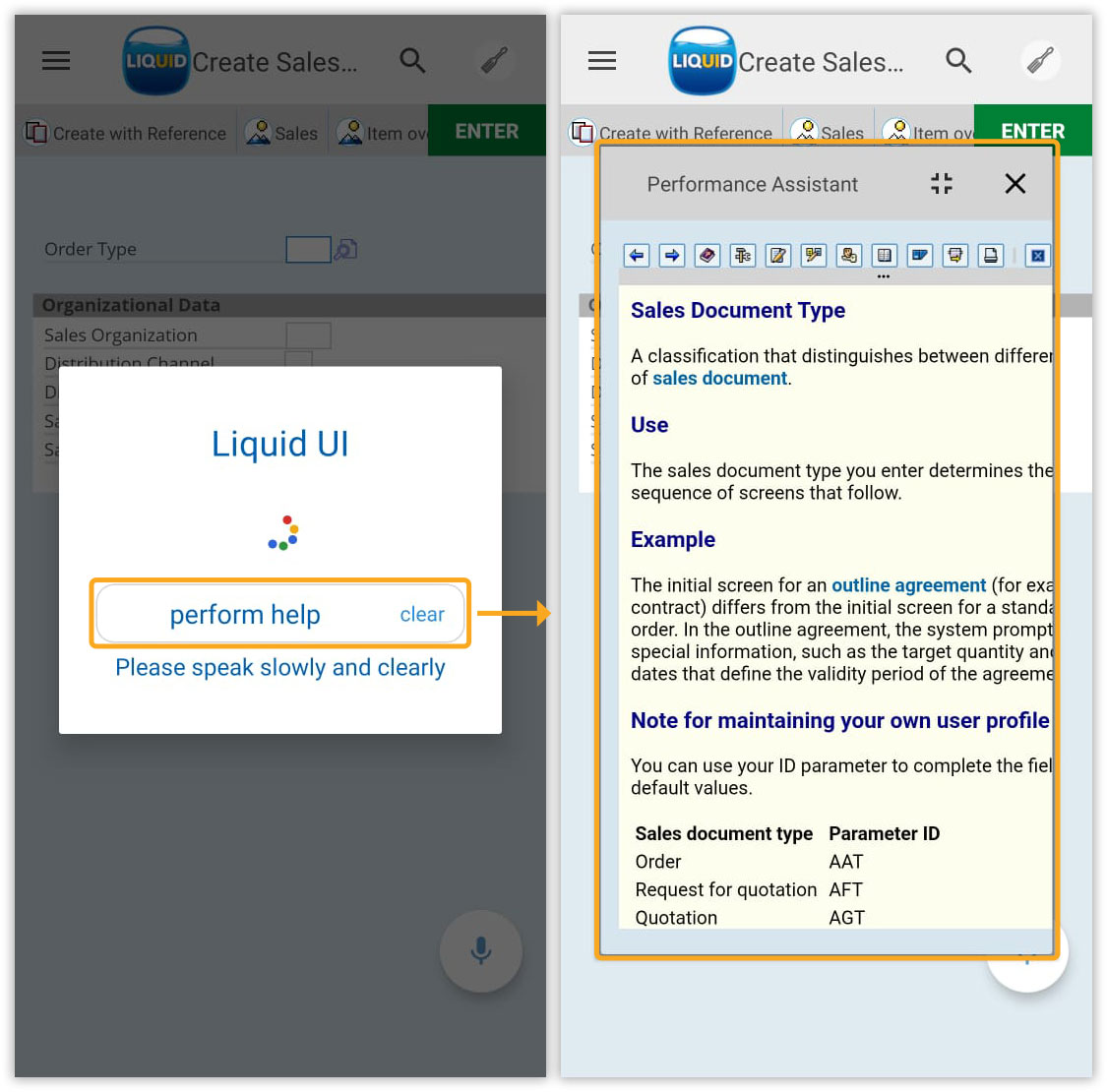
- You can also access context menu options. For example, use the command Perform help to open the Performance Assistant window, as shown in the image below.
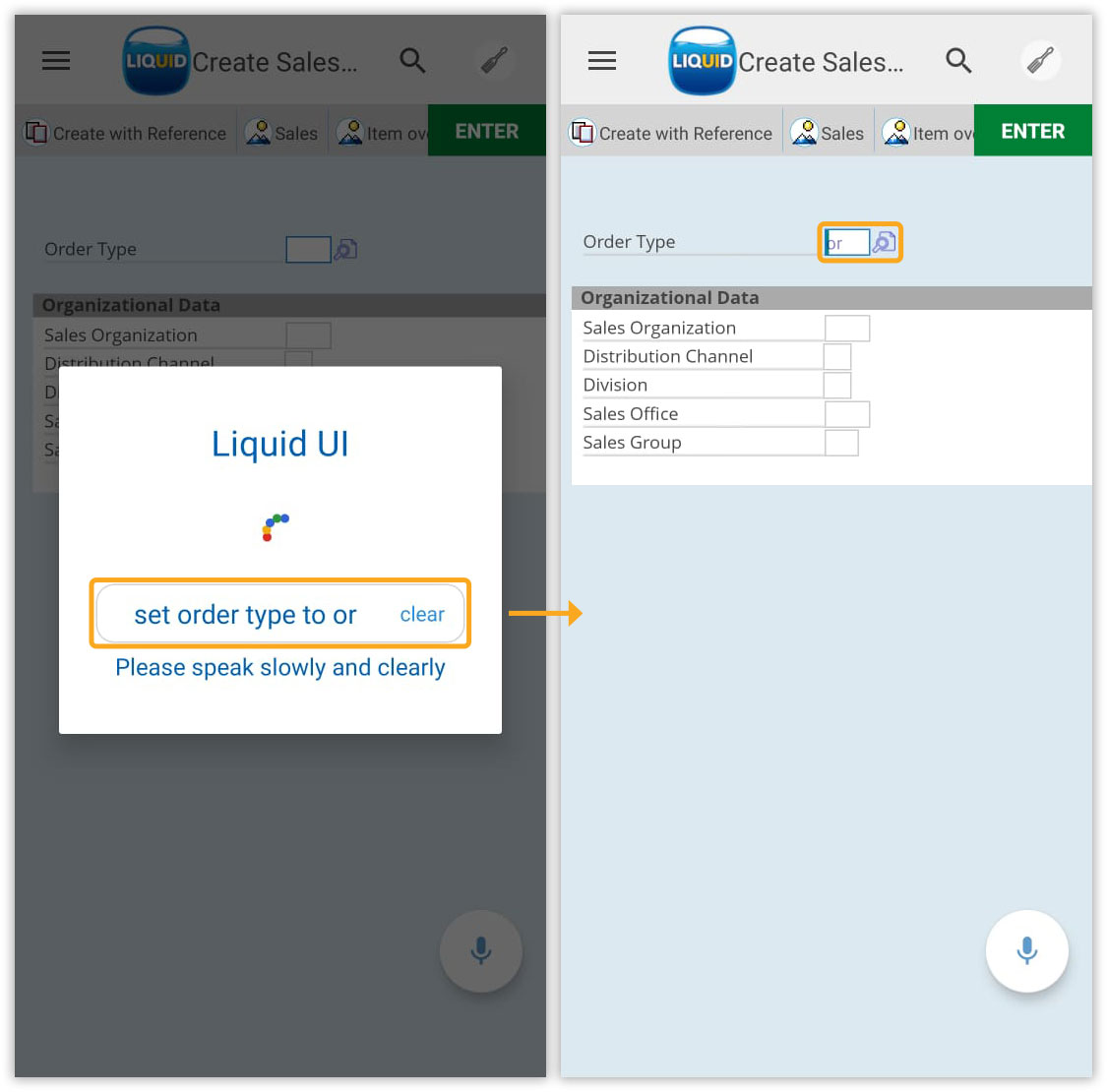
- Now, instruct the assistant to enter OR in the Order Type input field.
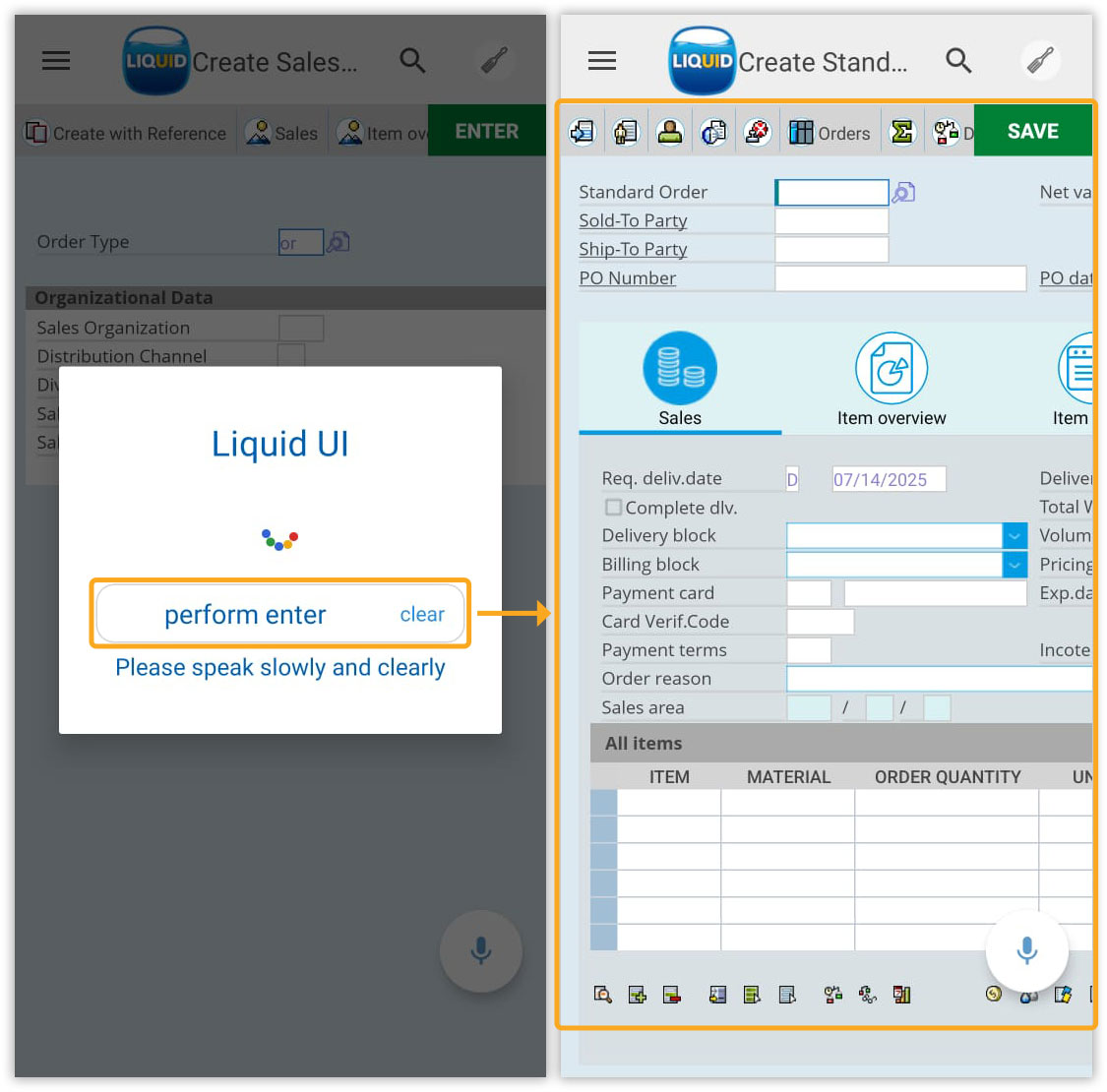
- Instruct the assistant to perform Enter, to navigate to the Create Standard Order: Overview screen.
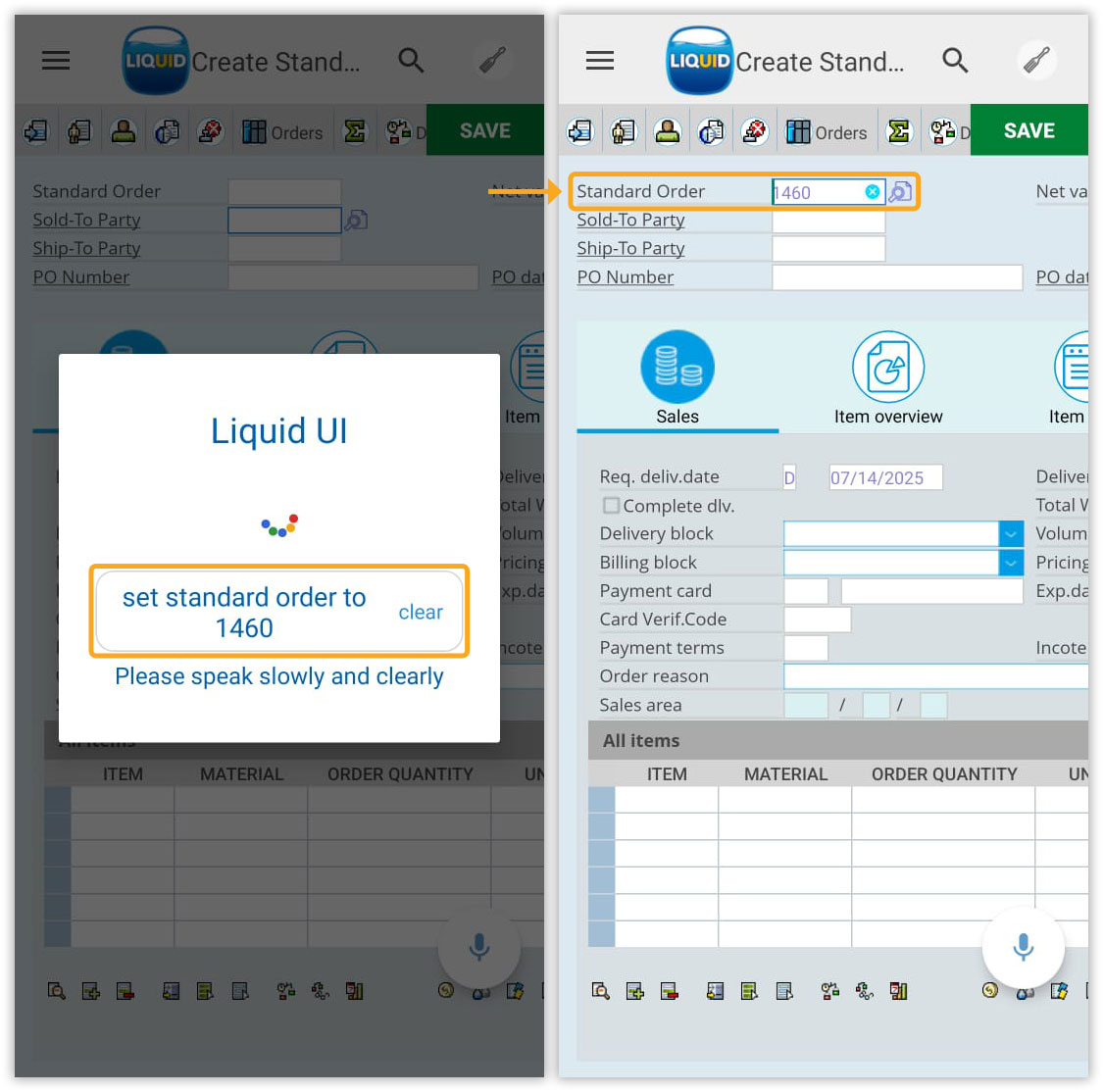
- Here, we are instructing the assistant to assign a value to the Standard Order input field.
- In addition, you can also instruct the assistant to move the cursor between fields.