

Purpose
Application Extensions in Liquid UI for Android enable administrators to configure and launch external Android applications directly from SAP input fields. This feature is available starting with Version 4.25.7.0 and remains supported in all later releases.
Each extension defines an Android application’s package and intent, allowing Liquid UI to trigger external functionality when users long‑press SAP fields. This helps streamline mobile workflows without modifying SAP logic.
How Extensions Work
Extensions use Android’s Inter-Process Communication (IPC) to launch external applications. When a user long‑presses an SAP input field, Liquid UI checks for matching configured extensions and displays them as selectable actions. Each extension is fully configurable in the client.
- Launch external Android apps directly from SAP fields
- Reduce app switching during SAP processes
- Support simple and advanced intent definitions
All extension definitions are maintained within the Liquid UI mobile client.
Accessing the Extensions Dialog
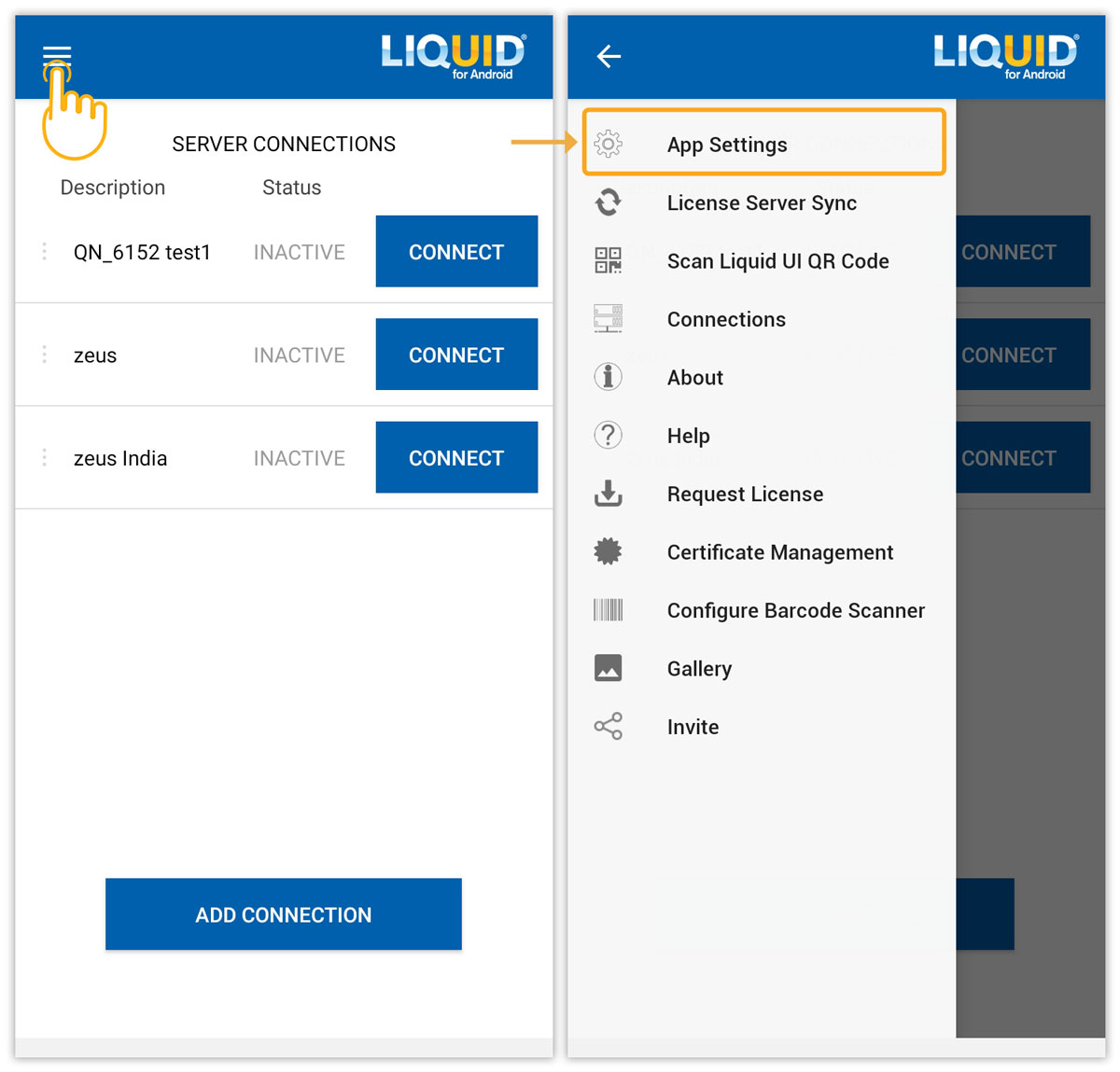
- Open the Liquid UI app and tap the hamburger menu (☰), then select App Settings.
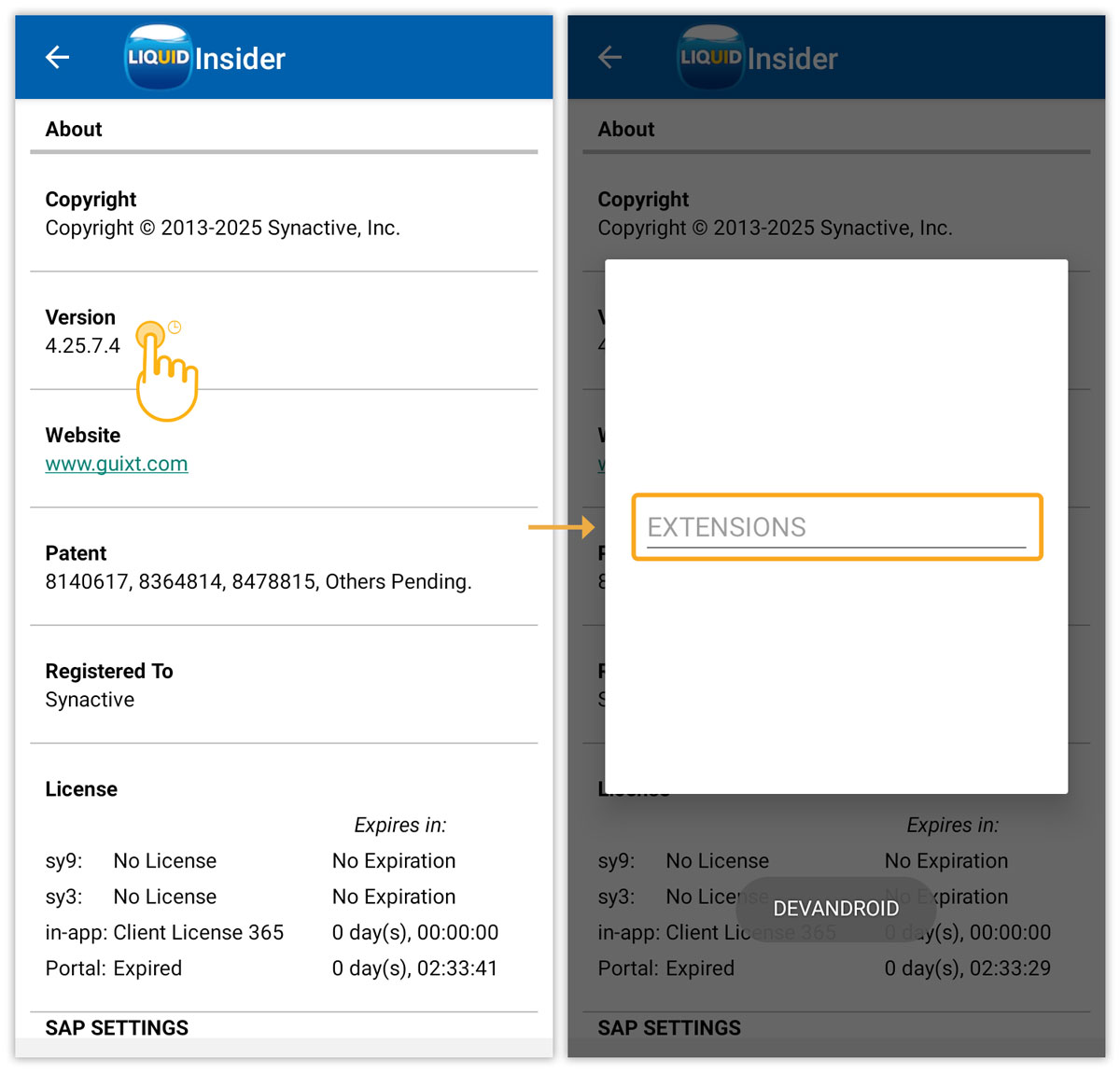
- In App Settings, long‑press the Version field for approximately 5 seconds and enter the password EXTENSIONS.
- The Extensions Dialog opens, showing all existing extension entries.
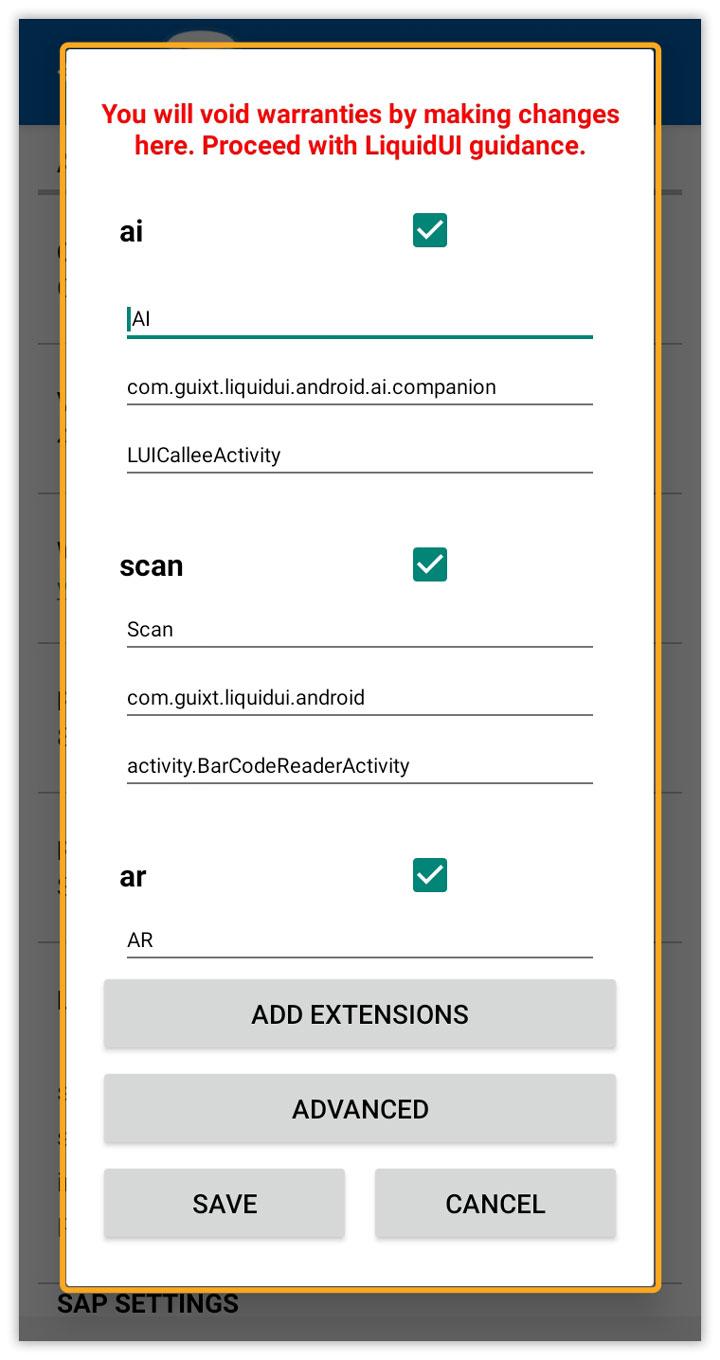
The Extensions Dialog provides a controlled interface for configuring how Liquid UI interacts with external apps.
- Password‑protected access
- Add, edit, delete, or enable/disable entries
- Validation for package/activity resolution

Note: Entries that contain unresolved packages or intents are highlighted during validation.
Adding Extensions
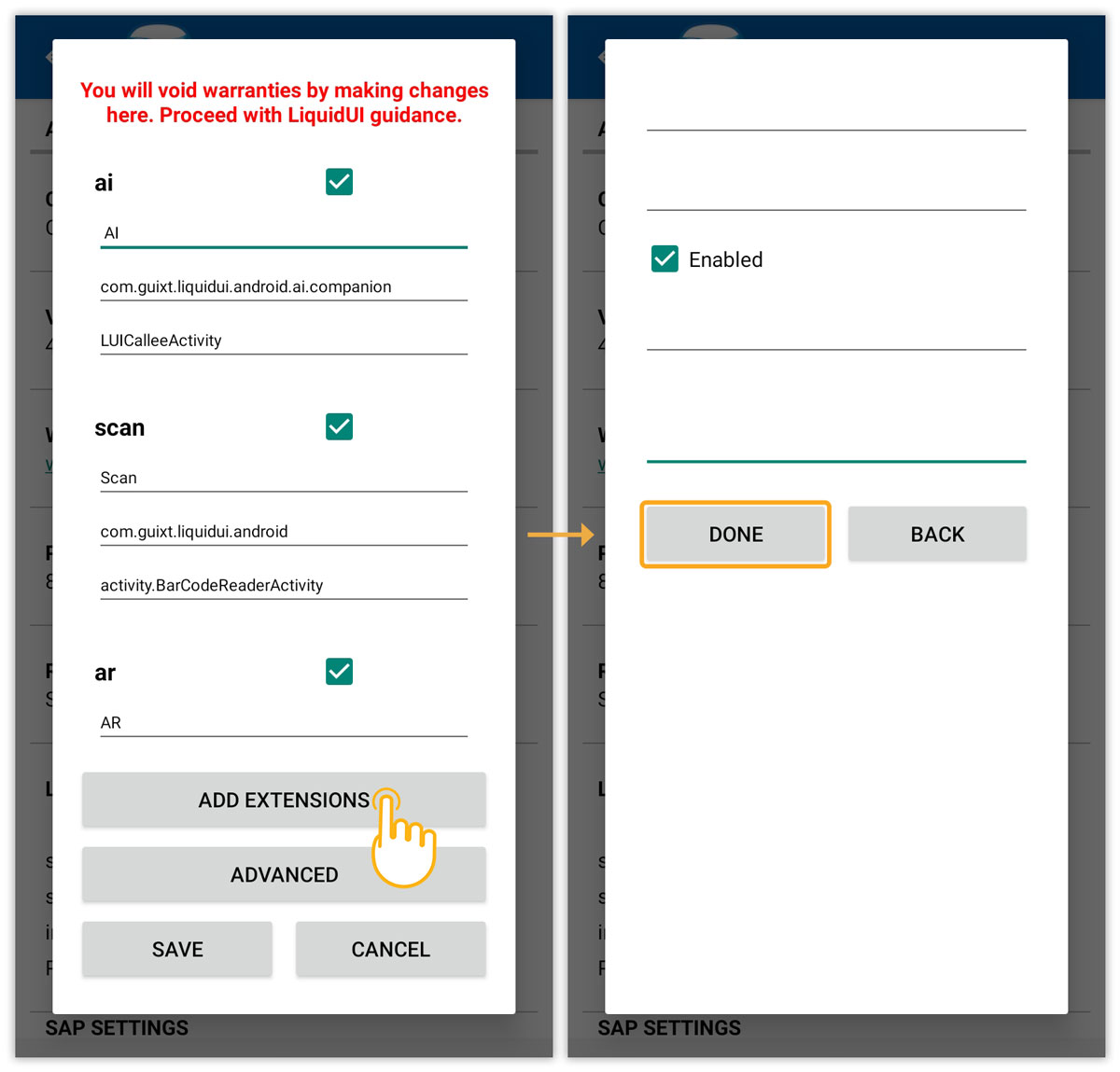
- In the Extensions Dialog, tap ADD EXTENSIONS. Complete the fields: Label, Package, and Intent. Tap DONE.
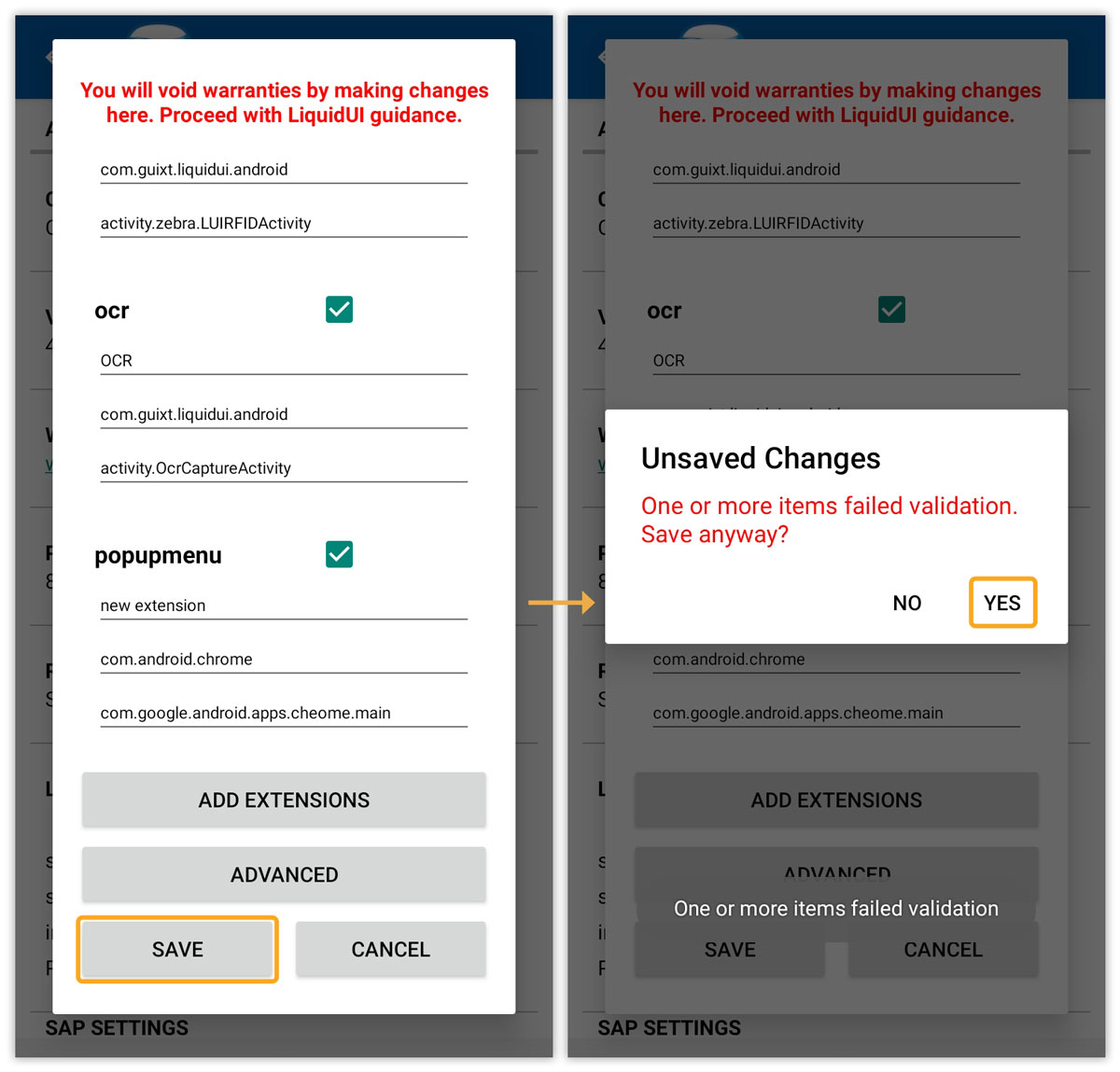
- Tap SAVE, then confirm by selecting YES.
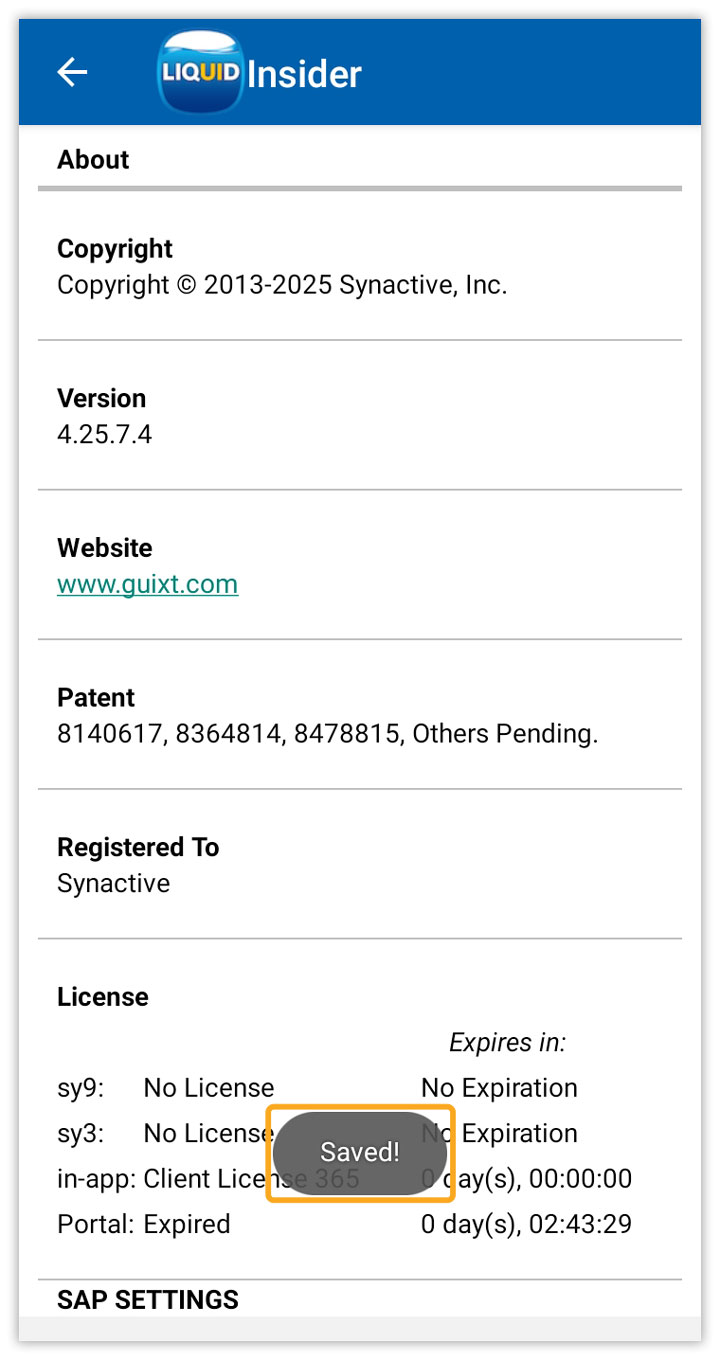
- A confirmation message Saved! appears.
Removing Extensions
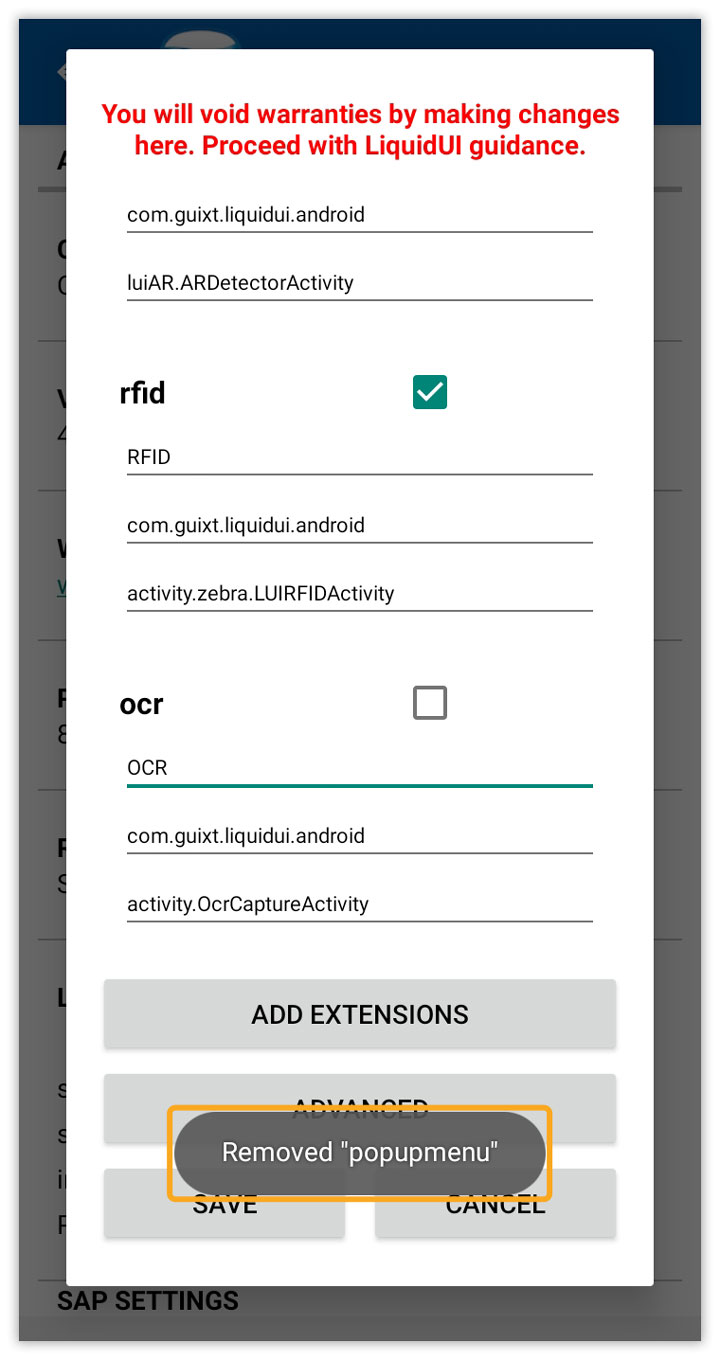
- Long‑press an extension entry and confirm deletion by tapping YES.
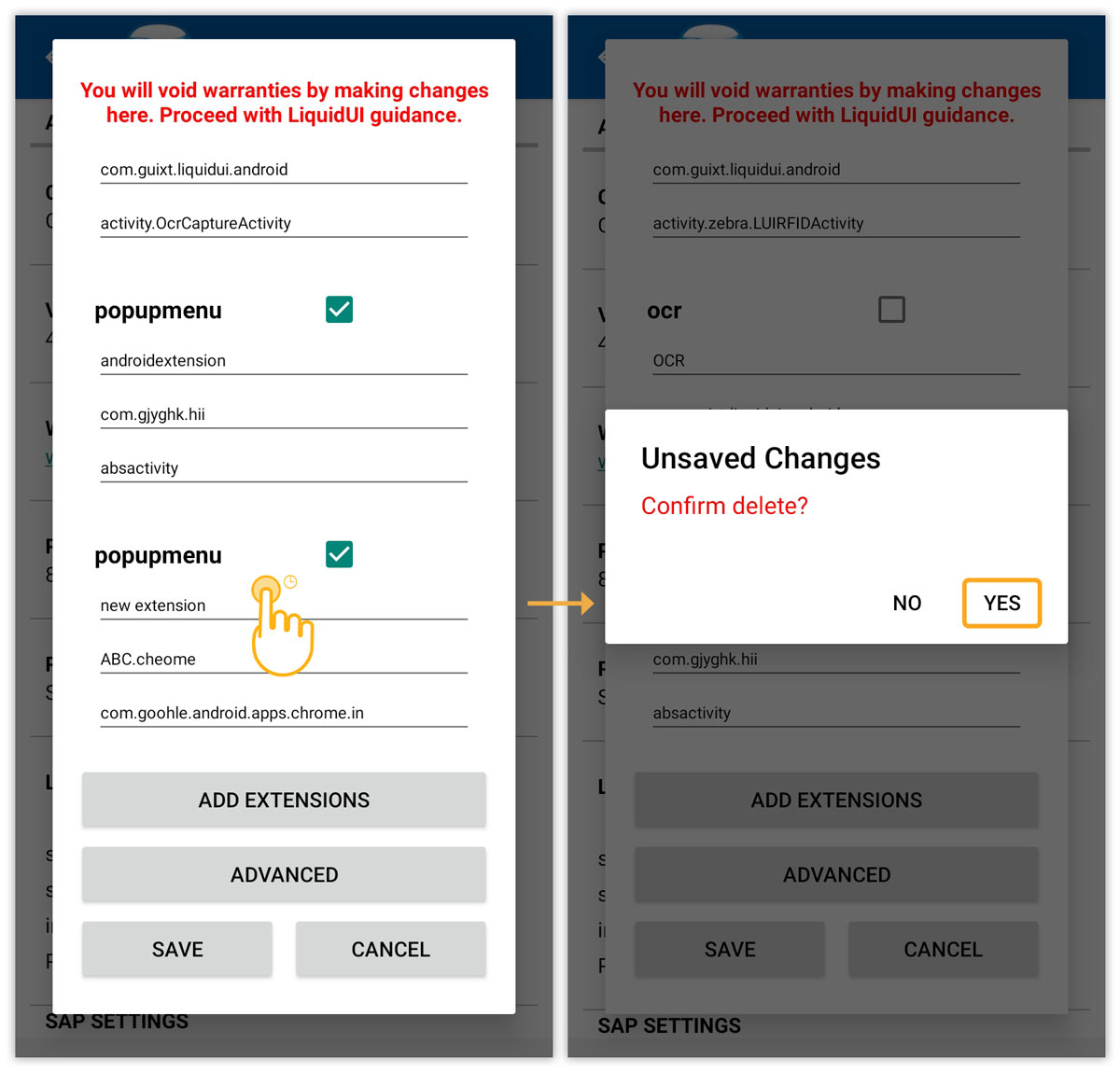
- A snackbar message confirms the removal (e.g., Removed “popupmenu”).
Advanced Options via JSON Editor
The JSON editor allows bulk editing of all extension entries.
- Tap ADVANCED to open the JSON configuration for extensions.
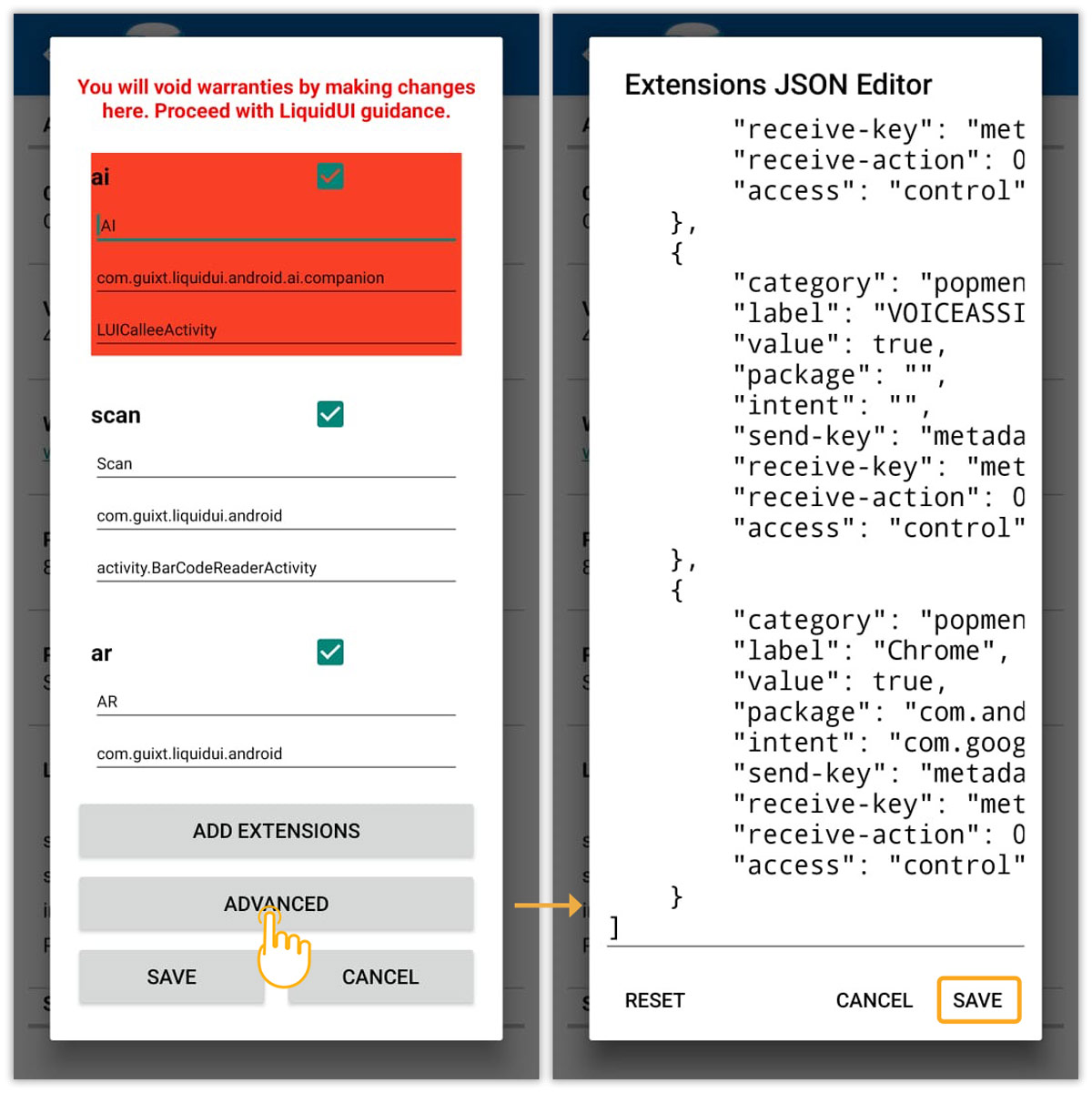
- After making changes, tap SAVE. If valid, the message JSON updated appears.
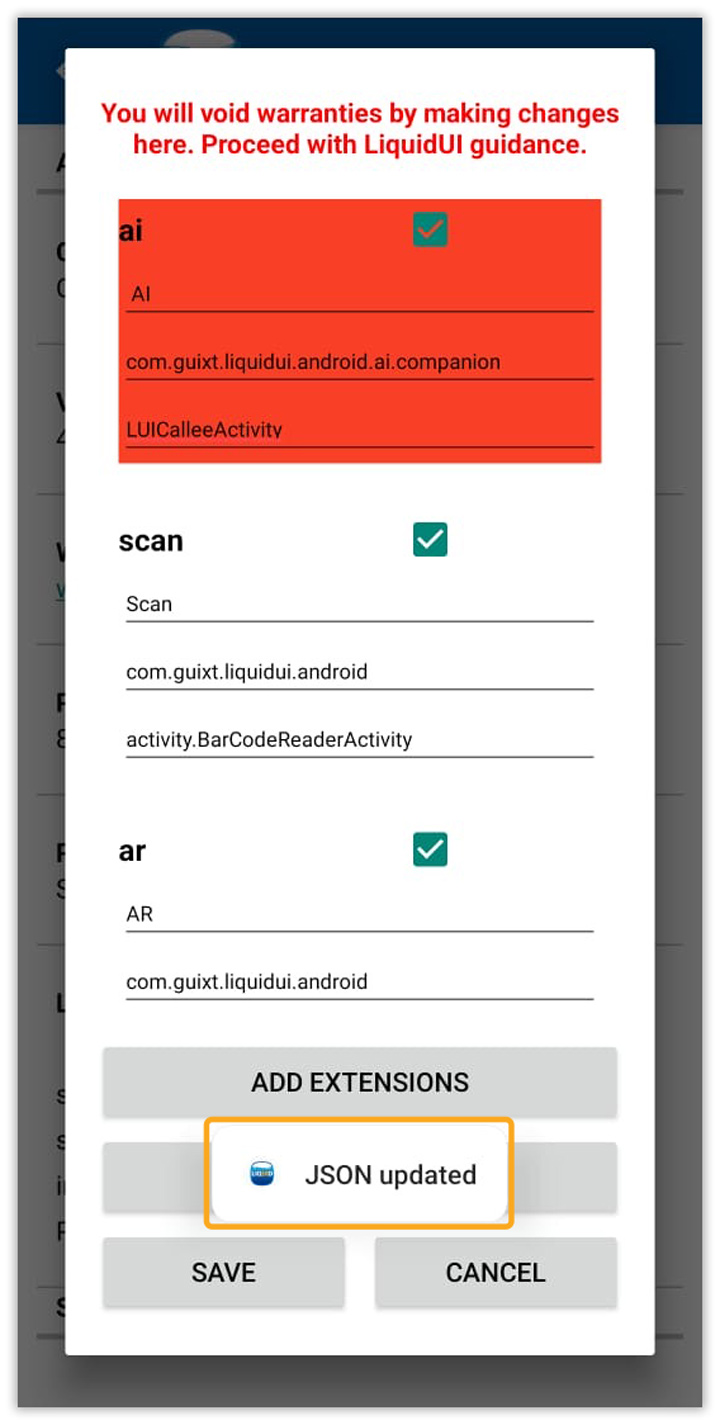
Note: Saving invalid JSON will prevent updates. Always verify formatting before saving.
Using Extensions in SAP
After configuring extensions, they can be used directly within SAP screens in the Liquid UI client.
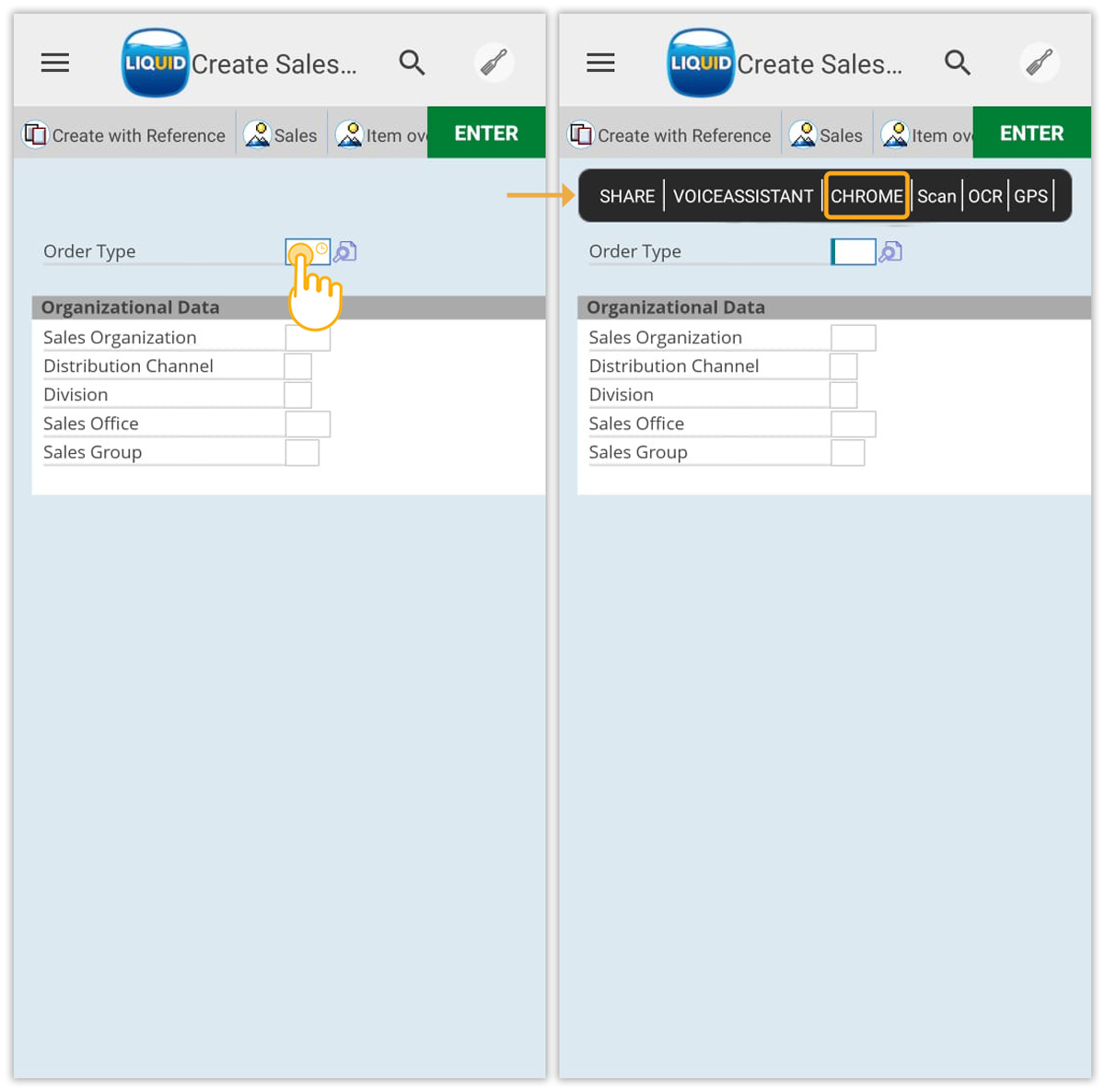
- Long‑press any SAP input field to display available extension labels. Tap a label to launch the associated Android application.