


For Android users with version 4.0.12.0 and above, Liquid UI offers a Dark Mode feature. This visually comfortable alternative to the default light theme is especially beneficial in low-light conditions, as it reduces eye strain and improves readability while conserving battery life
Users can switch between dark and light modes for a personalized experience, ensuring the app is optimized for various lighting conditions.

Note: You will receive license remainder emails from the LAMP at regular intervals to remind you about soon-to-expire licenses.
This article explains how to activate dark mode in the Liquid UI for Android app and how SAP screens appear with various themes when dark mode is enabled.
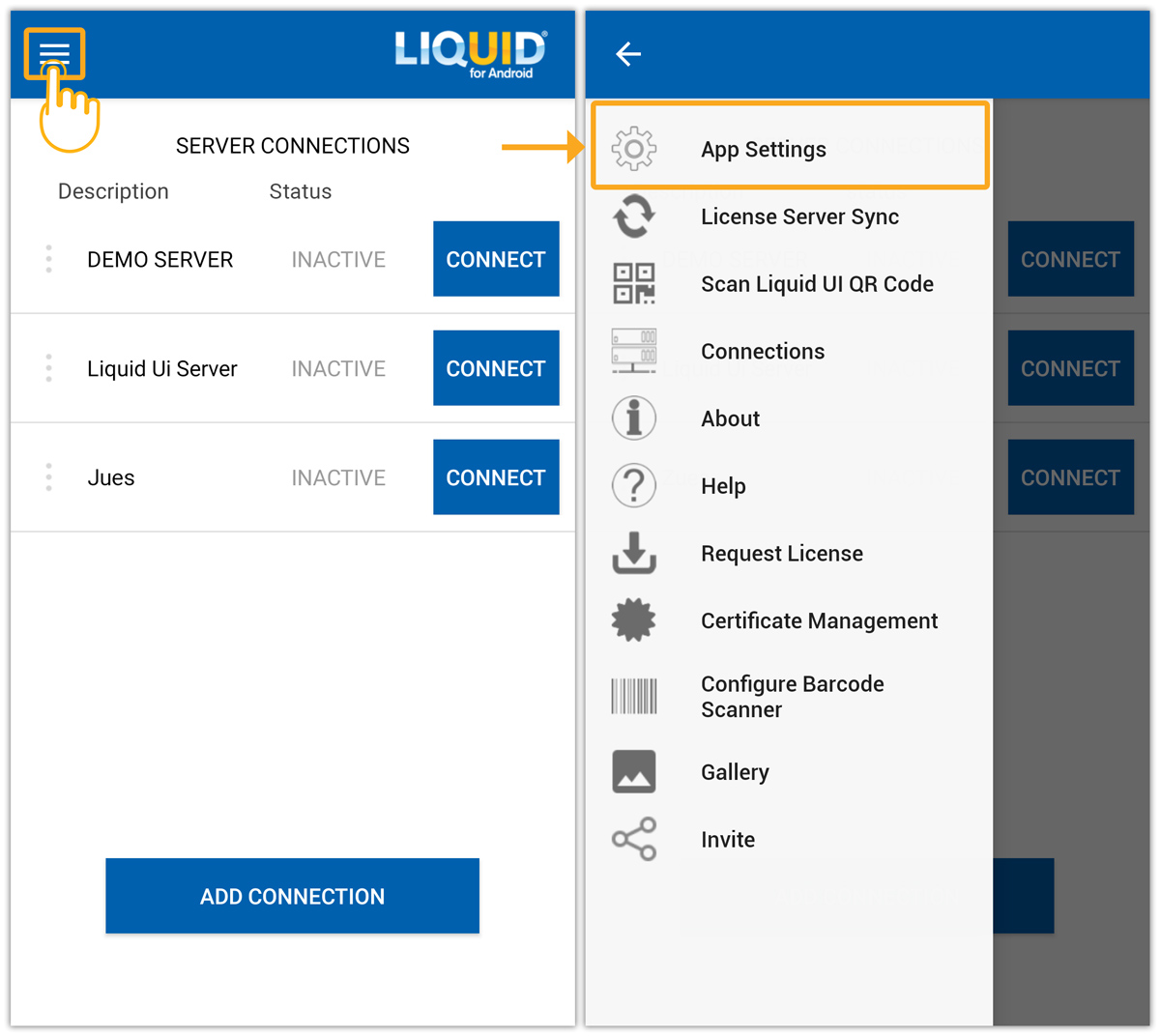
- In the Liquid UI for Android app, navigate to Main Menu → App Settings.
- On the Insider screen, scroll down and select Dark Mode. Its dropdown offers three options, listed as follows:
- Always OFF
- Always ON
- Automatic
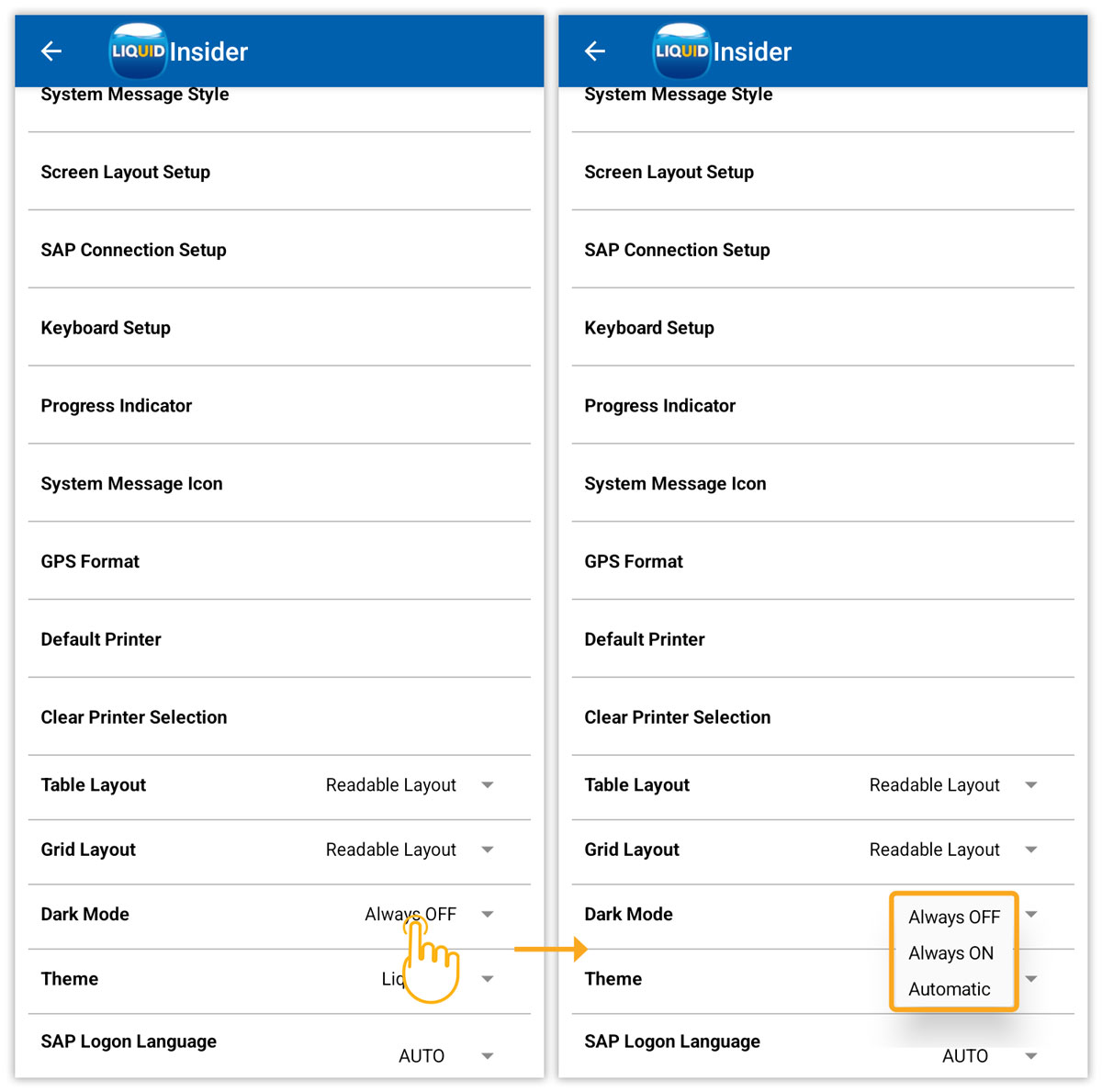
Note: By default, the Dark Mode setting is Always OFF.
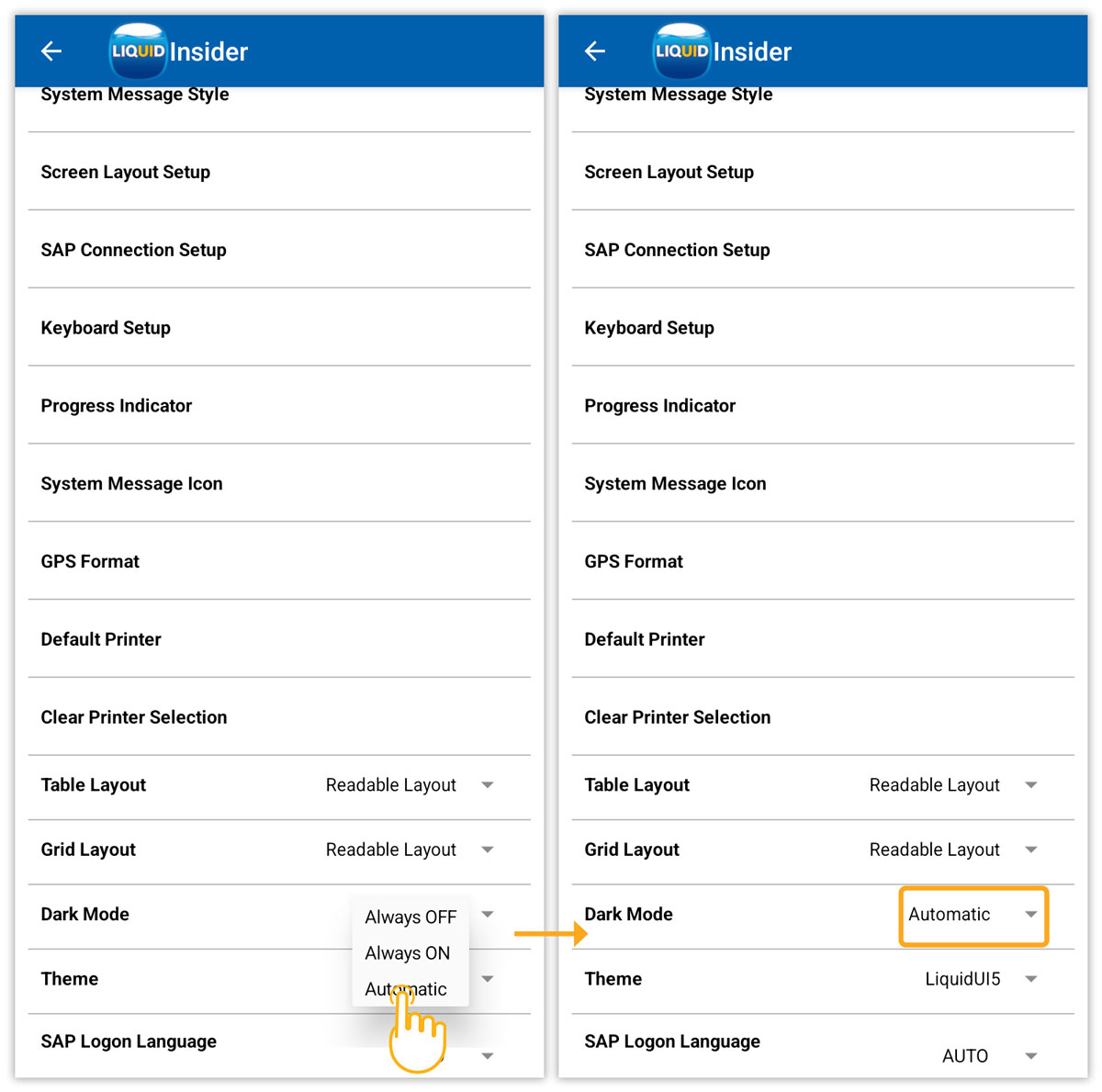
- Choose Automatic for Dark Mode to sync with device settings.
- Select Always ON to enable dark theme.
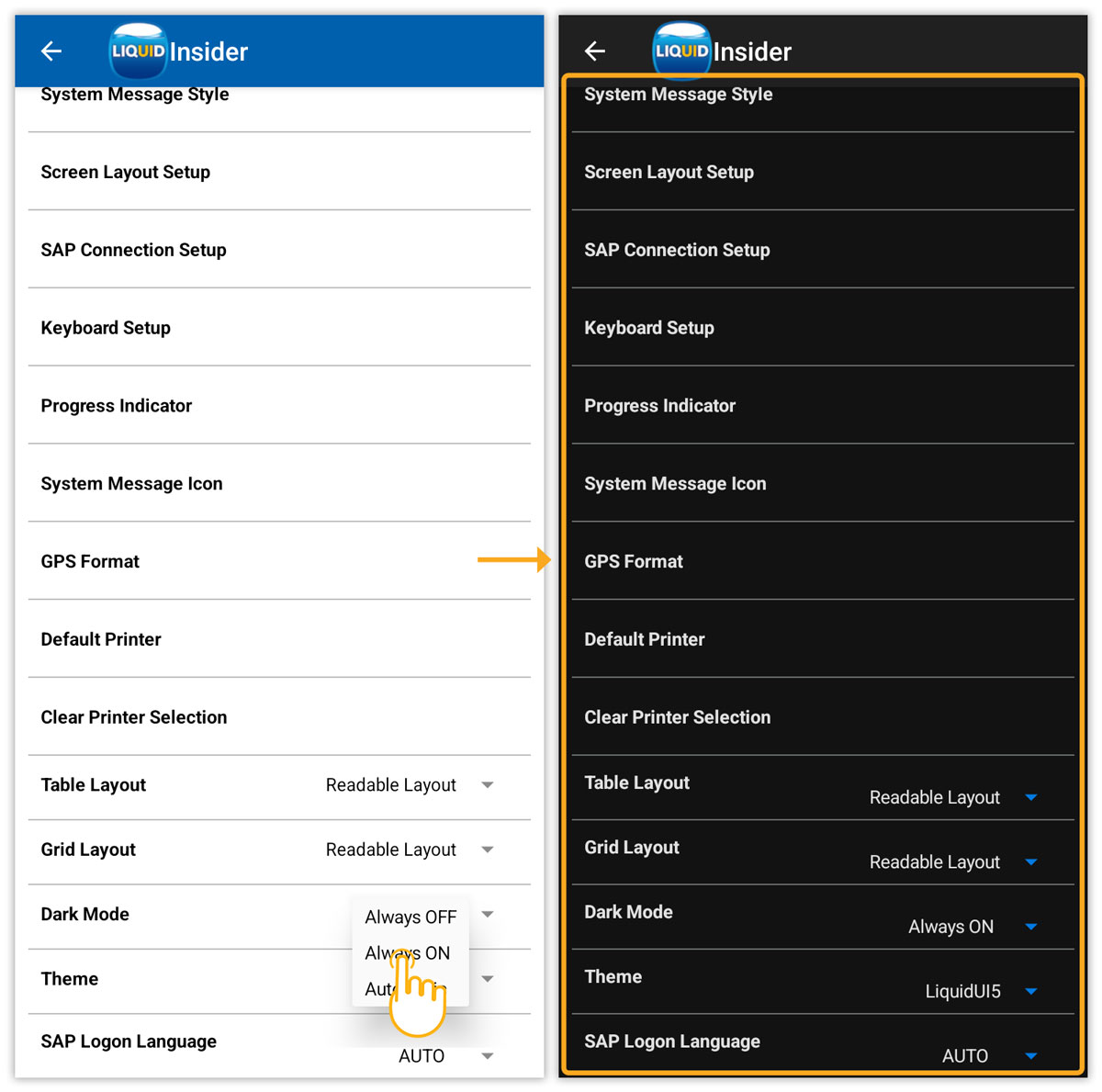
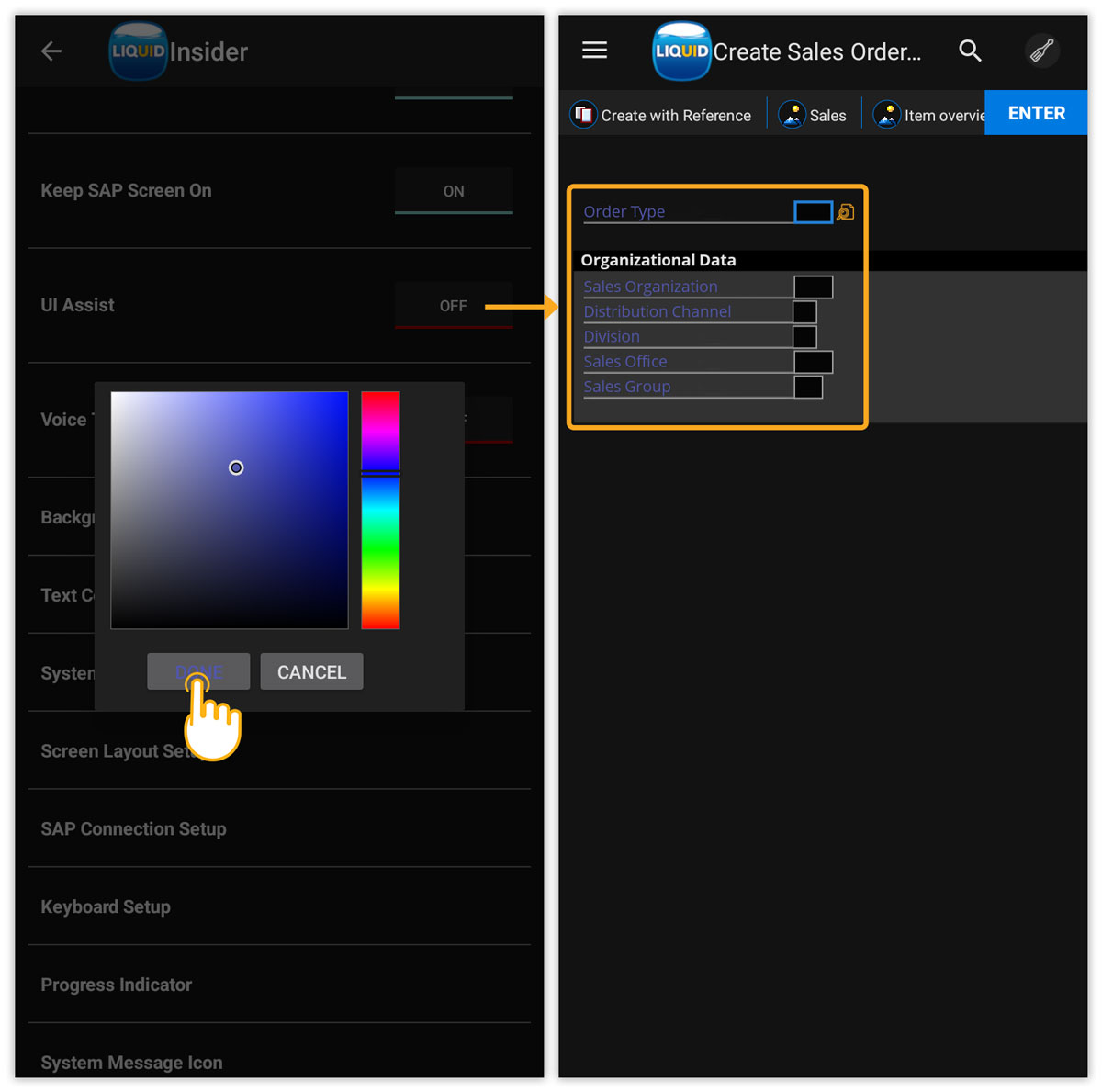
- Dark mode allows text color changes for better visibility and efficiency. For example, changing text to blue on the Insider screen will make it appear on the SAP screen.
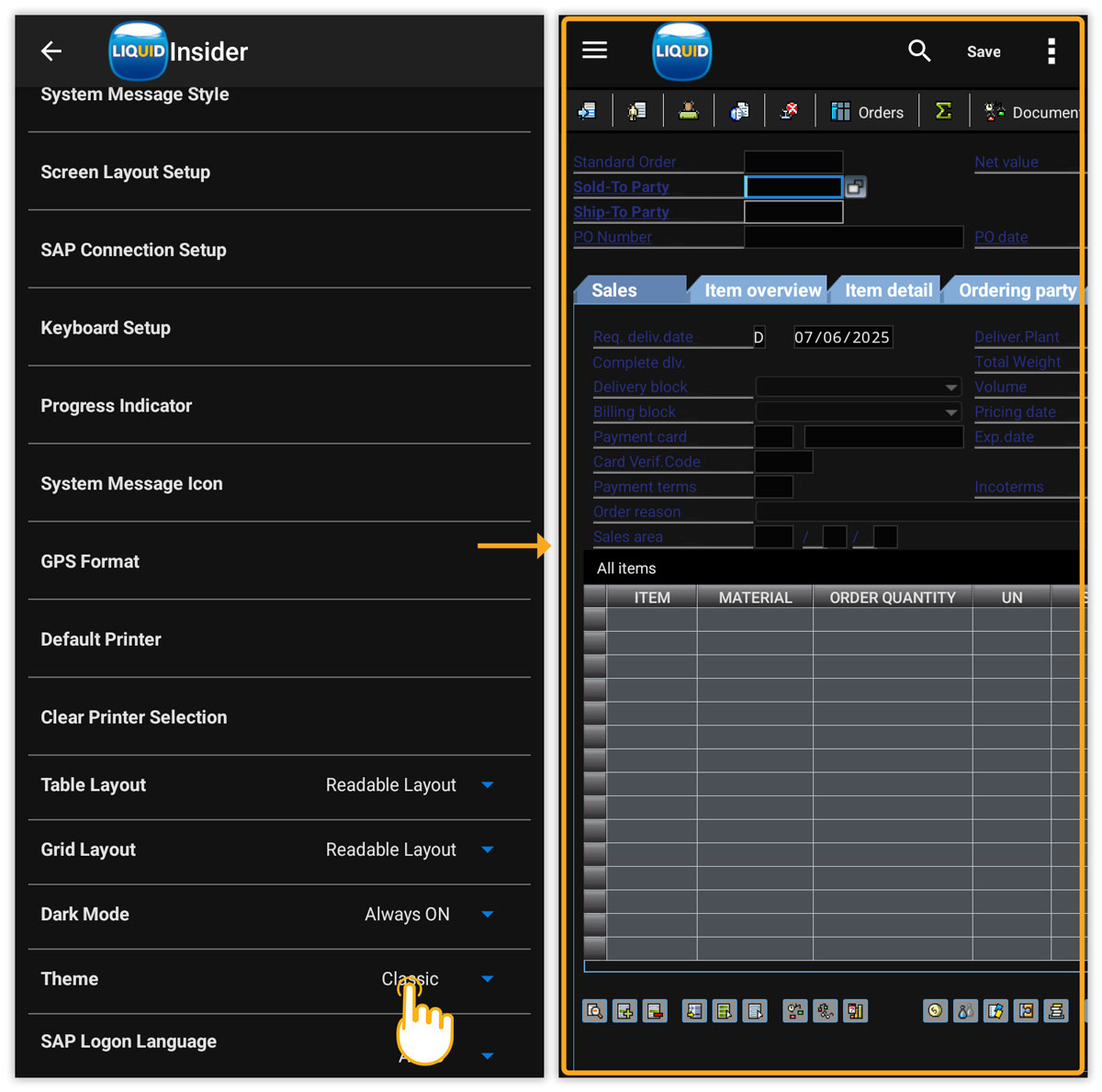
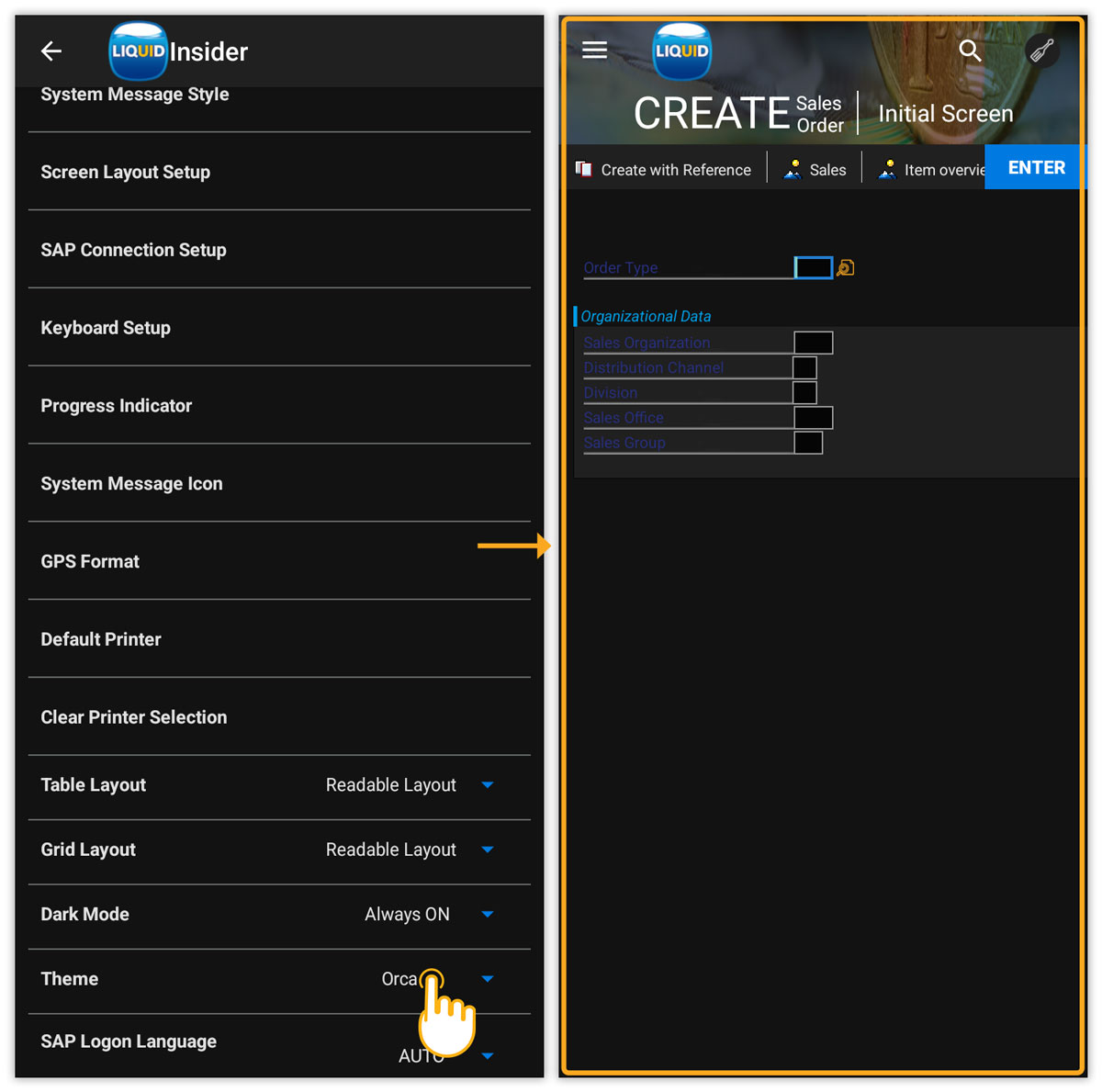
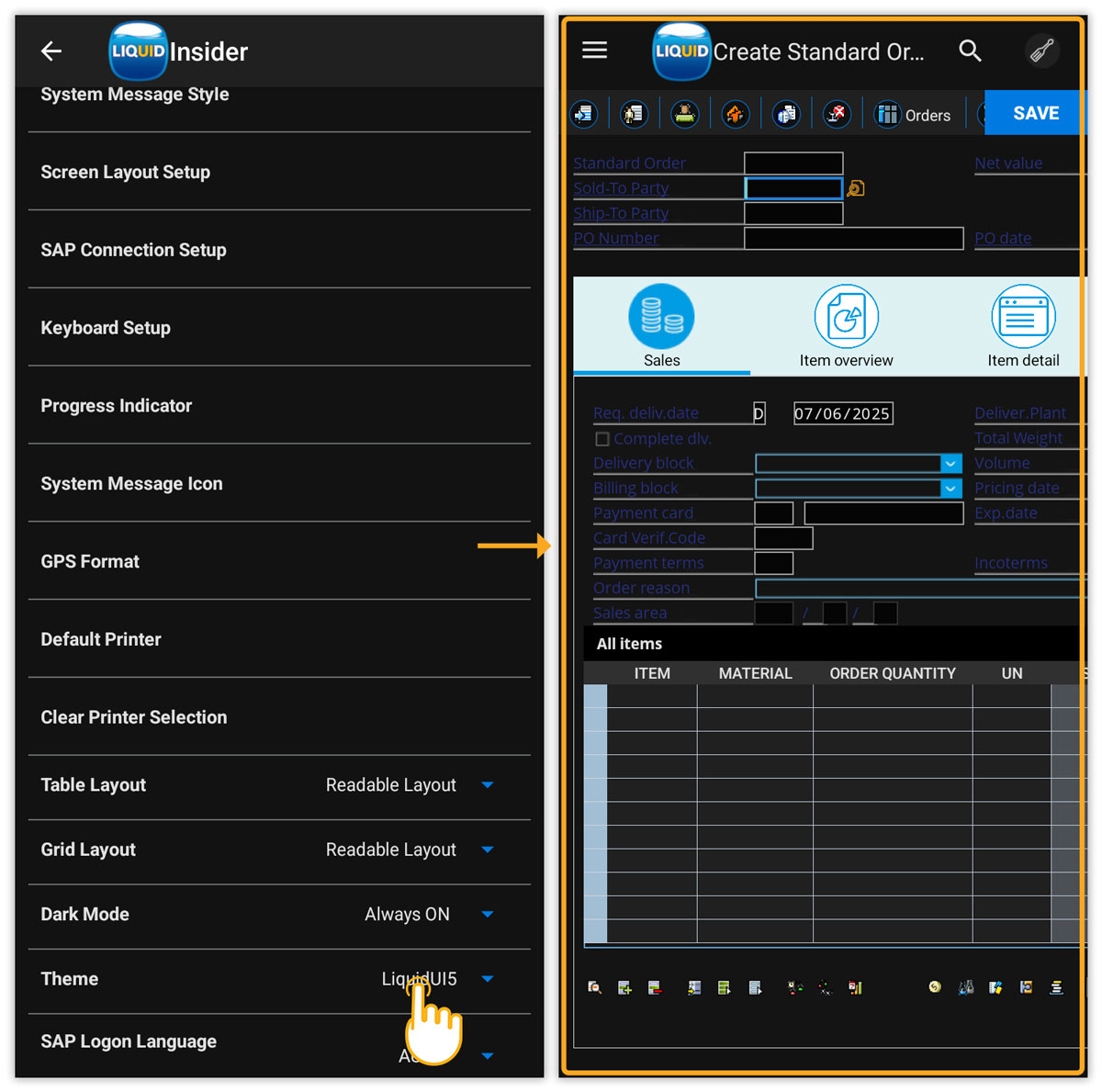
- Here, we’ll present the dark mode feature in currently available themes:
- Classic
- Orca
- LiquidUI5
Click here for details about themes.
- Classic