


Purpose
The set() command facilitates the assignment of values to various screen elements and variables. This includes input fields, checkboxes, radio buttons, tables, and other variables. The specific syntax and usage of set() will differ based on the type of target element.

Note: From version 1.2.290, avoid using spaces in cell[]. Use cell[table, column, row] instead of cell[table, column, row].
Element |
Syntax |
Description |
|---|---|---|
| Table-value | set("cell[table,column,row]","abc"); | Assigns a value to a table cell. |
| Table-variable value | set("cell[table,column,row]","&V[z_var]"); | Assigns a variable’s value to a specific table cell. |
| Checkbox-checked | set("C[checkbox]","X"); | Checks the specified checkbox. |
| Checkbox- unchecked | set("C[checkbox]",""); | Unchecks the specified checkbox. |
| Field-value | set("F[name]","abc"); | Sets a specified value in an input field. |
| Field-variable value | set("F[name]","&V[z_var]"); | Sets the value of a variable into the specified field. |
| Radiobutton-checked | set("R[radiobutton]","X"); | Selects the radiobutton. |
| Variable-value | set("V[z_var]","abc"); | Sets the specified value into a variable. |
| Varible-cellvalue of a table | set("V[z_var]","&cell[table,col,row]"); | Stores the value from a table cell into a variable. |
| Varible-checkboxvalue | set("V[z_var]","&C[checkbox]"); | Stores the checkbox value into a variable ("X" if checked, blank if not). |
| Varible-fieldvalue | set("V[z_var]","&F[inputfield]"); | Reads an input field value into a variable. |
| Varible-radiobuttonvalue | set("V[z_var]","&R[radiobutton]"); | Stores radio button value into a variable. ("X" if selected, blank if not). |
| Varible-another variablevalue | set("V[z_var]","&V[param]"); | Sets the value of one variable into another. |
| Varible-systemvariablevalue | set("V[z_var]","&V[_systemVariable]"); | Assigns a system variable's value to a custom variable. |
Available Options
You can use the following options with the set():
|
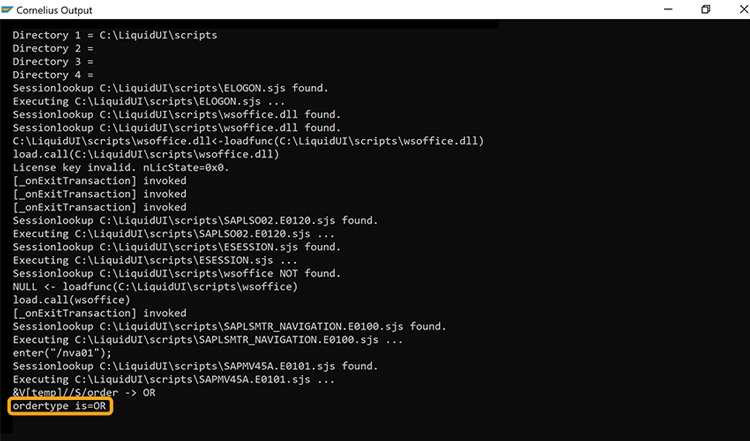
"search":"string" - Searches for the specified string in the text and returns the next immediate string. |
|
|
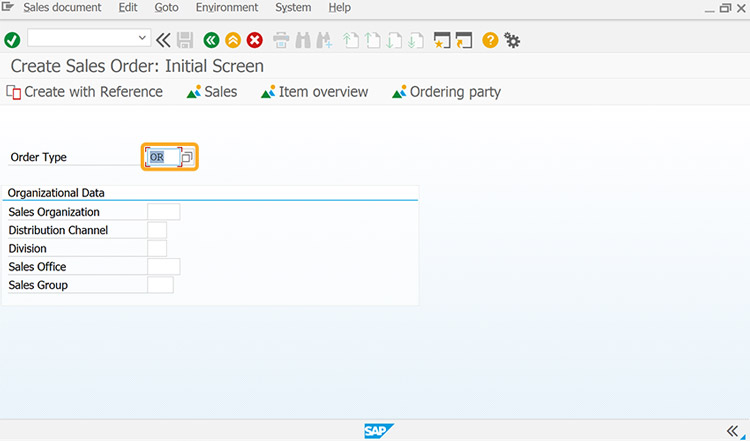
"uppercase":"true" - Converts the value to uppercase |
Options Detail
|
search |
|
|
uppercase |
|
Example
The following example demonstrates how to use the set() to pass selected radio button values from one screen to another.
//Create the file SAPMV45A.E0101.sjs inside your scripts folder for customizing the Create Sales Order: Initial Screen
//Now, add the Liquid UI script to the above file, and save it.
- Select the Collective Slip radio button using set().
// Selects the radio button
set("R[Collective Slip]","X");
- From the Create Sales Order: Initial screen, select Collective Slip and click the push button. This will navigate you to the MB1C transaction. Here, the Collective Slip radio button will be pre-selected, demonstrating how radio button values are passed between screens using set().
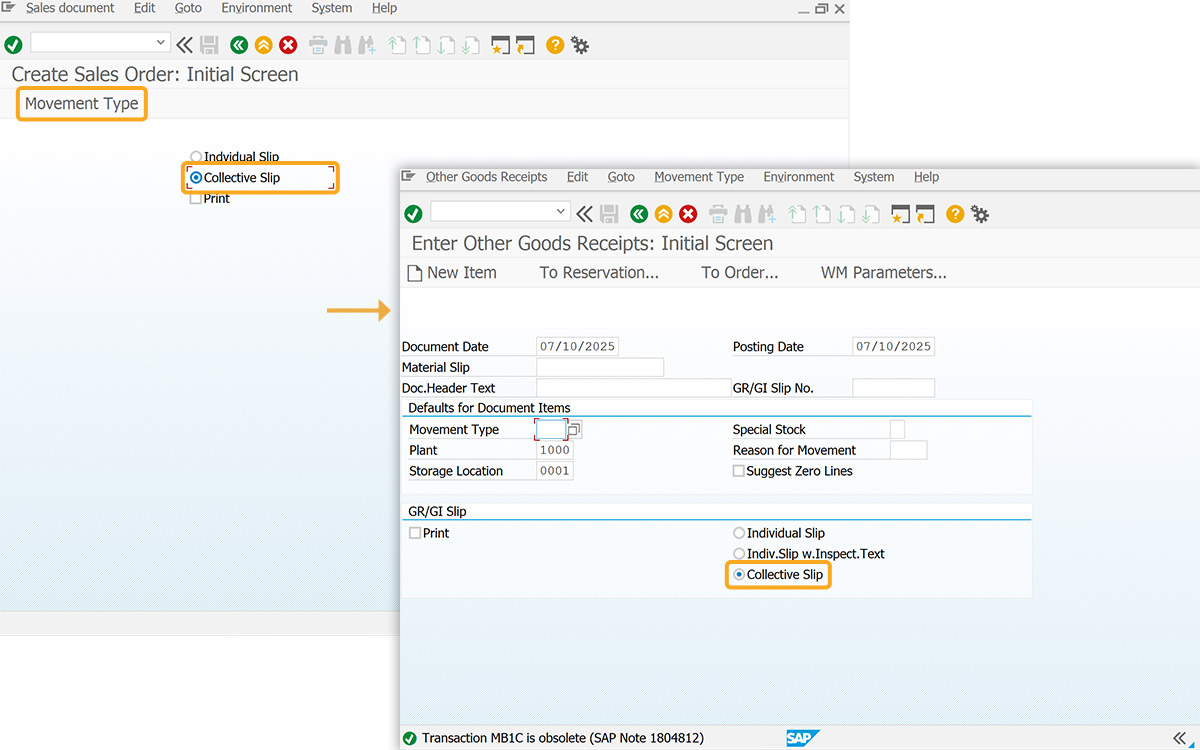
Click here for details about how to assign values to screen elements.
Example 2: Set a Group of Variables
This example demonstrates how to set a group of variables and pass values to the input fields using set().
- Set a value to the variables using set().
// Sets value to the variables
set("V[z_*]","GROUP-SET");
- After refreshing SAP Easy Access, click Load Variables push button to populate input fields automatically with assigned values.
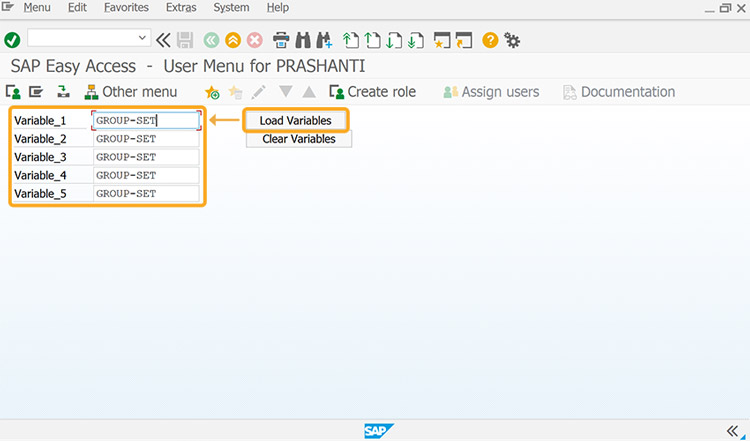
Click here to learn how to set a group of values to input fields.
Usage Details
- Resizing groupbox for sales order with set()
- Customize tabs based on condition using set()
- Edit and save text on same screen using set()
- Set cursor on various fields with set()
- Assign values to screen elements using set()
- Pushbutton with multiple options with set()
- Passing values using radiobutton with set()
- Passing values to a web server using _connectiondata and set()
- Assign values into SAP table from Liquid UI table using set()
- Attach VB script to SAP with set()
- copytext-using variables for line numbers with set()
- Get data from SAP table using table scrolling logic and set()
- Replace selected text in multi-screen with set()
- Scenario 3 - Creating Material with Condition with set()
- Assigning values to table cells using set()
- Assign field values to variables and vice versa using set()
- Working with SAP urls with set()
- Scenario 1 - Creating a Sales Order with set()
- Automatically select/deselect the checkbox using set()
- Create dropdownlist with custom values using set()
- Extract Numbers from a SAP Message with set()
- Pass values between sessions using set()
- Display custom pop-up with set()
- Convert time from milliseconds to days/hours/minutes/seconds with set()
- Get last executed function code using _last_fcode and set()
- Sort table values based on column using set()
- Get first visible row and last visible row values from a listscreen using set()
- Convert user entered value to decimal format using set()
- Liquid UI: Creating a Process for IW21 with set()
- Get required sales order data from SAP table using set()
- Get server name using _ashost variable using set()