


Prerequisites
- Products: Liquid UI WS, Liquid UI Server or Local DLL, Client Software
- Commands: pushbutton(), onscreen(), gettableattribute(), enter()
Purpose
This article demonstrates how to retrieve the column values easily from an SAP table using table scrolling logic and display them in the console window. To explain this, we’ll walk you through the following steps:
- Add a toolbar push button to execute the process on click
- Implement a function to retrieve column values from an SAP table.
User Interface
//Create the SAPMV45A.E4001.sjs file inside your scripts folder for customizing the Change Sales Order Overview screen.
//Now, add the Liquid UI script to the above file and save it.
Customization
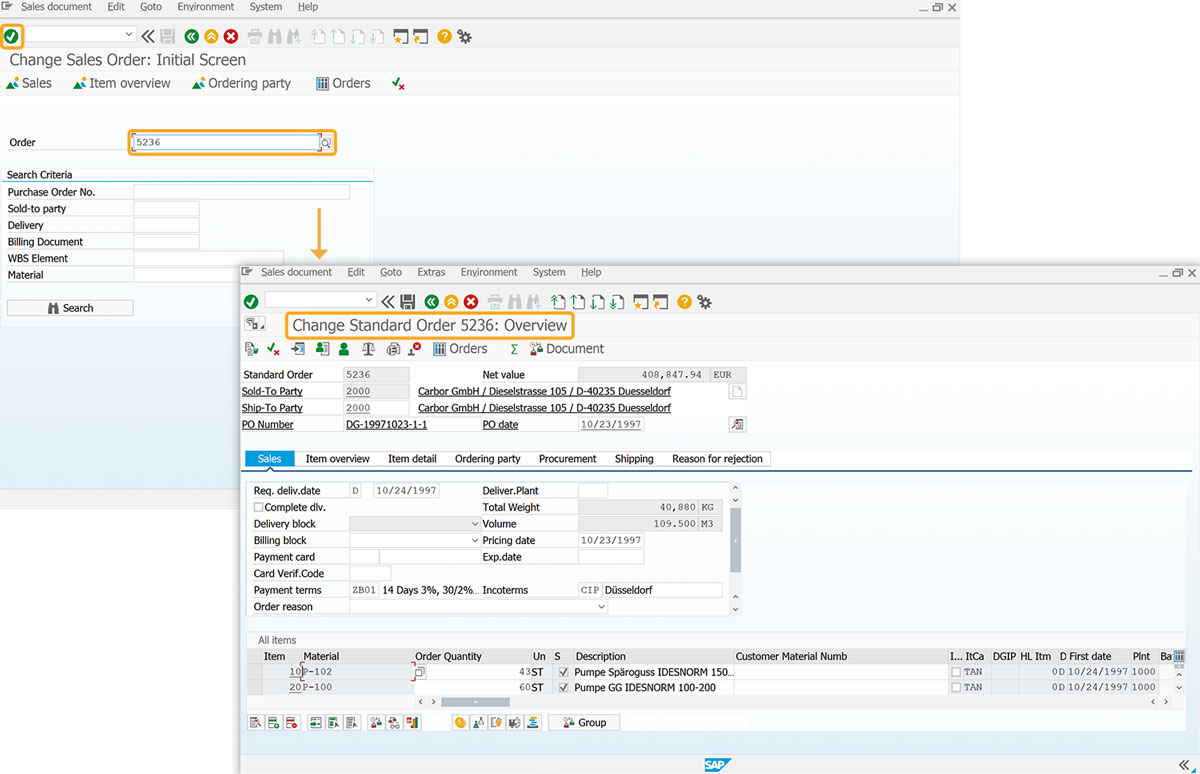
- Navigate to the Change Sales Order (VA02) screen, and enter the value in the Order input field; click Enter. Then, you will be navigated to the Change Sales Order: Overview screen, as shown in the image below.
- Add a toolbar push button labeled Table Scroll to execute the tableScroll process on click.
// Creates a toolbar push button to execute the process
pushbutton([TOOLBAR],'Table Scroll','?',{'process':tableScroll});
- Add tableScroll function to retrieve values from the Material column in the All items table and display them in the console window
// Function to retrieve values from the table
function tableScroll() {
   onscreen 'SAPMV45A.4001'
      // Table Scroll begins here
      absrow = 1;
      relrow = 1;

      // Fetch the table attributes
      gettableattribute("T[All items]",{"firstvisiblerow":"FVisRow", "lastvisiblerow":"LVisRow", "lastrow":"LastRow"});

      if(FVisRow==1) {
       goto new_row;
      }
      // Scroll to the absolute row
      enter("/ScrollToLine=&V[absrow]",{"table":"T[All items]"});

   new_screen:;
    onscreen 'SAPMV45A.4001'
         // Refetch table attributes, in case they might of changed
        gettableattribute("T[All items]",{"firstvisiblerow":"FVisRow", "lastvisiblerow":"LVisRow", "lastrow":"LastRow"});
        // Reset the relevant row
        relrow = 1; // reset the relative row with a new screen
      new_row:;
      if(absrow>LVisRow){
         // end of visible table screen?
         enter("/ScrollToLine=&V[absrow]",{"table":"T[All items]"});
         goto new_screen;
      }
      if(absrow>LastRow){
         // end of the table?
         goto end_of_table;
      }
        set("V[z_va01_mat]","&cell[All items,Material,&V[relrow]]");
      println('0000000000000000000000000000000000 z_va01_mat:'+z_va01_mat+':');
      if(z_va01_mat == 'L-60F') {
         set('cell[All items,Order Quantity,&V[relrow]]','506');
      }

      // Increment out counters
      absrow++;
      relrow++;
      goto new_row;

      end_of_table:;
      // Scroll back to the top of the table
      enter("/ScrollToLine=1",{"table":"T[All items]"});
}
SAP Process
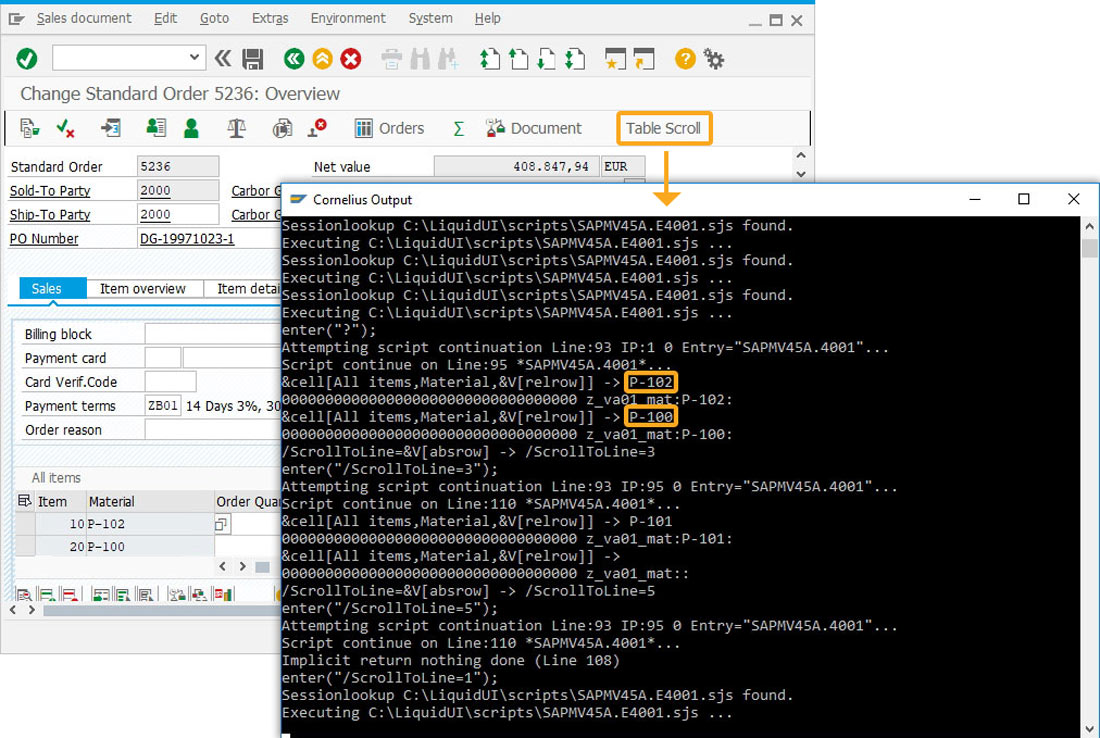
- After refreshing the SAP screen, click the Table Scroll button. Then, you can view the retrieved values of the Material column from the All items table displayed in the console window, as shown in the image below.
Next Steps

Simplified view with table command
Learn how to assign values into an SAP table using a function.
Learn how to assign values into an SAP table using a function.
10 min.
This article is part of the 4.0 Take a deep dive into the SAP table and Liquid UI table