


Purpose
The enter() command simulates user actions within SAP screens.
It can trigger functions using function codes (fcodes), SAP transactions, functions, menu items, push buttons, and other actions.
Moreover, using an enter() without parameters performs a standard enter operation in SAP. This command is often used in conjunction with the onscreen and onUIEvents commands.
Syntax
enter('action');
Parameters
The following parameters can be passed to the enter().
| Parameter | Definition |
|---|---|
| Function key code |
Executes the function mapped to a specific key. enter('/3');
Click here for details about how to use Function key code. |
| Function names |
Executes functions associated with menu items or push buttons. enter('=HEAD');
Click here for details on function names. |
| hscrollto |
Scrolls horizontally in a list screen. enter('/hscrollto=value');
Click here for details on hscrollto. |
| Menu items |
Navigates to a menu item using its code. enter('/Menu=5,13');
Click here for details on Menu items.
|
| No parameters |
Performs an enter command. enter(); Click here for details on how to use the enter command with no parameters.
|
| Pushbutton |
Executes a push button process by name. enter('P[pushbutton name]');
|
| SAP transaction code |
Starts an SAP transaction. enter('/nva01');
Click here for details about SAP transaction code.
|
| SAP system status window |
To launch the system status window, you can use the following code: enter('?STAT');
Click here for details about how to use the SAP system status window.
|
| ScrollToLine |
Scrolls to a specific line in a table. Must be used with the table option. enter('/ScrollToLine=&V[absrow]', {"table":"T[tableName]"});
 Note: The scrolltoline parameter requires a valid table and does not work on empty tables. Click here for details on how to use ScrollToLine. |
| Tab code |
Switches a tab using its code. enter('=SP19');
enter('=T\\03');
Click here for details on how to use the Tab code.
|
Available Option
The enter() supports the following option:
|
The table option specifies scrolling in a table on the screen. |
Option Detail
|
table |
|
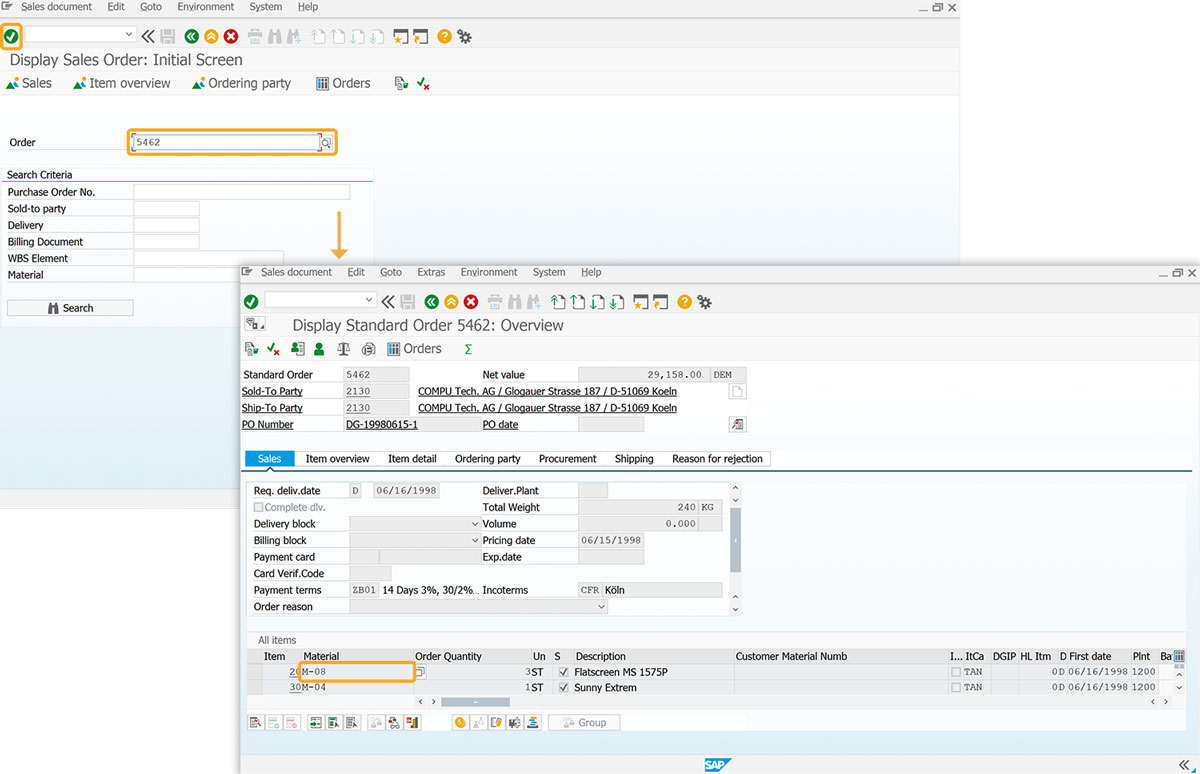
Example: Calling a function
Calling a function with the enter()
//Create the file SAPLSMTR_NAVIGATION.E0100.sjs inside your scripts folder for customizing the SAP Easy Access screen
//Now, add the Liquid UI script to the above file and save it.
- Delete the image container on the SAP Easy Access screen using del().
// Deletes the image container on the SAP screen
del("X[IMAGE_CONTAINER]");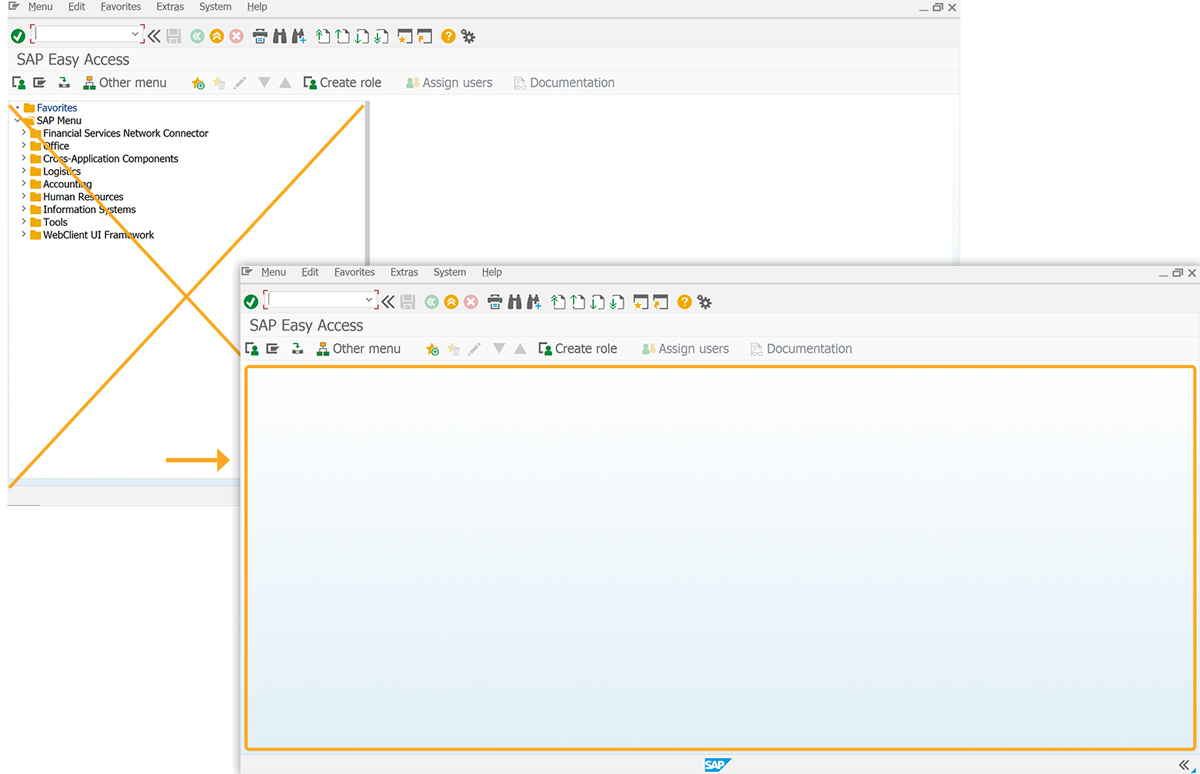
- Add the text below.
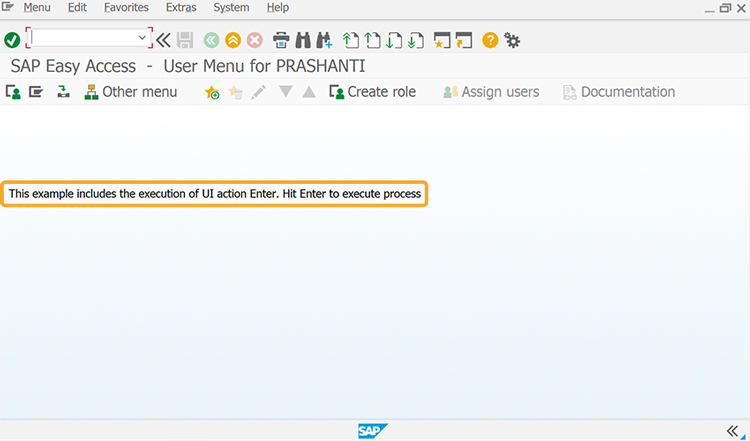
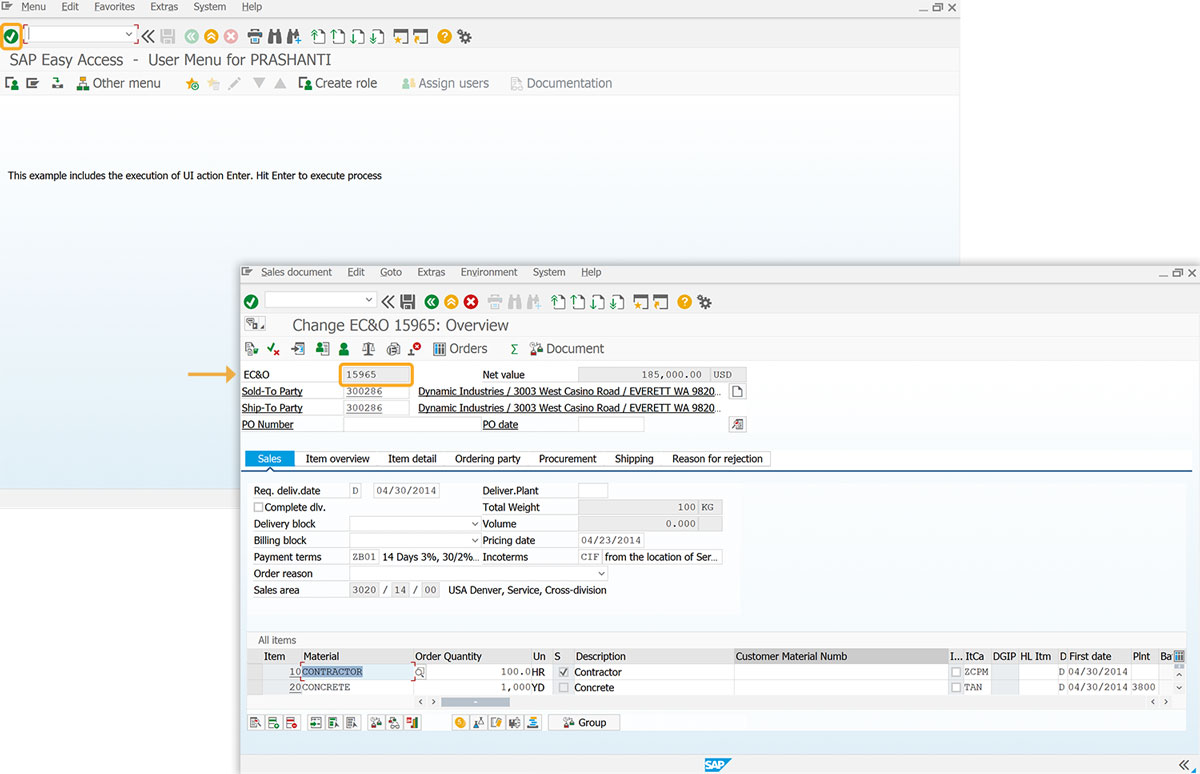
- Add test_UIEvent function to execute the enter command and assign a value to the input field.
// Function to assign value
onUIIevents['Enter']={"fcode":"/nva02", "process":testUIEvent};
text([4,1],'This example includes the execution of UI action Enter. Hit Enter to execute process'); - After refreshing the SAP screen, hit Enter, which navigates to the Change EC&O Overview screen and assigns 15965 to the EC&O input field, as shown in the image below.
Click here for details on the onUIEvents command.
Usage Details
- Assign values to screen elements with enter()
- Pushbutton with multiple options and with enter()
- Passing values to a web server using _connectiondata and with enter()
- Assign values into SAP table from Liquid UI table with enter()
- Message command with pop-up using enter()
- Using enter() with activeX controls
- Resizing groupbox for sales order with enter()
- Attach VB script to SAP with enter()
- Copytext-copying to and from screens with enter()
- Copytext-using variables for line numbers with enter()
- Get data from SAP table using table scrolling logic with enter()
- Copy text from one screen to another screen with enter
- Displaying multiple statusmessages with enter()
- Working with SAP urls with enter()
- Scenario 1 - Creating a Sales Order with enter()