


Purpose
Using the del() you can remove native SAP screen elements. This command allows you to delete unnecessary native SAP screen elements such as push buttons, fields, groupbox, radiobutton, etc., on an SAP screen. In this article, you will learn about various formats to use the checkbox command
Syntax
del("[screen_element]",{"option":true..});
Properties
- screen_element - Element code and name
Supported Elements
You can use del() with the following element types:
Element |
Syntax |
Description |
|---|---|---|
| Checkboxes |
del("C[checkbox_name]");
|
Deletes a checkbox. |
| Inputfields |
del("F[inputfield_name]");
|
Deletes an input field. |
| Group boxes |
del("G[groupbox_name]");
|
Deletes a groupbox. |
| Menu labels |
del("M[menu_label]");
|
Deletes menu label. |
| Menu function keys |
del("M[/menuFunctionKey]");
|
Deletes the menu function name. |
| Pushbuttons |
del("P[pushbutton_name]");
|
Deletes a push button. |
| Radiobuttons |
del("R[radiobutton_name]");
|
Deletes a radiobutton. |
| Tabs |
del("P[tab_name]");
|
Delete a tab. |
| Application Toolbar Buttons |
del("P[application_toolbar_button]");
|
Deletes an application toolbar. |
| Tab strips |
del("S[tabstrip_name]");
|
Deletes a complete tabstrip. |
| Tables |
del("T[table_name]");
|
Deletes a table. |
| Grids |
del("X[grid_name]");
|
Deletes a grid. |
Available Options
You can use the following options with the del:
|
"box":true - Removes the box element, while keeping its contents. |
|
|
"keepfunctioncode":true - Deletes the push buttons but keeps its function code accessible. |
|
|
"text":true - Deletes only the text label of a field. |
|
|
"triple":true - Deletes label, textfield, and description box of an input field. |
|
|
"value":true - Deletes the value of an input field. |
|
|
"withbox":true - Deletes a tabstrip and its associated elements. |
Options Detail

Example 1: Delete push button and groupbox
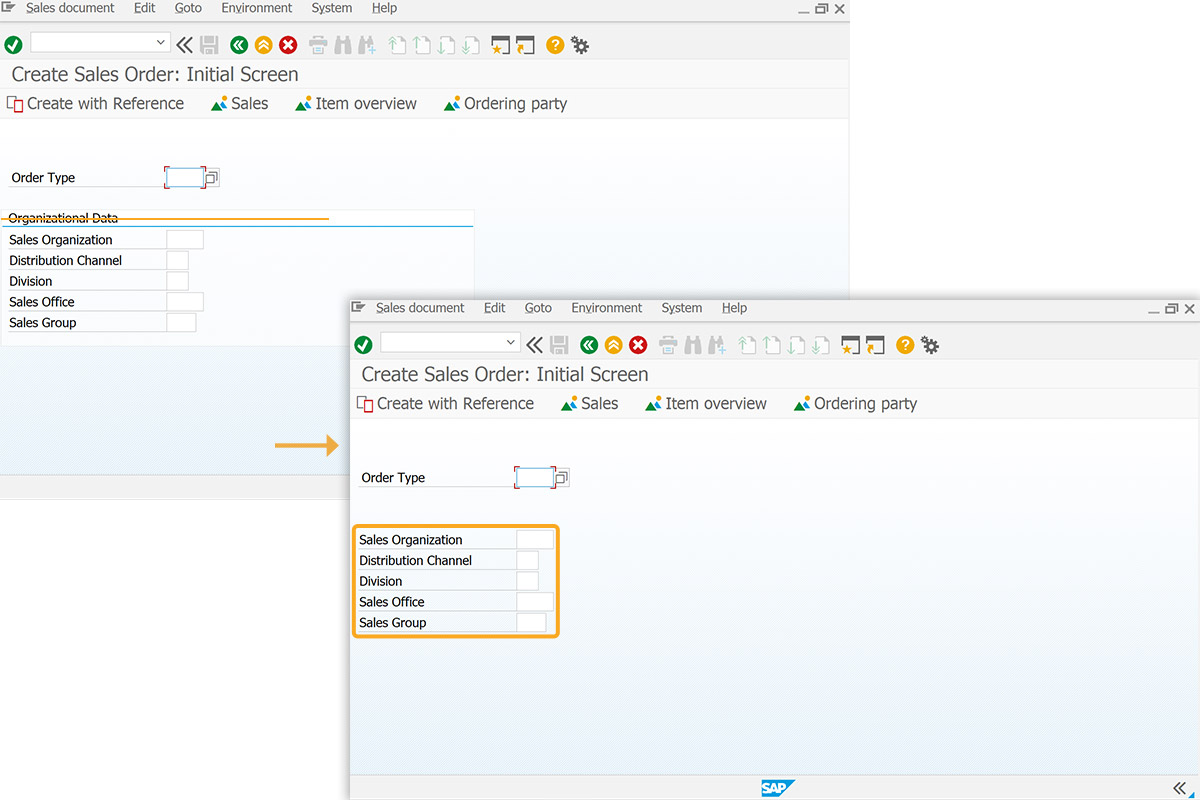
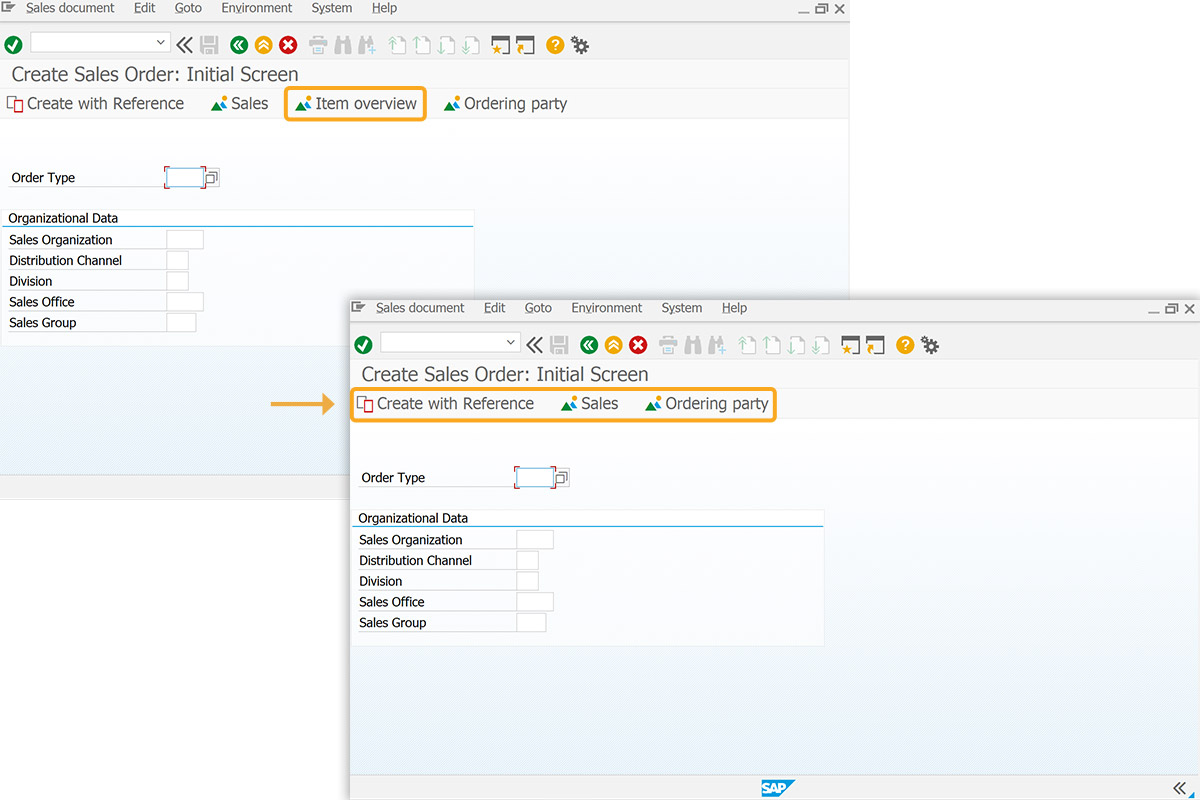
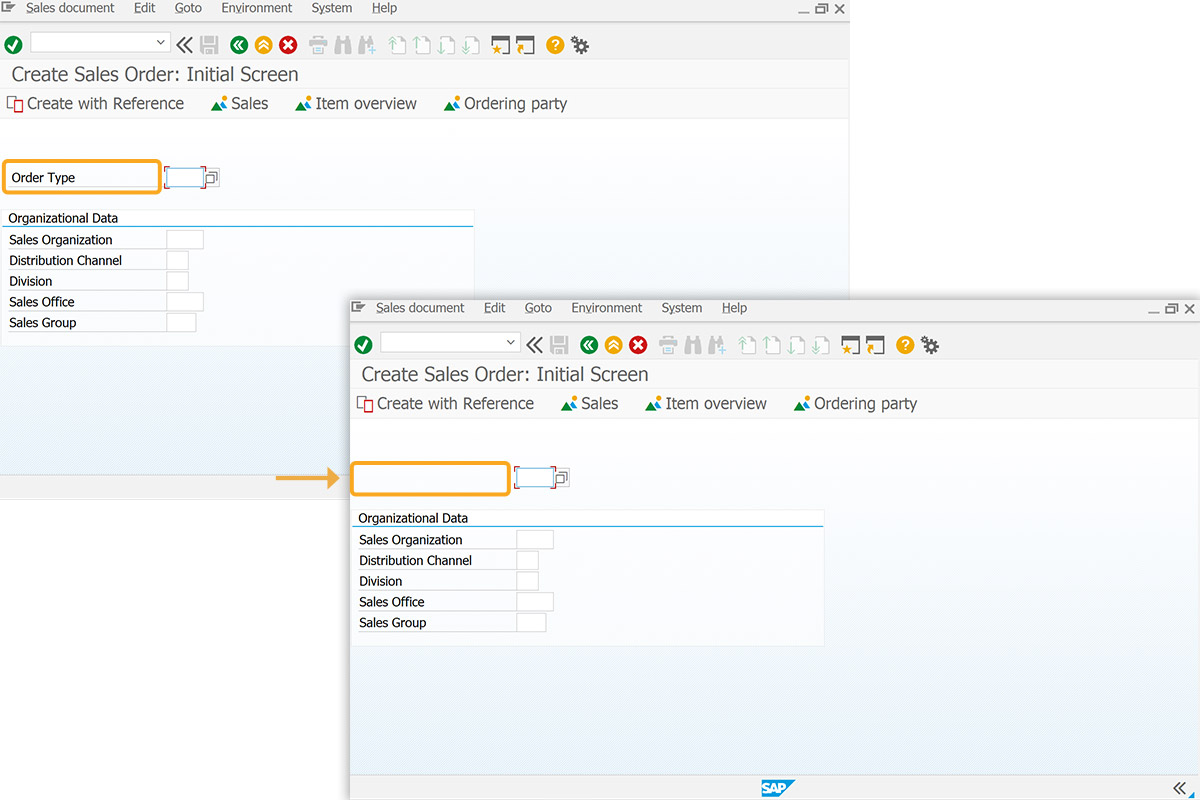
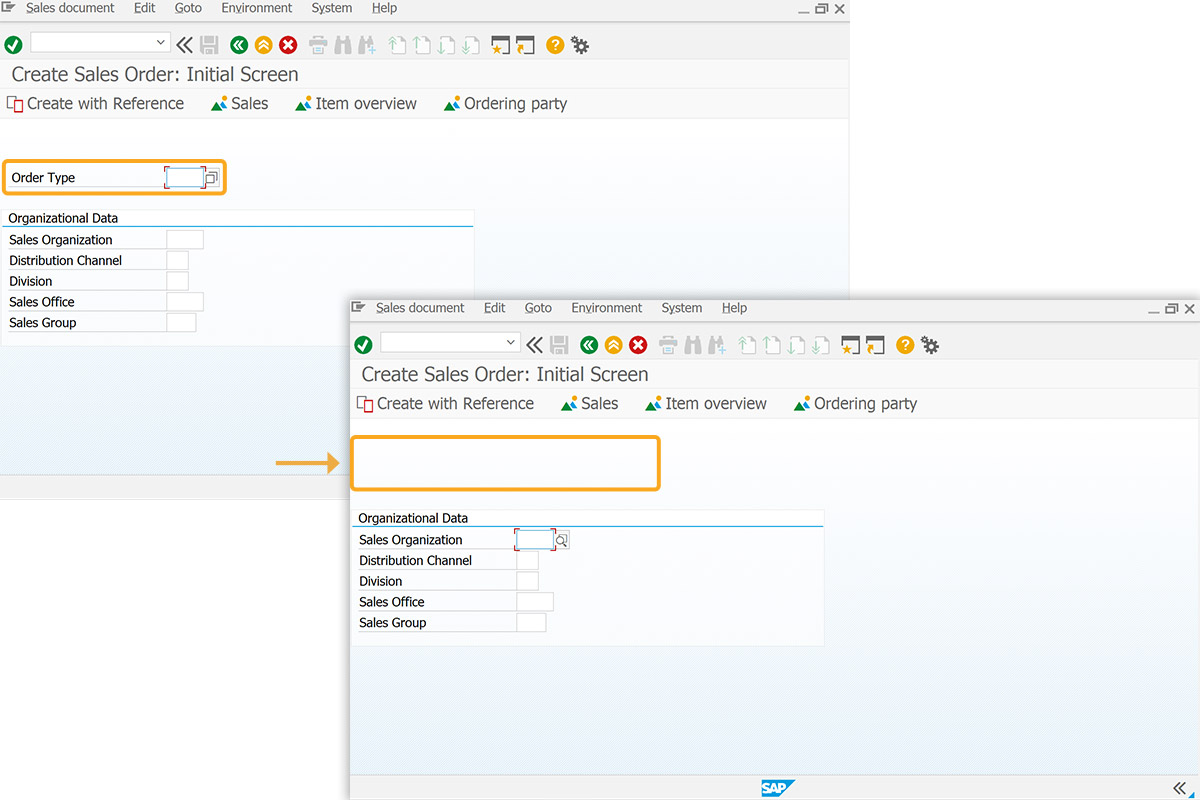
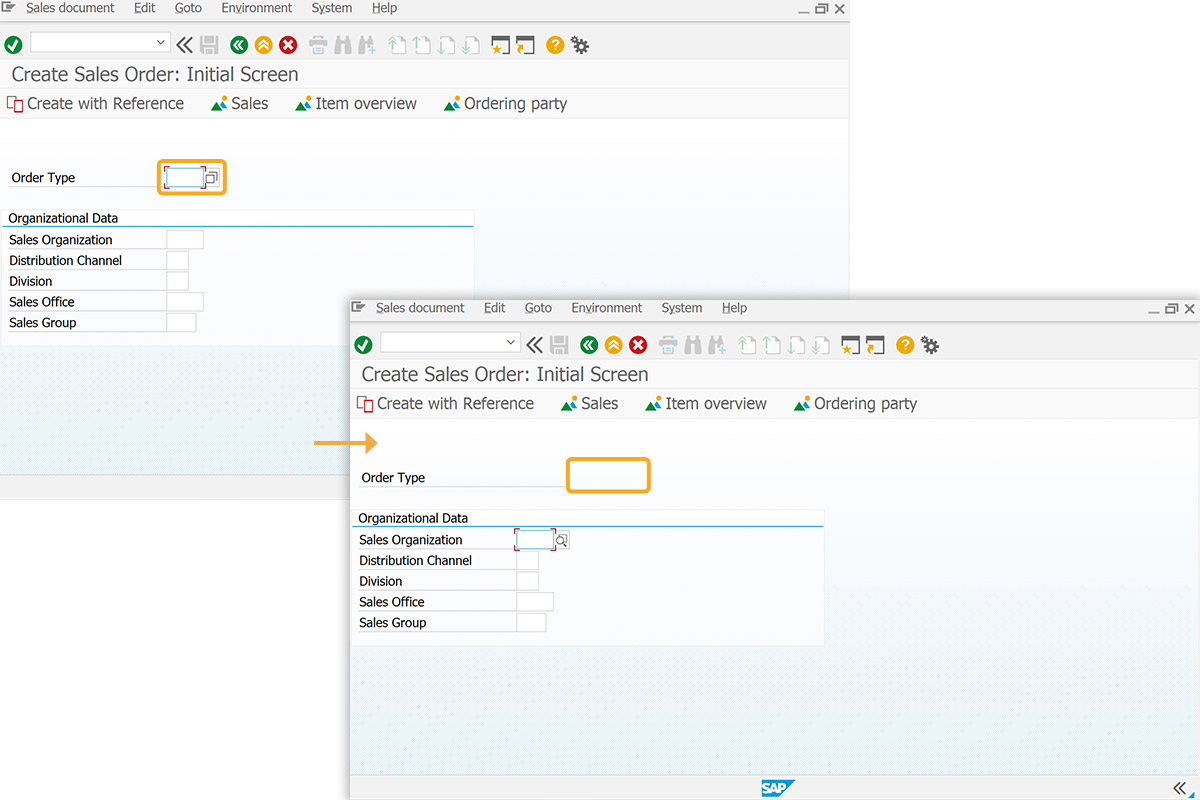
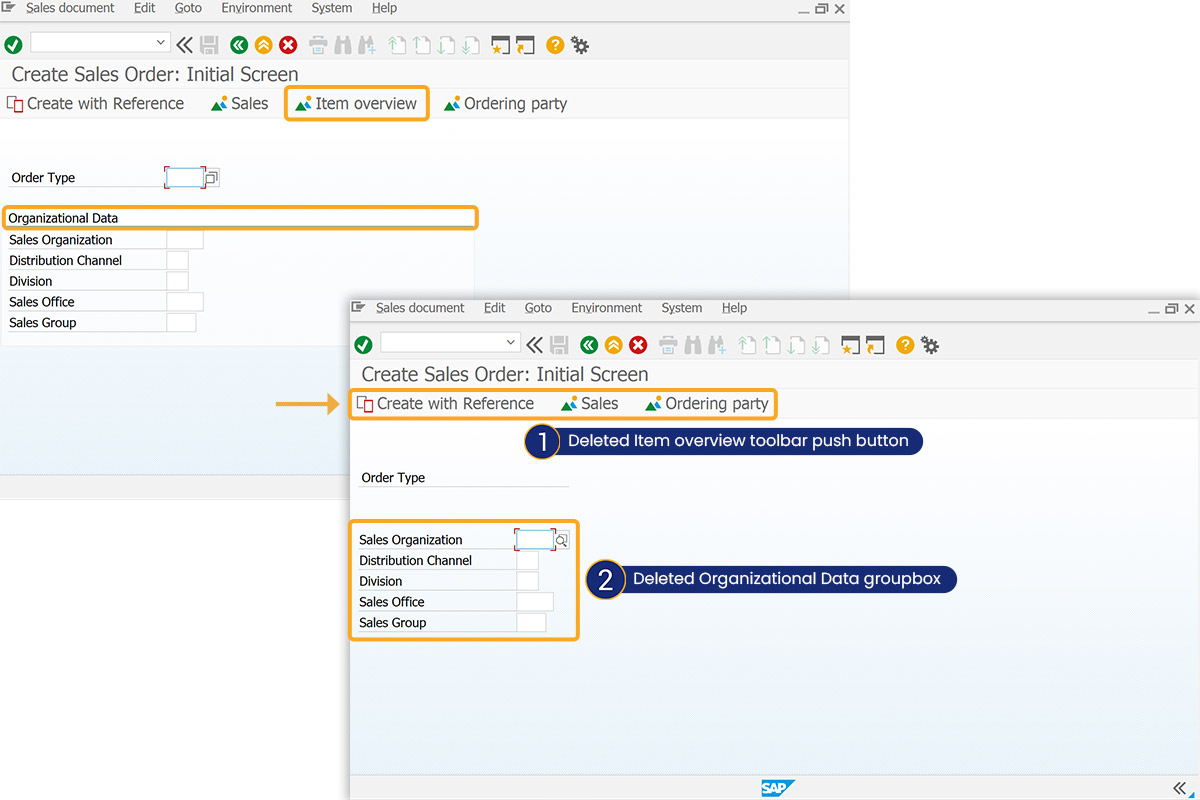
This example demonstrates the removal of the Organizational Data group box, the Order Type input field, and the Item overview button from the Create Sales Order: Initial Screen.
// Deletes push button and groupbox
del("G[Organizational Data]",{"box":true});
del("F[Order Type]",{"value":true});
del("P[Item overview]");
Example 2: Delete only the tabstrip
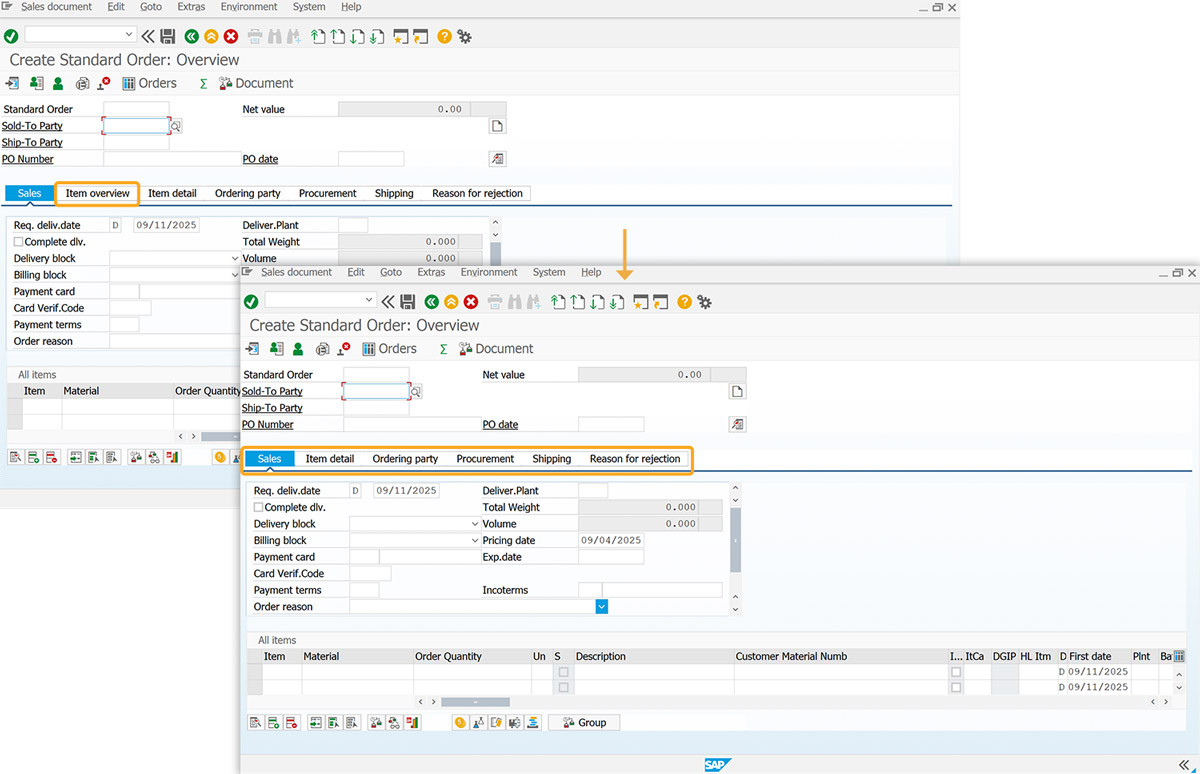
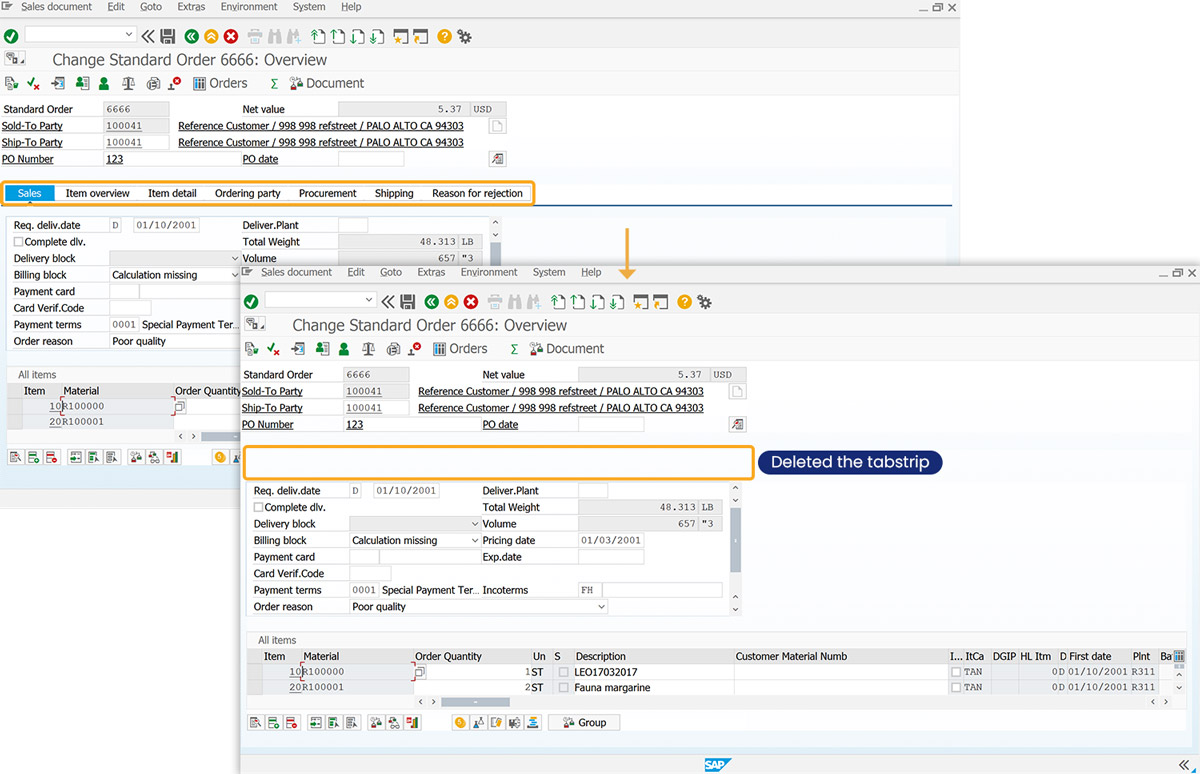
This example deletes a tabstrip without removing its surrounding box.
// Deletes tabstrip
del('S[TAXI_TABSTRIP_OVERVIEW]',{"box":true});
Example 3: Delete toolbar push button using fkey
This example deletes a toolbar push button by specifying its function key.
// Deletes toolbar push button
del('P[17]');