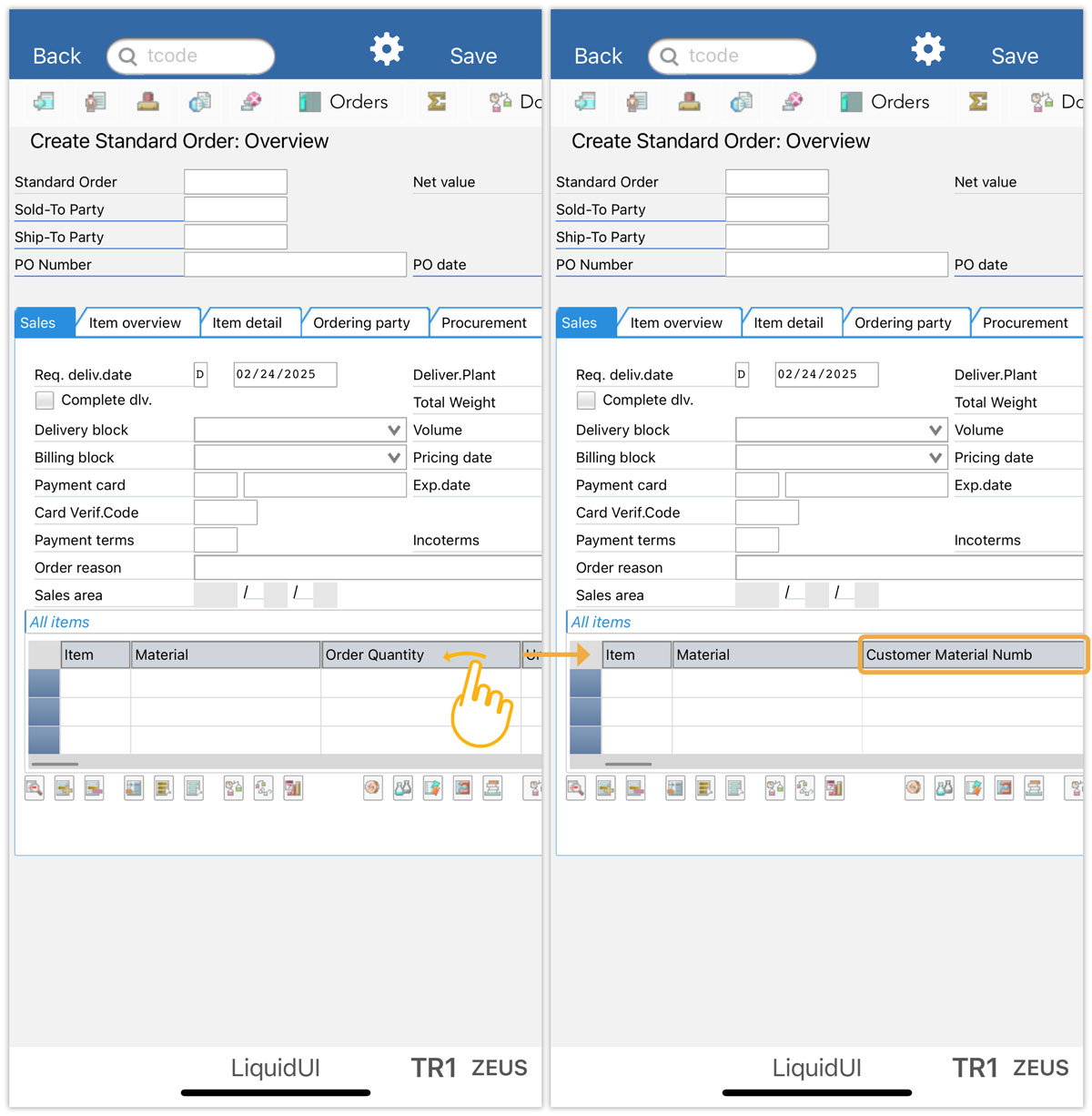


Liquid UI for iOS supports various touch gestures, allowing users to interact with SAP screens intuitively. The supported gestures are as follows:
Single tap
A single tap lets users interact with SAP screen elements in the following ways:
- Trigger a search (F4) on input fields
- Execute a search (F4) process on any input field
- Enter/edit the value inside the input field
- Enter/edit the column values in a table
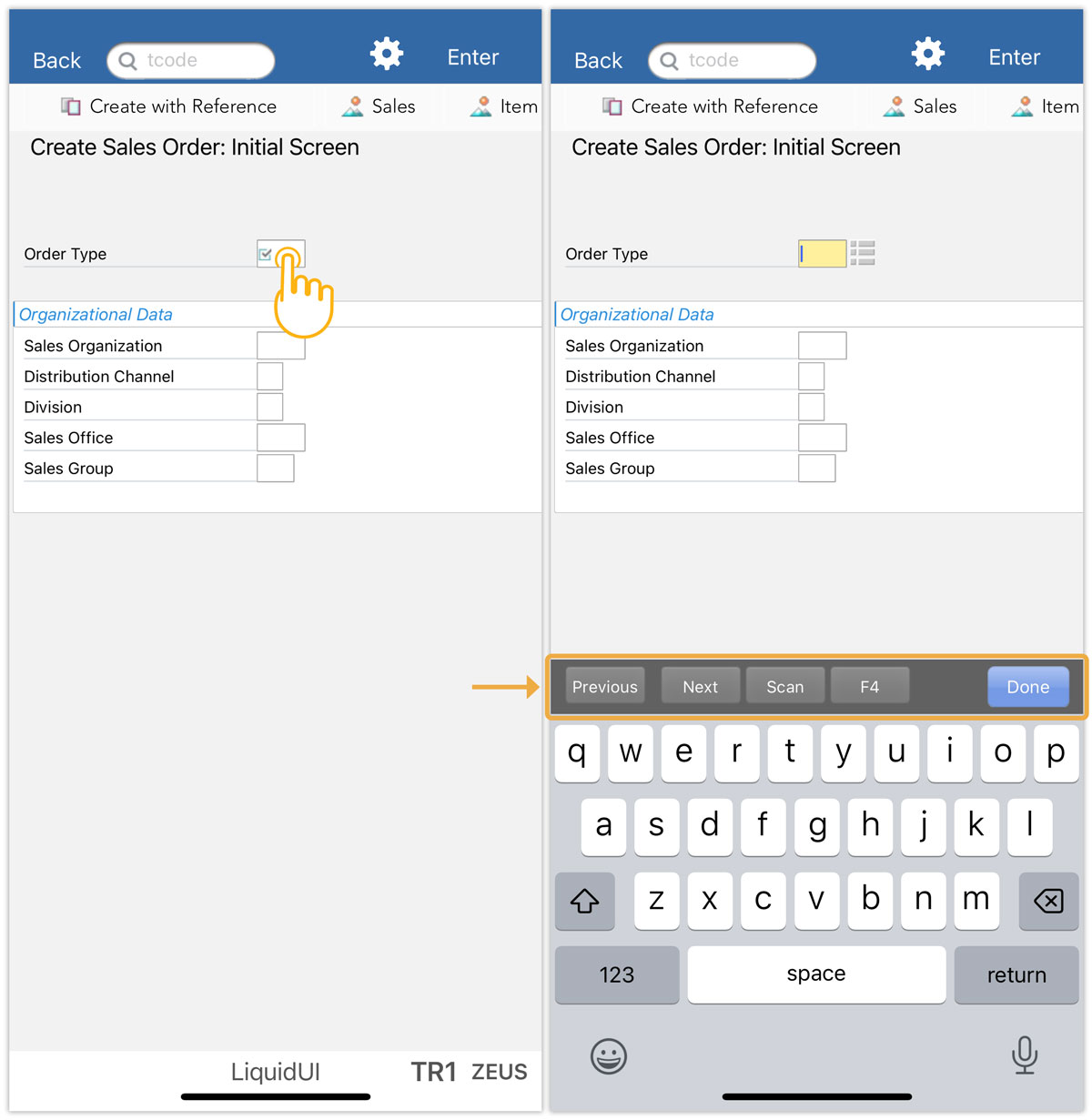
A single tap on any input field, like the Order Type, opens a keypad with options such as Previous, Next, Scan, F4, and Done options, as shown below:
Double Tap
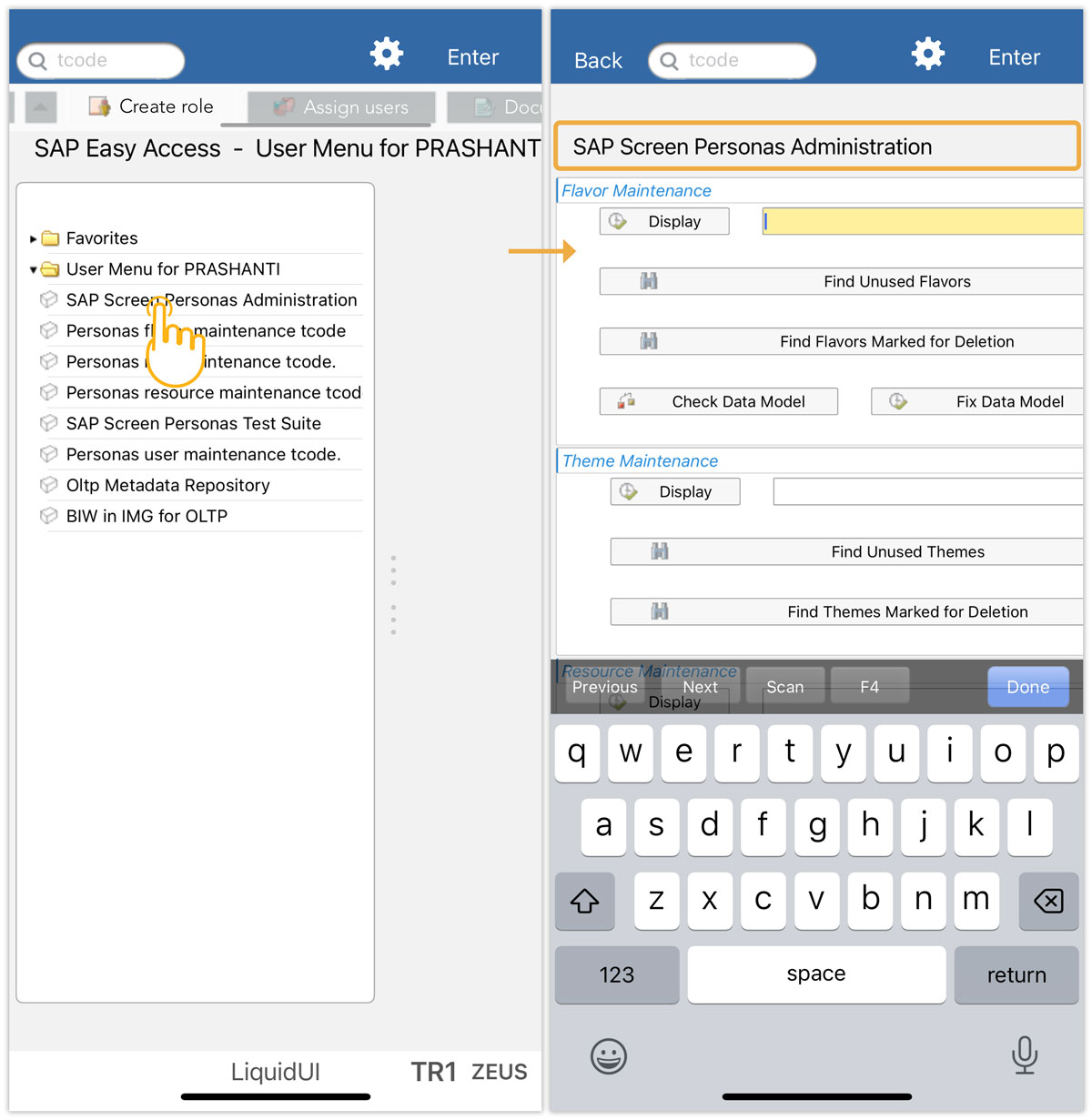
Liquid UI for iOS allows you to use a double-tap gesture for navigation purposes. For instance, double-tapping on the hot spot label, existing on any tree node, will navigate to that particular transaction screen.
- On the SAP Easy Access screen, double-tap on any hot spot label like SAP Screen Personas Administration navigates directly to the linked transaction, as shown in the image below:
Pinch open and close
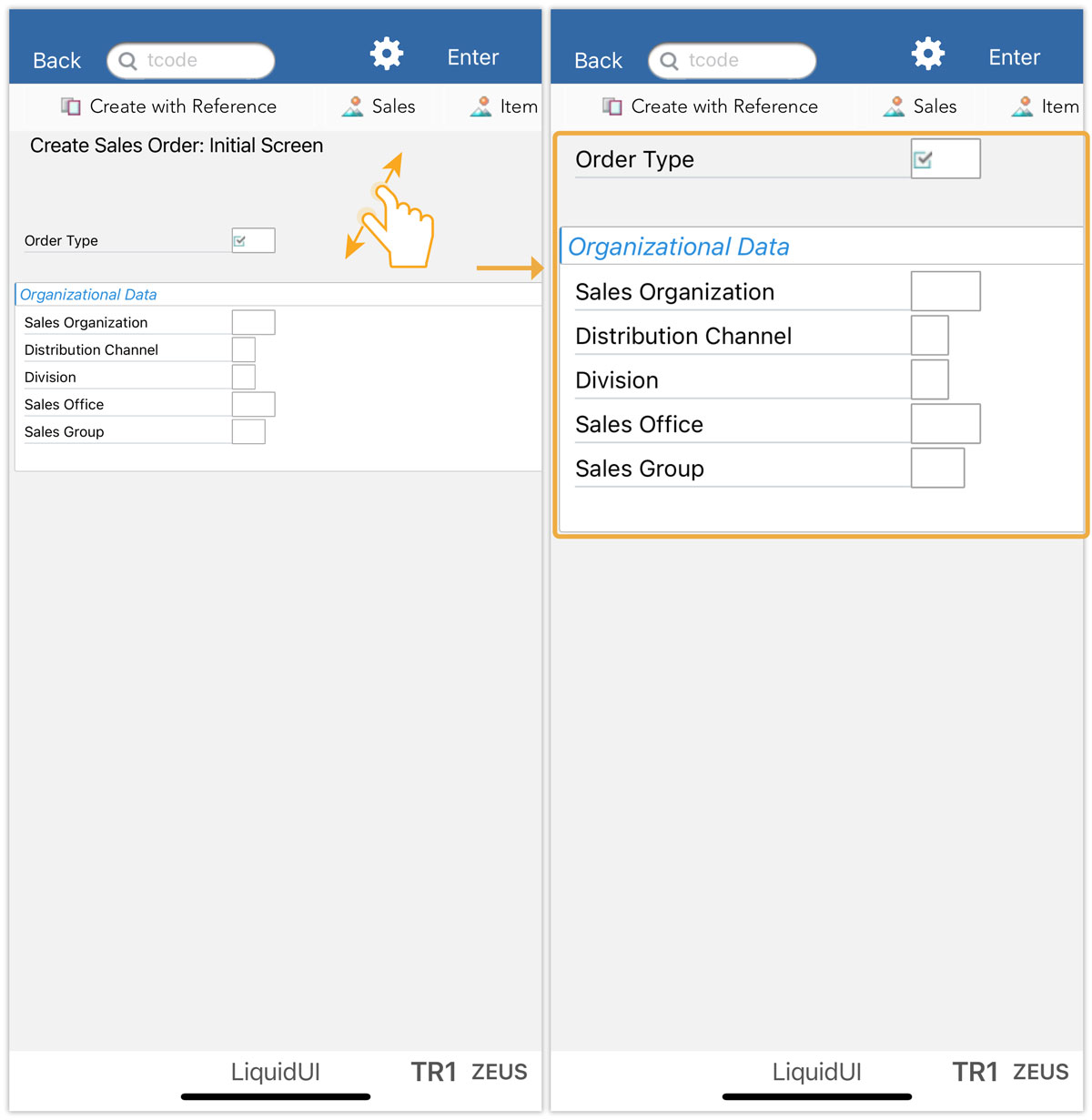
Liquid UI for iOS allows you to zoom in and zoom out the SAP screens using pinch open and close gesture.
- You can use two fingers moving further apart to zoom in on the screen, as shown below:
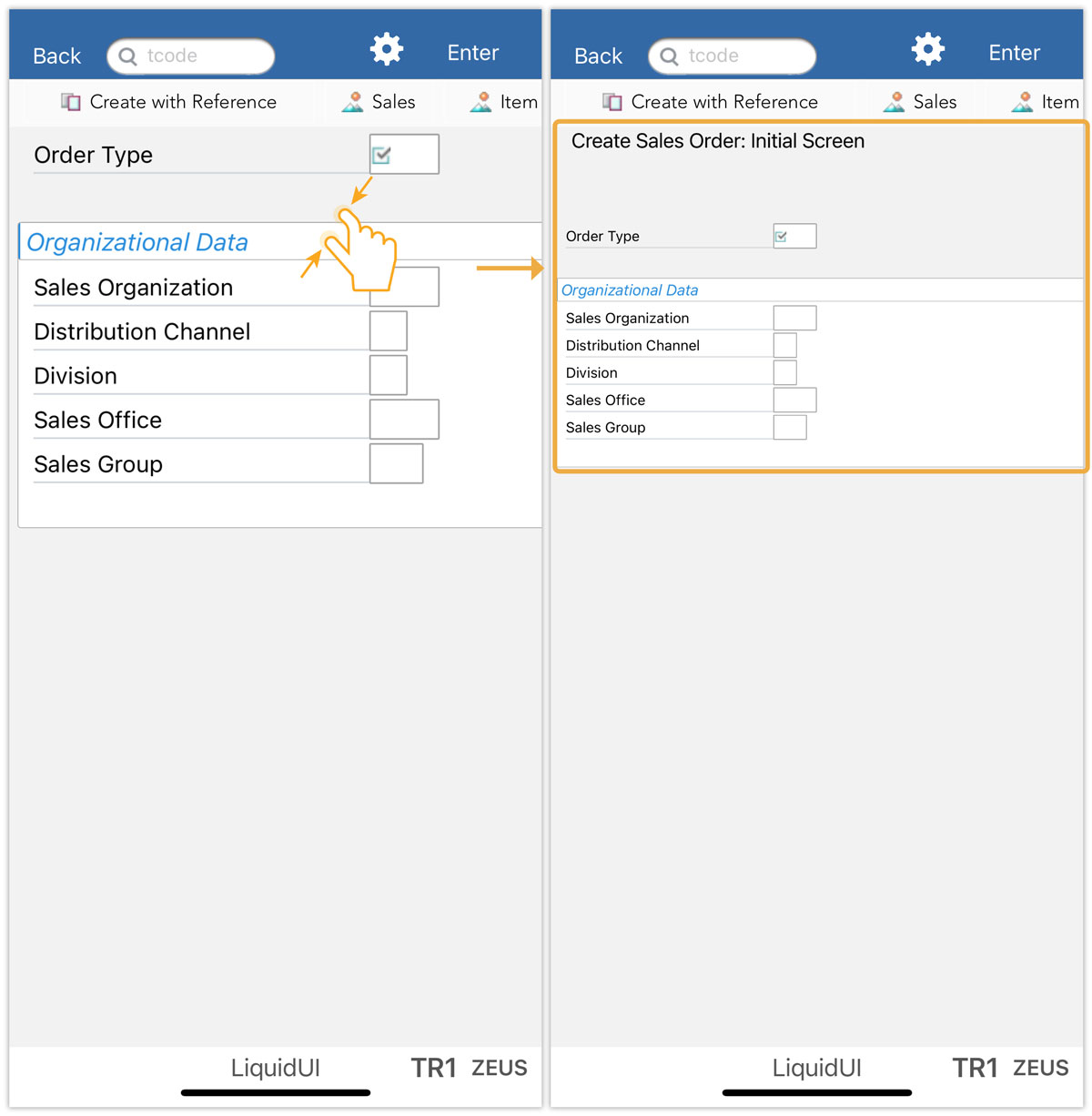
- You can use two fingers to move closer to zoom out the screen, as shown below:
Long press
Long-pressing screen elements opens context menus with relevant options:
- Help, Possible Entries, Scan Barcode, GPS, and other text editing options.
- Select and Help options in labels, push buttons, and checkboxes.
Help, Possible Entries, Scan Barcode, GPS, and other text editing options
When the cursor is located in an edit field, doing a long press will result in triggering an F1 or an F4 command for the edit field command. The process is as follows:
- Long-press on any input field like Order Type. Then, you will see the context menu pop up with the following options. To view all options, you need to click on the arrow button.
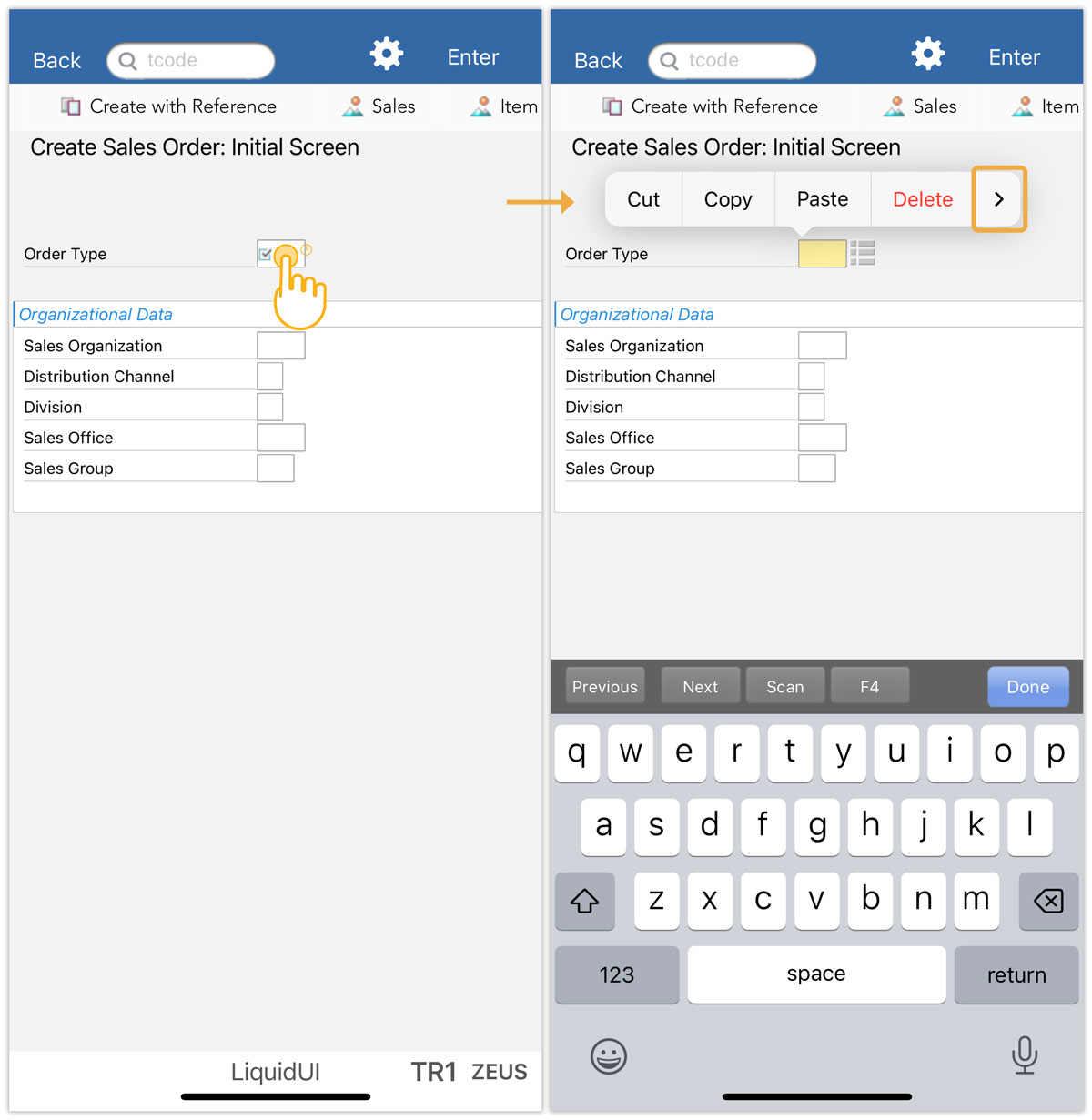
- F4: This option allows you to search for an available entry for the corresponding input field.
- Select All: This option allows you to select all the text in the input field.
- Cut: This option allows you to copy and remove the selected text.
- Copy: This option allows you to copy the selected text.
- Paste: This option allows you to paste the copied text.
- Help: This option corresponds to the F1 function key.
- Possible Entries: This option corresponds to the F4 function key.
- Scan Barcode: This option allows you to scan the barcode and enter its value in the input field. Click here for details about the Barcode scanning.
- GPS: This option allows you to track and enter the latitude and longitude values of your location. Click here for information about GPS.

Note: The F1 or F4 commands will only succeed if the given edit field is mapped to an F1 or F4.
Select and Help options in labels, pushbuttons, and checkboxes
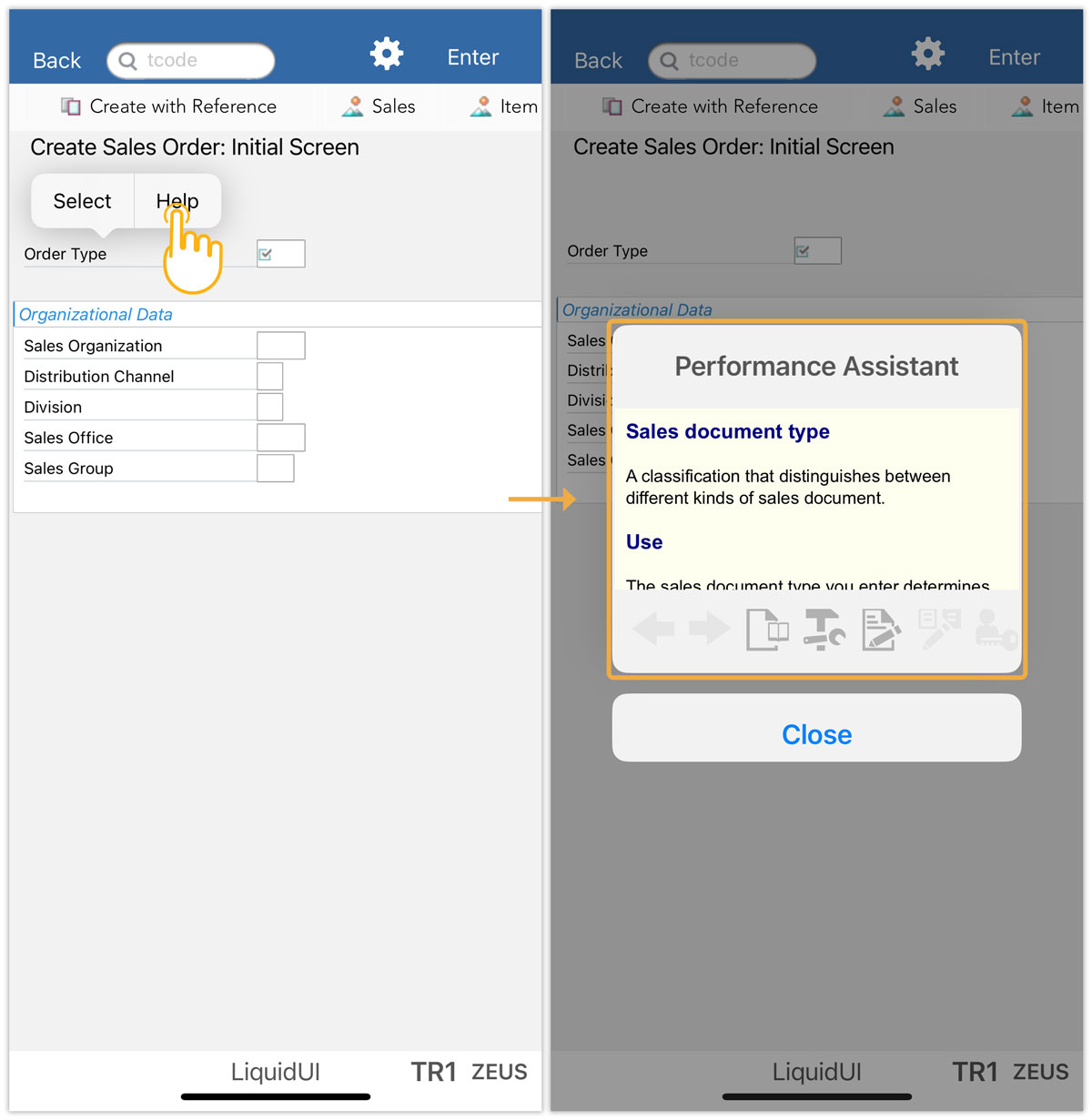
- Long-press on any input field label, like Order Type will pop-up a context menu with Select and Help options.
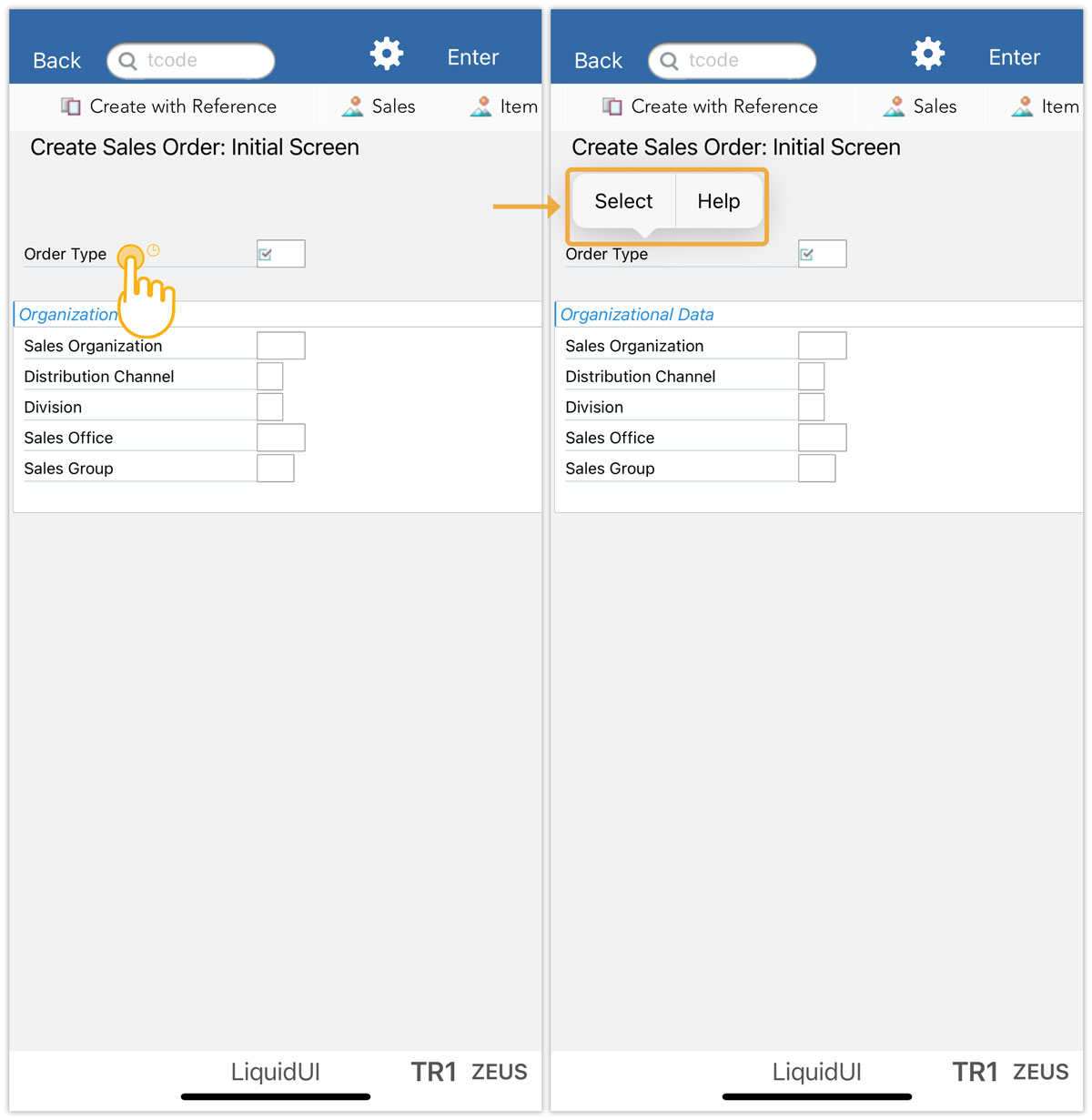
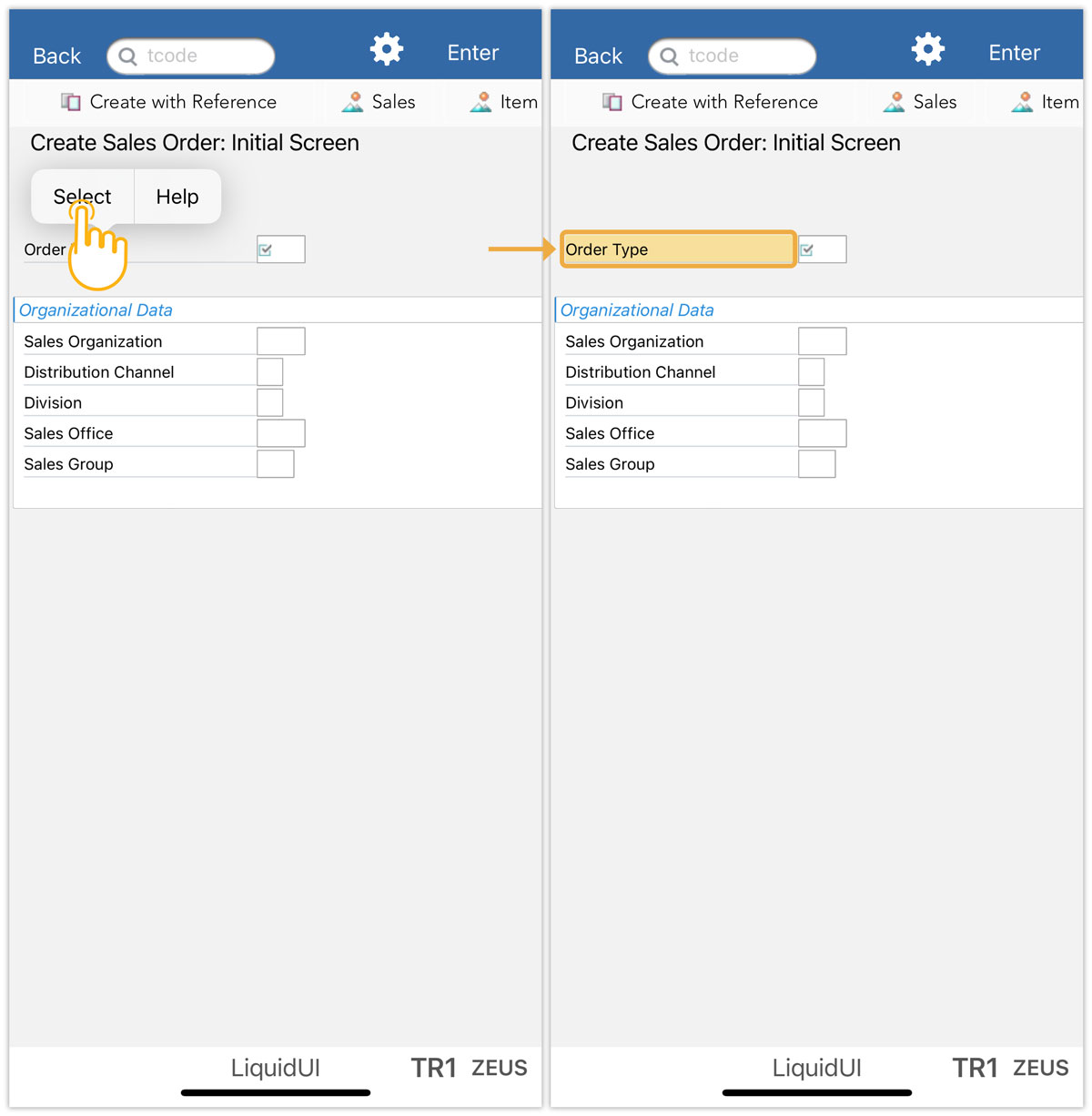
- Choose Select option that enables you to highlight the label, as shown below:
- Choose Help option to find more information on Sales document type of the Order Type input field, as shown below:
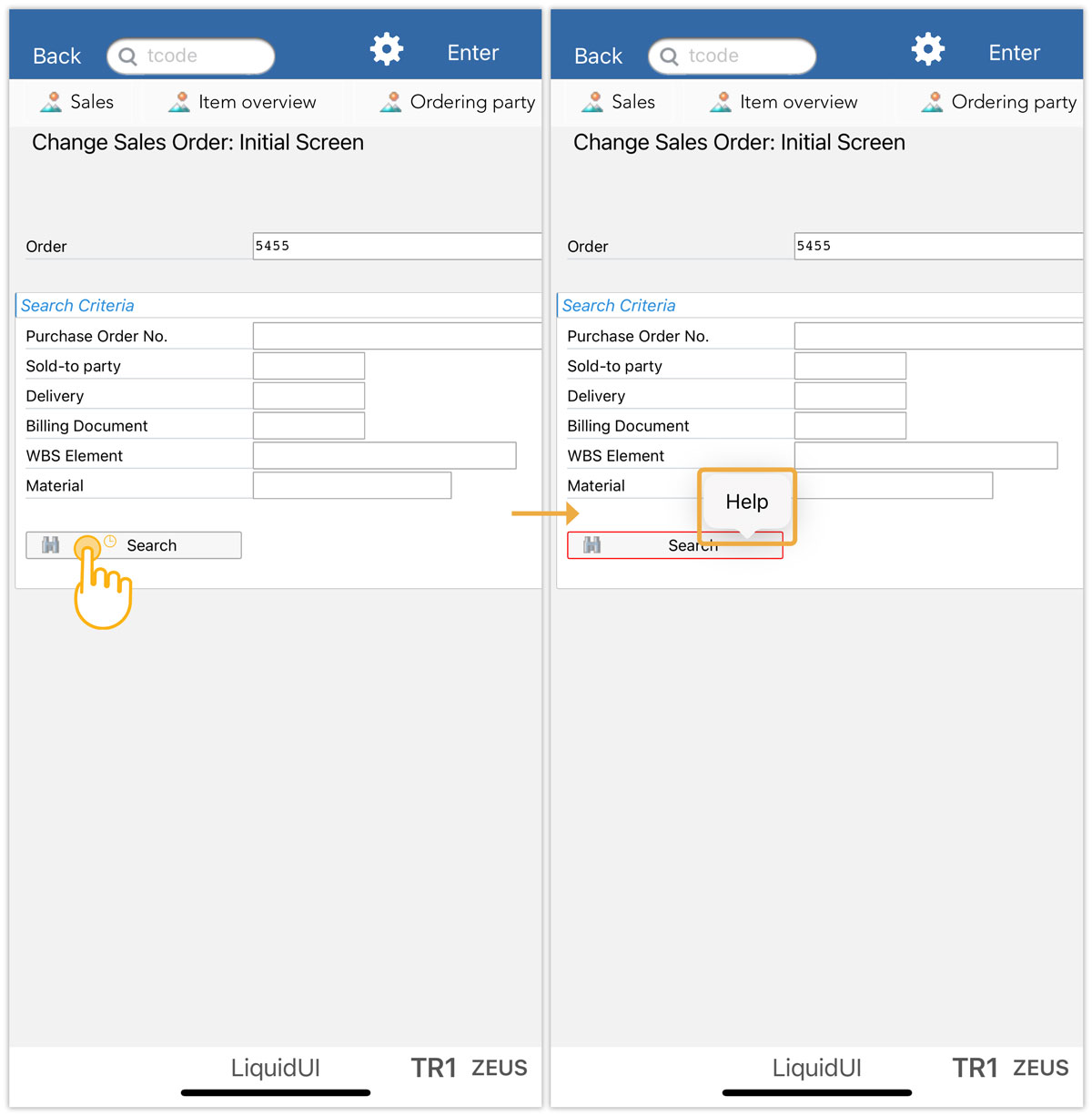
- Long press on any push button like search on the VA02 initial screen, then you will see a pop-up with a Help option that corresponds to the F1 command.
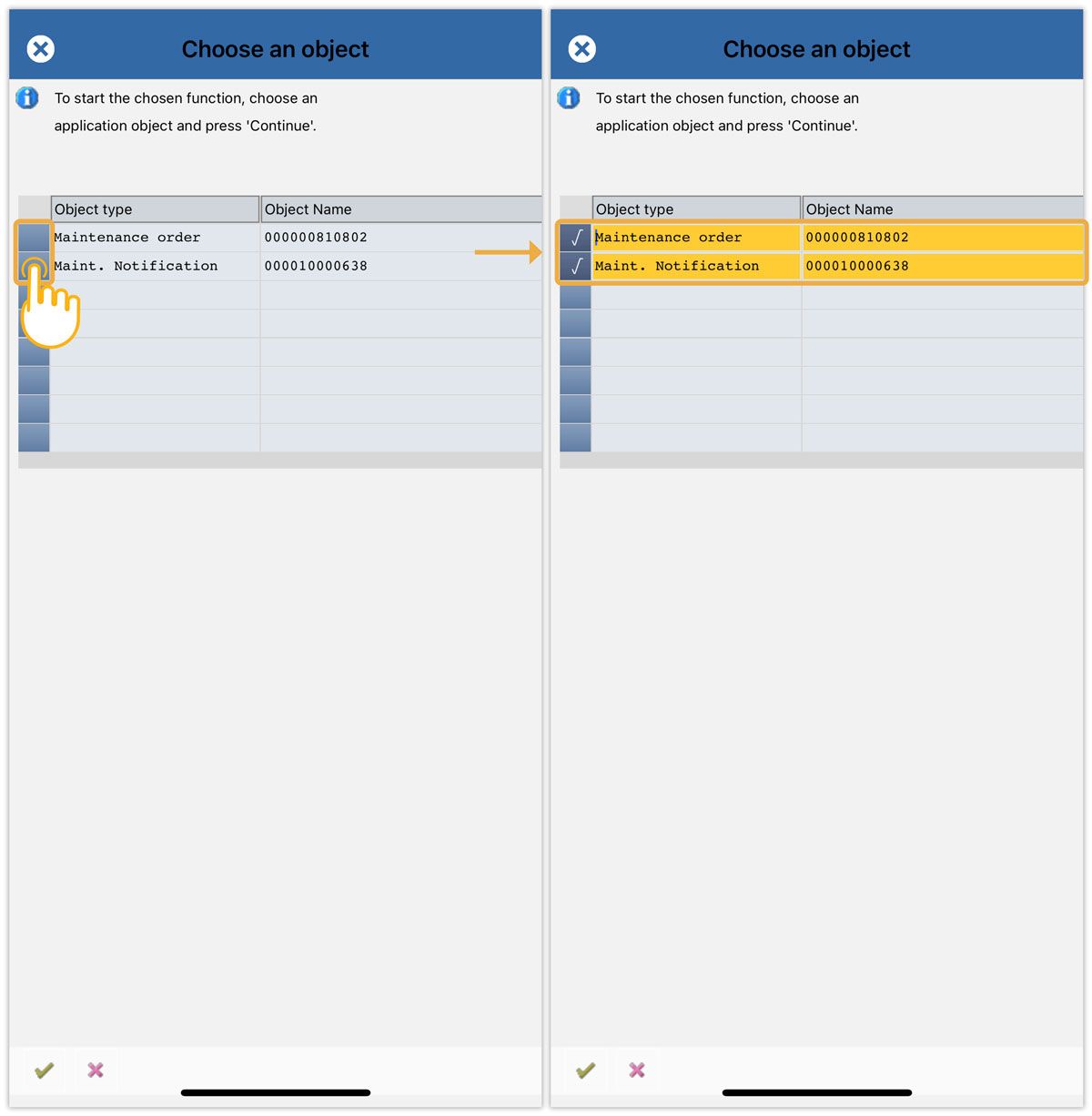
- To select multiple rows on the grid, you need to long-press the button at the beginning of the grid row, as shown below.
Swipe
Liquid UI for iOS allows you to perform swipes on the following SAP screen elements.
- Perform a swipe on the toolbar menu to access hidden items.
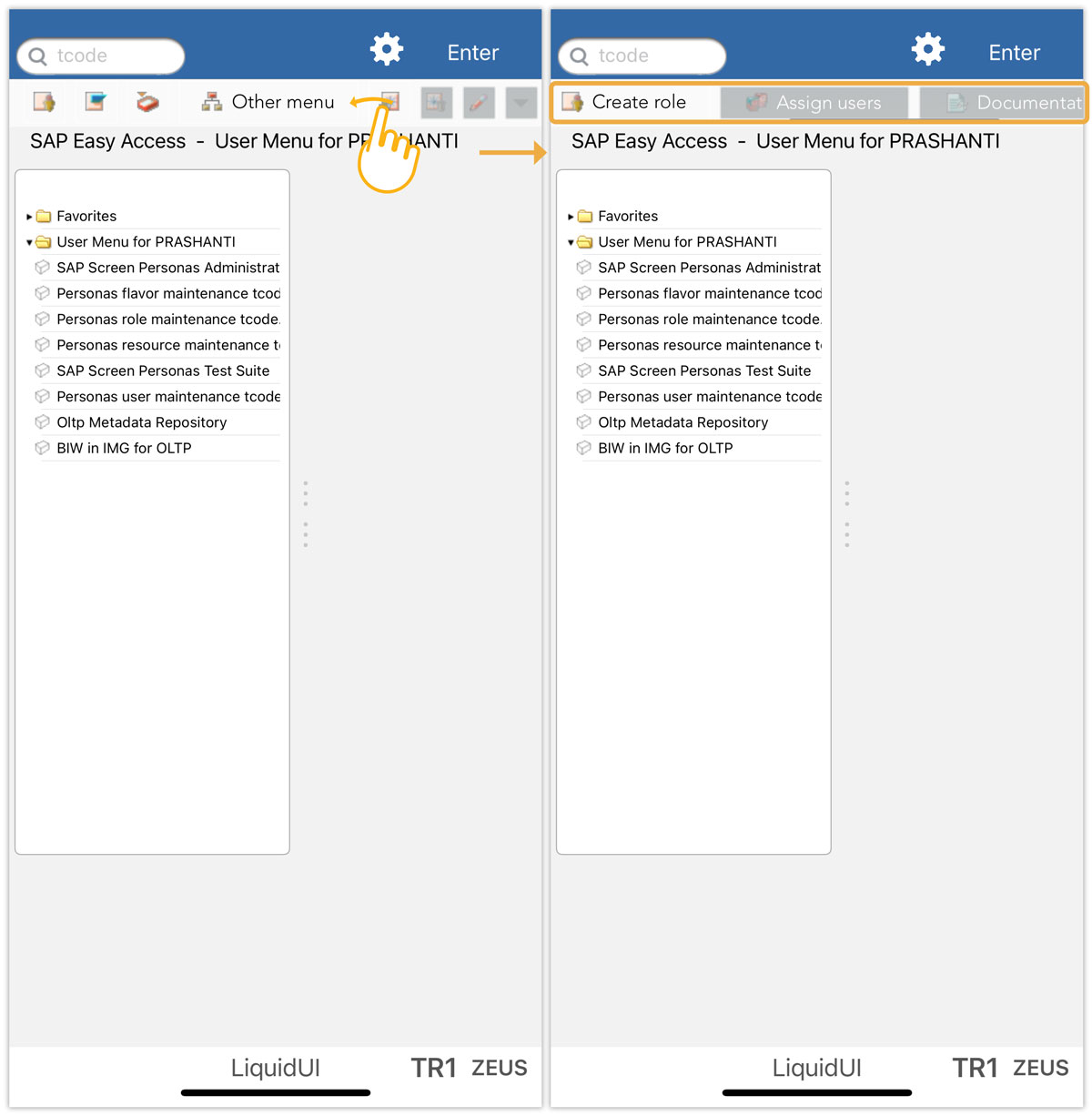
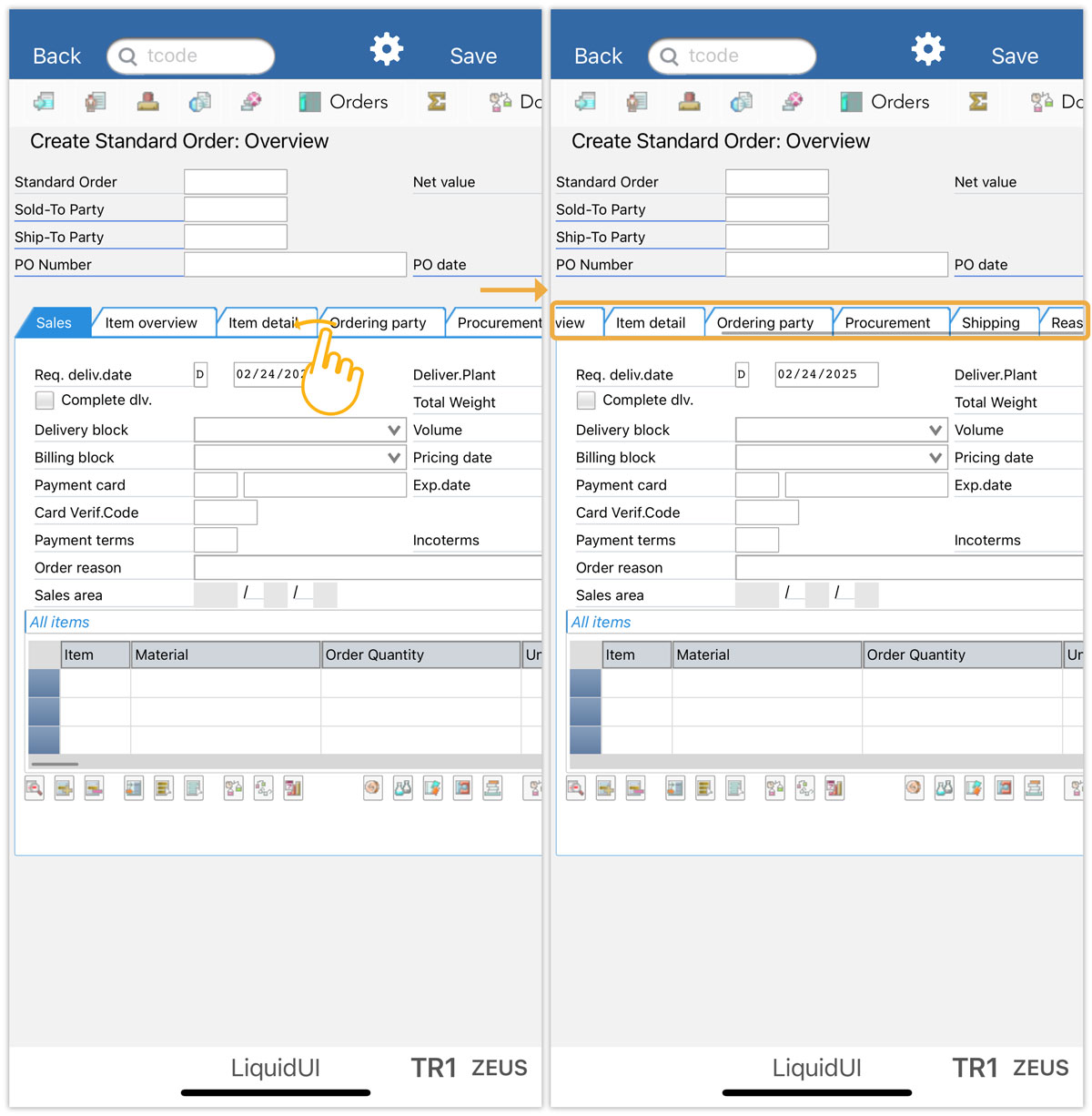
- Perform a swipe on the tabstrip to view the available tabs.
- Perform a swipe on the table columns to scroll the columns.