


You can customize Liquid UI for Android based on your requirements through the options available in the App Settings. These settings allow you to modify the app’s appearance, input methods, SAP connection configurations, and much more.
- Open the Liquid UI for Android app. Tap the Main Menu and select App Settings.
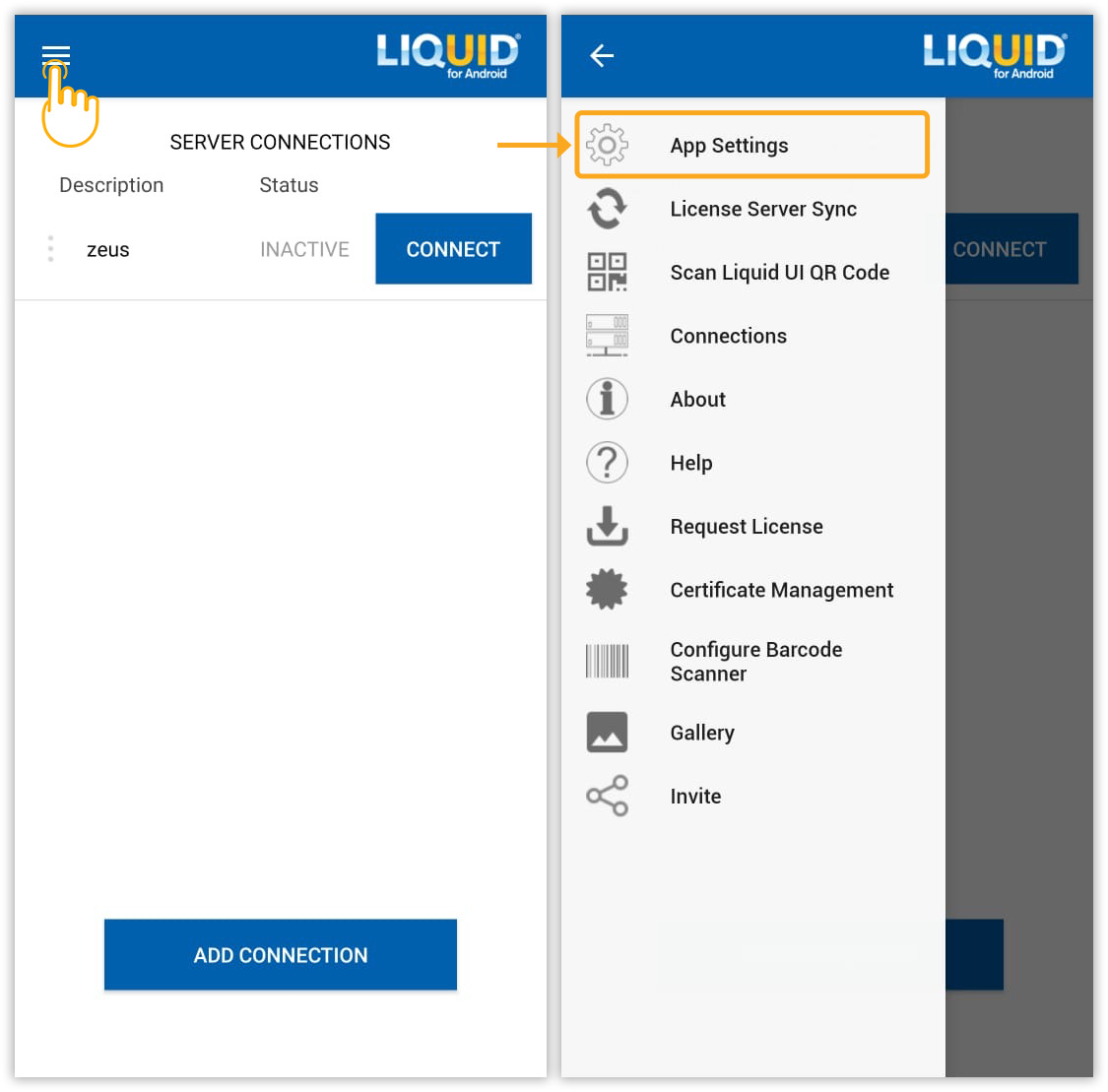
- You will be navigated to the Insider screen, which provides basic application data and extensive customization options, as shown in the image below.

- The Insider screen contains two sections - About and SAP SETTINGS, as shown in the image below.
About
The About section of the Liquid UI app provides details regarding the application and its licensing. This includes:
- Copyright: Copyright information pertaining to Liquid UI for Android.
- Version: The currently installed app version.
- Website: A link to Synactive's official website: www.guixt.com.
- Patent: A list of patent numbers held by Synactive Inc.
- Registered To: The name of the license holder (visible only for licensed versions).
License
The License section outlines the license type and its expiration date and time. There are currently four possible license specifications.
- sy9 license
- sy3 license
- In-app license
- Portal (Enterprise) License

Note: Add your SAP Server details by clicking CONNECT TO MY SAP to access enhanced menu options.
SAP SETTINGS
This section has settings through which you can modify the application functions.
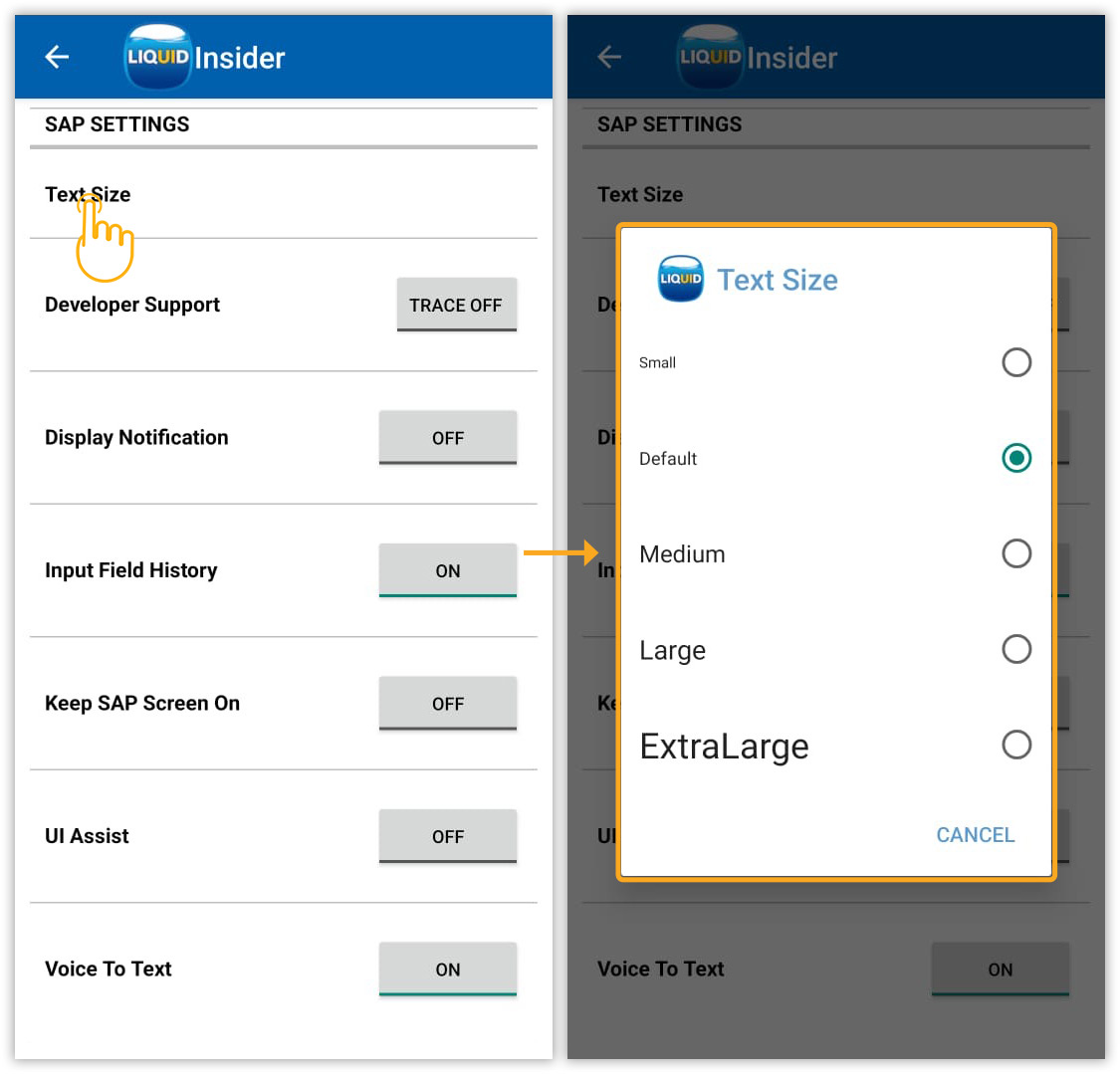
- Text Size
Text size settings, from small to extra-large, can be adjusted for readability. Tap the desired size or its radio button to apply; the entire text will convert.
- Developer Support
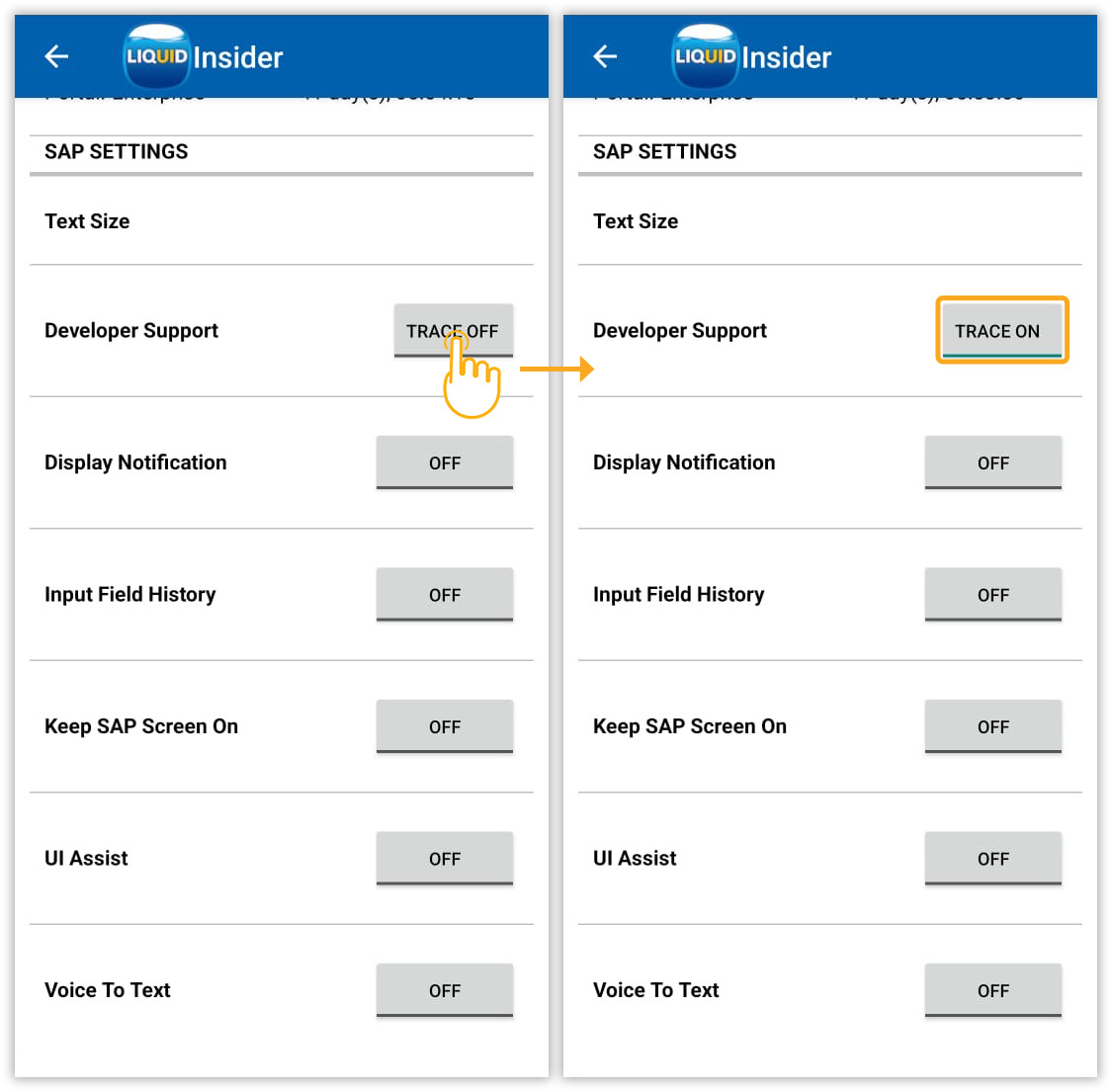
This setting enables you to trace issues encountered while using the Liquid UI app.
- Turning TRACE ON saves log files. The next time you activate it, an Improvement Manager window will ask to send these trace files to Synactive. Click Yes to send.
Click here for details on Developer Support.
- Turning TRACE ON saves log files. The next time you activate it, an Improvement Manager window will ask to send these trace files to Synactive. Click Yes to send.
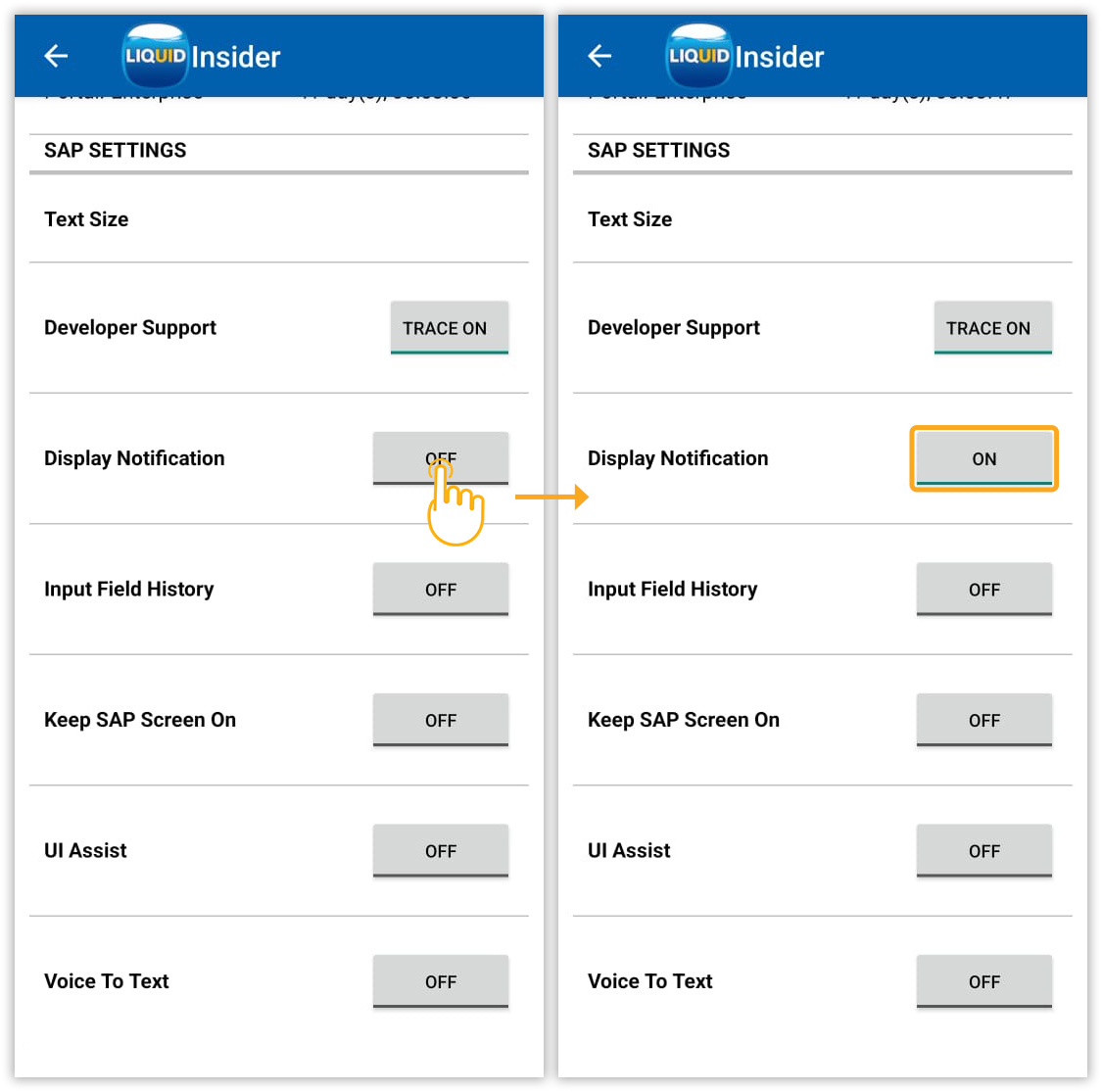
- Display Notification
Prevents your device screen from locking during inactivity, ensuring SAP connections stay alive.
Note: Newer Android versions (Lollipop+) may terminate SAP connections when the app is backgrounded if this option is off.
Click here for details on Liquid UI Notifications.
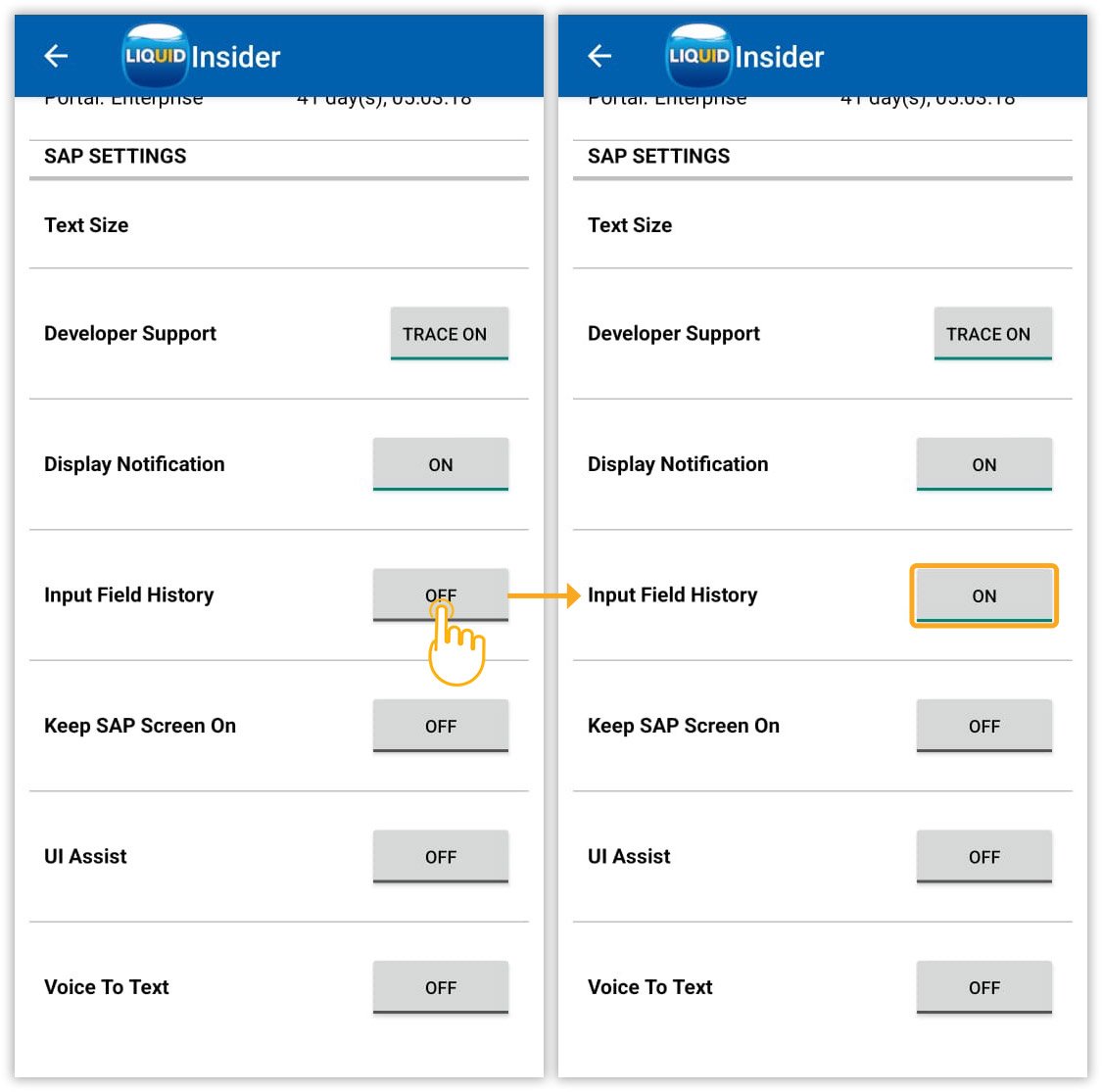
- Input Field history
Enables quick access to previously entered values.
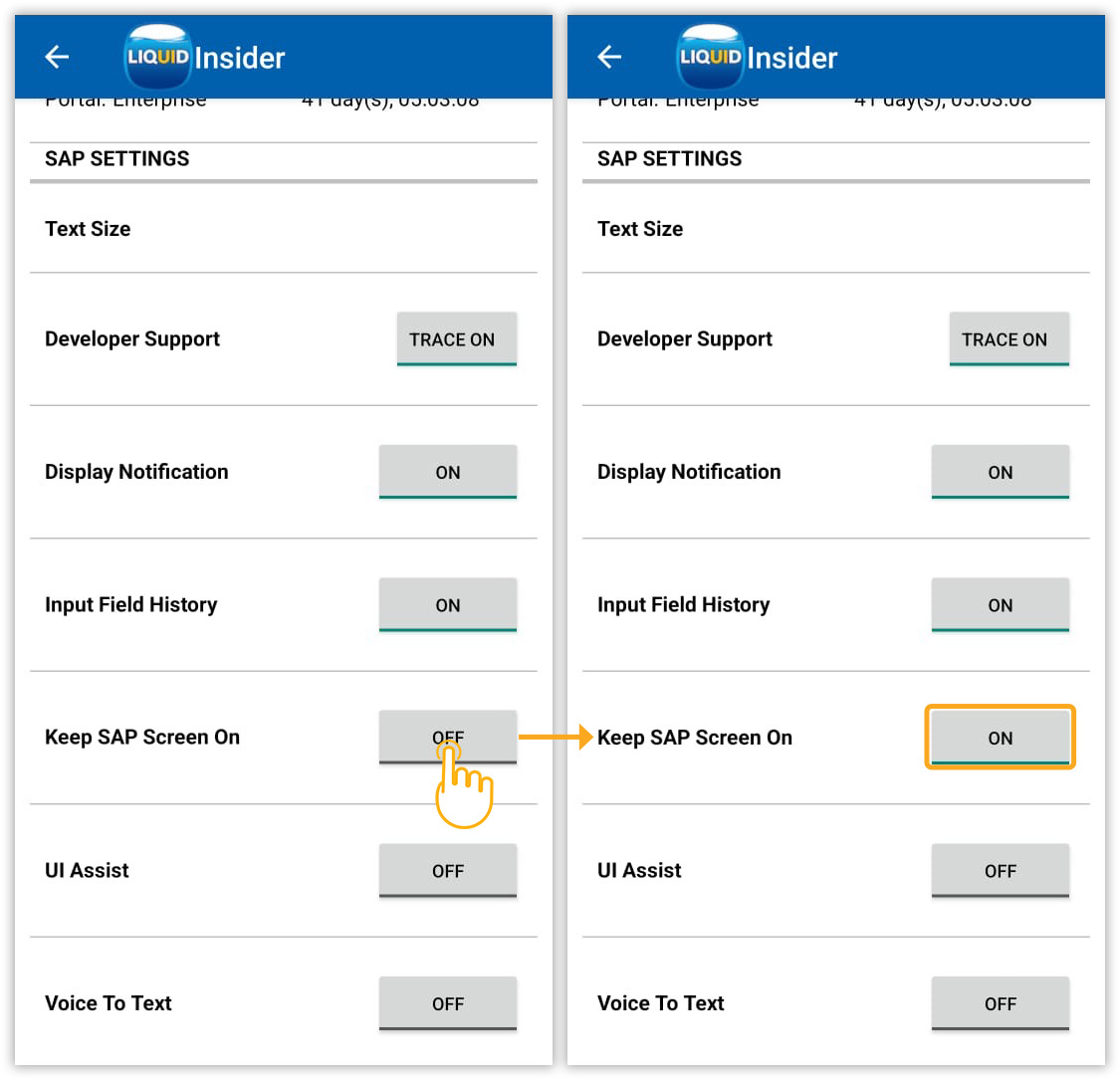
- Keep SAP Screen On
Prevents your device screen from locking due to inactivity, keeping it active. This helps maintain the SAP server connection and preserves your session progress.
Note: Newer Android versions (Lollipop+) may close SAP connections during inactivity (locked screen, low battery) if this option is off.
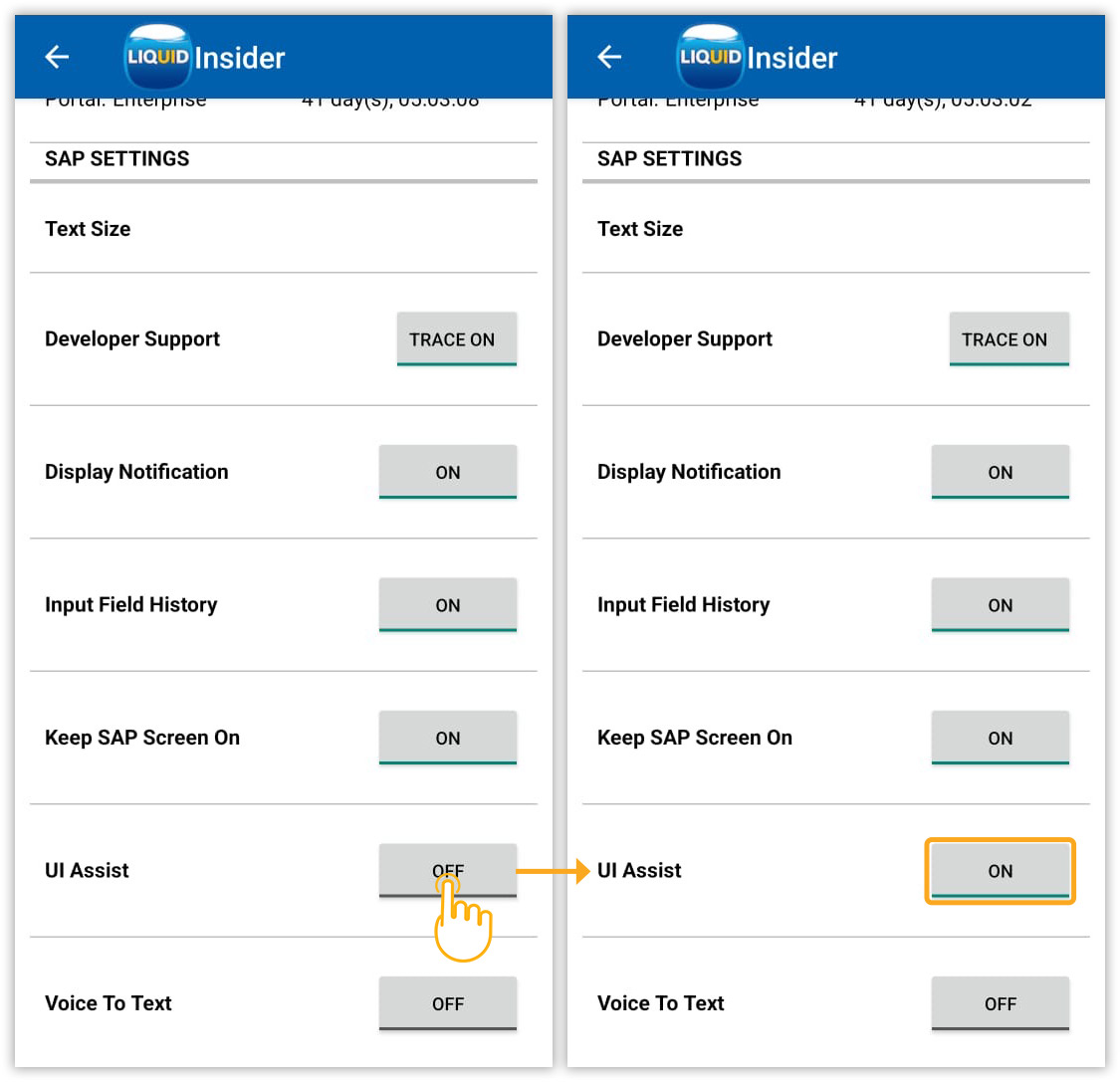
- UI Assist
Enabling this option helps users input values more efficiently and update them directly in SAP table controls.
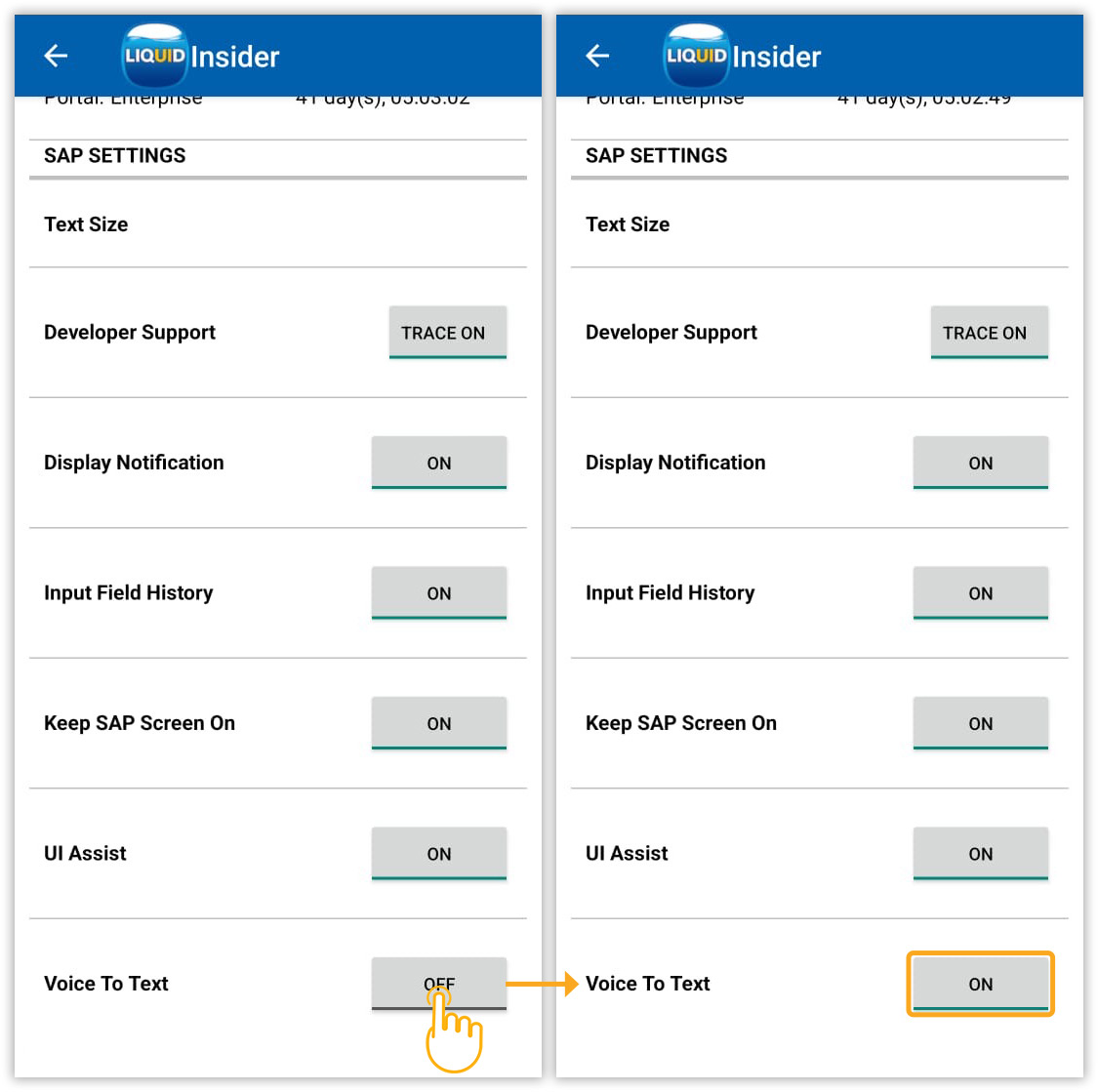
- Voice To Text
Users can perform SAP transactions, including data entry, executing commands, running reports, and posting transactions, using voice commands for faster task execution.
Click here for details on Voice To Text.
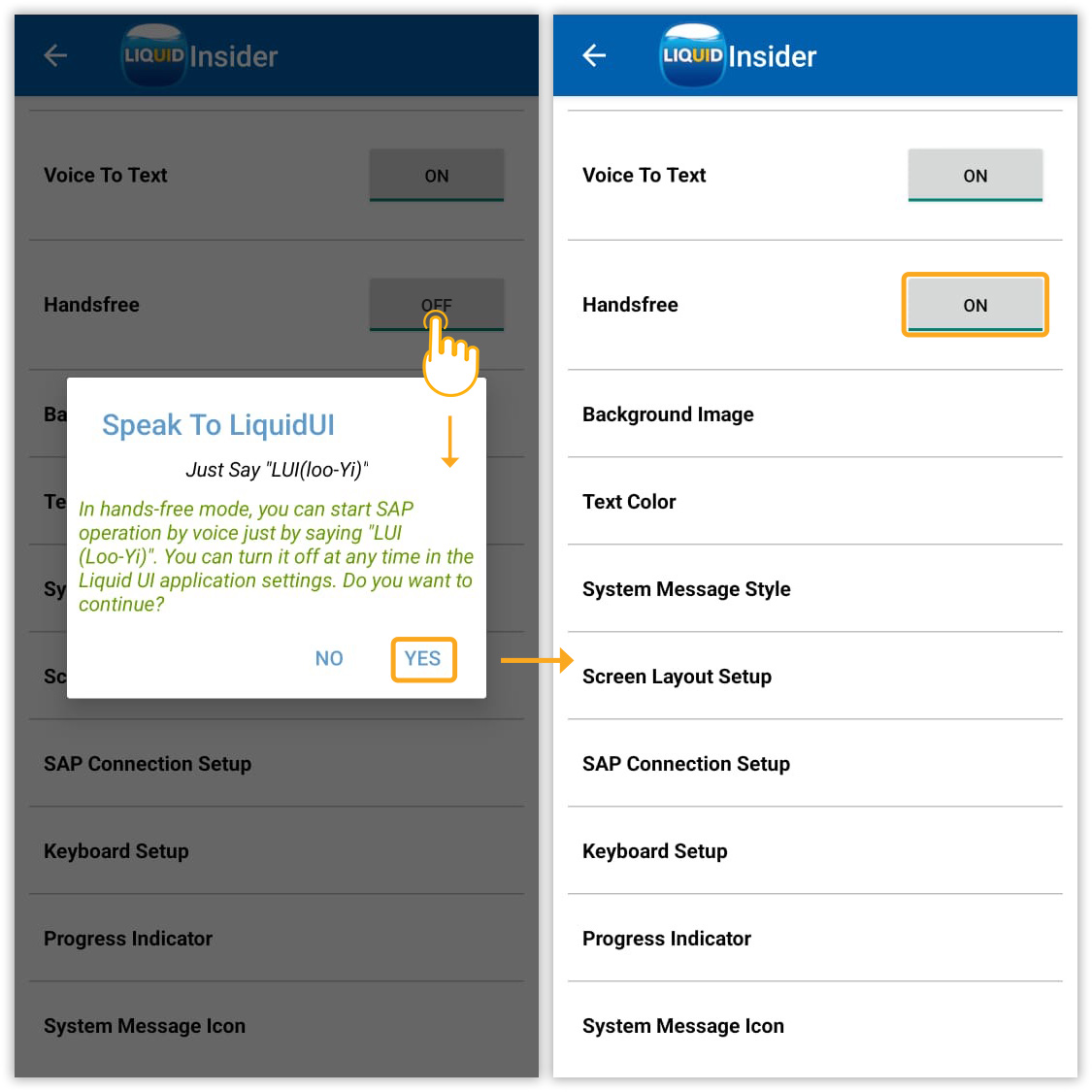
- Handsfree
Enabling this option will help users perform actions through voice commands, ultimately freeing their hands and driving efficiencies.
- Background Image
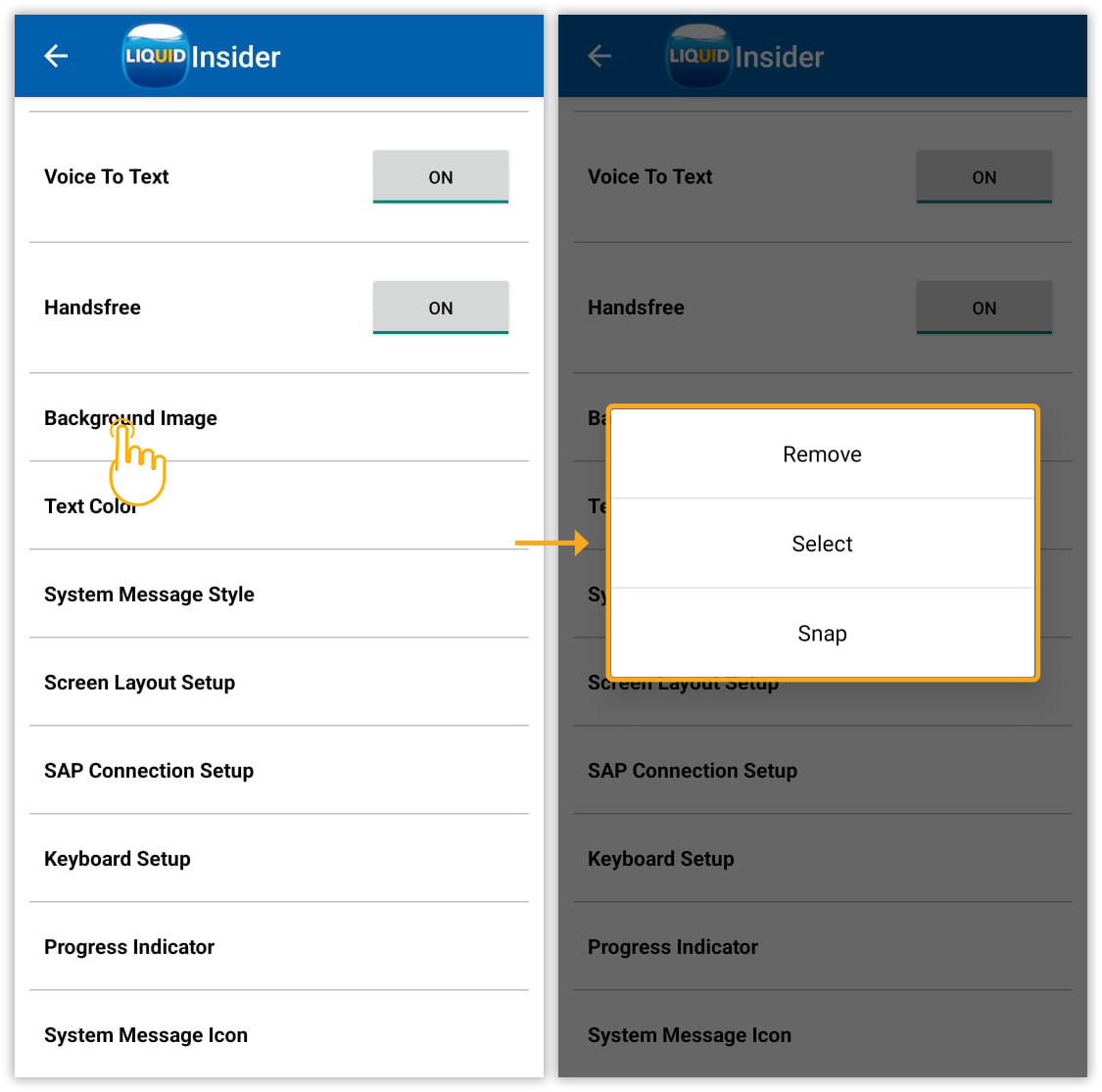
This setting allows you to customize the SAP screen background using the following options:
- Remove: Deletes the current background image. This option will close the dialog if no image is currently set.
- Select: Allows you to choose an image from your device's image library.
- Snap: Opens your device's built-in camera to take a new image and set it as the background.
Click here for details about how to set the background image.
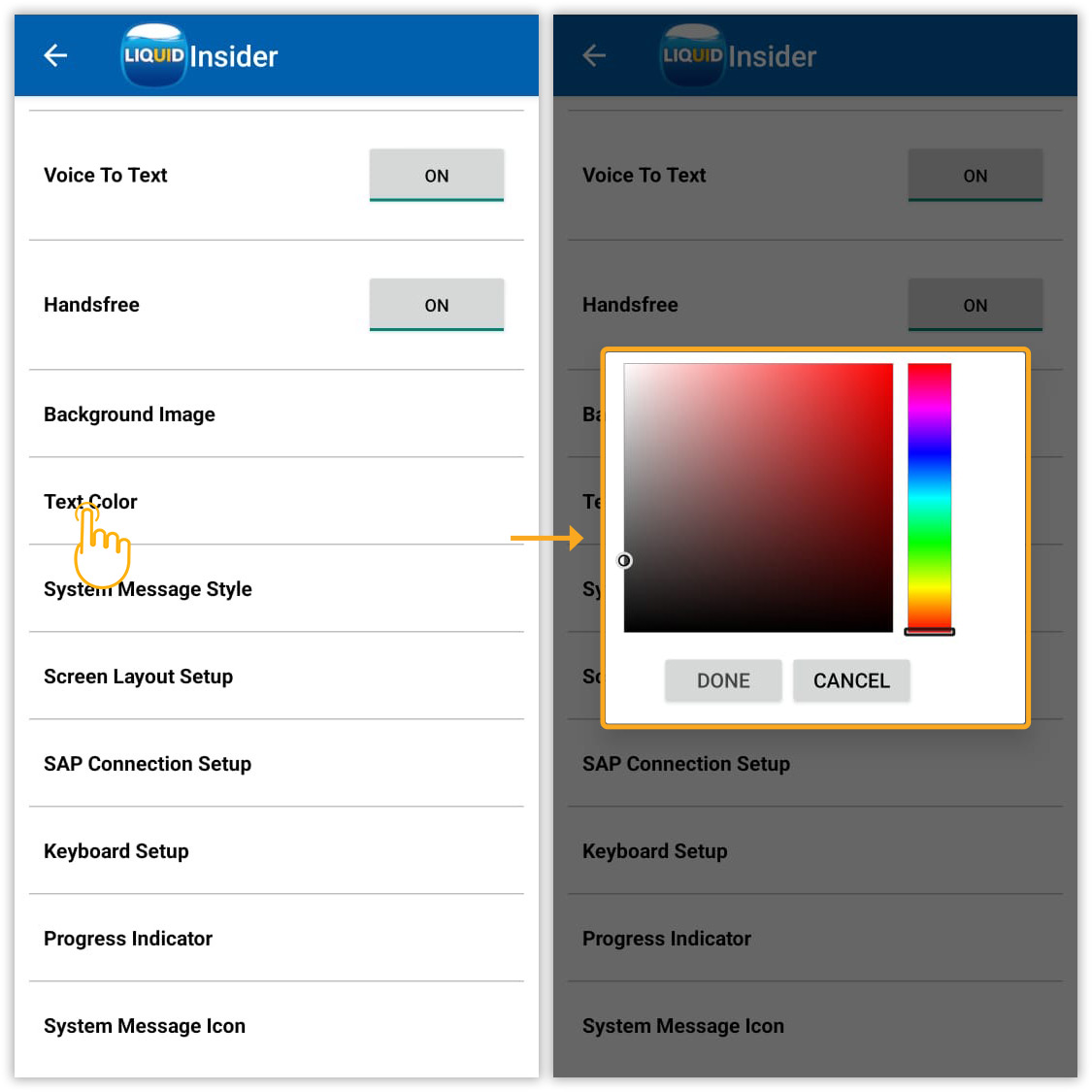
- Text Color
Opens color palette to change the SAP text color. Click DONE to apply.
- System Message Style
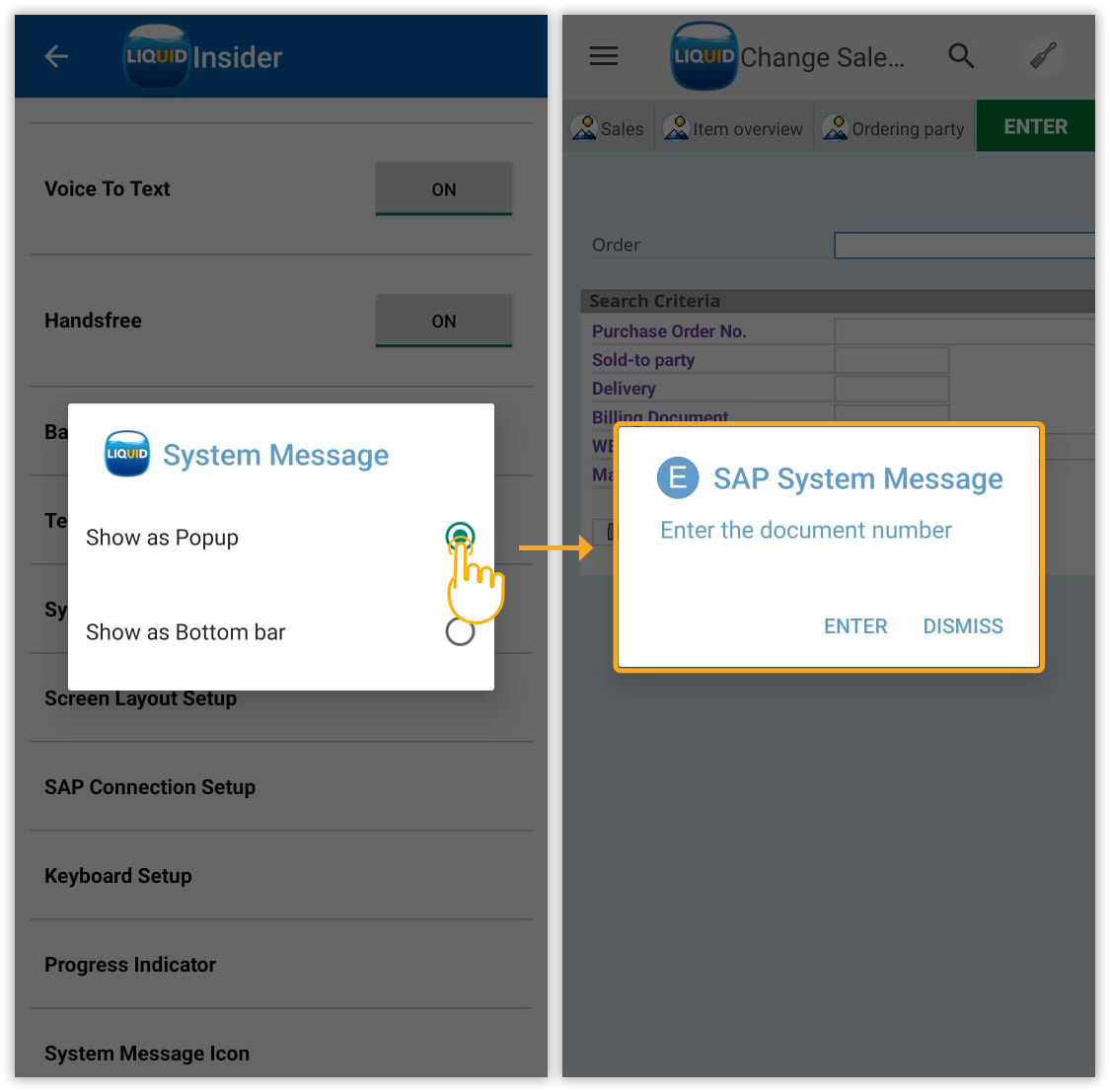
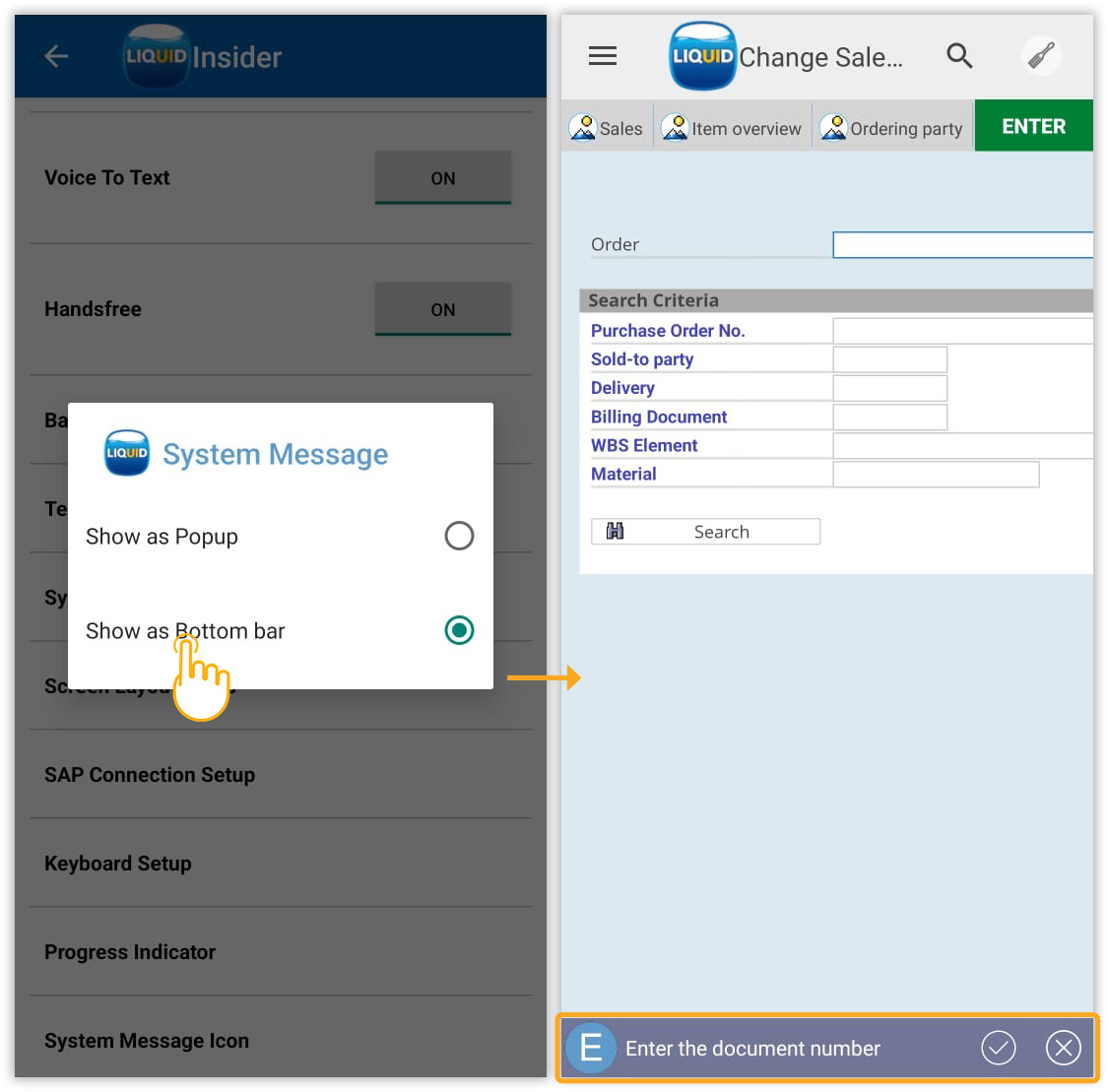
Choose how SAP system messages (success, warning, error) are displayed: pop-up dialog or bottom status bar. Tap System Message Style for options:
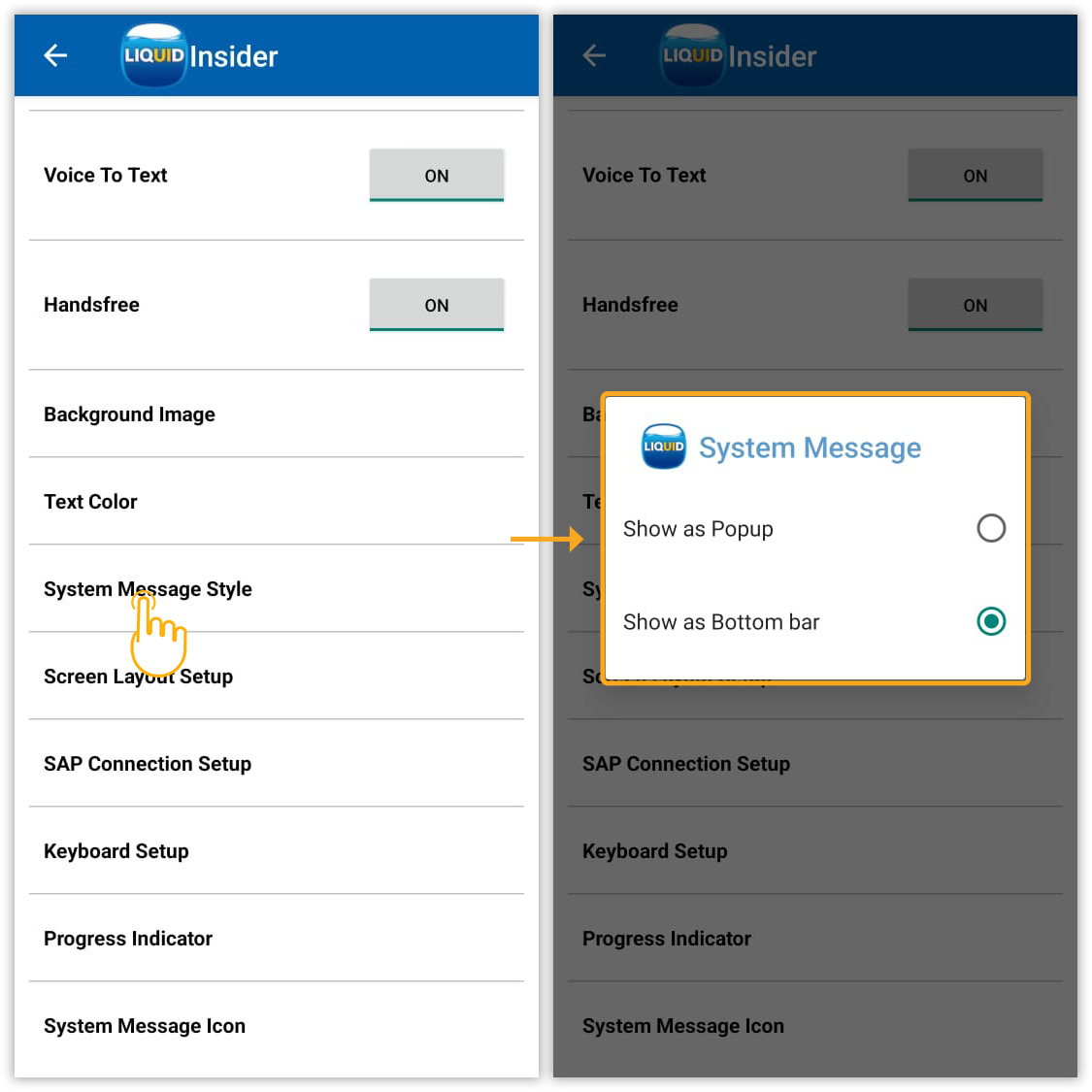
- Show as Popup: Displays system messages in a pop-up window.
- Show as Bottom bar: Displays system messages in the bottom status bar.
- Show as Popup: Displays system messages in a pop-up window.
- Screen Layout Setup
You can customize the SAP screen layout using four available setups. The SAP screen will update automatically to reflect the changes once a layout is chosen.
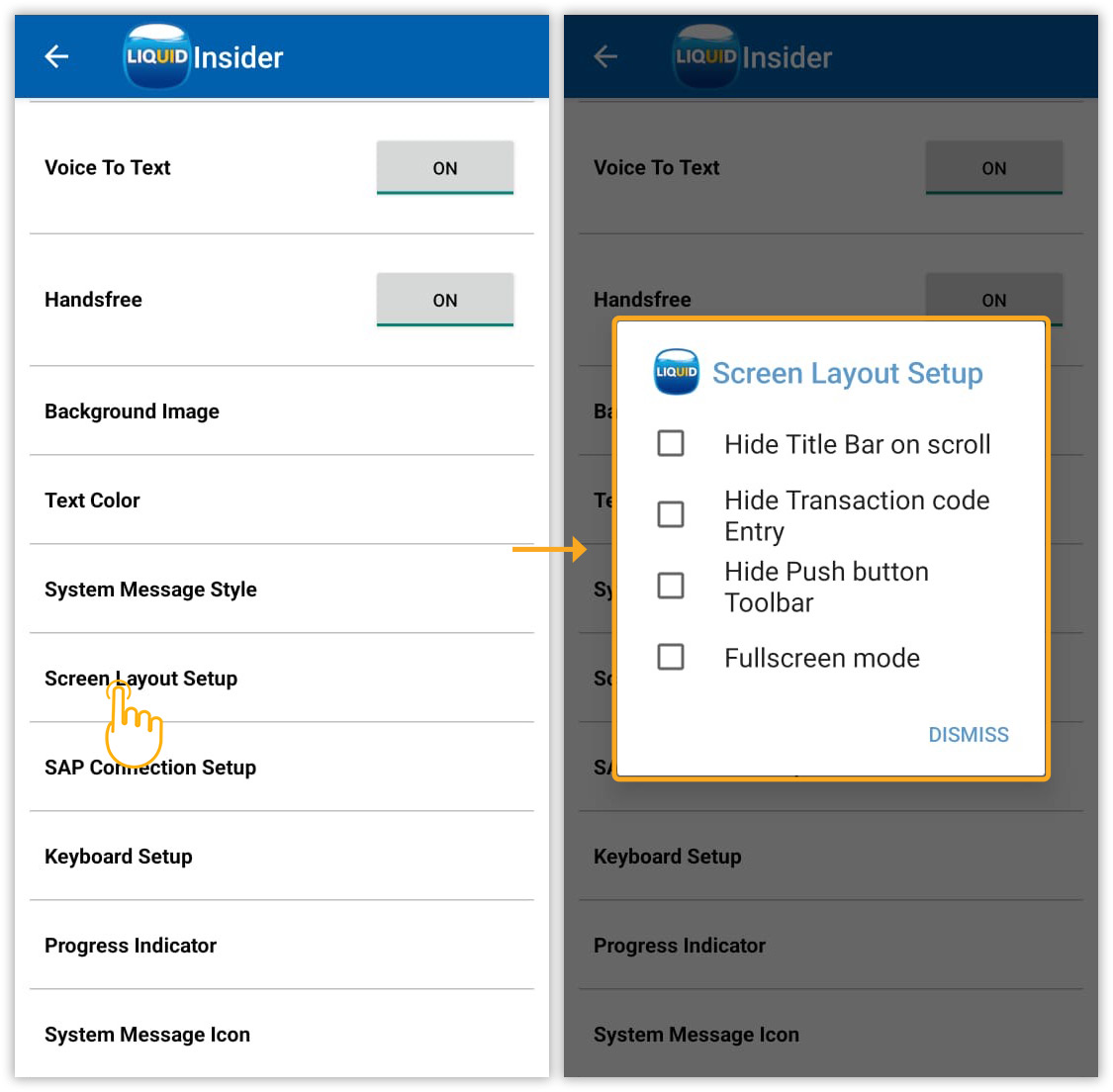
Click here for details on the Screen Layout Setup.
- SAP Connection Setup
Configure idle session timeout for TCP connection. Set Keep Alive and Keep Alive TimeOut for new SAP connections without affecting existing ones.
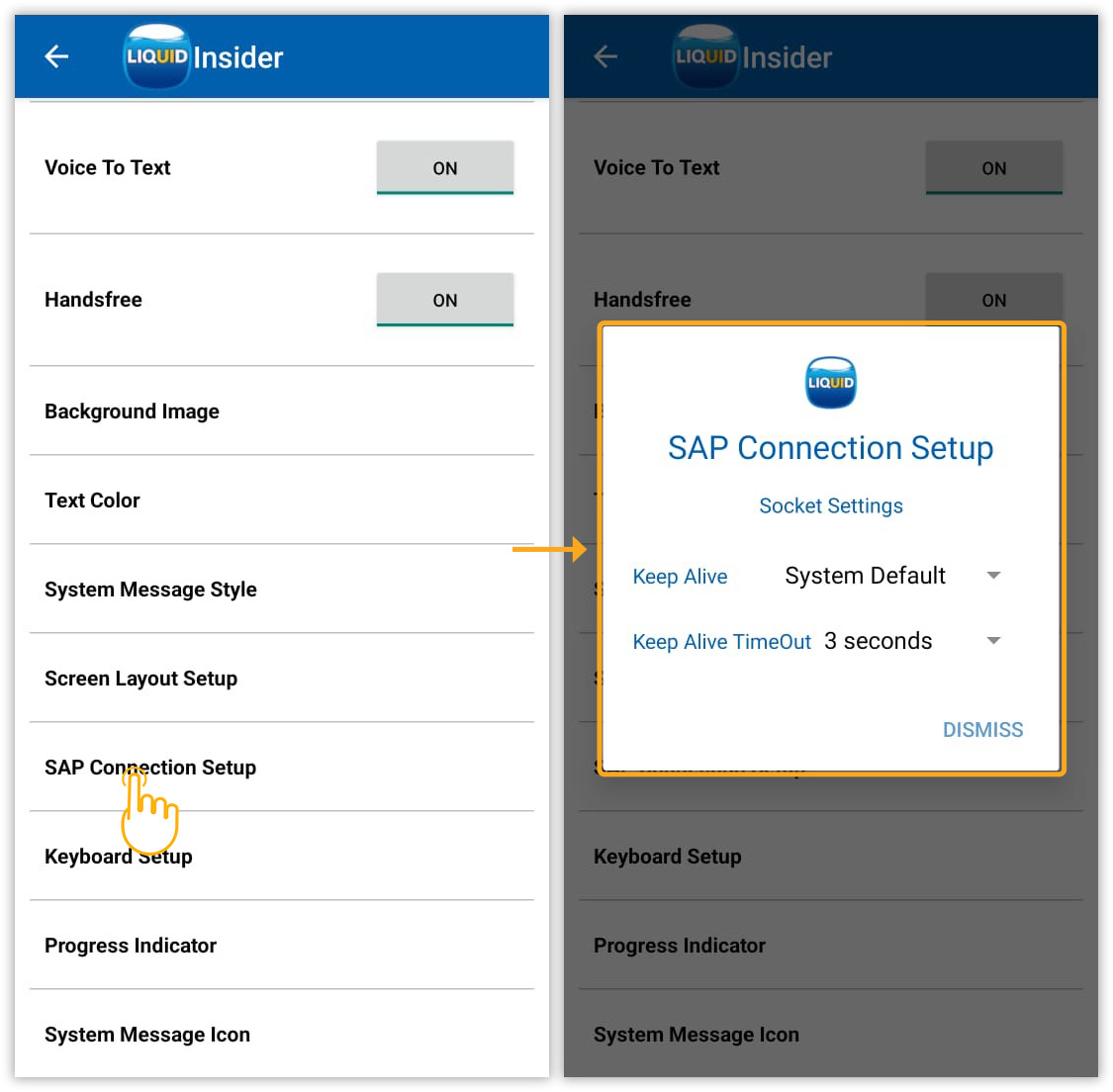
Click here for details on the SAP Connection Setup.
- Keyboard Setup
Using the Keyboard Setup, you can access menus and input fields on the screen, navigate within control elements, and perform various other tasks. The available options are defined as follows:
- Show keyboard on focus: Automatically displays the keyboard when an input field is selected.
- Select text on focus: Highlights all existing text within an input field upon selection.
- Place cursor at end of text: Positions the cursor at the very end of any existing text within an input field.
- OnkeyPrelme Listener (for attached scanner(s)): Enables scanning functionality for devices with integrated scanners.
- Process Command keys (for attached scanner(s)): Allows devices to be scanned using keyboard commands.
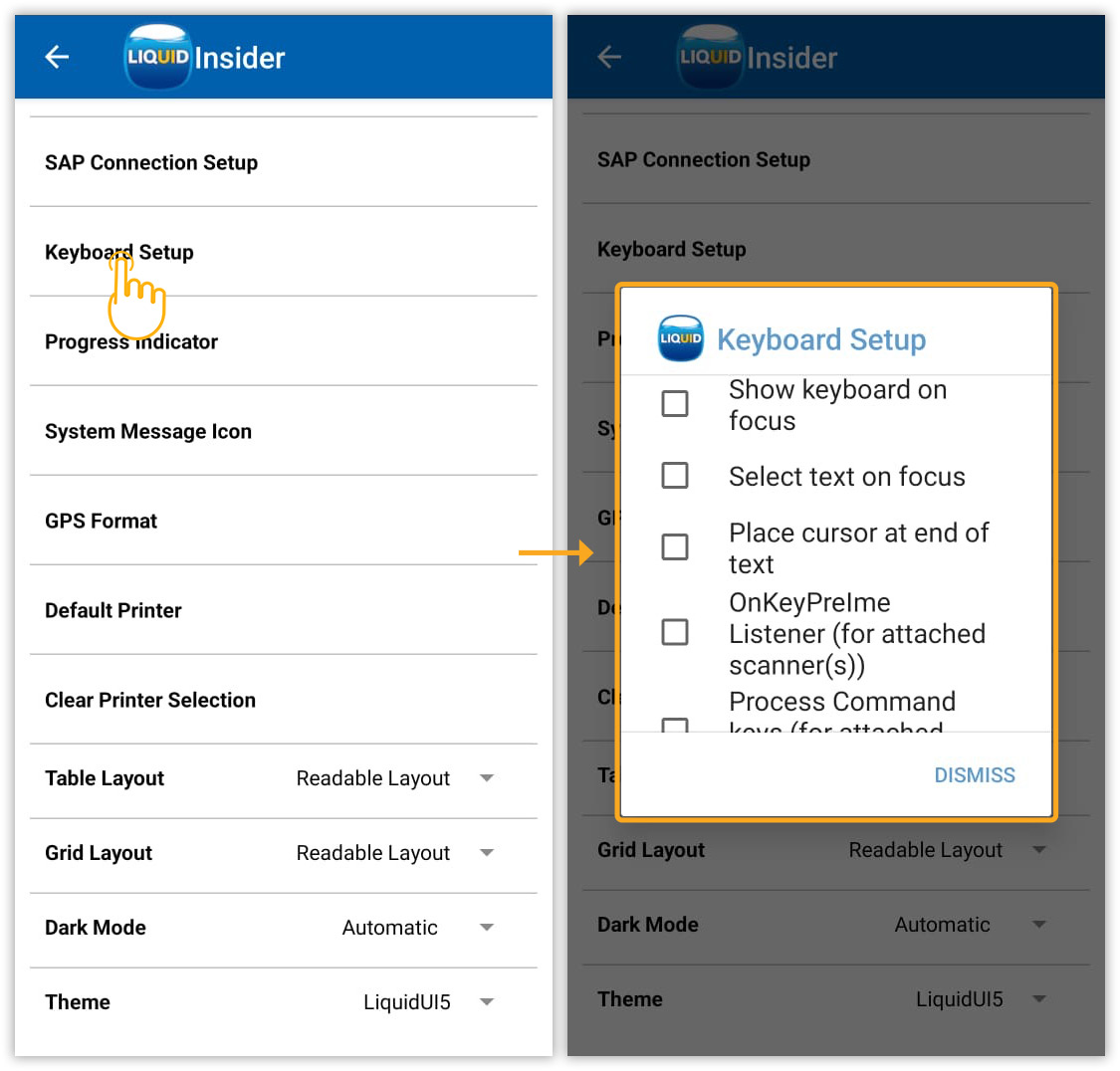
Click here for details on the Keyboard Setup.
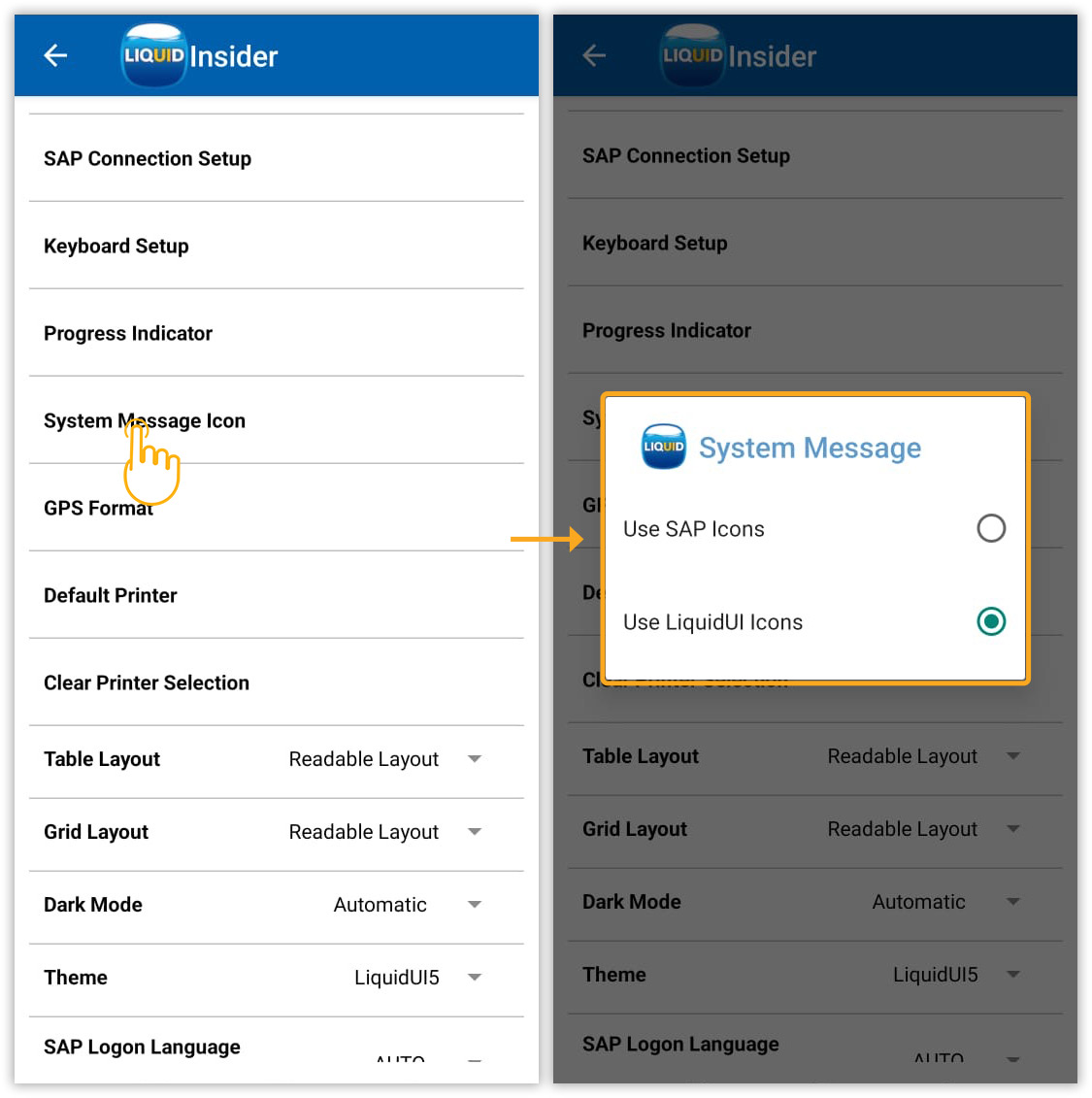
- System Message Icon
Choose SAP or Liquid UI icons for system messages, which vary by message type (success, warning, error) for visual distinction.
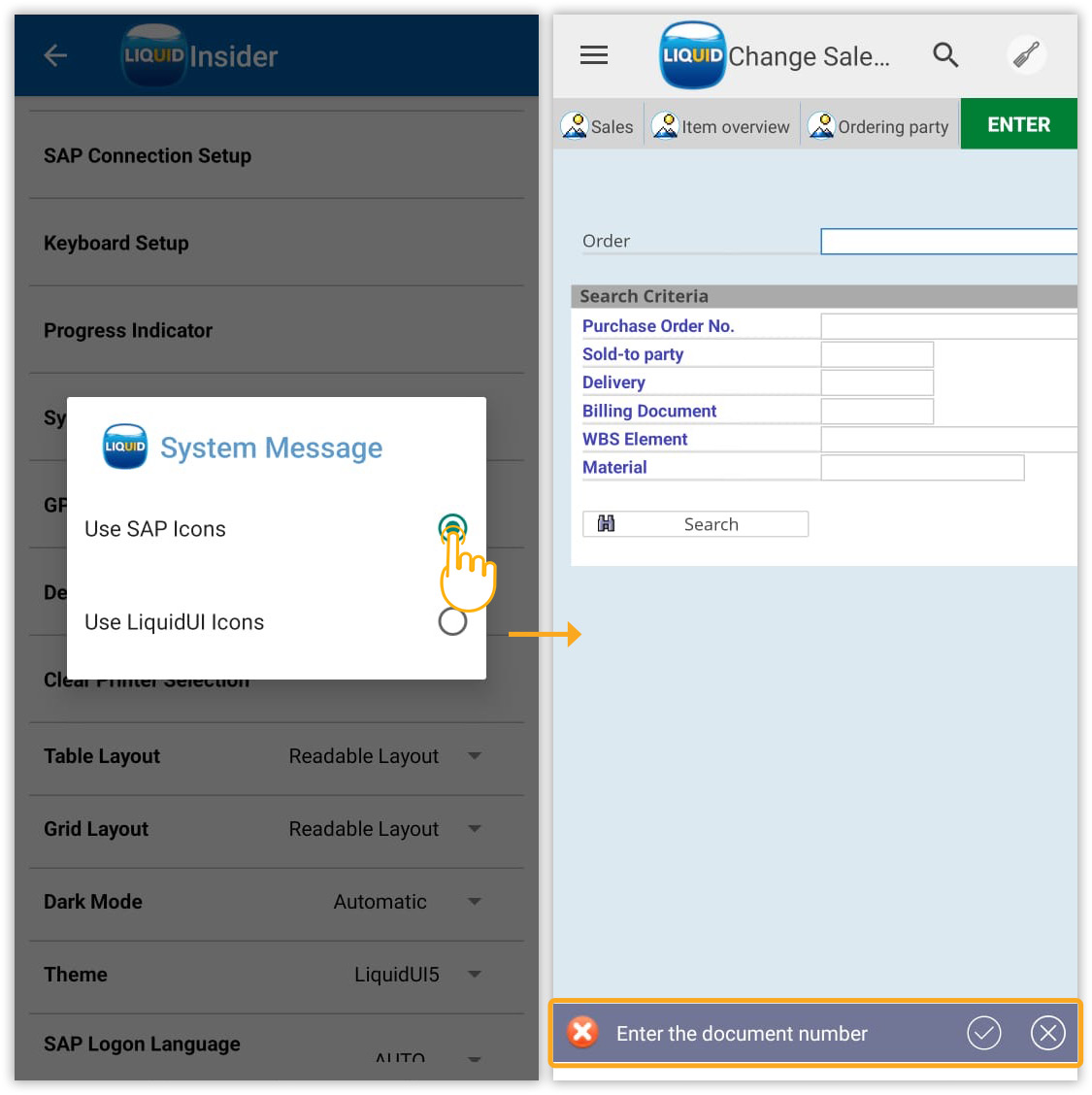
- Select Use SAP Icons to display SAP-style icons before system messages.
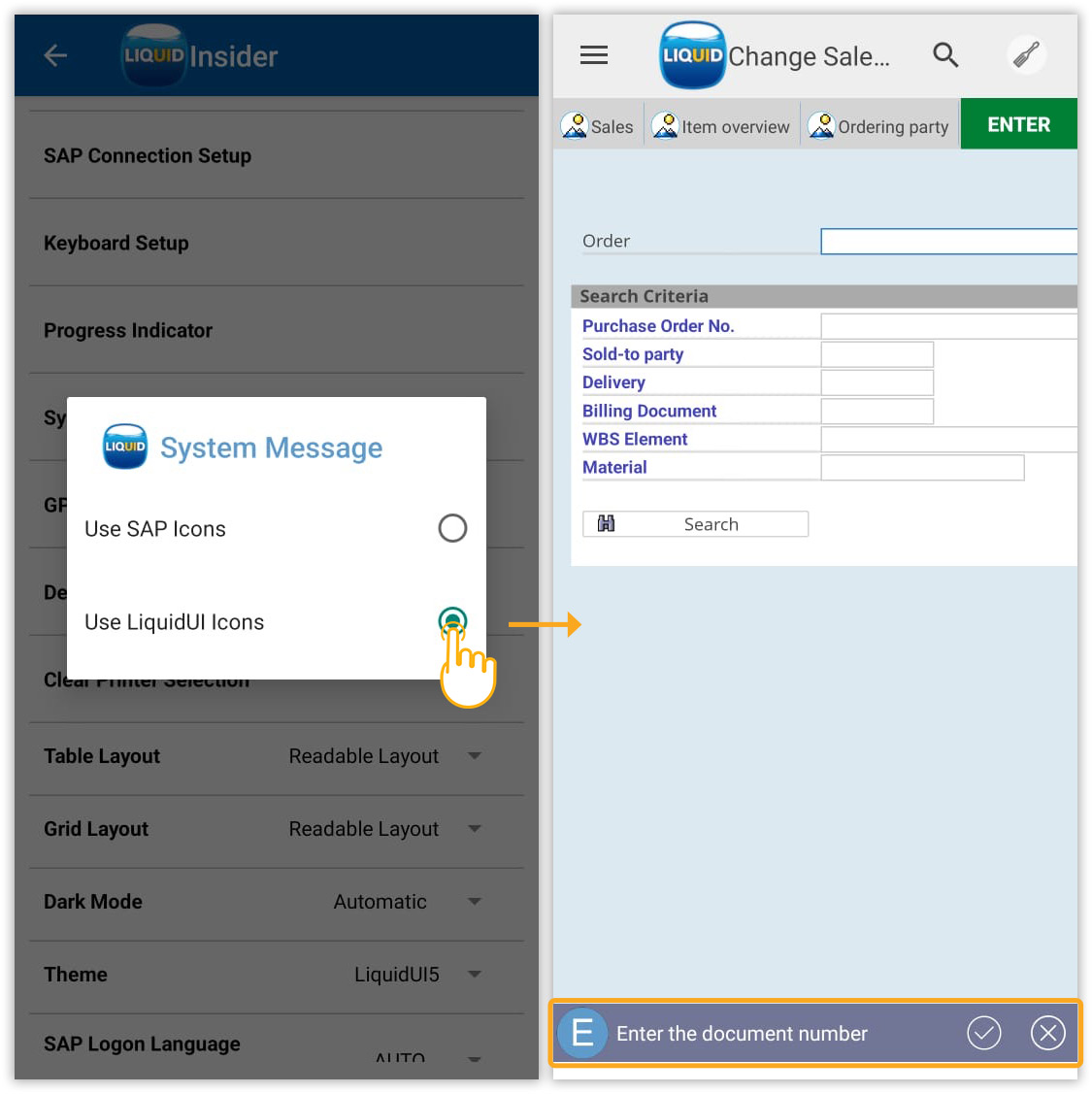
- Select Use Liquid UI Icons to display Liquid UI-specific icons before system messages.
- Select Use SAP Icons to display SAP-style icons before system messages.
- GPS Format
Capture and insert the device's current latitude and longitude into any SAP input field by long pressing, eliminating the need for manual entry.
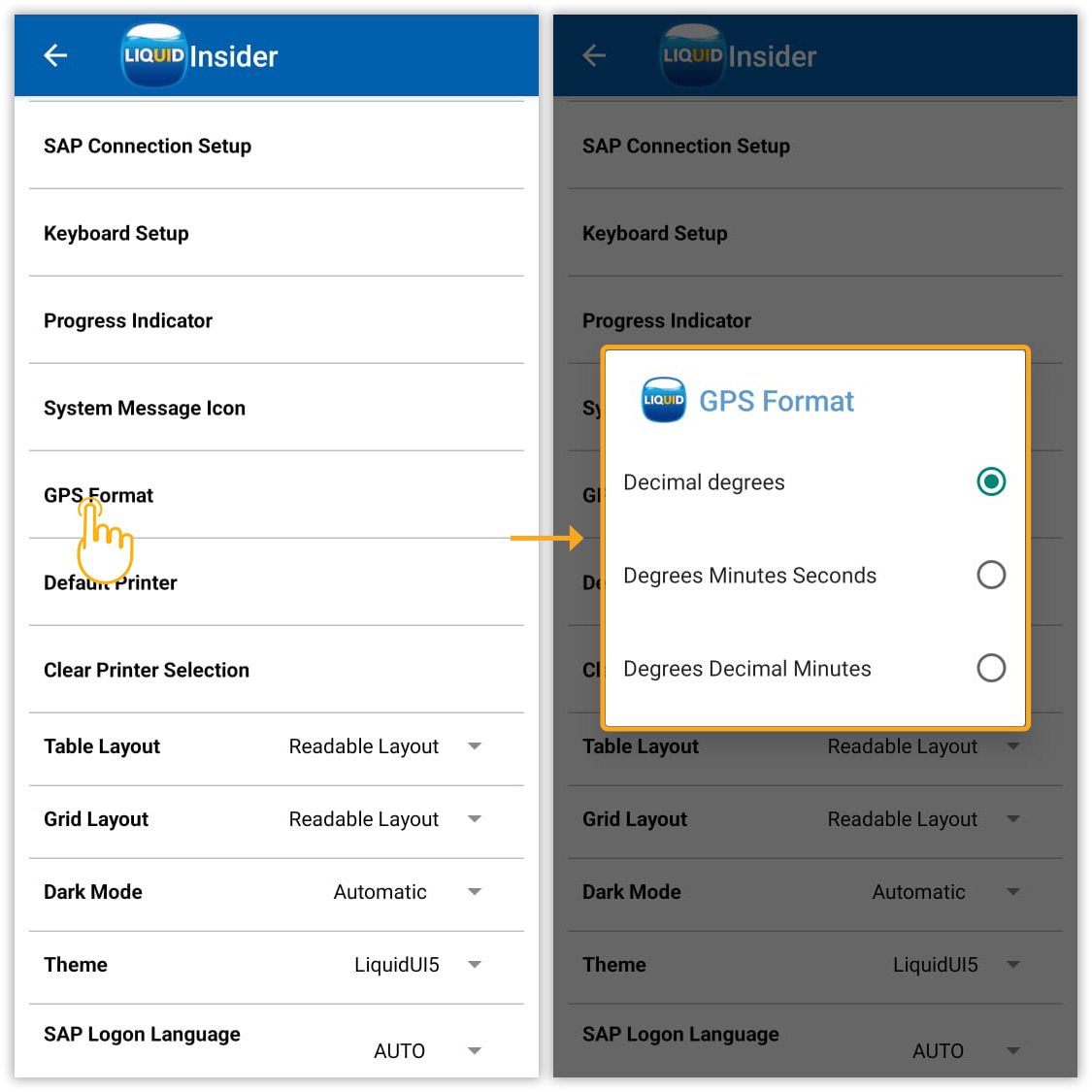
Click here for details on GPS Format.
- Default Printer
This option lets you enable Bluetooth printing. Once set, you can print SAP transaction pages directly from the Liquid UI app on your Android device.
Note: Bluetooth needs to be enabled for this to work.
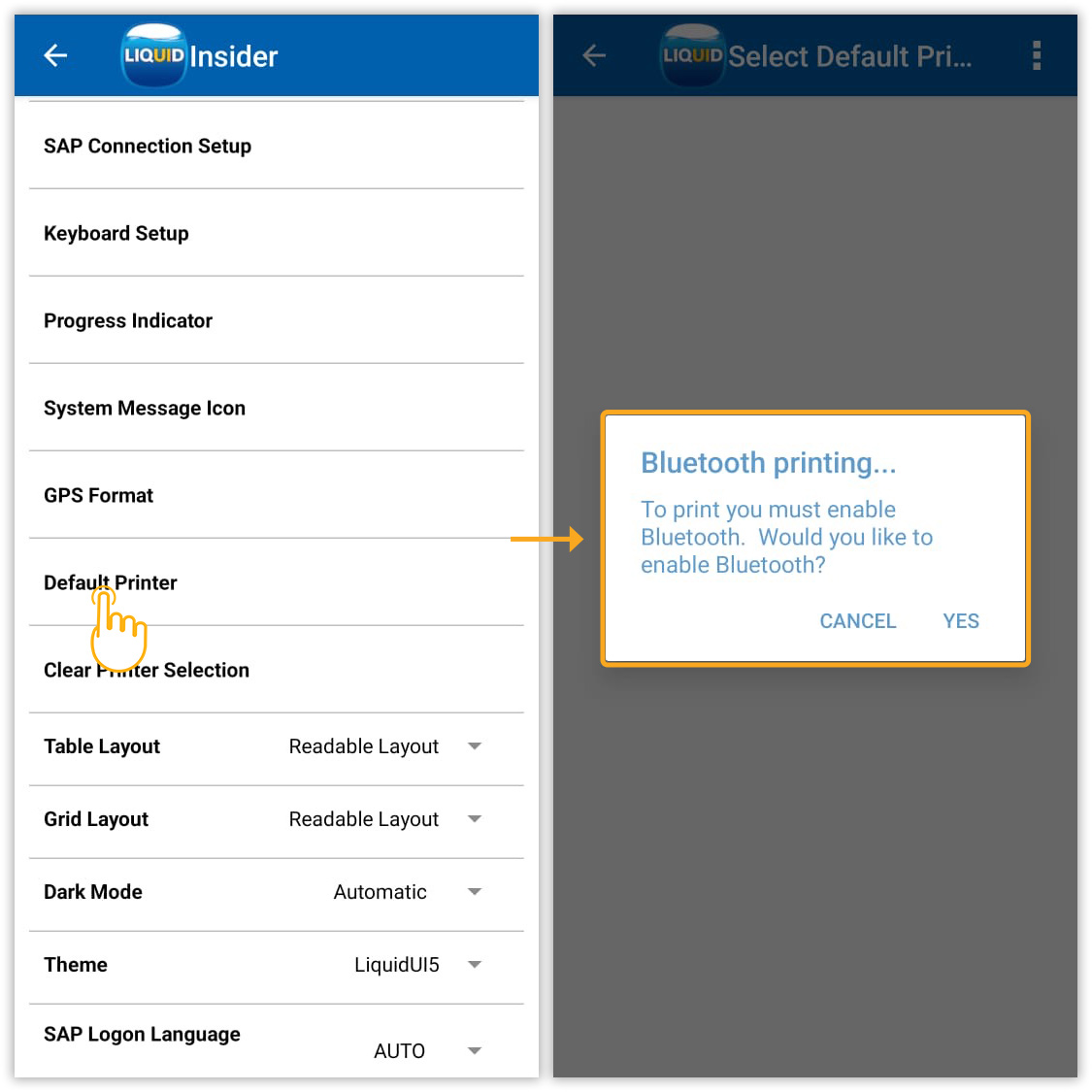
Click here for details about how to use Mobile printing in SAP.
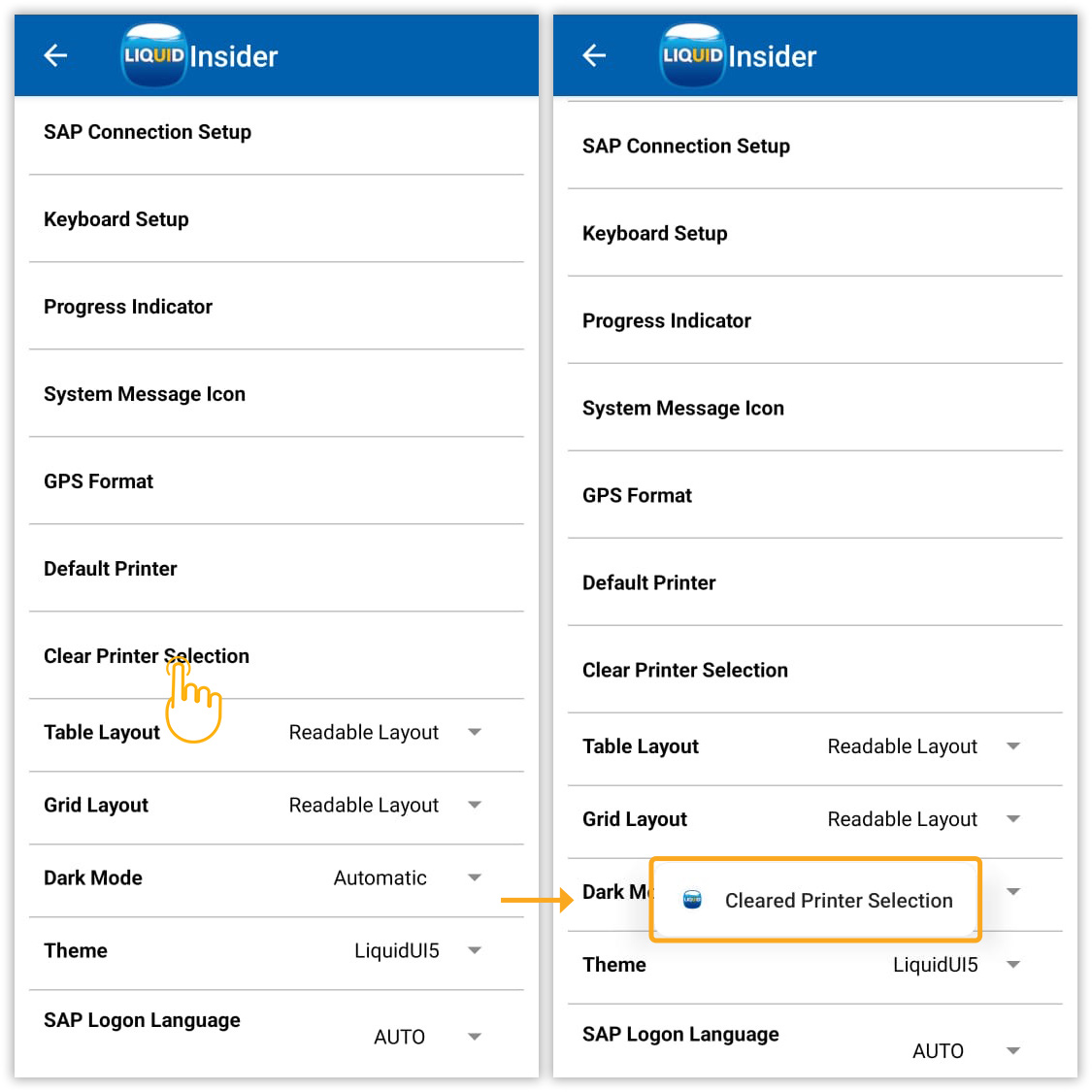
- Clear printer selection
Enabling this option removes the default printer setting. As a result, a printer selection dialog will appear each time you initiate a print option.
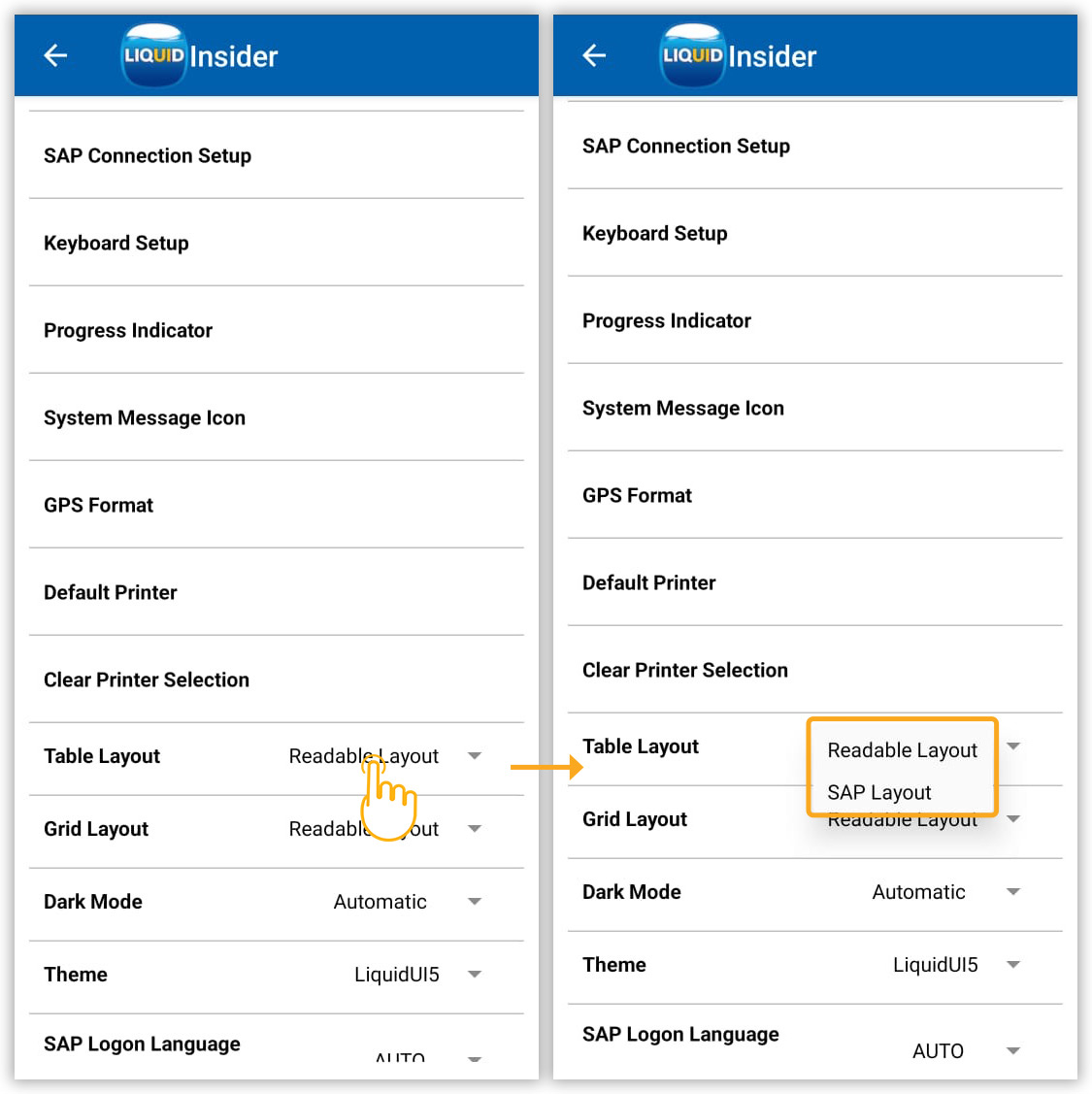
- Table Layout
This setting allows users to customize the table view in SAP. It offers two layout options:
- SAP Layout: Abbreviated column names, compact format.
- Readable Layout: Full column names, wider cells for readability.
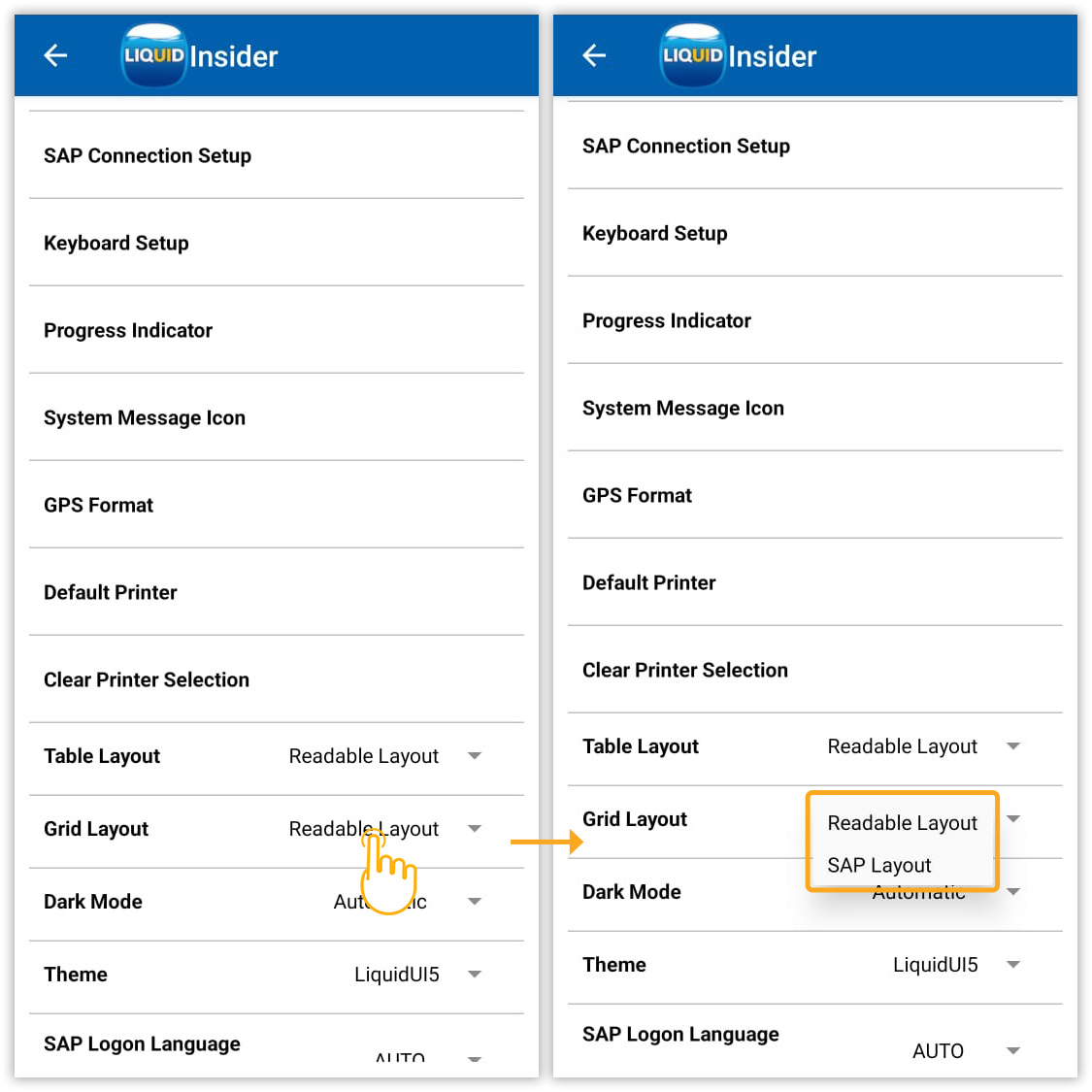
- Grid Layout
Users can customize the appearance of grid controls through two layout options:
- SAP Layout: This option displays abbreviated column names in a compact format.
- Readable Layout: This option shows full column names with wider cells, enhancing readability.
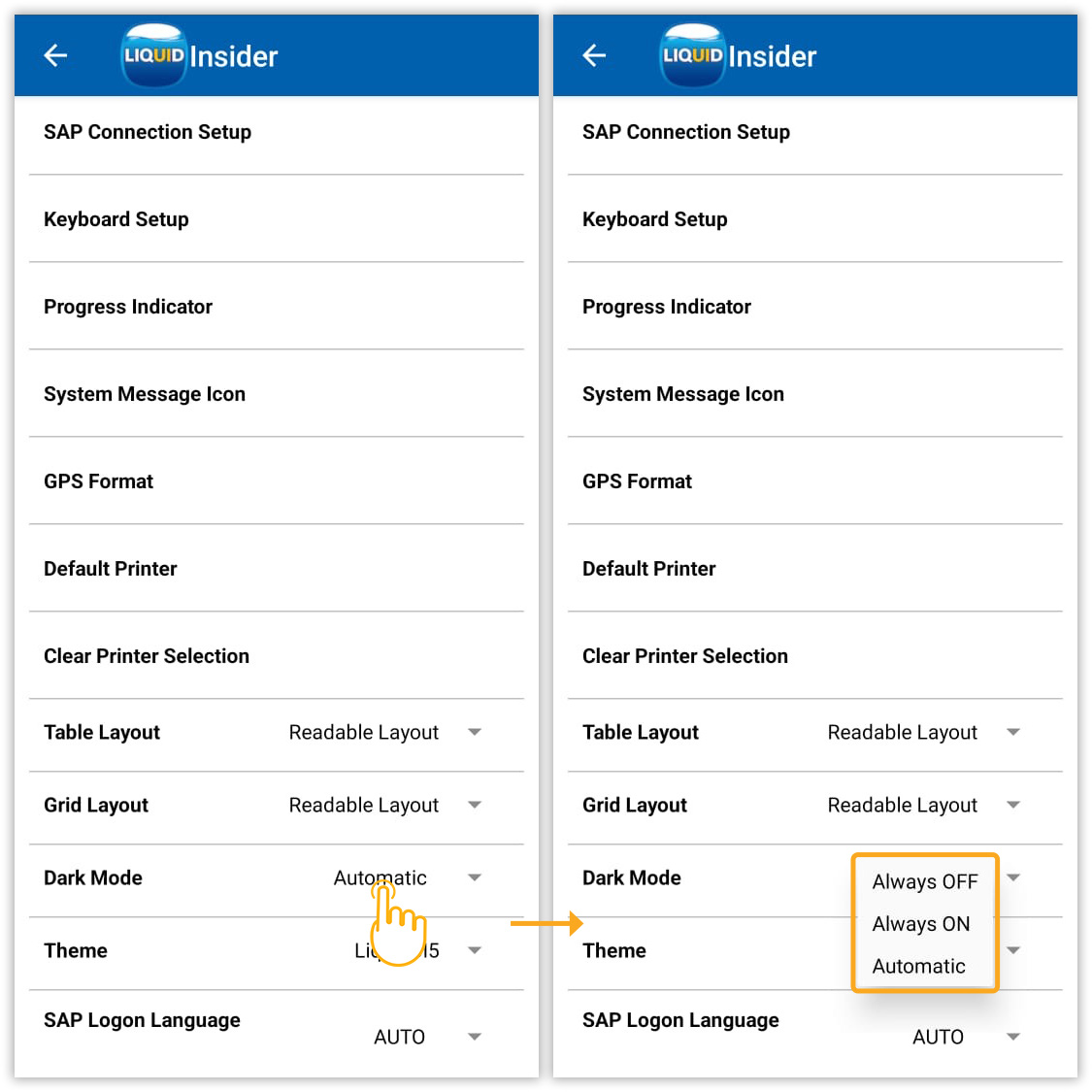
- Dark Mode
This setting improves content visibility in low-light conditions or at night, offering three options:
- Always OFF – Dark mode disabled.
- Always ON – Dark mode always enabled.
- Automatic – Switches based on system settings or time of day.
Click here for details on the Dark mode Setup.
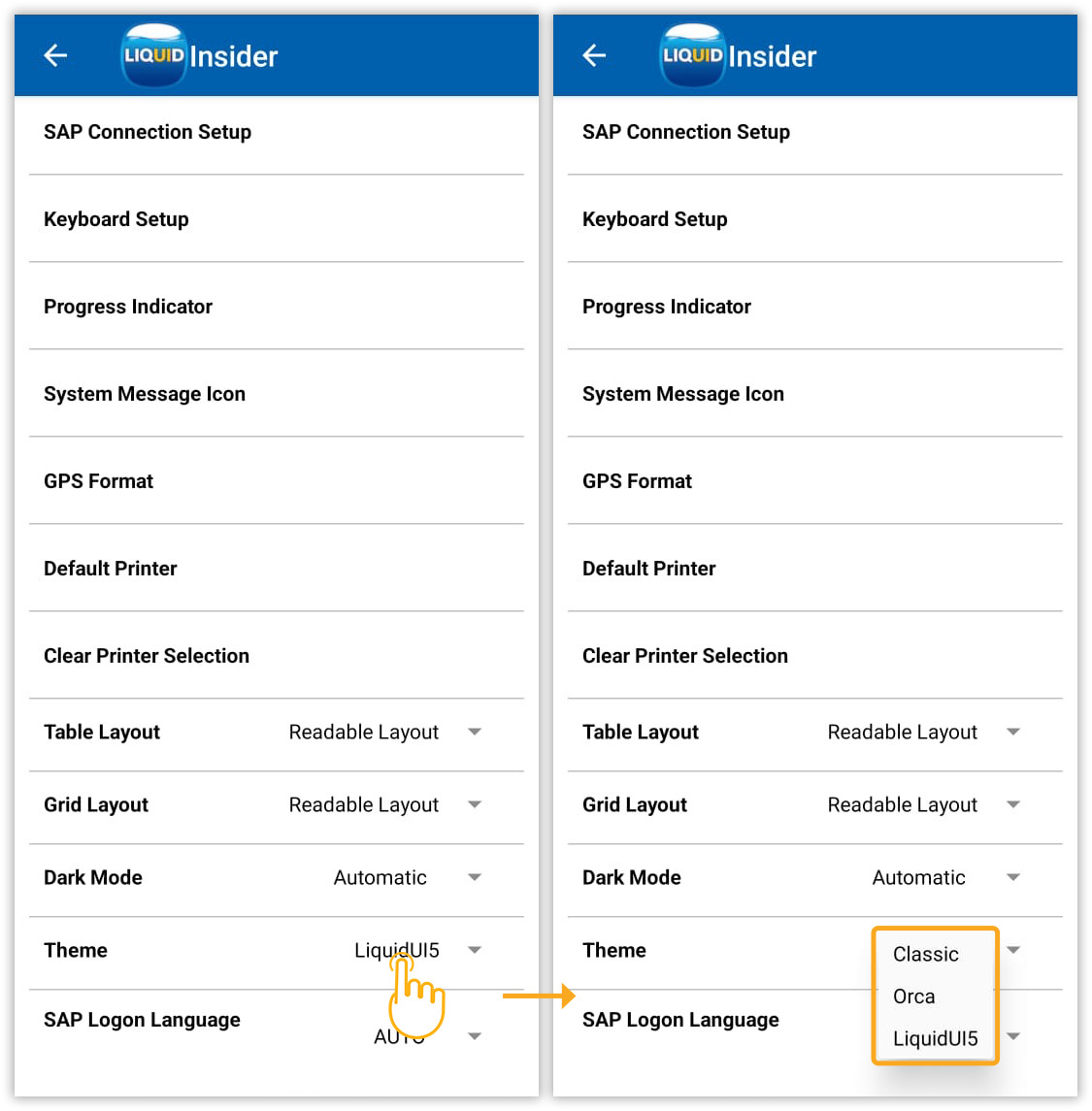
- Theme
Customize the Liquid UI for Android by adjusting themes for the interface's look and feel:
- Classic
- Orca
- LiquidUI5
Click here for details on Themes
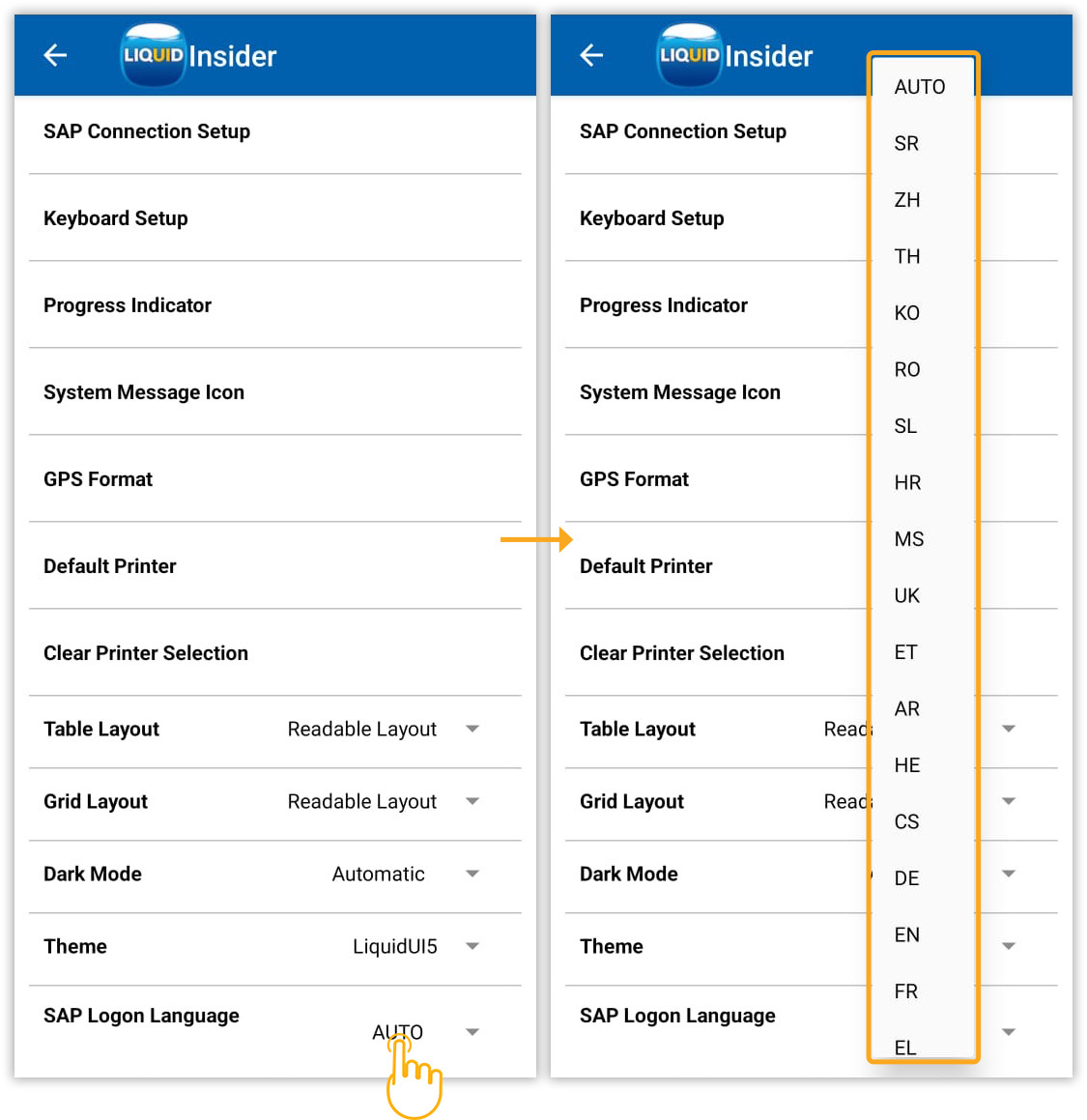
- SAP Logon Language
Modify the default SAP login language setting.
Click here for details about how to change the SAP Logon Language.