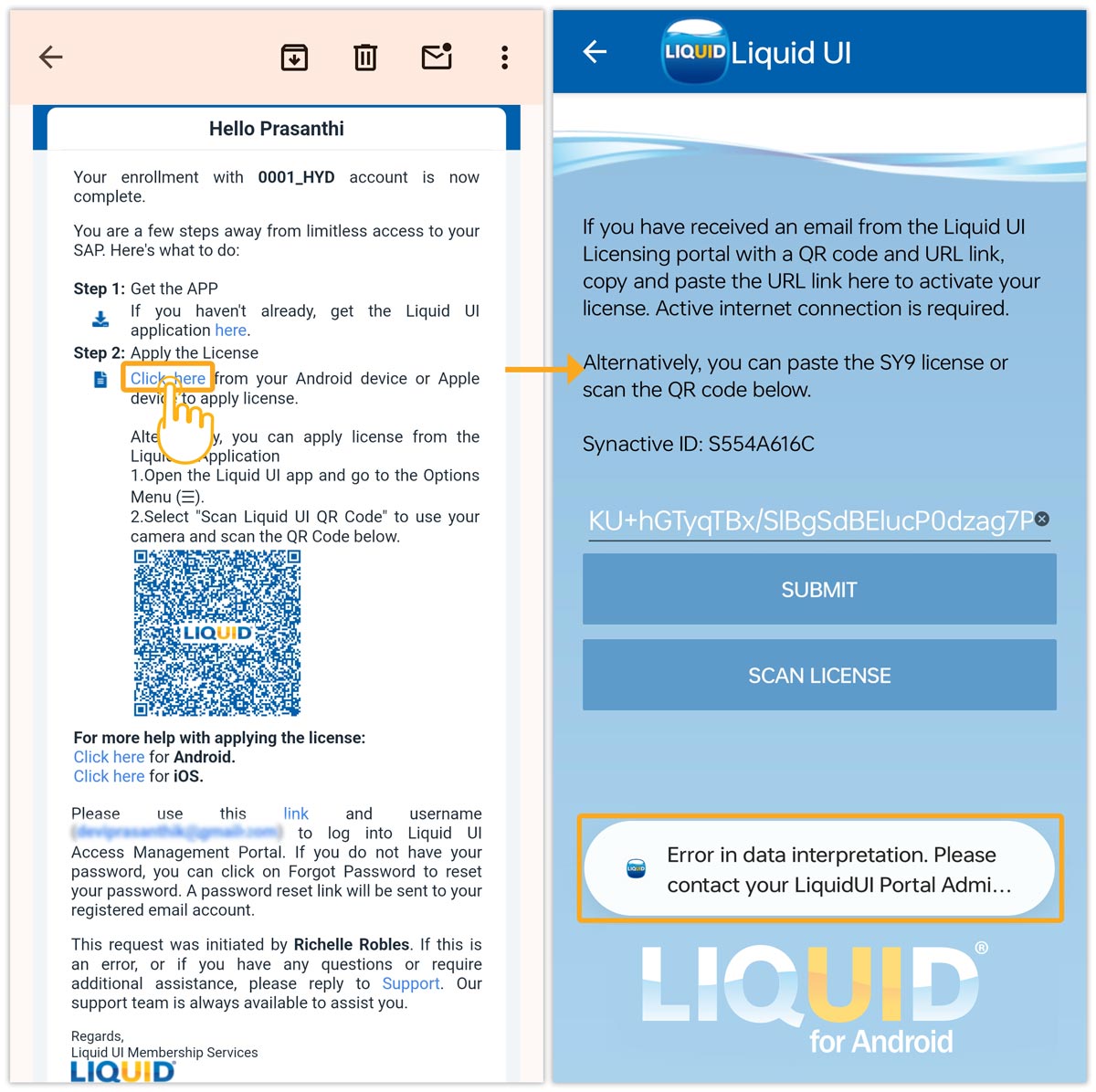


In this article, you will learn how to activate a Liquid UI for Android license on your Android device.
You can activate the license using any one of the following methods:
- License activation link
- QR code
- Manual entry of the license string
Before you begin
- Download and install the Liquid UI for Android app
- After purchasing the license, you will receive a license email. Keep your license email ready. It includes an activation link, QR code, or license string.
License activation methods
You can activate the license using any one of the following methods:
Method 1: Activate using the license activation link
- Open the license email on your Android device and tap the license activation link. The Liquid UI Client for SAP app will open automatically and apply the license.

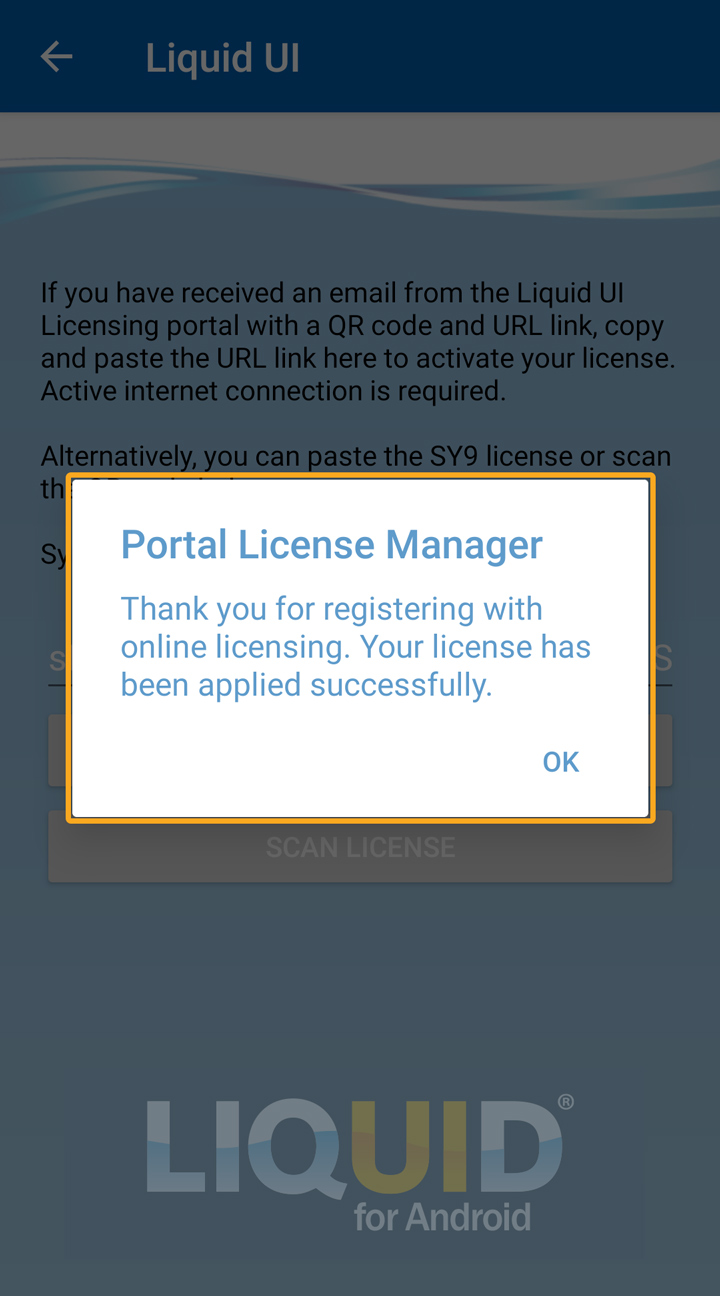
- A confirmation message appears after successful activation.
Method 2: Activate using the QR code
If you have difficulty installing the license using the activation link, you can scan the QR code instead.
- Open the Liquid UI for Android app, go to the Main Menu, tap Scan Liquid UI QR Code, and scan the QR code from your license email.
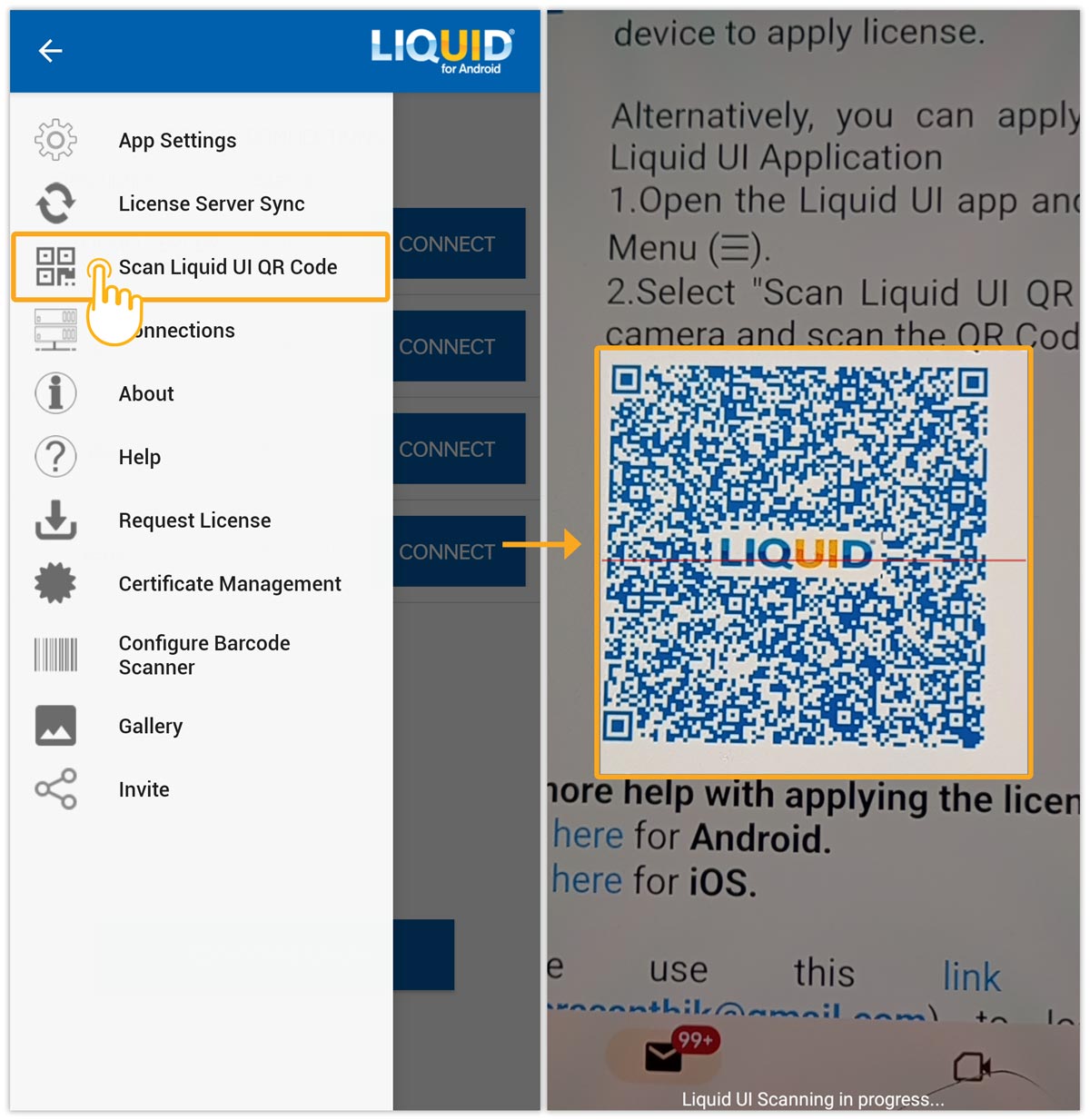
- A confirmation message appears after successful activation.
Method 3: Activate using the license string
Use this method if your license email provides a license string, or if you prefer manual activation.
- Open the Liquid UI for Android app. Navigate to the Main Menu and tap the Request License option, as shown below.
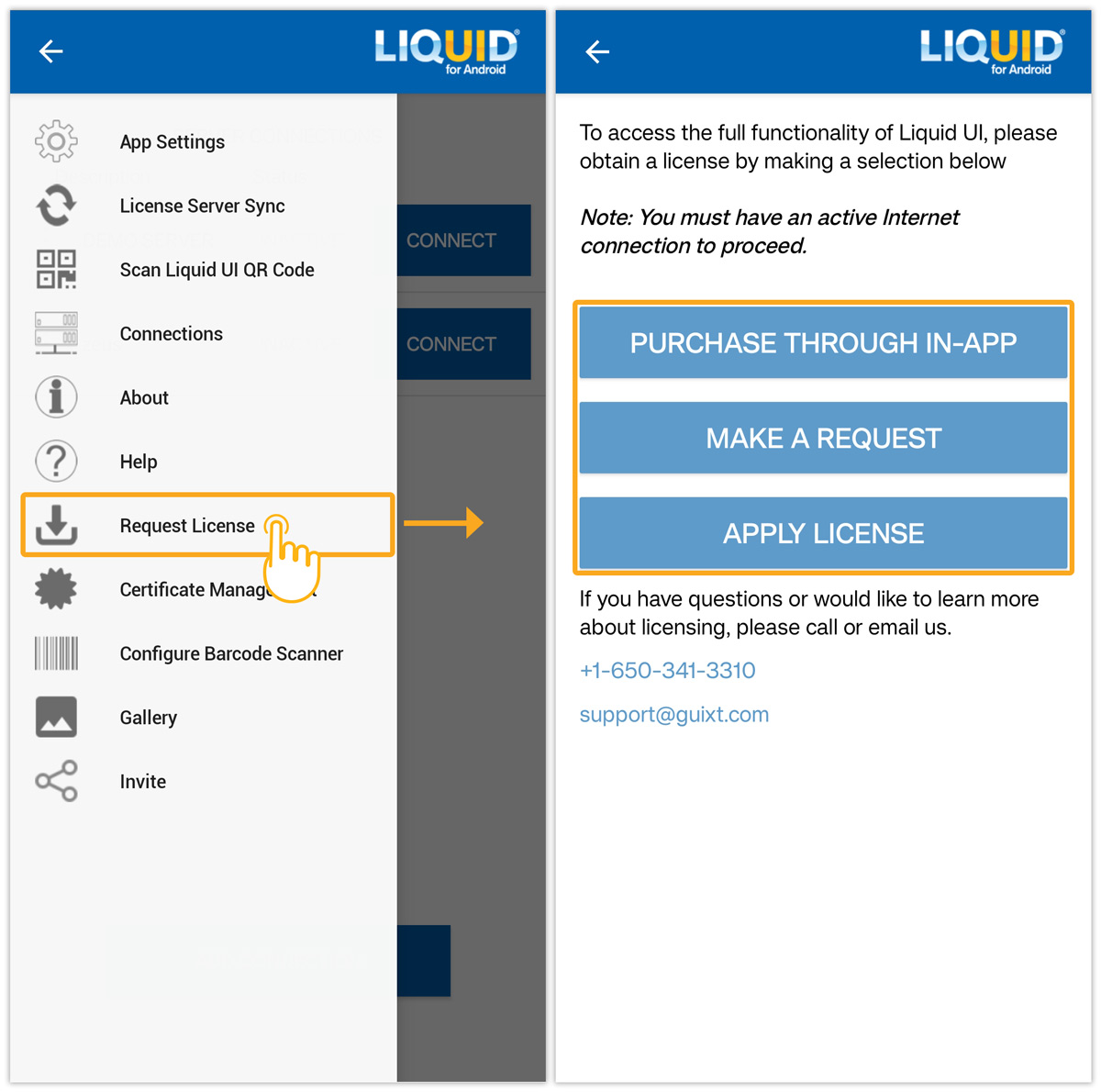
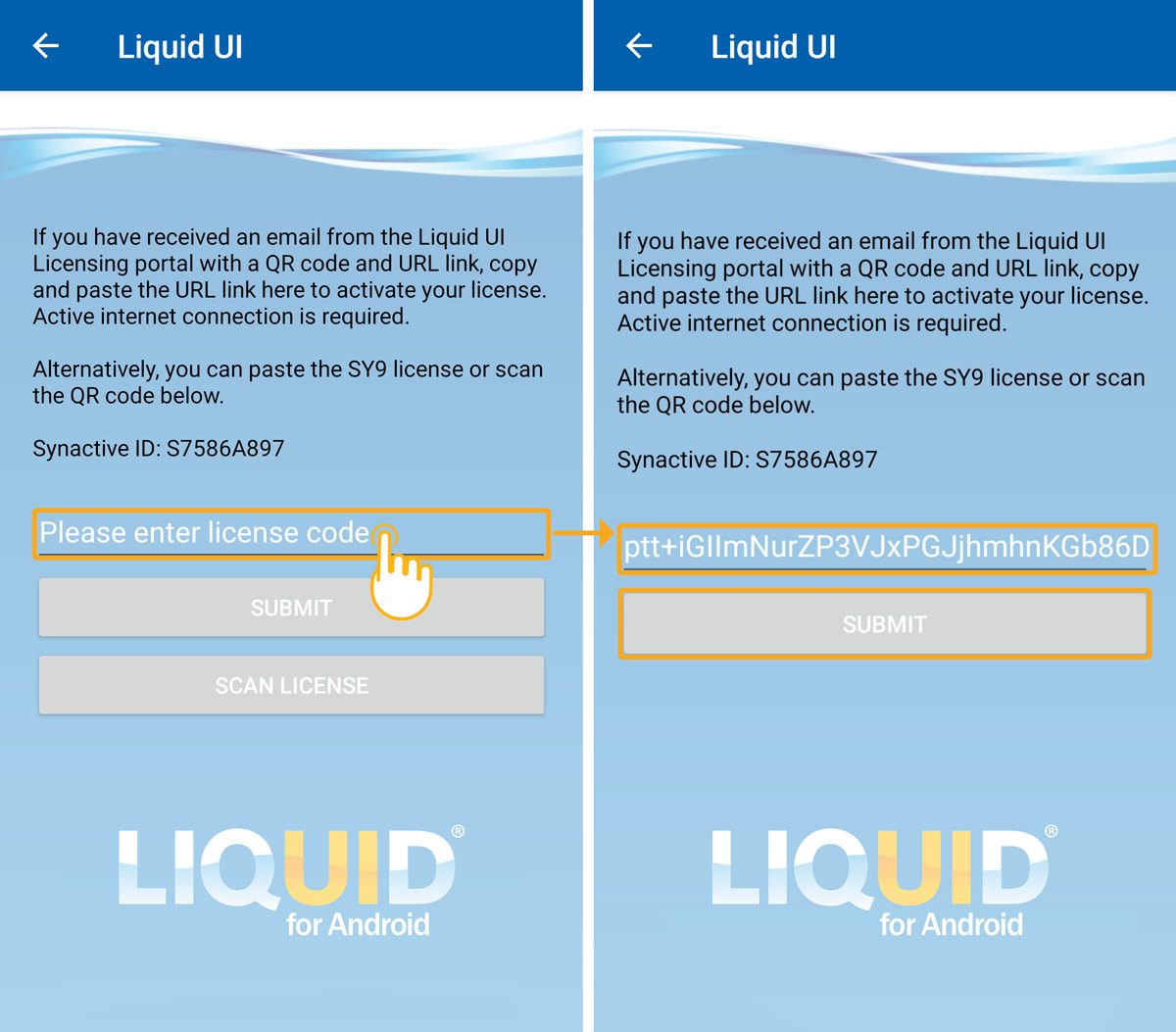
- Tap APPLY LICENSE to enter the license string manually.
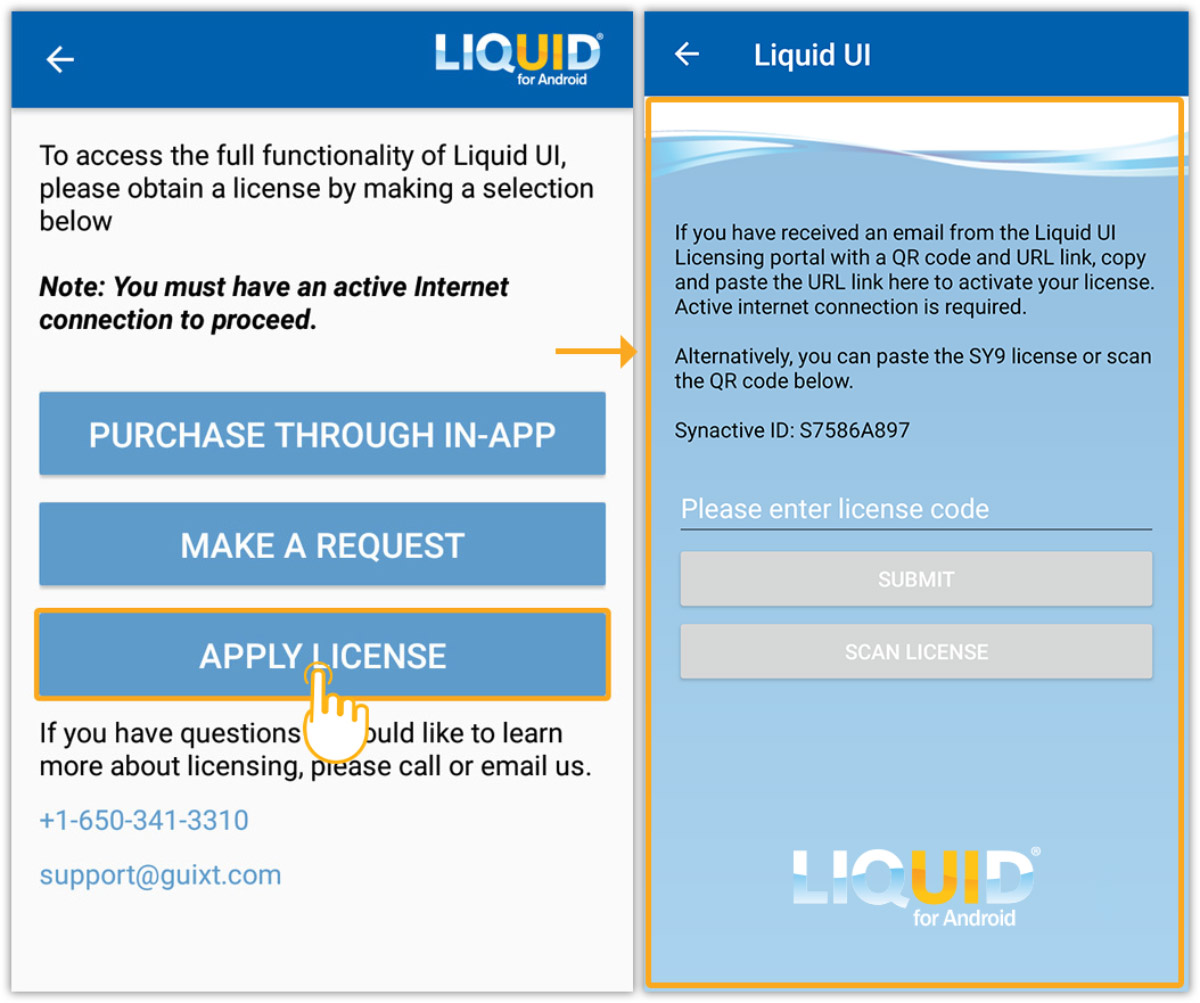
- After entering the license string, tap SUBMIT.
Troubleshooting
- If activation does not complete immediately, wait a few moments and try again.