


Purpose
Organizations manage multiple usernames and passwords across various applications to access SAP systems. Many companies have adapted Windows Active Directory with Kerberos for centralized authentication to streamline this process. While setting up Single Sign-On (SSO) on SAP GUI for desktops within the domain is straightforward, the challenge arises with iOS devices outside the Active Directory domain.
Liquid UI addresses this challenge by providing robust support for SSO authentication on iOS devices, eliminating the need for IT teams to manage numerous usernames and passwords. With the SSO feature, Liquid UI users can conveniently authenticate using their domain credentials, simplifying the login process and reducing the complexity of managing multiple credentials. As a result, users can now access SAP systems with just one set of login details, improving both security and the overall user experience.
Architecture
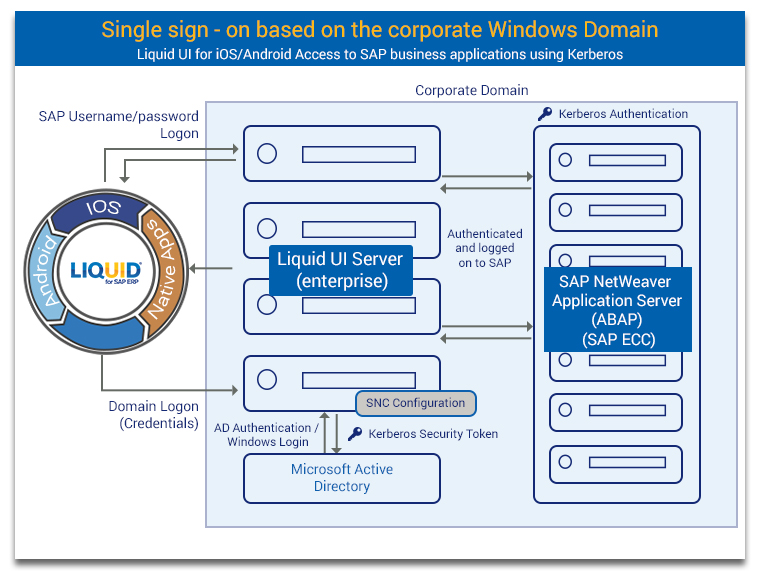
Mechanism
- Enter Domain credentials on Liquid UI for iOS native SAP logon screen.
- The credentials are securely transmitted to the Liquid UI Server and then to the Microsoft Active Directory.
- Upon receiving the request, Active Directory generates a Kerberos token to the Liquid UI Server.
- The Liquid UI Server forwards the Kerberos token to the SAP Application Server (ABAP) for validation, and once validated, the user is authenticated and granted secure access to SAP ECC, ensuring a seamless login experience.
Liquid UI supports Single Sign-On to allow users to log in to SAP ERP systems using any of the following four methods:
- Domain credentials
Configurations:
- Valid Windows Domain Login Credentials
- Kerberos Configuration on SAP ECC (Transaction: RZ10)
- Liquid UI Server v3.5.549.0 and above
- The Liquid UI Server should be on the same domain
- Kerberos DLL is distributed as part of the Liquid UI Server installation. Older Version: Make sure that you have kerberos library (32bit:gsskrb5.dll, 64bit:gx64krb5.dll) files under Liquid UI Server (or GuXTWSServer) folder.
- Configure Liquid UI Server with sapproxy.ini file
- Configure Secure Network Communication in SAP GUI (if doesn't exist)
- Login to Liquid UI for iOS using Windows Domain Credentials
- Portal
Configurations:
- Key-certificate pair
Configurations:
- Valid Windows Domain Login Credentials
- Liquid UI Server v3.5.561.0 and above
- The Liquid UI Server should be on the same domain
- Obtaining Certificate
- Import the certificate into Liquid UI Server and SAP System
- Import the key-certificate pair into SAP Server
- Import Synssl.dll, version 2.0.0.0 and later
- Configure Liquid UI Server with sapproxy.ini file
- Login to Liquid UI for iOS using Windows Domain Credentials
- Key-certificate pair with Cyber safe
Configurations:
- Valid Windows Domain Login Credentials
- Liquid UI Server v3.5.584.0 and above
- The Liquid UI Server should be on the same domain
- Generating certificate using openssl.exe
- Import the certificate into the Liquid UI Server and SAP System
- Import the key certificate pair into the SAP Server
- Install and configure Cyber Safe on the Liquid UI Server
- Configure Liquid UI Server with sapproxy.ini file
- Check SSO running successfully
- Login to Liquid UI for iOS using Windows Domain Credentials
Users can create a domain name within the Secure Network Communications (SNC) framework and use it for multiple logins. Liquid UI Server authenticates users through Windows Active Directory for Liquid UI for iOS. This approach enables users to manage a single set of credentials, while administrators maintain a centralized username database.