


Purpose
Liquid UI for iOS integrates GPS functionality to automatically populate geographical coordinates into SAP fields. The GPS integration supports three different coordinate formats:
Decimal Degrees: Represent degrees as whole numbers and minutes and seconds as decimal fractions.
Degrees Minutes Seconds: Employs distinct units for expressing degrees, minutes, and seconds, expressed as whole numbers and fractions.
Degrees Decimal Minutes: Represents angular measures using the degrees and decimal minutes notation, where degrees are expressed as integers and minutes as decimal fractions.

Note: GPS functionality requires a valid Liquid UI Client license.
How to Configure GPS in Liquid UI for iOS.
- Open the Liquid UI app:
- Go to the Main Menu.
- Select App Settings.
- Choose GPS Format.
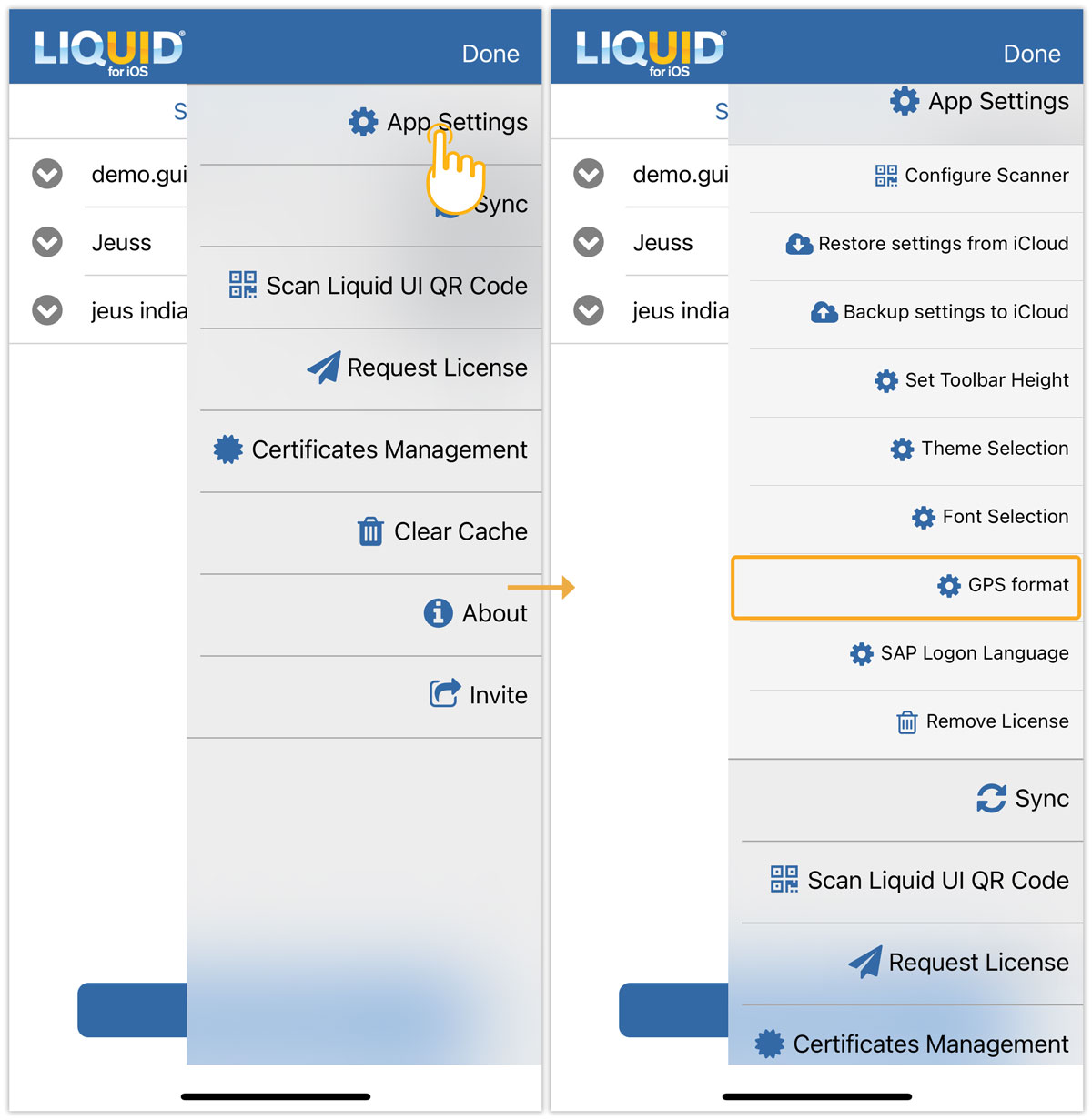
- Select GPS Format:
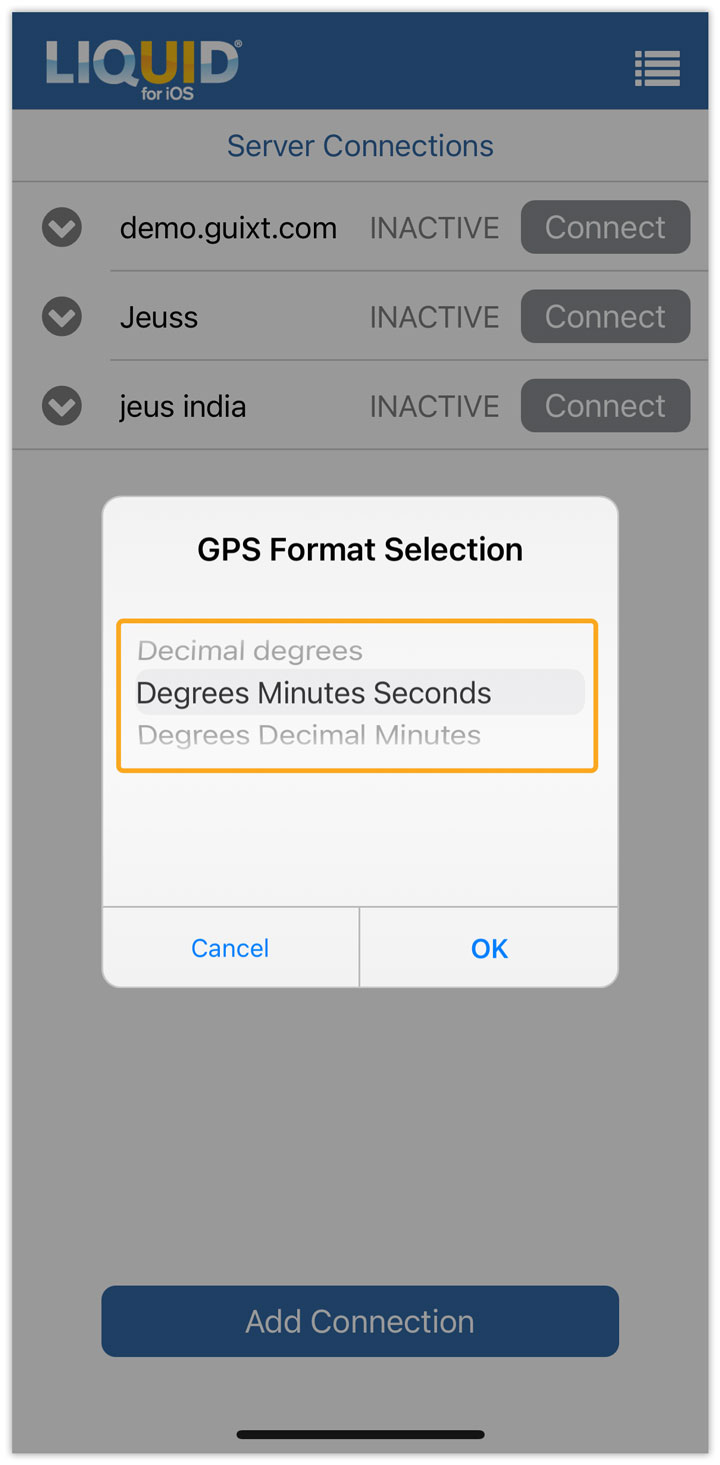
- The GPS Format Selection dialog box will appear.
- Choose the desired GPS format from the options and click OK to save.
- Grant Location Access:
- After configuring GPS, long-press on any input field. A pop-up will appear requesting permission to access your device’s location.
- Tap Allow to grant access.

We'll demonstrate the above GPS integration using the Change PM Notification Screen (IW22), as follows:
- On the IW22 screen, enter the Notification ID for which you need the location details and press Enter. This will take you to the Change PM Notification: Maintenance Request screen, as shown below.

- In the Location data tab, you’ll see the GPS coordinates for the entered notification displayed in the choosen format, as follows:
- Decimal Degrees

- Decimal Minutes Seconds

- Decimal Degrees Minutes

- Decimal Degrees