


This article explains how to obtain and install a Liquid UI license on your iPhone, iPad, or Mac. You can request a trial, purchase through the App Store, or activate using your enterprise license via the LAMP. All licensing options are available directly within the app.

Note: To access all licensing options, go to the Main Menu and tap Request License. This screen includes: Get Trial License, Liquid UI Portal, and Buy from App Store.
Getting Your License
You can obtain a Liquid UI license for iOS in one of the following ways:
- Get Trial License: Open the app and go to Request License → Get Trial License.
For detailed steps, refer to the guide: How do I get a Liquid UI for iOS trial license? - Self-purchase via LAMP (Liquid UI Access Management Portal): Visit https://ps.liquid-ui.com and purchase a license using a credit/debit card or PayPal. After payment, you'll receive your license details (link, QR code, or license string) via email.
- Request from Synactive Sales: Contact the Synactive sales team to request a license. Once processed, you will receive your license pack by email.
However, to obtain a SY9 license, call +1(650)341-3310 or send an email to our sales team at rfi@guixt.com.
Installing the License on your Apple device
You can use any of the following formats to install the license on your device.
Note: In-app purchase licenses are directly handled through the App Store.
License Activation Link
- Click on the license link and access it via the Liquid UI for iOS, as shown in the image below.
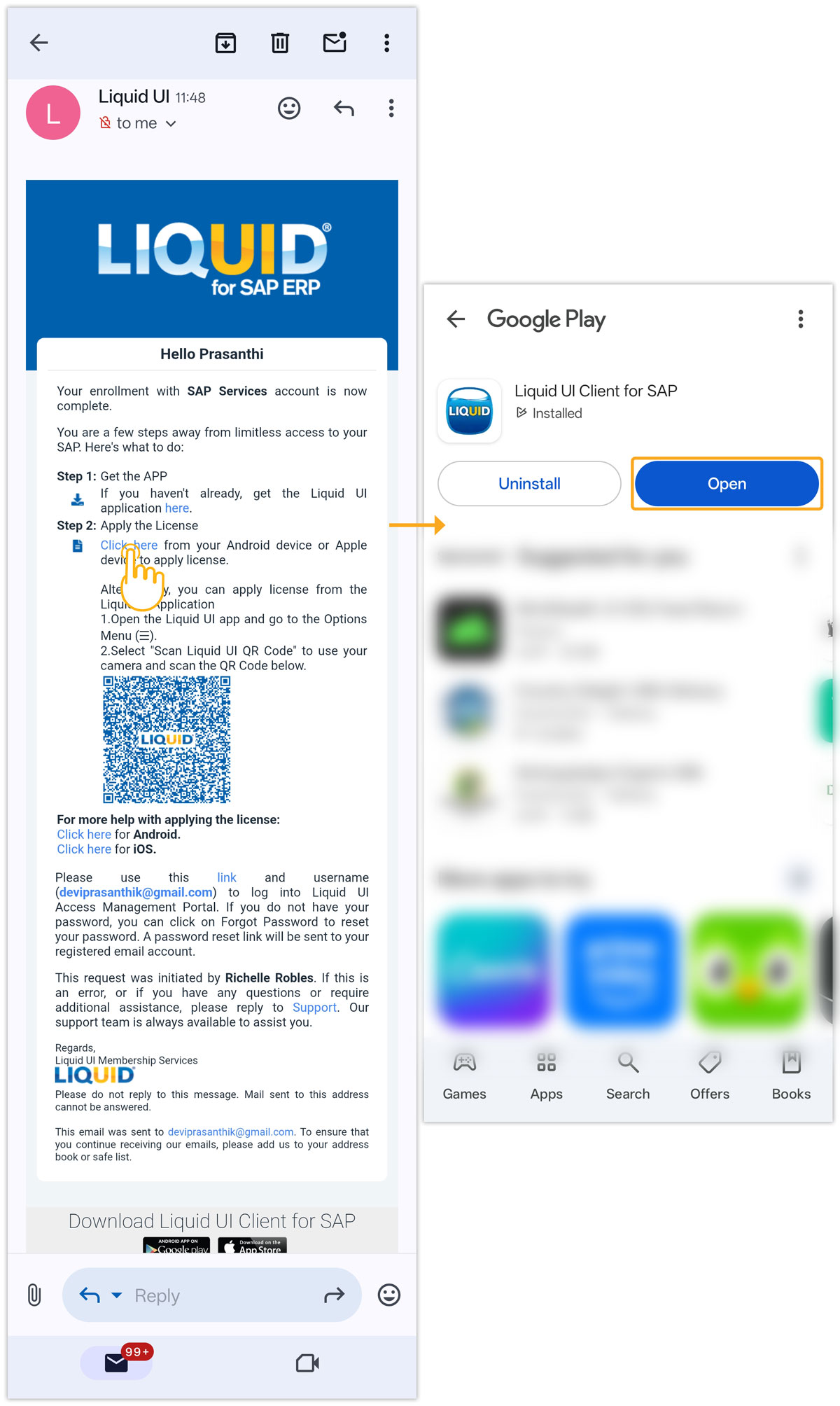
Note: Download the app before installation (Click here for details on downloading and installing the Liquid UI for iOS).
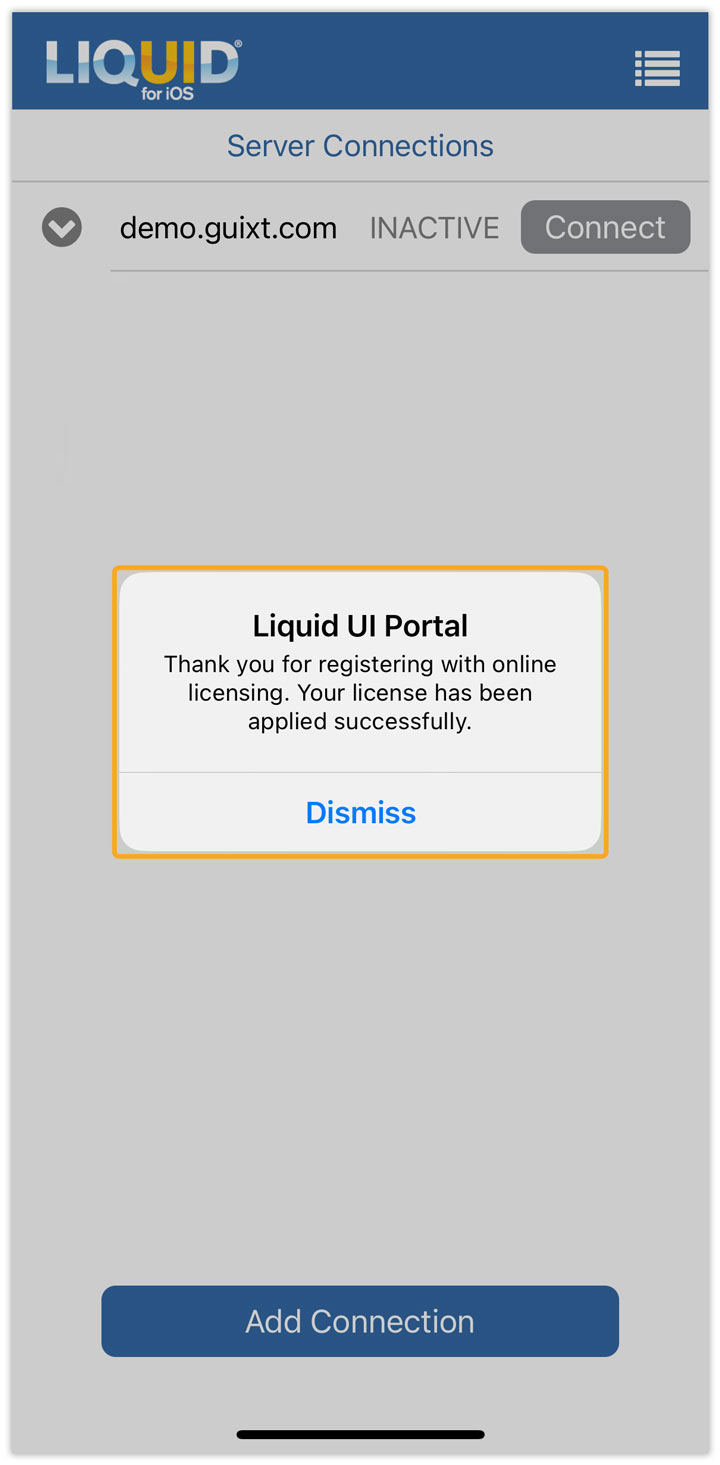
- Now, you will receive a pop-up stating that the license has been applied successfully, as shown in the image below.
QR Code
- If you find difficulty installing the license using the activation link, you can scan the QR code provided in the mail directly by clicking on the Scan Liquid UI QR Code from the Main Menu, as shown in the image below.
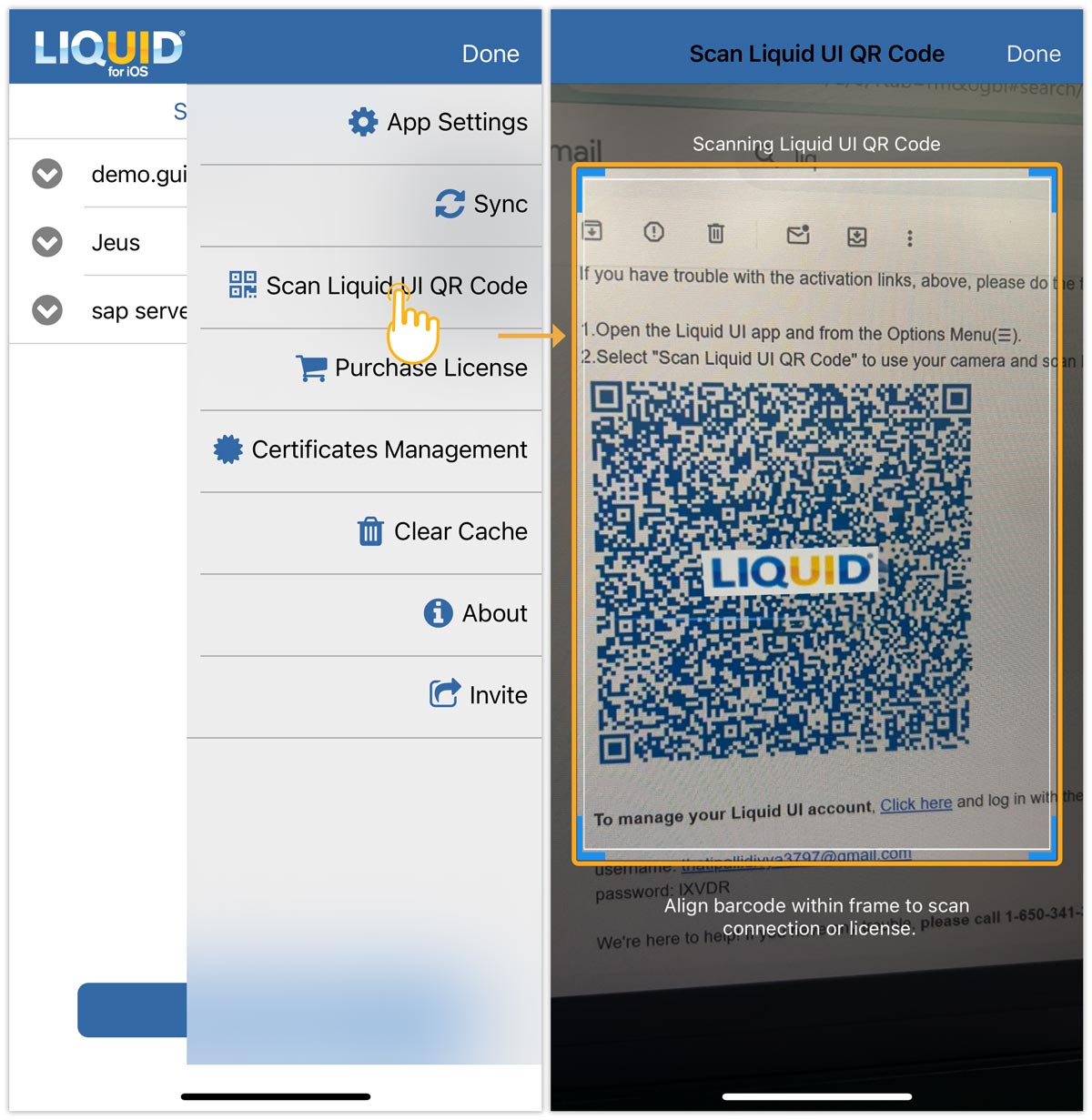
- Now, you will receive a pop-up stating that the license has been applied successfully, as shown in the image below.
Syn Serial Manager file (SY3)
The SY3 license file is a legacy licensing format, and we recommend installing a license using other formats. Synactive generates this type of license file based on your SAP system ID and sends it to you through email.
Note: Make sure to update the Liquid UI for iOS to the latest version.
Installing an SY3 license
Once you have requested a sy3 license, you will receive an email with a .sy3 license file, as shown below.
- Open the license email on your iOS device and click on the *.SY3 license file. Then you will see a pop-up and open it with Liquid UI.

- The license will be automatically applied to your Liquid UI for iOS. On successful installation, you will see a confirmation message as below. Now, you are all set to use Liquid UI on your iOS device.