


You can add users to Liquid UI Access Management Portal (LAMP) individually or in bulk using a CSV file. Each added user receives an email with a license link, QR code, and instructions for activating their Liquid UI license.

Note: Administrator privileges are required to add users to LAMP.
How to Add Users to LAMP
Step 1: Sign In to LAMP
- Open the Liquid UI Access Management Portal.
- Sign in with your credentials.
- Select the required account from the Account Table.

Step 2: Open Add User
- Open the Explore menu.
- Select Add User to open the Add Users Table.

Step 3: Enter User Details
- Enter the user's email address in the Email field.
- Enter the user's name in the Full Name field.
- Enter the license validity date in the Valid For field, as required.
- Select the plus icon in the Add User column.

You can add one user or multiple users in the same session.
Step 4: Save the User Details
- Select Save.
- Confirm that the success message appears.

How to Add Users in Bulk
Step 1: Upload the CSV File
- Open the Add Users page.
- Select Upload from CSV file.
- Drag and drop the CSV file into the upload area, or select the area to browse for the file.

Step 2: Save the Uploaded Users
- Review the user details in the Add Users Table.
- Select Save to save the users.

How to Activate the Liquid UI License
Step 1: Check the License Email
After the user is added, they receive an email from LAMP containing the license link, QR code, and credentials needed to activate their Liquid UI application license.
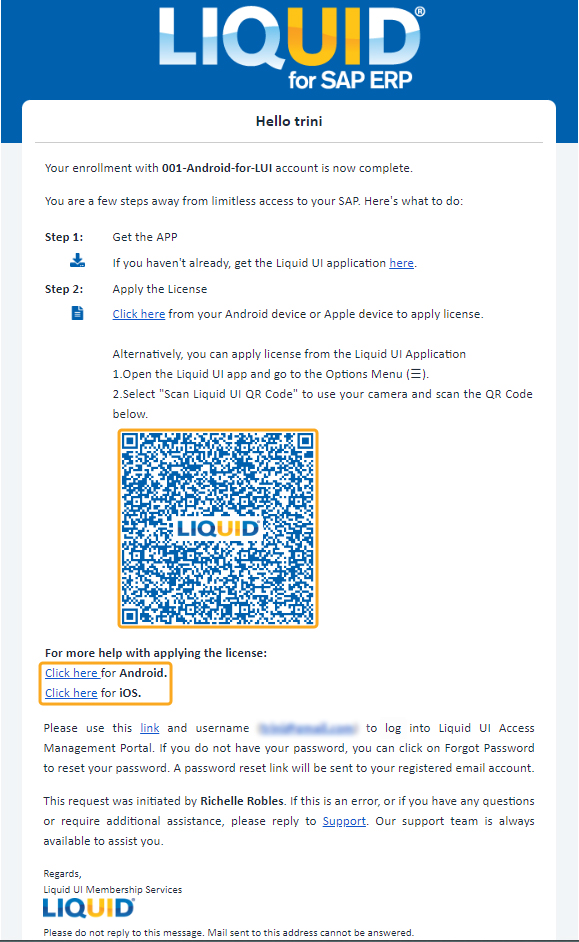
Step 2: Open the Email on Your Mobile Device
- Open the LAMP email on the Android or iOS device where you want to activate the license.
Step 3: Open the License Link
- Select the appropriate Android or iOS license link.
- Open the license in the Liquid UI Client for SAP app.


