

Prerequisites
- Products: Liquid UI WS, Liquid UI Server or Local DLL, Client Software
- Commands: pushbutton(), load(), message()
Purpose
This document details the SAP GUI to PDF conversion process for Word documents using Liquid UI. This ensures consistent formatting and improved reliability, as Word document displays can vary. We will demonstrate the steps from the SAP Easy Access screen.
This article demonstrates how to convert a Microsoft Word document to a PDF from within the SAP GUI using Liquid UI. By preserving formatting consistency across systems, this conversion process is guided by the SAP Easy Access.
- Delete the image container from the SAP Easy Access screen.
- Add a push button to execute the process.
- Implement a function to open the file selection dialog.
- Implement a function to convert Word to PDF.
- Load required files.
User Interface
//Create the file SAPLSMTR_NAVIGATION.E0100.sjs inside your scripts folder for customizing the SAP Easy Access screen
//Now, add the Liquid UI script to the above file, and save it.
Customization
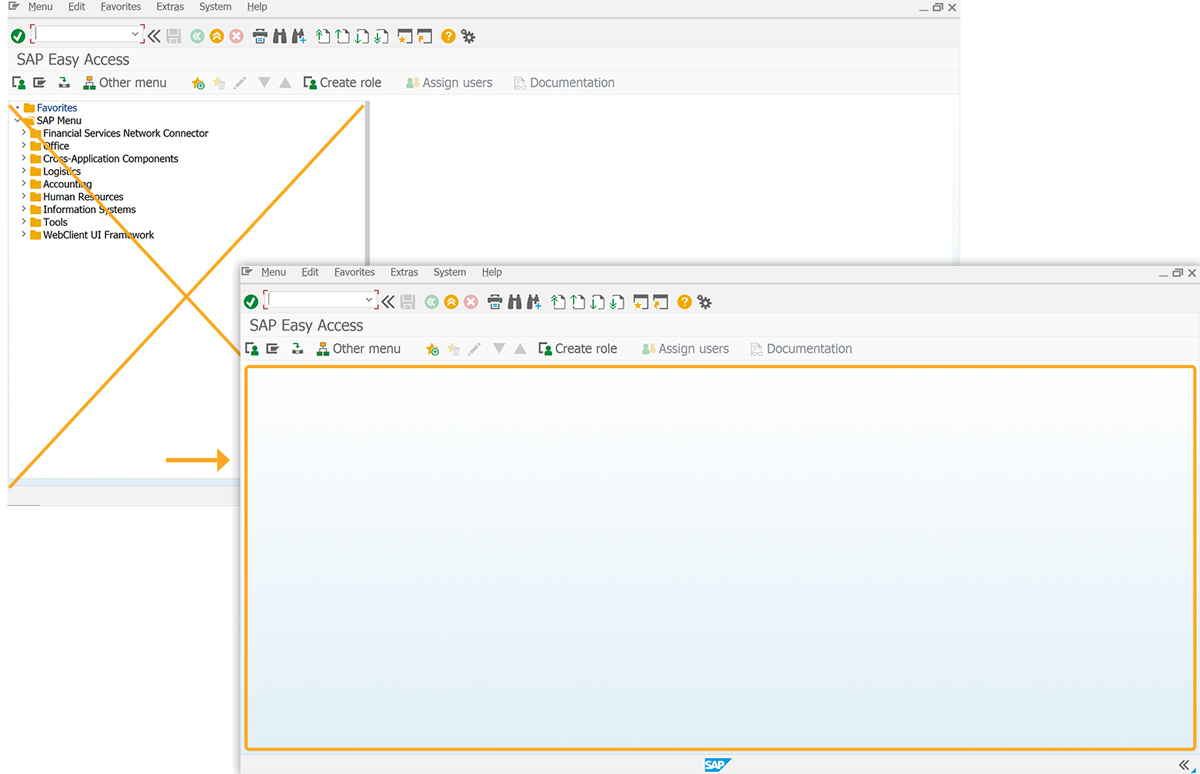
- Remove the image container from the SAP Easy Access screen with the del() function.
// Deletes the image container on the SAP screen
del("X[IMAGE_CONTAINER]");
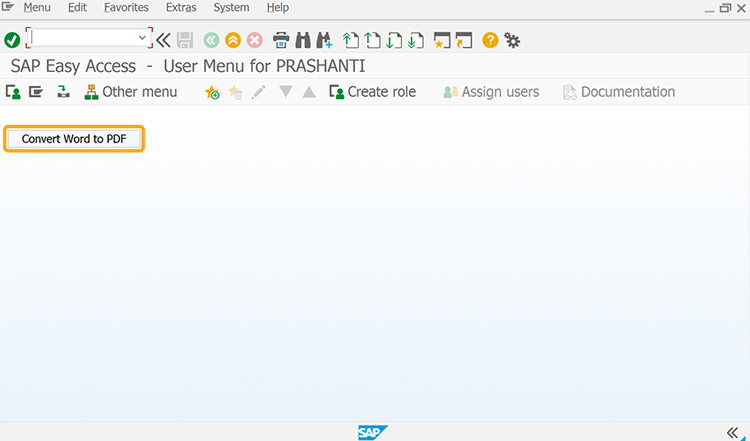
- Add a Convert Word to PDF push button to run the covertWordToPDF process.
// Creates a push button to execute the process
pushbutton([1,1], 'Convert Word to PDF','?',{'process':convertWordToPDF});
- Add selectFileDialog function to open a file selection dialog for the user to select a Word document from their system.
// Function to open a file selection dialog
function selectFileDialog(szPrompt) {
    if (szPrompt === void 0)
        szPrompt = 'Select Valid Word Document';

    var wordApp = new ActiveXObject("Word.Application");
    var fileDialog = wordApp.FileDialog(1); // 1 = msoFileDialogFilePicker

    fileDialog.Title = szPrompt;
    fileDialog.AllowMultiSelect = false;
    fileDialog.Filters.Clear();
    fileDialog.Filters.Add("Word Documents", "*.doc; *.docx");
    fileDialog.Filters.Add("All Files", "*.*");

    var selectedFile = "";

    if (fileDialog.Show() === -1) { // -1 means user clicked "Open"
        selectedFile = fileDialog.SelectedItems.Item(1); // Get the selected file path
    }

    wordApp.Quit(); // Close the Word application
    wordApp = void 0;

    return selectedFile;
}
- Add convertwordToPDF function to convert the Word file to PDF format.
// Function to convert Word file to PDF format
function convertWordToPDF() {

    if(myWord == void 0) {
        wordFileName = selectFileDialog('Select Word File for PDF Conversion');

        if(wordFileName.length) {
			var wordFilePath = wordFileName.substr(0, wordFileName.lastIndexOf('\\'));
			var wordFileNameWithExtension = wordFileName.substr(wordFileName.lastIndexOf('\\'),wordFileName.length);
			var wordFileNameWithoutExtension = wordFileNameWithExtension.substr(0, wordFileNameWithExtension.lastIndexOf('.'));

			var PDFFileName = wordFilePath + wordFileNameWithoutExtension + '.pdf';

			wordToPDF(wordFileName,PDFFileName);
			message('S: Successfully Converted to PDF File: ' + PDFFileName);
        }
   }
}
- Load the files below to access the function included in them.
// Loads the files
load("wsoffice.dll");
load("FUNCTIONS_GENERIC.sjs");
load("FUNCTIONS_STRING.sjs");
load("FUNCTIONS_SECURITY.sjs");
SAP Process
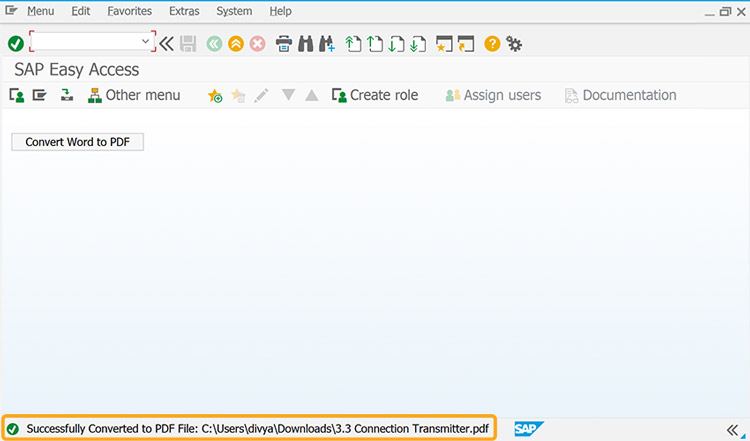
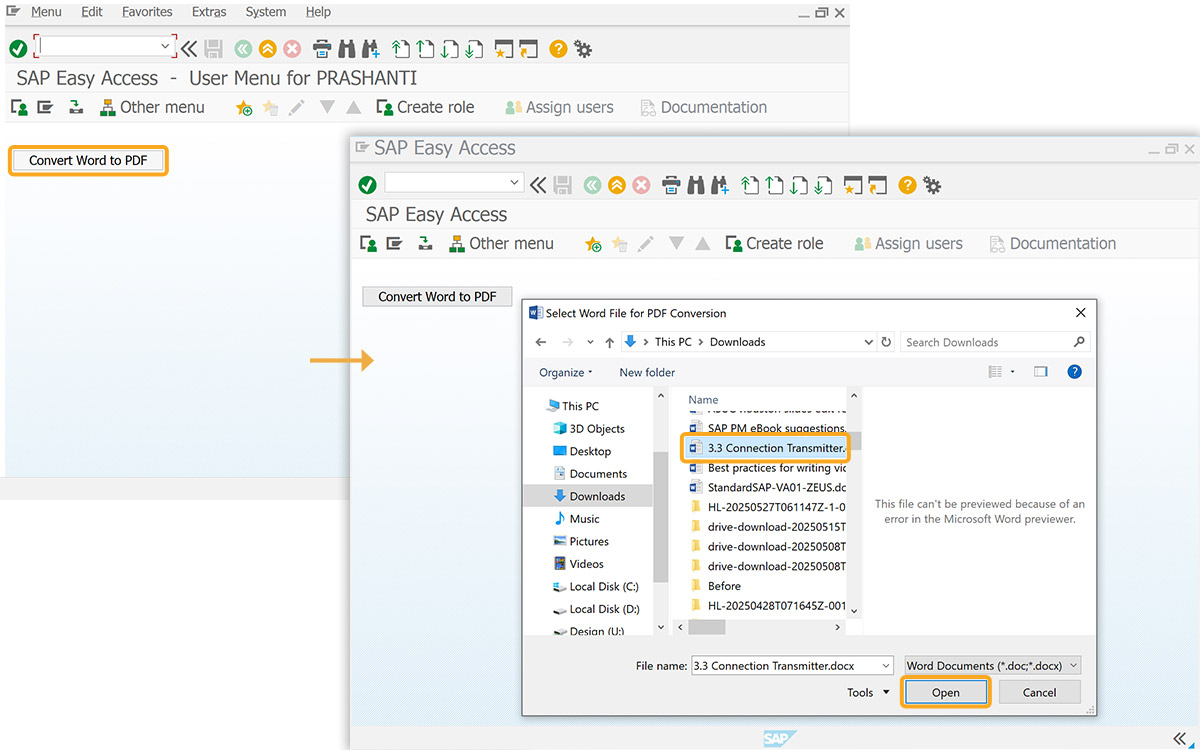
- Click the Convert Word to PDF push button after refreshing the SAP screen. This will open the Select Word File for PDF Conversion dialog. Choose the desired Word document and click Open.
- Upon successful conversion of the selected document to a PDF file, a confirmation message: Successfully Converted to PDF File, will appear at the bottom of the screen, indicating the file's location. This is illustrated in the image below.