

Prerequisites
- Products: Liquid UI WS, Liquid UI Server or Local DLL, Client Software
- Commands: del(), load(), pushbutton(), message()
- File: wsoffice.dll
Purpose
This article explains how to open a specific Excel file from within SAP using a pushbutton, with the SAP Easy Access screen serving as a reference.
- Remove the image container from the SAP Easy Access screen.
- Add a push button to start the process.
- Load the external file.
- Develop a function to choose the Excel file.
- Develop a function to open the selected Excel file.

Note: Place wsoffice.dll in your scripts folder and load it in ESESSION.SJS.
User Interface
//Create the file SAPLSMTR_NAVIGATION.E0100.sjs inside your scripts folder for customizing the SAP Easy Access screen.
//Now, add the Liquid UI script to the above file, and save it.
Customization
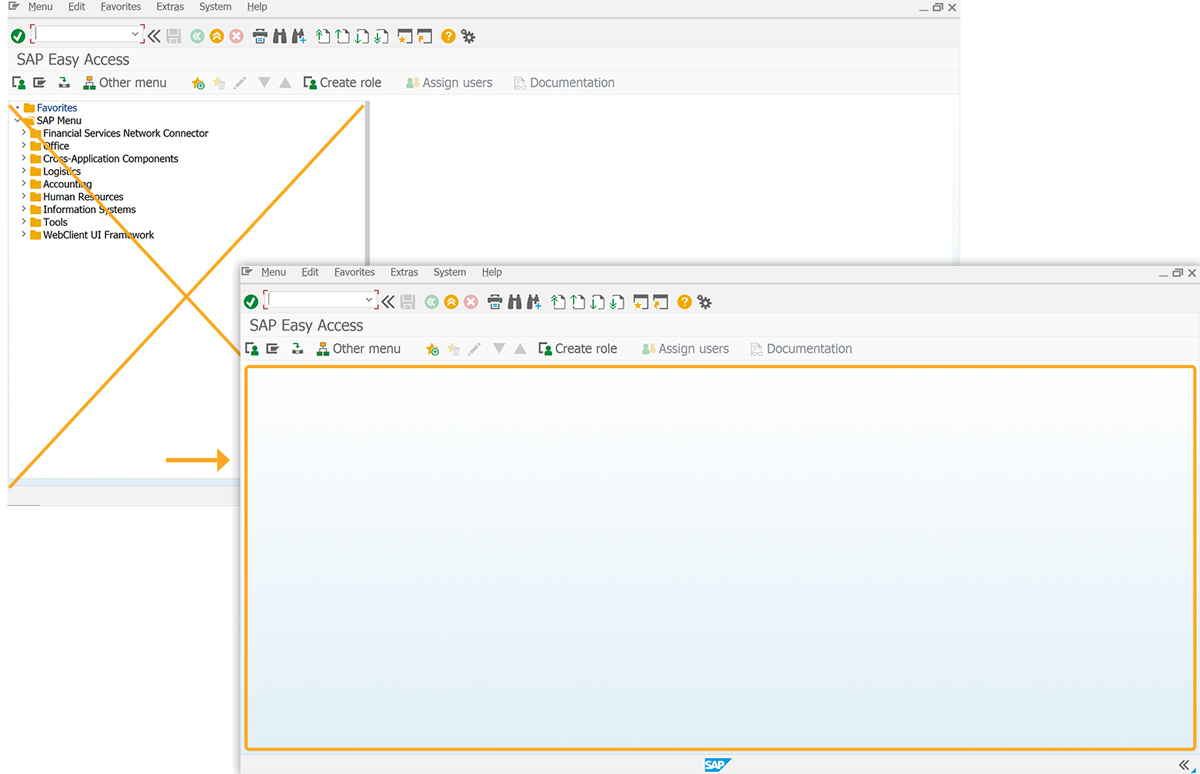
- Remove the image container from the SAP Easy Access screen with the del() function.
// Deletes the image container on the SAP screen
del("X[IMAGE_CONTAINER]");
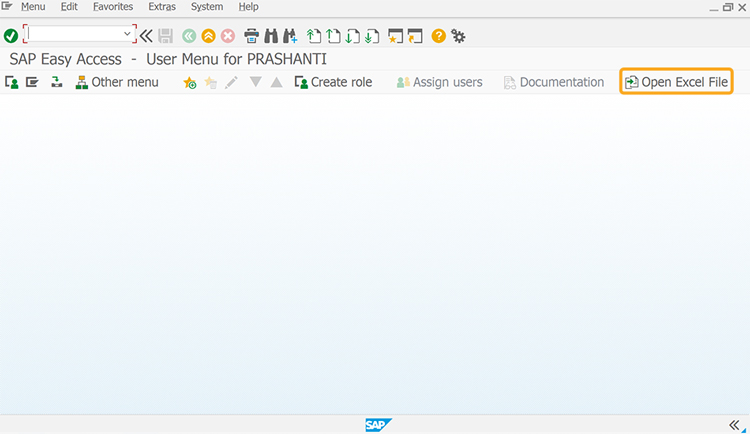
- Add a toolbar button labeled Open Excel File to run the SelectExcelFile process on click.
// Creates a push button to execute the process
pushbutton([TOOLBAR],"@48@Open Excel File", "?", {"process":SelectExcelfile});
- Load the wsoffice using load().
// load the file wsoffice
load('wsoffice.dll');
- Add SelectExcelfile function to open a file dialog, allowing the user to select an Excel file
// load the file wsoffice
function SelectExcelfile(param) {
	if(szPrompt == void 0) szPrompt = "Select the Excel File";
	var excel = new ActiveXObject("Excel.Application");
    var fileDialog = excel.FileDialog(3);

	fileDialog.Title = szPrompt;
    fileDialog.Filters.Clear();
    fileDialog.Filters.Add("Excel Files", "*.xlsx; *.xls");
    fileDialog.AllowMultiSelect = false;

	var selectedFile = "";

    if (fileDialog.Show() === -1) { // -1 means user clicked "Open"
        selectedFile = fileDialog.SelectedItems(1); // Get the selected file path
		openExcelfile(selectedFile);
    }else {
		message("File Not Selected!", {
                "StatusLine": true,
                "title": "Information",
                "type": "W"
            });
            excel.Quit();
            excel = void 0;
            return;
	}

    wordApp.Quit(); // Close the Word application
    wordApp = void 0;
}
- Add openExcelfile function to open the selected Excel file using ActiveX and display a success message.
// load the file wsoffice
// Function to Open the Excel File
function openExcelfile(filename){
    g_ExcelApp = new ActiveXObject('Excel.Application');
   g_ExcelBook=g_ExcelApp.Workbooks.Open(filename);
   g_ExcelApp.Visible=true;
   g_ExcelApp.ScreenUpdating=true;
   message("S:" +filename+" Excel File is Opened Successfully");
  }
SAP Process
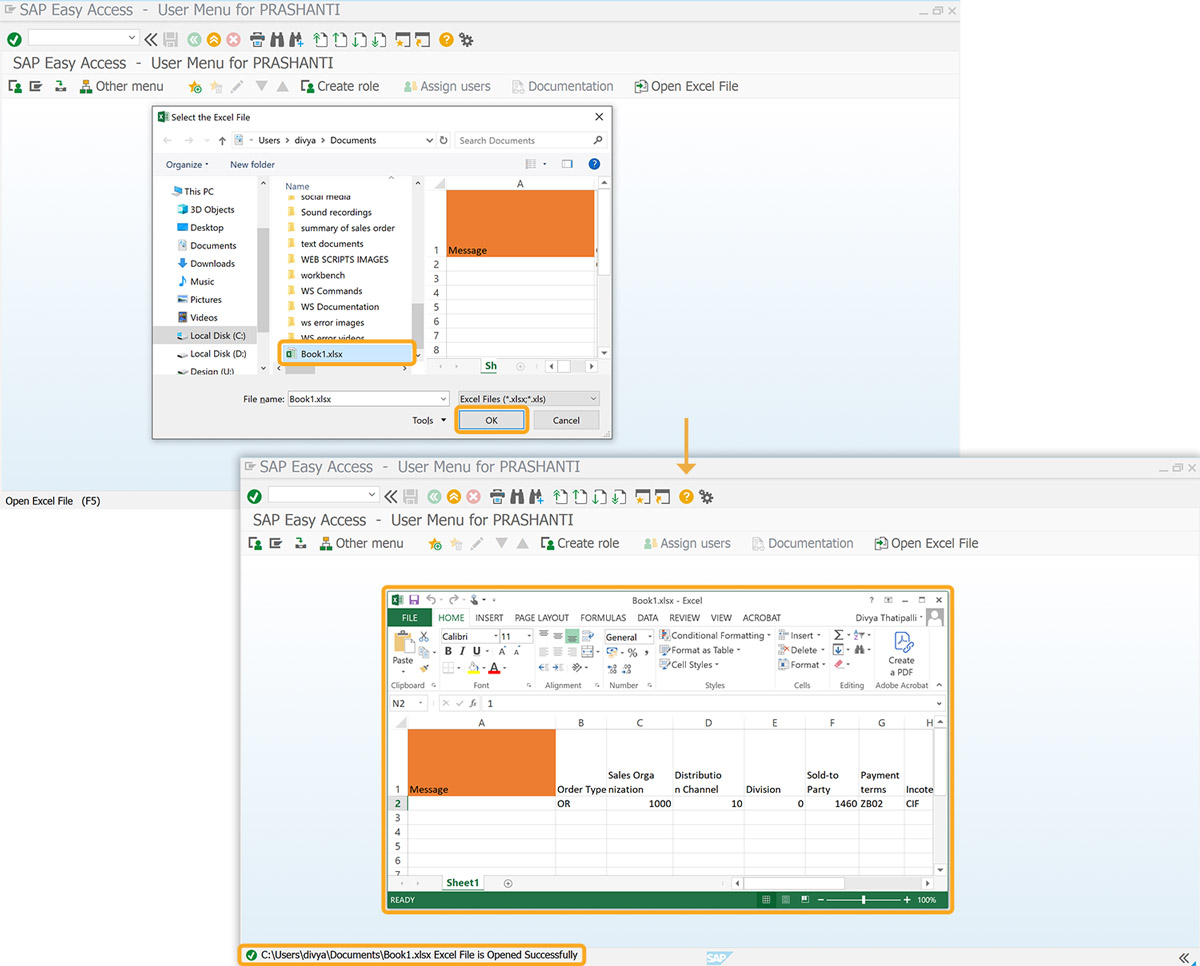
- After refreshing the SAP screen, click the Open Excel File toolbar button. A file dialog will appear, prompting you to select the desired Excel file. Once selected, click OK to open the file in Excel. The file's path will then be displayed in the SAP status bar.
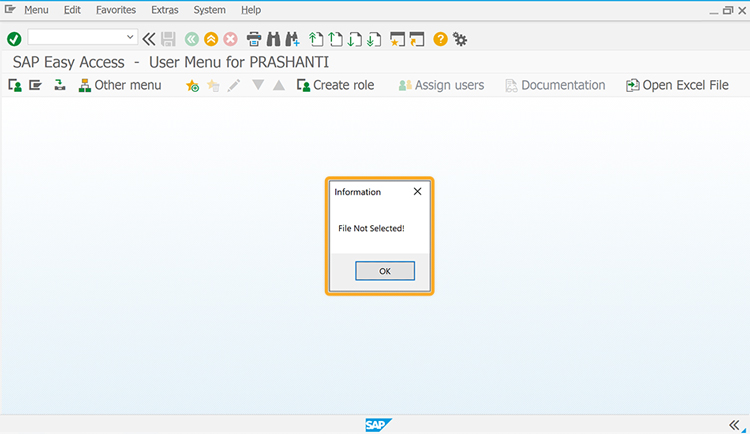
- If no file is selected, a pop-up File Not Selected appears, as shown in the image below.