

Prerequisites
- Products: Liquid UI WS, Liquid UI Server or Local DLL, Client Software
- Commands: table(), column(), pushbutton(), set()
Purpose
This article demonstrates how to implement insertion sort in the Liquid UI to arrange data in a table by creating a class and applying sorting logic. Sorting organizes the data systematically, making it easier to search, compare, and analyze. Insertion is simple, and it is effective for small data sets.
- Add a push button to execute the process
- Add a table with columns
- Add a function to store the item details
- Adds insertion sort to rearrange the array based on the column
- Implement a function to fetch data from the VA03 transaction
User Interface
//Create the SAPMV45A.E0102.sjs file inside your scripts for customizing Display Sales Order: Initial Screen
//Now, add the Liquid UI script to the above file and save it
Customization
- Add a push button labeled Display Items to execute the fetchItems process when clicked.
// Creates a push button to execute the process
pushbutton("F[Order]+[0,62]", "Display items", "?", {"process":fetchItems});
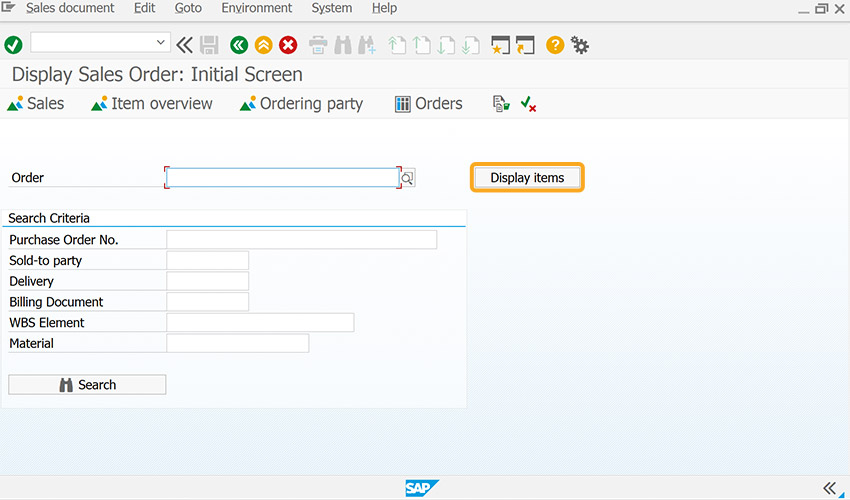
- Add three push buttons with labels Sort By Item, Sort By Material, and Sort By Quantity to sort the data. These push buttons become visible only after you enter the order number and click the Display Items push button.
// Creates three push buttons for sorting options
    if(item_array.length>0){
        pushbutton([15,0], "&V[item_sel]Sort By Item ", "?", {"process":changeSort,"using":{"sort_type":"item"}});
        pushbutton([15,30], "&V[mat_sel]Sort By Material","?", {"process":changeSort,"using":{"sort_type":"material"}});
pushbutton([15,60], "&V[qty_sel]Sort By Quantity", "?", {"process":changeSort,"using":{"sort_type":"quantity"}}); - Add a table labeled Line Items with four columns: Item, Material, Quantity, and SU.
// Creates a table with four columns
        table([17,0], [26,50], {"name":"z_table", "title":"Line Items", "rows":item_array.length});
        column("Item", {"size":6,"name":"z_item", "table":"z_table"});
        column("Material", {"size":18,"name":"z_mat", "table":"z_table"});
        column("Quantity", {"size":15,"name":"z_qty", "table":"z_table"});
        column("SU", {"size":3,"name":"z_su", "table":"z_table"});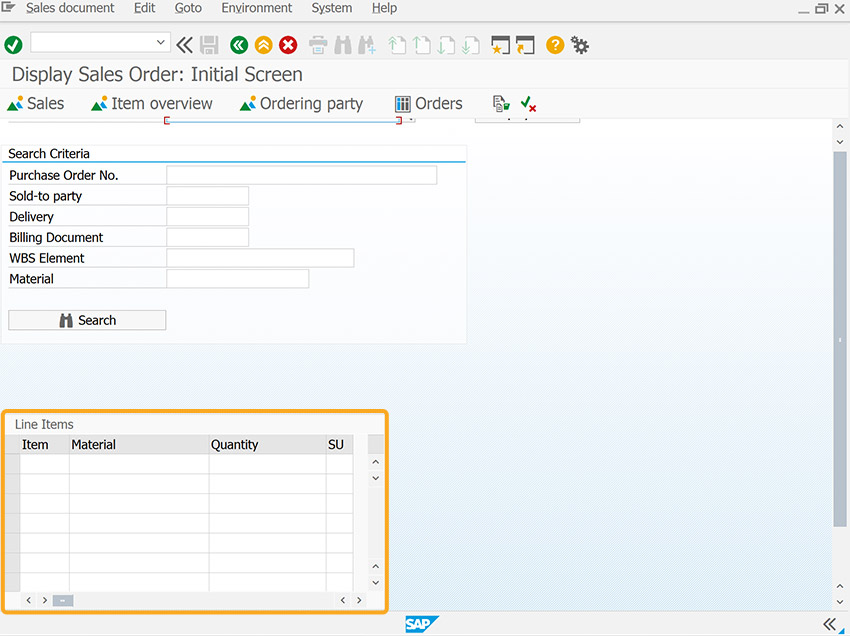
- Add Item function to store item details with attributes and a helper function.
// Function to represent an item
function Item(itm,mat,qty,su){
    // Attributes of the class
    this.item = itm;
    this.material = mat;
    this.quantity = qty;
    this.sales_unit = su;
    // Function used to retrieve information on Item
    this.getInfo = function(){
        return "Item:"+this.item+", Material:"+this.material+", Quantity:"+this.quantity+", Sales Unit:"+this.sales_unit;
    }

} - Add insertion sort to rearrange the array based on the columns.
// Adds insertion sort to sort the array
switch(sorted){

            case "material":
                // Sort  By Material
                for(i=1; i<item_array.length; i++){

                    while(i>0 && item_array[i-1].material>item_array[i].material){
                        temp = item_array[i-1];
                        item_array[i-1] =  item_array[i];
                        item_array[i] = temp;
                        i--;
                    }

                }
                break;

            case "quantity":

                // Sort  By Quantity
                for(i=1; i<item_array.length; i++){

                    while(i>0 && parseInt(item_array[i-1].quantity)>parseInt(item_array[i].quantity)){
                        temp = item_array[i-1];
                        item_array[i-1] =  item_array[i];
                        item_array[i] = temp;
                        i--;
                    }

                }
                break;

            case "item":

                // Sort  By Item
                for(i=1; i<item_array.length; i++){

                    while(i>0 && parseInt(item_array[i-1].item)>parseInt(item_array[i].item)){
                        temp = item_array[i-1];
                        item_array[i-1] =  item_array[i];
                        item_array[i] = temp;
                        i--;
                    }

                }
                break;

            default:
                // Do nothing, the array is already sorted by Item
        }

        // Fill out the table
        for(i=0;i<item_array.length;i++){
            z_table.z_item[i] = item_array[i].item;
            z_table.z_mat[i] = item_array[i].material;
            z_table.z_qty[i] = item_array[i].quantity;
            z_table.z_su[i] = item_array[i].sales_unit;
        }

    }
} - Add fetchItems function to fetch data from the VA03 transaction and display it in the table.
// Function to fetch data from the VA03 transaction and display it in the table
function fetchItems(){
    onscreen 'SAPMV45A.0102'
        enter();
    onerror
        message(_message);
        enter("?");
        goto FUNC_END;
    onscreen 'SAPMV45A.4001'
        // Clear the value of item_array
        item_array = [];
        absrow = 1;
        enter("/ScrollToLine=&V[absrow]", {"table":"T[All items]"});

NEW_SCREEN:;
    onscreen 'SAPMV45A.4001'
        gettableattribute("T[All items]",{"firstvisiblerow":"FVR", "lastvisiblerow":"LVR", "lastrow":"LR"});
        relrow = 1;
NEW_ROW:;
        println("absrow:"+absrow+", LVR:"+LVR+", LR:"+LR);
        // end of table?
        if(absrow>LR){
            goto END_OF_TABLE;
        }
        // end of screen?
        if(absrow>LVR) {
            goto NEW_SCREEN;
        }

        set("V[z_temp_item]", "&cell[All items,Item,&V[relrow]]");
        set("V[z_temp_mat]", "&cell[All items,Material,&V[relrow]]");
        set("V[z_temp_qty]", "&cell[All items,Order Quantity,&V[relrow]]");
        set("V[z_temp_su]", "&cell[All items,SU,&V[relrow]]");

        // Push a new Item to the array
        item_array.push(new Item(z_temp_item,z_temp_mat,z_temp_qty,z_temp_su));

        absrow++;
        relrow++;
        goto NEW_ROW;

END_OF_TABLE:;

        enter('/ScrollToLine=1', {"table":"T[All items]"});

    onscreen 'SAPMV45A.4001'
        enter("/3")

FUNC_END:;
}

function changeSort(param){
    onscreen 'SAPMV45A.0102'
        sorted = param.sort_type;
        if(sorted == "material"){
            item_sel = "";
            mat_sel = "@01@";
            qty_sel = "";
        }
        else if(sorted == "quantity"){
            item_sel = "";
            mat_sel = "";
            qty_sel = "@01@";
        }
        else if(sorted == "item"){
            item_sel = "@01@";
            mat_sel = "";
            qty_sel = "";
        }
        enter("?");
}
SAP Process
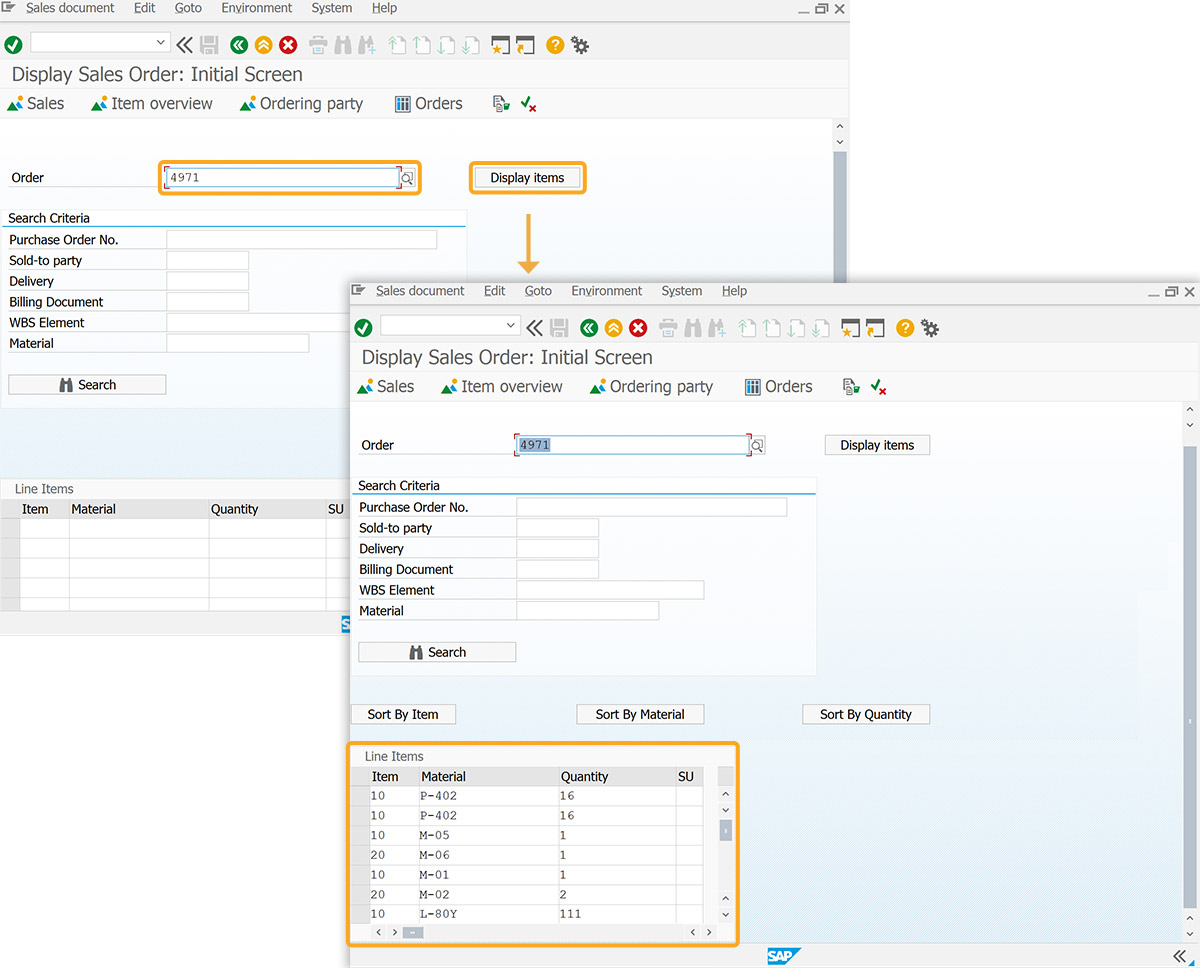
- Navigate to Display Sales Order: Initial Screen. Enter an order number in the Order input field, and click on the Display Items push button. This executes the function fetchItems and retrieves the order data, and displays it in the custom table, as shown in the image below.
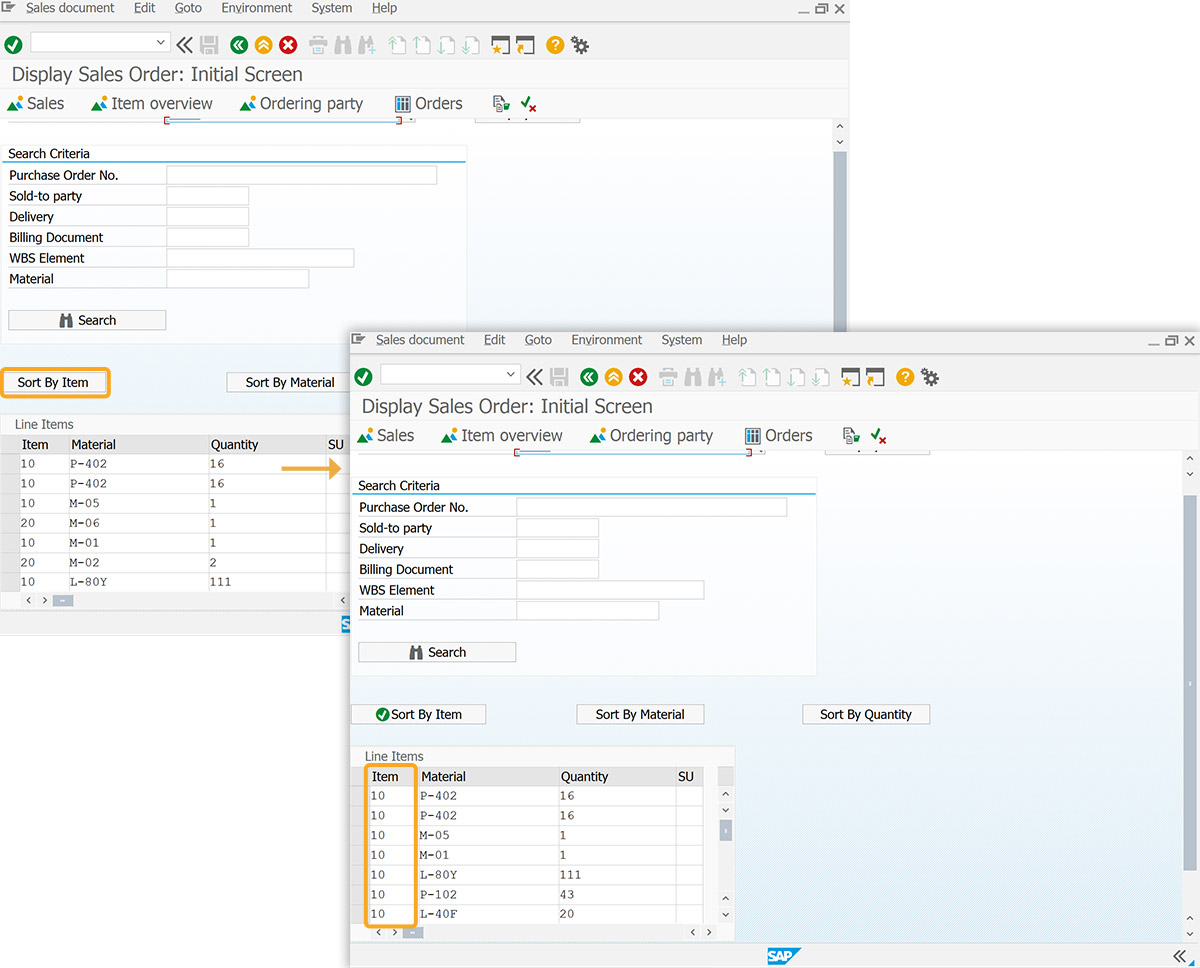
- Click Sort By Item to sort values based on the Item column.
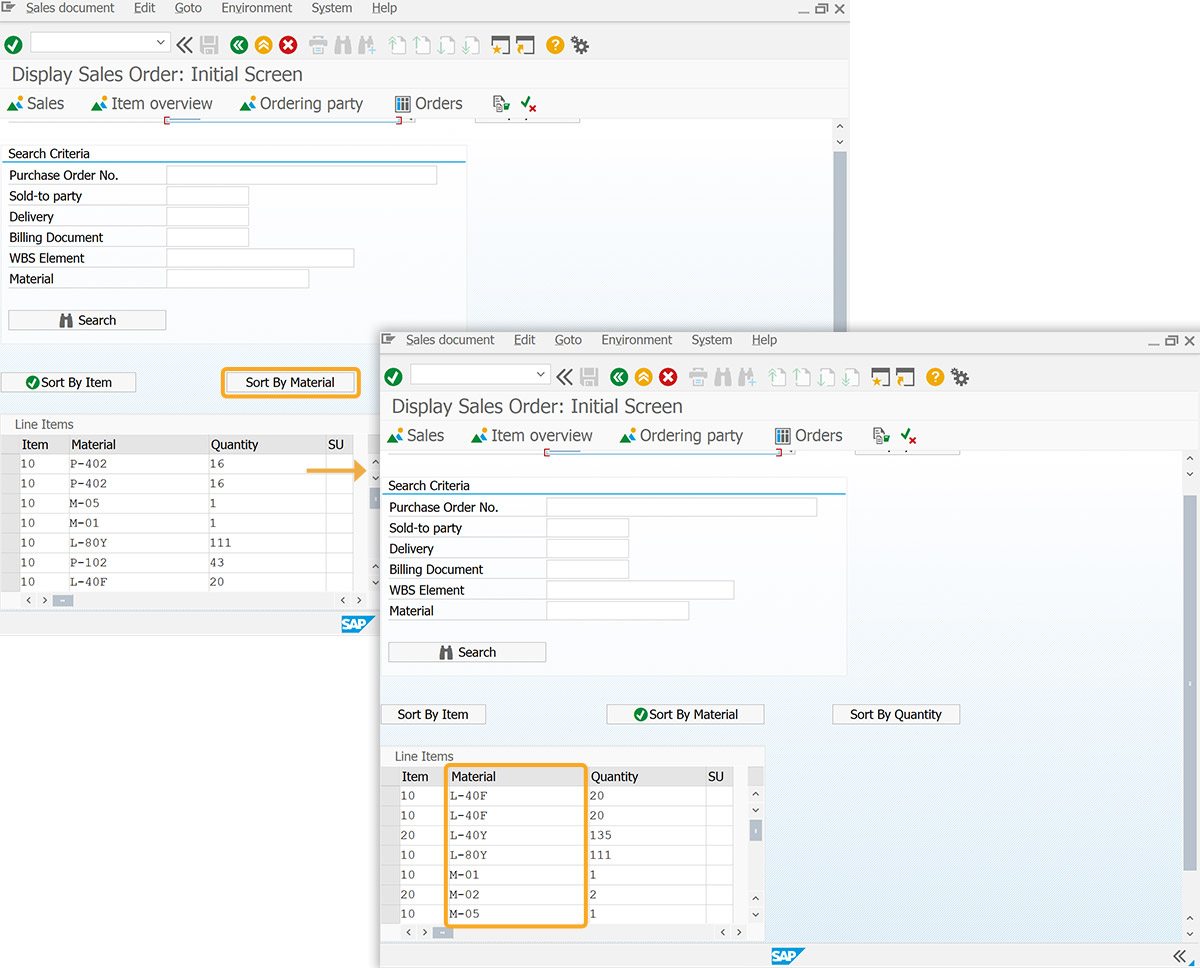
- Click Sort By Material to sort values based on the Material column.
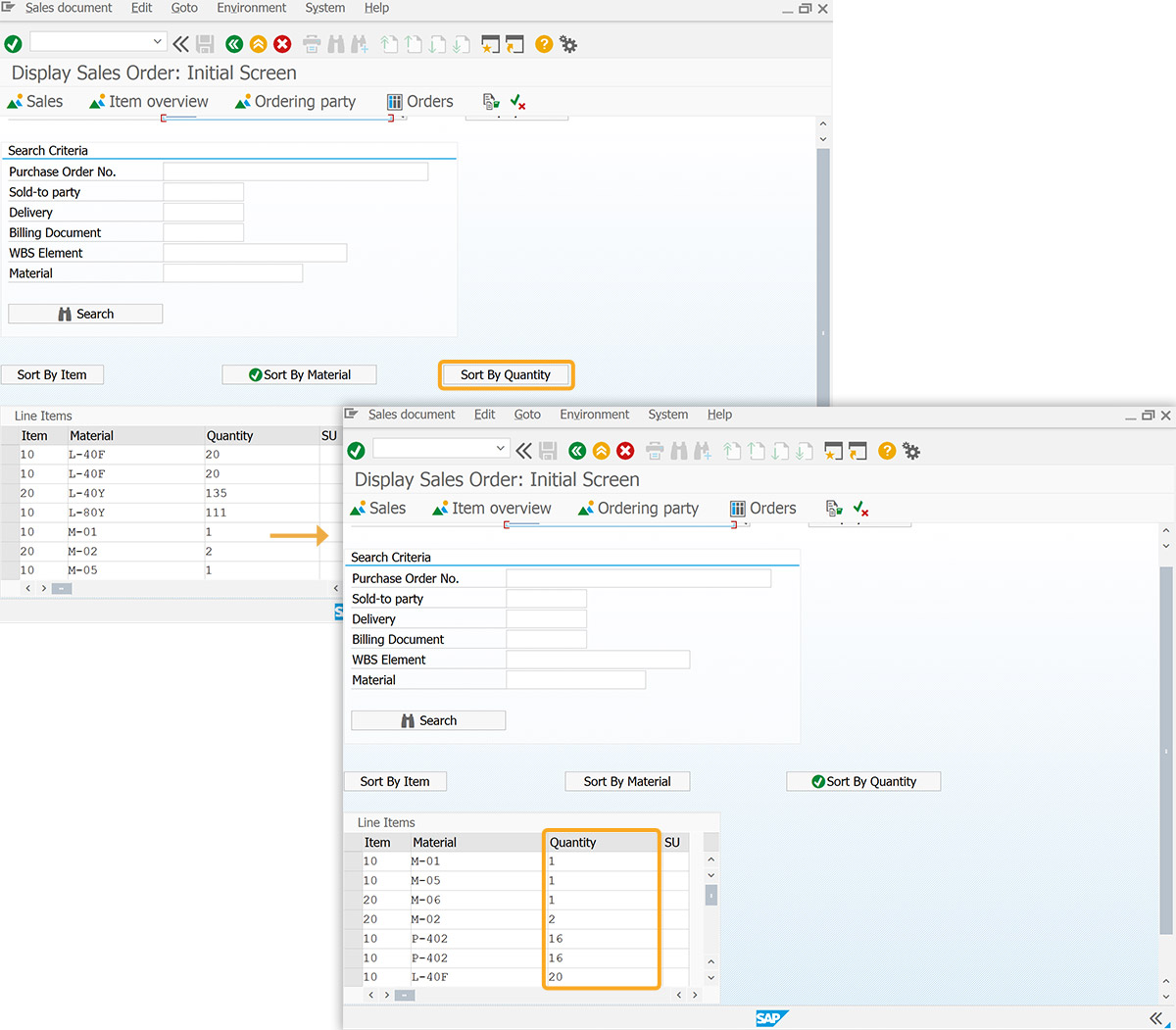
- Click Sort By Quantity to sort values based on the Quantity column.