

Prerequisites
- Products: Liquid UI WS, Liquid UI Server or Local DLL, Client Software
- Commands: column()
Purpose
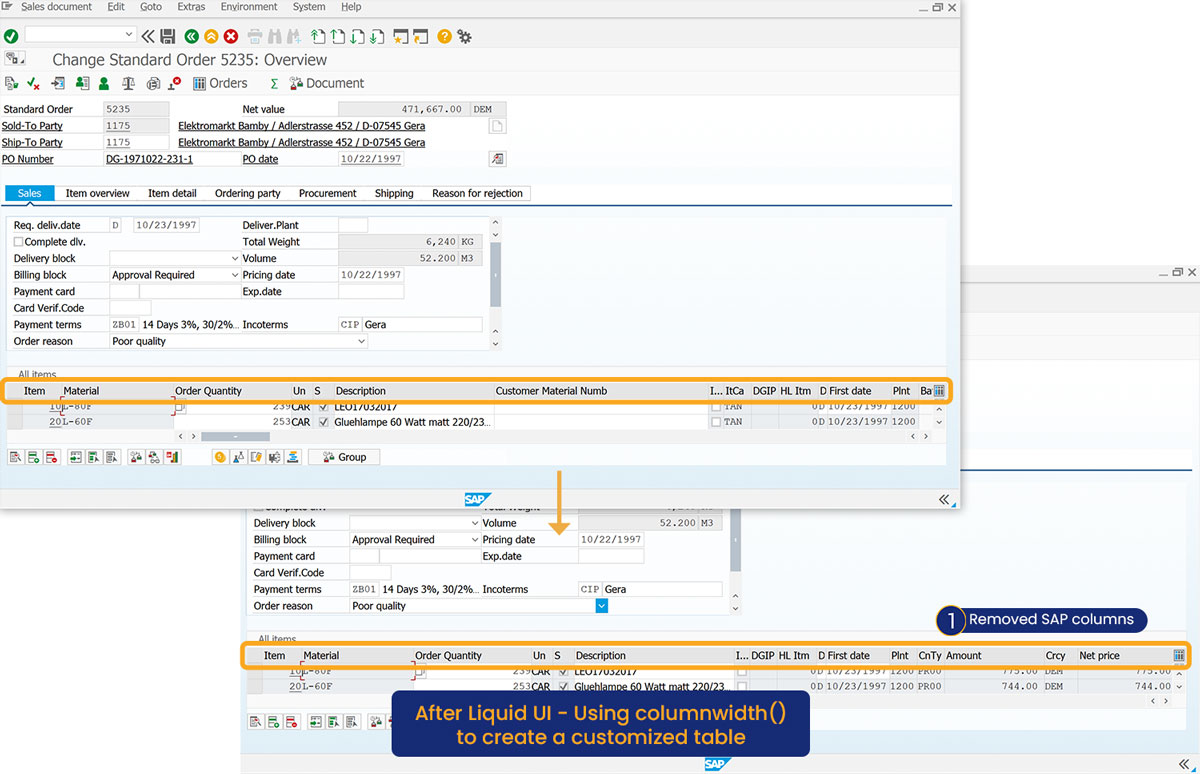
This article demonstrates how to hide columns in a native SAP table by setting their columnwidth() to zero. This action removes extraneous columns from the interface, simplifying the view without altering the underlying data. The Change Standard Order screen: overview screen will be used as an example.
- Hide the SAP columns
Syntax
columnwidth()"table name, column name","options":values;
User Interface
//Create the file SAPMV45A.E4001.sjs inside your scripts folder for customizing the Create Standard Order: Overview screen
//Now, add the Liquid UI script to the above file, and save it.
Customization
- Hide the columns in the SAP native table with columnwidth().
// Hides columns in SAP table
columnwidth("All items,SU",0);
columnwidth("All items,Customer Material Numb",0);
columnwidth("All items,ItCa",0);
columnwidth("All items,Batch",0);
columnwidth("All items,Engin.Change",0);
columnwidth("All items,ATP quantity",0);
columnwidth("All items,PayG",0);
SAP Process
- Navigate to the VA02 Overview screen. The specified columns will be hidden from the table, as shown in the image below.