


The Standard Template produces a single screen in SAP. Instead of entering bulk data from a spreadsheet or form, it draws a custom screen where you can enter data directly in the SAP GUI. An example screen produced by a Standard script is shown below:

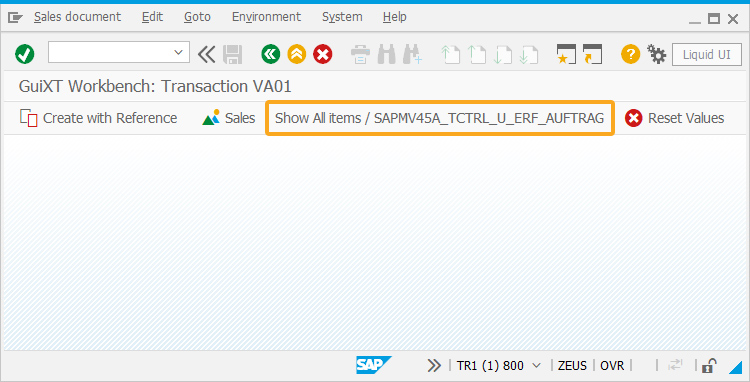
Tables are on separate screens. To view the table associated with the screen, click the toolbar push button, as shown in the image below:
The table will then display, as shown in the image below:

To run a Standard script, please do the following:
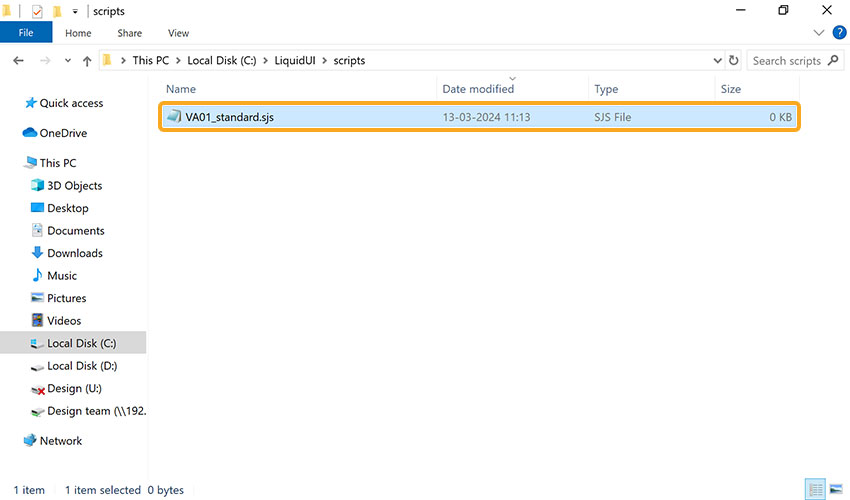
- Find the generated Workbench script. If you are logged into SAP, this script will be in the script directory specified in the GuiXT configuration file. If you are not logged into SAP, the script will be in the Workbench directory. The script will be named TCODE_standard.sjs, so if we used the VA01 transaction, the script will be named VA01_standard.sjs.
- Close all open SAP windows, including the logon pad.
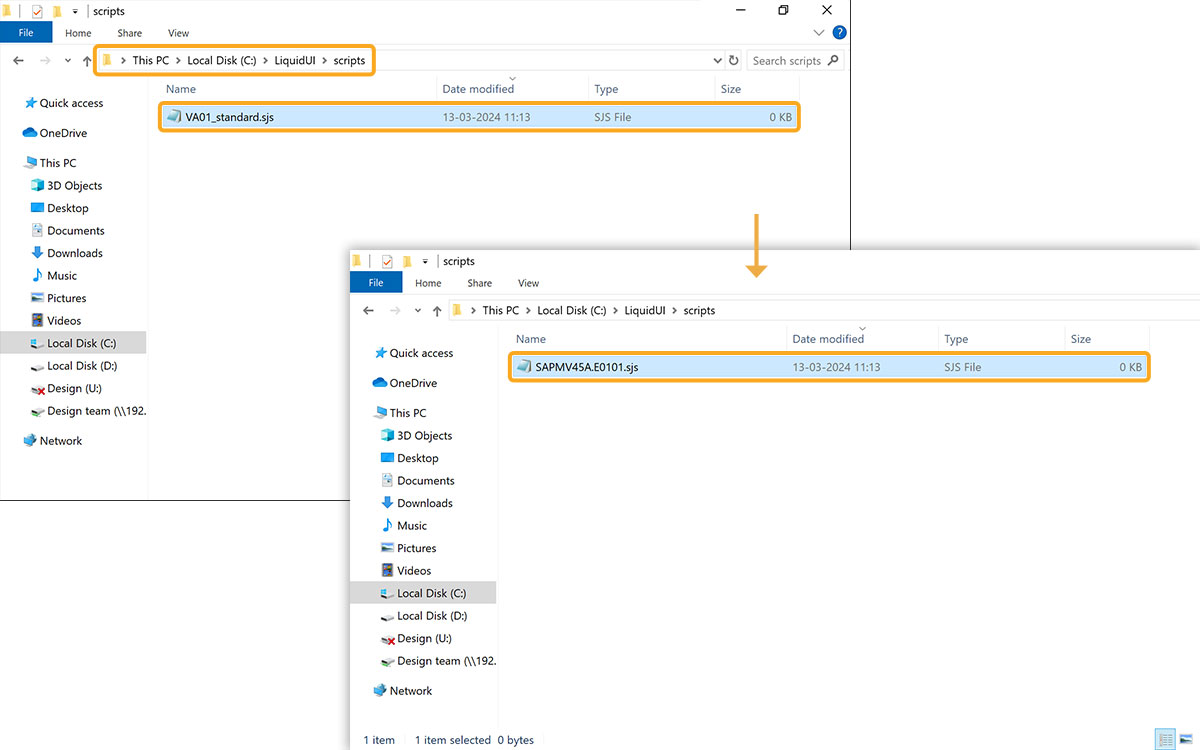
- Go to the script directory and rename the generated script to the actual name of the SAP screen in question. In our example, we are using the VA01 transaction, so the new name will be SAPMV45A.E0101.sjs. The name can be found in the Screen Name field in the Workbench Settings tab.

Note: If there is an existing script with the same name in the script directory, temporarily rename the existing script to something else.
- Re-launch SAP GUI and navigate to the VA01 screen. Enter data in the input fields and click Submit to save the new standard order, as shown in the image below.