

LAMP allows account administrators to remove a user from an account. Deleting a user also removes all devices associated with that user.

Note: You can revoke license packs linked to only one device at a time.
Steps to Remove a User
-
Log in to the Liquid UI Portal.

-
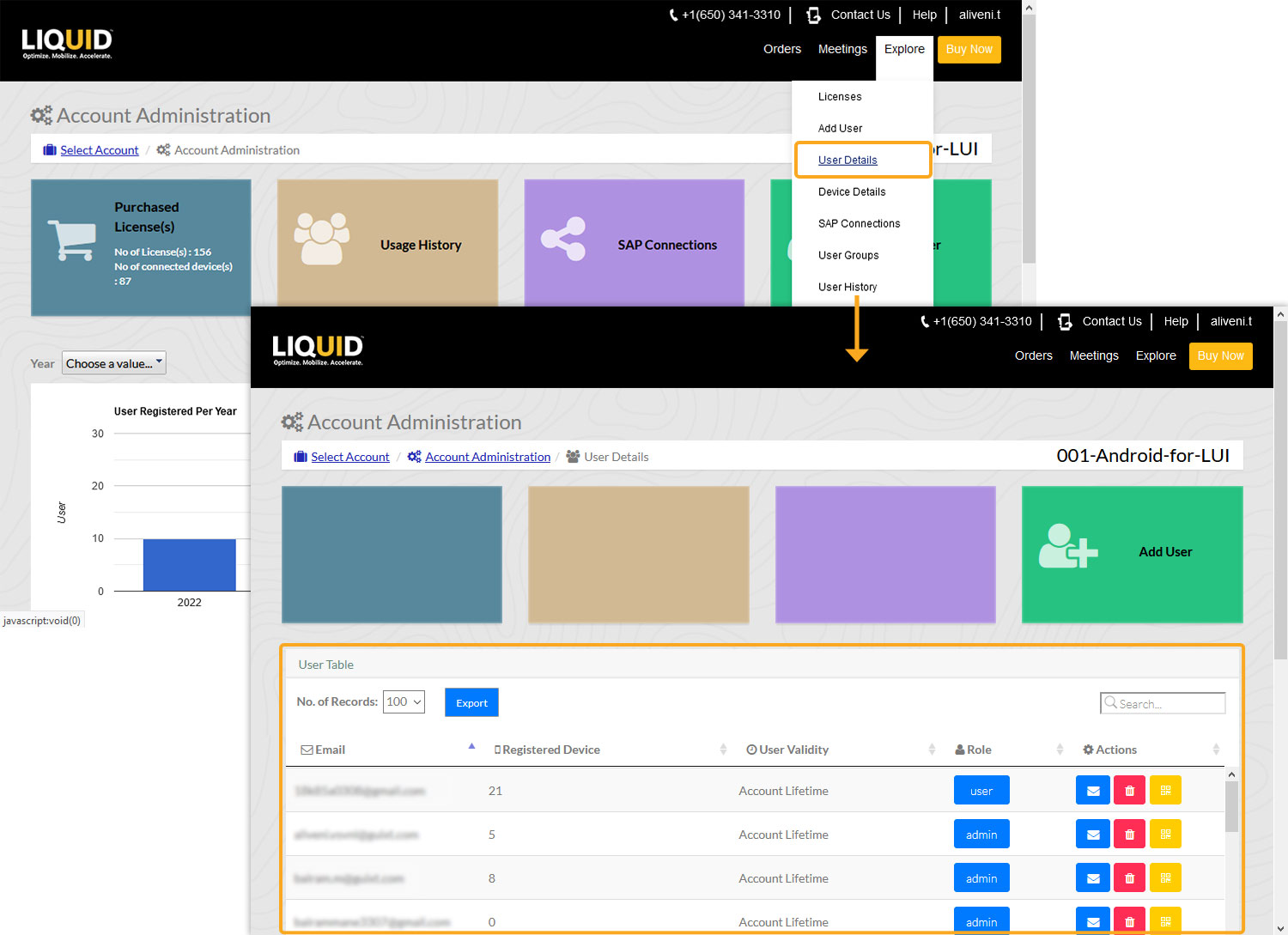
Open User Details using either of the following options:
- Select Explore and then select User Details.
- Alternatively, select the User Details tile on the Account Administration dashboard.
-
Locate the user you want to remove. Under the Actions column, select the red Delete icon in that user's row.

-
In the confirmation prompt, review the message indicating that all devices associated with the user will be removed. If you also want to remove the user from their associated user groups, select Remove from User Group(s)?. Select Yes to confirm the deletion.

-
LAMP displays the message Email successfully revoked. Select Close to dismiss the confirmation message.