


Device annotations help administrators identify registered devices using meaningful names instead of device identifiers. You can add, edit, or delete annotations to organize devices using your organization's naming conventions.
You can also search for devices by their annotations from the Device Details page.

Note: You must be an Account Admin to update device annotations.
This article explains how to:
- Add device annotations
- Edit device annotations
- Delete device annotations
- Cancel annotation changes
- Search device annotations
Adding Device Annotations
To add device annotations:
- Log in to LAMP.
- Navigate to Account Administration.
- Open the Device Details page using one of the following methods:
- Click Device Details on the dashboard.
- Select Device Details from the Explore menu.

- Enter an annotation for the required device.
- Click Confirm Annotation(s).

- Click Save Changes.

Editing Device Annotations
To edit an existing device annotation:
- Click Change Annotation(s).

- Update the required annotation.
- Click Confirm Annotation(s).

- When prompted, click Yes.
Deleting Device Annotations
To delete a device annotation:
- Click Change Annotation(s).

- Delete the required annotation.
- Click Confirm Annotation(s).
- When prompted, click Yes.
- After the update is complete, a confirmation message indicates that the device annotation was successfully deleted.

Cancel Annotation Changes
To discard your changes without saving:
- Click Cancel Annotation(s).
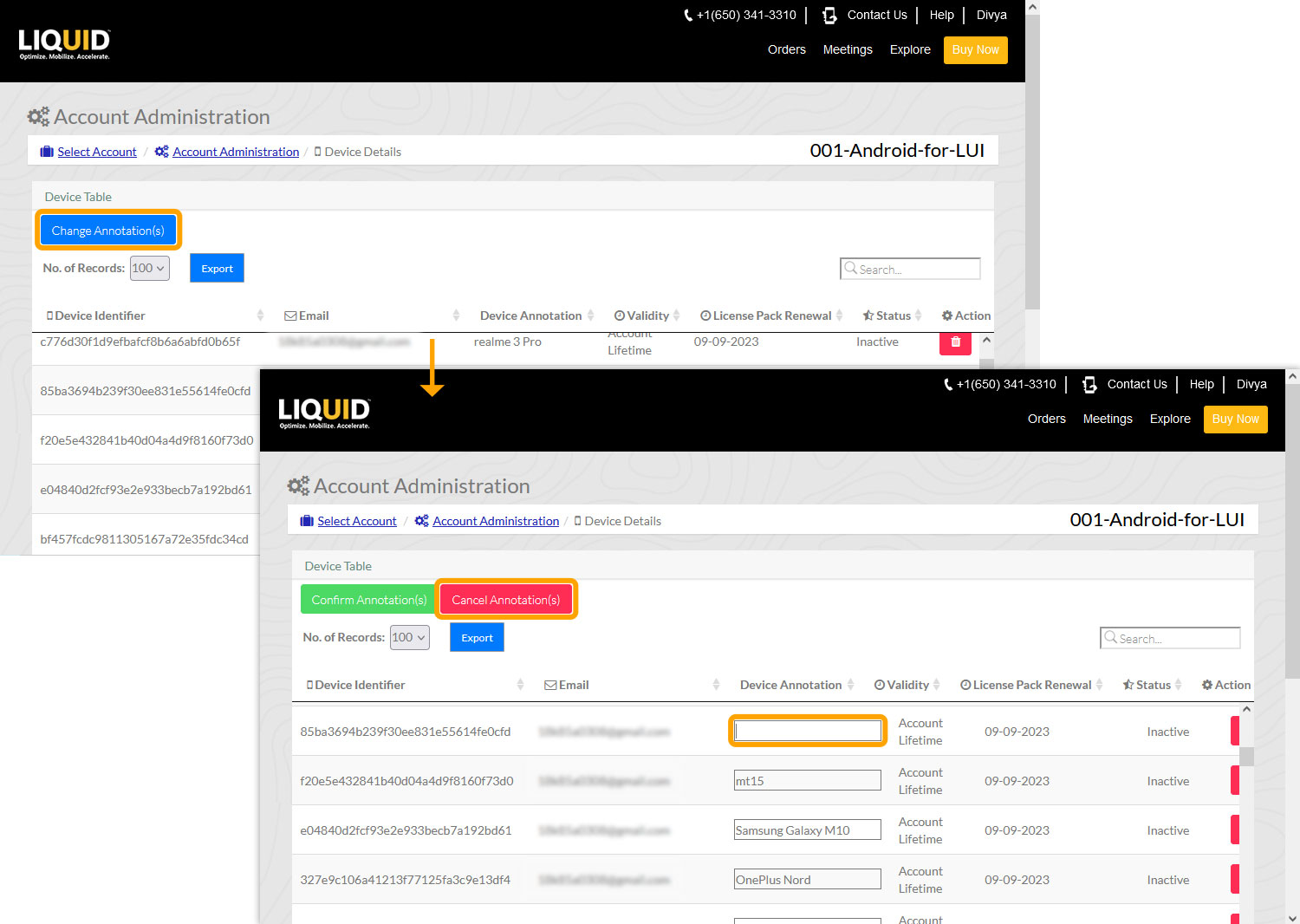
- When prompted, click Yes to cancel the operation.

Searching Device Annotations
You can search for registered devices using their annotations from the Device Details page.
- Open the Device Details page.
- Enter the annotation or device name in the search box.

- The matching devices are displayed automatically.