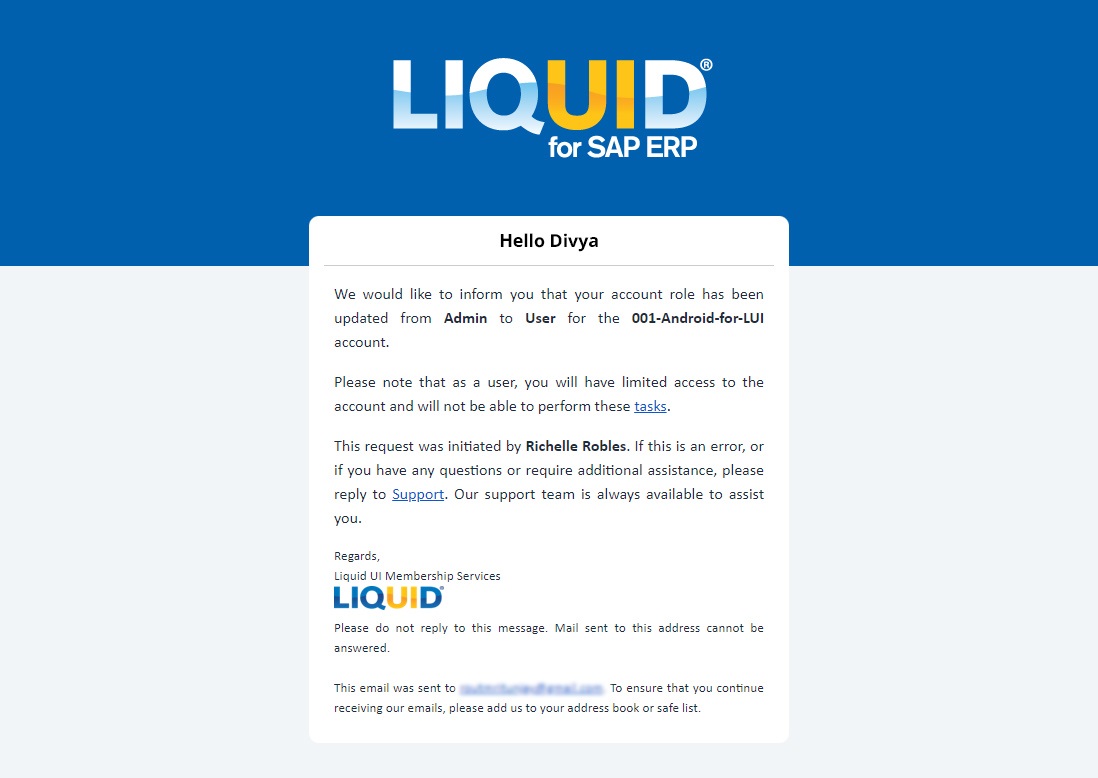


LAMP allows you to switch a user's role between admin and user as needed. In this article, you will learn how to perform this role change.

Note: Only admins can change the role of a user in LAMP.
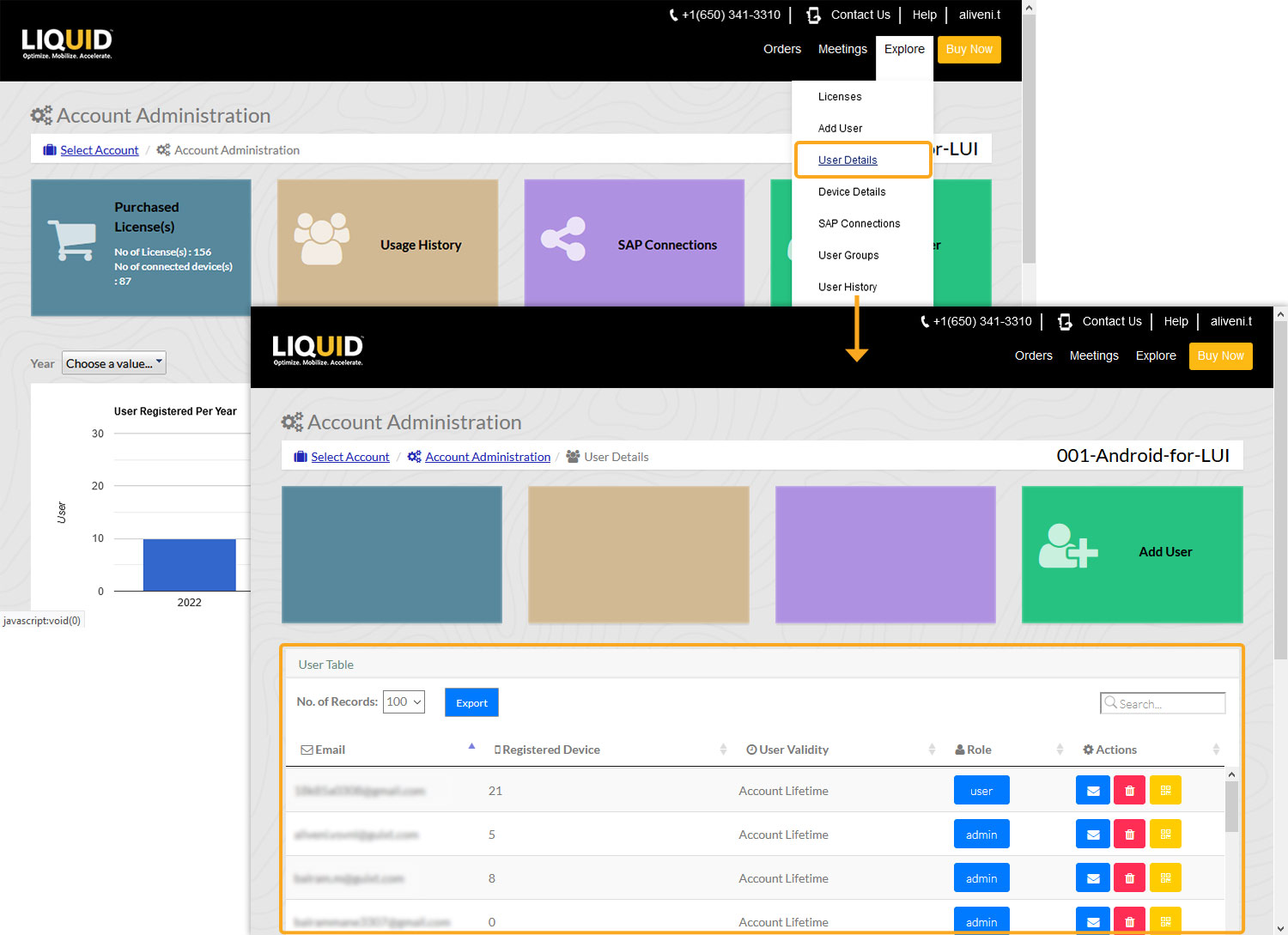
- Select User Details (either from the Explore menu or from the User Details tile on the Account Administration page) to open the user table. View or update the user’s information as needed, as shown below.
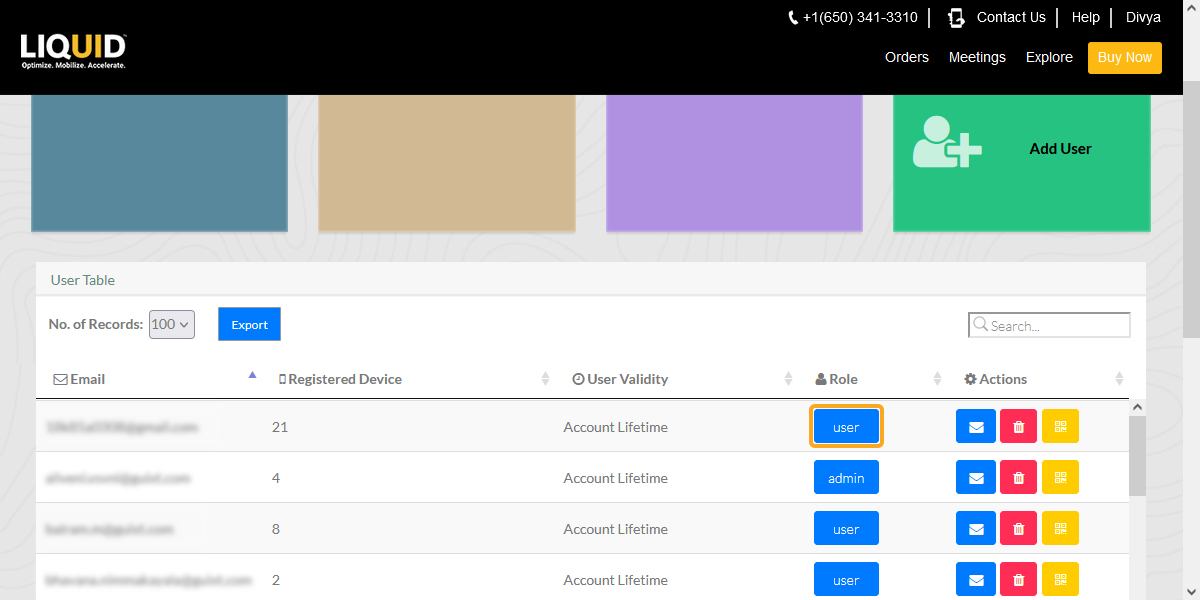
- You can switch a user's role from admin to user or vice versa by clicking on the User Role button.
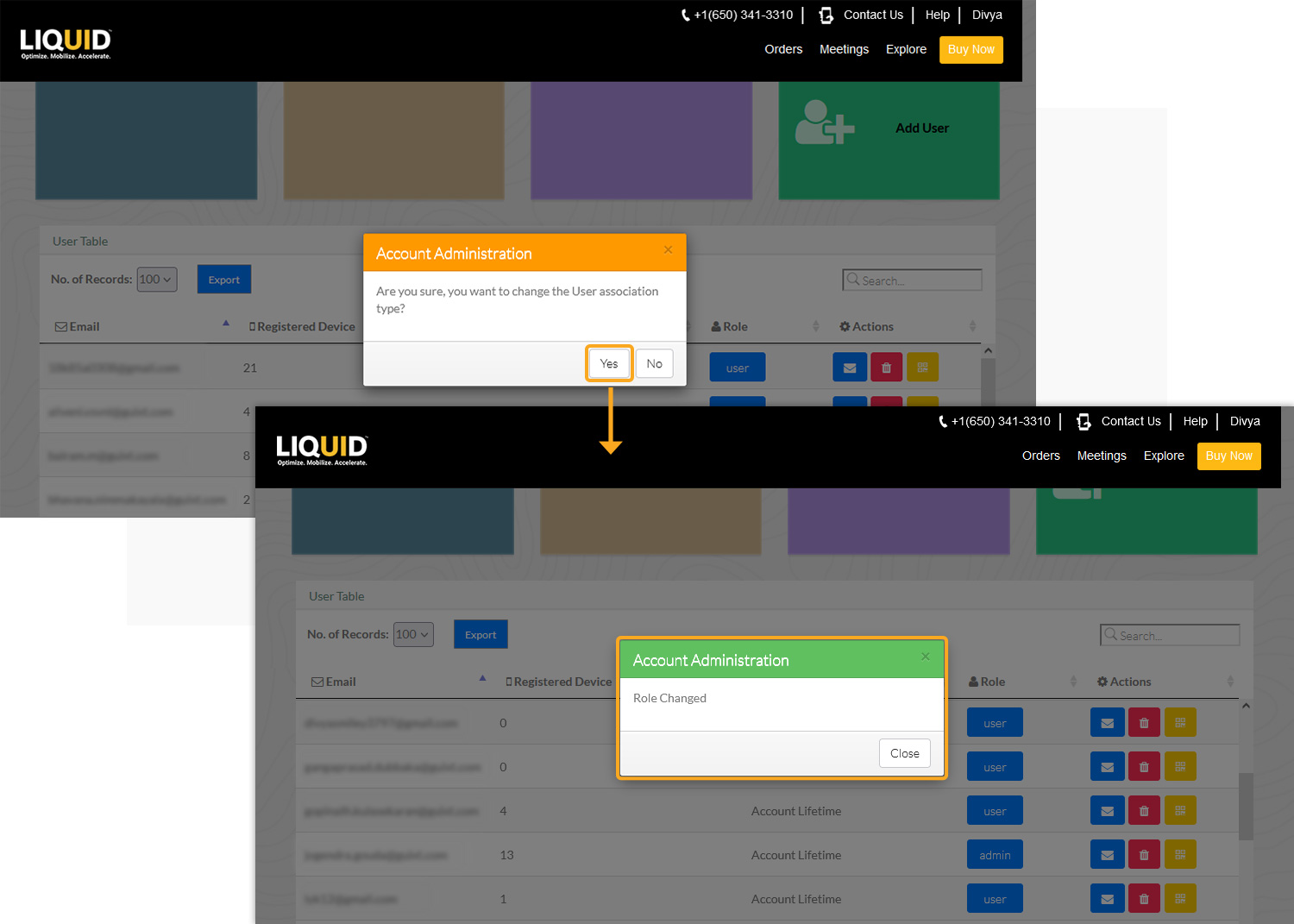
- Confirm your decision to change roles by clicking Yes, as shown below. A success message confirms the role switch.
- LAMP will notify the user about the role change via email.