

Purpose
The view() allows you to display files or web content directly within native SAP screens.
Supported file formats include:
- GIF
- JPEG
- HTML
- RTF

Note: Since Server release 3.4.447.0, view() is supported on Liquid UI WS Server with limited functionality. On the Server, only .html files and URLs are supported, and options are not available.
Syntax
view([startrow,startcol][endrow,endcol],"filename",{"option":value…});
Note: Coordinates are optional if displaying in a non-SAP window.
Properties
- startrow, startcol, endrow, endcol - Row and column co-ordinates.
- filename - Name of the file.
Available Options
The following options can be used with view().
|
"closewindow" - Closes the window opened by the view(). |
|
|
"floating" - This option opens and enables the window to move on the screen. |
|
|
"maximize" - Opens the window in full screen (commonly used with floating). |
|
|
"returnwindow": true - Returns the internal handle of the created view window. |
|
|
"template":true - Creates a template file. |
Note: To use the view() command, you must install the file 'pinnacle.dll' in the same directory as the executable of the application in which view is to be used.
Options Detail
|
closewindow |
|
|
floating |
|
|
maximize |
|
|
returnwindow |
|
|
template |
|
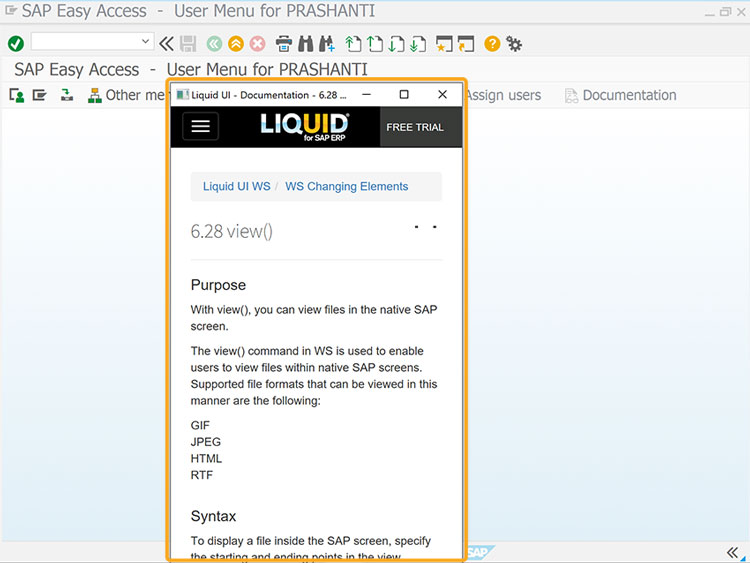
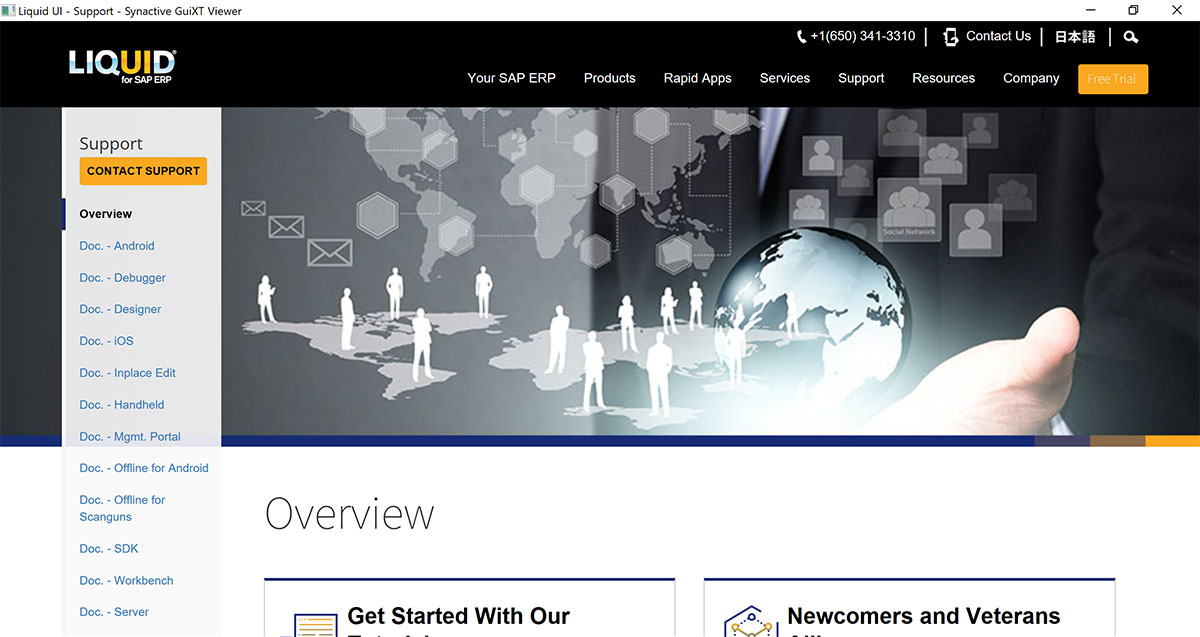
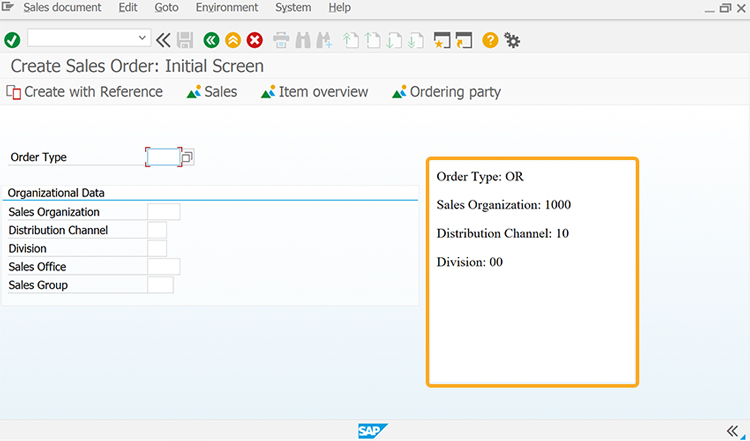
Example 1: Viewing multiple files
Displays multiple files on the SAP Easy Access screen
//Create the file SAPLSMTR_NAVIGATION.E0100.sjs inside your scripts folder for customizing the SAP Easy Access screen
//Now, add the Liquid UI script to the above file and save it.
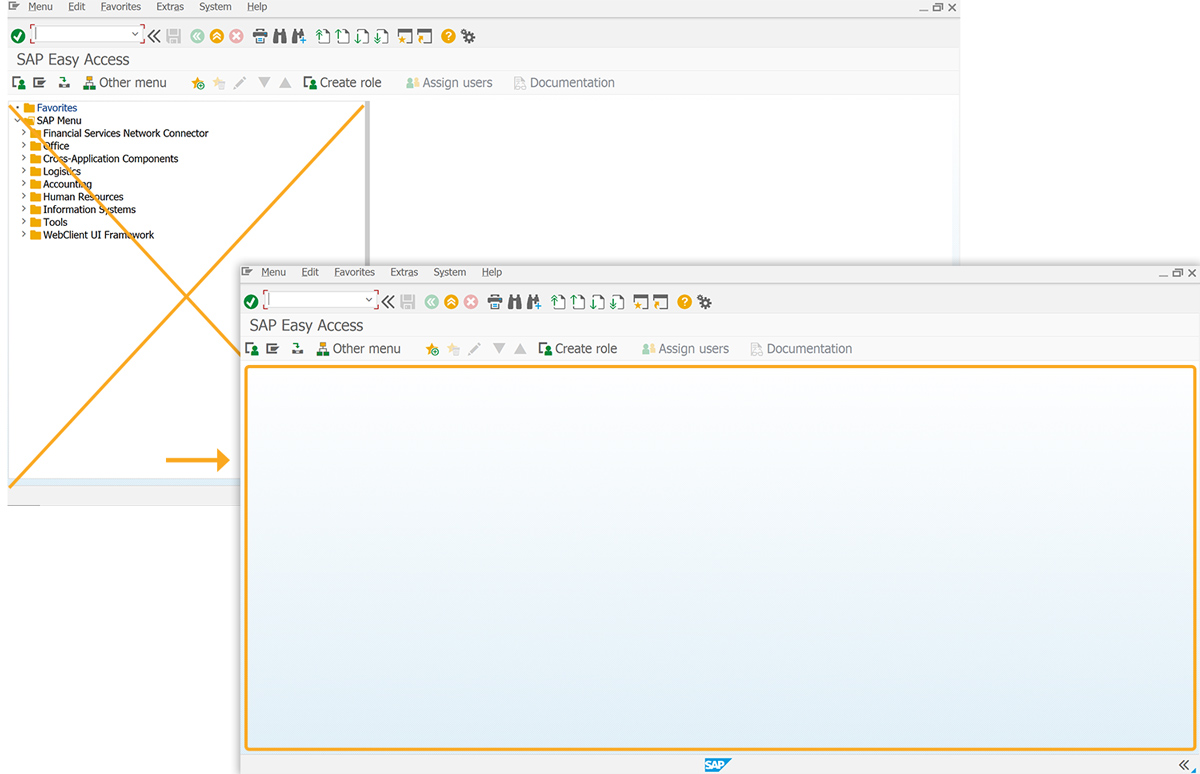
- Delete the image container on the SAP Easy Access screen using del().
// Deletes image container on the SAP screen
del("X[IMAGE_CONTAINER]");
- Add the below script and files to your script folder.
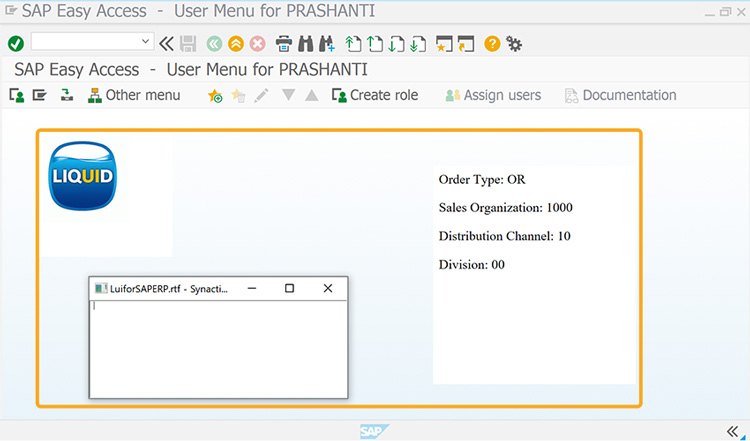
view([3,65],[15,95],'test.html');
view([1,5],[8,25],'logo.JPG');
view([1,30],[8,70],'LuiforSAPERP.rtf',{"floating":true});
- After refreshing the SAP Easy Access screen, the files will be displayed, as shown below.
Example 2: Open/Close HTML with Return Window
Displays multiple files on the SAP Easy Access screen
//Create the file SAPLSMTR_NAVIGATION.E0100.sjs inside your scripts folder for customizing the SAP Easy Access screen
//Now, add the Liquid UI script to the above file and save it.
- Delete the image container on the SAP Easy Access screen using del().
// Deletes image container on the SAP screen
del("X[IMAGE_CONTAINER]");
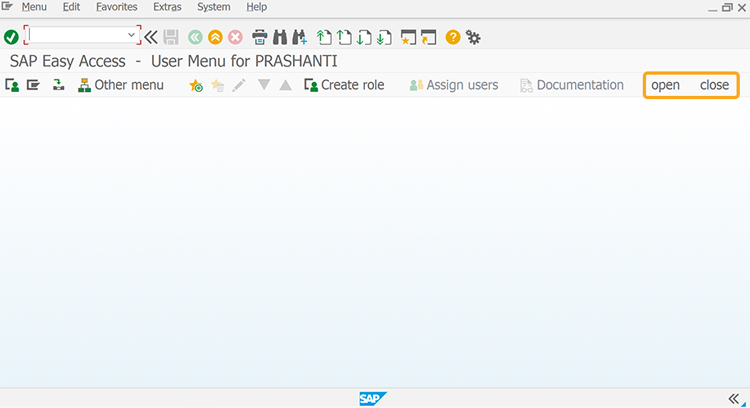
- Add two push buttons with labels open and close to execute the doOpen and doClose processes on click.
// Creates push buttons to execute the process
pushbutton('[toolbar]', 'open', {'process':doOpen});
pushbutton('[toolbar]', 'close', {'process':doClose});
- Add doOpen and doClose functions to open and close the html files on click.
// Function to open and close files
function doClose() {
	//onscreen 'SAPLSMTR_NAVIGATION.0100'
	view({'closewindow':true});
}

function doOpen() {
onscreen 'SAPLSMTR_NAVIGATION.0100'
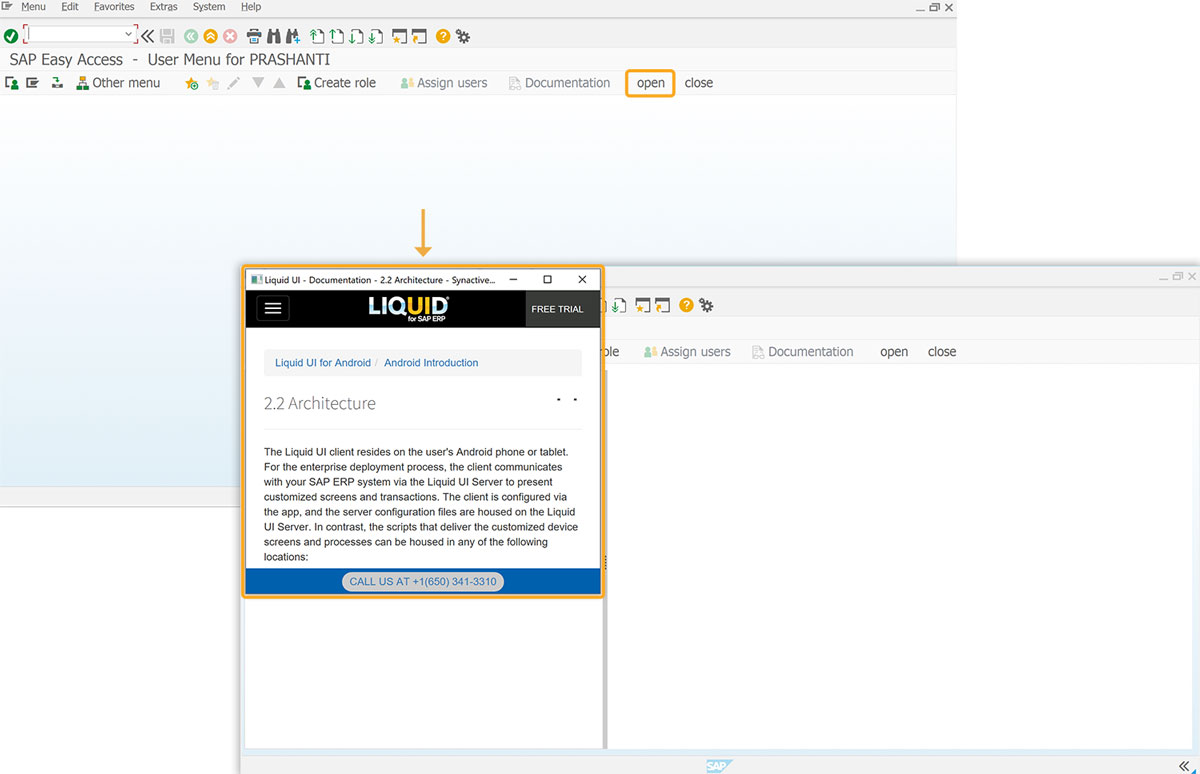
	view([0,0], [20,60], 'https://www.guixt.com/knowledge_base/content/31/1012/en/22-architecture.html', {'returnwindow':'win','floating':true});
	//returnwindow option returns the file on the SAP window

	pushbutton('[toolbar]', 'open', {'process':doOpen});
	pushbutton('[toolbar]', 'close', {'process':doClose});
}
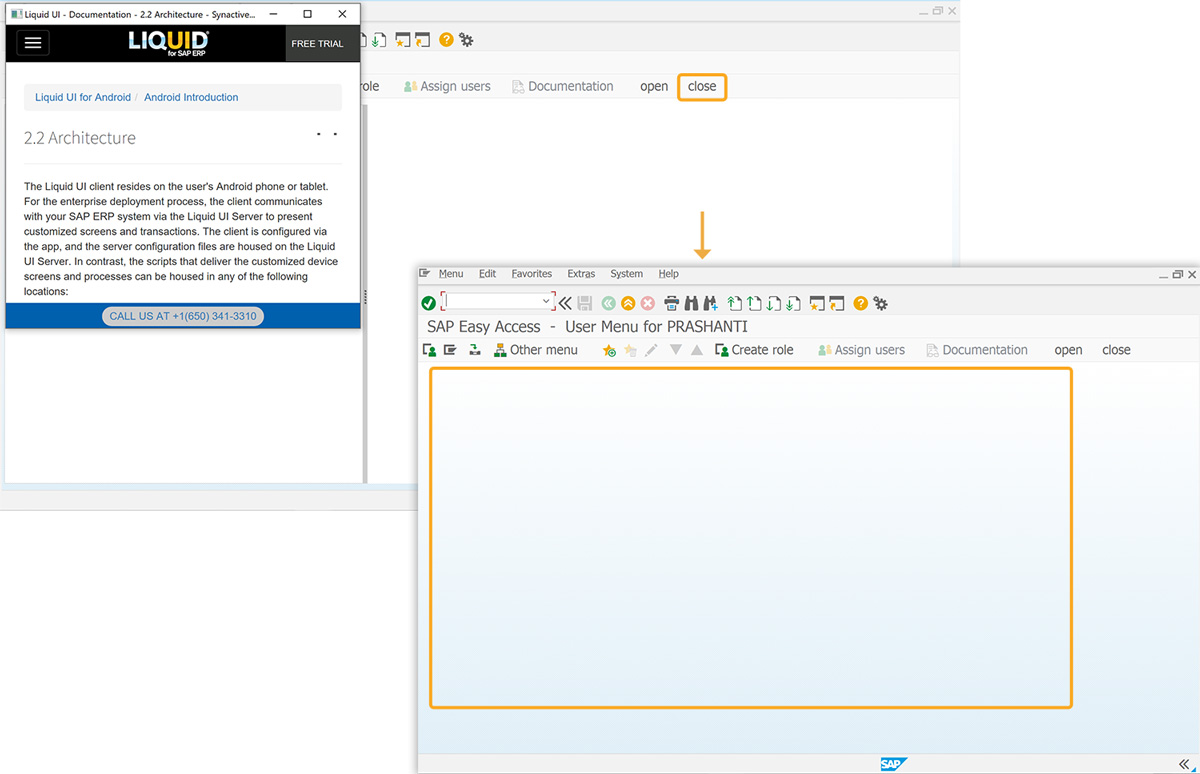
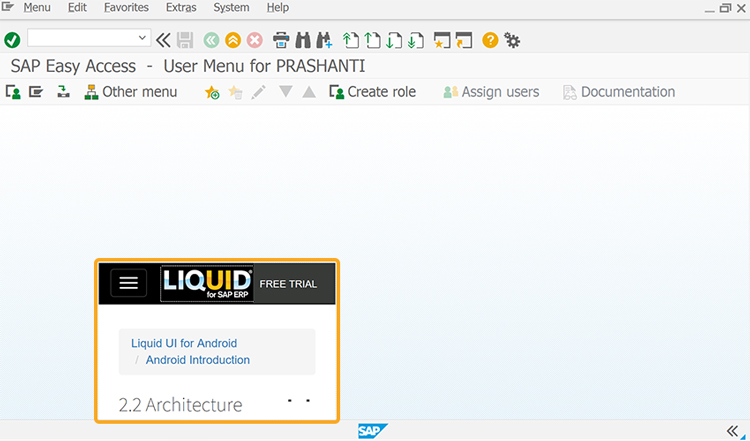
- Click open toolbar button to open the test HTML file.
- Click close toolbar push button to close the HTML file.