


In this article, you will learn how to install an SY9 license on your Android device.
You can install an SY9 license using any one of the following methods:
- SY9 file
- SY9 license in QR code format
- License string from the SY9 file
These steps apply only to SY9 licenses.
Before you begin
- Make sure you’re installing the license on the same device that provided the Synactive ID used to generate the SY9.
- Have the SY9 email available on the device, or transfer the SY9 file to the device.
Method 1: Installing the SY9 license using the SY9 file
- Open the Liquid UI SY9 License email and download the SY9 license file on your device.
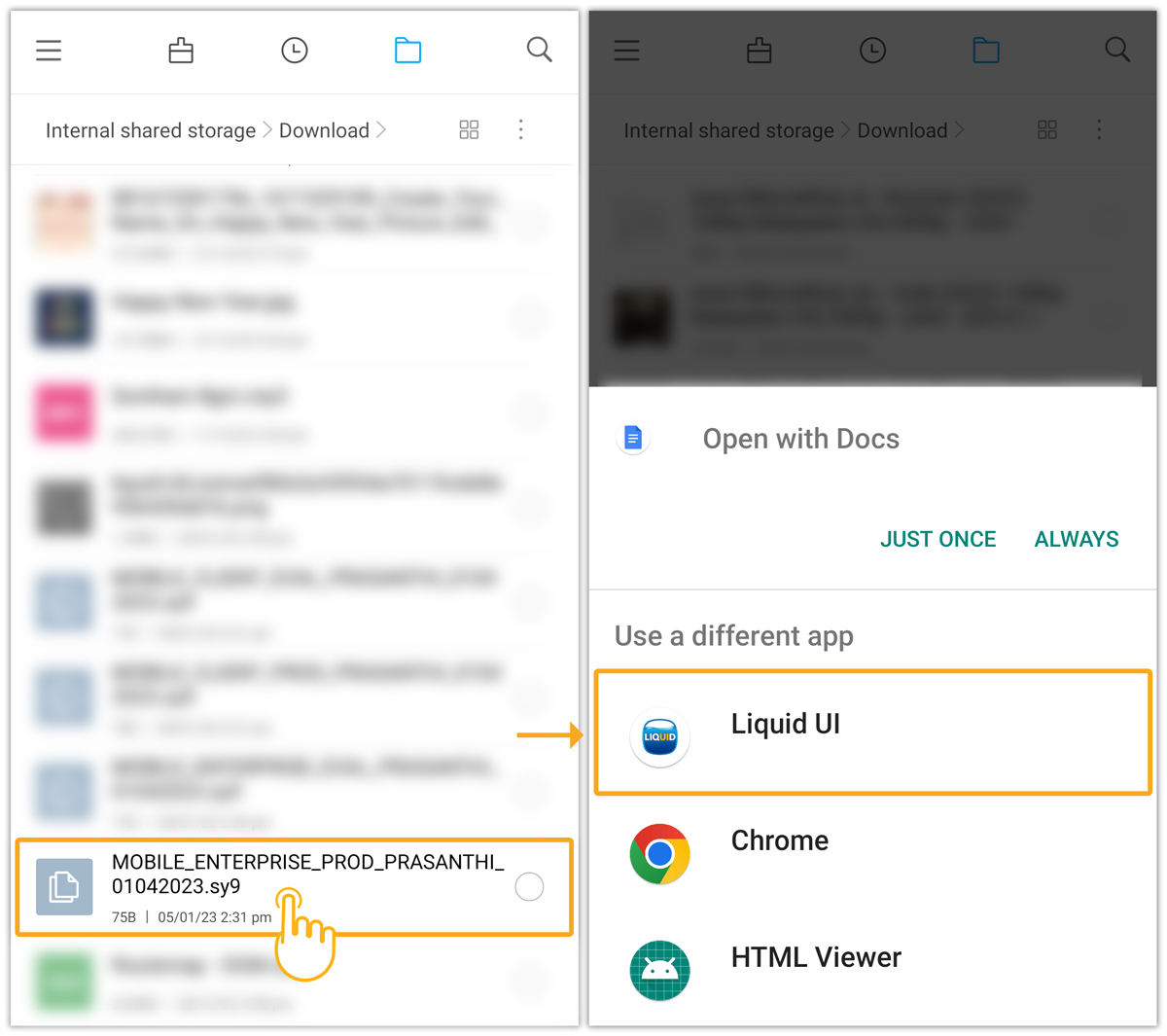
- Open the Downloads folder and tap the .sy9 file (for example, MOBILE_ENTERPRISE_PROD_PRASANTHI_01042023.sy9).
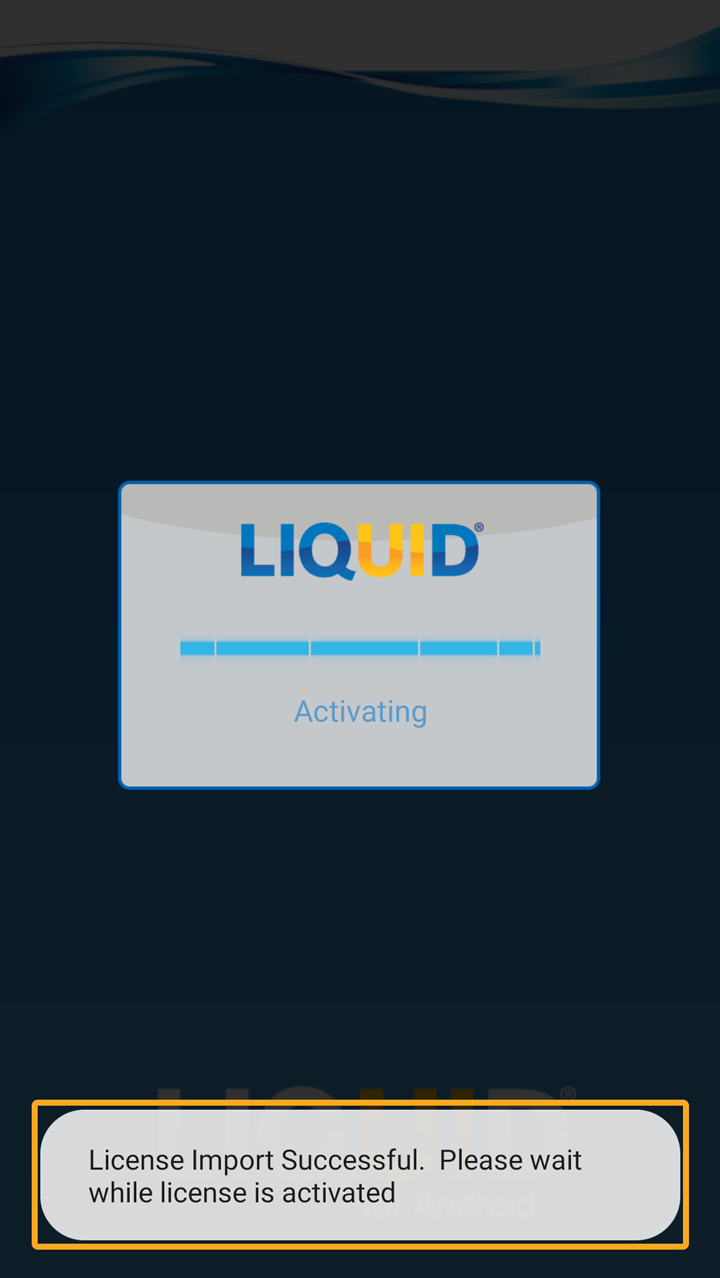
- The license will be imported to your Liquid UI for Android, and it displays a success message, as shown below.
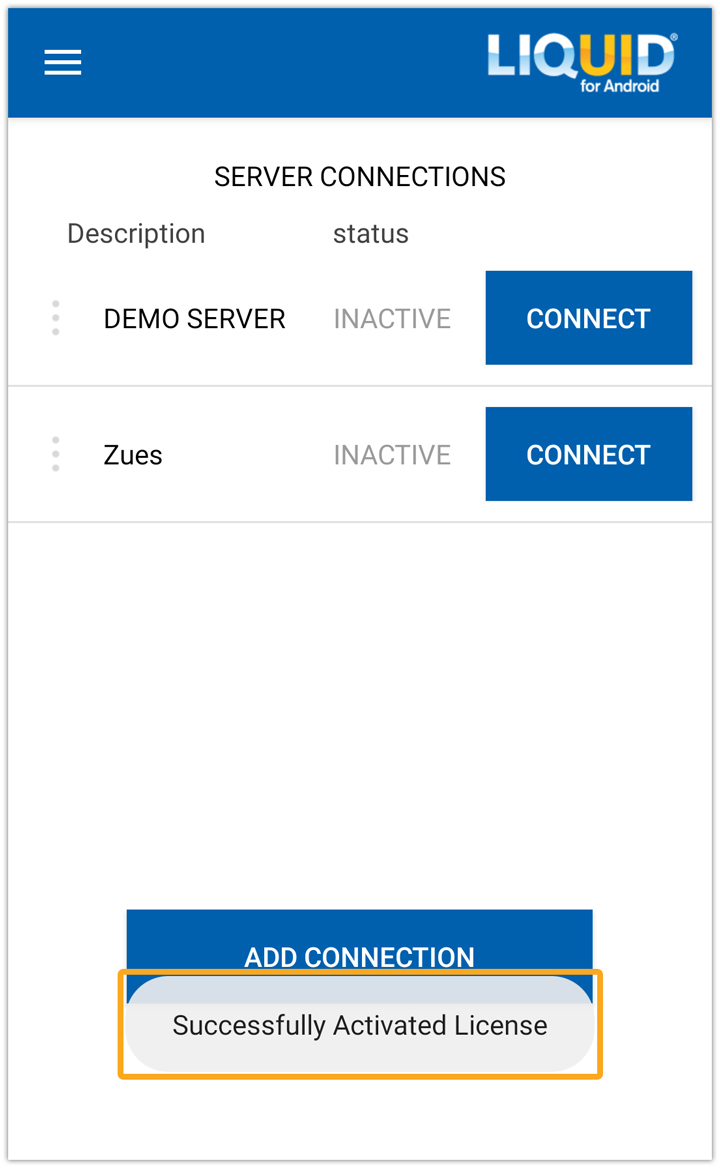
- The license will automatically apply to your Liquid UI app, confirming successful activation with a message.
Method 2: Installing an SY9 license using a QR code
You can request a SY9 license in QR code format from Synactive and receive it via email.
- Scan the QR code with your device scanner or camera, as shown below.
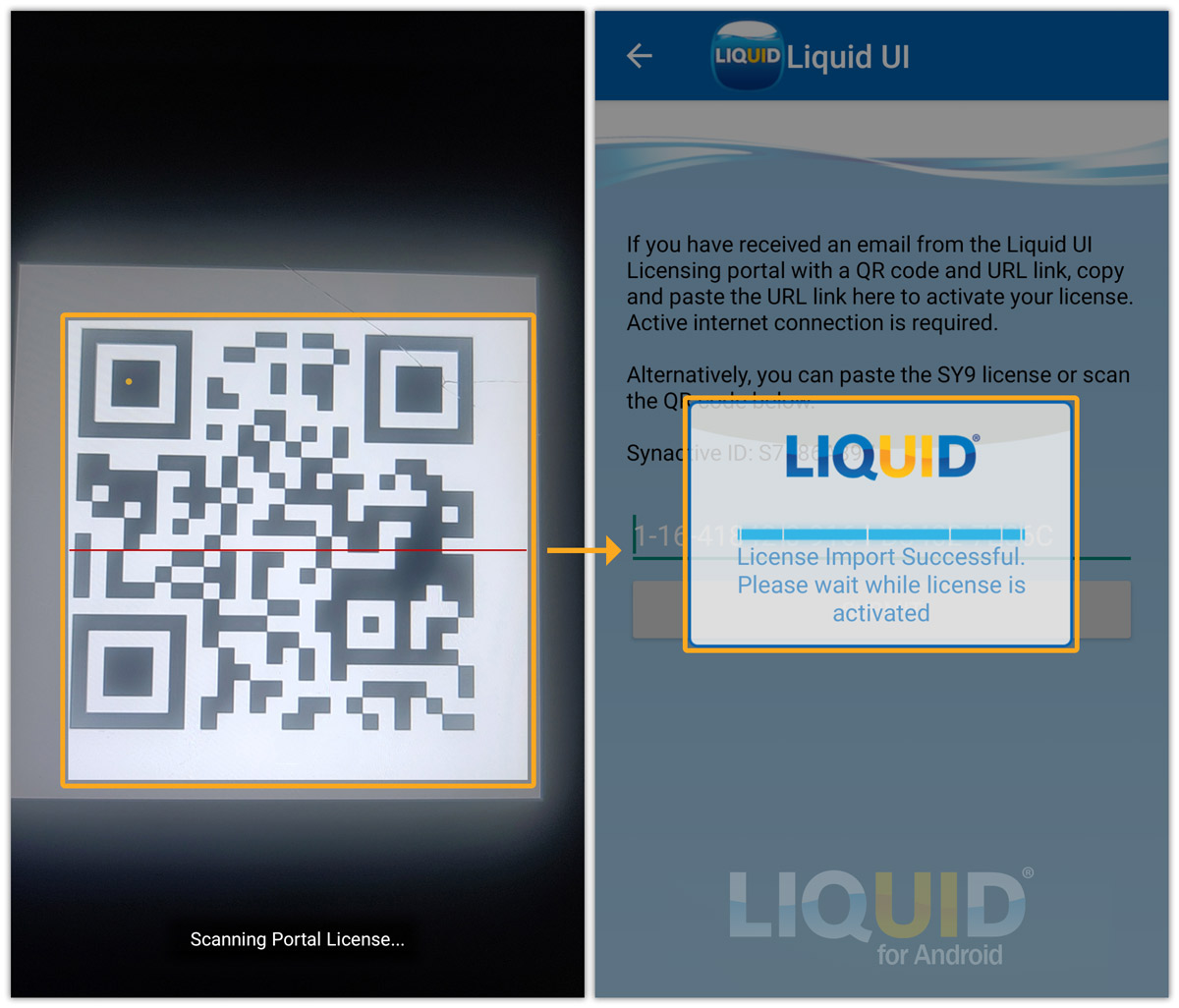
- Then, the license will be activated automatically on your Liquid UI for Android application.
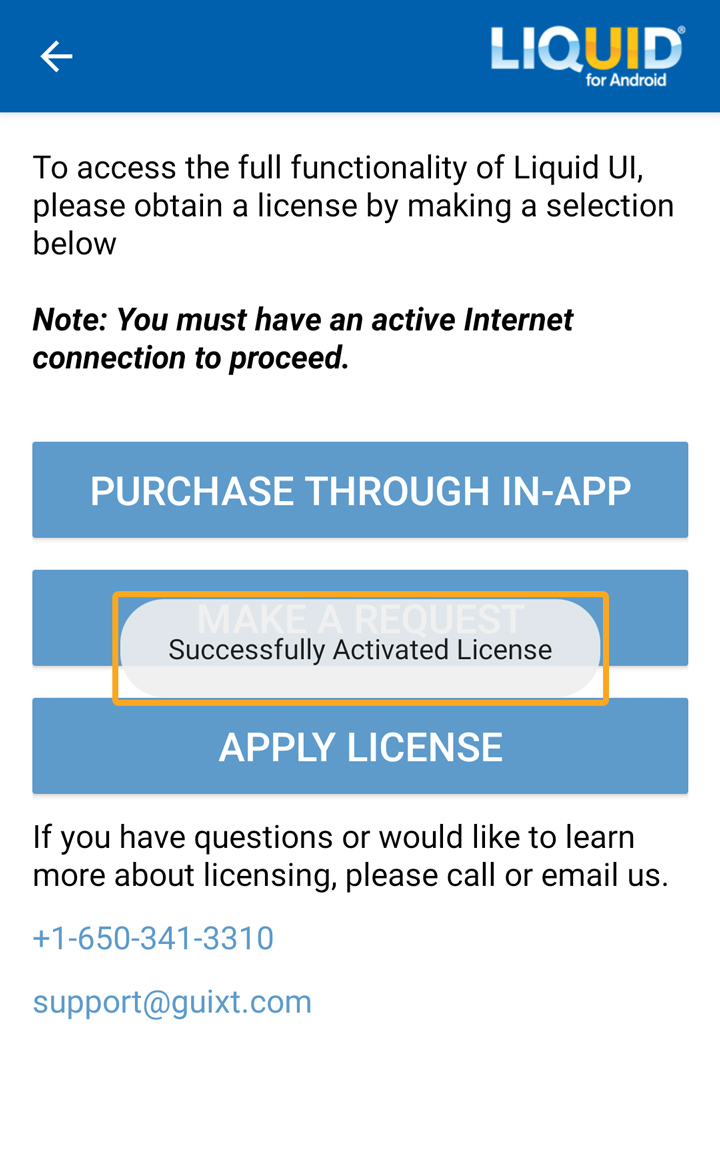
A success message confirms activation.
Method 3: Installing the SY9 license using the license string
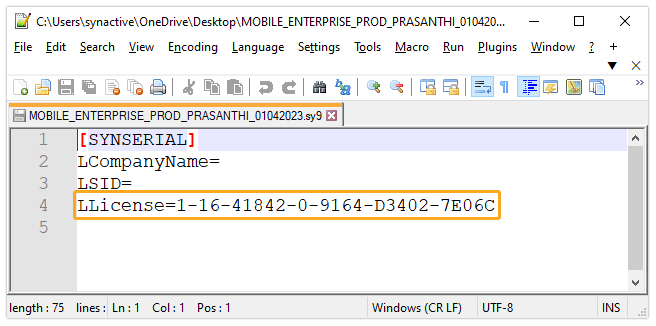
You can also install the license using an SY9 license string existing in the SY9 license file.
- Open the SY9 license file using Notepad and copy the license string associated with the LLICENSE variable, as shown below:
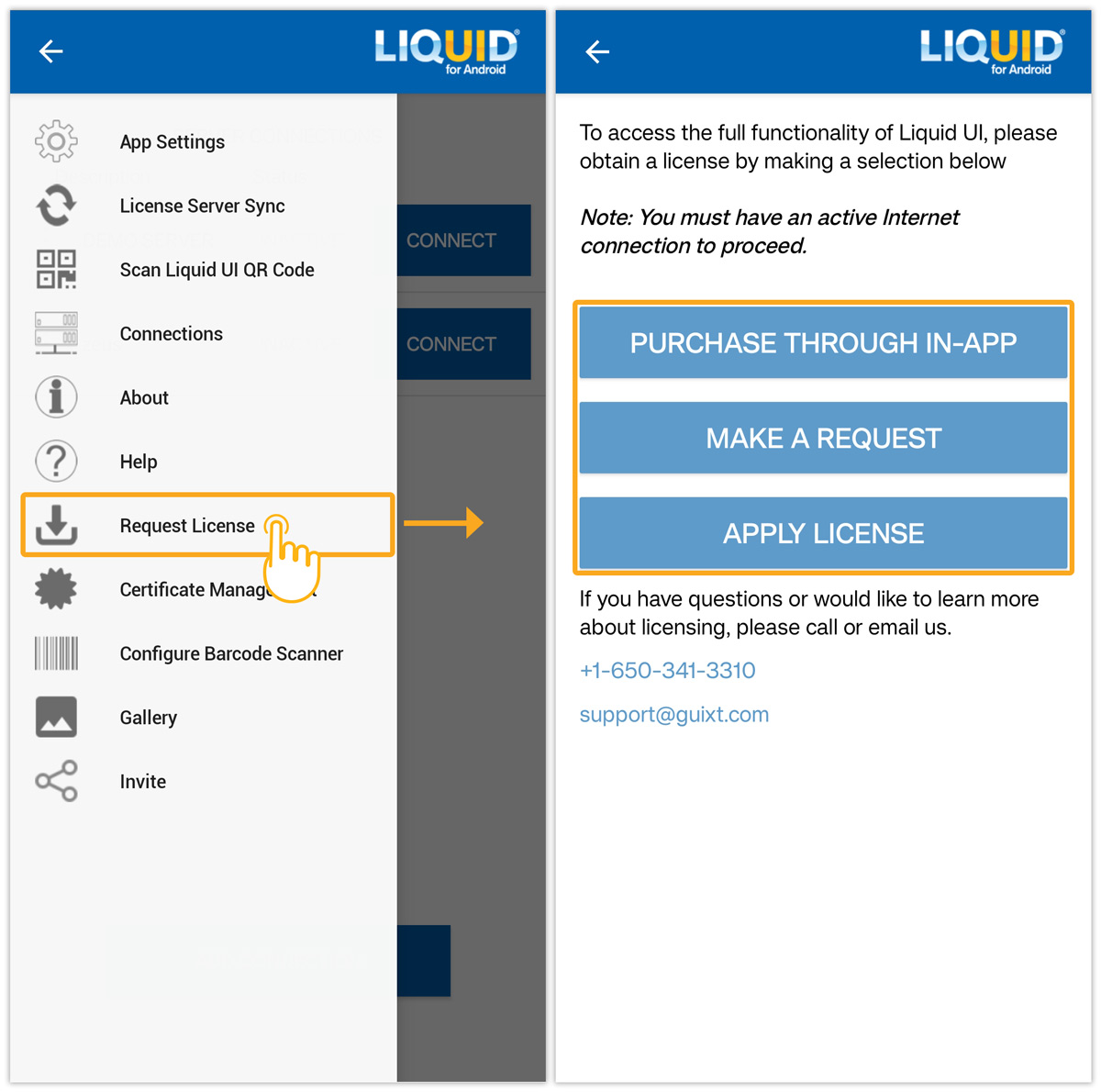
- Then, open the Liquid UI for Android app, go to the Main Menu, and tap Request License.
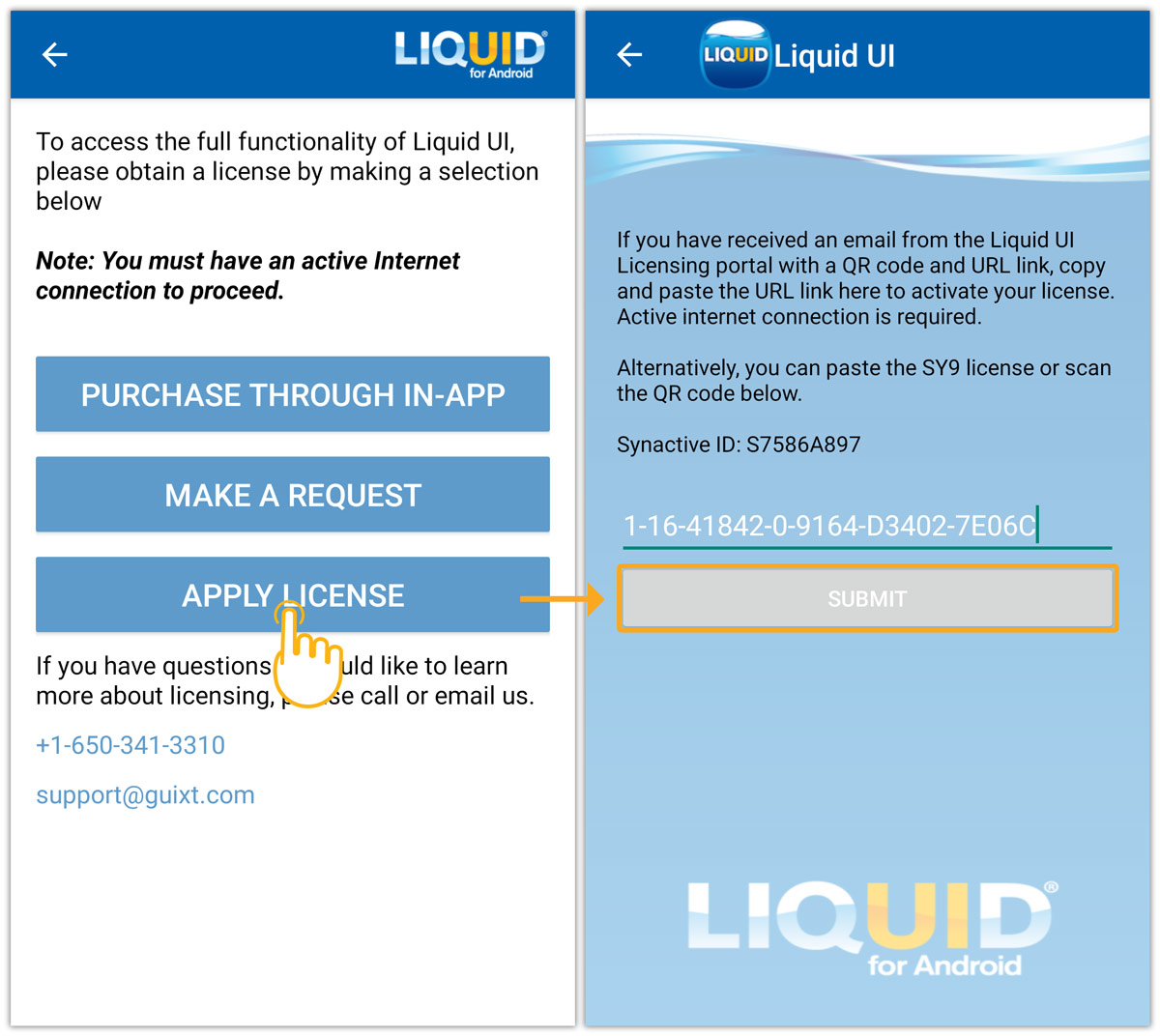
- Then, tap the APPLY LICENSE button to navigate to the following screen. Enter the SY9 license string (LLicense variable value) into the Input Field and tap the SUBMIT button, as shown below:
- After installing the license on your device, a success message appears, as shown in the image below.
- The SY9 license is now installed on your device.
Sync the license if needed
After installation, the license syncs automatically when you open the app. If it does not appear immediately, tap the three-dot menu and select Sync to refresh the license.