

Prerequisites
- Products: Liquid UI WS, Liquid UI Server or Local DLL, Client Software
- Commands: title(), _transaction
Purpose
This article illustrates two approaches to modify an SAP screen title using the title(), contingent on the active transaction. The SAP Easy Access screen will serve as a practical example.
The two methods are:
- Modifying the screen title using a variable and a string
- Modifying the screen title using only a variable
User Interface
//Create the file SAPLSMTR_NAVIGATION.E0100.sjs inside your scripts folder for customizing the SAP Easy Access screen
//Now, add the Liquid UI script to the above file, and save it.
Modifying the screen title using a variable and a string
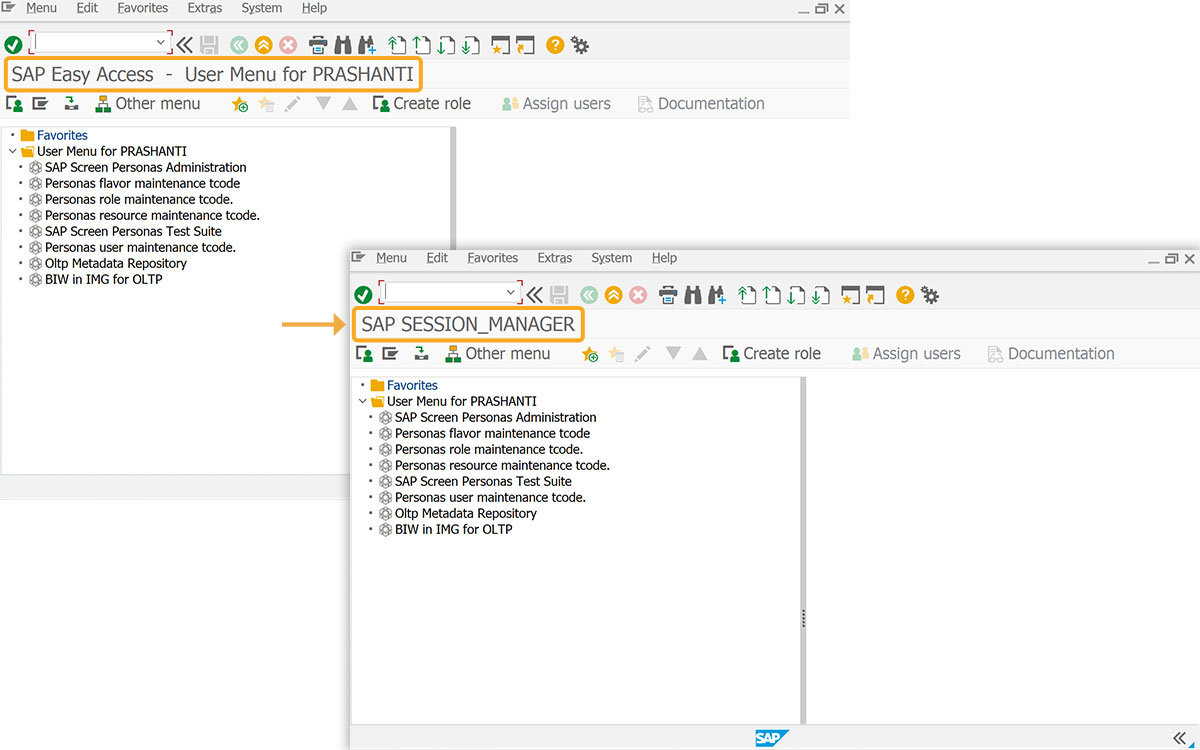
This scenario illustrates how a variable can be used to store a transaction code. This code is then combined with the "SAP" string to set the screen's title.
Customization
- Modify the screen title with the title().
// Modifies the SAP screen title
var z_screentitle = [_transaction];
// title command using variable and string
title("SAP " +z_screentitle);
SAP Process
- Refreshing the SAP screen displays the title as SAP SESSION_MANAGER, as shown in the image below.
Modifying the screen title using only a variable
This scenario demonstrates using a variable to directly change the screen title.
Customization:
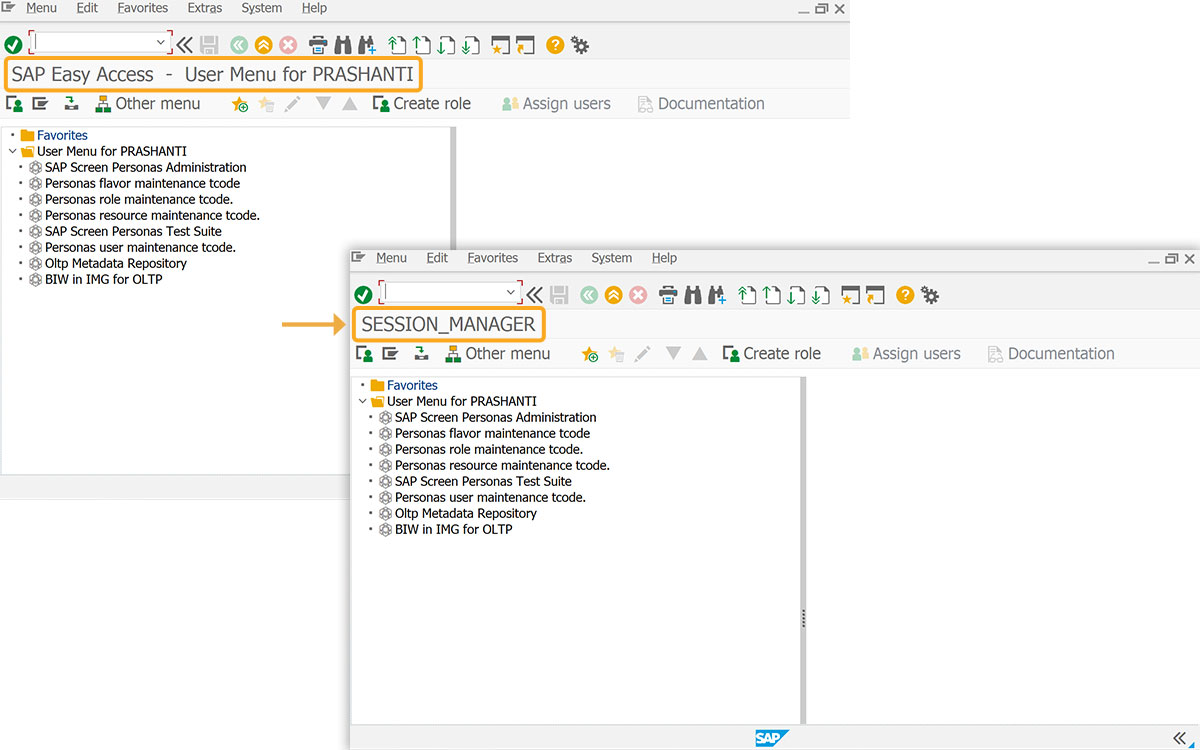
- Screen title can be changed to SESSION_MANAGER using a variable, not a string.
// Modifies the SAP screen title
var z_screentitle = [_transaction];
// title command using variable
title(z_screentitle);