

Prerequisites
- Products: Liquid UI WS, Liquid UI Server or Local DLL, Client Software
- Commands: inputfield(), pushbutton(), set()
Purpose
This article explains how to extract and display the values from the first and last visible rows of an SAP list screen into input fields. This process, initiated by a custom push button, aims to improve efficiency and productivity by providing quick access to essential data without manual scrolling. We will demonstrate this using the SAP Easy Access screen.
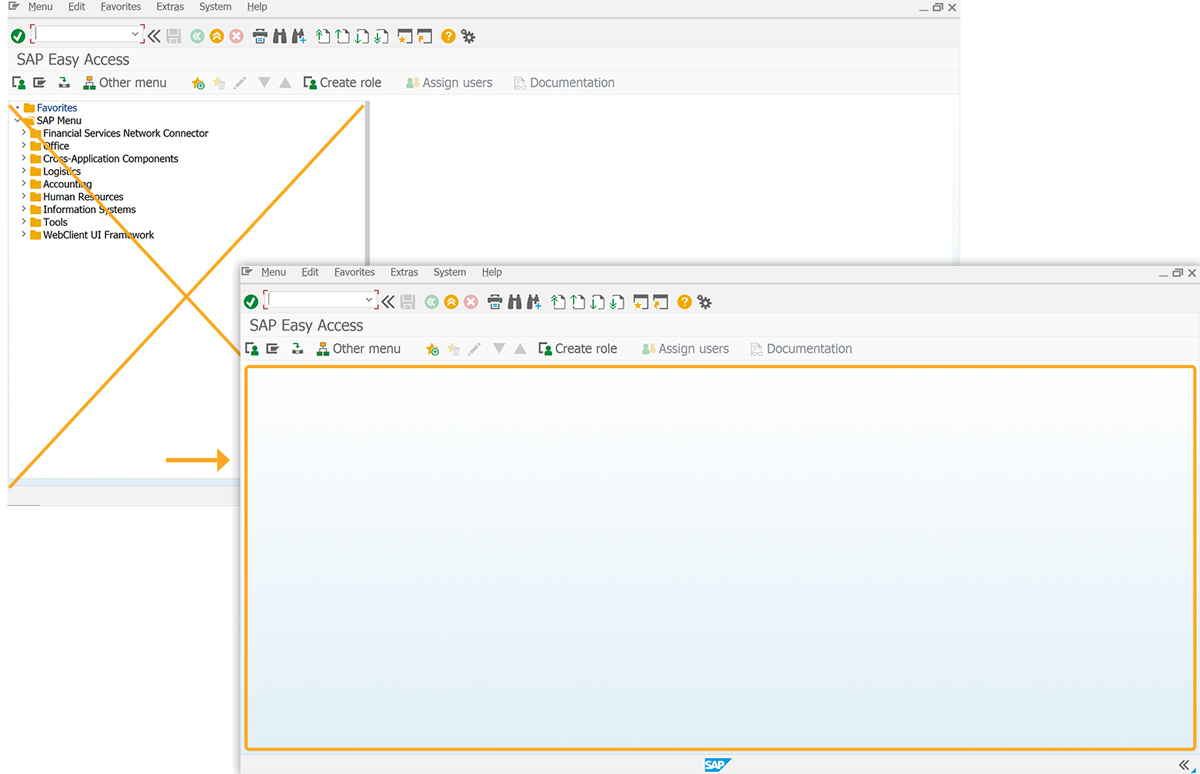
- Delete the image container from the SAP Easy Access screen.
- Add four input fields for value display.
- Include a push button to start the process.
- Implement a function to check for blank string values.
- Implement a function to read and return data.
User Interface
//Create the file SAPLSMTR_NAVIGATION.E0100.sjs inside your scripts folder for customizing the SAP Easy Access screen
//Now, add the Liquid UI script to the above file, and save it.
Customization
- Use del() to remove the image container from the SAP Easy Access screen.
// Deletes the image container on the SAP screen
del("X[IMAGE_CONTAINER]");
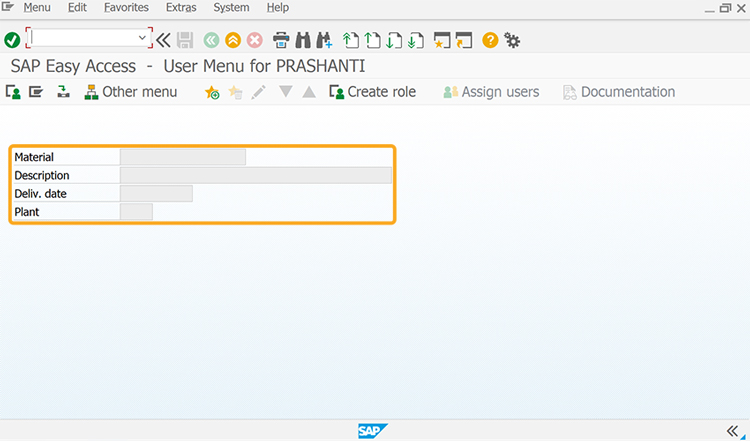
- Add Material, Description, Deliv. date, and Plant input fields to display first and last visible row values.
// Creates input fields to display the values
inputfield([2,0], "Material", [2,16], {"size":18, "name":"z_me56_matl", "readonly":true});
inputfield([3,0], "Description", [3,16], {"size":40, "name":"z_me56_desc", "readonly":true});
inputfield([4,0], "Deliv. date", [4,16], {"size":10, "name":"z_me56_deldate", "readonly":true});
inputfield([5,0], "Plant", [5,16], {"size":4, "name":"z_me56_plant", "readonly":true});
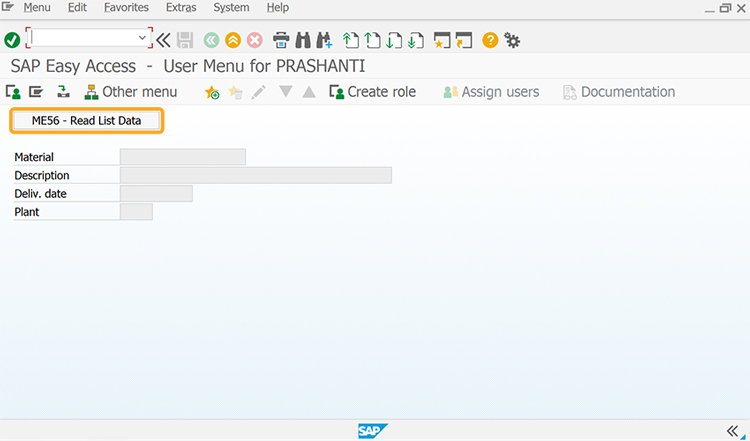
- Add ME56 - Read List Data push button to execute readListData on click.
// Creates a push button to execute the process
pushbutton([0,0], "ME56 - Read List Data", "/nME56", {"process":readListData});
- Add the isBlank function to check if the string value is blank.
// Function to trim blank spaces at the end of the string
String.prototype.trim=function(){return this.replace(/^\s+|\s+$/g,'')};
// Function to check if the string value is blank
function isBlank(jvar){
 if(typeof jvar == 'string') {
 jvar = jvar.trim();
 }
 if(typeof jvar == 'undefined') {
 jvar = '';
 }
 return(jvar == 'undefined' || jvar == undefined || jvar == null || jvar == "" || jvar == void 0);
}
- Add readListString function to read and return data from a specified row on the visible SAP list screen.
// Function to read and return the data
function readListString(row,firstDataRow){
 retString = "";
 value = "";
 set("V[firstVisRow]", _listfirstvisiblerow);
 set("V[lastVisRow]", _listlastvisiblerow);
 set("V[lastRow]", _listlastrow);

 firstVisRow = parseInt(firstVisRow,10);
 lastVisRow = parseInt(lastVisRow,10);
 lastRow = parseInt(lastRow,10);

 if (firstDataRow == void 0 || isBlank(firstDataRow.toString().trim())){
 nRow = 1;
 for (var iRow = 0; iRow < nRow; iRow++){
 objReeb = <"#["+iRow.toString()+",0]">;
 if (objReeb.name.label != void 0 && objReeb.name.label.indexOf('644444')>-1){
 firstDataRow = iRow + 1;
 break;
 }
 nRow++;
 }
 }

 if (row != 'lastvisible' && row != 'last'){
 if ((row > lastRow + firstDataRow - 1) || (row < firstDataRow)){
 return ('E: Cannot find data');
 goto SCRIPT_END;
 }
 }

 // if the firstDataRow is provided, check if the user is trying to read the lastRow or lastVisibleRow.
 if (firstDataRow != void 0 && !isBlank(firstDataRow.toString().trim())){
 if (row == 'last' || row == 'lastvisible'){
 if (row == 'last'){
 row = lastRow;
 } else if (row == 'lastvisible'){
 row = lastVisRow;
 }
 row = parseInt(row,10);
 row += firstDataRow - 1;
 }

 if ((row < (lastVisRow + firstDataRow)) && (row >= (firstVisRow + firstDataRow - 1))){
 //data to be read is on the same page.
 //adjust row number - must be relative to the current page
 row = row - firstVisRow + 1;
 goto CONTINUE_READ;
 } else if (row >= (lastVisRow + firstDataRow)){ //scroll page down
 enter({'process':scroll_down});
 goto SCRIPT_END;
 } else { // scroll page up
 enter({'process':scroll_up});
 goto SCRIPT_END;
 }
 }

 CONTINUE_READ:;
 for (var col=0; col<1000; col++){
 var objReeb = <"#["+row+","+col+"]">;
 if (objReeb.isValid){
 if (objReeb.name.label == '5'|| isBlank(objReeb.name.toString().trim())){
 retString += value + ' ';
 value = "";
 } else if (objReeb.name != lastReebName){
 value = objReeb.name;
 lastReebName = value;
 }
 }
 }

 return(retString);
 SCRIPT_END:;
}

// Function to navigate to ME56 and read the list screen data
function readListData(){
 onscreen 'RM06BZ00.1000' // ME56 Transaction
 enter('/8');

 onscreen 'RM06BL00.0120'
 var listidx=5;
 var listString1 = readListString(listidx,3);
 var listString2 = readListString(listidx+1,3);

 set('V[z_me56_matl]',listString1.substring(0,18).trim());
 set('V[z_me56_desc]',listString1.substring(18,59).trim());
 set('V[z_me56_deldate]',listString2.substring(27,37).trim());
 set('V[z_me56_plant]',listString2.substring(52,56).trim());
 enter('/n');
}
SAP Process
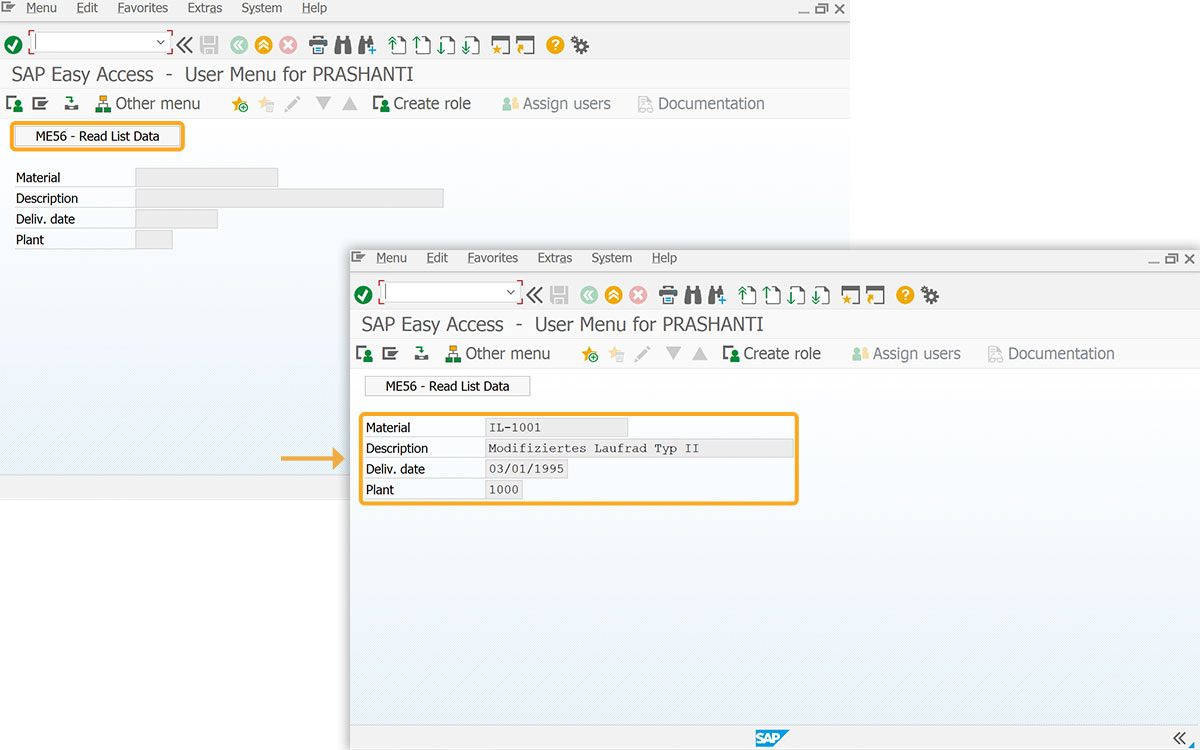
- After refreshing the SAP Easy Access screen, click the ME56 - Read List Data push button. This action triggers the readListData function, populating the input fields with the first and last visible row values from the list screen, as illustrated in the image below.