


Liquid UI for Android enhances user interaction on SAP input fields by offering options like Tab keys, F4 help, OCR, AR, and more. These functionalities speed up data entry, improve accuracy, and simplify navigation.
This article demonstrates input field functionalities using the Create Standard Order: Overview and Create Sales Order screens.
Tab keys
Tapping any input field displays a keyboard with Tab Keys at the top, allowing easy navigation between fields.
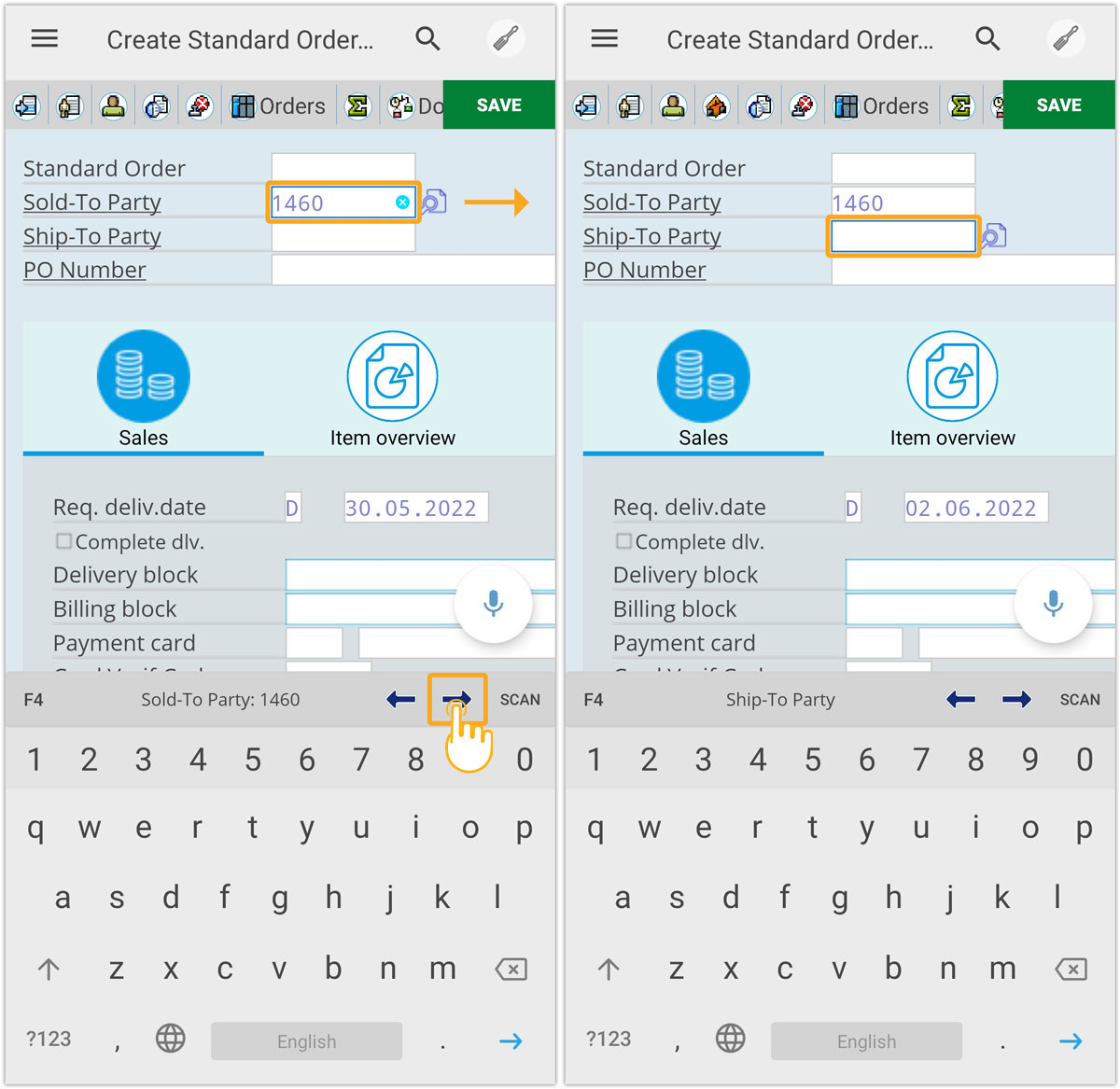
Click here for detailed information on the tab key functionality.
F4 functionality
A single tap on an input field opens the device keyboard with F4 and other options. The F4 feature allows users to quickly find and select predefined values for input fields.
Selecting the F4 option from the keyboard provides predefined values for quick selection.
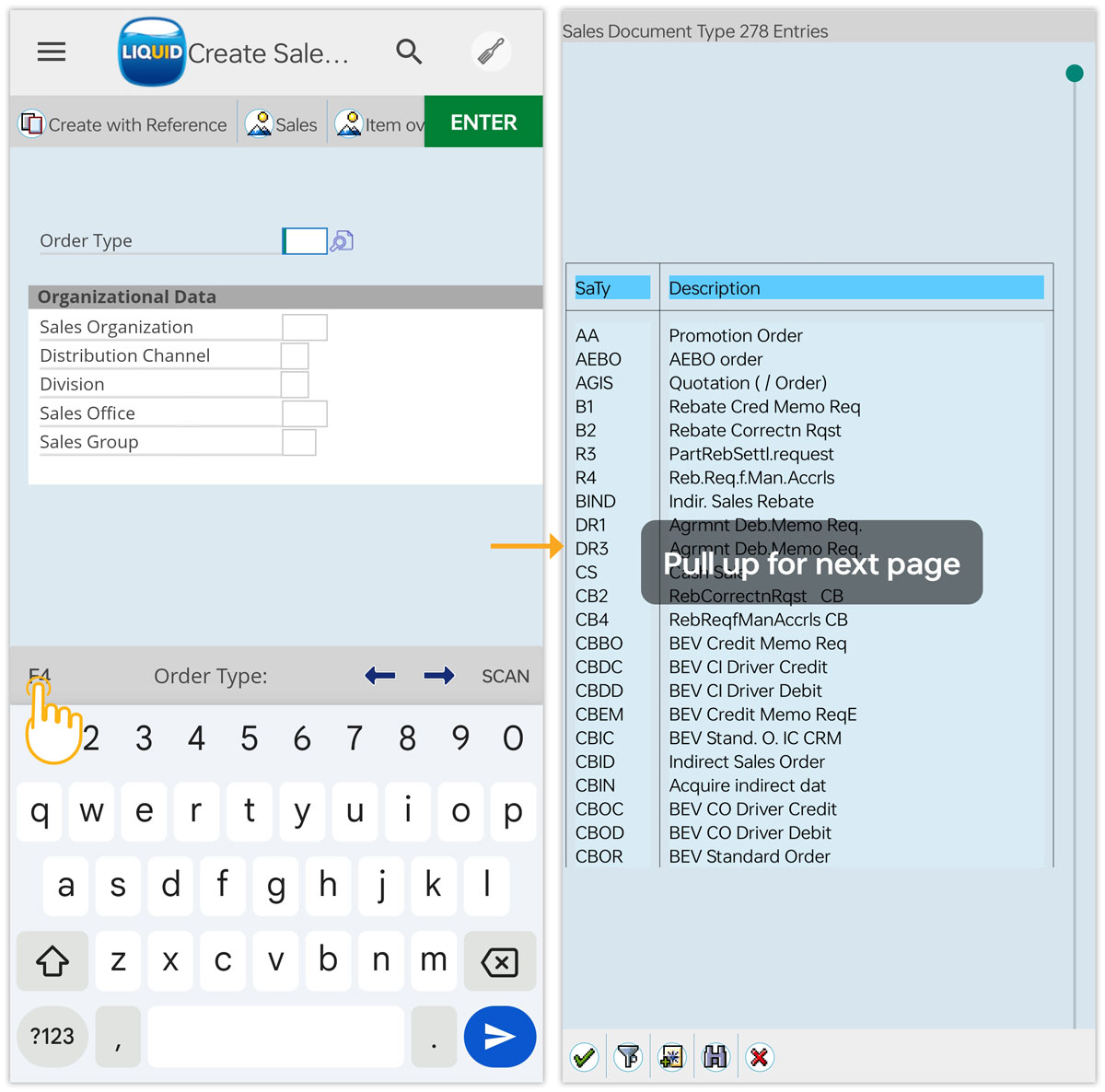
Click here for detailed information on the F4 feature.
Clear input
When a value is entered, a clear(X) icon appears on the right side. Tap it to remove the text. This option appears only when the cursor is placed on the input field.
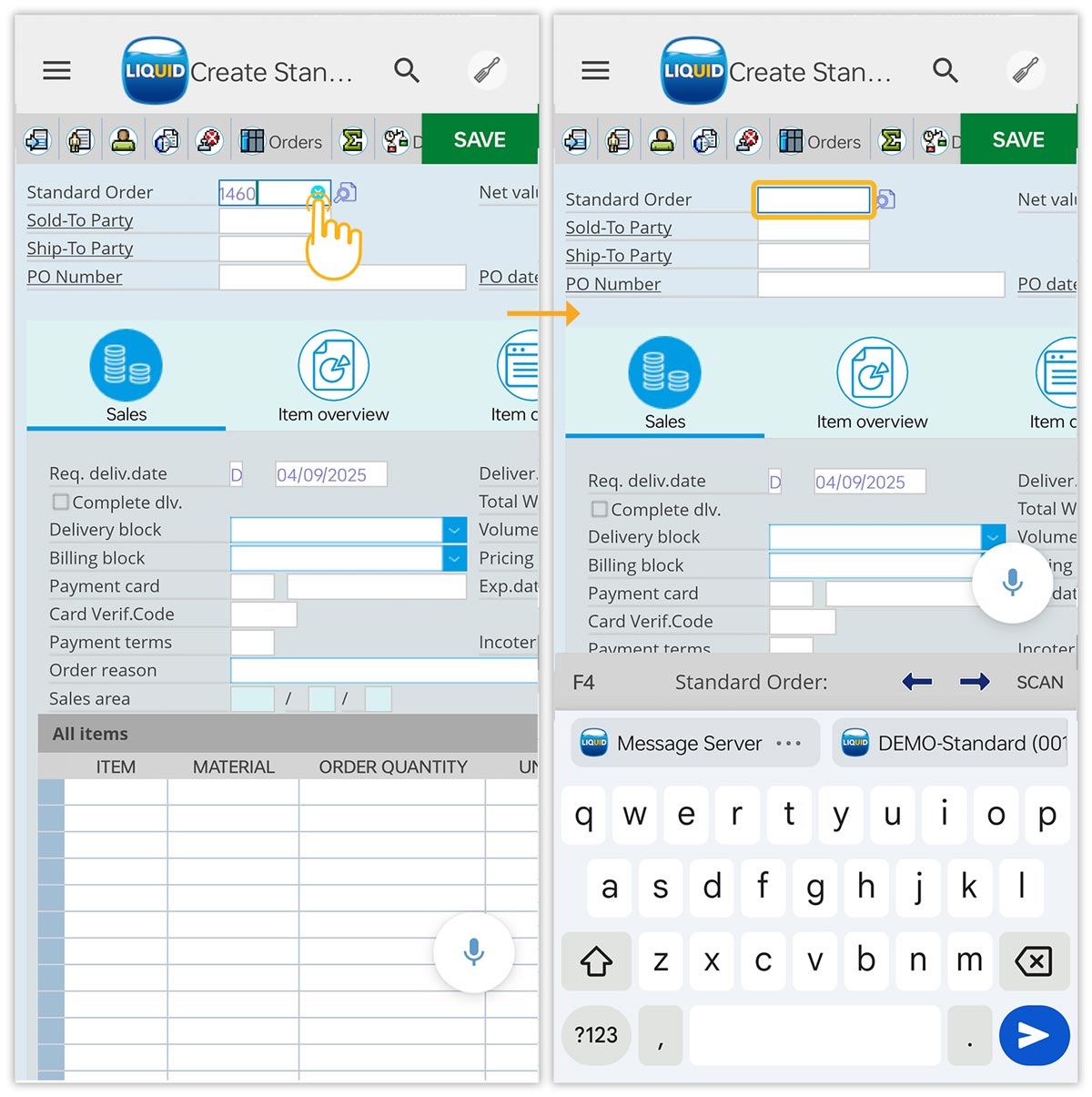
OCR functionality
Long-press an input field to select OCR. It opens the camera, captures printed/handwritten text, and inserts it into the input field.
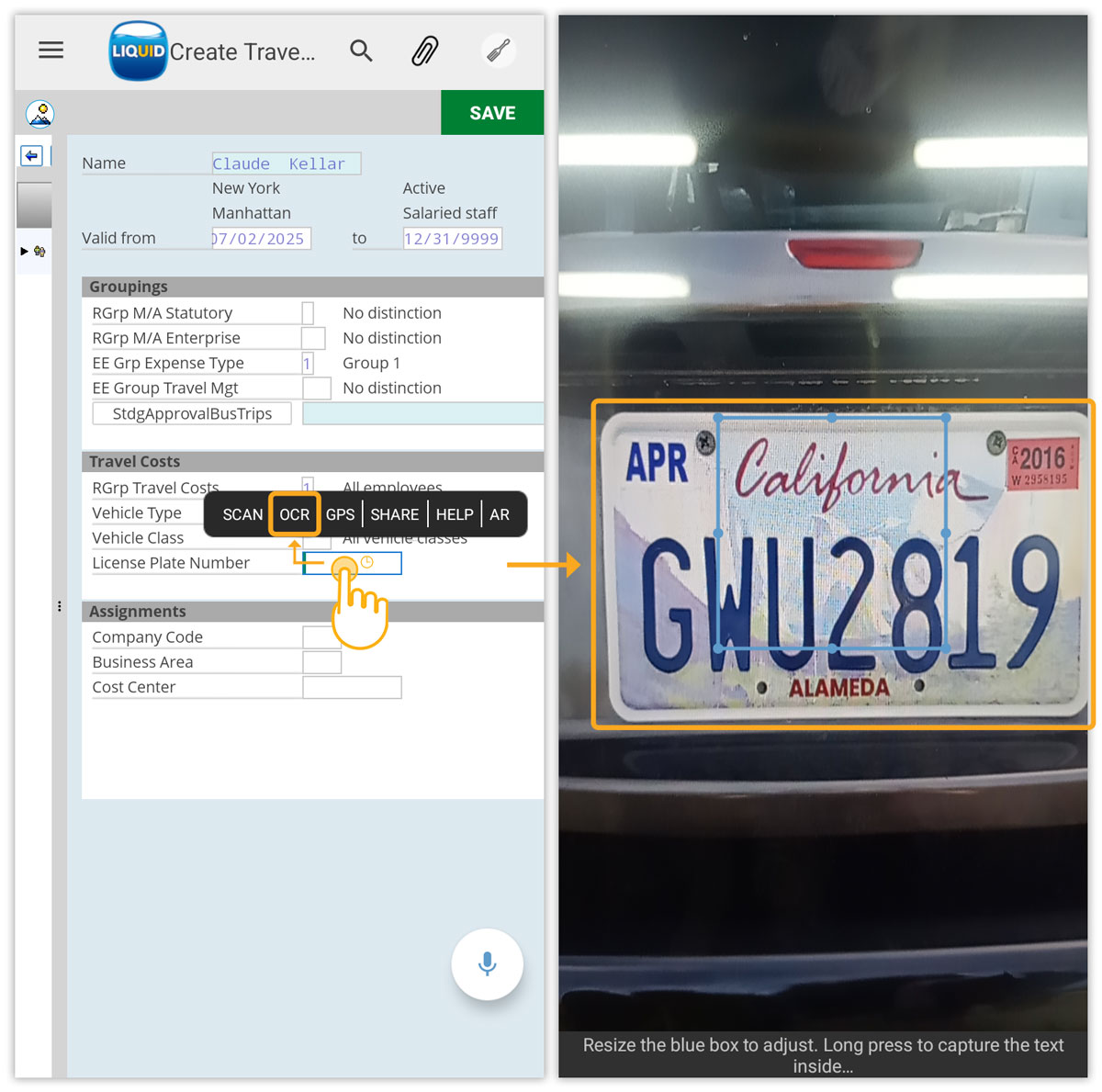
Click here for details on OCR functionality.
F1 Help (Performance Assistant)
Select the HELP option to prompt the Performance Assistant, which provides contextual information for the selected field.
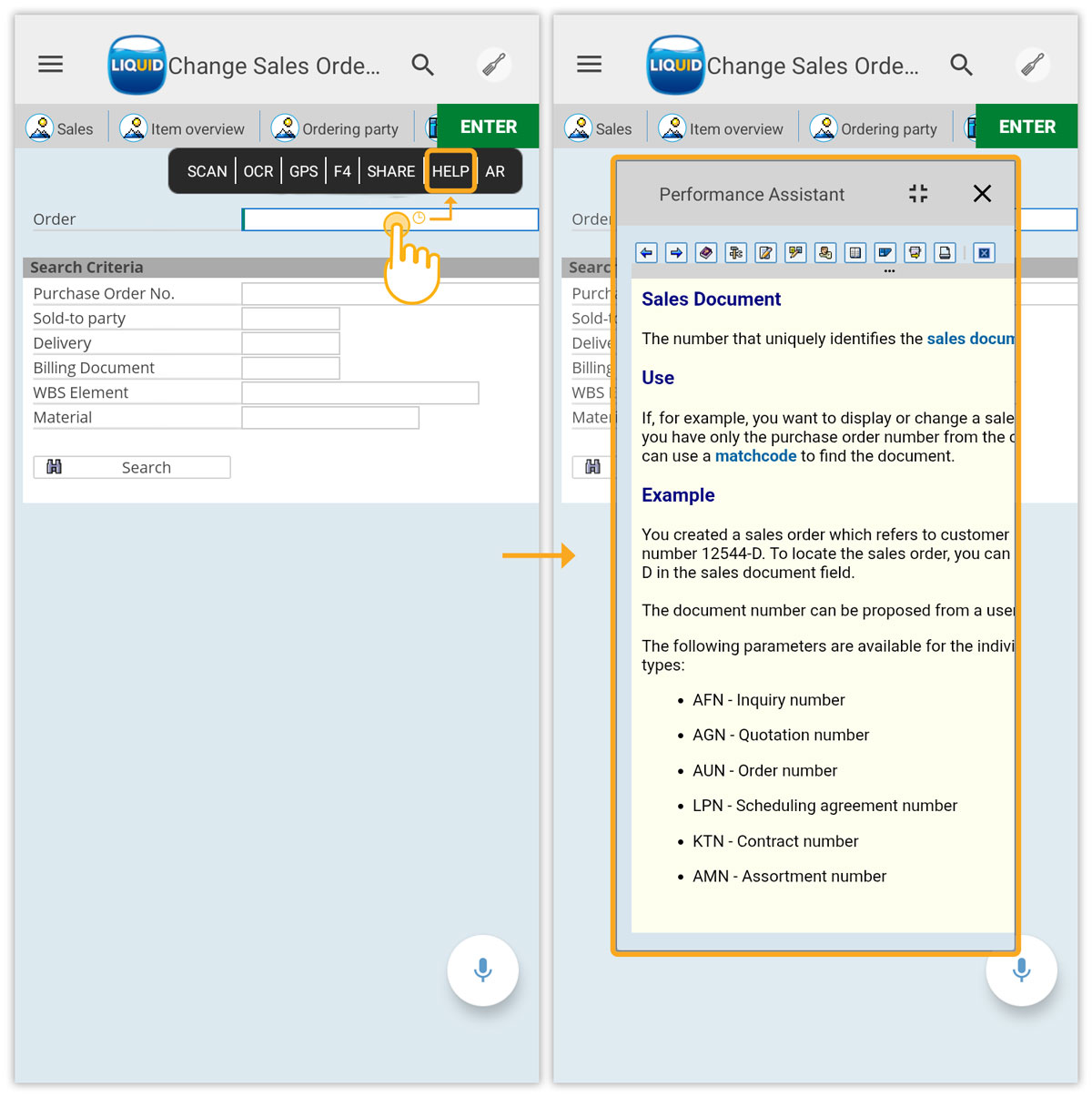
Click here for details on F1 Help.
Augmented Reality
Long-press a field and choose AR to detect real-world objects through your device camera and get contextual insights.
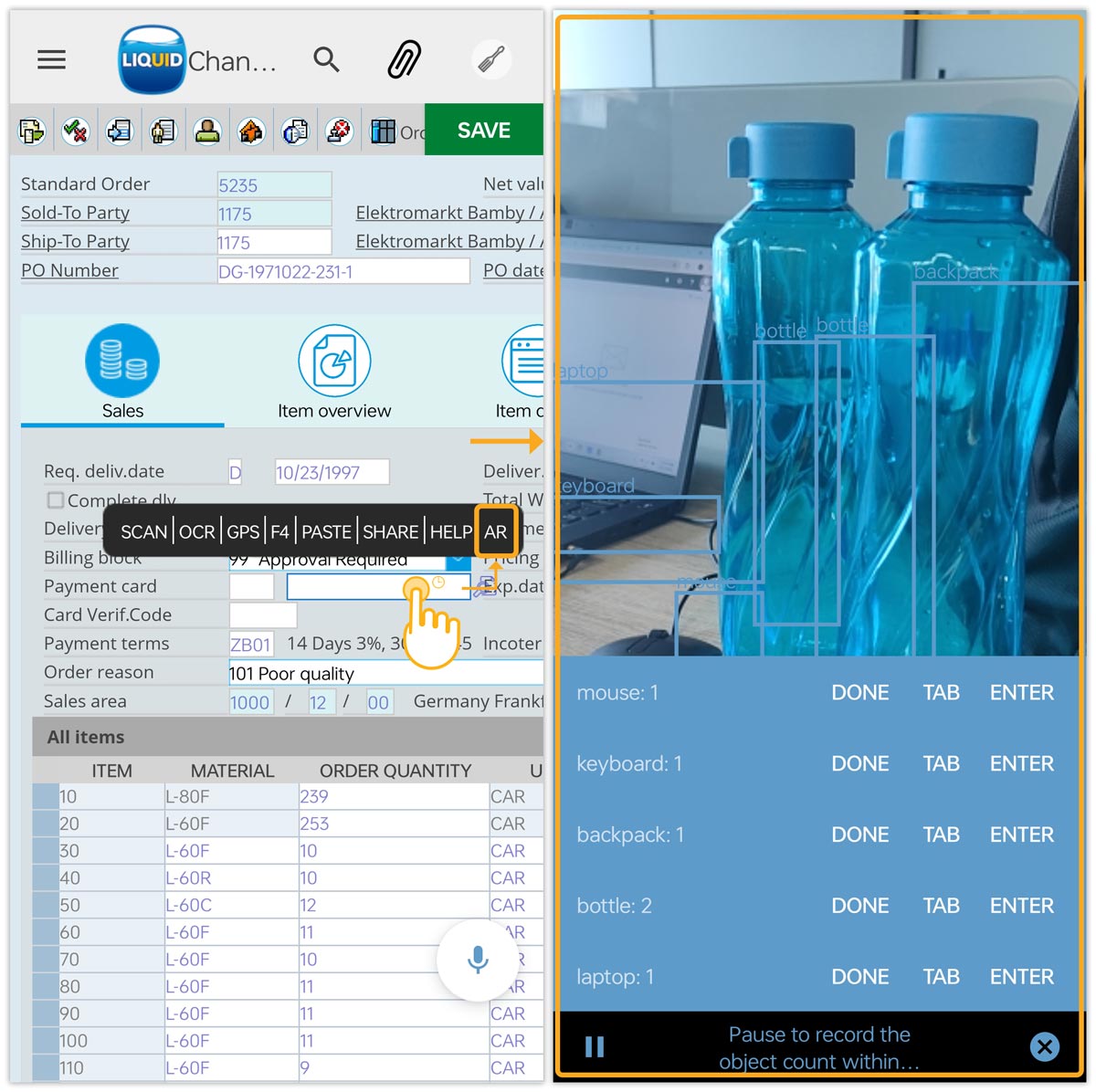
Click here for details on the AR feature.
SHARE
Use the SHARE option to send SAP screen data or actions via email, messaging apps, or other channels.
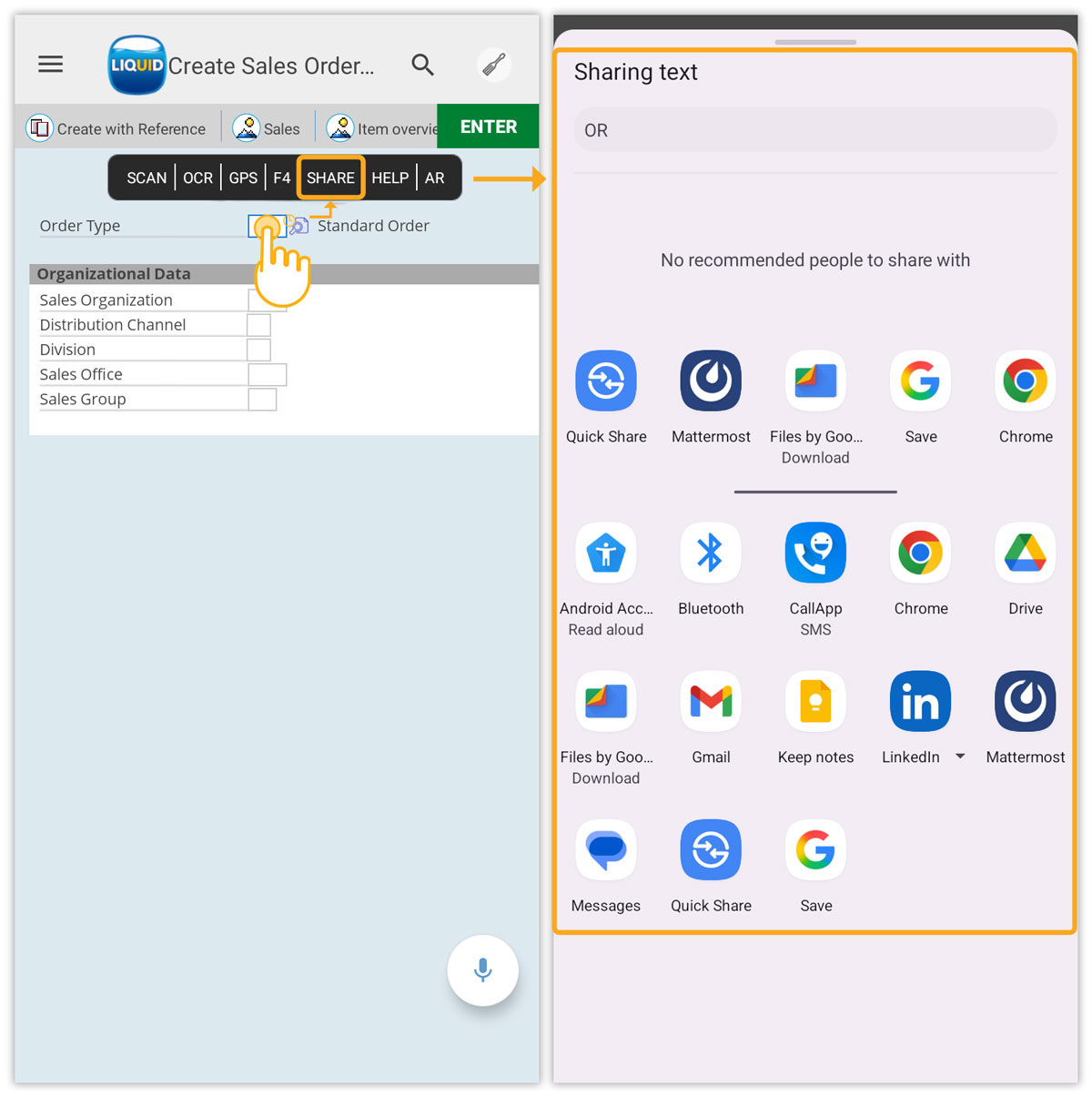
GPS
Long-press a field and tap GPS to insert your device's current location coordinates directly into SAP fields.
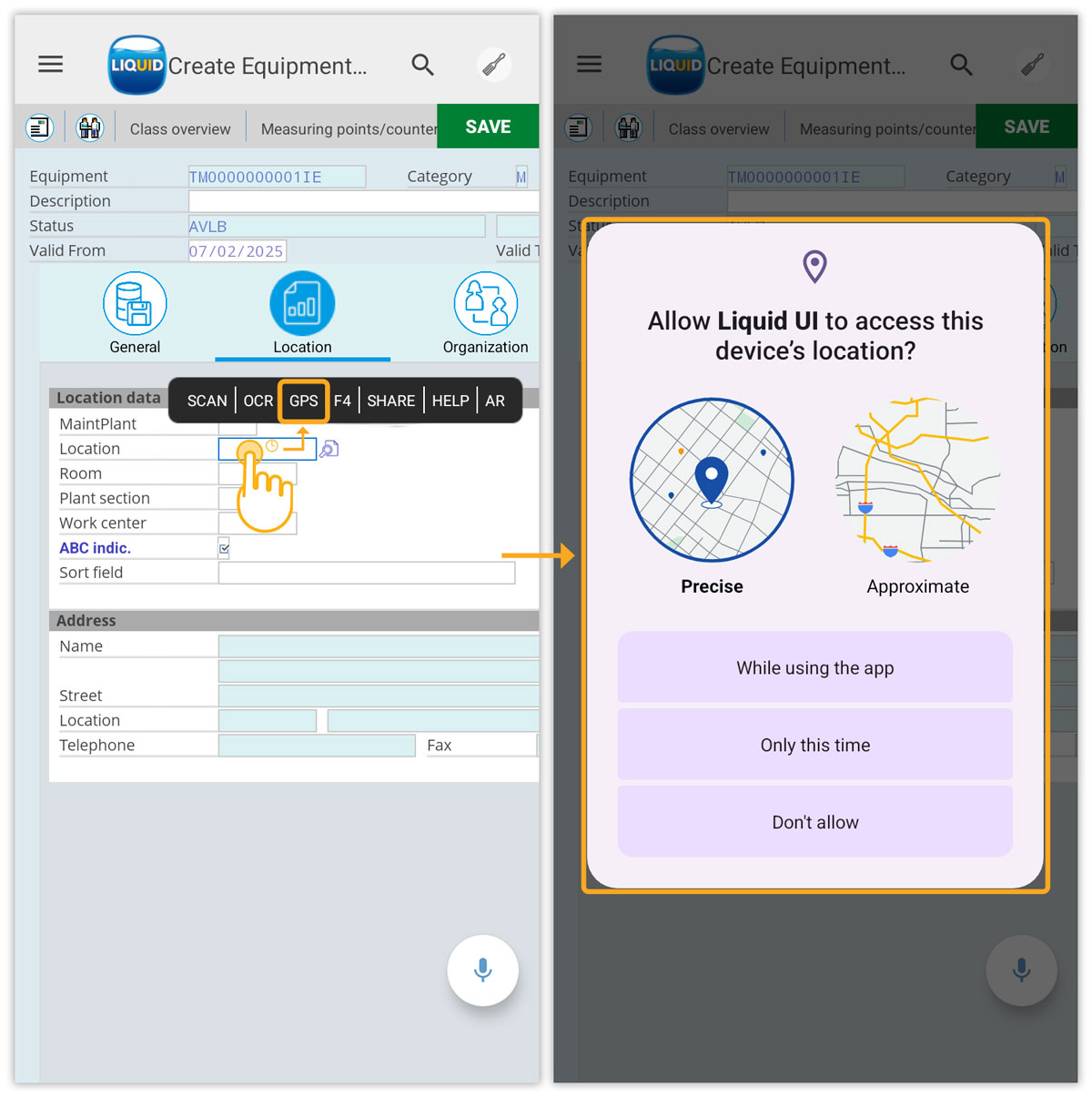
Click here for details on the GPS feature.
SCAN
Use the SCAN option to capture data using a built-in camera or third-party devices such as barcode and RFID scanners.
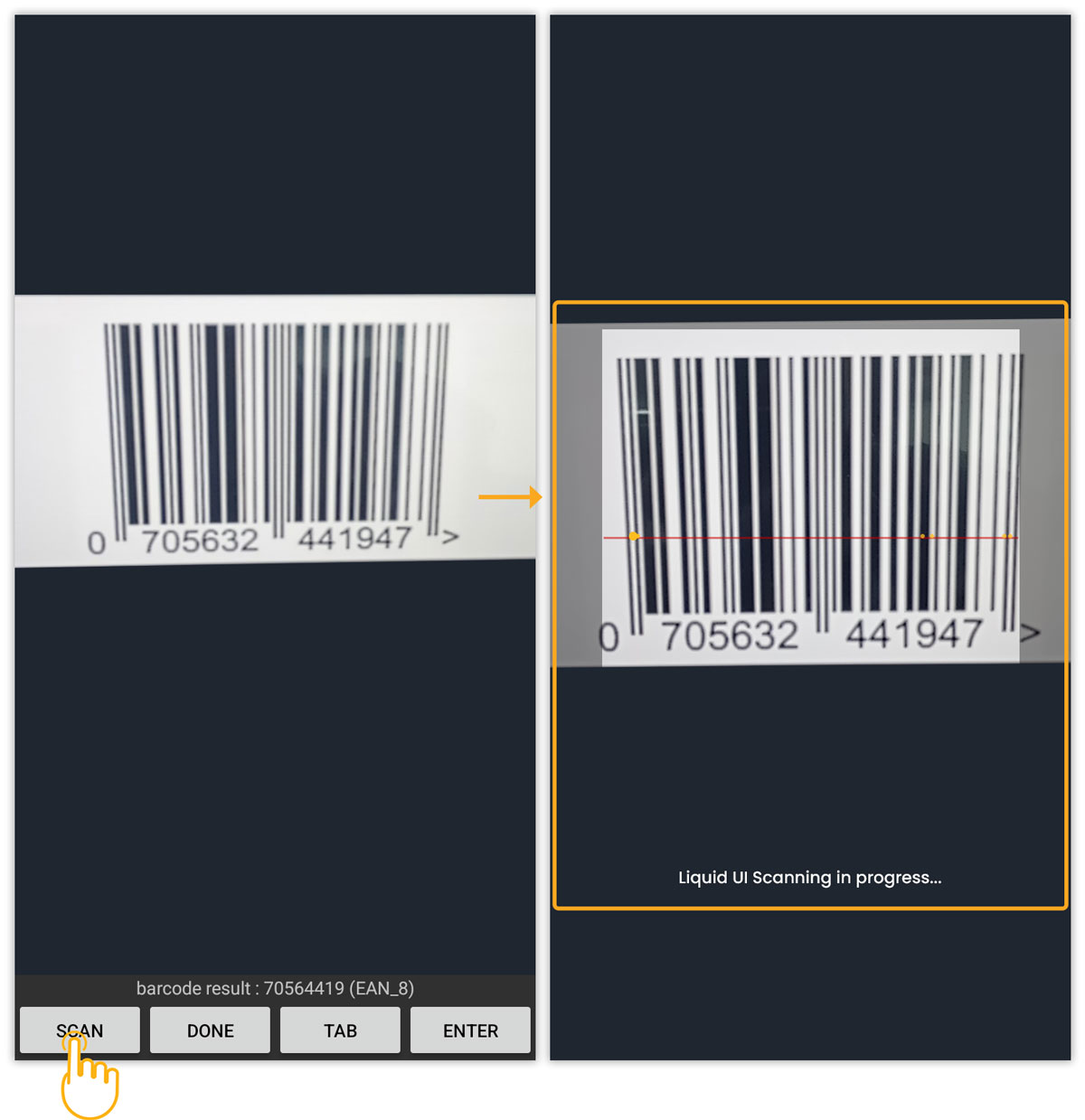
Click here for details on barcode scanning.
Click here for details on RFID.
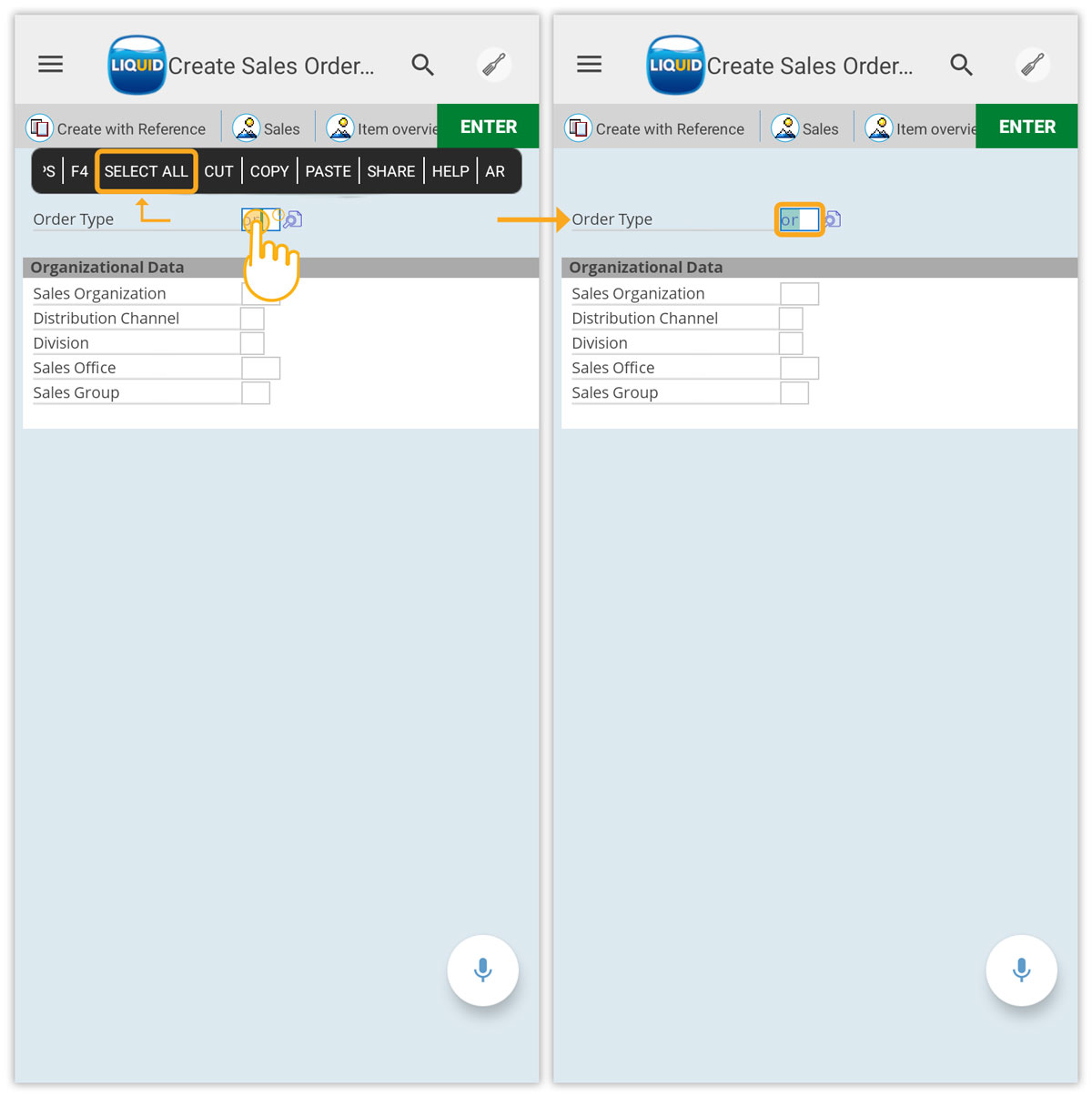
SELECT ALL
Clicking SELECT ALL selects the entire text in the input field.
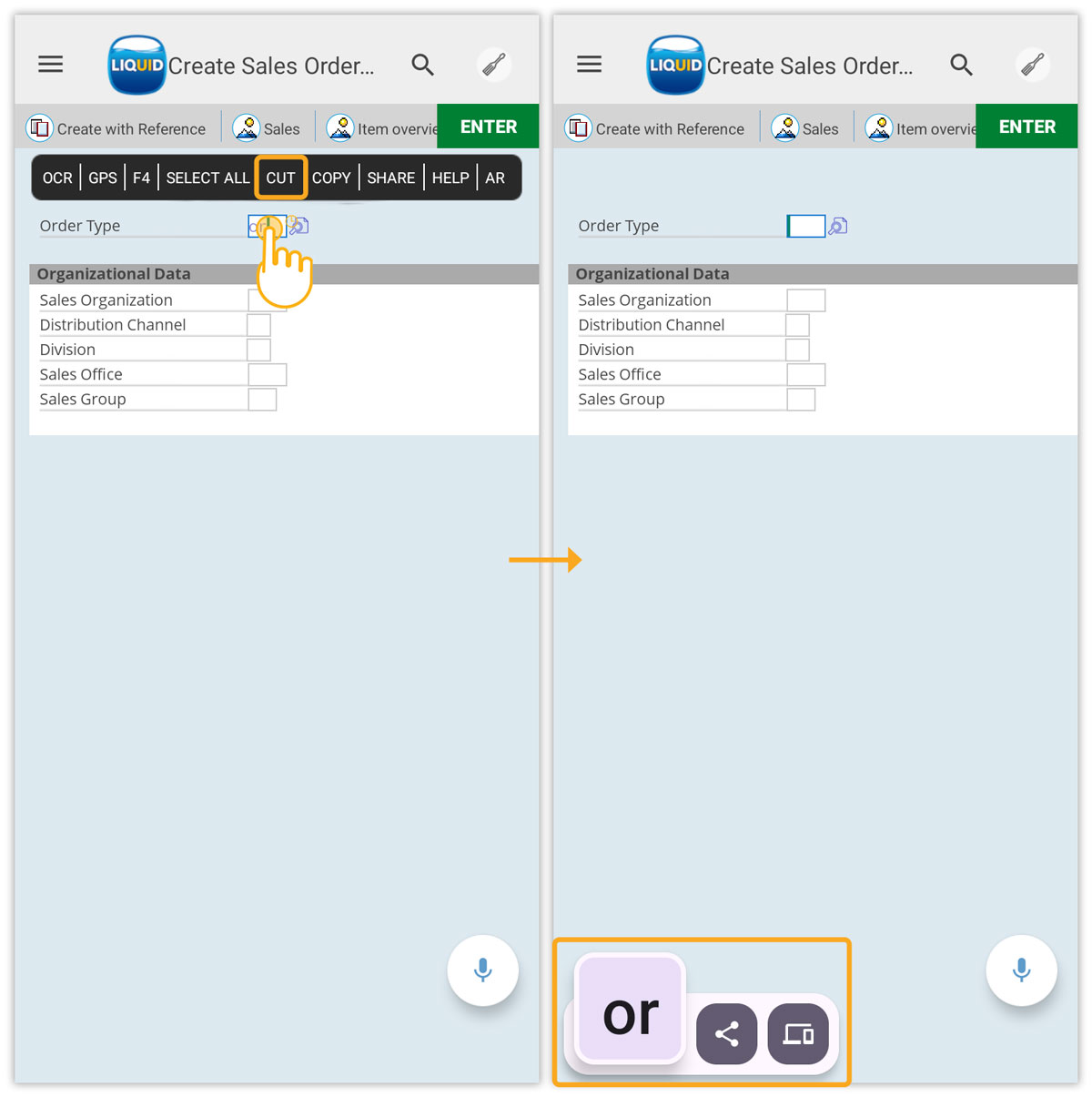
CUT
Selecting the CUT option removes text from the input field, allowing it to be shared or deleted.
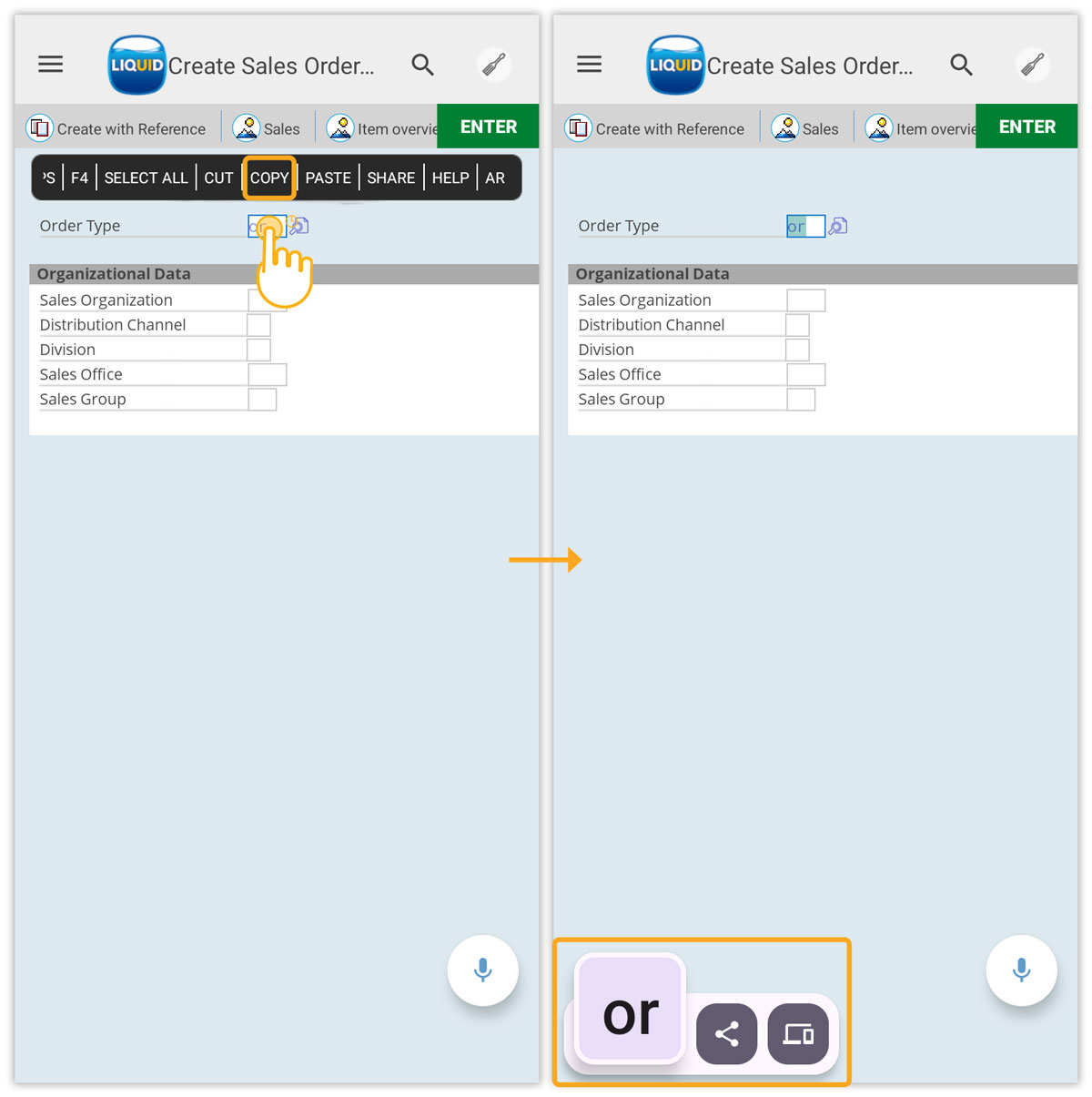
COPY
Selecting the COPY option duplicates text from the input field, allowing it to be easily shared or pasted into other fields.
PASTE
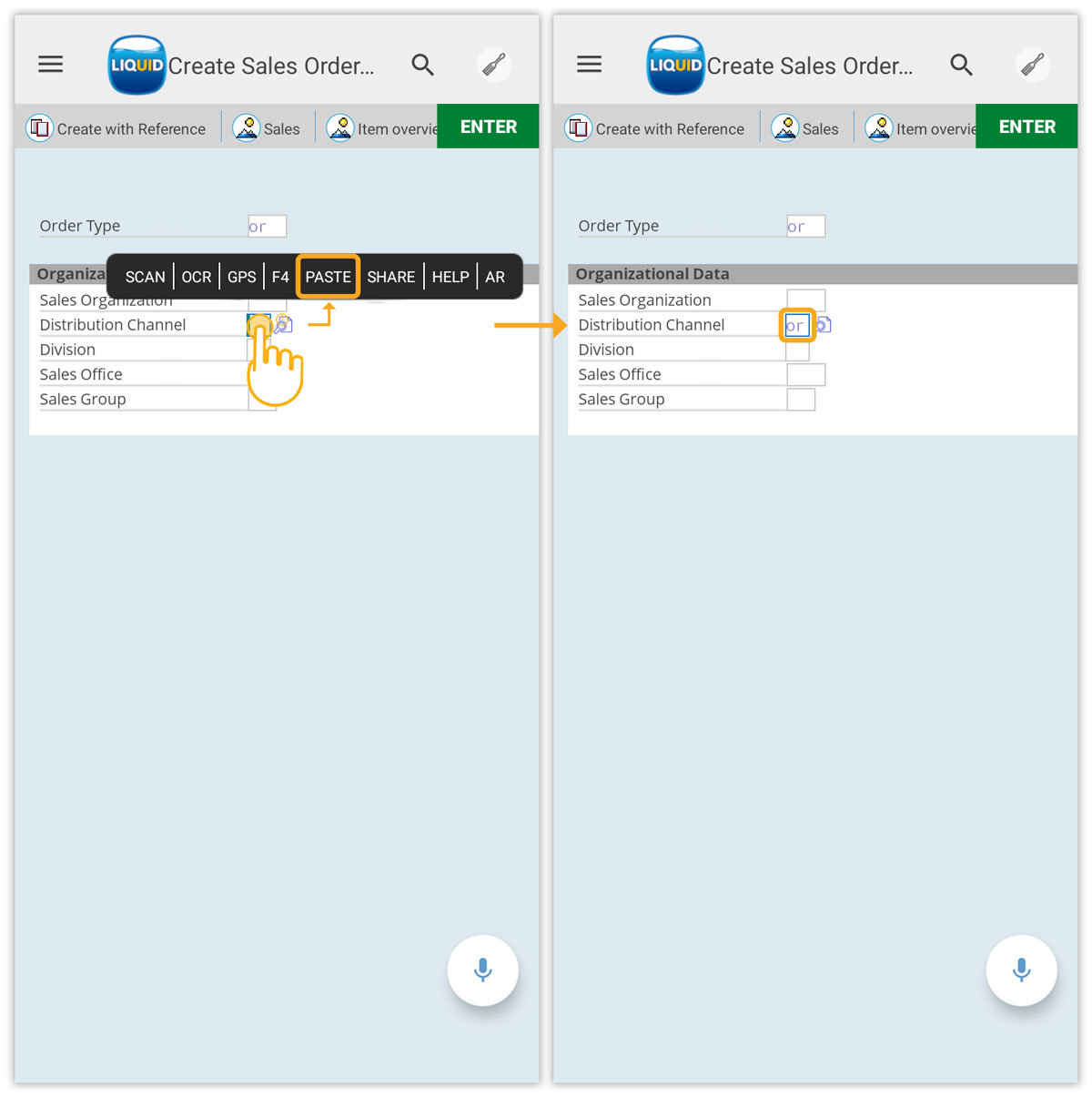
Selecting the PASTE option inserts previously copied text into other input fields.
Voice Assistant
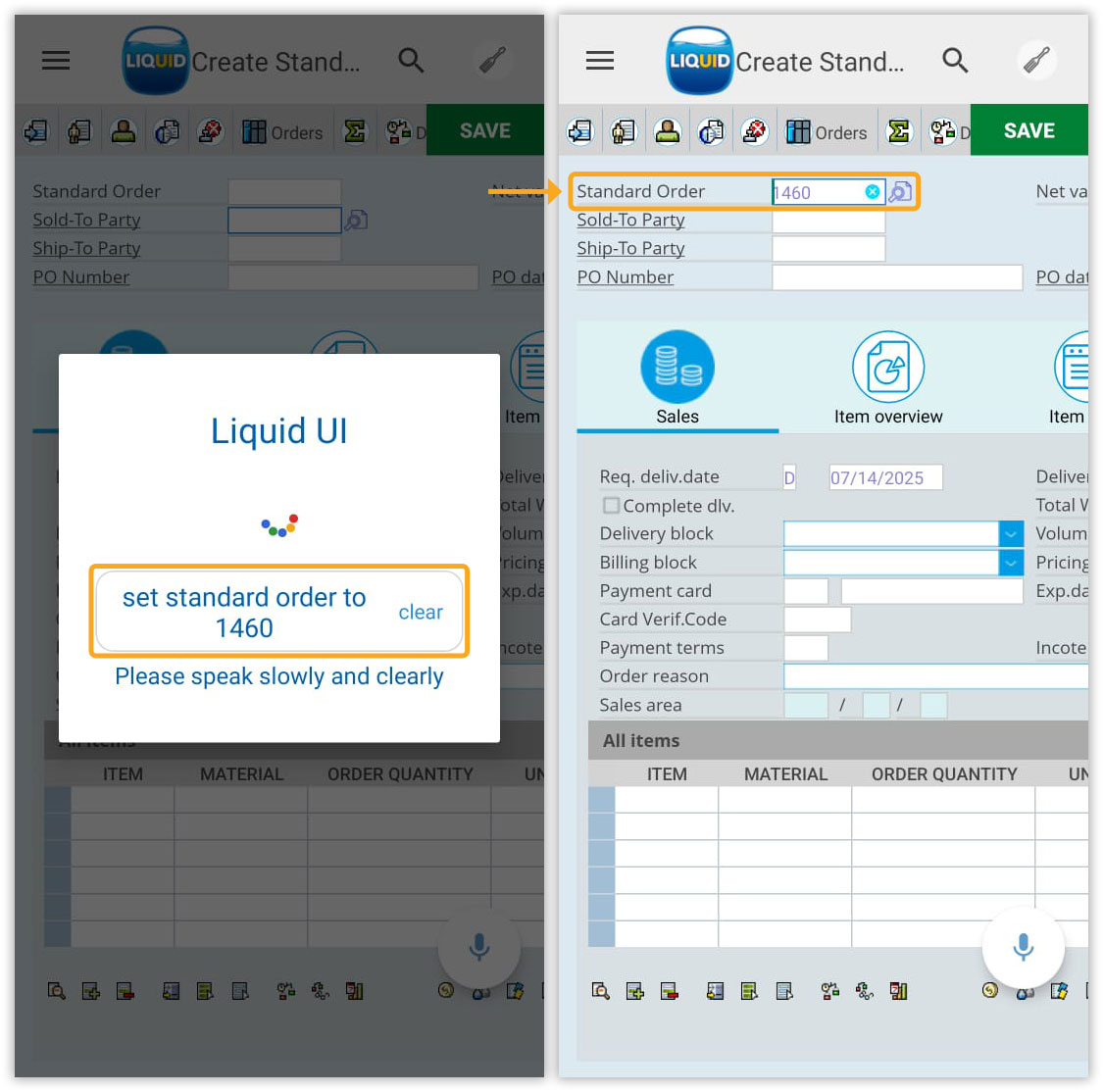
Activate the Voice Assistant to perform actions using voice commands, providing hands-free control and boosting productivity.
Click here for details on the Voice Assistant feature.