


The bell sound functionality using Liquid UI Server enhances the user experience on Android and Scangun devices by replicating SAP’s standard alert beeps. These sounds help draw immediate attention to SAP messages, such as error-prone entries or warnings, improving data accuracy and efficiency across SAP business processes.
With Liquid UI, different bell sounds can be added to various types of SAP messages. Such variations in bell sounds will help you distinguish between success, error, and warning messages that appear on the status bar in your SAP.
This article explains how to implement bell sounds, considering the Create Sales Order: Initial Screen as an example. We’ll guide you through the following steps:
- Add texts.
- Add a push button to execute the process.
- Load the files.
- Add a function to assign a bell sound based on user input.
- Add functions to trim space and check for empty values.
- Add a function to check if any input string is empty.
- Add a function to normalize and clean string input.
- Add a method to remove whitespace from strings.
- Add a function to add characters to the left or right of the string.
- Add a function to return a description from a key-value pair.
//Create the SAPMV45A.E0101.sjs file inside your script folder for customizing the Create Sales Order: Initial screen
//Now, add the Liquid UI script to the above file and save it
- Load the files below.
// Loads the files
load('belltest.sjs');
load('stringFunctions.sjs');
- Add texts.
// Adds text
text([0,20," ");
text([0,20,"&V[G_RF_BEEP");
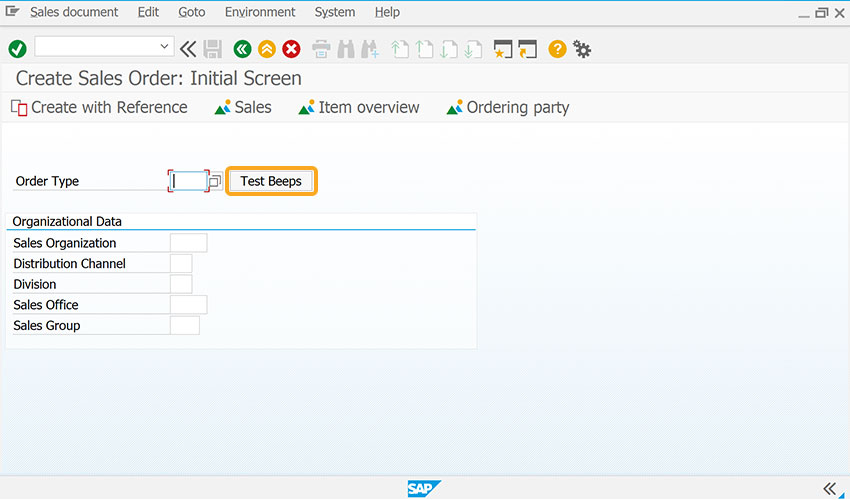
- Add a push button labeled Test Beeps to execute the fn_belltest process on click.
// Creates a push button to execute the process
pushbutton([2,30], "Test Beeps",{"process":fn_belltest});
//Create the Belltest.sjs file inside your script folder to assign bell sounds for the input field value
//Now, add the Liquid UI script to the above file, and save it - Add fn_belltest function to assign bell sounds based on user input.
// Function to assign bell sounds
function fn_belltest() {
              onscreen 'SAPMV45A.0101'
	set("V[G_RF_BEEP]" ,"");
	set("z_test" ,"&F[Order Type]");
	if(isBlank(z_test)) {
		set("V[G_RF_BEEP]" ,"BEL BEL BEL BEL");  // Beep 4 Times
		return("E: Enter Value");
	} else {
		set("V[G_RF_BEEP]" ,"BEL BEL");  // Beep 2 Times
		return("S: Field is not blank")
	}
}
//Create the stringFunctions.sjs file inside your script folder to validate string data
//Now, add the Liquid UI script to the above file, and save it - Add getString function to trim the space and check for empty values.
// Functions to trim the blank characters from a string and pad values to a string String.prototype.trim = function () { return this.replace(/^\s+|\s+$/g, ""); }
// Function to return trimmed string function getString(strInput) { return (typeof(strInput) == 'undefined') ? "" : strInput.toString().trim(); } - Add isBlank function to check for a blank string.
// Function to check for blank string
function isBlank(strInput) {
	var strVal = getString(strInput);
	var blank = strVal == "";
	return blank;
}
- Add padString function to add characters to either end of the string.
// Function to pad specified character
// usage: strReturn = padString('0',20,strValue,true); 	// Right Pad
// usage: strReturn = padString('0',20,strValue);		// Left Pad
function padString(charPad, nSize, strInput, bRight) {
  var strPad = Array(nSize+1).join(charPad);

  if (typeof strInput === 'undefined')
	return strPad;

  if (bRight) {
    return (strInput + strPad).substring(0, strPad.length);
  } else {
    return (strPad + strInput).slice(-strPad.length);
  }
}
- Add getkeyDescription function to get description of a key value.
// Function to get Description of a key value
// Usage: bbObject = {'FF':'Customer Block','ZZ':'Vendor Block'};
// Usage: bbDescription = getKeyDescription(bbObject,'FF');	// Will Return Customer Block
function getKeyDescription(inpObject,strKey){
	if(strKey in inpObject){
		return inpObject[strKey];
	}else{
		return '';
	}
}

Note: If you want to assign bell sounds to different fields of different SAP screens, you need to make a few changes to the script and script file names accordingly.
Configure your end-user device to connect to your Liquid UI Server
- Run the Consolemode.bat file to start your Liquid UI Server located in the specified path.
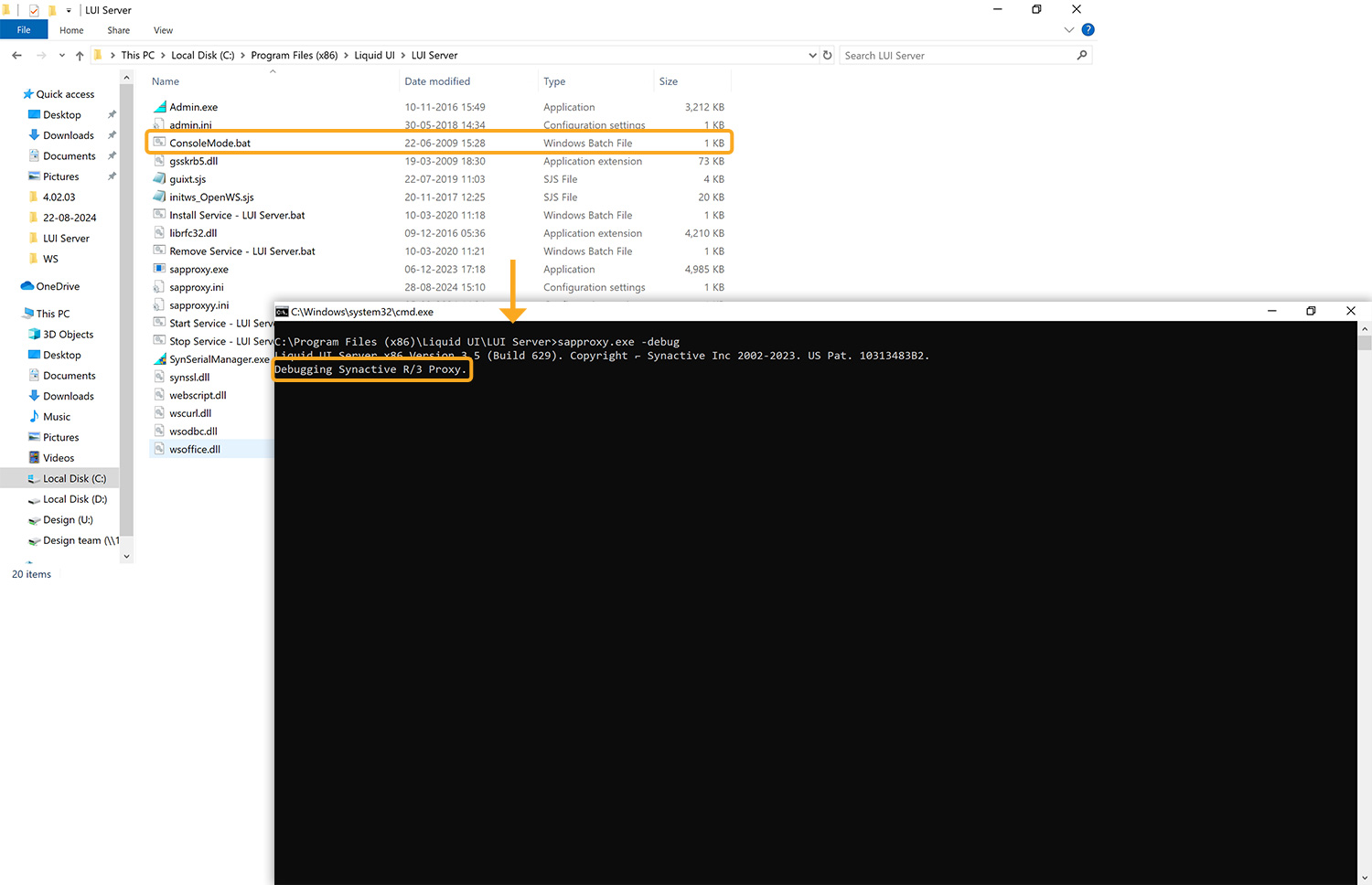
- Now, open Liquid UI for Android app and configure your Android device to connect Liquid UI Server, as shown in the image below.
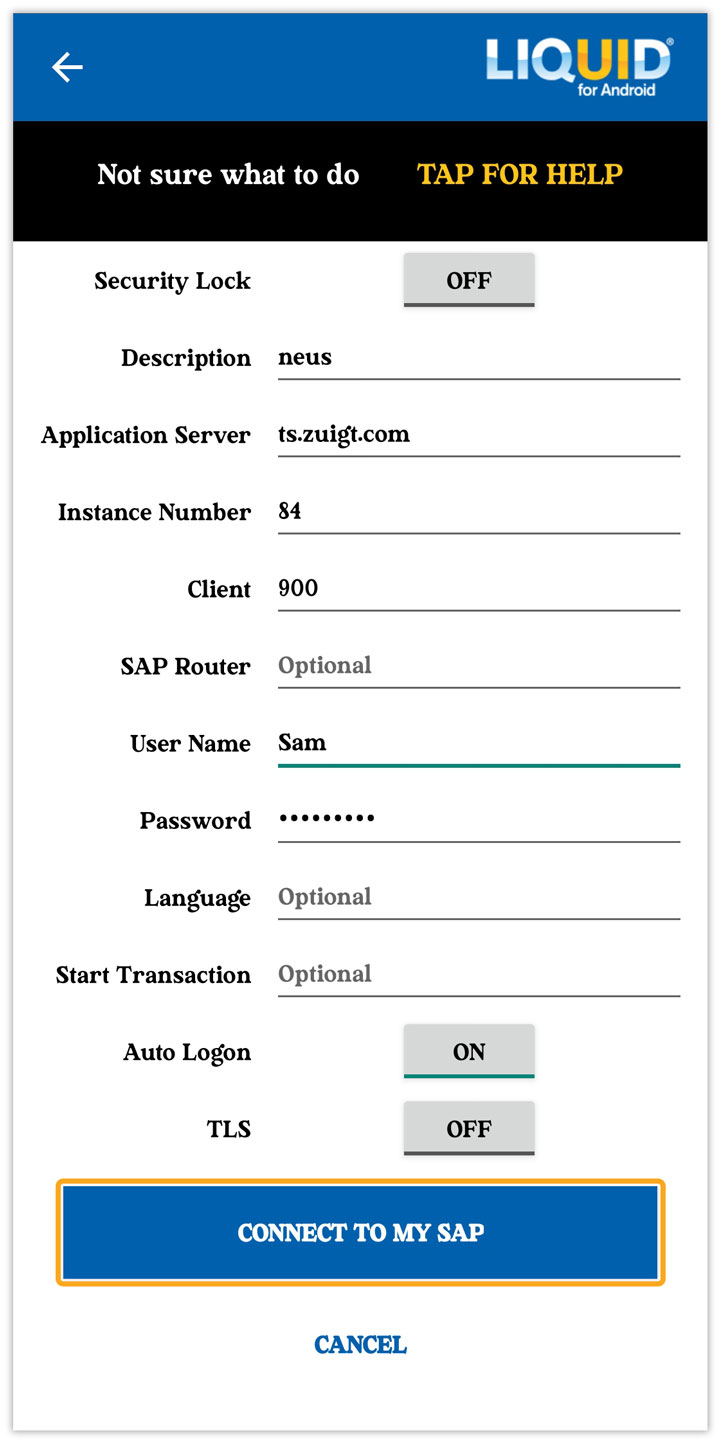
Click here for details on how to connect Liquid UI for Android to the SAP server.
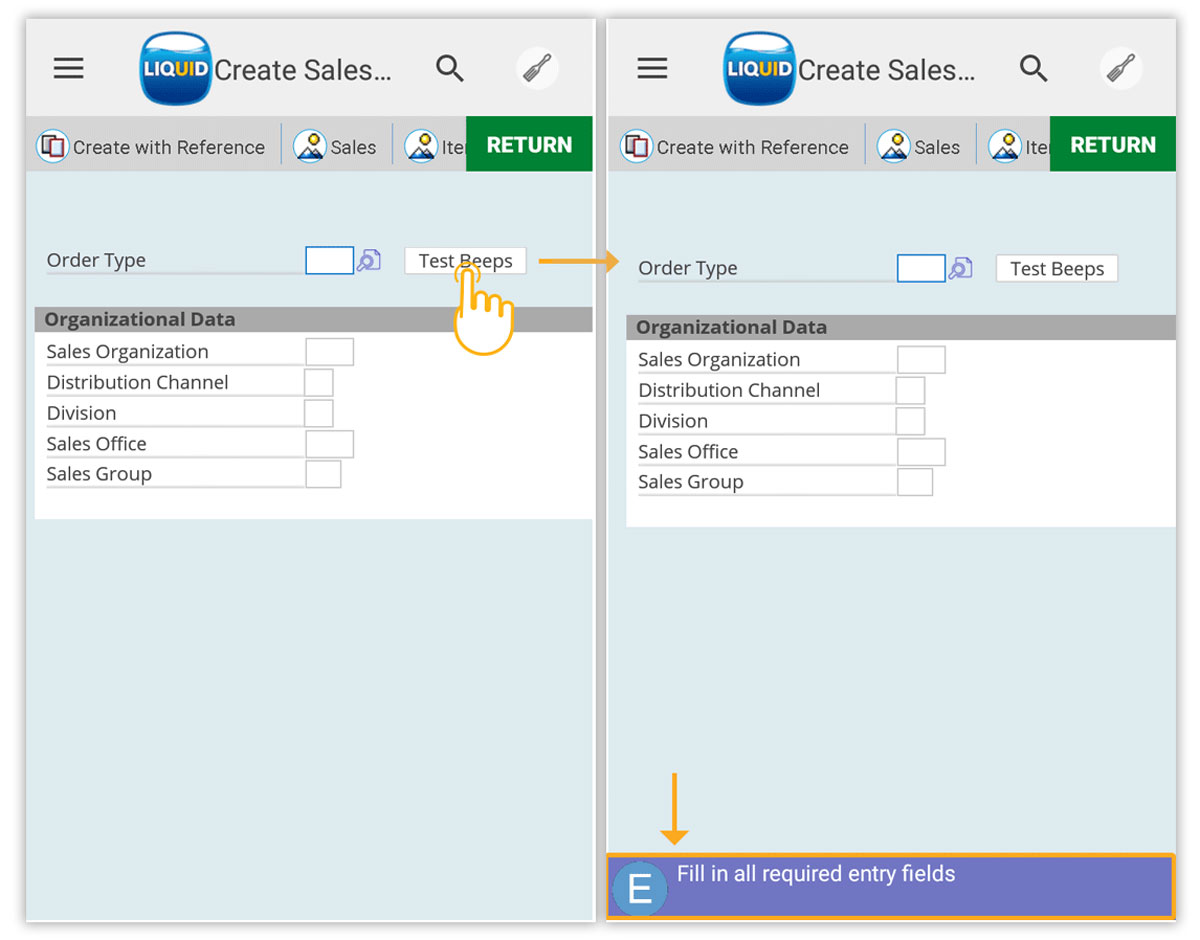
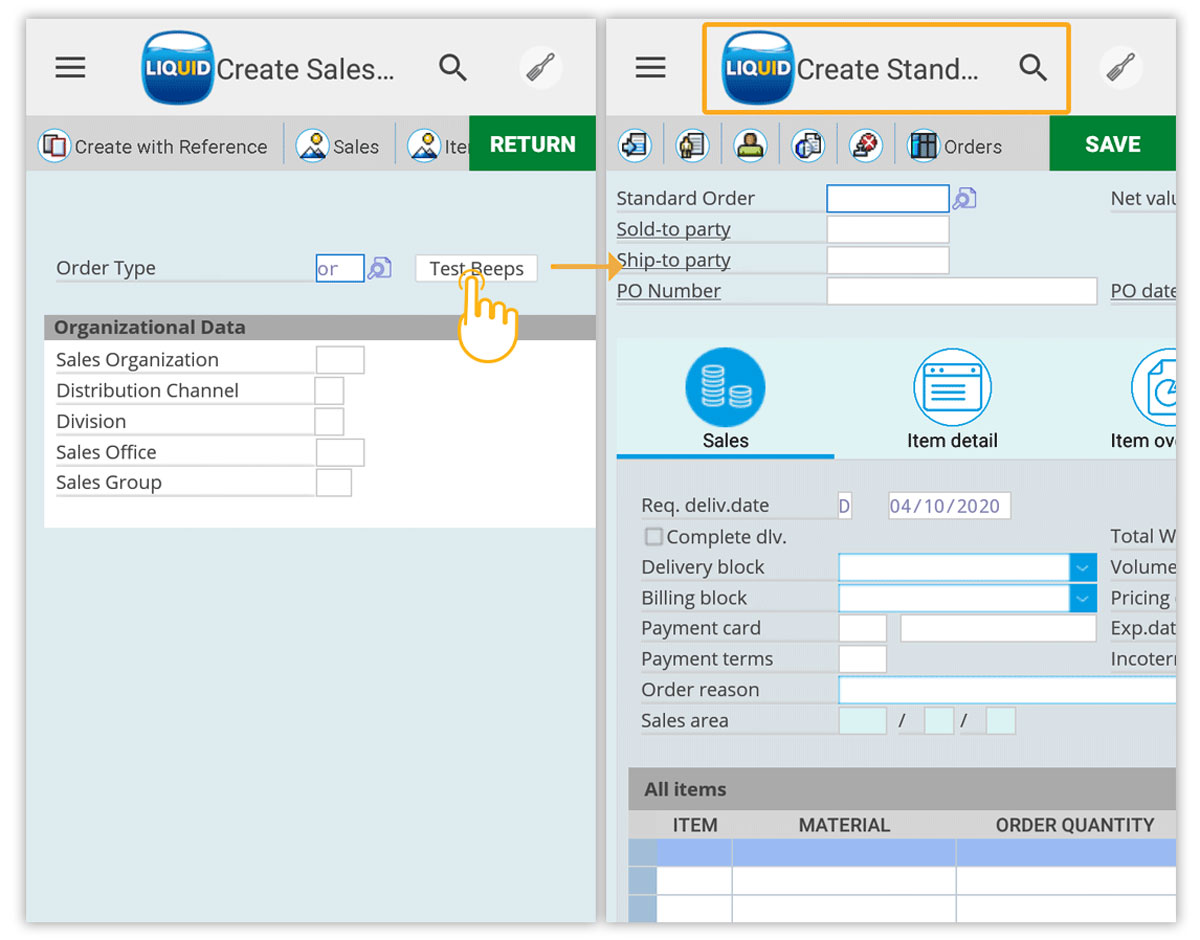
- Navigate to the VA01 transaction. If you click the Test Beeps push button while leaving the Order Type field empty, you will hear a long beep, and an error message appears at the bottom of the SAP screen, as shown in the image below.
- If you click the Test Beeps push button after entering a valid value in the Order Type input field, you will proceed to the Create Sales Order: Overview screen without any beep sound.
Note: Ensure that you check the sound settings for notifications that appear on your Liquid UI for Android devices.