


Prerequisites
- Products: Liquid UI WS, Liquid UI Server or Local DLL, Client Software
- Commands: message(), pushbutton(), enter(), del()
Purpose
This article details the creation of pop-up dialog boxes on SAP screens using the message(). These pop-ups, demonstrated with the SAP Easy Access screen, can confirm user actions and enable conditional navigation based on choices like Yes/No or Abort/Retry.
To implement this:
- Remove the image container and unnecessary elements from the SAP Easy Access screen.
- Add a toolbar push button to initiate the process.
- Develop a function to generate the pop-up with the desired options.
User Interface
//Create the file SAPLSMTR_NAVIGATION.E0100.sjs inside your scripts folder for customizing the SAP Easy Access screen
//Now, add the Liquid UI script to the above file, and save it.
Customization
- Remove the image container and other elements on the SAP Easy Access screen using del().
// Deletes the image container and screen elements on the SAP screen
del("X[IMAGE_CONTAINER]");
del("P[Documentation]");
del("P[Assign Users]");
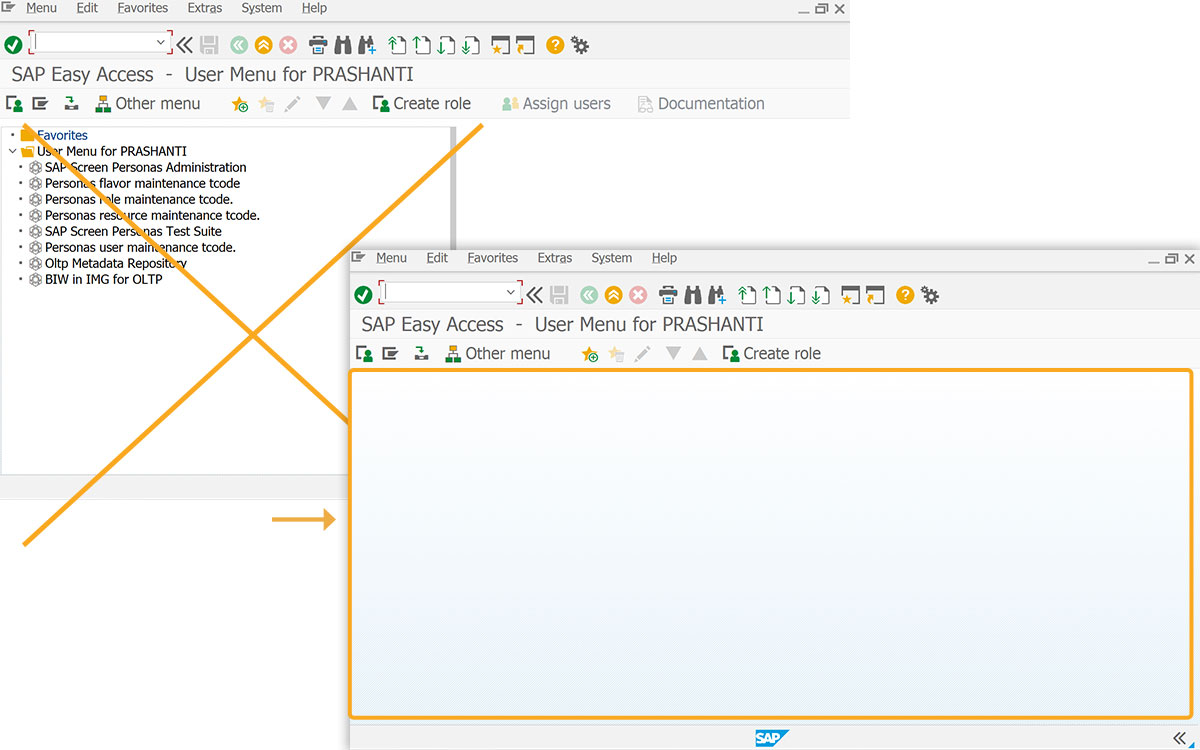
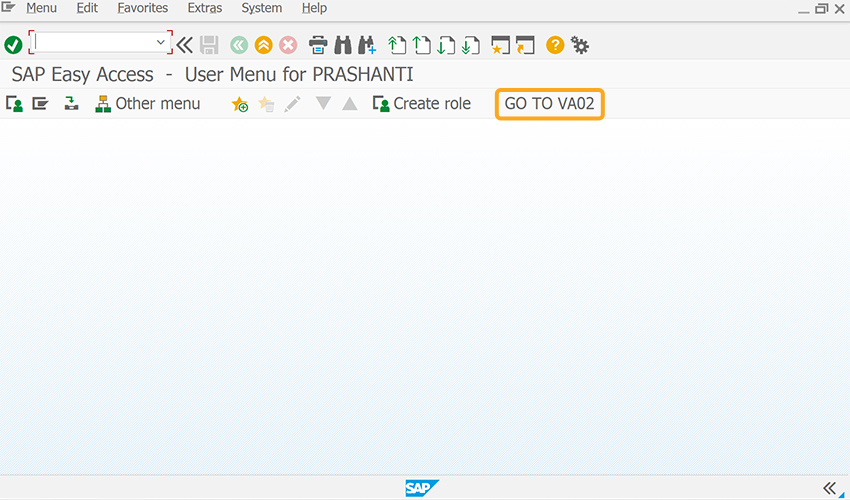
- Add a GO TO VA02 toolbar button to execute navigateVA02 process on click.
// Deletes the image container and screen elements on the SAP screen
pushbutton([TOOLBAR],"GO TO VA02","?",{"process":navigateVA02});
- Add navigateVA02 function to create a popup with options.
// Function to create a popup with options
function navigateVA02(){
onscreen 'SAPLSMTR_NAVIGATION.0100'

// message_result will hold a value that depends on what the user clicks in  the pop-up
// in the message command, specify the type, 4 is a Yes or No message box
// in the message command, specify the title you want the message box to have
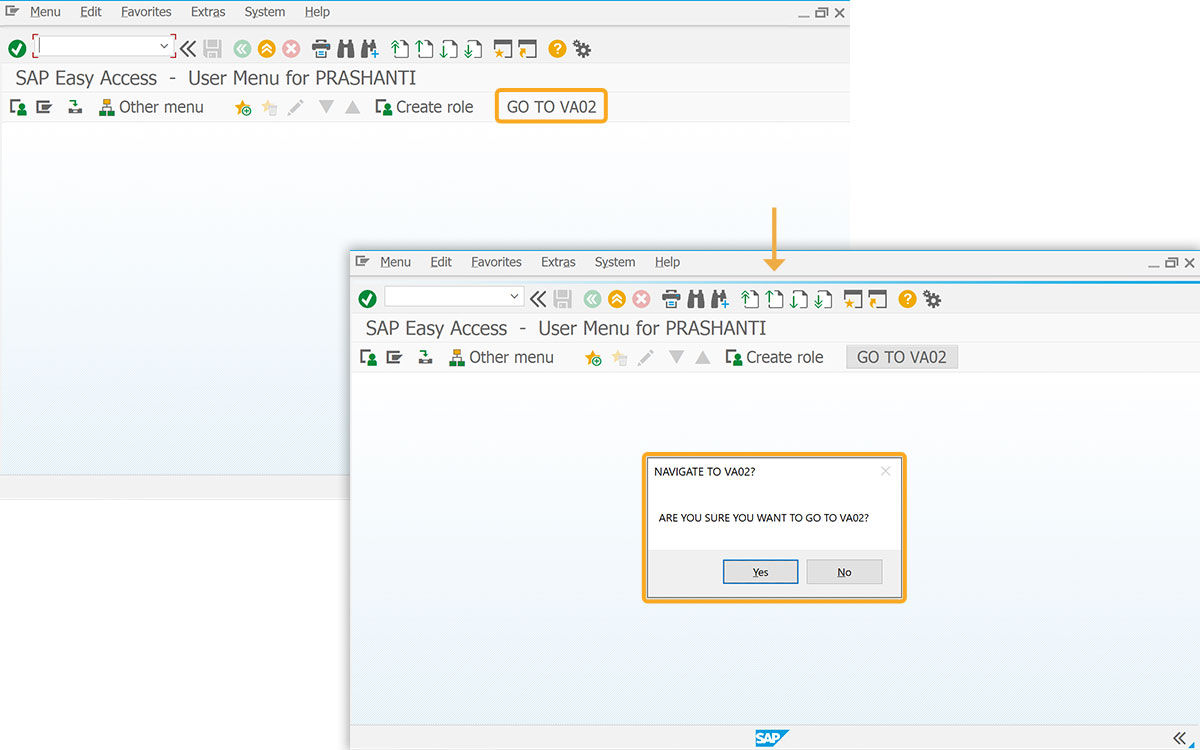
message_result = message("ARE YOU SURE YOU WANT TO GO TO VA02?", {"type":4,"title":"NAVIGATE TO VA02?"});
// if the result is 6, the user clicked yes
if(message_result == 6){
	enter("/nva02");
		}
// if the result is 7, the user clicked no
else if(message_result == 7){
	enter("?");
		}
}
SAP Process
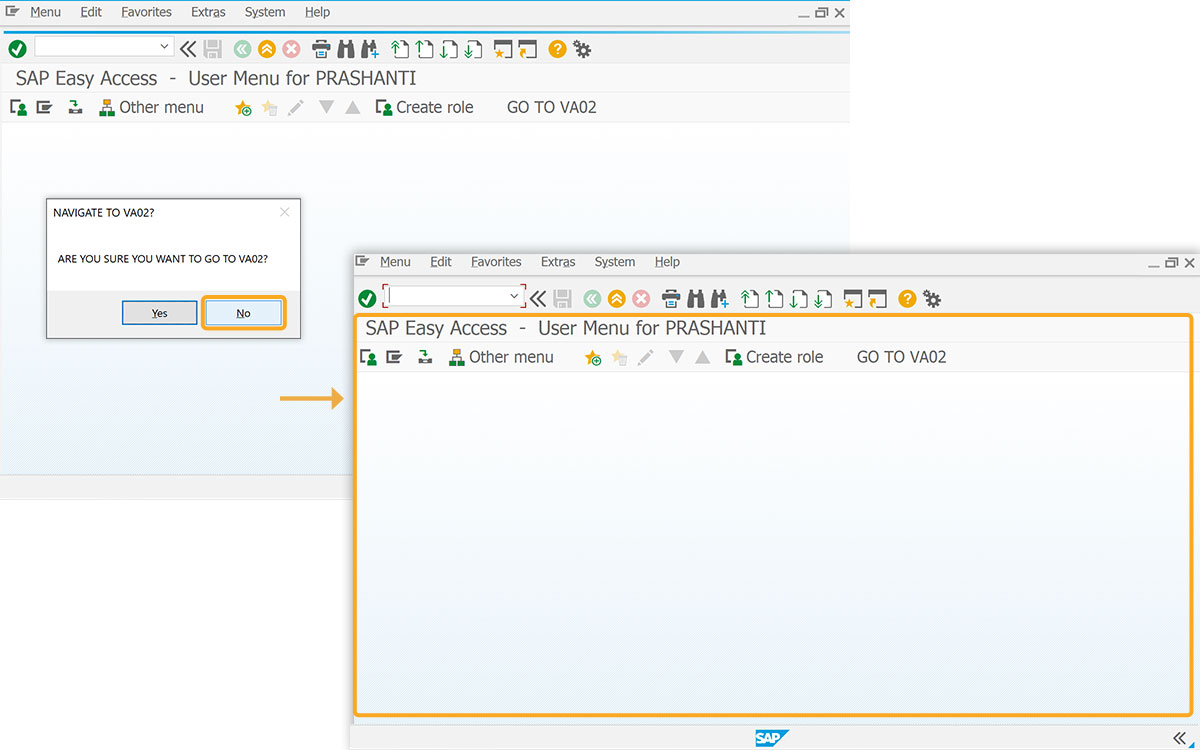
- Upon refreshing the SAP screen, click the GO TO VA02 toolbar push button. A pop-up message will appear, requiring you to confirm the action.
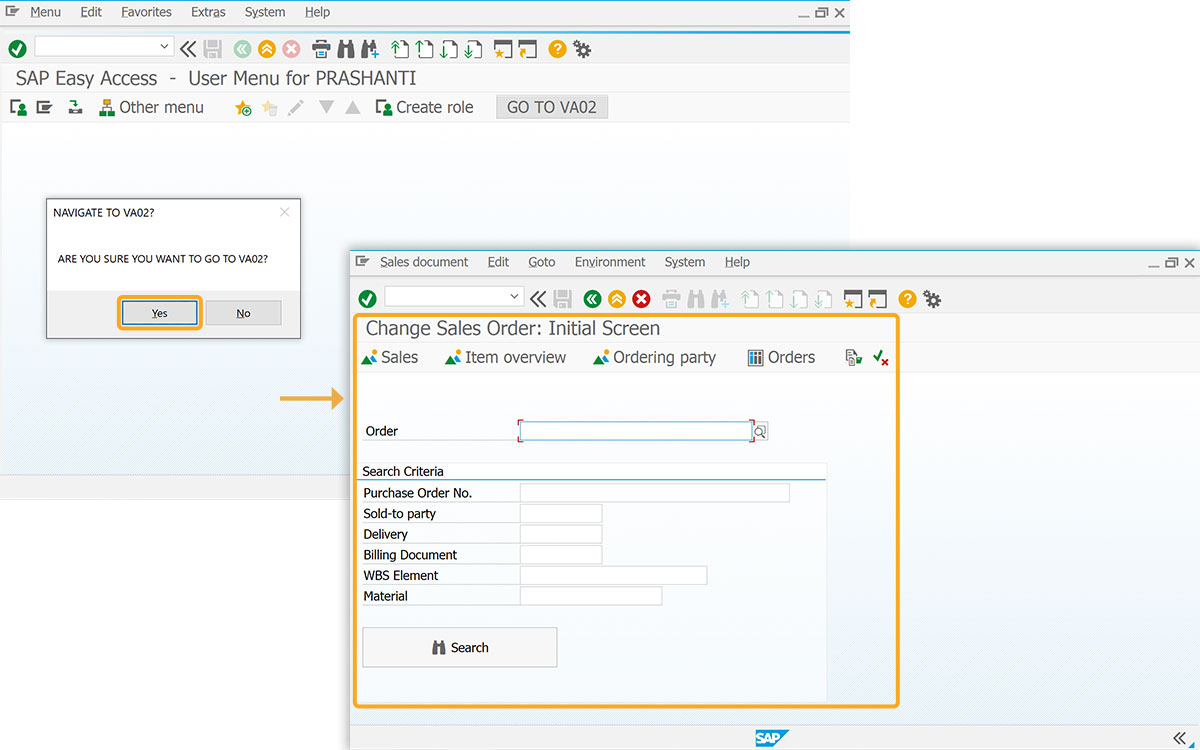
- Select Yes to navigate to the Change Sales Order: Initial screen.
- Selecting No will keep you on the current screen, as shown in the image below.
- The type parameter within the message() function dictates the pop-up's appearance and behavior. This parameter is determined by combining a Pop-up Type with an optional Icon Type.
POP-UP TYPE VALUE ABORT, RETRY, IGNORE 2 CANCEL, TRY, CONTINUE 6 HELP 16384 OK 0 OK, CANCEL 1 RETRY, CANCEL 5 YES, NO 4 YES, NO, CANCEL 3 ICON TYPE VALUE INFORMATION ICON 64 QUESTION ICON 32 STOP ICON 16 - Using the table above, we have created a pop-up with the options ABORT, RETRY, and IGNORE along with a STOP icon, and then performed the sum of 2 and16. Also, displayed the message as CALCULATED TYPE is 18!.
message("CALCULATED TYPE is 18!",{"type":18});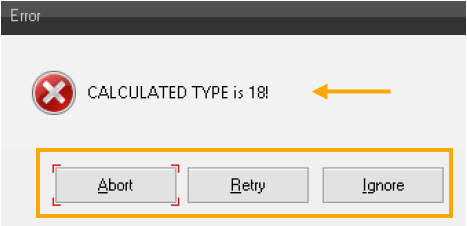
- The user's button click dictates the flow of our process. Each button carries a unique value, which can then be evaluated within an "if" condition.
BUTTON VALUE FUNCTION FAIL 0 ABORT 3 CANCEL 2 CONTINUE 11 IGNORE 5 NO 7 OK 1 RETRY 4 TRY 10 YES 6