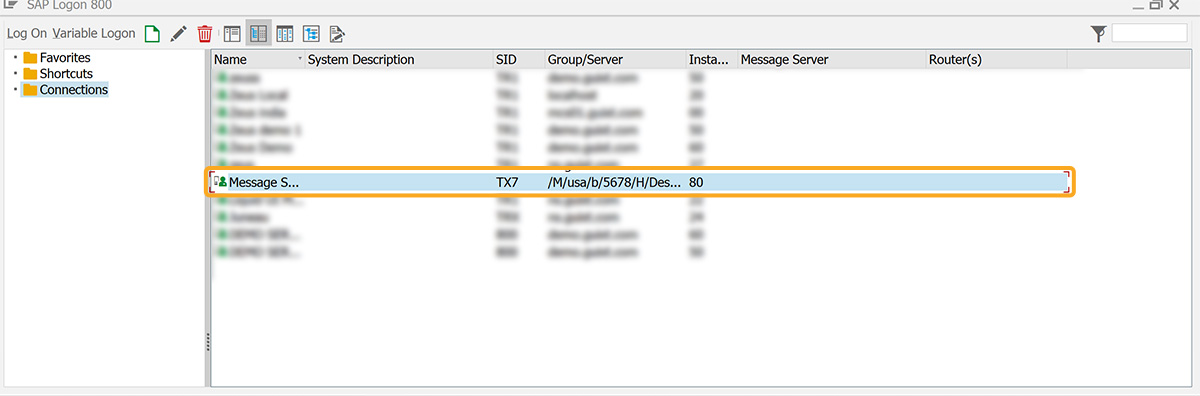


Liquid UI Server can be configured as a message server to distribute workload across multiple servers. This setup requires changes to the sapproxy.ini and SAP Logon system properties.

Note: Message server functionality is supported only on Windows Server operating systems.
Configuring Liquid UI Message Server
sapproxy.ini
The sapproxy.ini file stores proxy server details that enable SAP GUI to connect to your SAP Server using Liquid UI Server.
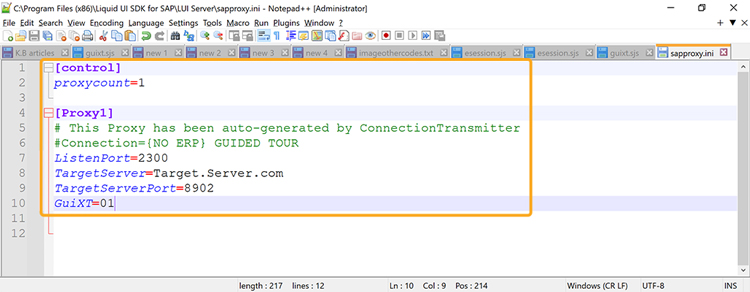
The configuration parameters are defined as follows:
| proxycount | Number of connections between the SAP Server and Liquid UI Server. |
| ListenPort | Port number used by the Liquid UI Server (must be in the 32xx series). |
| TargetServer | Host name or IP address of the SAP application server. |
| TargetServerPort | Port of the SAP server to connect to |
| GuiXT |
|
- Open the SAP logon pad, click New to open the Create New System Entry window, enter the required details, and click Finish.
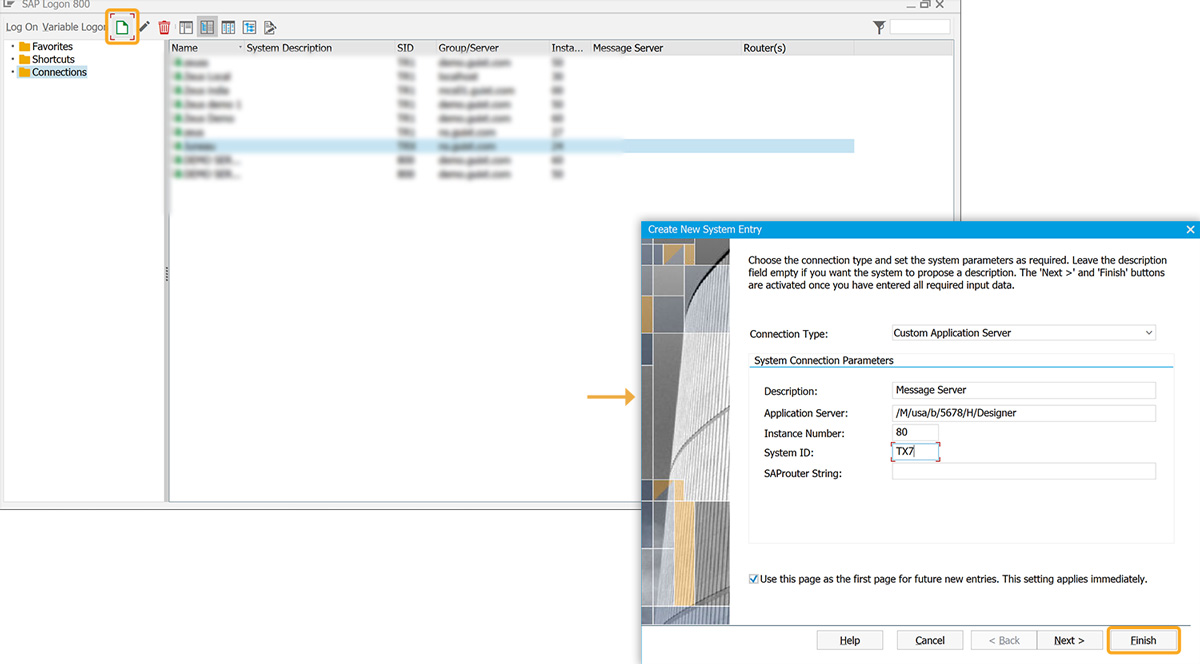
As per the above image, the system connection parameters include the following:
- Description - Information about the server.
- Application Server - Refers to the SAP message server. Where,
- M --> Name of the message server or Liquid UI server
- S --> Service port number
- G --> Group of the message server
- Instance Number - Specifies the target port that connects to either the SAP application server.
- Client - SAP client ID (Optional value).
- System ID - SAP system ID
- The newly added Liquid UI Server connection will now appear in the list of available connections on your SAP logon pad.