

Prerequisites
- Products: Liquid UI WS, Liquid UI Server, Client Software
- Commands: inputfield(), pushbutton(), del(), return(), enter()
Purpose
The article describes how to validate a date input by comparing it with the user’s date format configured in the SU03 transaction, using the SAP Easy Access screen as a guide.
- Delete the image container from the SAP Easy Access screen.
- Add an input field to enter the date
- Add a push button to execute the process
- Implement a function to remove blank spaces
- Implement a function to validate the date entered
- Implement a function to retrieve the date format, and check the validity of the user-entered date
User Interface
//Create the file SAPLSMTR_NAVIGATION.E0100.sjs inside your scripts folder for customizing the SAP Easy Access screen
//Now, add the Liquid UI script to the above file, and save it.
Customization
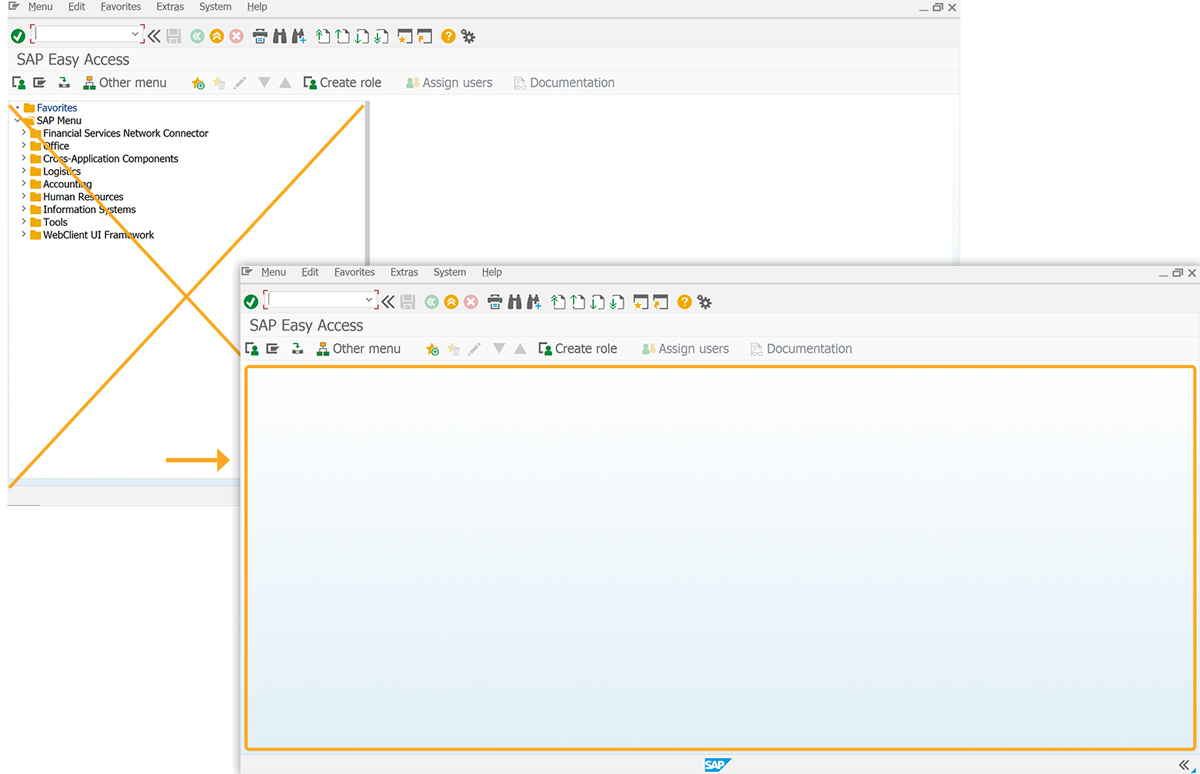
- Remove the image container from the SAP Easy Access screen with the del() function.
// Deletes the image container on the SAP screen
del("X[IMAGE_CONTAINER]");
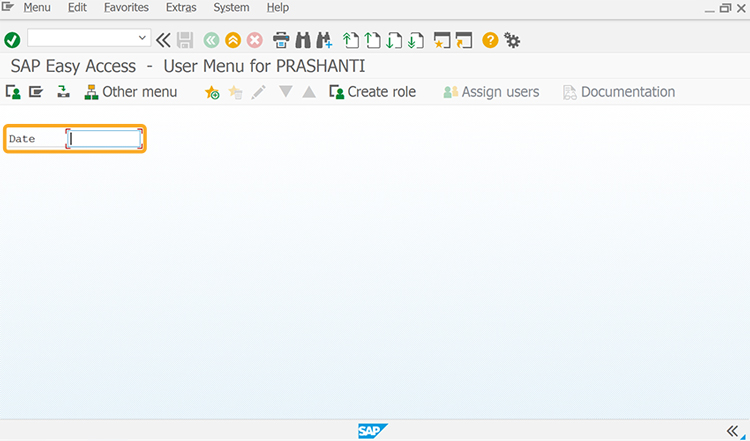
- Add an input field labeled Date for date entry.
// Creates an input field to enter the date
inputfield([1,1], "Date", [1,10],{"name":"z_date", "size":"10"});
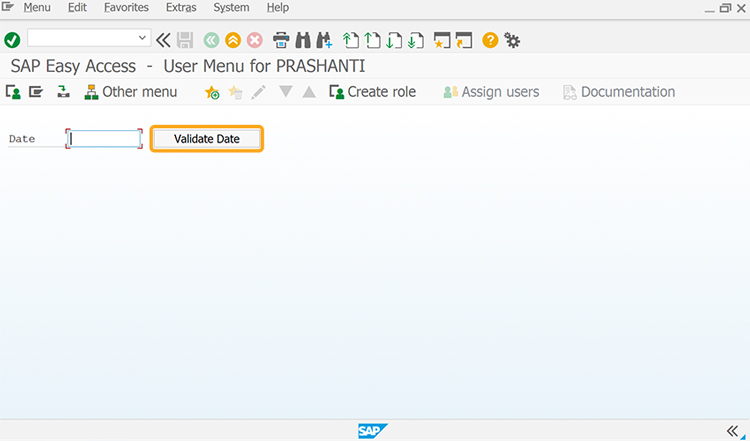
- Add a push button labeled Validate Date to execute the checkDateFormat process on click.
// Creates a push button to execute the process
pushbutton([1,23], "Validate Date", '?', {"process":checkDateFormat, "size":[1,15]});
- Add isBlank function to check if the variable holds a blank or null value.
// Function to remove blank spaces
String.prototype.trim=function(){return this.replace(/^\s+|\s+$/g,'');}
// Function to check blank or null value
function isBlank(jvar){
    if(typeof jvar == 'string') {
        jvar = jvar.trim();
    }
    return(jvar == 'undefined' || jvar == null || jvar == "" || jvar == void 0);
}
- Add isValidate function to validate the date entered by the user.
// Function to validate the date
function isValidDate(date,dformat){
    switch(parseInt(dformat)){
    case 1:
        var matches = /^(\d{2})[-\.](\d{2})[-\.](\d{4})$/.exec(date);
        if (matches == null)
            return false;
        else
            return true;
        break;
    case 2:
        var matches = /^(\d{2})[-\/](\d{2})[-\/](\d{4})$/.exec(date);
        if (matches == null)
            return false;
        else
            return true;
        break;
    case 3:
        var matches = /^(\d{2})-(\d{2})-(\d{4})$/.exec(date);
        if (matches == null)
            return false;
        else
            return true;
        break;
    case 4:
        var matches = /^(\d{4})[-\.](\d{2})[-\.](\d{2})$/.exec(date);
        if (matches == null)
            return false;
        else
            return true;
        break;
    case 5:
        var matches = /^(\d{4})[-\/](\d{2})[-\/](\d{2})$/.exec(date);
        if (matches == null)
            return false;
        else
            return true;
        break;
    case 6:
        var matches = /^(\d{4})-(\d{2})-(\d{2})$/.exec(date);
        if (matches == null)
            return false;
        else
            return true;
        break;
    }
 }
- Add checkDateFormat function to check if the user-entered date is valid or display an error message.
// Function to retrieve the date format and check the validity of user user-entered date
function checkDateFormat(){
    if(isBlank(z_date)){
        return('E: Enter Date');
    }

    onscreen 'SSAPLSMTR_NAVIGATION.0100'
        enter('/nSU3');

   onscreen 'SAPLSUID_MAINTENANCE.1100'
    enter('=DEFA');

    onscreen 'SAPLSUID_MAINTENANCE.1100'
    enter('?');

onscreen 'SAPLSUID_MAINTENANCE.1100'

 // Date Format
set('V[USERDATEFORMAT]','&F[SUID_ST_NODE_DEFAULTS-DATFM');
       println("User Date Format raw: &F[SUID_ST_NODE_DEFAULTS-DATFM]")
		  println("User date format---------"+USERDATEFORMAT);
        USERDATEFORMAT = parseInt(USERDATEFORMAT.trim());
		println("User date format---------"+USERDATEFORMAT);
        switch(USERDATEFORMAT) {

            case 1: {set('V[USERDATEFORMATMSG]',' class="kb-red">DD.MM.YYYY');} break;
            case 1: {set('V[USERDATEFORMATMSG]',' class="kb-red">DD.MM.YYYY');} break;
            case 2: {set('V[USERDATEFORMATMSG]',' class="kb-red">MM/DD/YYYY');} break;
            case 3: {set('V[USERDATEFORMATMSG]',' class="kb-red">MM-DD-YYYY');} break;
            case 4: {set('V[USERDATEFORMATMSG]',' class="kb-red">YYYY.MM.DD');} break;
            case 5: {set('V[USERDATEFORMATMSG]',' class="kb-red">YYYY/MM/DD');} break;
            case 6: {set('V[USERDATEFORMATMSG]',' class="kb-red">YYYY-MM-DD');} break;
            default: {set('V[USERDATEFORMATMSG]',' class="kb-red">*INVALID*');} break;
            default: {set('V[USERDATEFORMATMSG]','*INVALID*');} break;
        }
        enter('/N');

    onscreen 'SAPLSMTR_NAVIGATION.0100'
println("User date format---------"+USERDATEFORMAT);
        validDate = isValidDate(z_date,USERDATEFORMAT);
        if(!validDate){
            message("E: Enter Date in " + USERDATEFORMATMSG +" Format");
        }
        else{
            message("S: Valid Date");
        }
        enter('?');

    FUNC_END:;
}
SAP Process
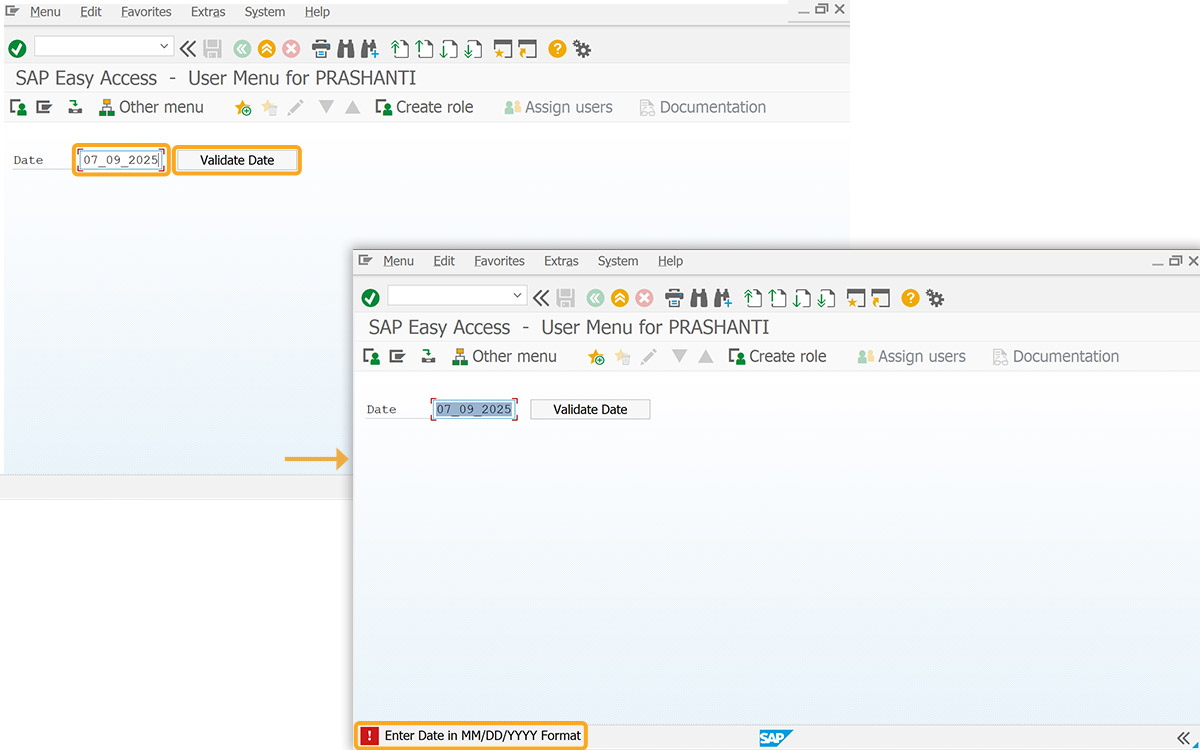
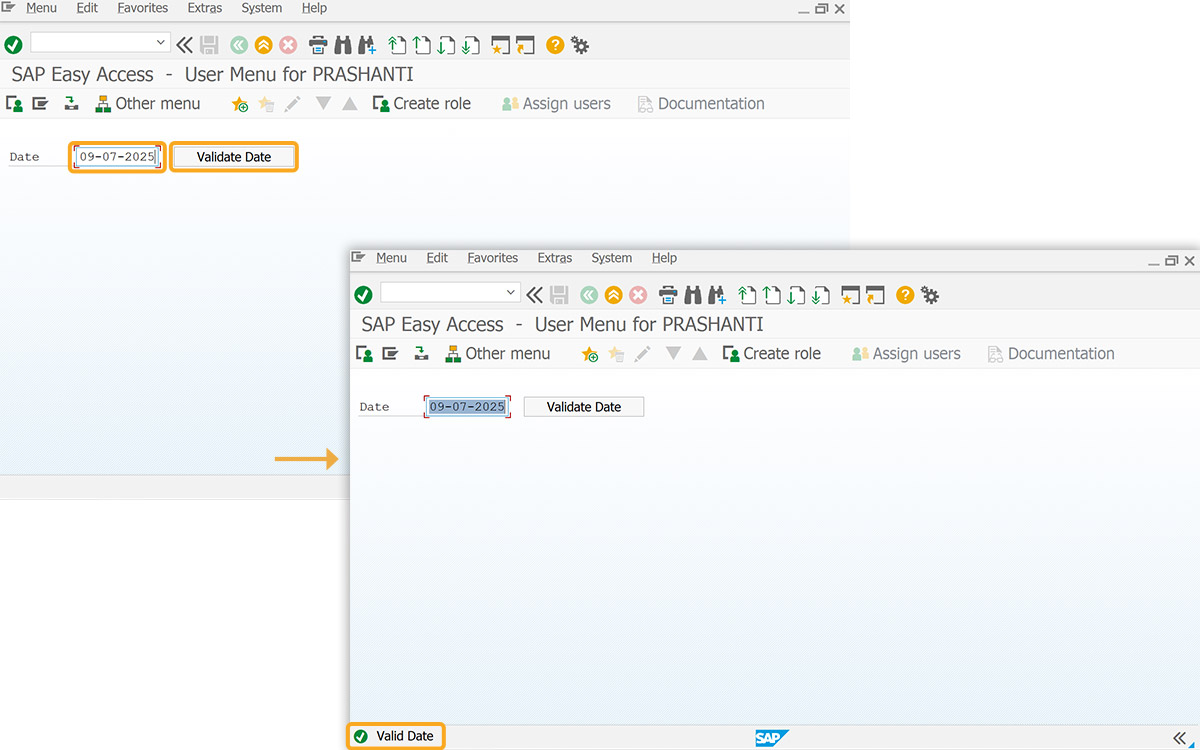
- Refresh SAP screen, enter date, and click Validate Date. If date format is correct, the Valid Date message appears.
- An invalid date format displays the error: Enter Date in DD.MM.YYYY Format.