The process to install GuiXT Designer with the Install Wizard is as follows:
- Download the Installer package from a location specified by a Synactive Support or Sales representative. The install package is named ‘DesignerSetup.exe’.
-
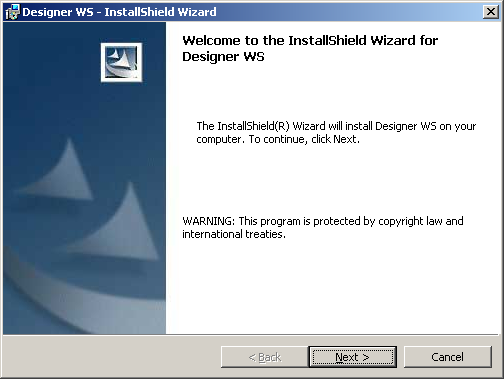
Double-click the DesignerSetup.exe package. The InstallShield Wizard will start and the following screen will appear. Click Next:
-
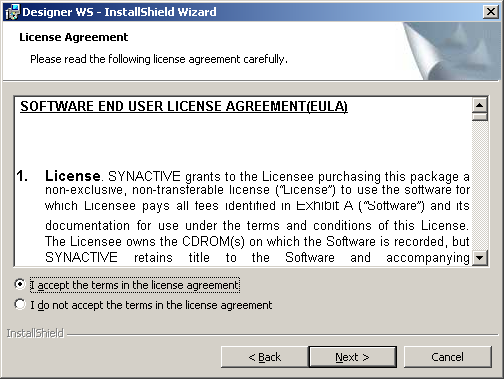
The End User License Agreement (EULA) window will display. Check the 'I Accept...' checkbox and click Next:
-
The Destination Folder window will appear. Click Next:

-
The Ready To Install window will appear. Click the Install button:

-
The status window shown below will display while the InstallShield Wizard installs the necessary files on the target system:

-
The Finish window will display when the installation successfully completes. Click the Finish button to quit the InstallShield Wizard:
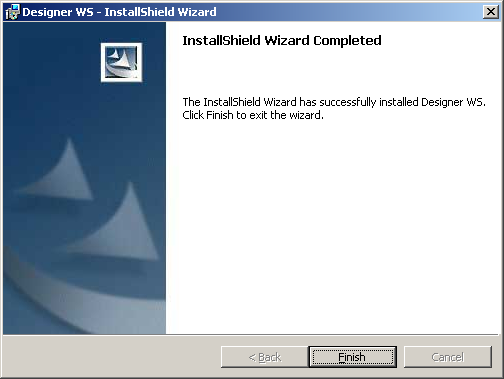
- GuiXT Designer is now installed on the target system.
Installing as Administrator
For certain Windows operating systems, you may need to install Designer as an Administrator. To install as an Administrator, please do the following:
-
Close all SAP windows, including the Logon Pad.
-
Log into the target machine as an Administrator. If you already have Administrator rights, go to Step Two below.
Note: GuiXT Designer requires that you have full administrator rights in order to install correctly. -
Right-click on the setup file and select 'Run as Administrator' as shown below:

-
Navigate to the Designer folder. The paths are as follows:
- 32-bit Systems: C:\Program Files\Synactive Inc\GuiXTDesigner
- 64-bit Systems: C:\Program Files (X86)\Synactive Inc\GuiXTDesigner
-
Right-click on 'SynSerialManager.exe' and select 'Run as Administrator' as shown below:

-
The License Manager will launch. Click Add.
-
Click the Import License File button. A dialog will open where you can browse to the Synactive license file. Select the file and click Open.
-
The license will be added to the License Manager. Click the Apply button and close the License Manager.
-
The license is now installed and Designer is ready to use.