


Purpose
This article details the process of hiding the Activate GuiXT menu item within SAP GUI. This is achieved by modifying a specific registry key and value, with instructions provided for both 32-bit and 64-bit operating systems.
Pre-requisites:
Administrative privileges are required to perform this task.

- Close all SAP GUI instances, including the SAPlogon Pad.
- Create a New Registry Key.
User Interface
32Bit Operating System.
- Open Registry Editor and navigate to:HKEY_LOCAL_MACHINE\SOFTWARE\SAP\SAPGUI Front\SAP Frontend Server\Designer Config
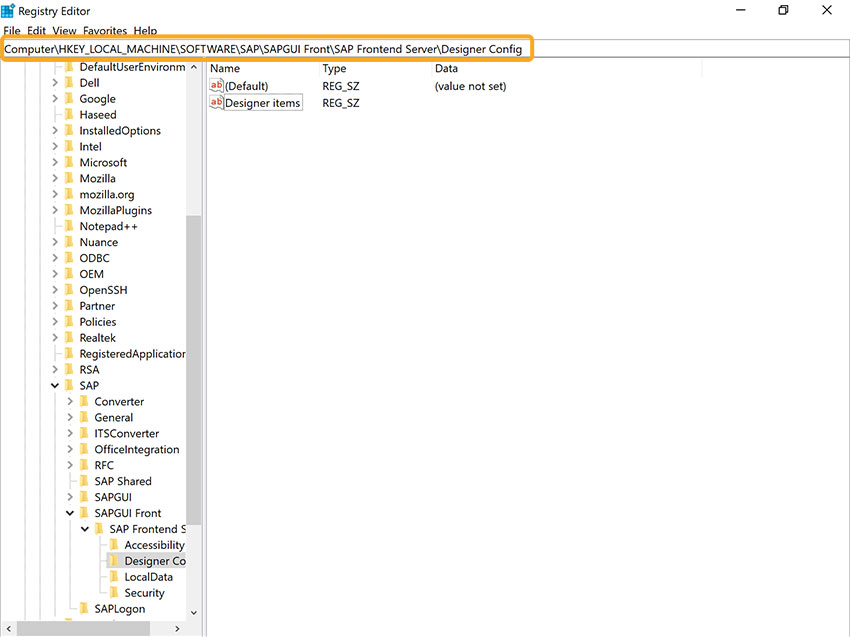
- Double-click Designer items to open a pop-up window. In the Value Data field, type Activate GuiXT and click OK.
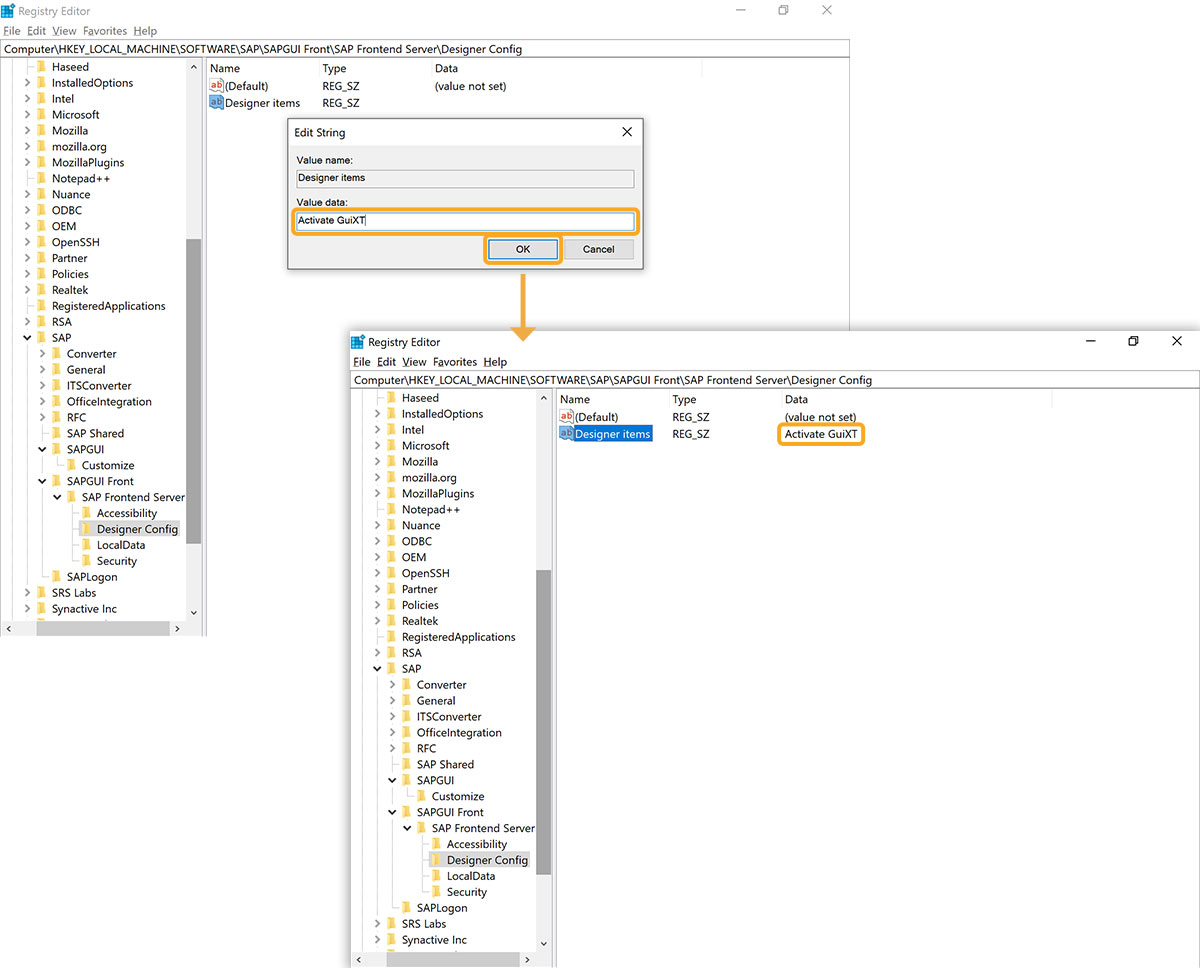
- Upon opening SAP GUI, the Activate GuiXT menu item will no longer be visible under the Customize Layout settings tab.
64Bit Operating System.
- Open Registry Editor and navigate to: HKEY_LOCAL_MACHINE\SOFTWARE\Wow6432Node\SAP\SAPGUI Front\SAP Frontend Server\Administration.
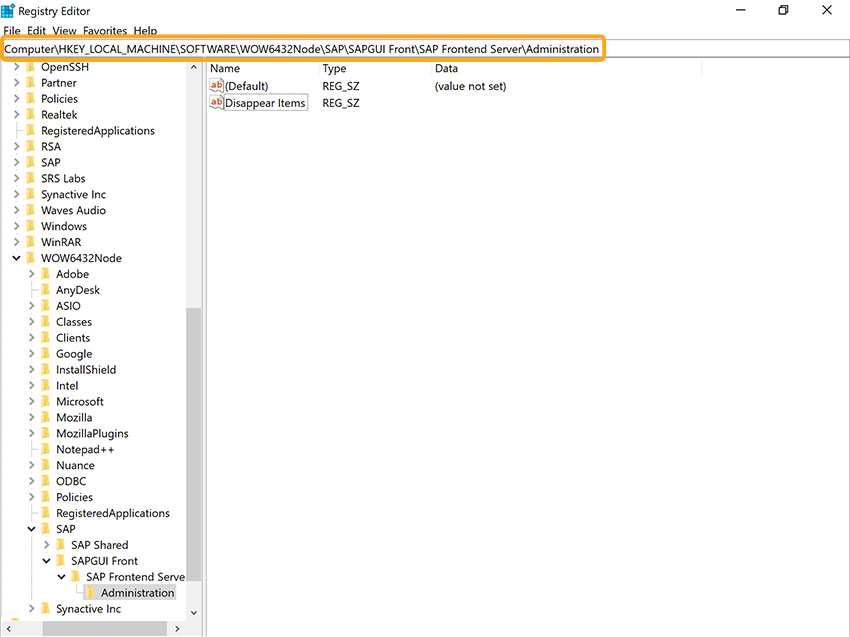
- Double-click the Disappear Items field to open a popup window. In the Value Data field, type Activate GuiXT, then click OK. An image demonstrating this step is provided below.
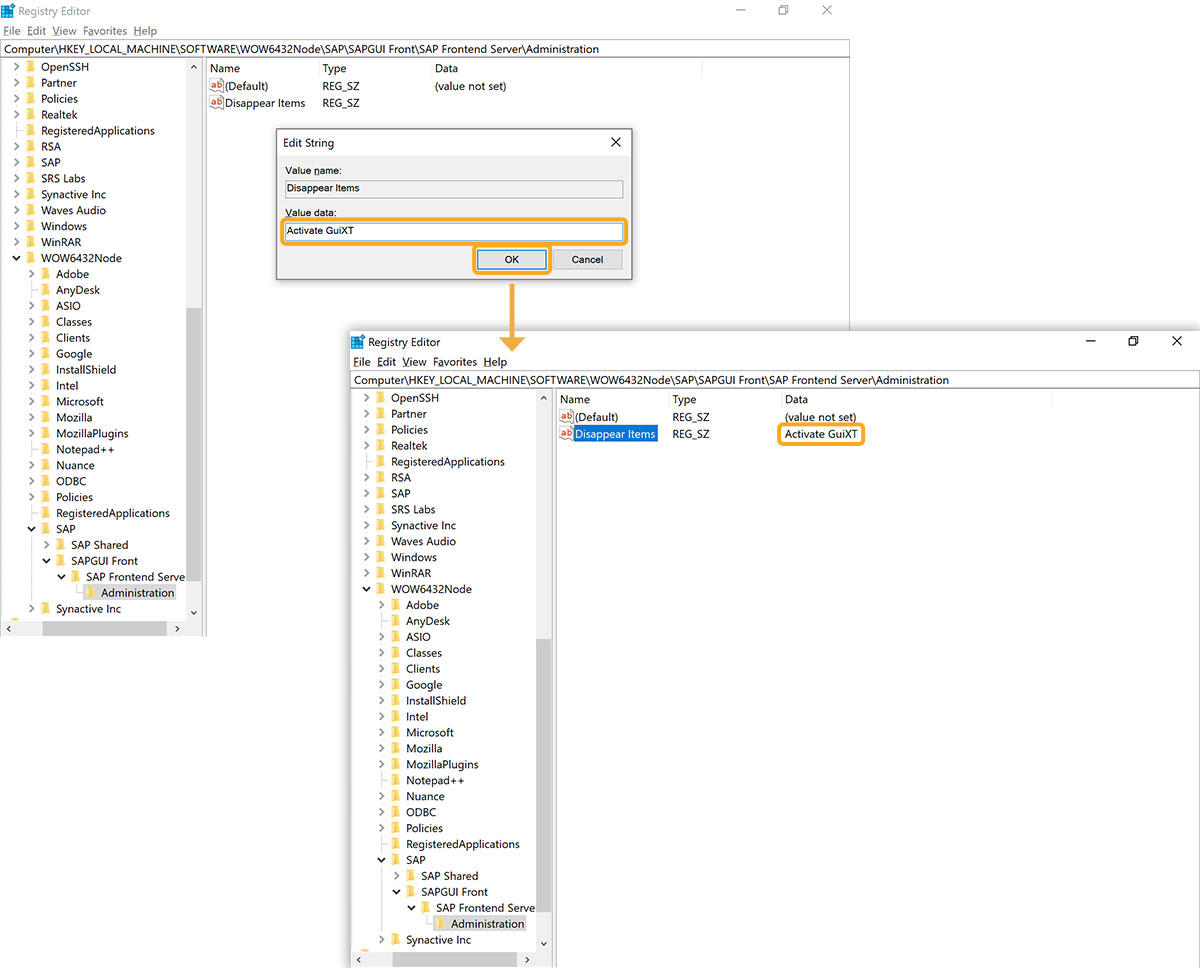
- After opening SAP GUI, the Activate GuiXT menu item will no longer be visible under the Customize Layout settings tab.