

Purpose
This article details the process of creating a new registry key and value within the Windows Registry. These configurations allow administrators to manage the visibility of specific SAP GUI menu items, thereby reducing the potential for unauthorized changes by end users.

Note: Administrative privileges are required to perform this task.
32-bit operating system
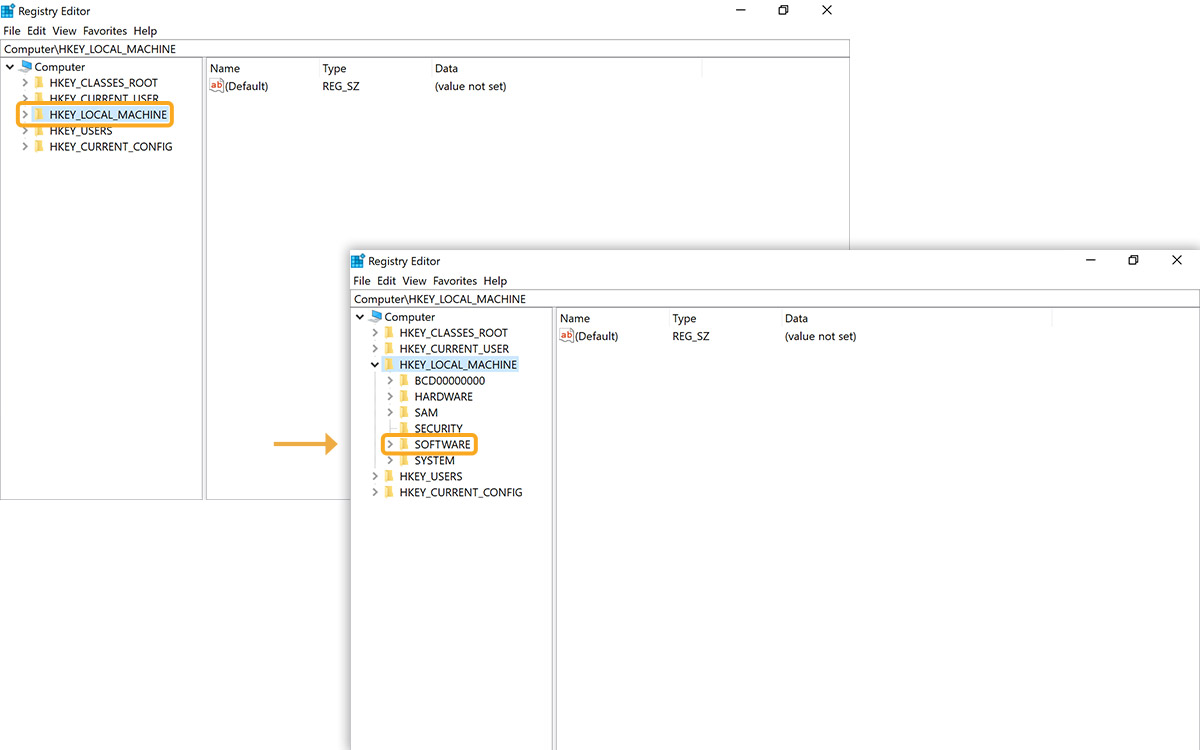
- Open Registry Editor and navigate to: HKEY_LOCAL_MACHINE->SOFTWARE
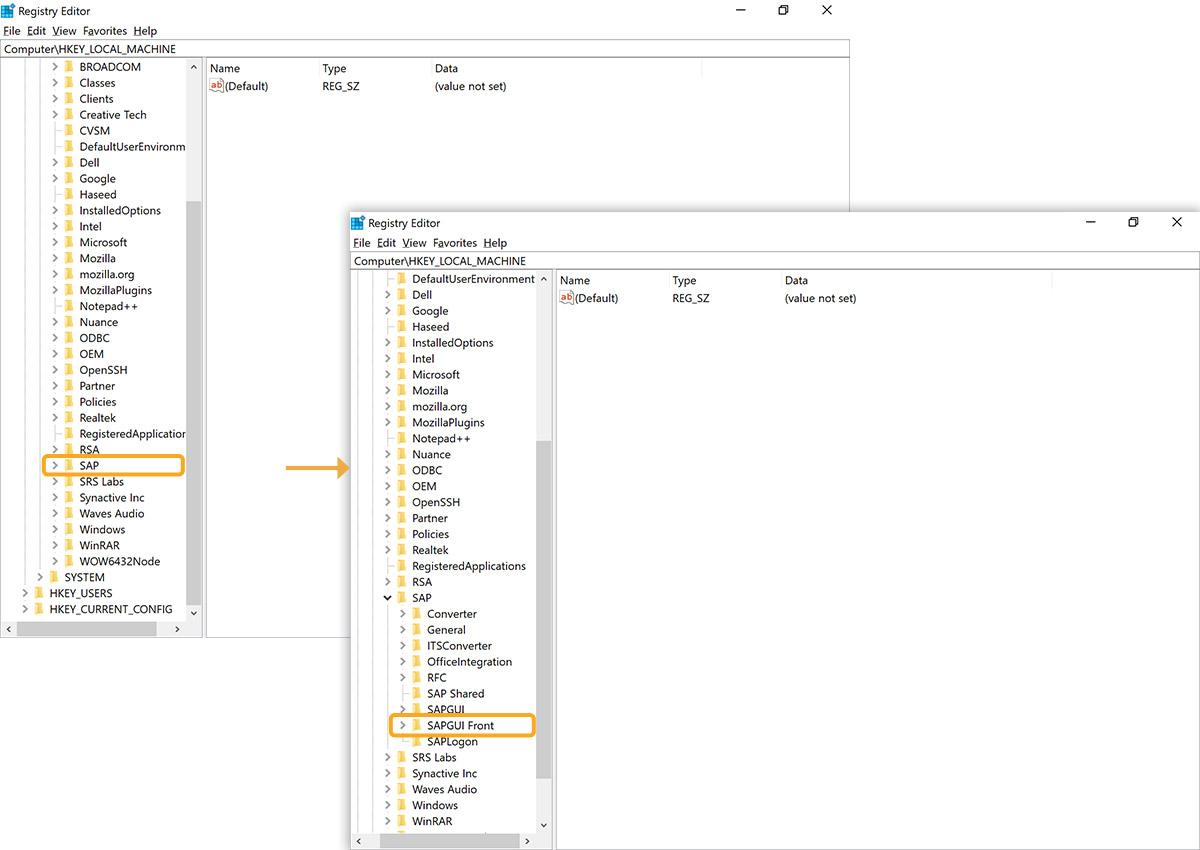
- Click SAP->SAPGUI Front.
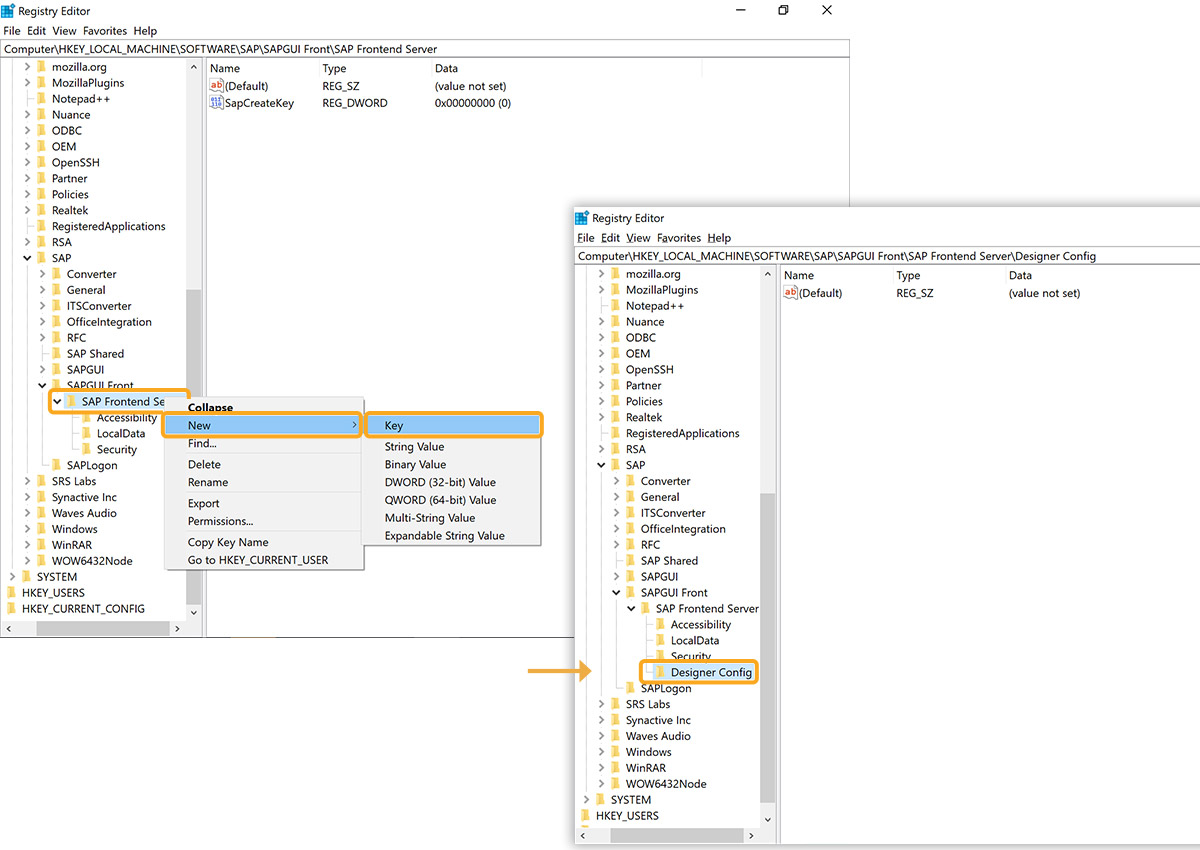
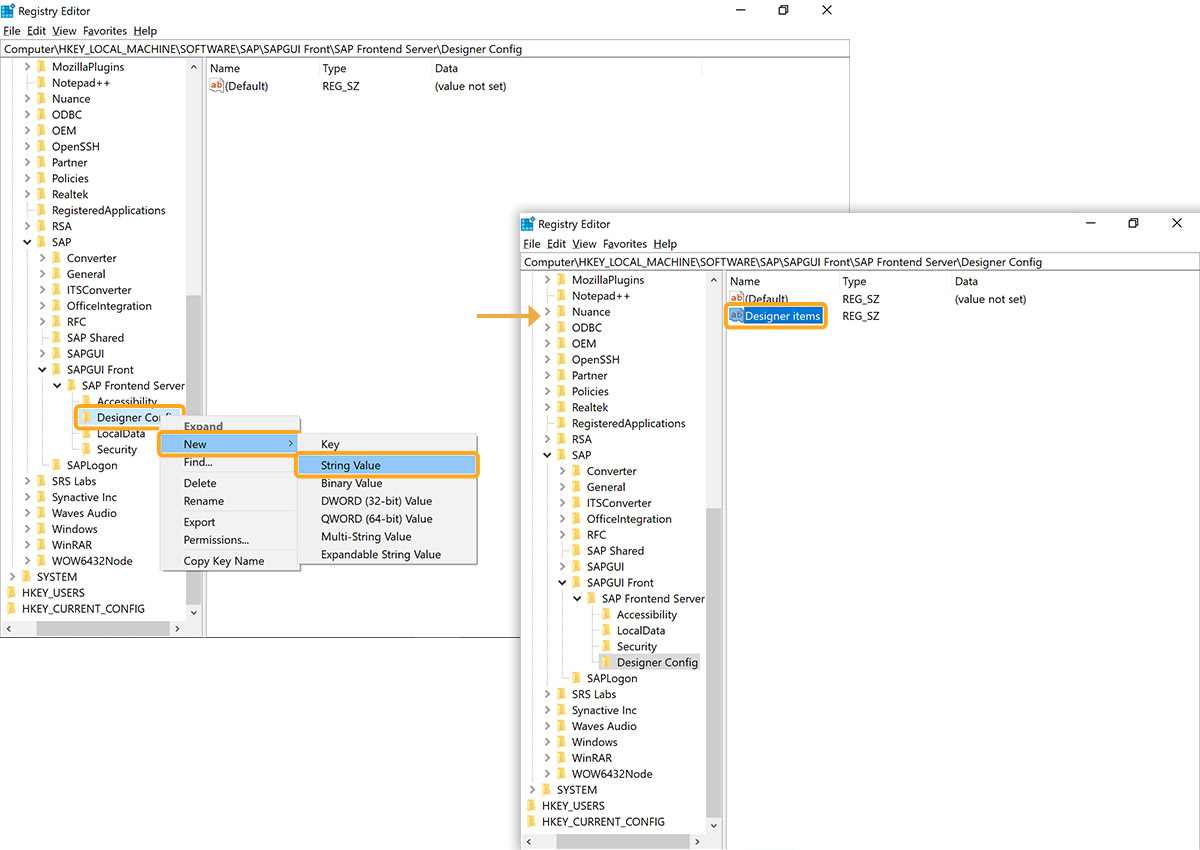
- Right-click SAP Frontend Server->New->Key and name it Designer Config, as shown in the image below.
- Right-click on Designer Config, select New->String Value, and name the string as Designer items, as shown in the image below.
64-bit operating system
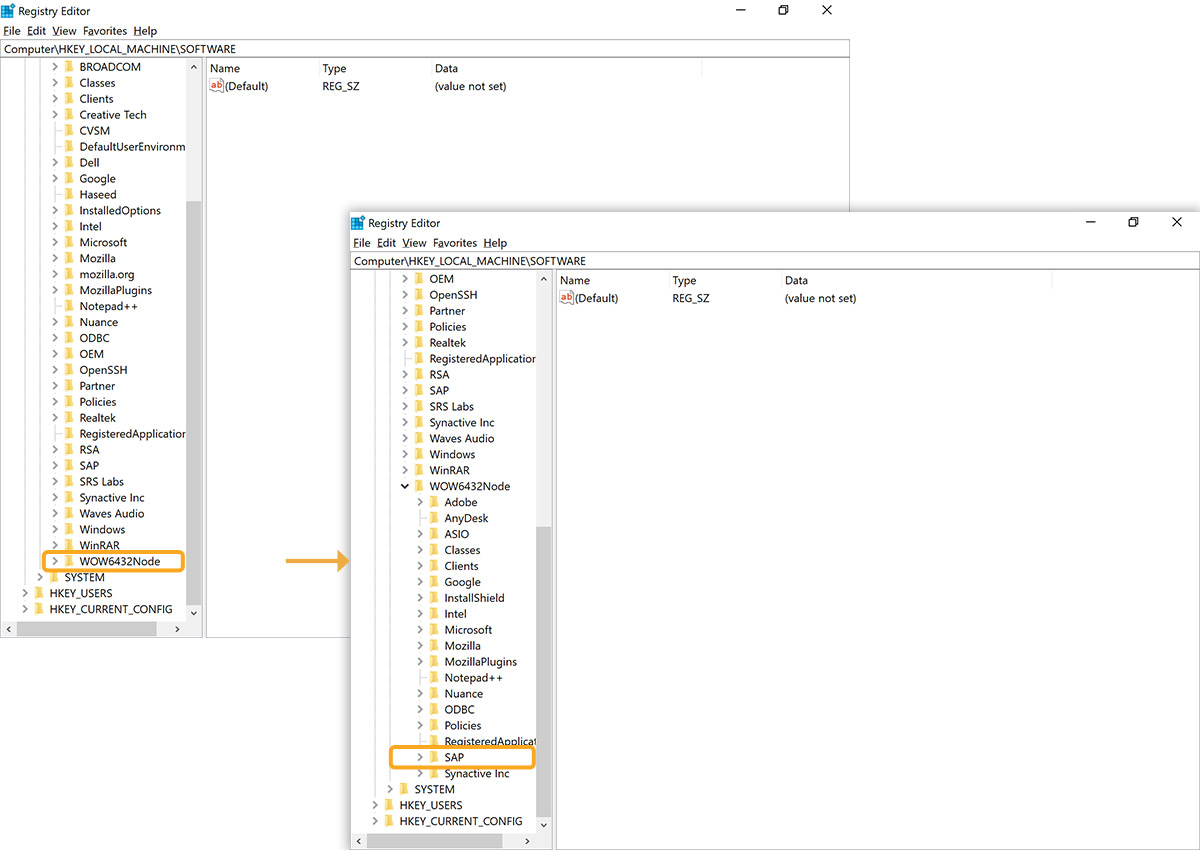
- Open Registry Editor and navigate to: HKEY_LOCAL_MACHINE->SOFTWARE
- Click WOW6432Node->SAP.
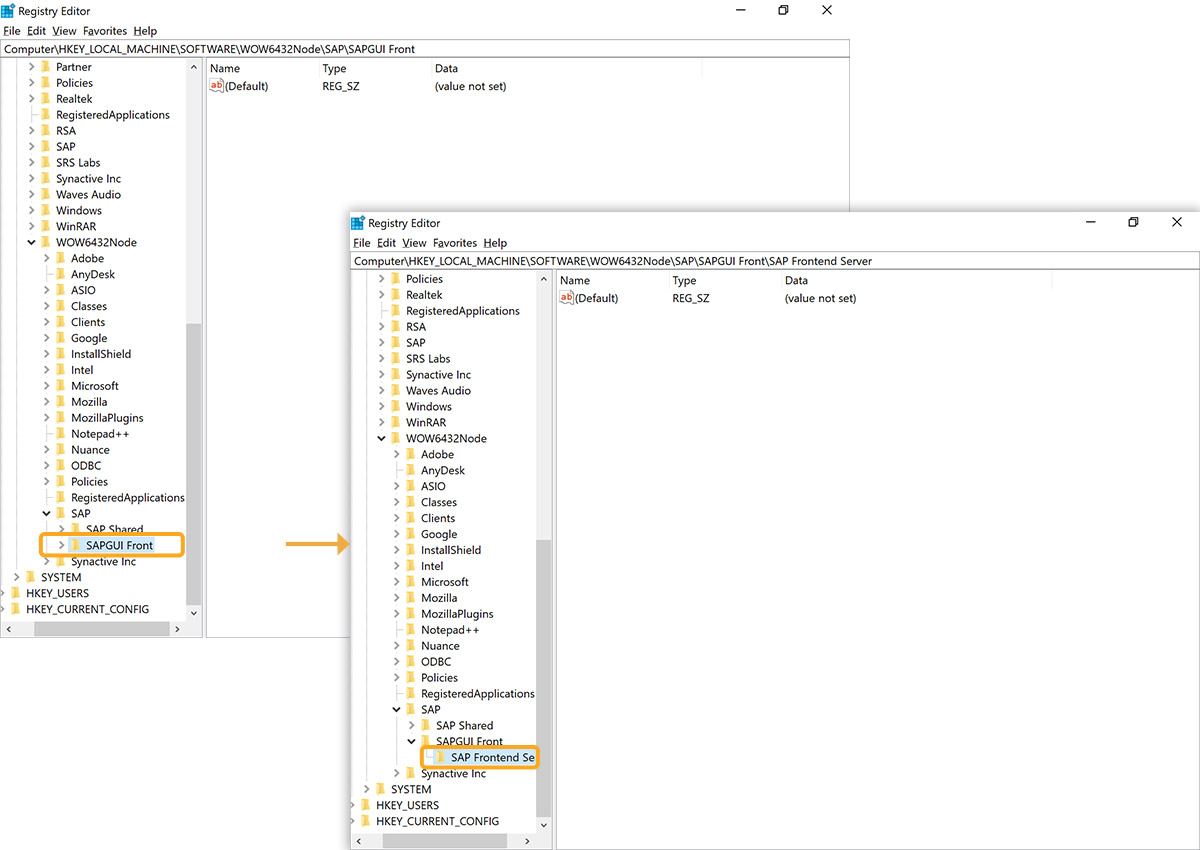
- Select SAPGUI Front-> SAP Frontend Server.
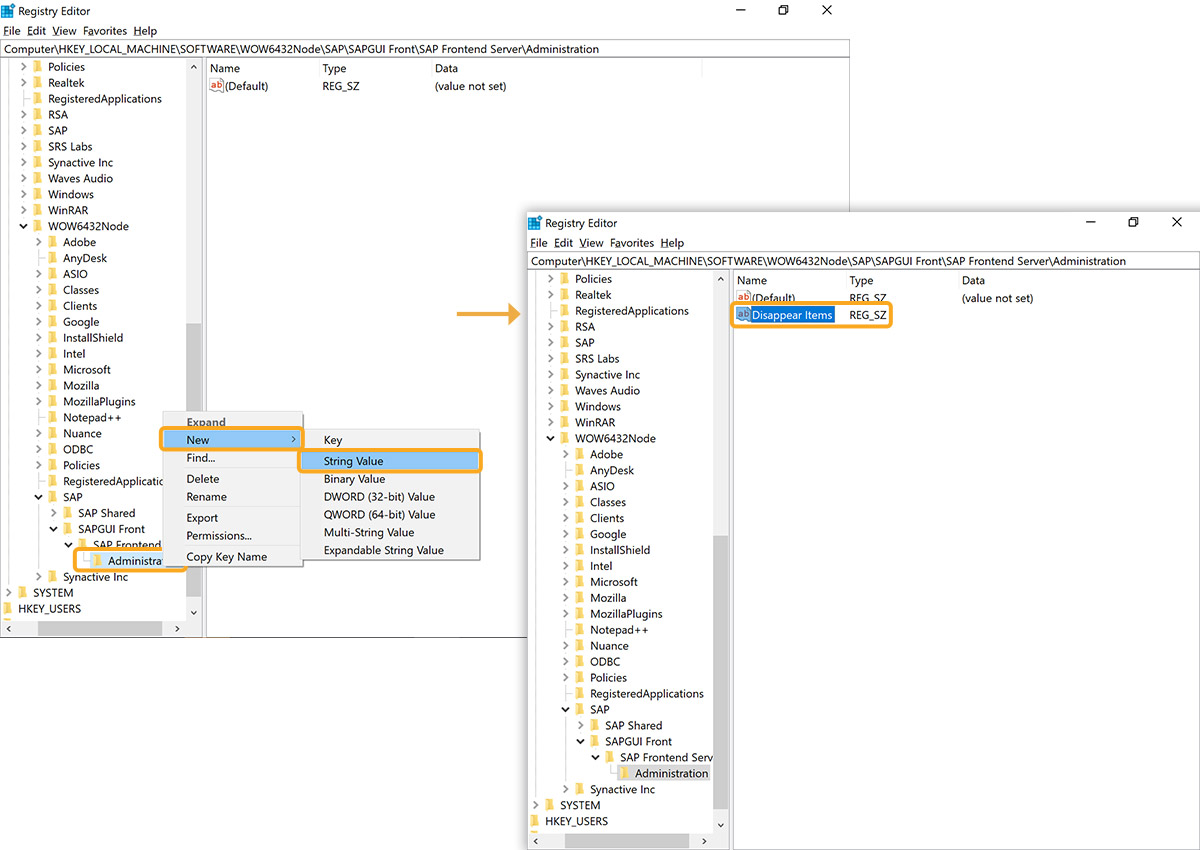
- Right-click on the SAP Frontend Server, select New->Key, and name it Administration.
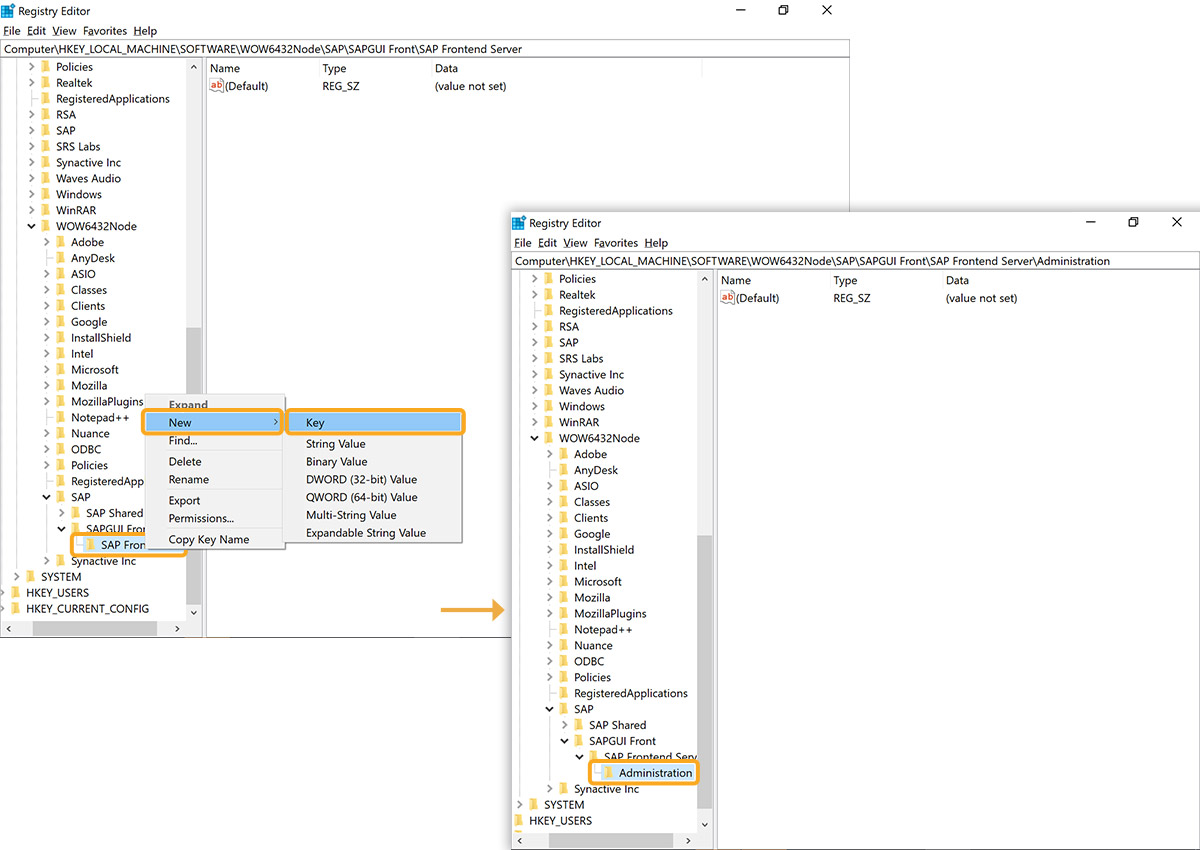
- Right-click on the Administration, select New->String Value, and name it Disappear Items, as shown in the image below.