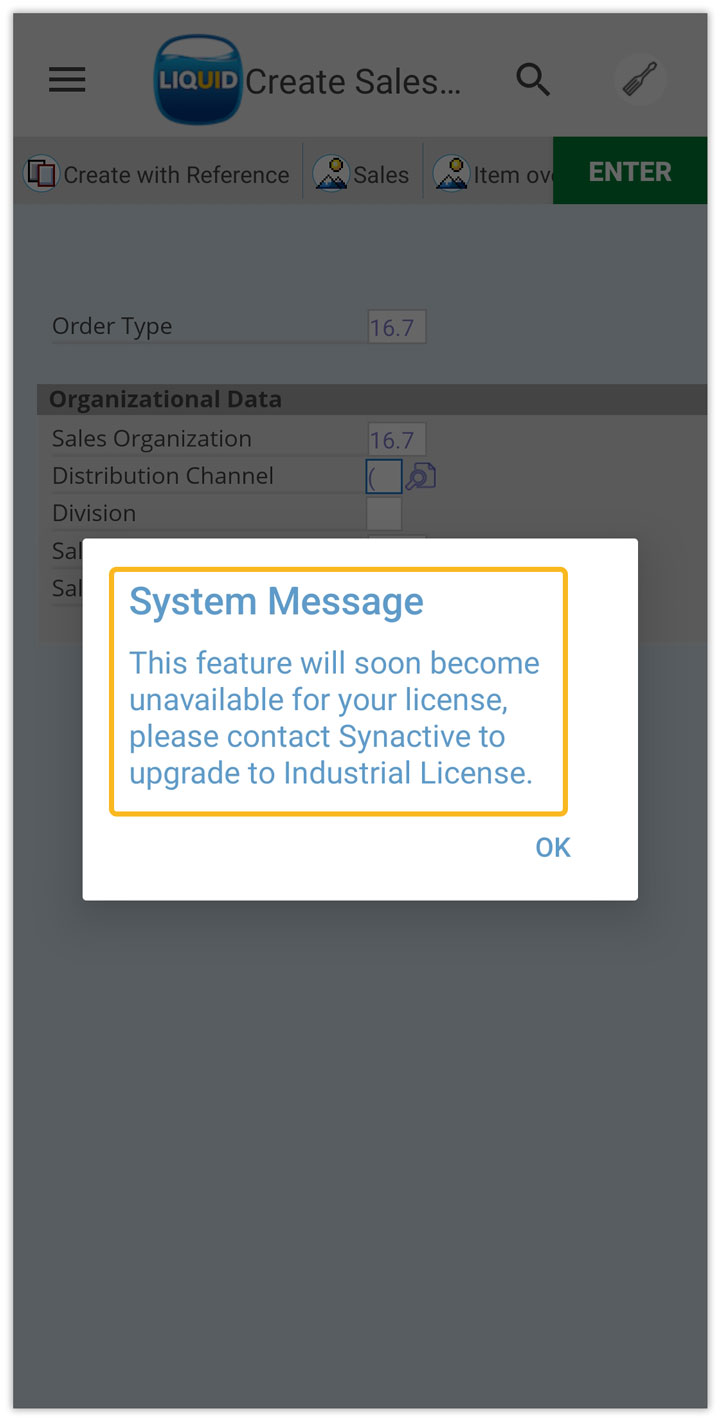


This guide helps admins understand what happens after purchasing a Liquid UI license through the portal. It guides you through the emails you’ll receive, shows you how to apply your license on your device, and explains what to expect during the process.
Confirm Your Purchase
Before setup begins, you’ll receive a billing receipt email confirming your payment was successful. This email includes:
- License type and quantity purchased
- Order number and billing details
- Confirmation of successful payment
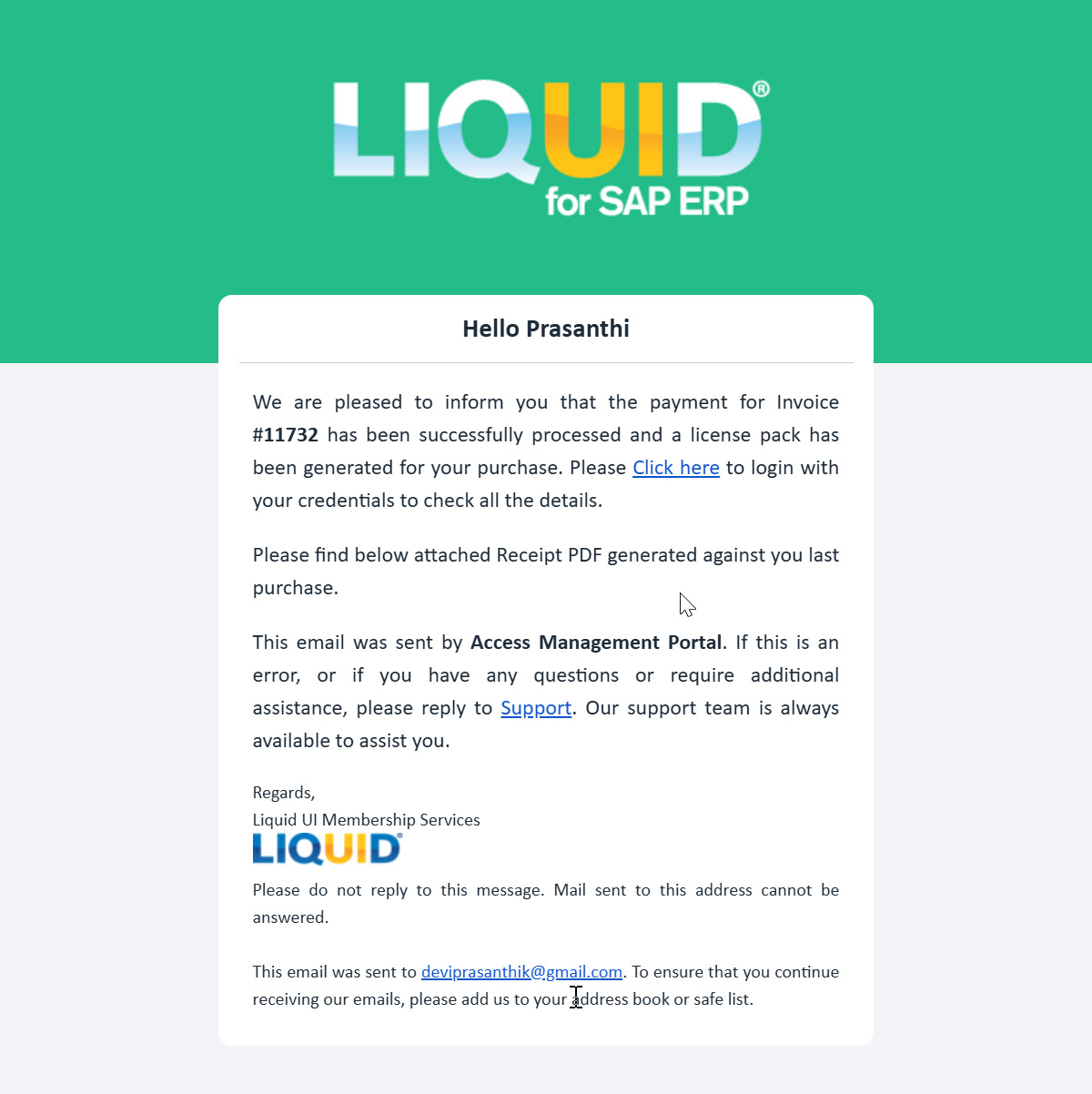
View details of the billing receipt email. This email signals that your purchase is complete.
What emails will I receive after purchase?
After your purchase is confirmed, you’ll receive two emails to get you started: one for admin portal access and one for licensing.
- Email 1: Account Activation
Subject: Your Liquid UI account is activated
This email confirms that your admin account has been activated, granting access to the Liquid UI Access Management Portal (LAMP) and contains:
- Confirmation of your admin access
- Your registered email ID (used as the LAMP username)
- A link to log in to the LAMP portal (https://ps.liquid-ui.com)
- Instructions to click Forgot Password to create your login password
- A support contact link for help

- Email 2: License Delivery
Subject: Liquid UI Portal License Delivery
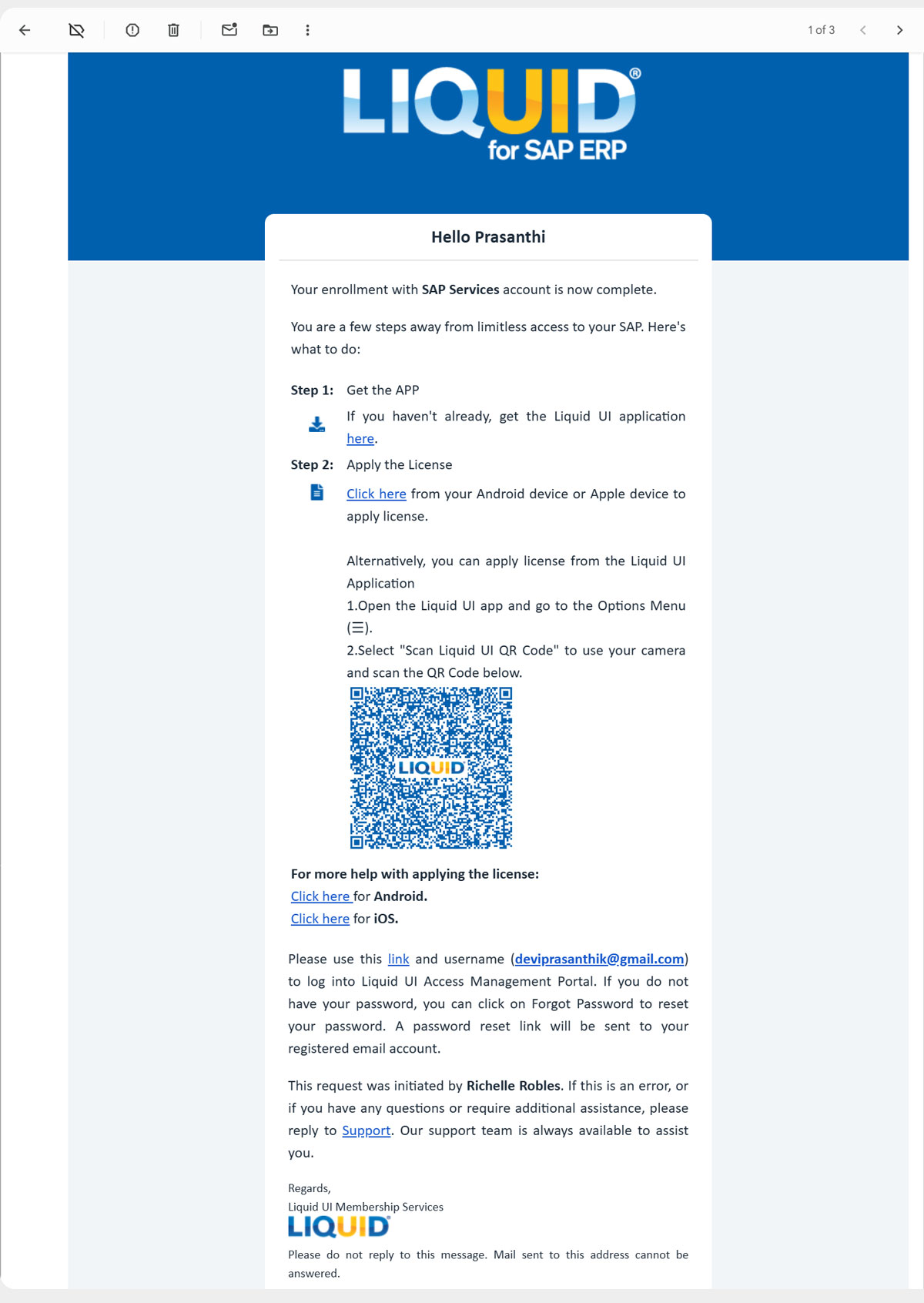
This email delivers your license and setup tools, including:
- Download links for the Liquid UI app on Android and iOS
- Step-by-step instructions to apply the license
- A “Click here” activation link to apply the license from your device
- A QR code for alternate activation via the app
- A repeat link to log in to the LAMP if needed
- Links to Knowledge Base articles for additional help.
How to apply your license
- Method 1
Using the Activation Link: Open Email 2 on your mobile device and tap the license activation link. When prompted, open it with the Liquid UI app.
- Method 2
Using the QR Code: Open the Liquid UI app, tap ☰ Menu > Request License > Apply License > Scan QR Code, and scan the QR code from Email 2.
For detailed step-by-step instructions for the above two methods, specific to your device, check out the guides:
What prompts will I see?
When the license is applied correctly, you’ll see: A pop-up confirming: License has been applied successfully.
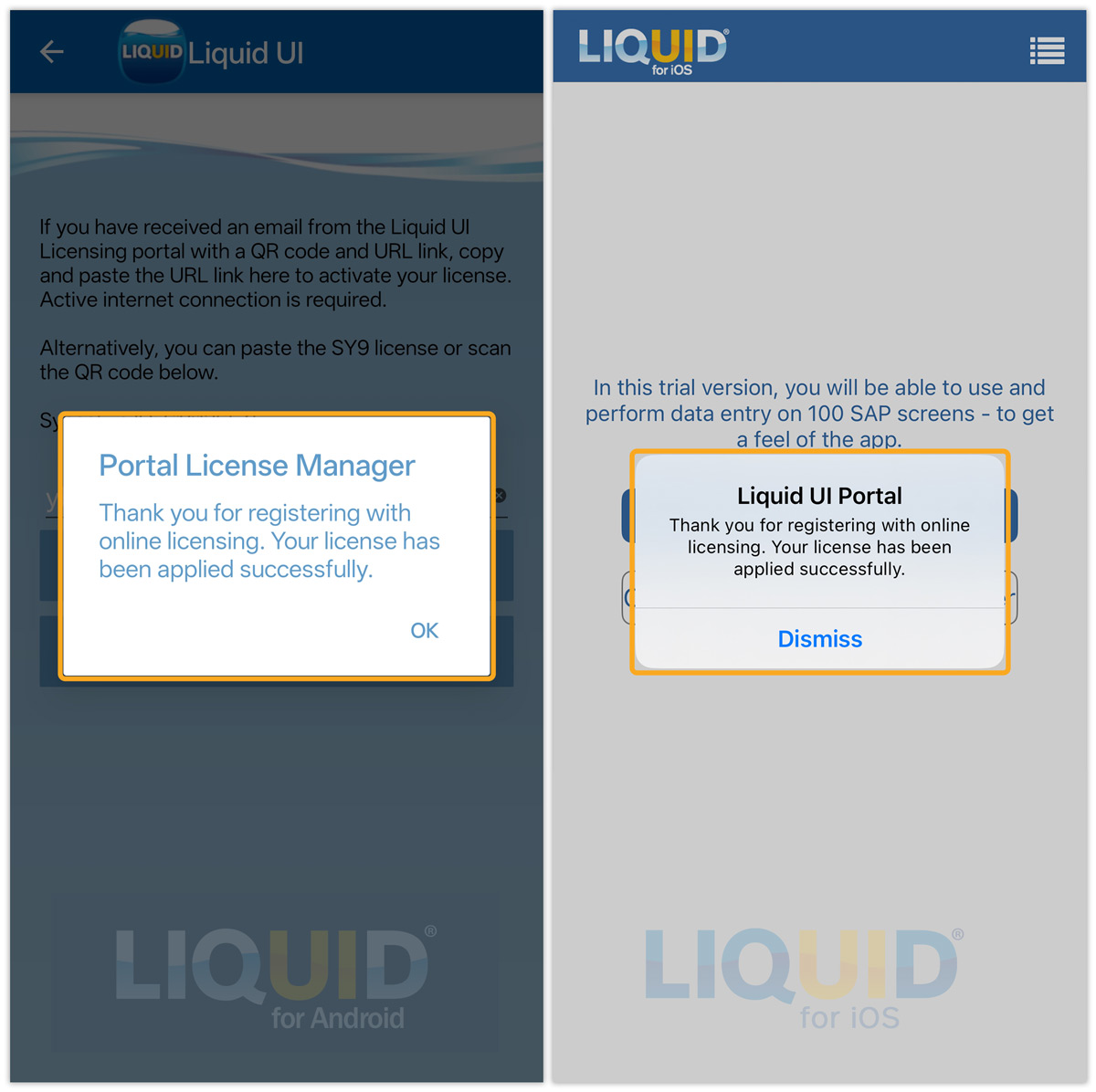
If you don’t see this message, try the alternate method or contact support.
How do I verify the license is active?
Once installed, you can verify the license from within the app:
- Open the Liquid UI app.
- Tap ☰ Menu > About.
For Android devices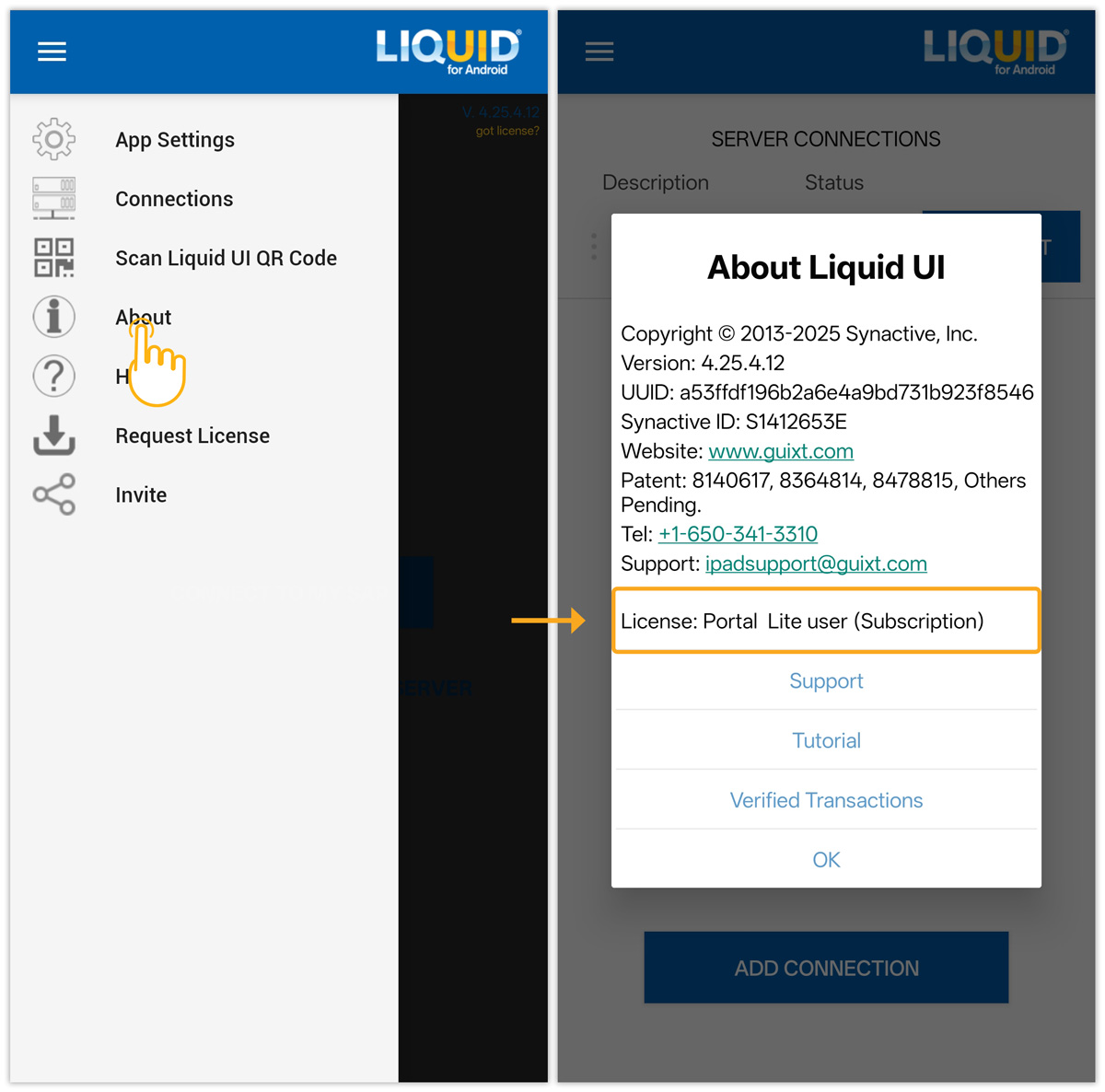
For Apple devices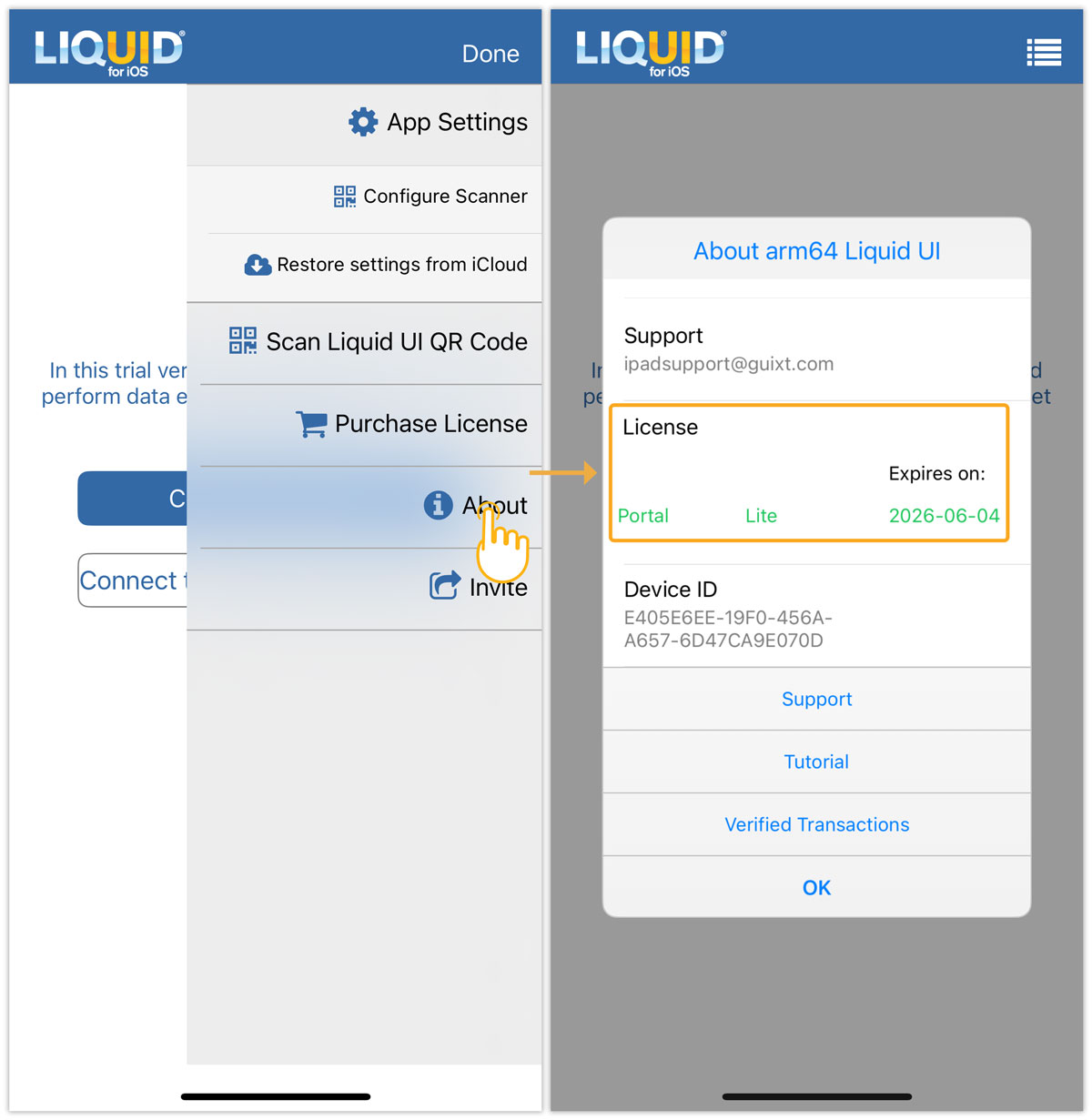
The setup is complete.
- You’ve completed all the necessary steps and are ready to start using Liquid UI
- Received your account activation and license delivery emails
- Installed the Liquid UI app
- Applied your license with the activation link or QR code
- Verified license installation success
How to check for feature limitations

Note: On Android and iOS, feature access is automatically enabled or limited based on the license variant (Industrial or Lite) without additional setup.
- Buy Industrial License: Unlock full feature access with no limitations.
- Buy Lite License: Access core functionality with limited features. Advanced features will trigger a pop-up warning when unavailable.