Explaining the set command.
The set command is one of the most useful and powerful commands in WS. The set command can be used for a wide variety of actions but the primary purpose is to assign a value either to a variable or to a field in a SAP screen. The fields can either be generated from GuiXT or native SAP fields, although the usage of the set command is different when a SAP element is involved as opposed to when a GuiXT element is used. There are several different possible syntaxes for set, which are shown in the table below:
| Syntax | Description |
|---|---|
| set("cell[table, column, row]", "abc"); | Sets a value into a specified cell in a table. |
| set("cell[table, column, row]", "&V[z_var]""); | Sets a value from a variable into a specified cell in a table. |
| set("C[checkbox]", "X"); | Marks the specified checkbox as being checked. |
| set("C[checkbox]", " "); | Marks the specified checkbox as being unchecked. |
| set("F[name]", "abc"); | Sets a specified value into a SAP inputfield. |
| set("F[name]", "&V[z_var]"); | Sets the value of a variable into the specified field. |
| set("R[radiobutton]", "X" | |
| set("V[z_var]", "abc"); | Sets the specified value into a variable. |
| set("V[z_var]", "&cell[table, col, row]"); | Sets a variable with the value contained in the specified table cell. |
| set("V[z_var]", "&C[checkbox]"); | Reads the checkbox selection and sets the variable with the checkbox value. If the checkbox is selected, the value will be "X" otherwise the value will be blank. |
| set("V[z_var]", "&F[inputfield]"); | Sets a variable with the value contained in the specified inputfield. |
| set("V[z_var]", "&R[radiobutton]"); | Reads the radiobutton selection and sets the variable with the radiobutton value. If the radiobutton is selected, the value will be "X" otherwise the value will be blank. |
| set("V[z_var]", "&V[param]"); | Sets a value of one variable into a different variable. |
| set("V[z_var]", "&V[_systemVariable]"); | Sets the value of a system variable into a variable. |
Options
The set command takes the following options.
- search
-
Specifies that a given string will be searched in the relevant text. The 'z_var' variable refers to the text that will be searched, which in this case is drawn from the _message system variable. The text case will be ignored. There are multiple syntaxes possible and these are as follows:
               set("V[z_var]"  , value ,{"search":"string"});
set("V[z_var]" , "",{"search":"string"});
set("F[Field]" , "&V[z_var]",{"search":"string"});
set("V[z_var]" , "&F[Field]" , {"search":"string"});
When using the search option, the text returned should be the first string following the term specified in the search statement. The search option currently works with the following uses of set:
- set("cell[table, col, row]", "abc");
- set("F[fieldName]", "abc");
- set("F[fieldName]", "&V[z_var]");
- set("V[z_var]", "&F[fieldName]");
- set("V[z_var]", "abc");
- uppercase
-
Specifies that the value being set will be put into uppercase. The syntax is as follows:
set("V[z_var]", value, {"uppercase":true});The uppercase option is implemented in all releases of WS subsequent to the 2 1.2.141.0 release from April 2012. This option will work with the following usages of set:
- set("cell[table, col, row]", "abc");
- set("F[fieldName]", "abc");
- set("F[fieldName]", "&V[z_var]");
- set("V[z_var]", "&F[fieldName]");
- set("V[z_var]", "abc");
Example
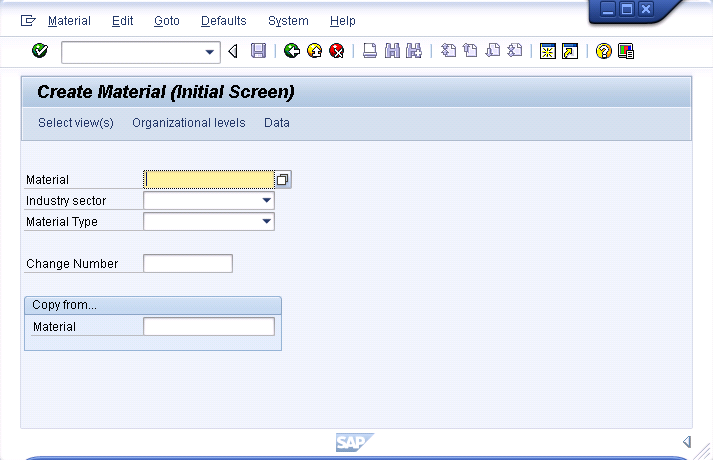
We will demonstrate how the del command works on the MM01 initial screen. The default screen appears as follows:
- Open the SAPMV45A.E0100.sjs script file. Create it if does not exist.
-
Add the following code to the script file:
clearscreen();
-
All existing elements will be removed and the screen will now appear as shown below: