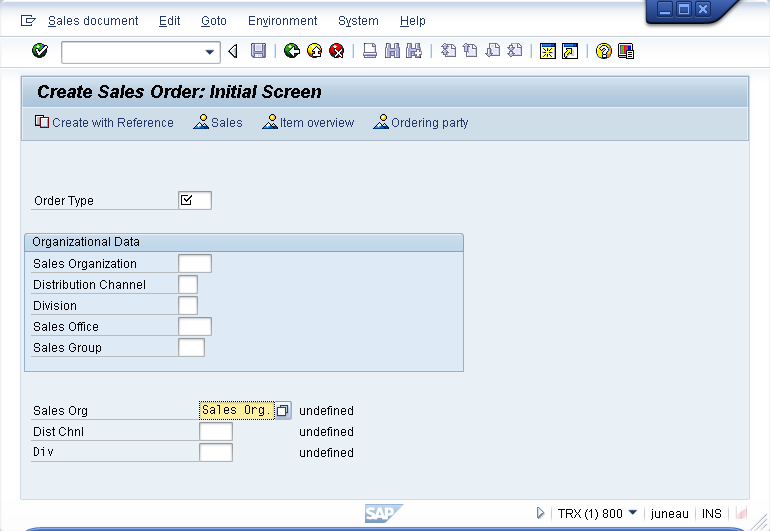
Examples demonstrating how the searchhelp option is used.
Please seee the following examples.
shname1-9 / shdest1-9
shname and shdest are used to specify where any additional information associated with the searchhelp will be displayed. Up to nine fields can be so designated.
To demonstrate the shname and shdest functionality, please do the following:
-
Create a new inputfield on the main VA01 screen. The code is as follows:
inputfield([15,1], "Sales Org", [15,25], {"name":"z_sorg", "size":10, "searchhelp":"H_TVKO", "shname1":"VTEXT", "shdest1":"V[z_sorg_desc]"}); text([15,39], "&V[z_sorg_desc]"); -
The screen displays as shown below:
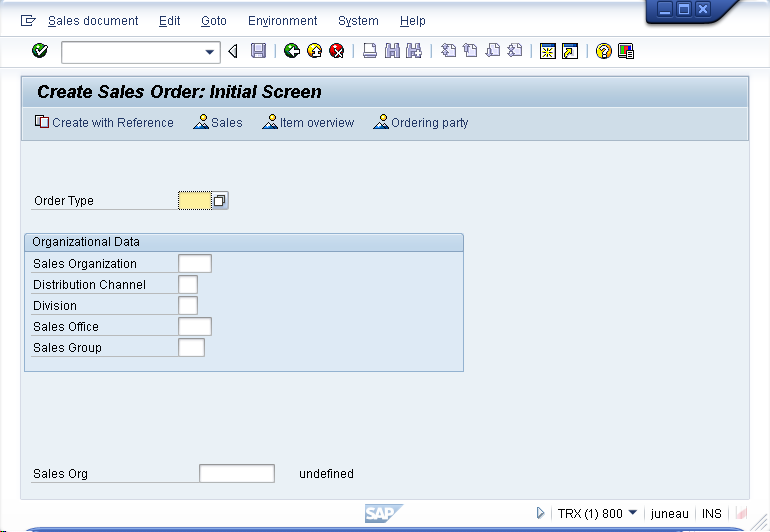 Note: We used the text command to create the onscreen text beside the inputfield
-
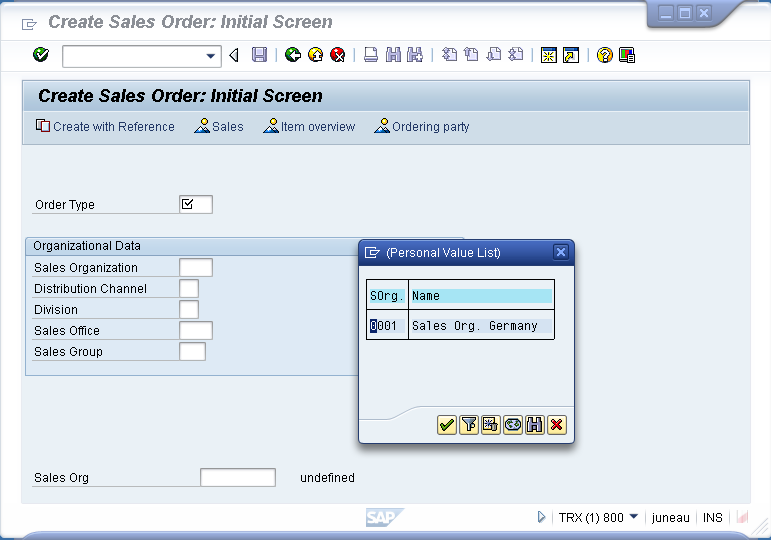
Click the icon beside the field to display the searchhelp list of available entries showsn in the following example:
-
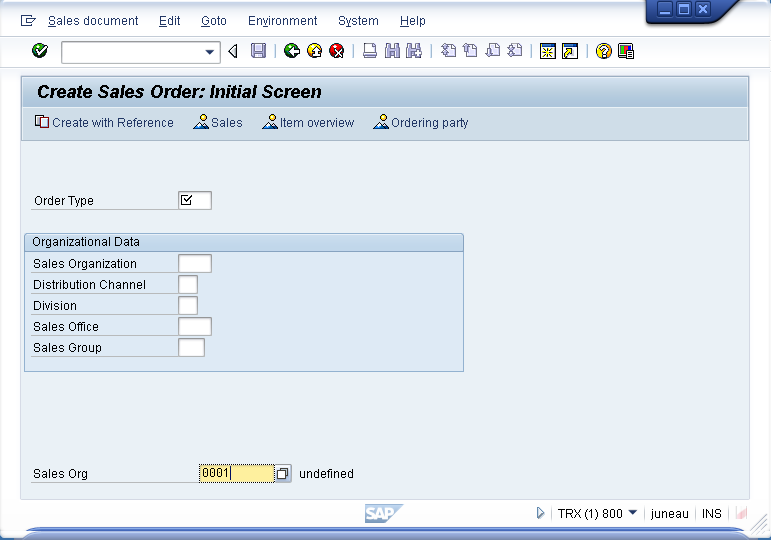
Double-click on an entry in the list. The field will be populated and the description will display beside the inputfield as shown in the example below:
shselname / shselvalue
shselname and shselvalue are used to designate up to nine matchcodes that can be supported in searchhelp. These matchcodes refer to other fields, so if you enter a value in one of these fields, the resulting searchhelp will be restricted or customized to a specific dataset based on the value you entered. To demonstrate how shselname and shselvalue work, please do the following:
-
Open the VA01 script file (SAPMV45A.E0101.sjs) and use the following code to create three inputfields. Create the script file if it does not already exist.
inputfield([12,1], "Sales Org", [12,25], {"name":"z_sorg", "size":10, "searchhelp":"H_TVKO", "shname":"VKORG", "shname1":"VTEXT", "shdest1":"V[z_sorg_desc]"}); text([12,39], "&V[z_sorg_desc]"); inputfield([13,1], "Dist Chnl", [13,25], {"name":"z_dchnl", "size":4, "searchhelp":"H_TVKOV", "shname":"VTWEG", "shselname1":"VKORG", "shselvalue1":"V[z_sorg]", "shname1":"VTEXT", "shdest1":"V[z_sdchnl_desc]", "shname2":"VKORG", "shdest2":"V[z_sorg]"}); text([13,39], "&V[z_sdchnl_desc]"); inputfield([14,1], "Div", [14,25], {"name":"z_div", "size":4, "searchhelp":"H_TVTA", "shname":"SPART", "shselname1":"VKORG", "shselvalue1":"V[z_sorg]", "shselname2":"VTWEG", "shselvalue2":"V[z_dchnl]", "shname1":"VTEXT", "shdest1":"V[z_div_desc]", "shname2":"VKORG", "shdest2":"V[z_sorg]", "shname3":"VTWEG", "shdest3":"V[z_dchnl]"}); text([14,39], "&V[z_div_desc]"); -
Save the changes and refresh the SAP screen.
-
The screen now appears as follows:
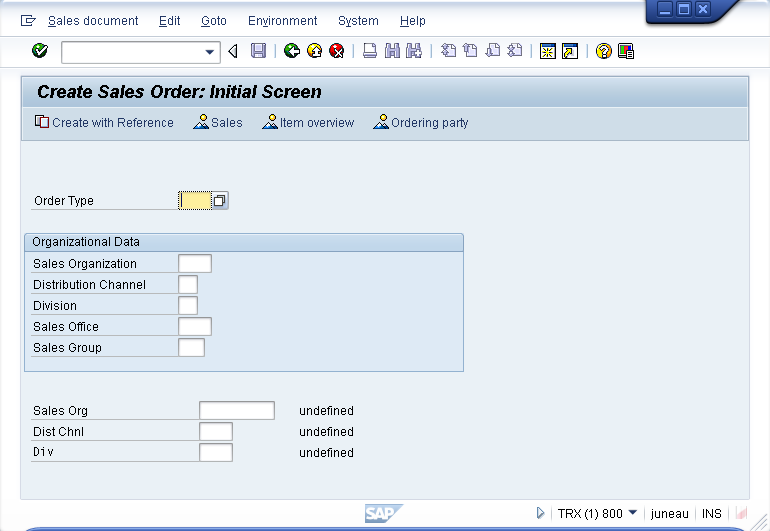
-
Click on the Dist Chnl field. The searchhelp will display as shown below:
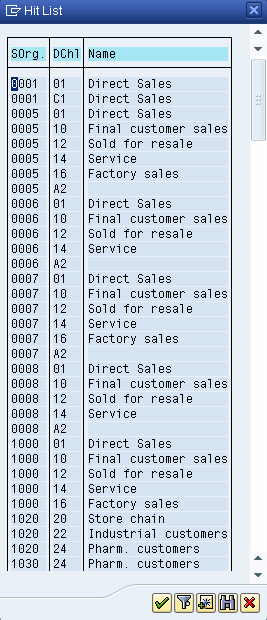
-
Type 1000 into the Sales Org field and then click the searchhelp for the Dist Chnl field again. The searchhelp will display as shown below:
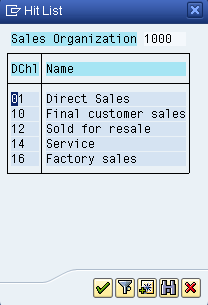
-
Note that the searchhelp contains fewer options now that a value has been entered into the Sales Org field.
-
Remove the value from the Sales Org field and click on the searchhelp for the Div field. it will display as shown below:
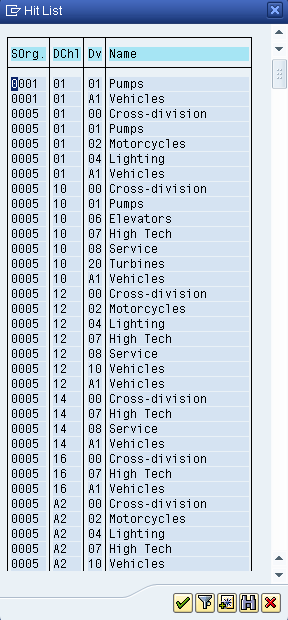
-
Type 1000 into the Sales Org field and click the searchhelp for the Div field. It will display as shown below.
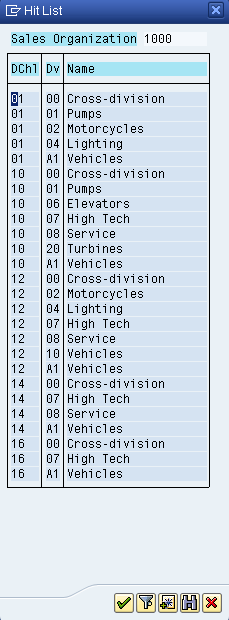
-
Without removing the value from the Sales Org field, type 10 Dist Chnl fields and click the searchhelp for the Div field. it will display as follows:
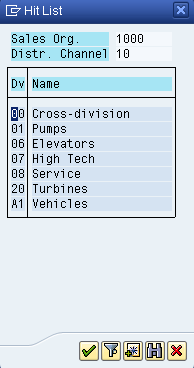
fname01
The value entered in the field is usually the shname value, which is in the Sales Org field in the following example. However, by using the fname0 option, you can enter the description into the field instead. In the following example, this description is in the Name column of the searchhelp dialog window. In the following example, we will create an inputfield and enter the description instead of the value in the field. The code is as follows:
-
Change the Sales Org inputfield on the VA01 screen by using the following code:
inputfield([12,1], "Sales Org", [12,25], {"name":"z_sorg", "size":10, "searchhelp":"H_TVKO", "fname0":"VTEXT", "shname":"VKORG", "shname1":"VTEXT", "shdest1":"V[z_sorg_desc]"});text([12,39], "&V[z_sorg_desc]"); -
Click the searchhelp icon for the Sales Org field. The searchhelp screen will display as shown below:
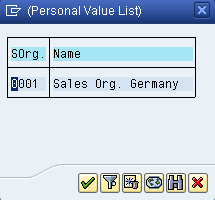
-
Note that the text entered into the field has changed from the value 1000 to the text 'Sales Org.' as shown below: