Demonstrates how applyguiscript is used with templates.
We will use a pushbutton to execute a process that includes calling a VBScript. The VBScript is named 'test_apgs1.vbs' and will be placed in the designated script directory. We will then create a custom function that will include the applyguiscript command to call the VBS script. The screen is displayed as shown below:

The code is as follows:
for(a=firstChild; a!=null; a=a.nextSibling)
	a.del();

pushbutton([3,17],"Display Image in Attachment" , "/niw22",{"process":iw21_displayatt,"size":[1,30]});

function iw21_displayatt(){
	onscreen 'SAPLIQS0.0100'
		set("F[Notification]" , "10008358");
	enter();
	onscreen 'SAPLIQS0.7200'
		applyguiscript('test_apgs1.vbs');
	onscreen '*'
	onscreen 'SAPLIQS0.7200'
	enter("/n");
}
Once the name of the VBS script has been passed to GuiXT, the applyguiscript command can call the specified VBScript as shown in the preceding example. A dialog box as shown below will notify the user that a script is trying to attach to the SAP GUI:
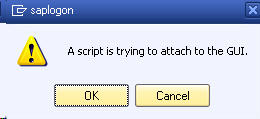
Once the user clicks OK, the script will execute. In this case the VBScript is what will actually display the specified image in an attachment.